
01Who this is for
- Community managers who need to control who sees premium training material, ensuring only approved members get access.
- Coaches who run invitation only programs and must grant course entry manually to each participant.
- HR teams using internal learning portals to restrict sensitive onboarding courses to selected employees.
02Member specific course access, explained
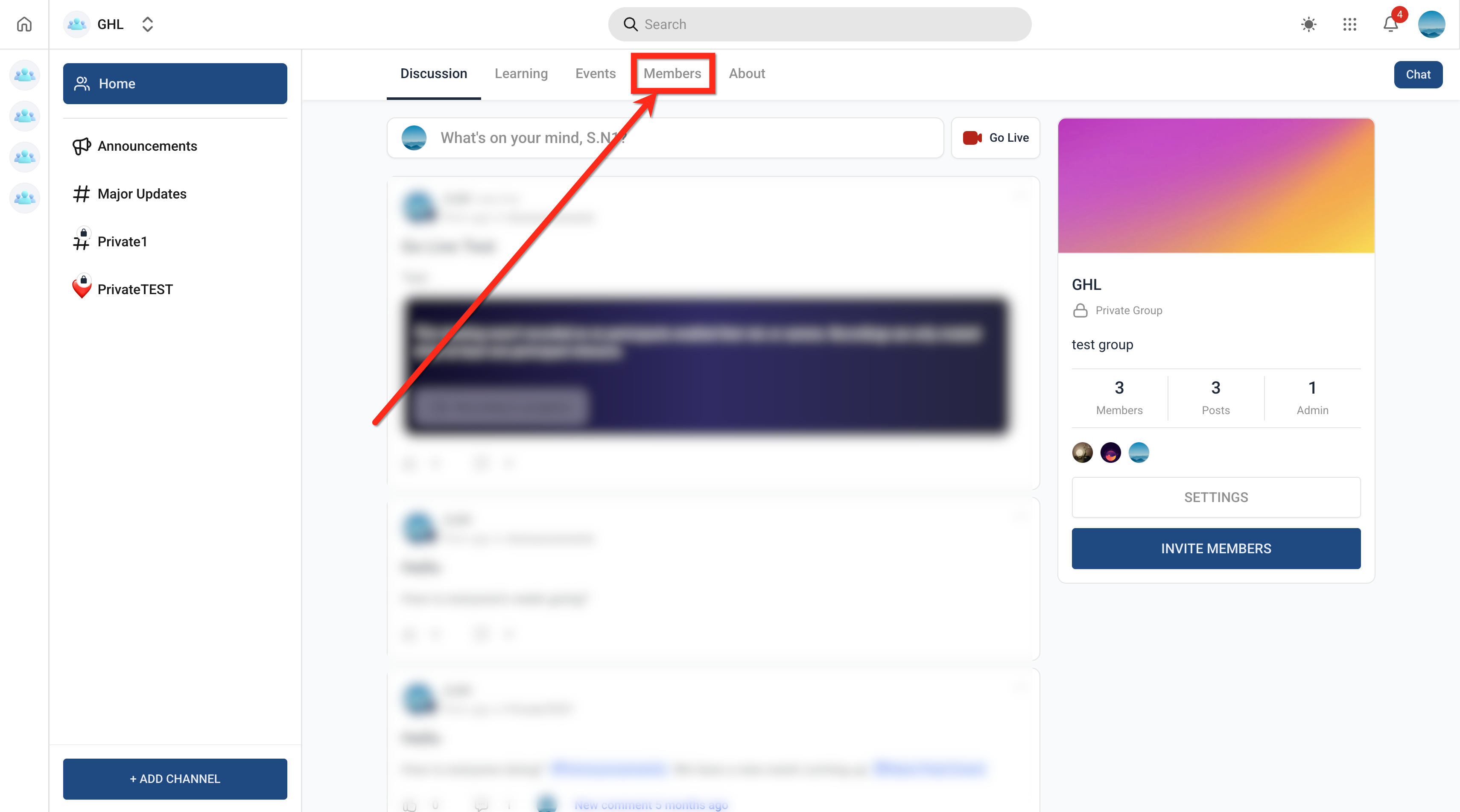
Member Specific Course Access adds a manual layer to the existing automatic unlock rules in a community. An admin can open a locked course for a single member without changing level, payment, or time settings. Private courses are a type that never unlocks automatically; they appear locked until the admin approves access. The feature lives inside the community’s Members tab, where each member’s course list can be edited.
The visibility option for a course is set when the course is added to the Learning tab. Selecting Private, Access granted by admin only makes the course unavailable to all members until an admin uses the Manage Courses panel to grant it. Once granted, the member receives an email informing them of the newly unlocked content.
03How businesses use member specific course access
- Coaching business. The coach creates a private course for a VIP client group. After adding the course, the coach opens the Members tab, selects the client’s name, and uses Manage Courses to grant the private course. The client gets an email and can start the lessons immediately.
- Corporate training team. The training team adds a confidential compliance module as a private course. When a new employee joins, the HR specialist opens the employee’s profile in the Members tab, chooses Manage Courses, and grants the compliance course only to that employee.
- Online academy. The academy offers a limited time workshop that is not for sale. The admin adds the workshop as a private course, then manually grants it to the handful of students who earned an invitation, using the Manage Courses screen.
04How to set up and use member specific course access in HighLevel
Add a private course to the Learning tab
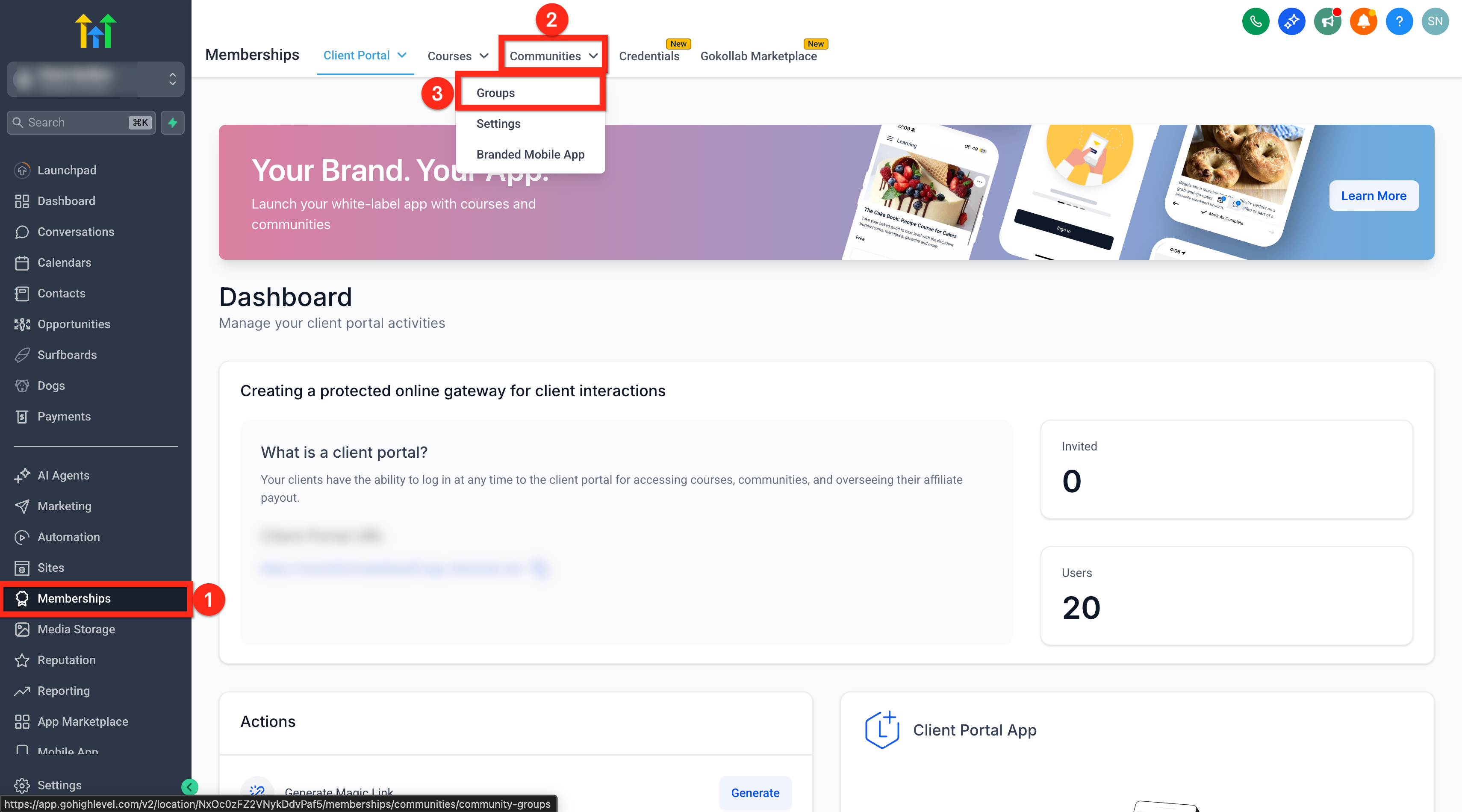
- Open the subaccount and select Memberships.
- Navigate to Communities.
- Choose Groups from the dropdown menu.
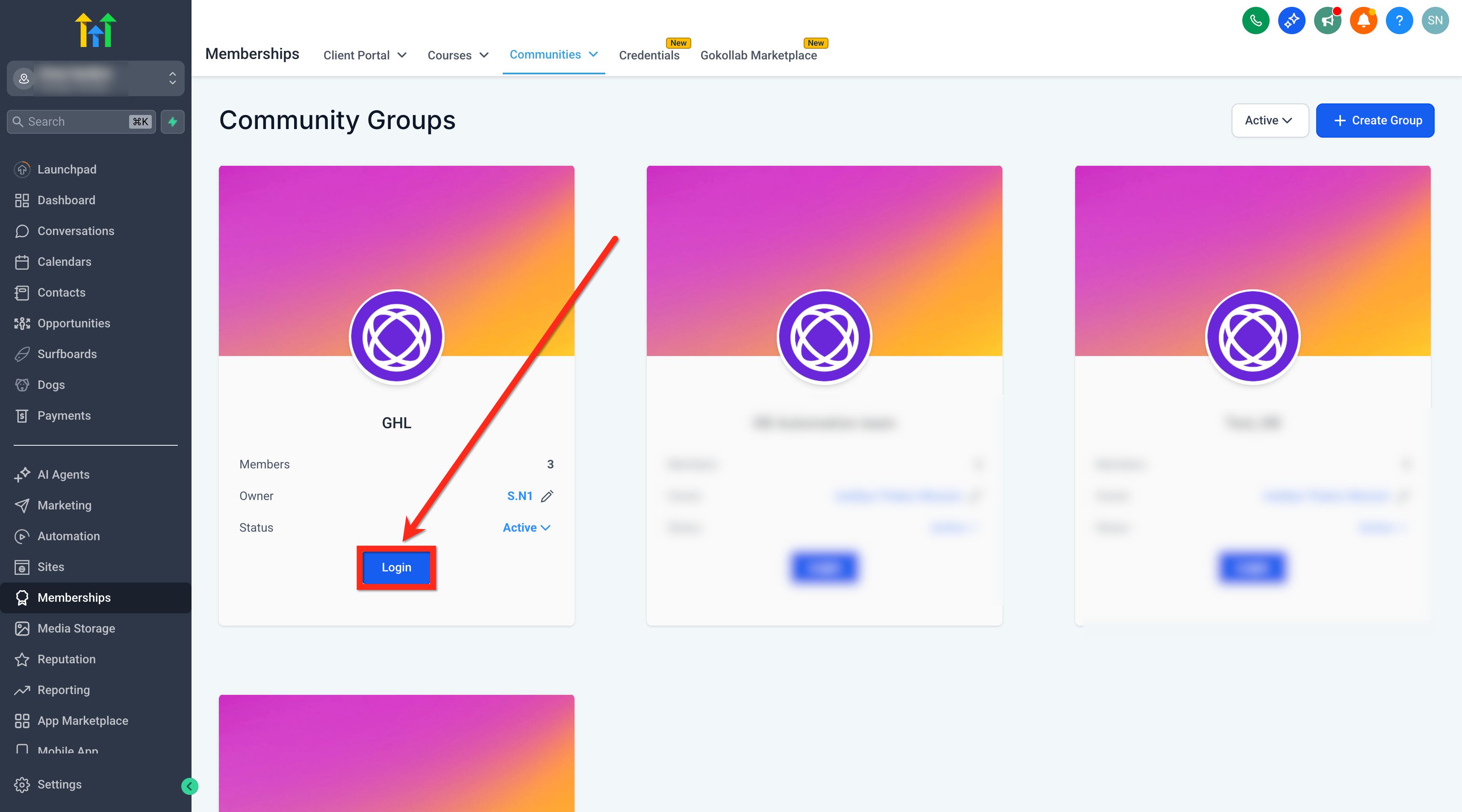
- Open the desired group (log in if required).
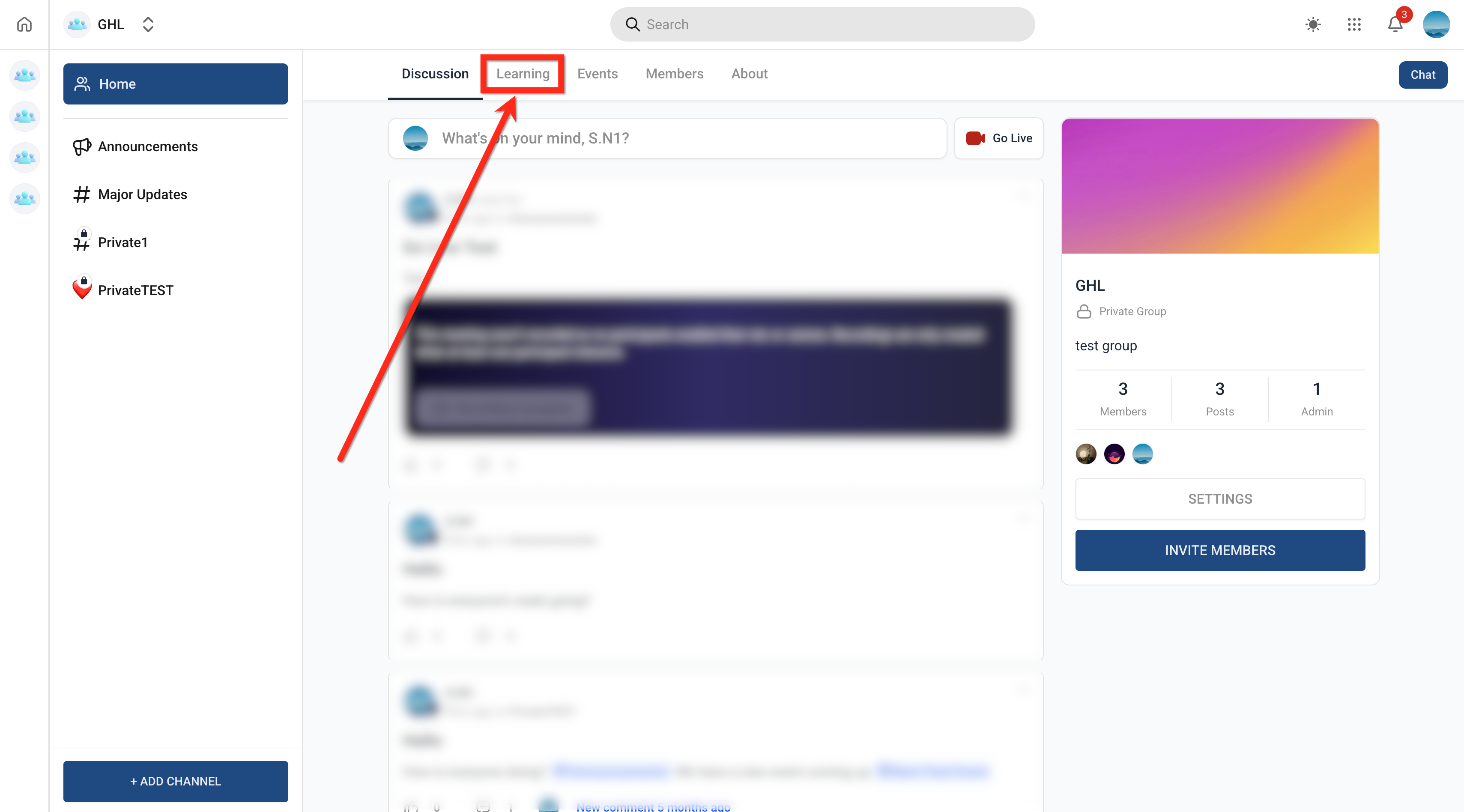
- Open the Learning tab.
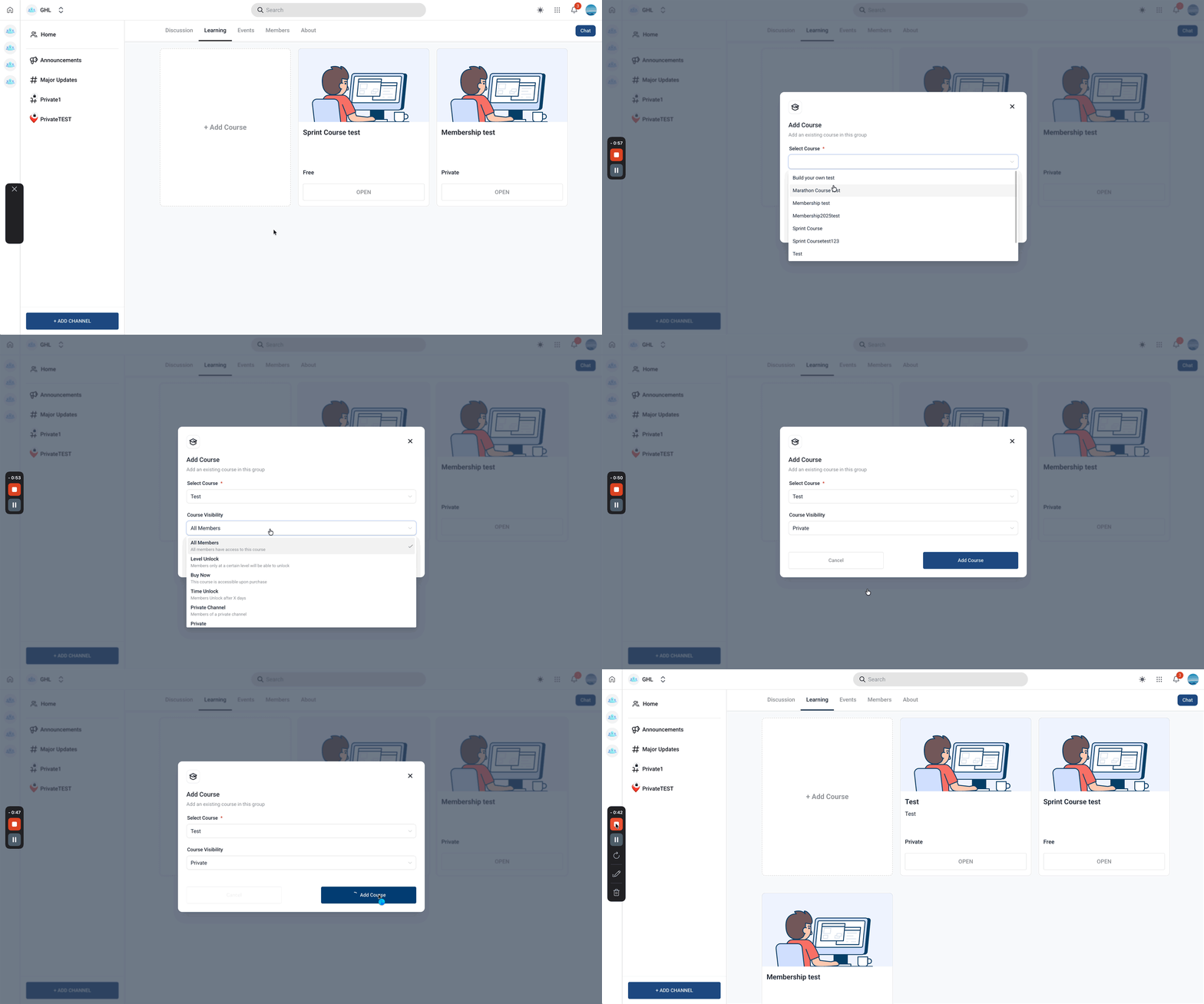
- Press the Add Course button.
- Pick an existing course from the list.
- In the Course Visibility field, set it to Private, Access granted by admin only.
- Confirm by clicking Add Course again.
Grant course access to a member
- Open the Members tab for the group.
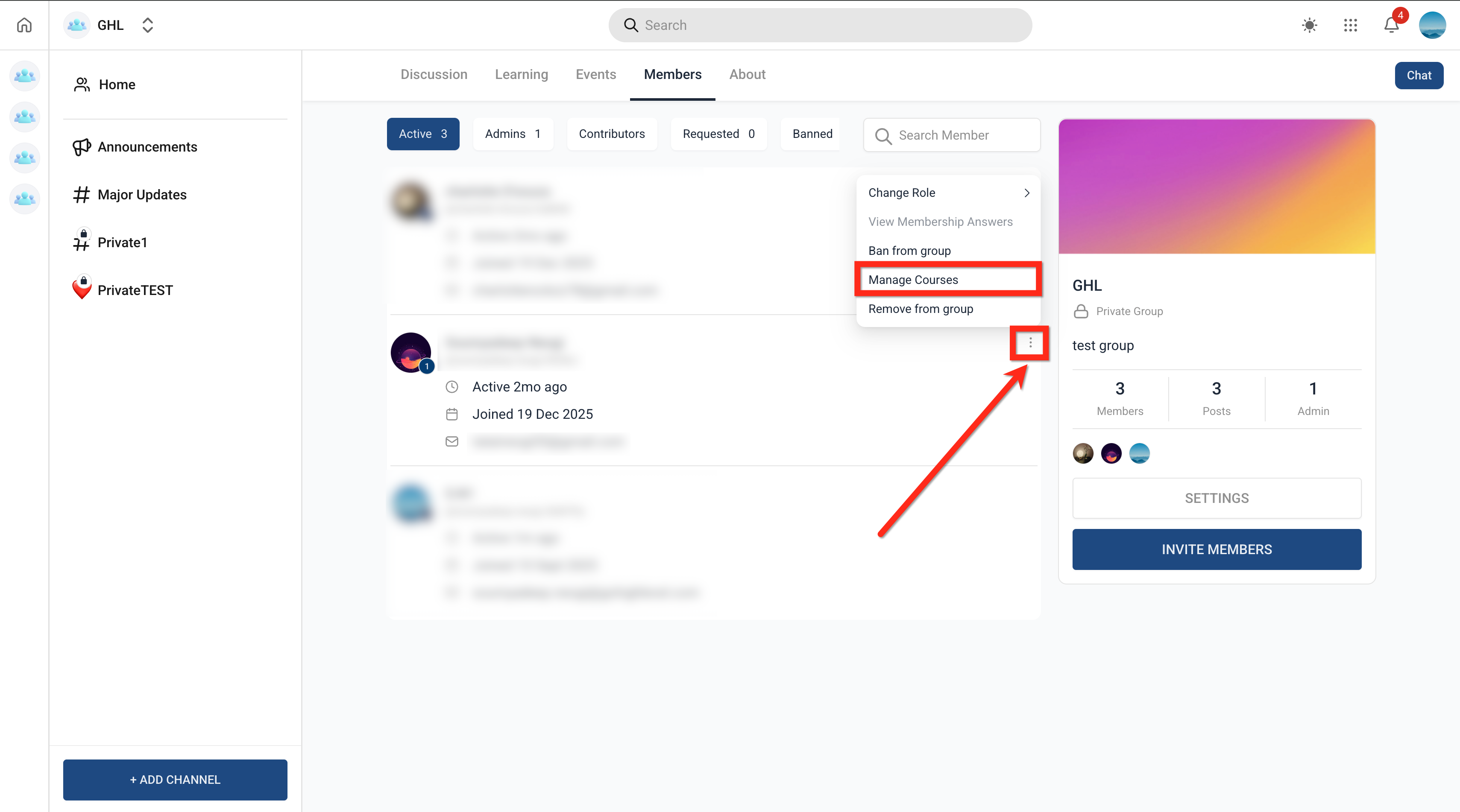
- Open the three dot menu beside the target member.
- Choose Manage Courses.
- Hit the Grant Courses button.
- Check the courses you want to assign.
- Press Grant to apply the changes.
Revoke course access for a member
- Open the Members tab of the group.
- Open the three dot menu next to the member.
- Pick Manage Courses.
- Press the red X next to the course you wish to remove.
- Confirm the removal when prompted.
- If revocation fails, verify the member does not already meet an automatic unlock condition.
05What it looks like in HighLevel
06Settings that matter
- Course Visibility. Determines whether a course appears publicly, is unlocked by level or payment, or stays locked until an admin grants access.
07Things to know before you rely on it
- Private courses cannot be unlocked automatically; they require manual admin approval.
- Access cannot be revoked if the member already satisfies an automatic unlock rule such as All Members, Level Unlock, Paid, or Time Unlock.
- Admins may grant access to any course type, not only private ones.
08If something goes wrong
- Cannot revoke a member’s access to a course. Revocation is blocked when the member meets an automatic unlock condition. Adjust the member’s level, payment status, or other criteria before attempting to revoke.
09How it connects to the rest of HighLevel
- How to create and manage a HighLevel community Create and manage community
- Free courses in the Learning Tab (Courses) Learning tab courses
- Paid groups in HighLevel: configure payments and access Paid groups
Michael's take

Manually handling each member’s course permissions can become time consuming if you have a large audience. It’s easy to overlook someone or forget to remove access when circumstances change, so keep a close eye on your member list.
When you need a truly exclusive learning experience. Like VIP webinars or secret training for staff. This feature shines. You can drop a course into the learning tab, set it to Private, and then hand out access only to the right people, immediately.