
01Who this is for
- Founders of membership platforms, they can protect premium courses for paying tiers.
- Community managers for professional associations, they can give specialized training to subgroup members.
- Online educators running cohort programs, they can separate beginner and advanced lessons by channel.
02Private channel based course access, explained
The option changes a course's visibility setting so that only members belonging to a chosen private channel can open it. All other members do not see the course in their learning view.
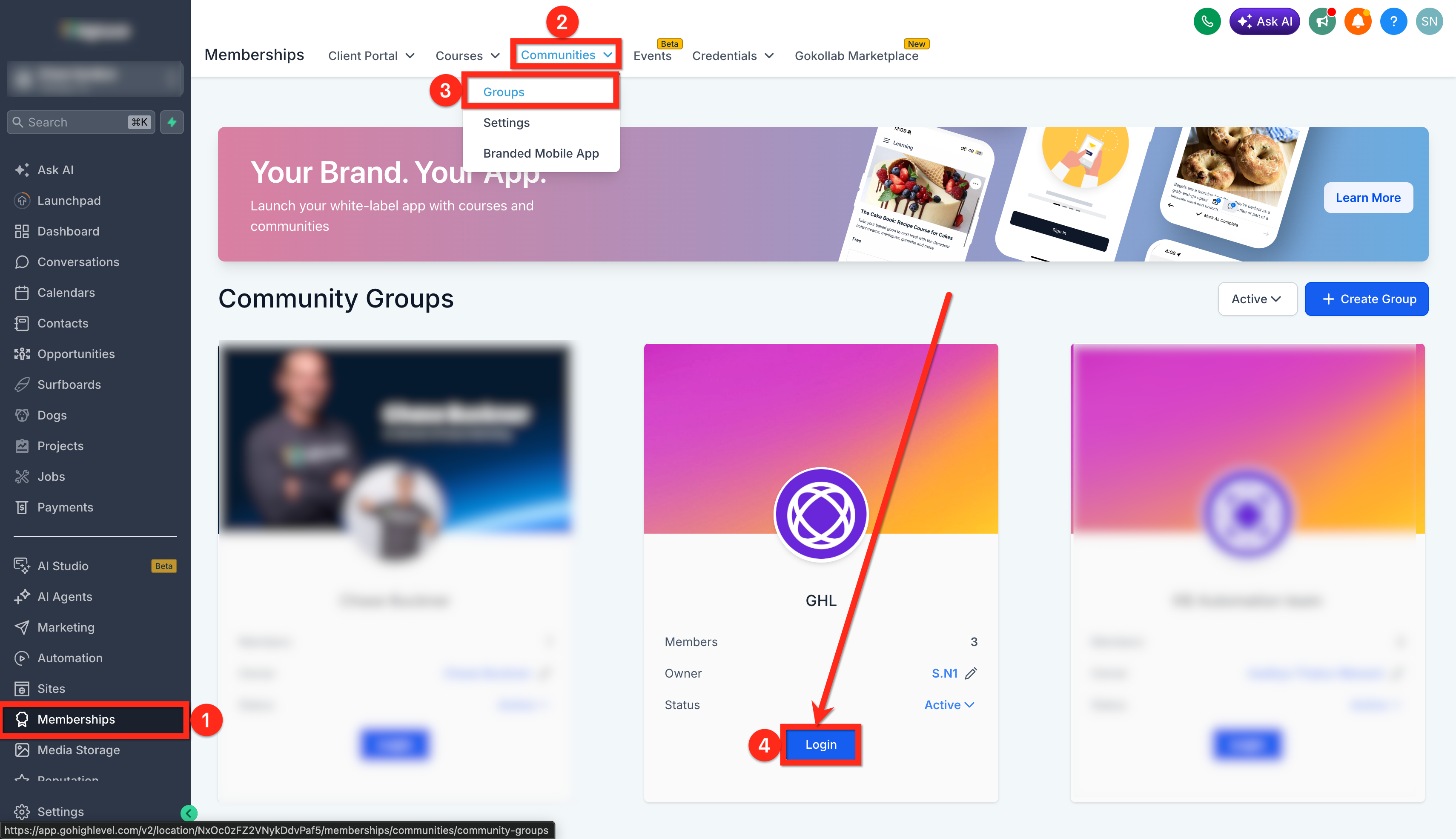
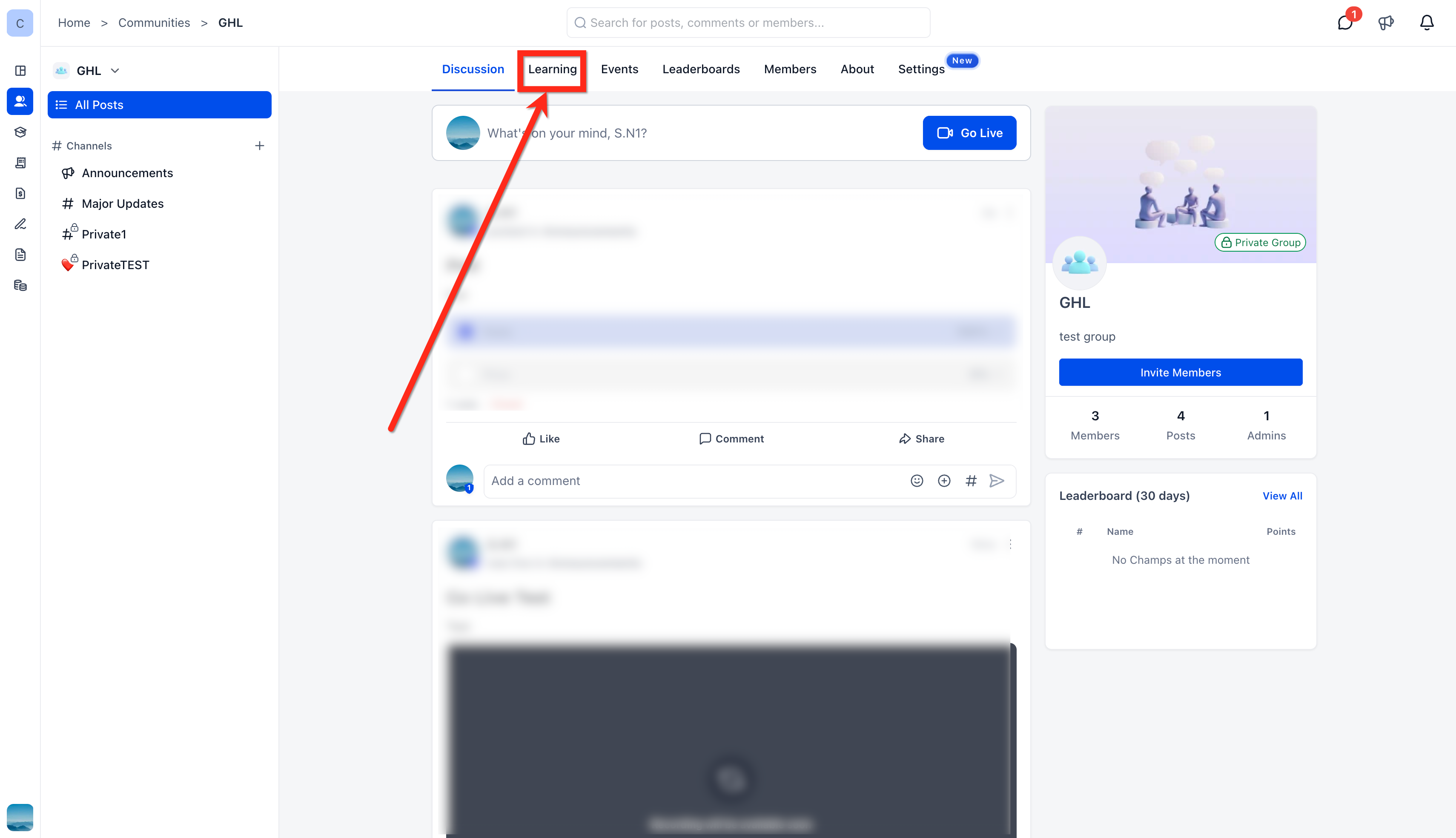
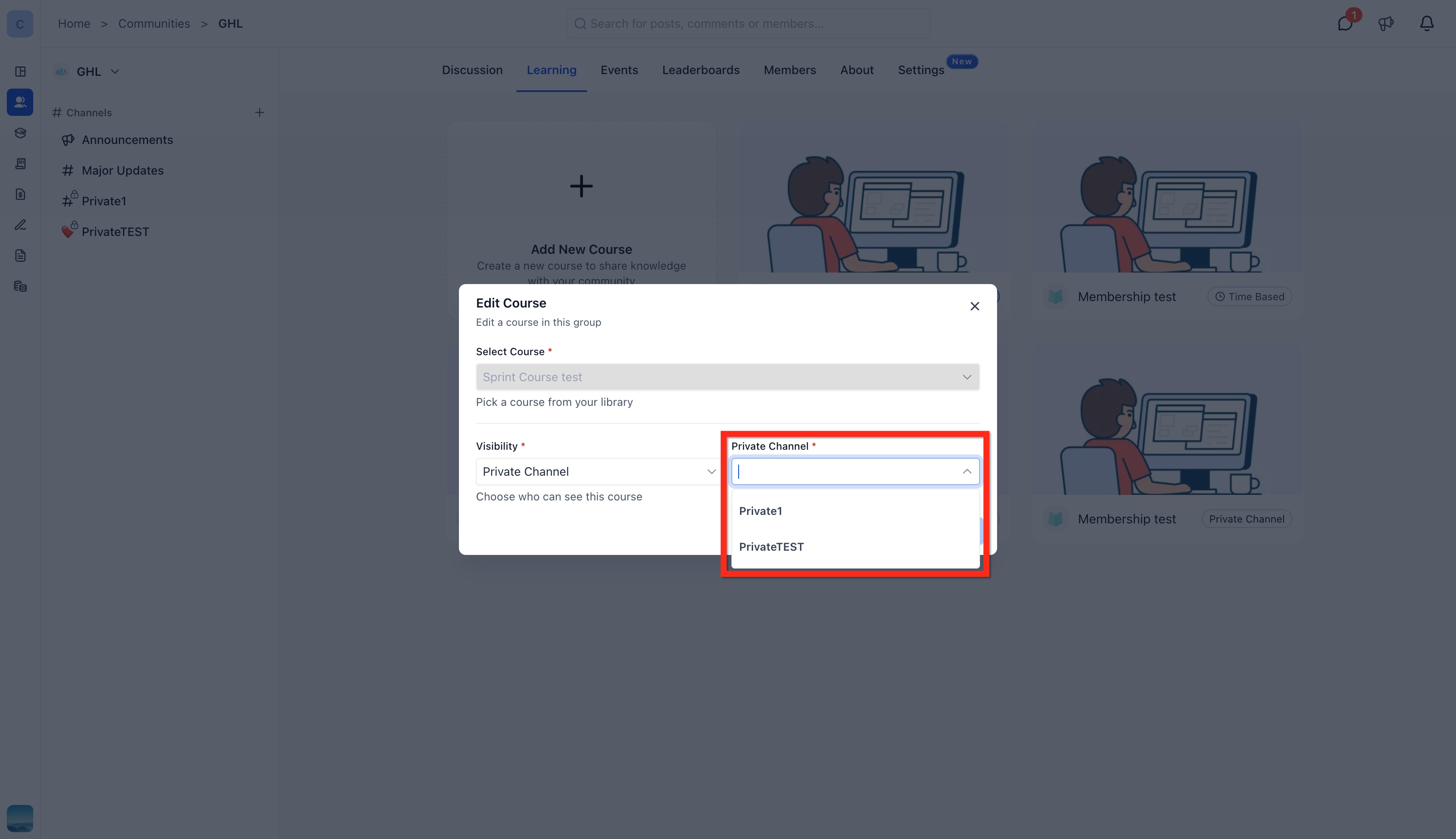
Admins find the control inside a community group under Memberships > Communities > Groups, then open the Learning tab where courses are listed. The edit modal contains a Visibility dropdown where the Private Channel choice is made.
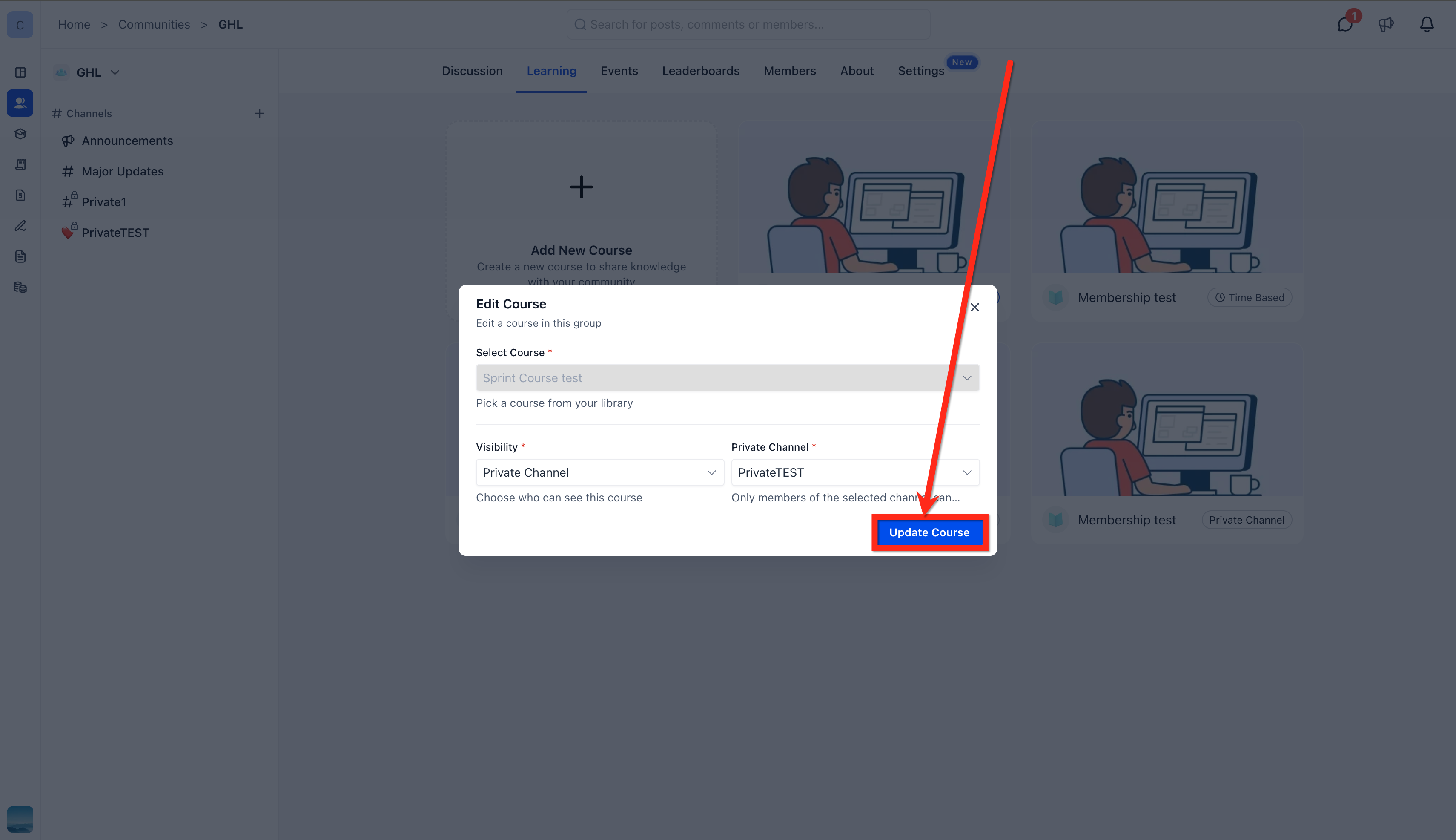
Courses set to this mode display a “private channel based access” label beside the title, making it easy to spot restricted content at a glance.
03How businesses use private channel based course access
- SaaS training platform. Create a channel for premium subscribers, edit the desired course, select Private Channel visibility, and pick the premium channel. Only those paying users will see and complete the course.
- Professional association. Set up a private channel for board members, edit a governance training course, and limit its visibility to that channel. Board members gain exclusive access while regular members do not see the course.
- Internal corporate academy. Add a private channel for beta testers, edit a new feature tutorial, and restrict it to that channel. Only the selected team can view the course until it is released publicly.
04Before you start
- At least one private channel must already exist in the community group.
- You must be a group admin or owner to modify course visibility.
05How to set up and use private channel based course access in HighLevel
Set up private channel course access
- Log into HighLevel, go to Memberships, open Communities > Groups, and click the Login button for the target group.
- Select the Learning tab at the top of the group page to view all courses.
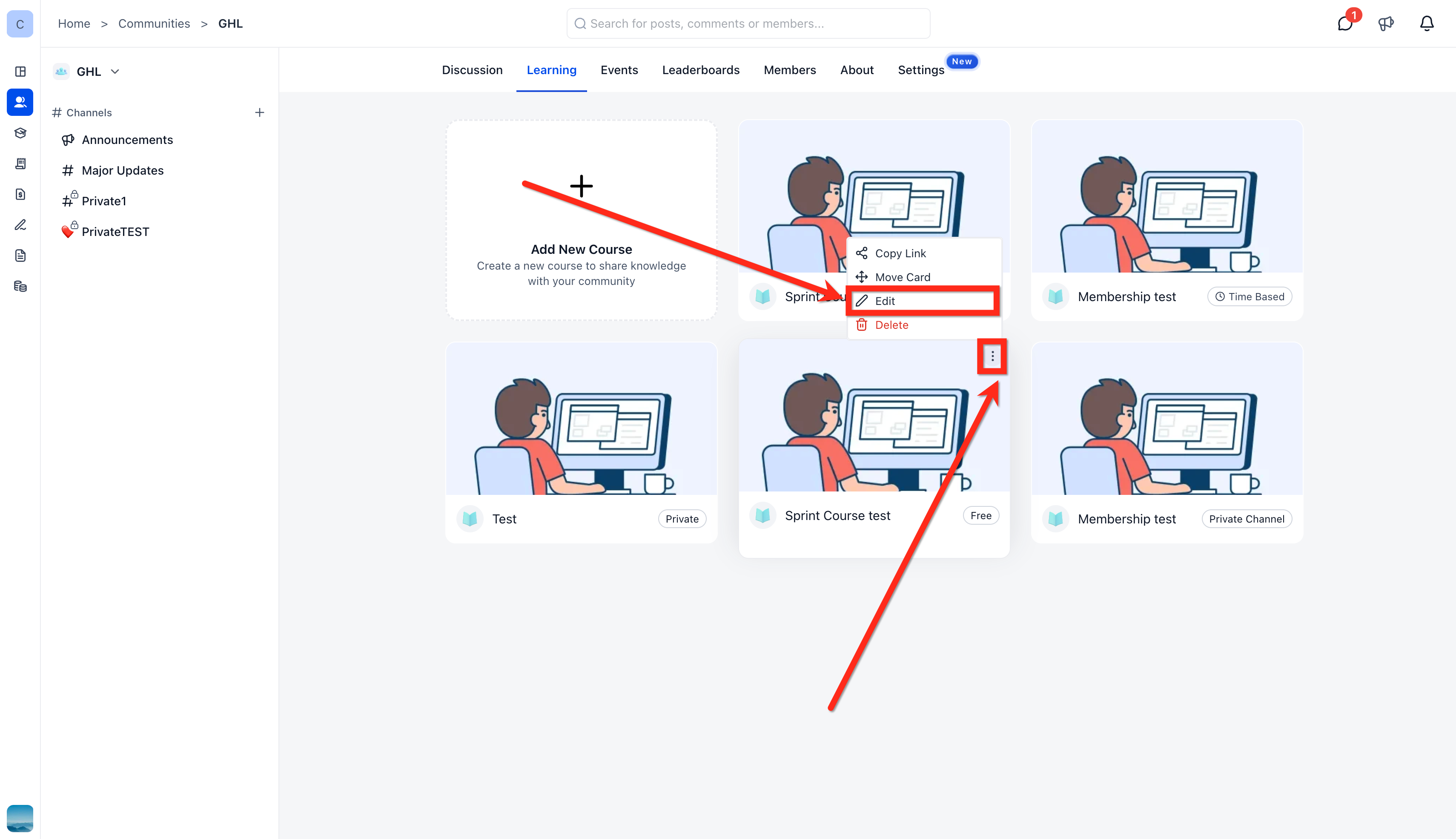
- Find the course to restrict, click the three dot icon on its card, and choose Edit.
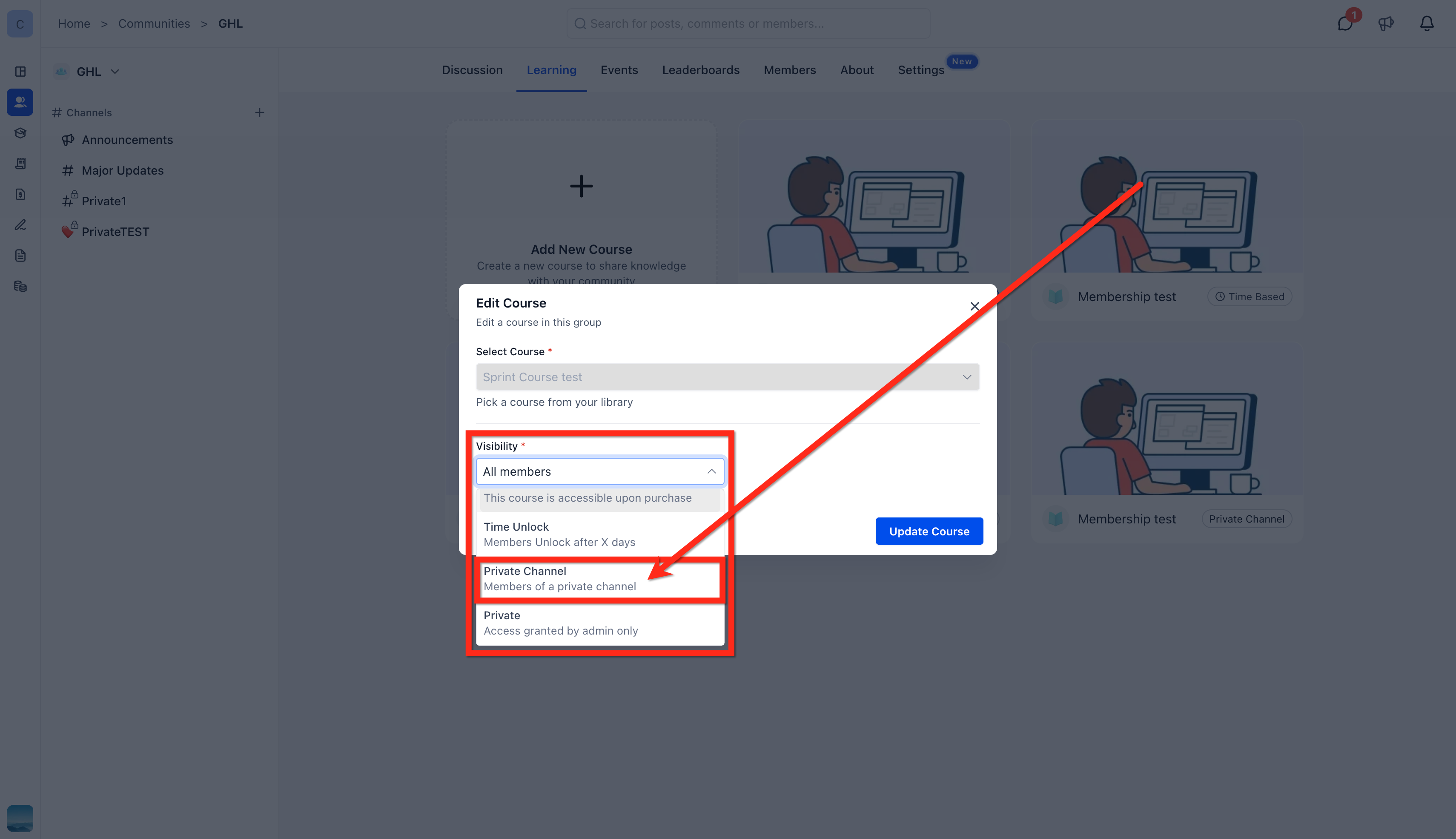
- In the Edit Course window, open the Visibility dropdown and pick the Private Channel option.
- From the displayed list, select the private channel that should have access to the course.
- Press Update Course to apply the change; the course now carries a private channel tag.
06What it looks like in HighLevel
07Settings that matter
- Visibility. Determines who can see the course; choosing Private Channel limits access to members of the selected channel.
- Private Channel. The option in the Visibility dropdown that activates channel based restriction.
08Things to know before you rely on it
- Only admins and owners can edit the visibility setting.
- The Private Channel option appears only after a private channel has been created in the group.
- Members outside the chosen channel will not see the course at all.
09How it connects to the rest of HighLevel
- How to manage members inside groups for channel assignments Manage group members
- Create and customize channels within a community Create channels
- Set up paid groups to sell exclusive content Paid groups
Michael's take

When I have multiple membership tiers or need to protect high value training, private channel based course access can be a helpful tool for controlling who sees each course.
If I run a simple community with one free tier and no need to segment content, I might skip setting up private channels until my content strategy requires more granularity.