
01Who this is for
- Coaches, keep a single meeting URL for recurring client sessions, reducing setup time.
- Educators, store class recordings in one place to reuse for onboarding or training.
- Event hosts, use noise cancellation to improve audio quality for live community events.
02Communities live session enhancements, explained
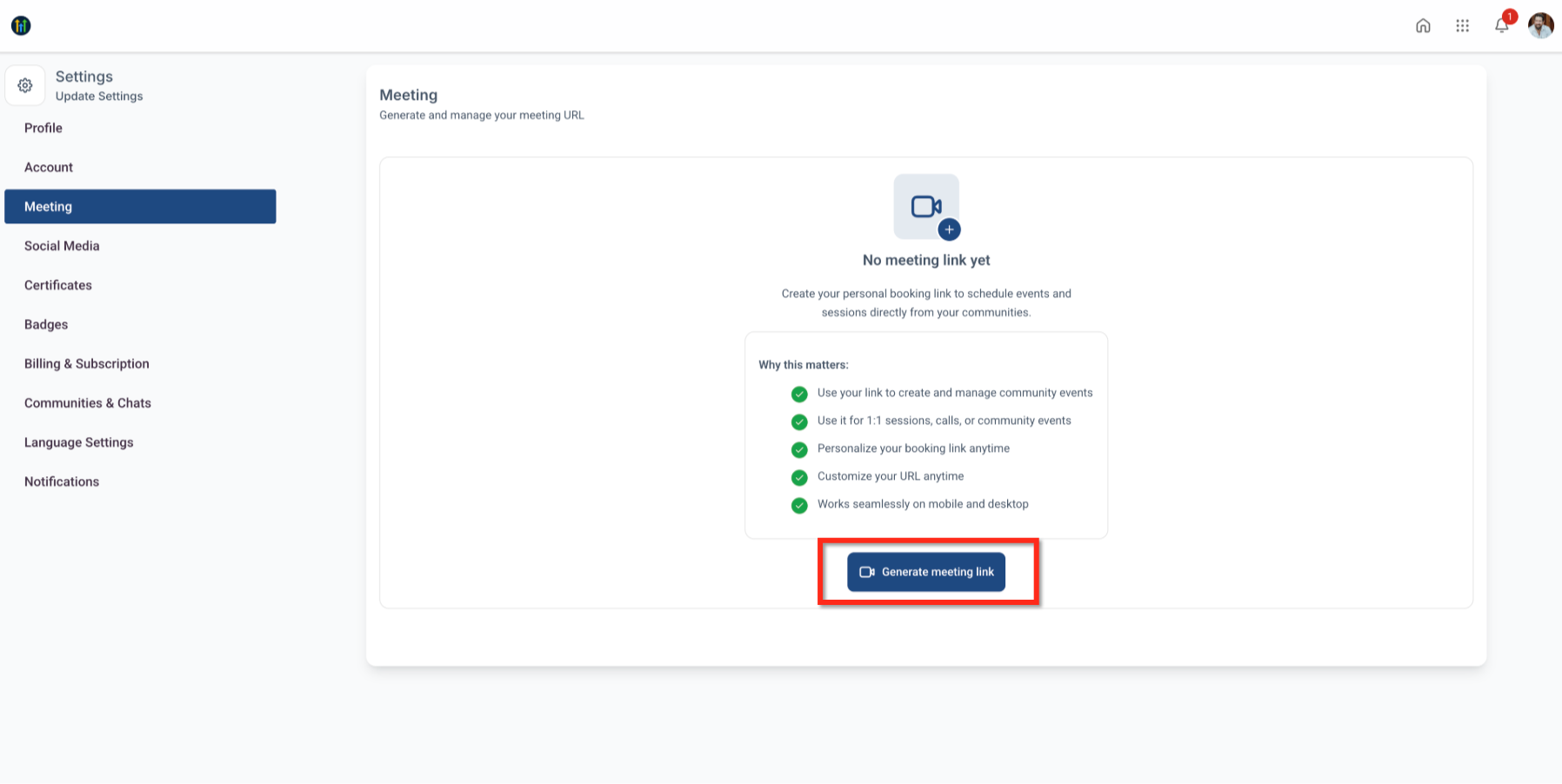
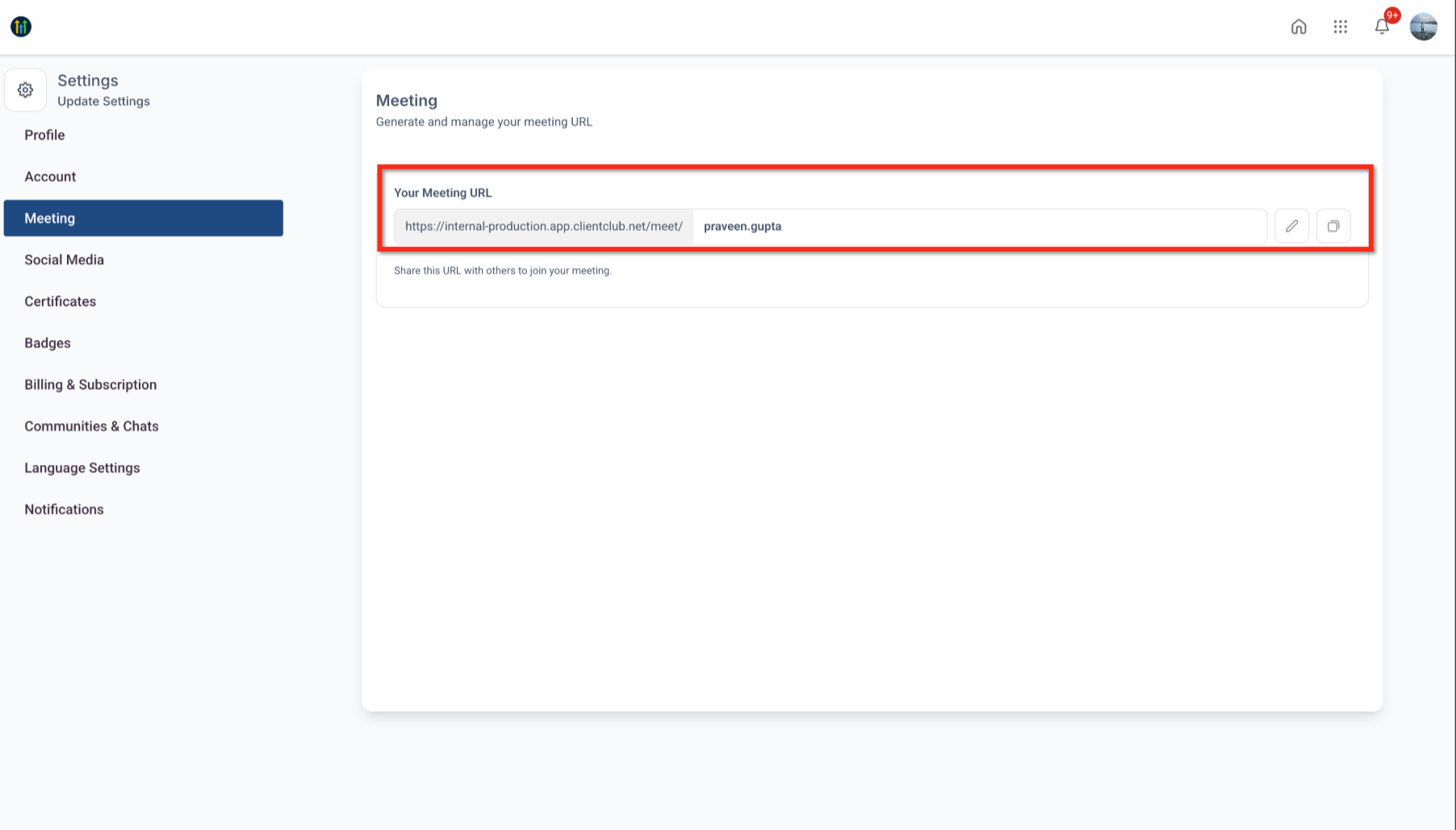
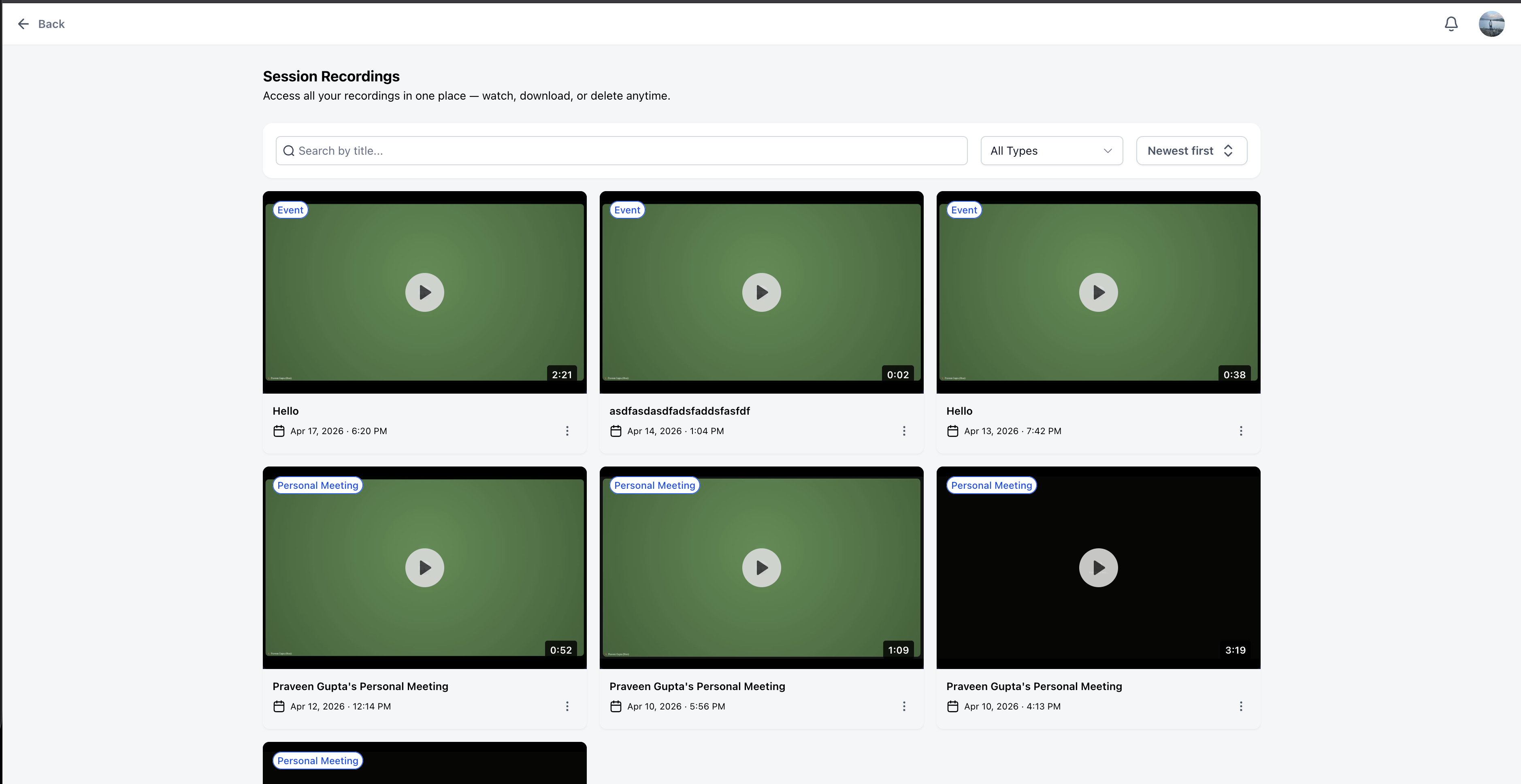
The enhancements add three tools to Communities live sessions. A Personal Meeting Link lets a host create a permanent URL that works for any recurring meeting, workshop, or 1:1 call. A Recordings Hub gathers every session video in one area, where recordings can be played, downloaded, or removed. Enhanced Noise Cancellation automatically reduces background sounds during a live session, making speech clearer.
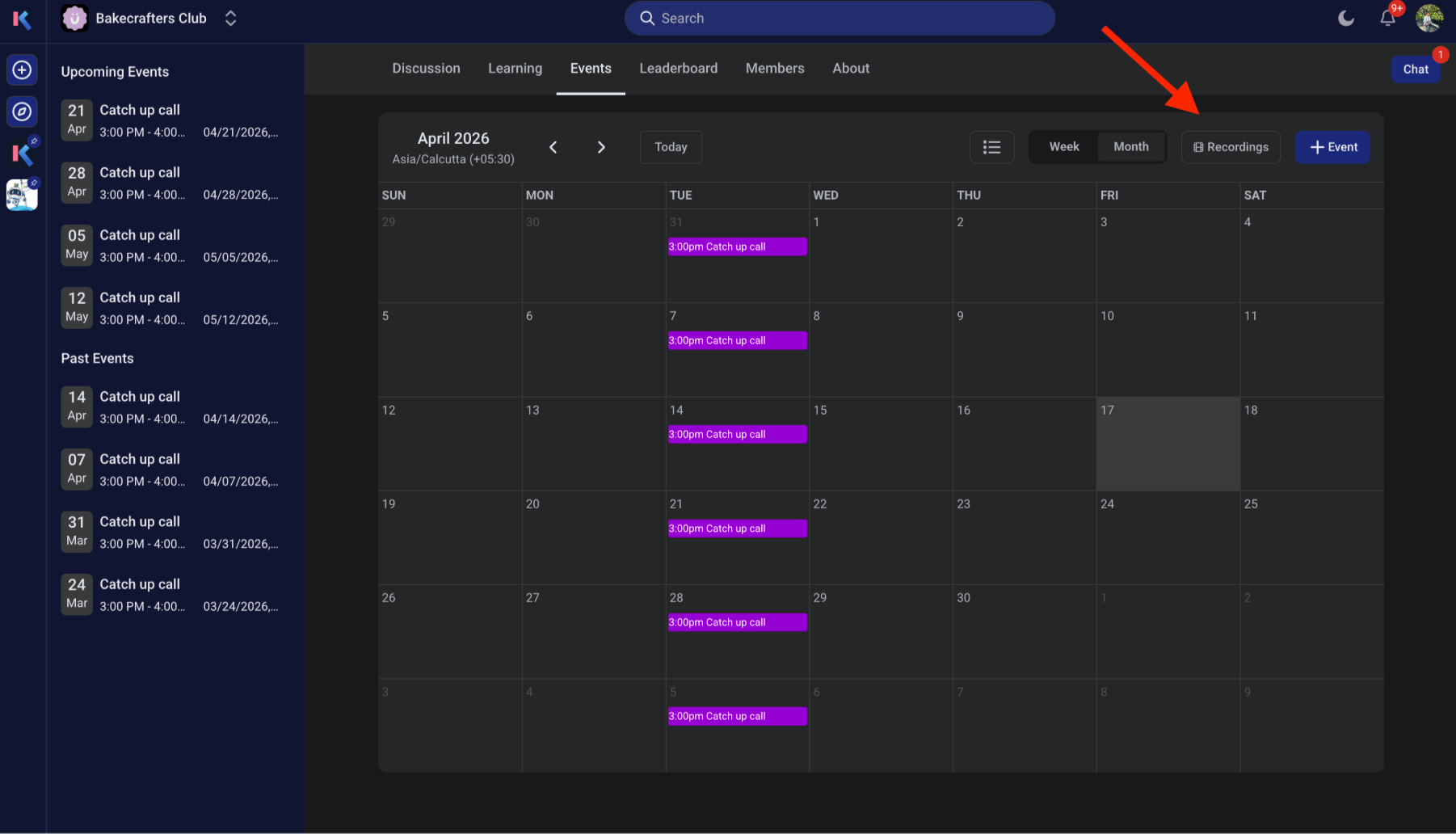
These tools live inside the Communities dashboard. The Personal Meeting Link is configured under Live Sessions or Meeting Settings. The Recordings Hub is accessed from the Live Sessions or Recordings area. Noise cancellation works as part of the live session audio processing and does not require extra setup.
Together they streamline the workflow for anyone who runs regular live events, letting hosts focus on content rather than repetitive link creation or hunting for recordings.
03How businesses use communities live session enhancements
- Coaching practice. The coach opens the Communities dashboard, sets a Personal Meeting Link once, and shares it in client emails or calendar invites. Each client uses the same link to join weekly calls, eliminating the need to generate a new URL each session.
- Online course platform. An instructor creates the Personal Meeting Link for live class sessions, then after each class opens the Recordings Hub to download the video. The downloaded file is uploaded to the course library for students to review later.
- Corporate training workshop. The trainer configures the Personal Meeting Link for a series of workshops, enables noise cancellation for clearer audio, and later accesses the Recordings Hub to delete old recordings that are no longer needed.
04How to set up and use communities live session enhancements in HighLevel
Set up a reusable Personal Meeting Link
- Log in to HighLevel.
- Open your Communities dashboard.
- Navigate to the Live Sessions or Meeting Settings area.
- Locate the Personal Meeting Link section.
- Create or customize your meeting URL.
- Save your changes.
- Copy the meeting link for sharing.
Access and manage session recordings
- Navigate to Communities.
- Open the Live Sessions or Recordings area.
- Select the Recordings Hub.
- Browse recordings or search for a specific session.
- Open a recording for playback.
- Download or delete the chosen recording.
05What it looks like in HighLevel
06Settings that matter
- Personal Meeting Link. stores the URL that hosts share for all recurring live sessions
07Things to know before you rely on it
- Noise cancellation may be enabled automatically depending on the meeting environment and configuration.
08How it connects to the rest of HighLevel
- Learn how to create and manage a community to host live sessions. Create and manage communities
- Manage members inside groups to control who can join your live sessions. Manage group members
- Set up gamification in Communities to reward attendees for participating in live sessions. Gamification
Michael's take

For a small business that runs weekly coaching calls or community workshops, the live session enhancements save the hassle of generating new links each time and keep all recordings in one spot, turning each session into a reusable asset.
The biggest mistake is forgetting to copy and share the permanent link after you customize it.