
01Who this is for
- Community administrators who want a visual identity that matches their brand.
- Online coaches managing multiple groups and needing distinct looks per group.
02Communities themes, explained
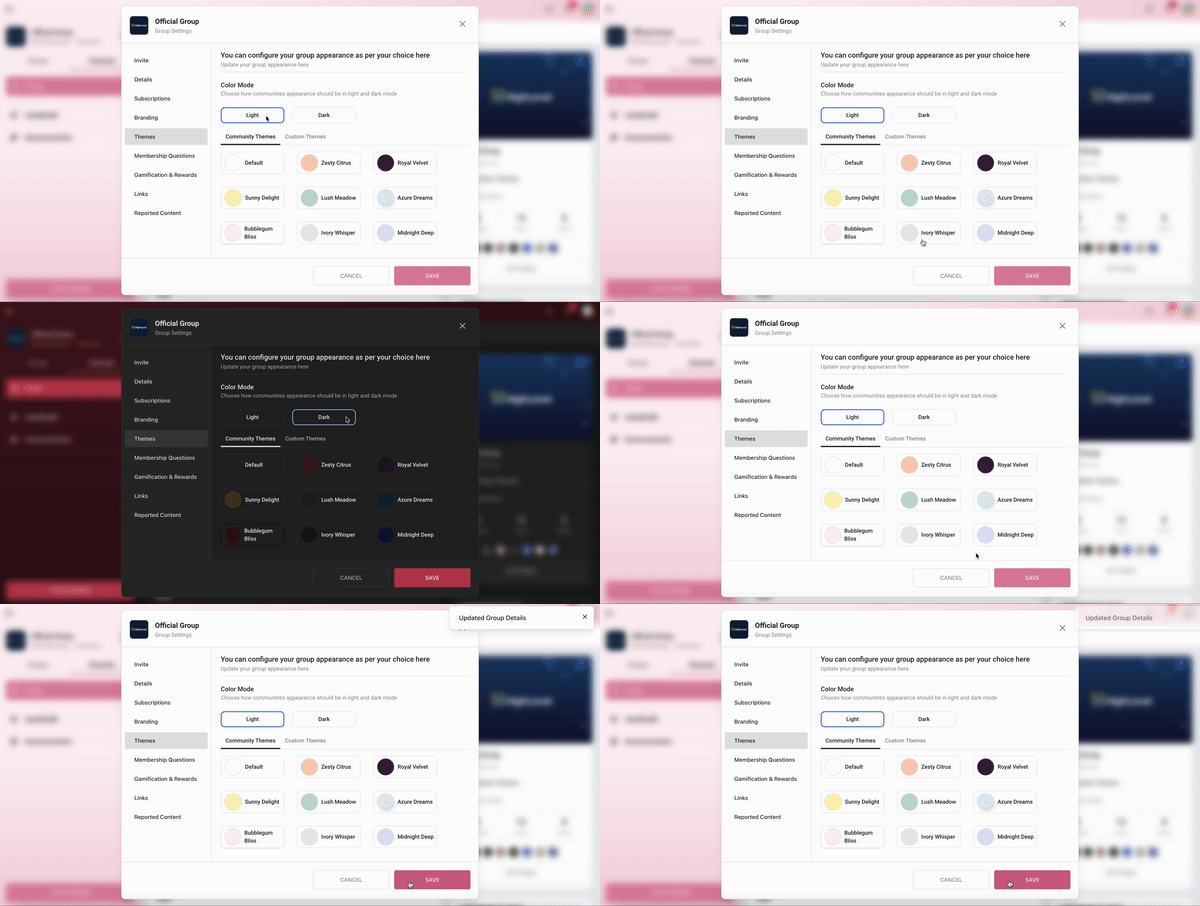
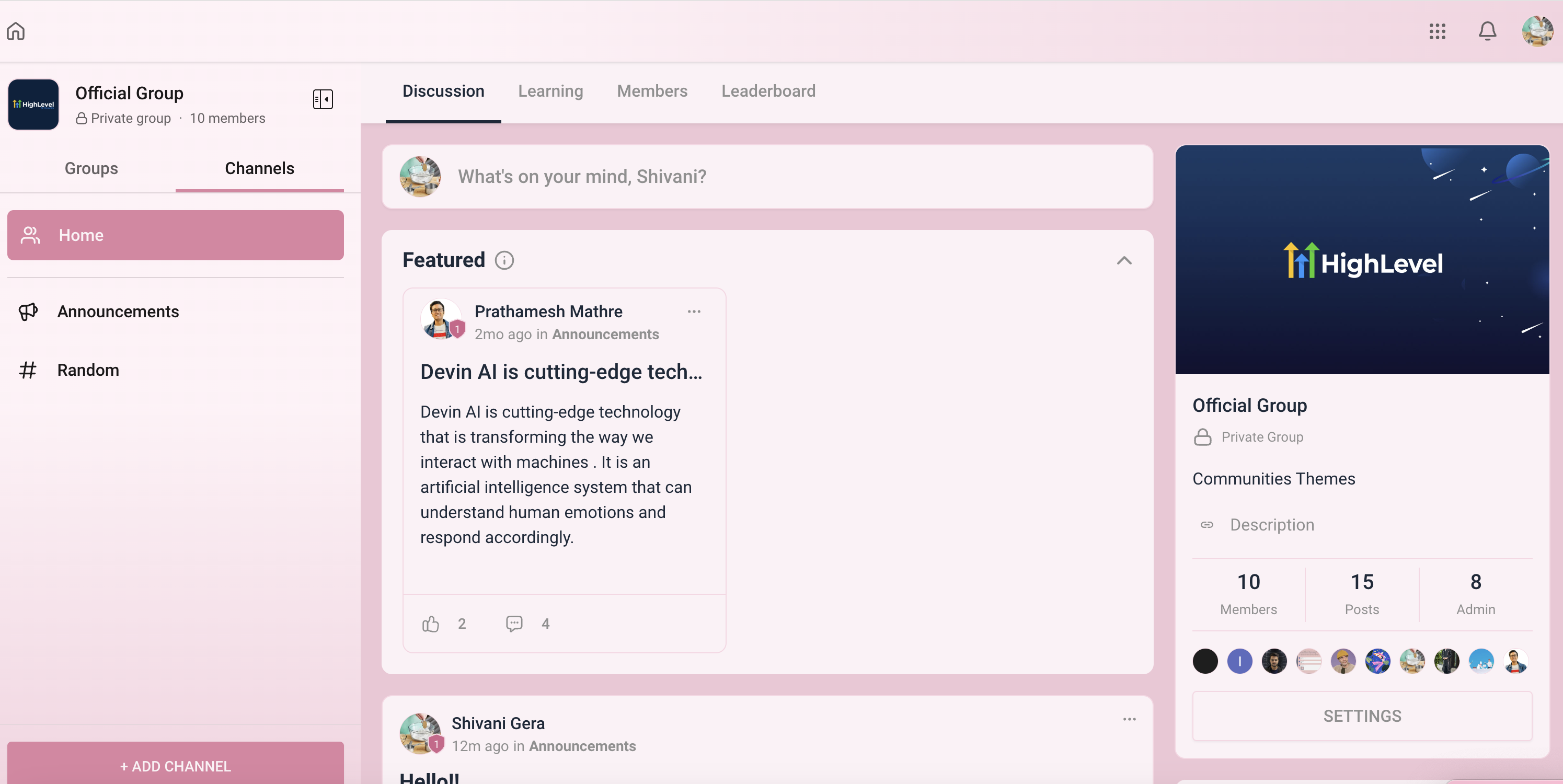
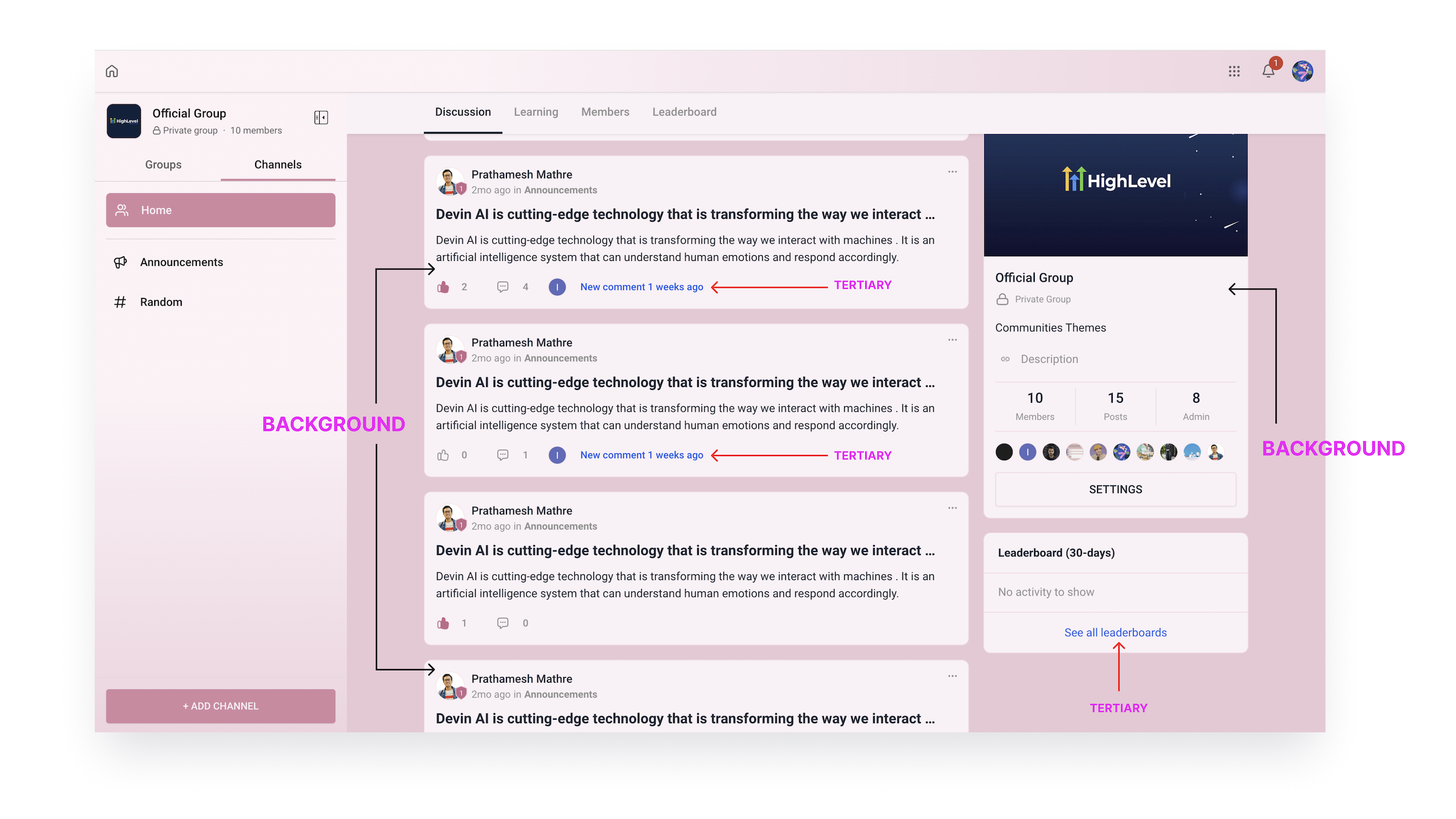
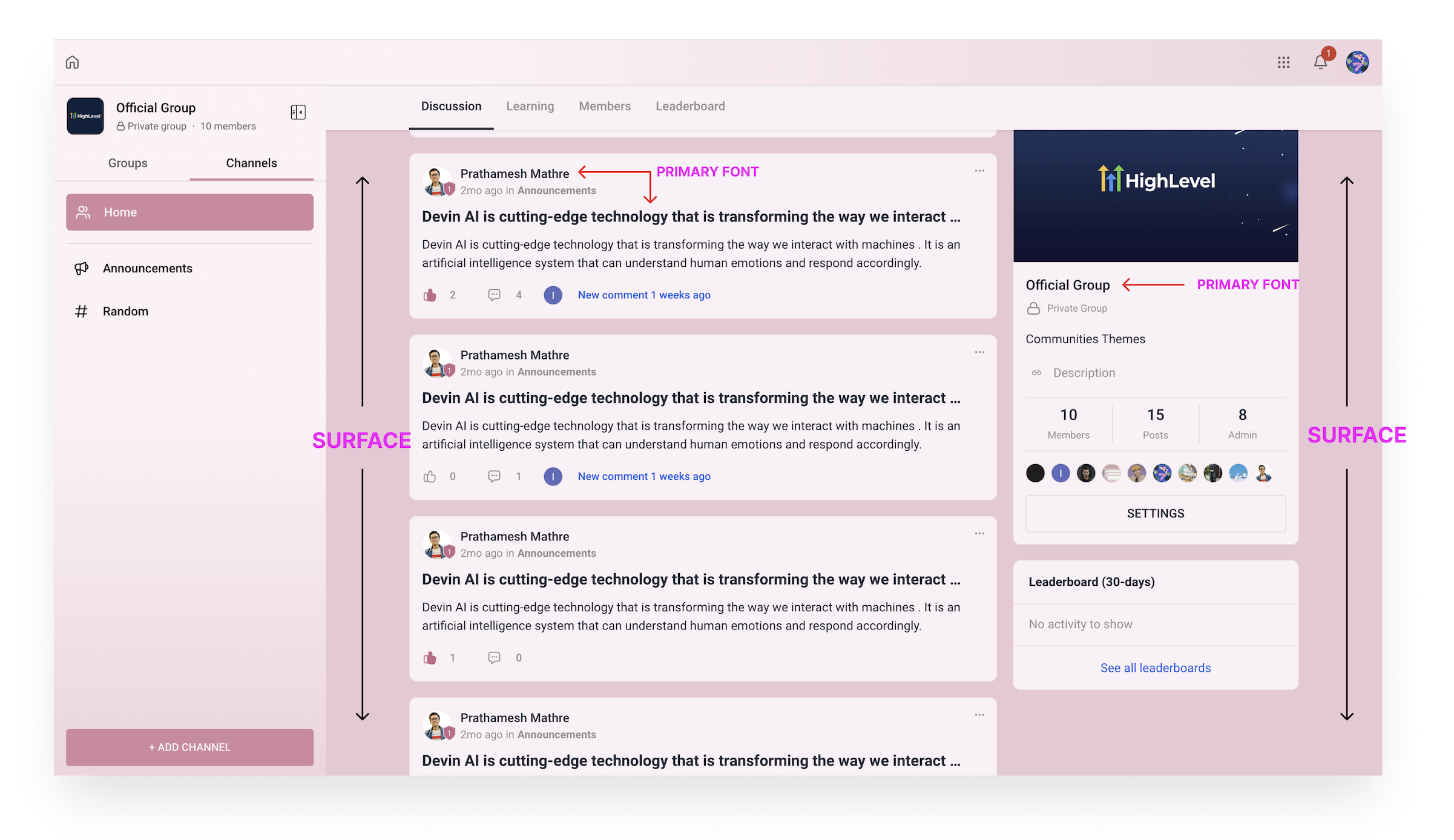
The Themes feature lives in the Settings area of each community group. It controls the colour scheme and font choices that appear in the group’s web interface. Admins can toggle Light Mode or Dark Mode, choose from a list of predefined themes, or create a bespoke theme by adjusting individual colour options.
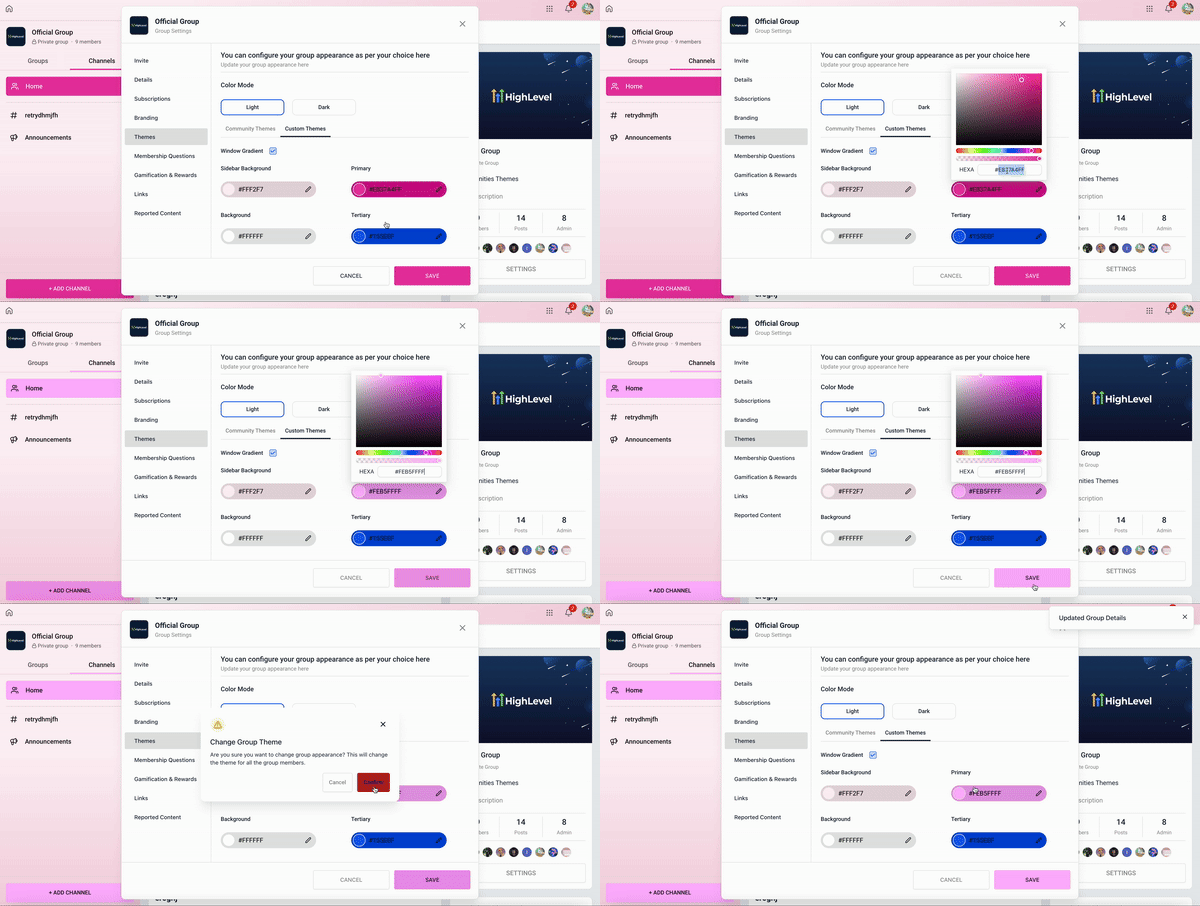
When a theme is selected, the new appearance is applied right away in the browser. Custom themes require a separate save for Light and Dark modes. Theme changes are visible only on the web version of the community, not in the mobile app.
03How businesses use change your group theme
- Coaching business. A coach opens the group Settings, picks Themes, and selects a predefined dark mode theme that matches the coaching brand. Members see the new look when they log in via the web portal.
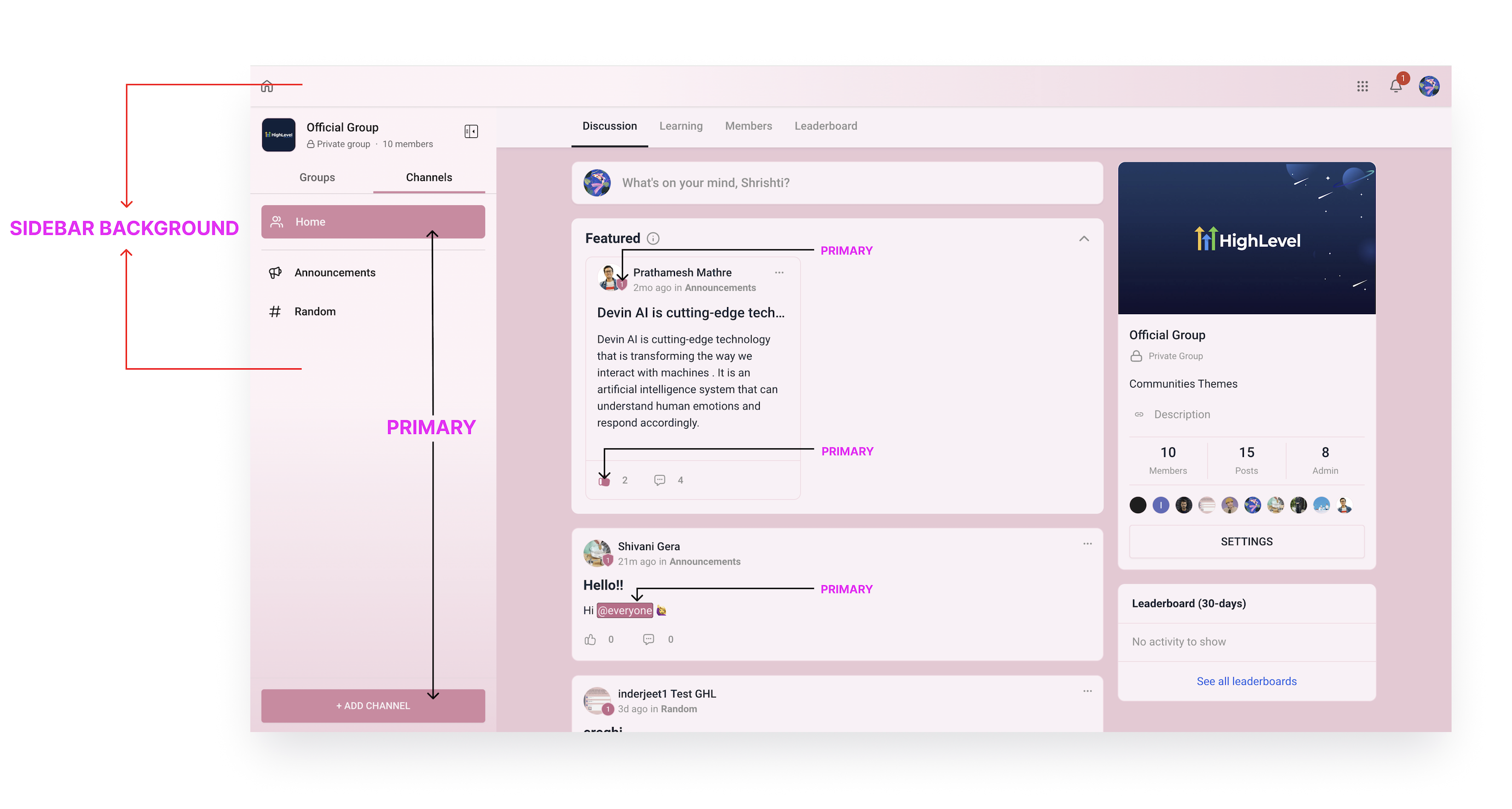
- Online course creator. The creator opens Custom Themes, adjusts sidebar background, button colours, and fonts, then clicks SAVE for both Light and Dark modes. The course community now reflects the creator’s visual style.
- Membership platform with multiple groups. The admin accesses each group’s Settings, chooses a different predefined theme for each group, allowing members to quickly recognize which community they are in.
04Before you start
- Enable the Themes feature in Labs before attempting to edit any group theme.
05How to set up and use change your group theme in HighLevel
Change your community group theme
- Click the “SETTINGS” button in the right hand sidebar of the community group.
- Select “Themes” from the settings sidebar.
- Use the Light Mode and Dark Mode buttons at the top to choose the desired display mode.
- Open the Communities theme tab, scroll through the list, and click a predefined theme to preview and apply it.
- If building a custom look, go to the Custom Themes tab, modify colour options, and press SAVE for each mode.
06What it looks like in HighLevel
07Settings that matter
- Themes. Opens the panel where Light or Dark mode can be toggled and where predefined or custom themes are selected.
- Custom Themes. Provides colour pickers for interface elements such as sidebar background, buttons, fonts, and borders, allowing a unique theme per mode.
08Things to know before you rely on it
- Theme changes appear only in the web view of the community; mobile apps do not reflect them.
- Custom theme settings must be saved separately for Light Mode and Dark Mode.
- The Themes feature must be turned on from Labs before it can be accessed.
09How it connects to the rest of HighLevel
- Create and manage a HighLevel community Community setup guide
- Manage members inside groups in HighLevel Member management
- HighLevel membership product themes: selection and customization Theme selection overview
Michael's take

When you need a professional look that matches your brand across multiple community groups, spending a few minutes on a custom theme can give members a cohesive visual experience.
If you only use the mobile app, the effort isn’t worth it because the theme changes won’t appear on mobile.