
01Who this is for
- Community managers who need to handle many membership requests quickly, because the automation removes the need for manual review.
- Coaching businesses that run exclusive groups and want to auto approve members who meet specific criteria, ensuring only qualified participants join.
- SaaS product teams that operate user forums and want to filter spam or low quality sign ups using AI before granting access.
02Requested to Join Group trigger, explained
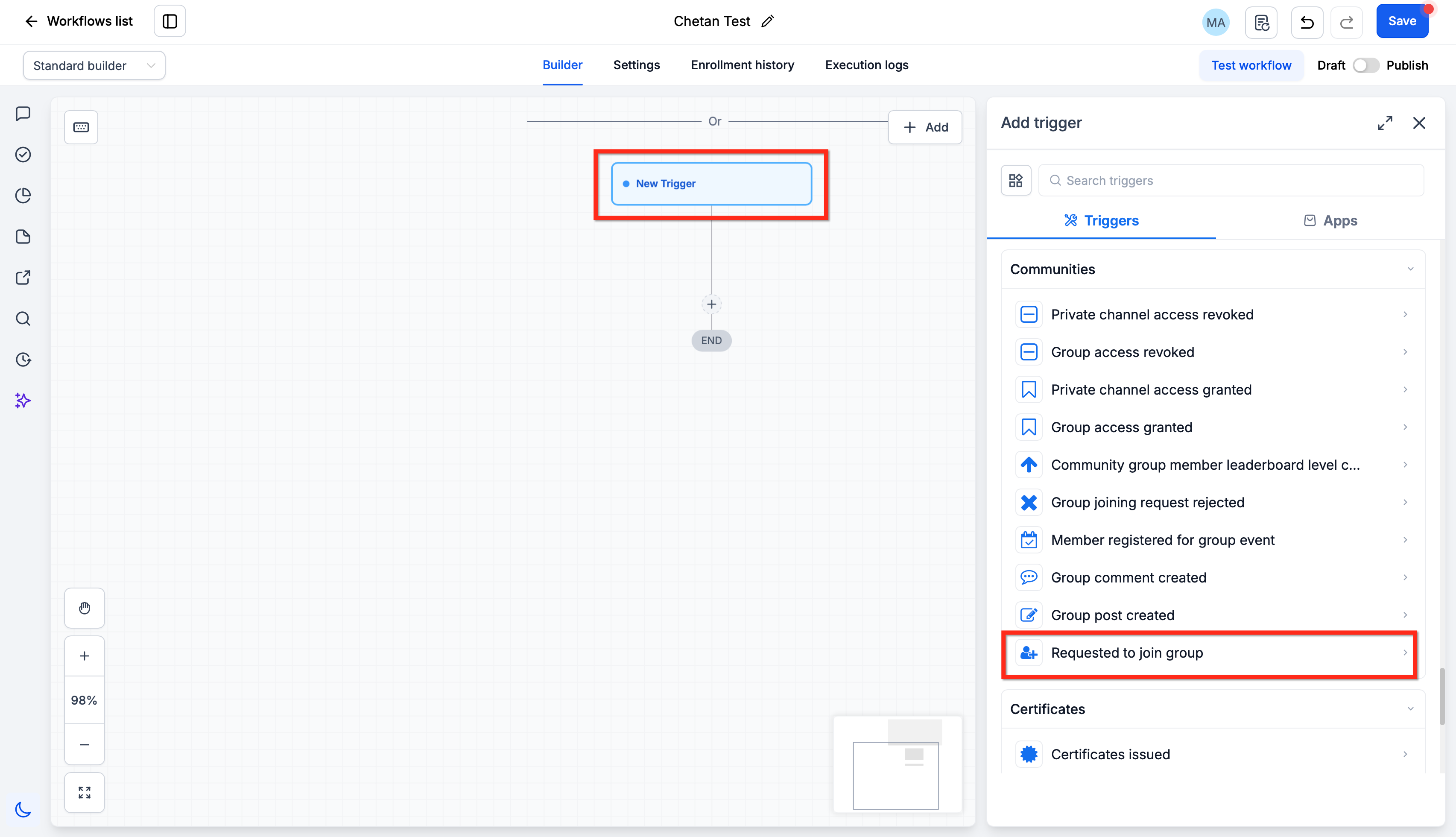
The feature introduces a trigger called Requested to Join Group inside the Communities area. When a user clicks to join a group, the trigger fires and supplies the request data, including any answers to membership questions.
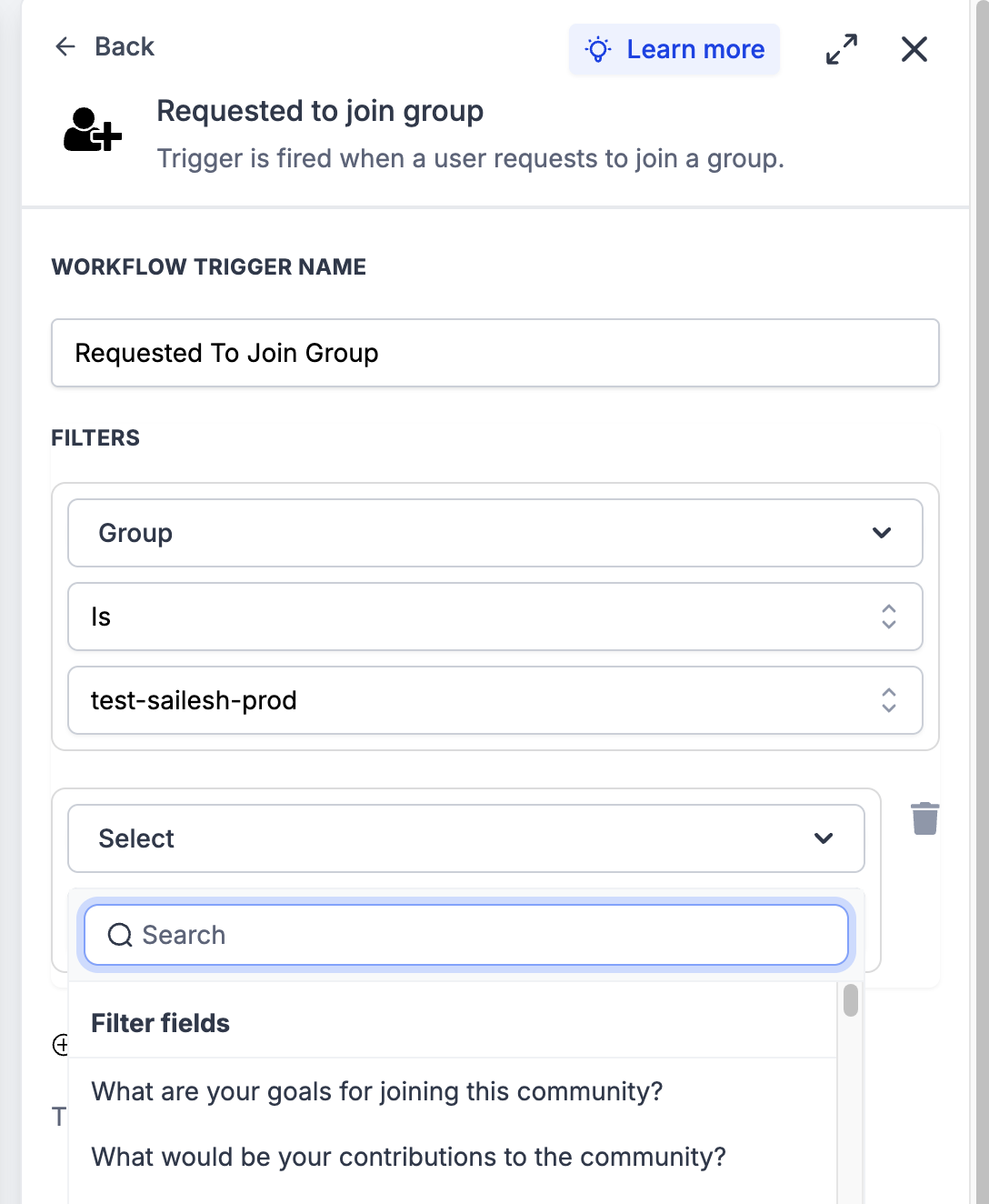
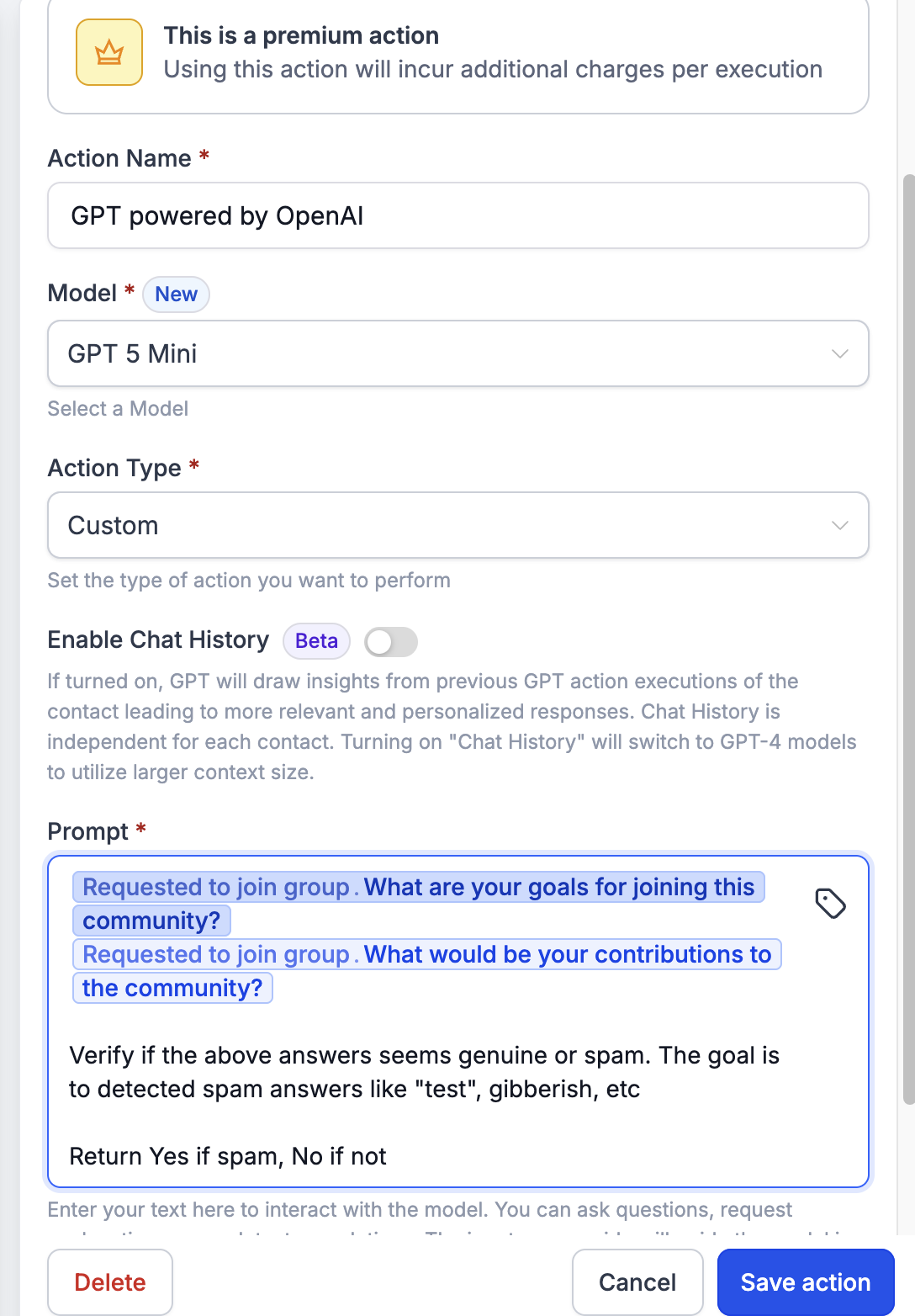
Within the workflow builder you can narrow the trigger to a particular group and add dynamic filters for each question. Those filters let you create conditional paths, such as approving only members who answer “Industry = Marketing”. You can also send the answers to a GPT action to let AI evaluate whether the submission looks like spam.
All actions are built visually, drag and drop steps, add If/Else checks, send notifications, approve or reject the request, and tag the user. No code is required, and the workflow runs in real time whenever a join request is made.
03How businesses use requested to Join Group trigger
- Coaching practice. Set up a workflow that checks the answer to “What is your coaching goal?” If the response contains the keyword “career”, the request is auto approved and the user receives a welcome email. Otherwise, the request is routed to an admin for review.
- SaaS product community. Create a filter on the “Company size” question. When a visitor indicates a size of 50 to 200 employees, the workflow approves the request and adds the member to the “Enterprise Users” group. Larger answers trigger a notification to the sales team.
- Fitness studio. Use a GPT step to analyze answers to “Why join the studio community?”. If the AI flags the text as spam, the workflow rejects the request automatically. Legitimate answers are approved and a welcome message is sent.
04How to set up and use requested to Join Group trigger in HighLevel
Set up group join request automation
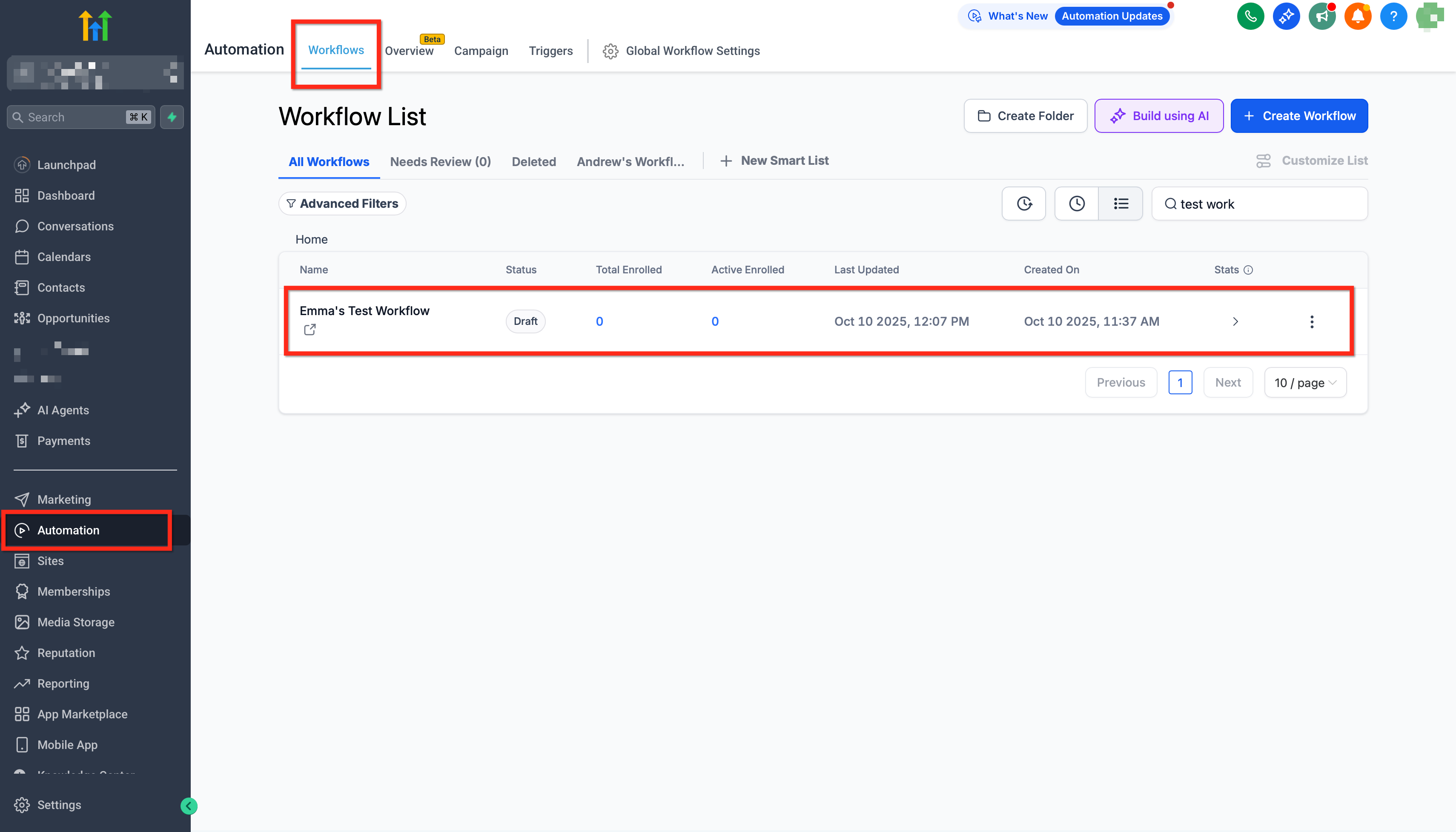
- Open the Workflows page in HighLevel and click the button to create a new workflow, then give it a name.
- Select the Requested to Join Group trigger to start the workflow whenever a join request is submitted.
- Choose the specific community group you want the workflow to monitor using the Group filter.
- Optionally add filters for each membership question, configuring conditions such as “Industry equals Marketing”.
- Add workflow actions like If/Else checks, GPT spam detection, auto approval, admin notifications, or rejection steps.
- Turn the workflow on by toggling the Publish switch so it begins processing incoming requests.
05What it looks like in HighLevel
06Settings that matter
- Requested to Join Group trigger. Starts a workflow when a user submits a request to join a community group, providing request details for automation.
- Group filter. Limits the trigger to fire only for the selected community group, allowing separate automations per group.
- Membership Question Responses filter. Enables conditional logic based on how a user answered the group's membership questions, usable in trigger settings or later workflow steps.
07How it connects to the rest of HighLevel
- Managing members inside groups in HighLevel Group management
- HighLevel pricing and plans Pricing
Michael's take

It removes the repetitive task of manually reading each answer, letting you focus on other community work.