
01Who this is for
- Founders who run membership sites and need consistent onboarding of new members.
- Coaches who want to remove access automatically when a program ends.
- Support teams that require notifications after a contact’s group status changes.
02Community group access, explained
The feature adds two types of workflow components for Community groups: triggers that fire after access is granted or revoked, and actions that can grant or revoke access during a workflow. Triggers listen for a change in a member’s group membership, while actions actively modify that membership.
These components live inside the Workflow Builder under Automation > Workflows. You select the appropriate trigger or action, point it at a specific Community group, and combine it with any other supported workflow steps such as emails, tags, or internal notifications.
03How businesses use community group access
- Automated onboarding. Grant Group Access can be added after a qualifying event to enroll a new member in a Community group automatically.
- Access removal. Revoke Group Access can be used when a program ends or a subscription is cancelled to remove a member’s group access.
- Follow up communication. Group Access Granted or Revoked triggers can start notifications or internal tasks after a member’s access changes.
04Before you start
- Create or locate the Community group that the workflow will monitor or manage.
- Decide whether the workflow should respond to an access change or perform the access change.
- Identify the event or condition that will enroll the contact into the workflow.
- Use a representative test contact before publishing the workflow.
05How to set up and use community group access in HighLevel
Create a group access trigger workflow
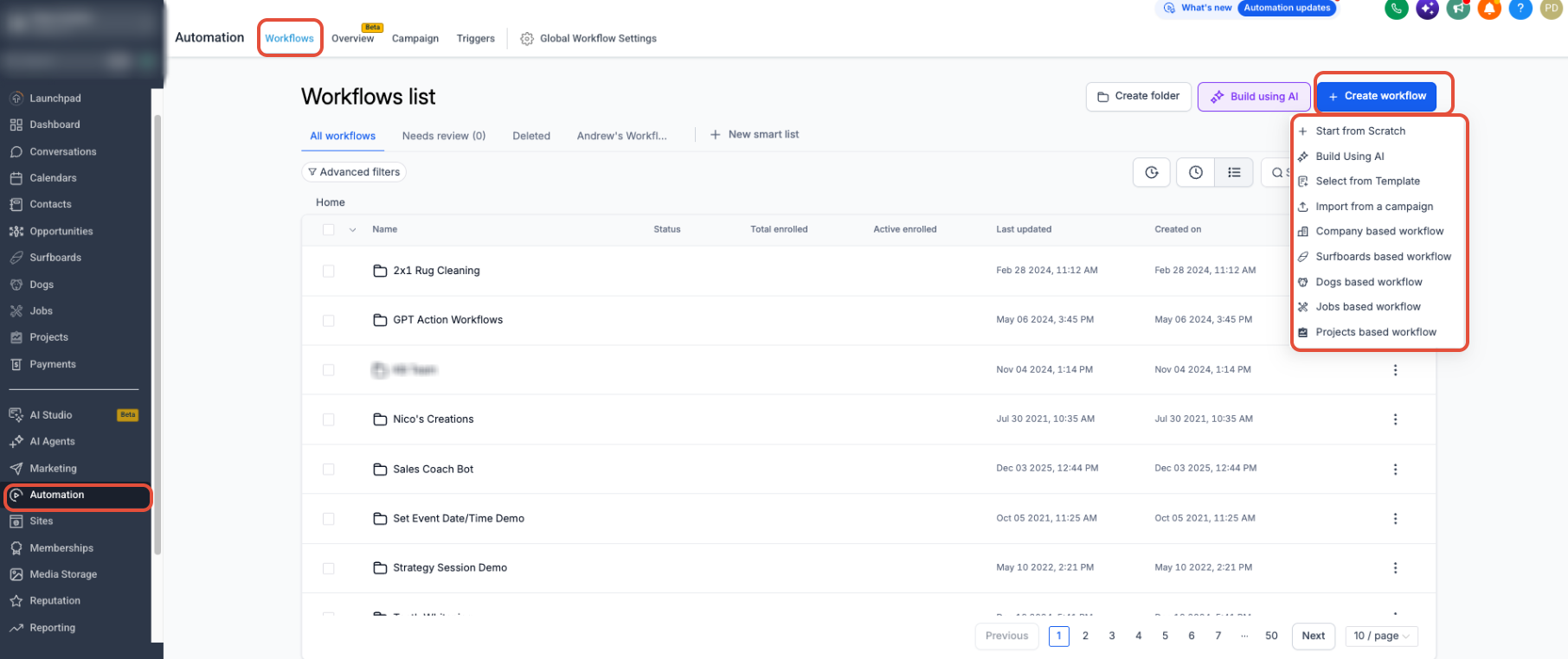
- From the Subaccount view select Automation, then Workflows, click + Create workflow and choose Start from Scratch.
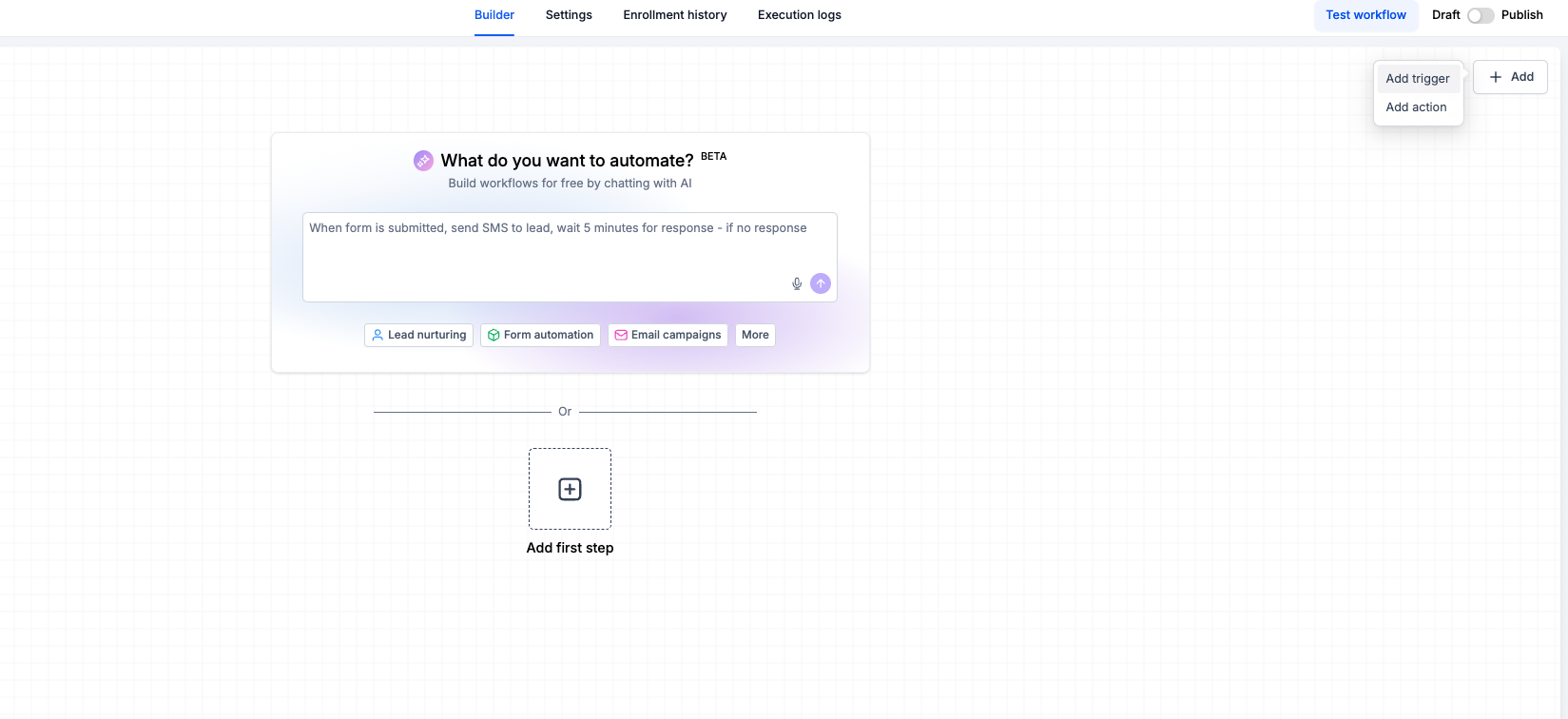
- Click + Add and choose Add trigger.
- Search for Group Access Granted or Group Access Revoked and select the appropriate option.
- Configure the trigger to watch the desired Community group and save the settings.
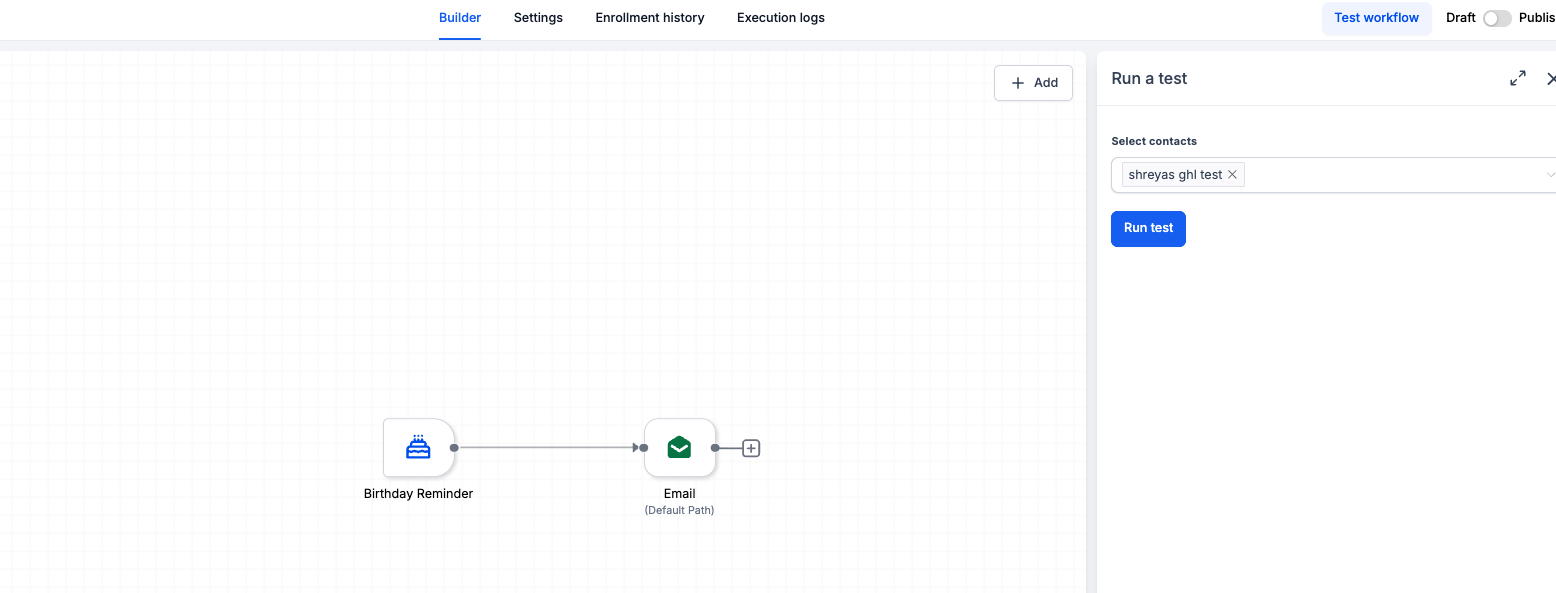
- Click the plus icon after the trigger to add the next workflow action, configuring any required actions or conditions.
- Test the workflow with a test contact, then change the status from Draft to Publish.
Grant or revoke group access with a workflow
- Open Automation > Workflows, create a new workflow or edit an existing one, and add the initial trigger that enrolls the contact.
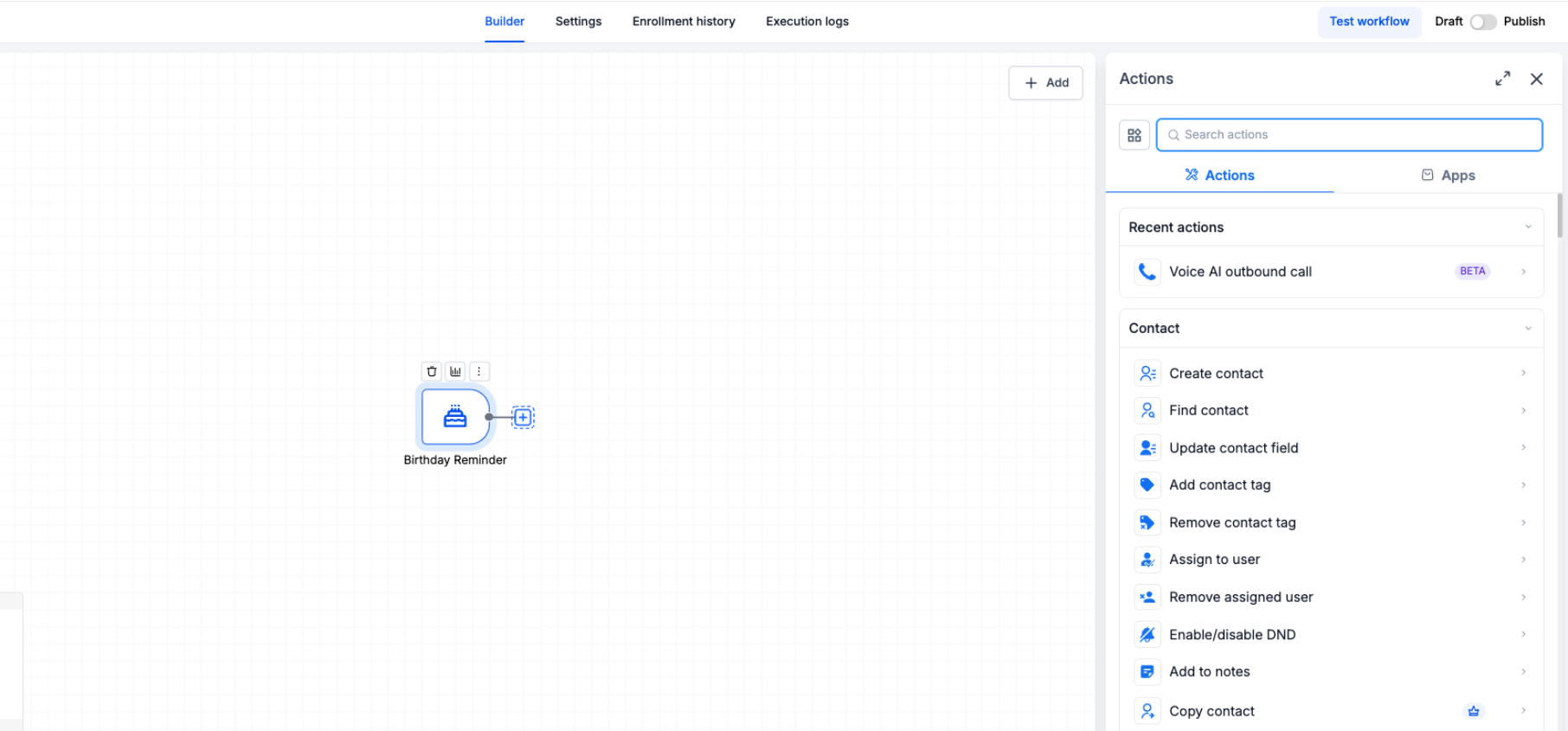
- Click + Add below the trigger and select Add action.
- Search for Grant Group Access or Revoke Group Access and pick the needed action.
- Select the Community group whose access should be granted or revoked, then save the action.
- Add any additional steps, test the workflow with a contact, confirm the access change, and publish the workflow.
06What it looks like in HighLevel
07Settings that matter
- Group Access Granted. A trigger that starts a workflow after a contact receives access to the selected Community group.
- Group Access Revoked. A trigger that starts a workflow after a contact’s access to the selected Community group is removed.
- Grant Group Access. An action that gives the workflow contact access to a chosen Community group during execution.
- Revoke Group Access. An action that removes the workflow contact’s access to a chosen Community group during execution.
08Things to know before you rely on it
- Group Access Granted and Group Access Revoked fire only after the access change has already occurred.
- Grant Group Access and Revoke Group Access change access while the workflow runs; they do not trigger other workflows.
- Pending join requests use the separate Requested to Join Group trigger, not the group access triggers.
- Private channel access has its own distinct triggers and actions and is not controlled by these group access components.
- Avoid creating loops where one workflow changes access that triggers another workflow, which could cause repeated routing.
09How it connects to the rest of HighLevel
- Learn how to set up and manage a HighLevel community. Create and manage community
- Configure payments and access for paid groups inside HighLevel. Paid groups setup
- Review HighLevel pricing and plan options. Pricing and plans
Michael's take

When you have a steady flow of new members or need to cleanly remove access as customers move through your funnel, I find that automating those steps can be very helpful. Trigger based workflows keep onboarding messages on schedule, and action based steps help ensure members aren’t left in a group longer than intended.
If your community is small or you rarely change membership, the overhead of building and maintaining these workflows may outweigh the benefit. In those cases a manual check might be simpler than setting up triggers and actions.