
01Who this is for
- Agency owners who need to control AI Studio usage across many client subaccounts.
- Admins who must restrict AI Studio to specific roles within subaccounts.
02AI Studio permissions, explained
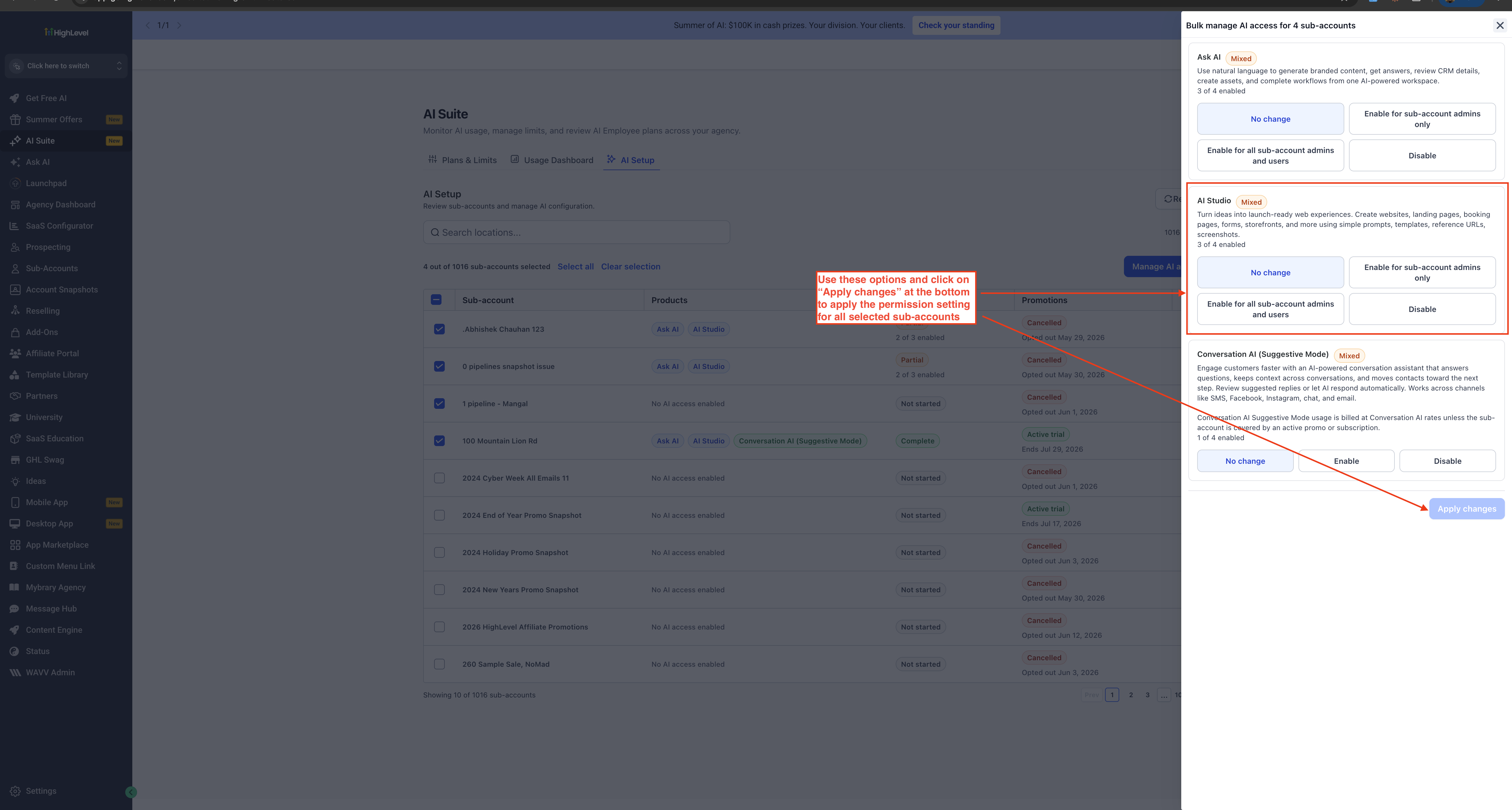
The bulk control feature is located in the Agency dashboard under AI Suite. It provides an AI Studio permission that can be applied to multiple subaccounts in a single action. The permission options determine which users in the selected subaccounts can open AI Studio. Disabling AI Studio hides the tool for those subaccounts until the Agency manually re enables it.
03How businesses use AI Studio permissions
- Marketing agency. The agency selects multiple client subaccounts and disables AI Studio to avoid unexpected usage. The action is performed from the Agency dashboard by checking the boxes next to the subaccounts and applying the Disable option.
- Consulting firm. The firm enables AI Studio only for subaccount admins, allowing them to test AI features while keeping regular users from accessing it. They use the bulk enable option for subaccount admins only.
- Digital services provider. The provider wants every user in selected subaccounts to have AI Studio access. They choose the Enable for all subaccount admins and users option and apply the change in one step.
04How to set up and use AI Studio permissions in HighLevel
Bulk enable or disable AI Studio for selected subaccounts
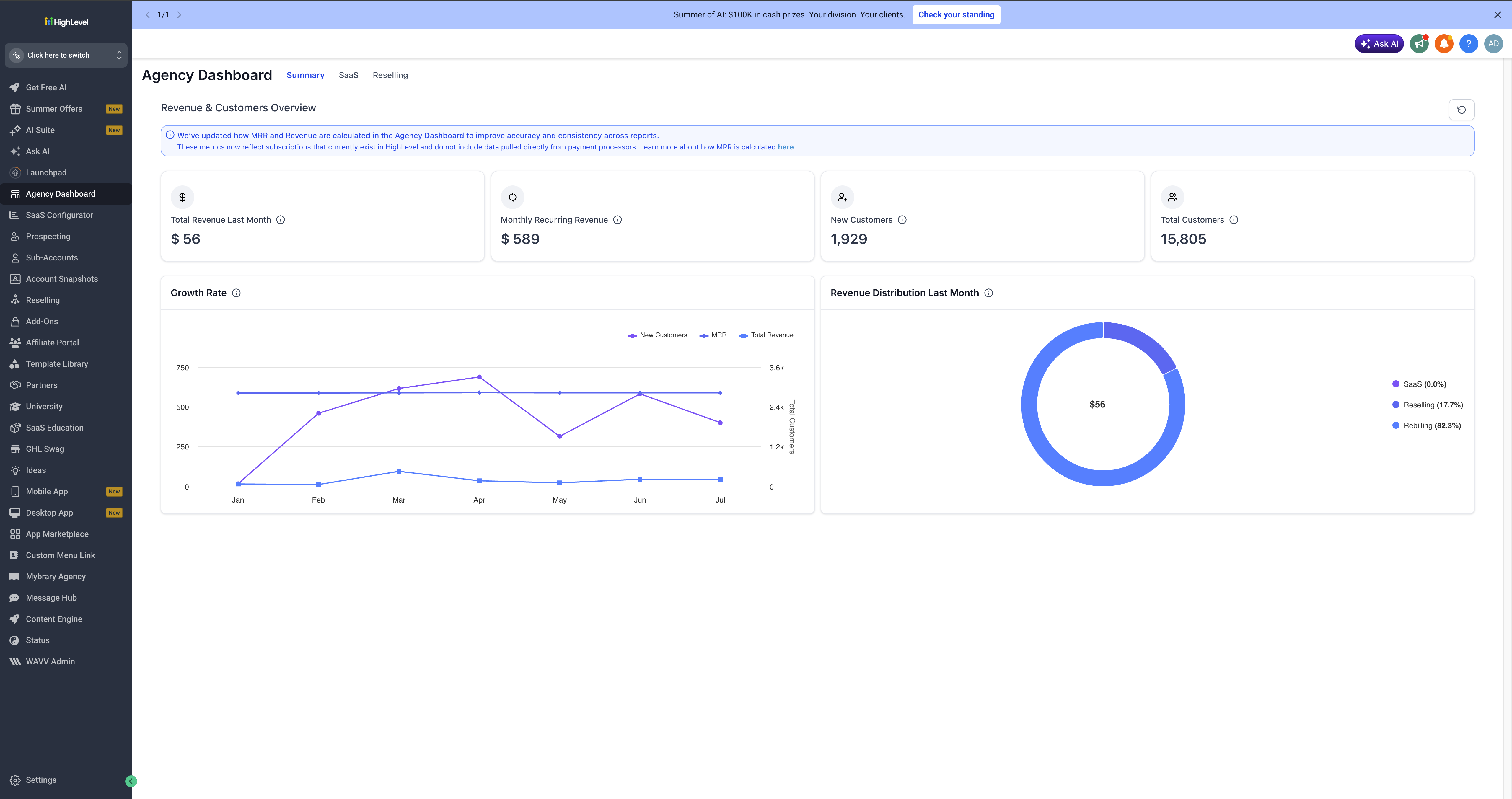
- Navigate to your Agency dashboard.
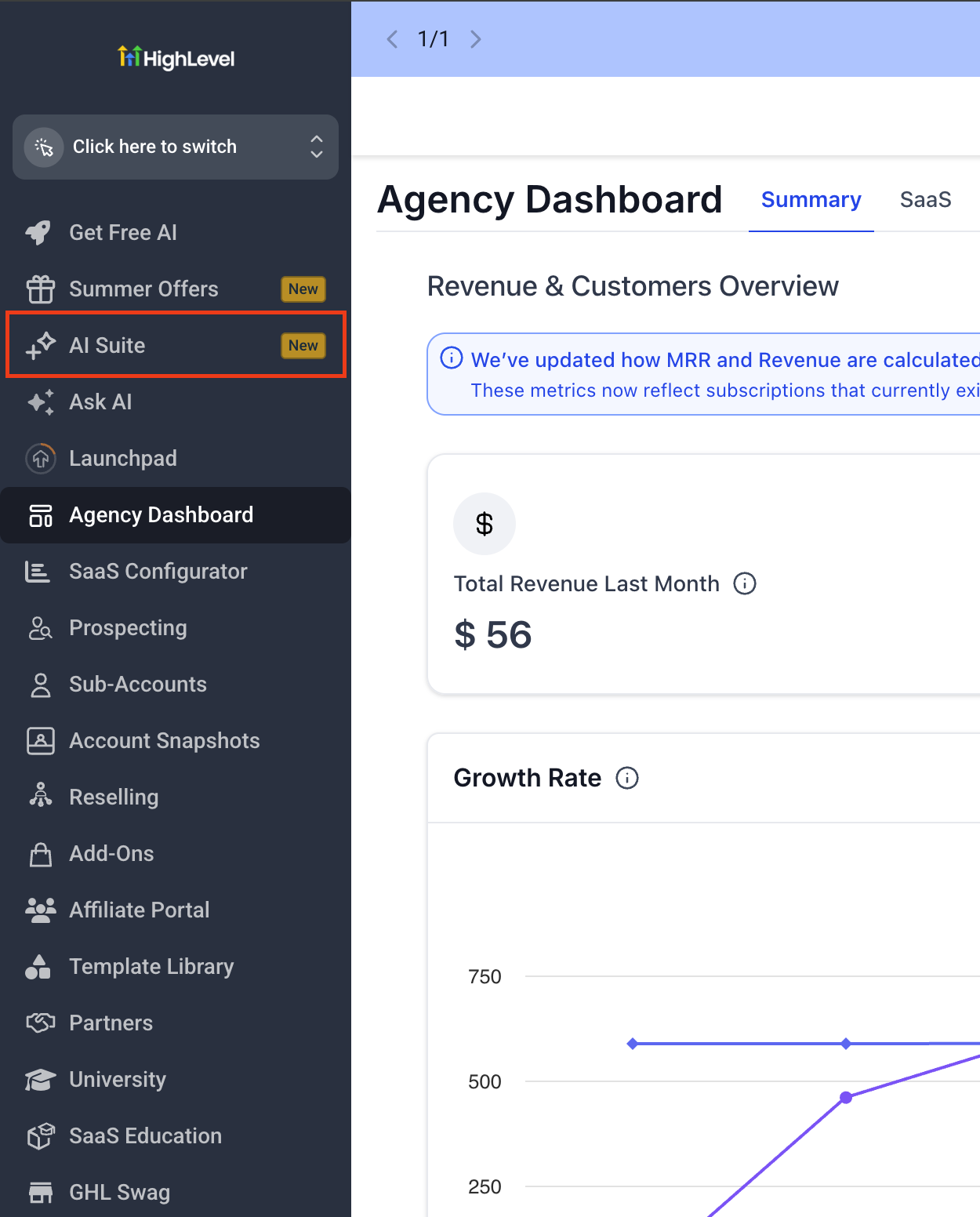
- Click AI Suite in the left hand navigation.
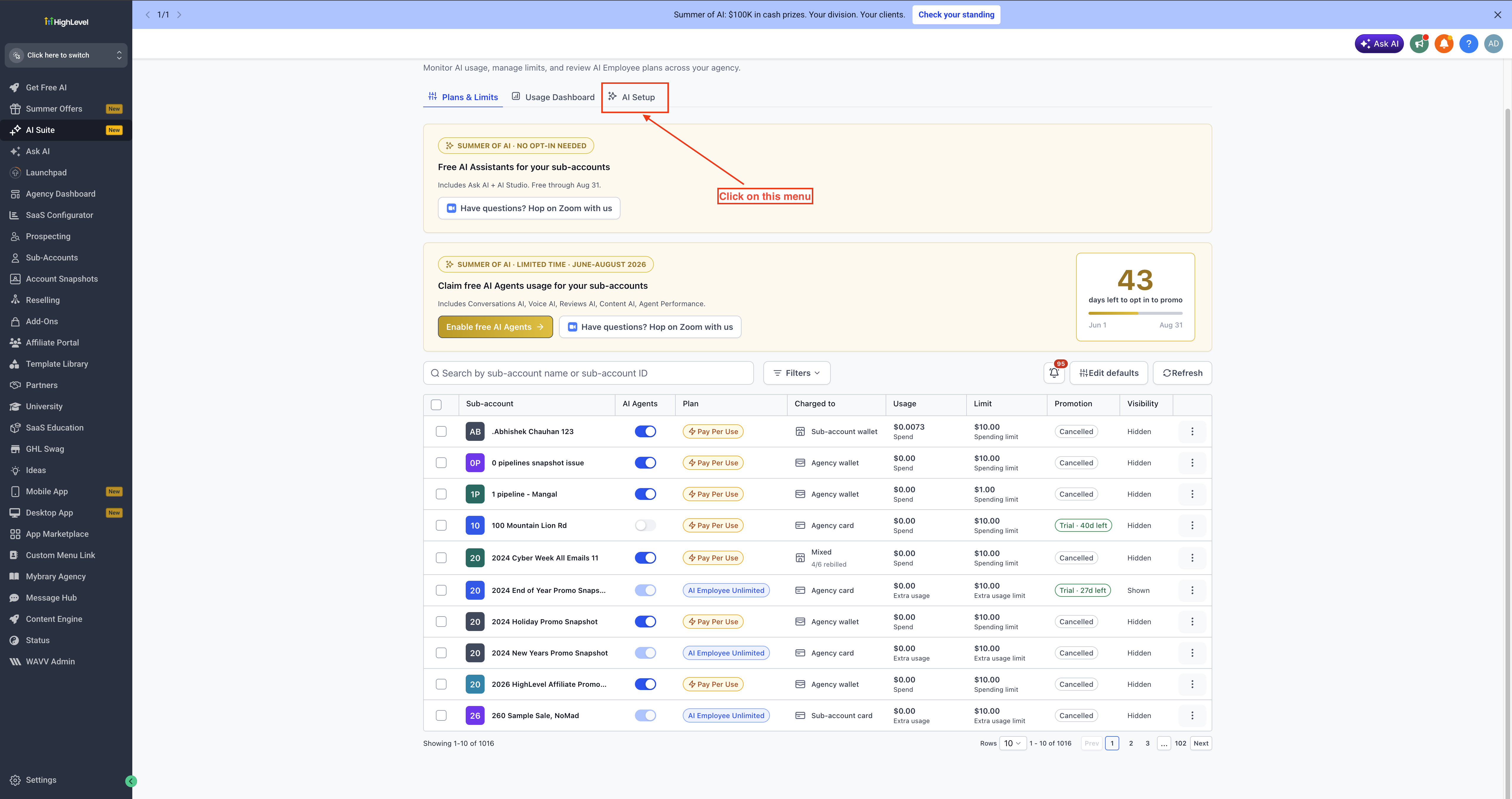
- Select AI setup from the AI Suite menu.
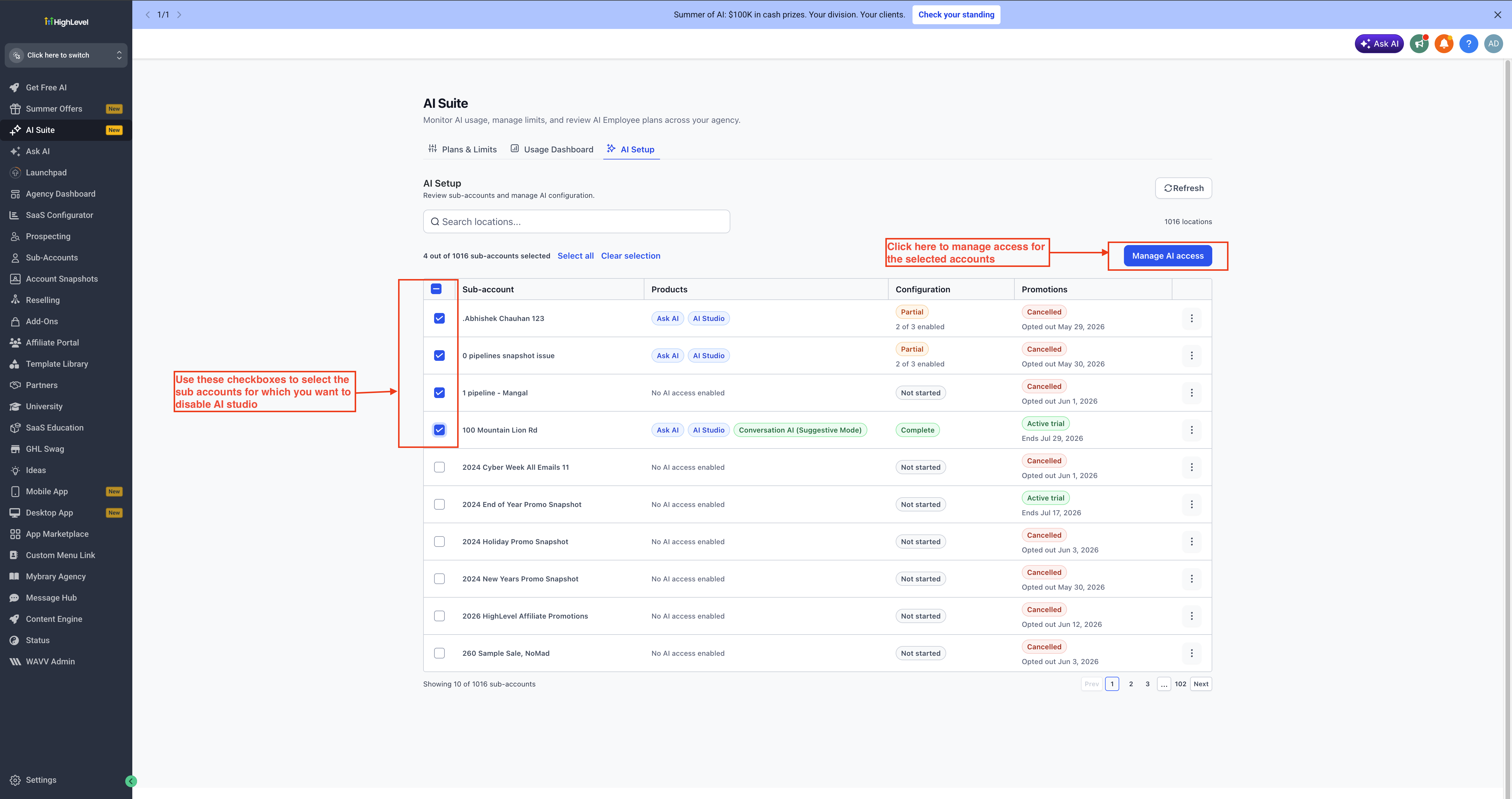
- Mark the checkboxes beside the subaccounts you wish to modify then press Manage AI access.
- In the drawer that appears on the right choose the AI Studio permission you want to set.
- Click Apply Changes to confirm the selection.
- The chosen permission is now applied to all highlighted subaccounts.
05What it looks like in HighLevel
06Settings that matter
- AI Studio permission. Controls whether AI Studio is hidden, available to subaccount admins only, or available to all users in the selected subaccounts.
07Things to know before you rely on it
- Disabling AI Studio hides the feature from the subaccount until the Agency re enables it manually.
- The No change option leaves each subaccount’s current AI Studio setting untouched.
08How it connects to the rest of HighLevel
- Explore AI Studio pricing and usage tiers. AI Studio pricing
- Learn how to edit pages in AI Studio without code. Visual edits guide
- Read about setting up AI Employee access and rebilling. AI Employee access
Michael's take

Michael ReimerFounder of CRM Pros, HighLevel Commander and Certified Admin
For agencies that manage many subaccounts, a single bulk tool to lock down AI Studio feels like a useful convenience. It’s not a headline changing feature, but it removes the grunt work of opening each subaccount and flipping a switch.
Get More InformationOpens on HighLevelPublished November 2, 2026 · Updated November 17, 2026