
AI Studio's chat composer is now richer. Point the AI at specific files with @, and start common integrations with / skills. Responses also stream in more smoothly.
Michael's take
My first take is that this feels like a solid usability upgrade rather than a headline feature. It adds a few shortcuts and smooths out the chat flow, which is the kind of polish that makes daily work feel less clunky.
If you already spend time typing instructions to the AI, you can now point it at a file with @ or fire a built in integration with / instead of describing everything in plain text. The chat also renders the AI’s reply without the jitter you saw before.
I would try the @ picker on a code file and then select a specific line range to see that the AI edits exactly what I expect. I’d also run each / skill once to verify the integration prompt appears and that the chosen integration actually fires.
In a client project I would open the code view, type @, pick the CSS file and ask the AI to adjust a selector. Then I’d use / to add a payment integration in the same chat thread, saving me a separate UI step. The smoother streaming means I can follow the AI’s reasoning without the jumpy text.
I believe tools should reduce friction, not add it. Small shortcuts that let you get to the same result in fewer keystrokes are worth the effort.
Definitely worth checking out if you’re already using AI Studio to build and maintain sites or automations.
Why it matters for Founders
To point the AI at a particular file, or to ask for a common integration, you had to describe it in plain text and hope it was understood. Streaming replies could also look jumpy while they rendered.
What changed
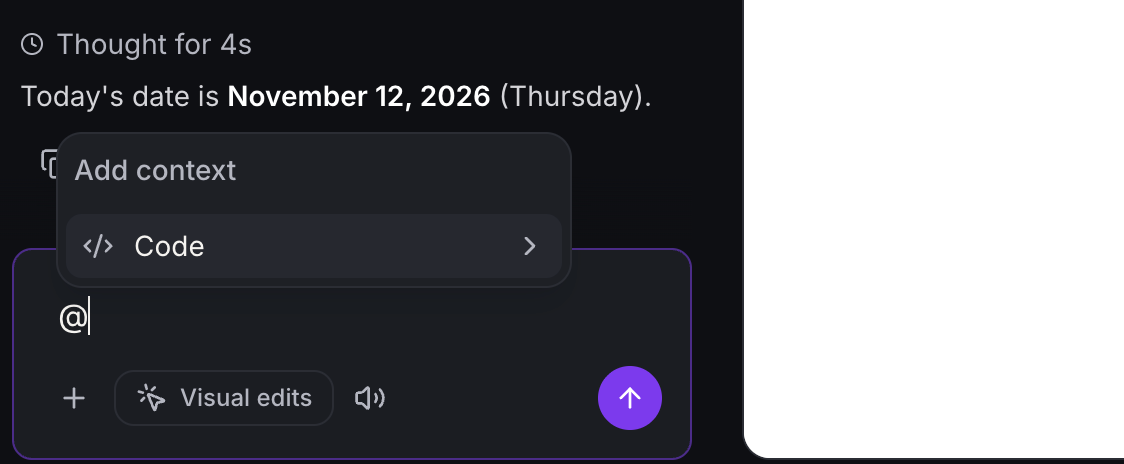
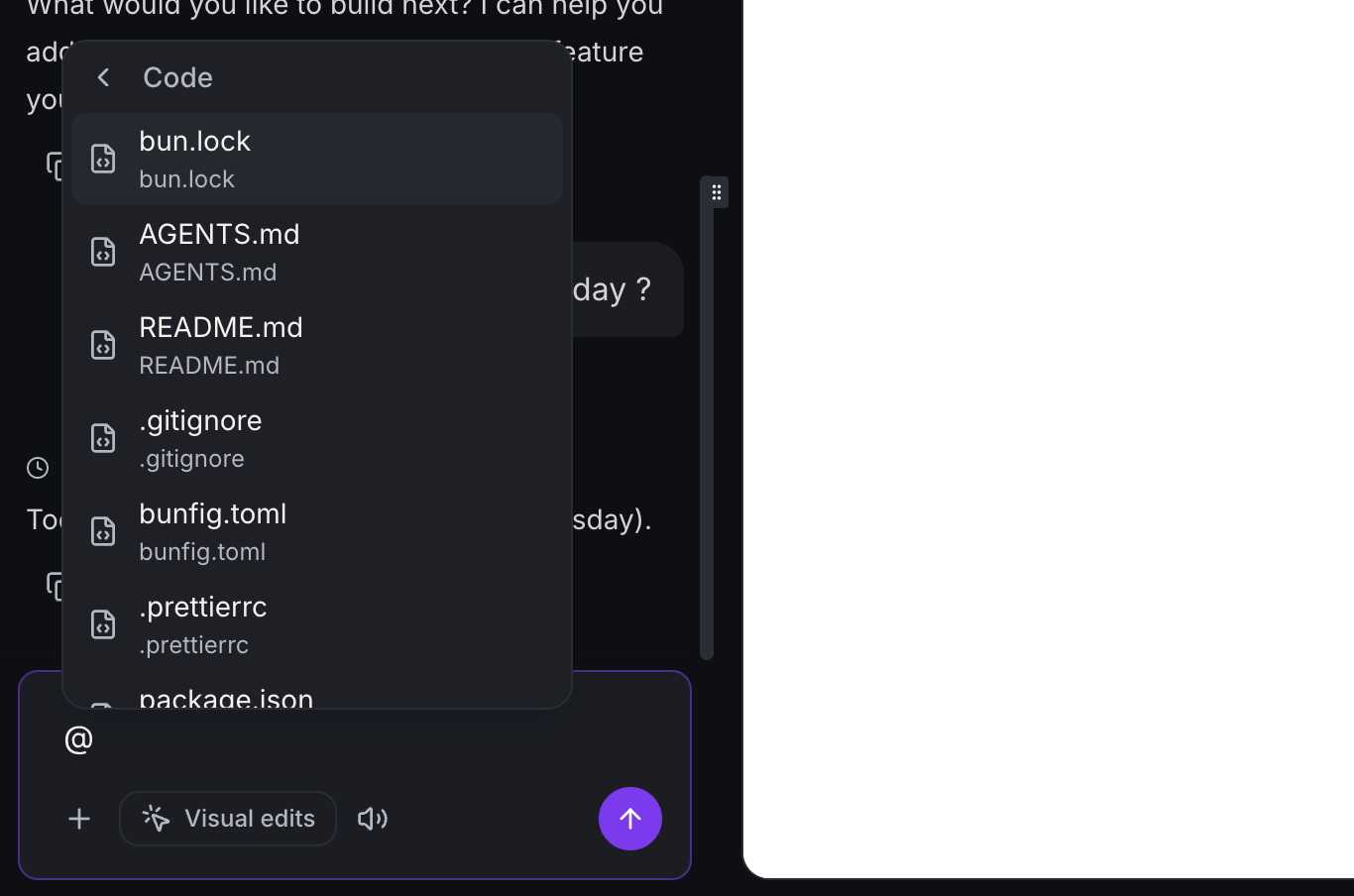
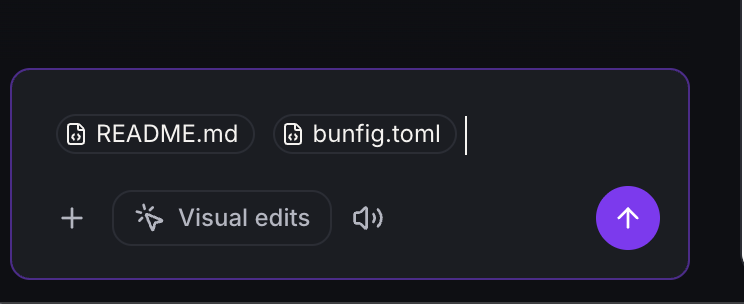
- @ file references (Code view):Type
@to pick a project file, optionally down to a line or range. It appears as a pill in the composer and in sent messages.
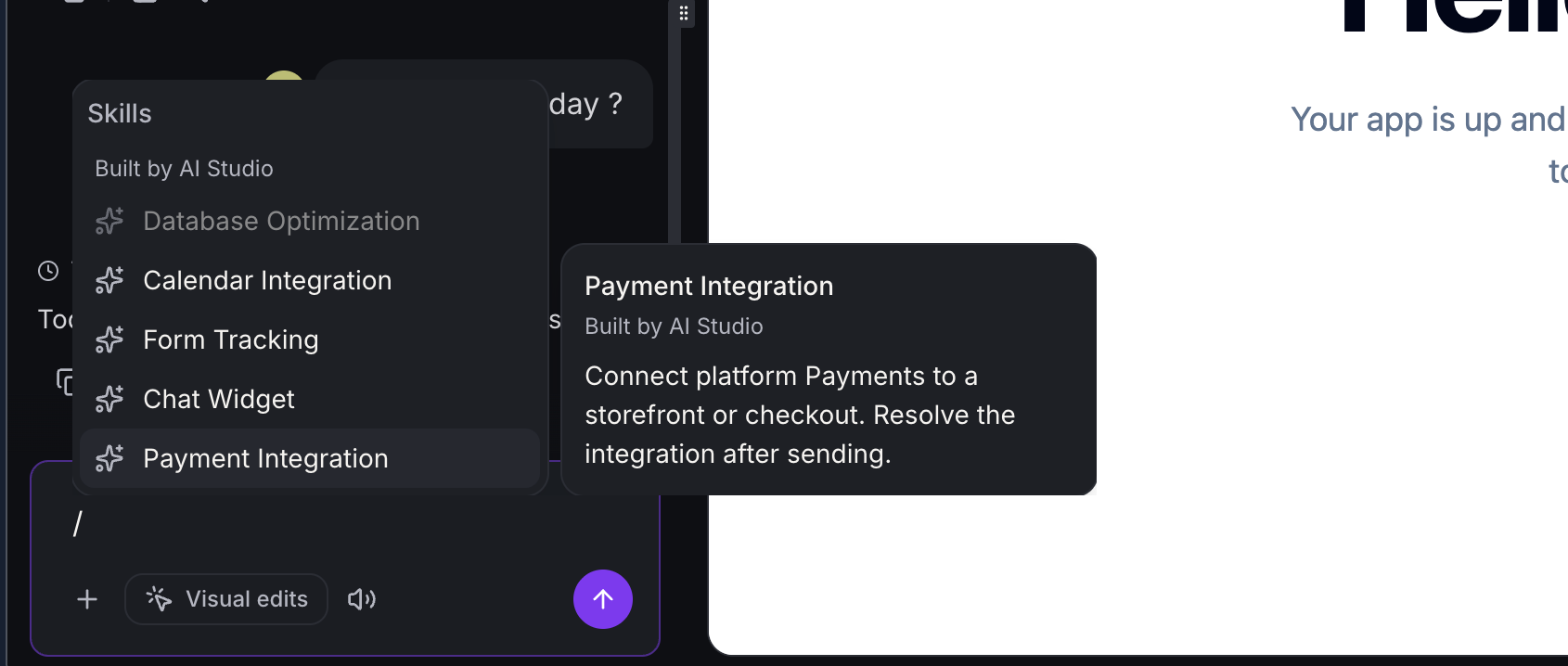
- / skills (Builder):Type
/to pick a built in skill: Database Optimization, Form Tracking, Calendar Integration, Payment Integration or Chat Widget. You can use one skill per message, and integration skills ask you to choose the integration before they run.
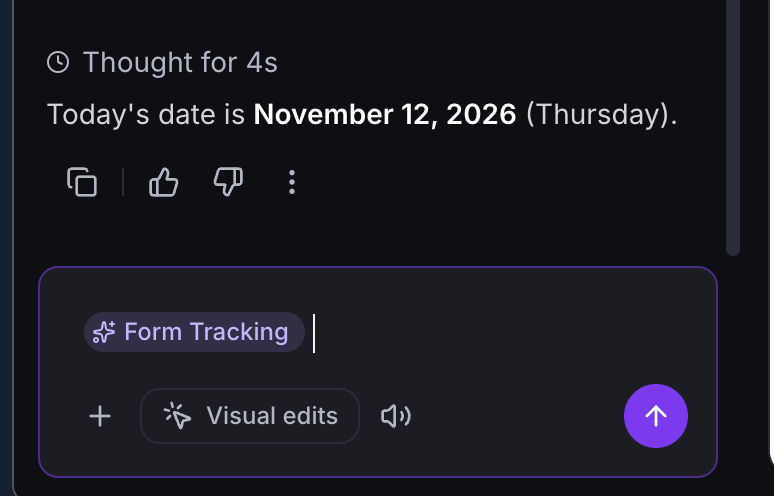
- Smoother streaming:Replies appear smoothly as they stream, Markdown renders without stutter, and reduced motion settings are respected.
- Rich composer:Image attachments, selected element context, international keyboard (IME) input as before.
How this helps your business
- More precise edits:Tell the AI exactly which file or lines to change.
- Faster integrations:Start forms, calendars, payments and chat widgets in one step.
- Cleaner experience:Responses are easier to follow as they arrive.
- More accessible:Pickers work with keyboards and screen readers, and reduced motion is supported.
How to turn it on
- Navigate to AI Studio, open a project, then go to Chat.
- Activate: Type
@in Code view to reference a file, or/in Builder to choose a skill. - Enjoy: For example, type
/, choose Payment Integration, pick your integration, and send.
Notes and availability
@file references work in Code view only./skills work in Builder only.- A file reference tells the AI which file you mean. It does not pin the file's contents into context.
- Typing
/or@as plain text still works. If nothing matches, Enter sends the message normally (e.g. "fix the /pricing page"). - Database Optimization is unavailable while there's a Cloud status error. The other skills are unaffected.
- No data migration is needed. Existing chats and skill follow ups keep working.
Questions Founders ask
What did HighLevel release in "AI Studio chat composer: Richer @ and / inputs, smoother streaming"?
AI Studio's chat composer is now richer. Point the AI at specific files with @, and start common integrations with / skills. Responses also stream in more smoothly.
What should a Founder do with AI Studio chat composer: Richer @ and / inputs, smoother streaming?
Open a project in AI Studio, type @ in Code view to reference a file, and send a test edit to confirm the new picker works. Founders and agency owners who already use AI Studio for building client projects.
How do I turn on AI Studio chat composer: Richer @ and / inputs, smoother streaming in HighLevel?
In HighLevel: Navigate to AI Studio, open a project, then go to Chat. Then Activate: Type @ in Code view to reference a file, or / in Builder to choose a skill. Then Enjoy: For example, type /, choose Payment Integration, pick your integration, and send.
Why does AI Studio chat composer: Richer @ and / inputs, smoother streaming matter?
To point the AI at a particular file, or to ask for a common integration, you had to describe it in plain text and hope it was understood. Streaming replies could also look jumpy while they rendered.
How do I get this feature with setup help?
Start a free HighLevel trial through Michael Reimer's link and the CRM Pros team helps with setup in your first 7 days, with an onboarding call, three live calls every week and the affiliate community included.
Get More InformationOpens in a new tab Published November 13, 2026. Screenshots belong to HighLevel.