
01Who this is for
- Founders who need precise control over their web app layout and logic, beyond what the visual builder provides.
- Developers in small agencies who want to fine tune AI generated code without switching to an external IDE.
02Code editor, explained
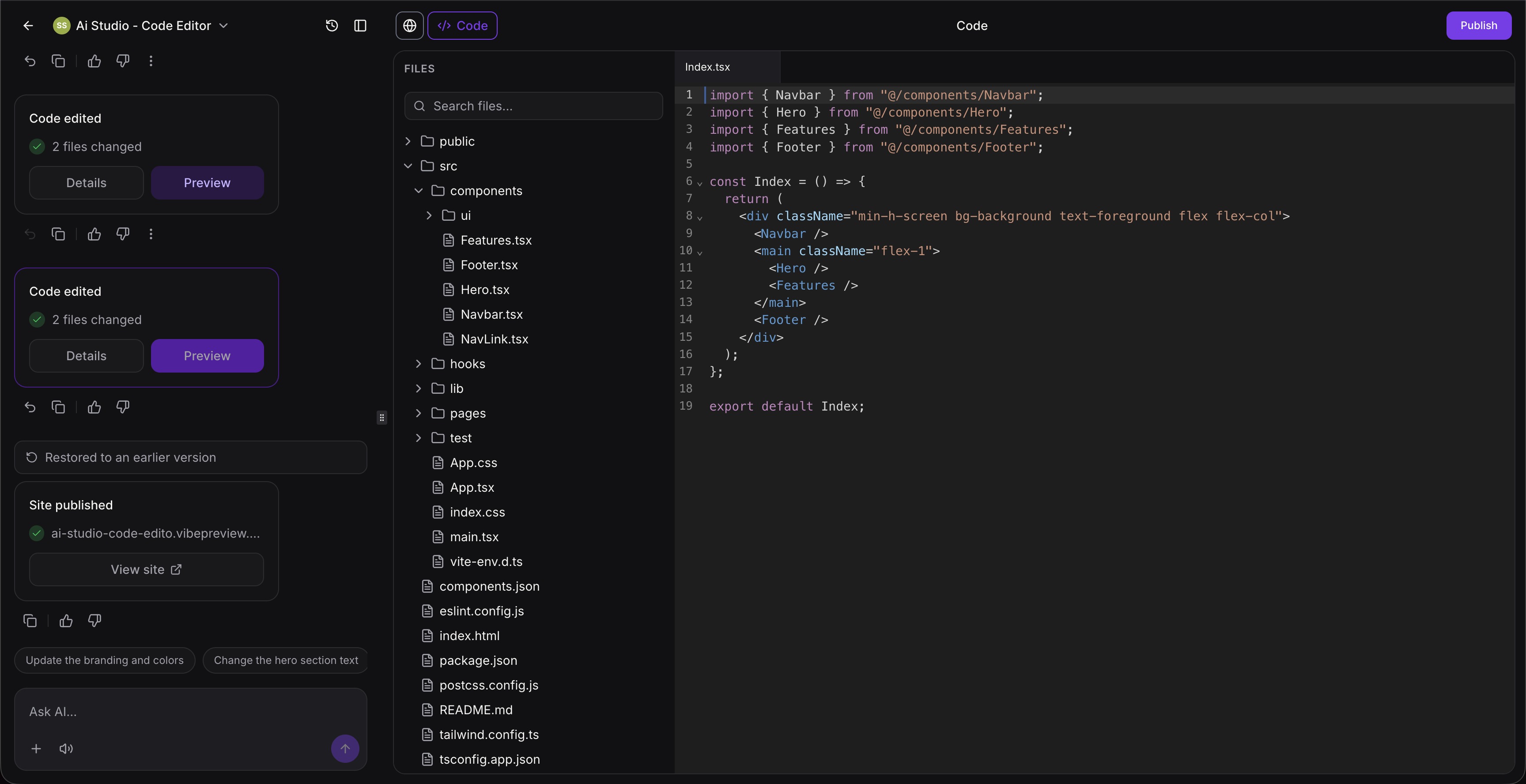
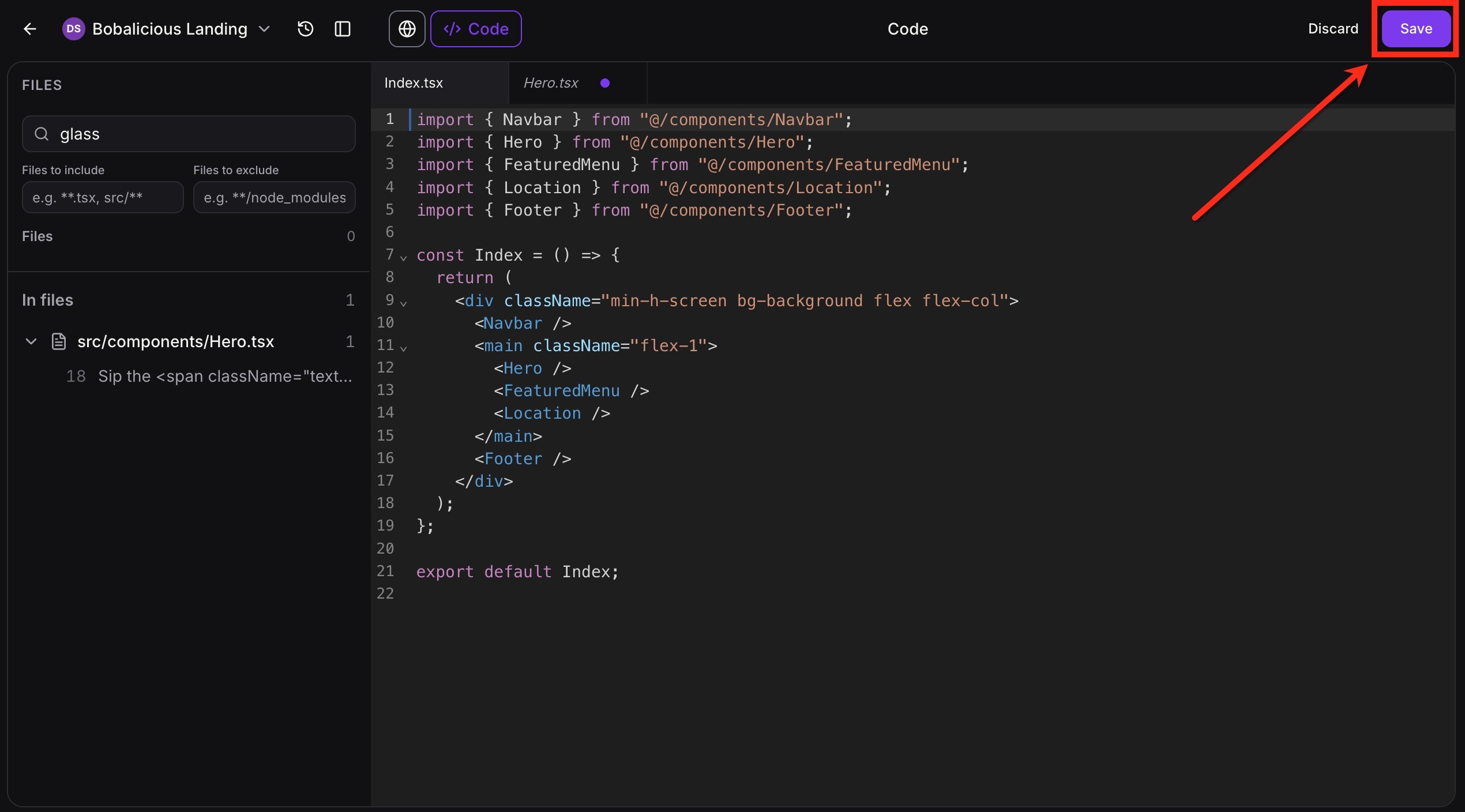
The Code Editor is a built in, CodeMirror powered environment that lives inside the AI Studio builder. It displays the project’s file tree and lets you edit TypeScript, JSX, CSS, JSON and similar files directly in HighLevel. When you click Save, the editor stores the changes and updates the live preview within seconds.
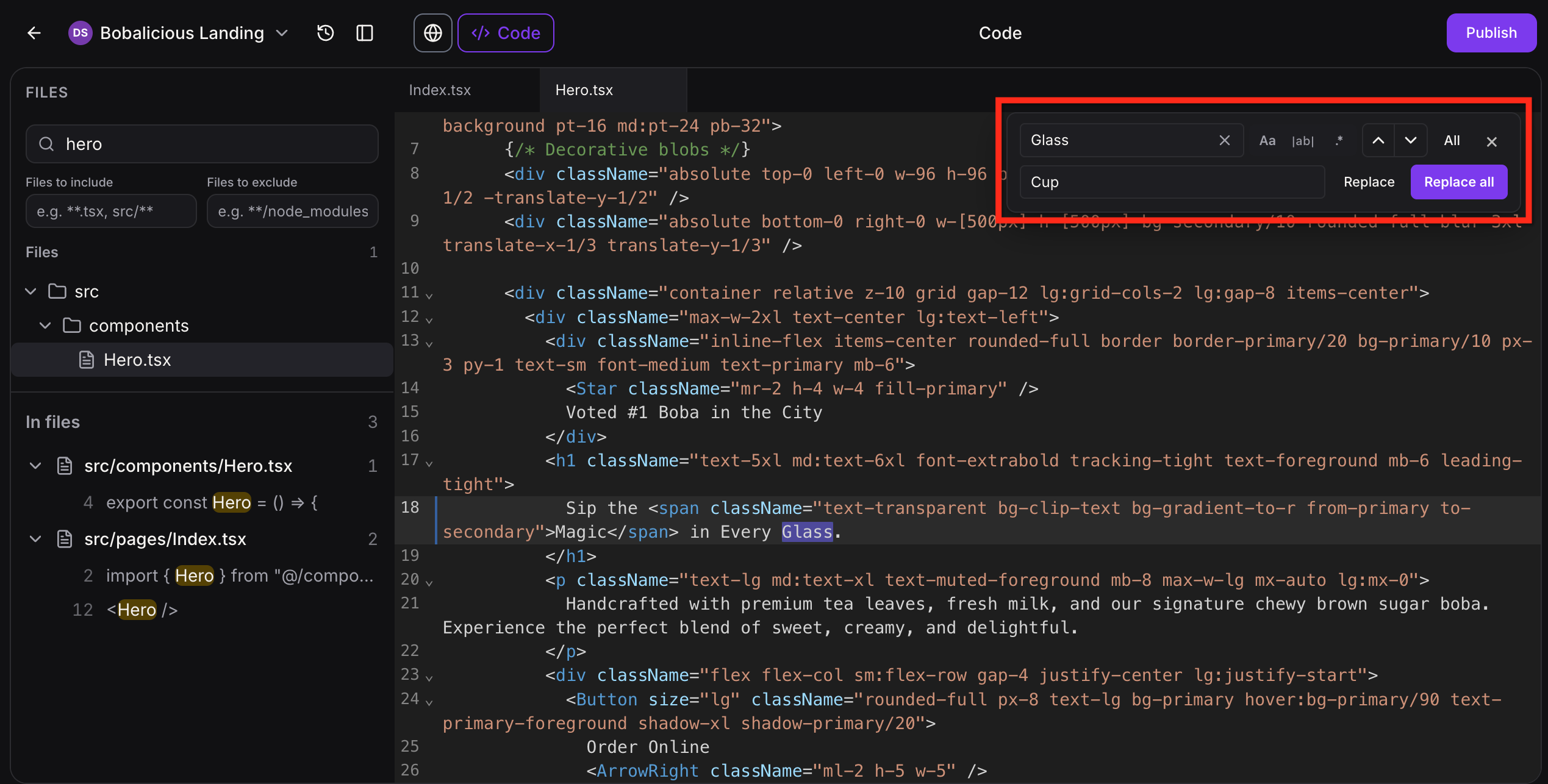
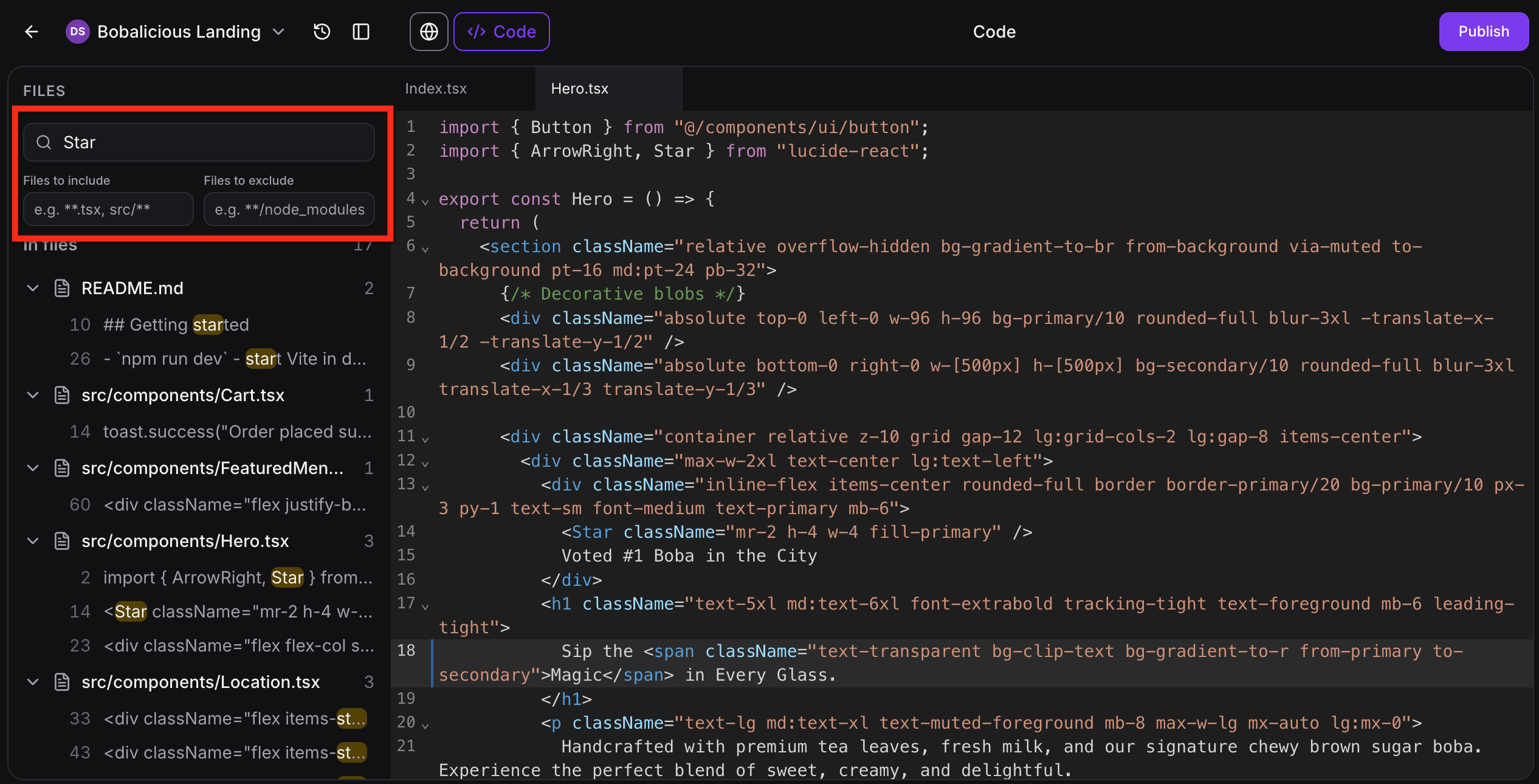
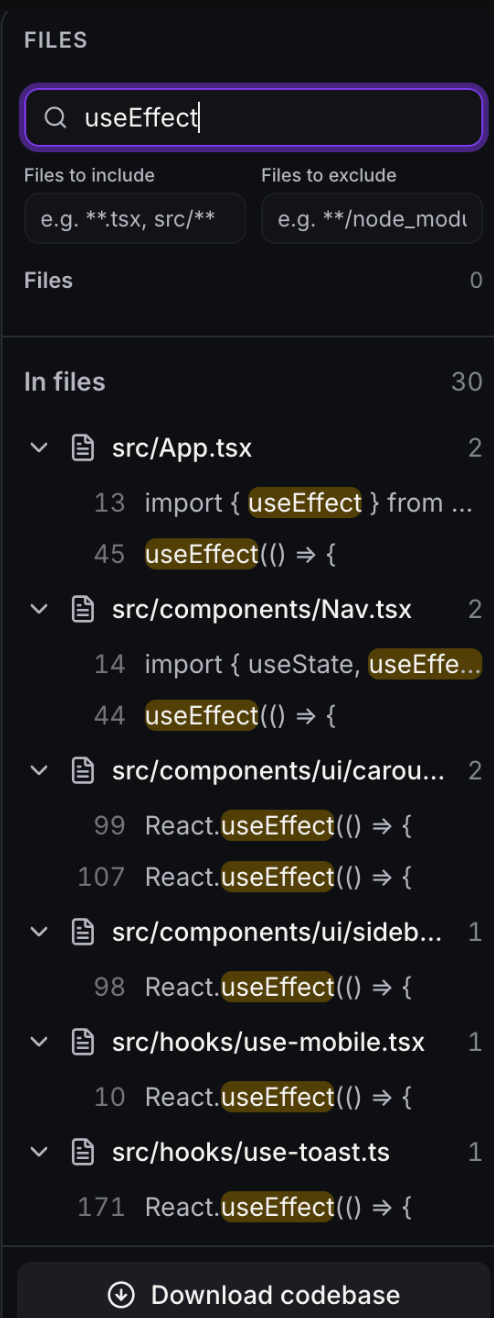
Features include Find & Replace for single file edits, Global Project Search across all files, instant save with live preview, smart error detection that surfaces build failures in chat, automatic route detection, version history accessed via the Clock icon, and an unsaved changes warning that appears before you leave the editor.
03How businesses use code editor
- Ecommerce store. The store owner opens the Code Editor to adjust a product page component’s CSS for brand consistency. After saving, the live preview shows the updated style, and the owner publishes the site when satisfied.
- SaaS startup. A SaaS Founder edits a TypeScript file that handles a login flow to add a custom validation rule. They use Global Project Search to locate the function, apply the change, save, and verify the preview before publishing.
- Marketing agency. An agency team member uses Find & Replace to update a hard coded tagline across multiple landing page files. They replace the text, save, and confirm the revisions in the preview before making the changes live.
04Before you start
- Create an AI generated project in AI Studio so the Code Editor has files to edit.
05How to set up and use code editor in HighLevel
Edit and publish code using the AI Studio Code Editor
- Open the desired AI Studio project and click the Code button to launch the editor.
- Select the target file from the file tree and modify its contents, using Find & Replace or Global Project Search if needed.
- Click the Save button to store the changes and refresh the live preview.
- If you try to leave the editor with unsaved edits, a warning appears prompting you to save before exiting.
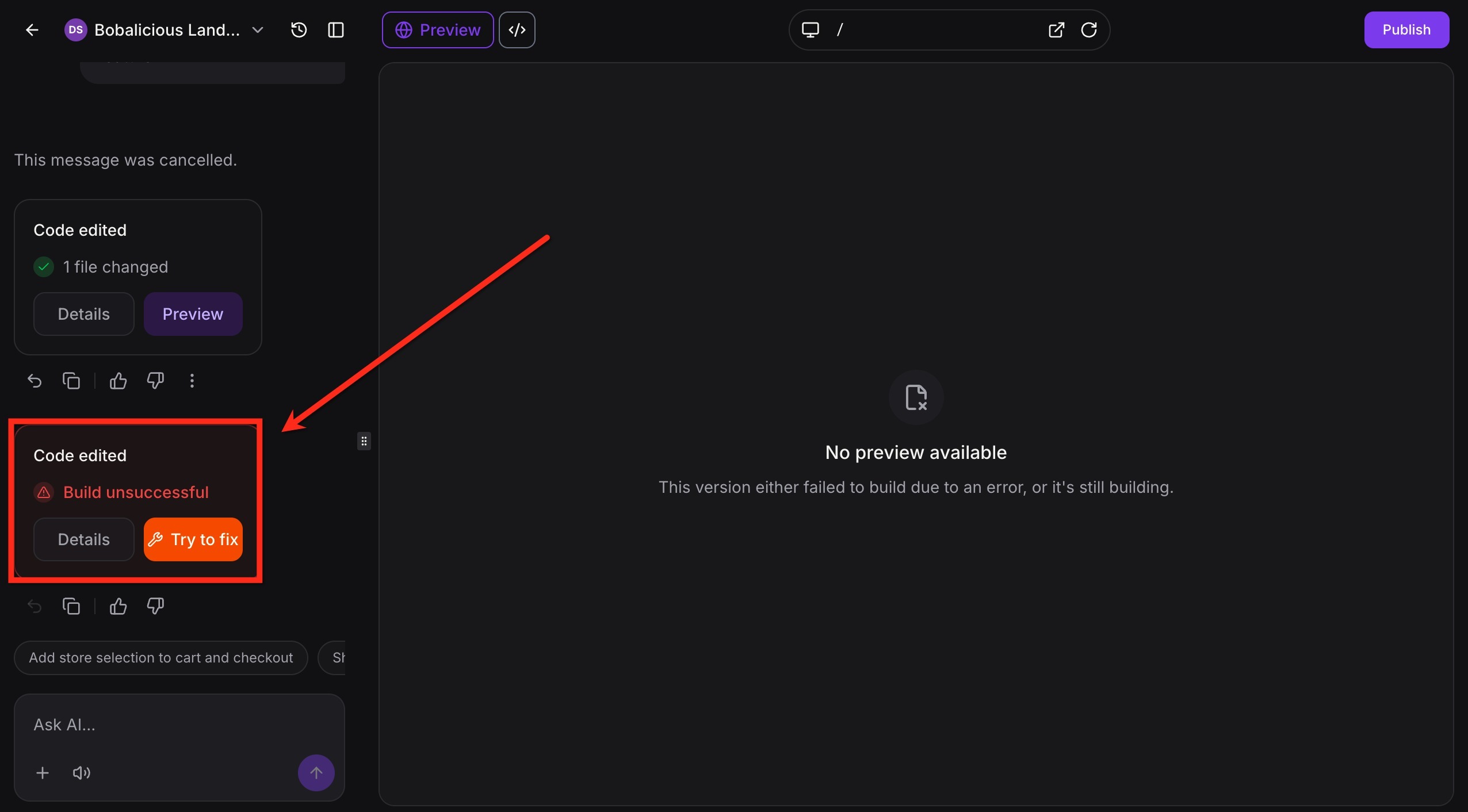
- Inspect the preview; if a build error appears, open the error details and click Try to fix to let AI propose a correction.
- When the preview looks correct, click Publish to push the updated project to the live site.
06What it looks like in HighLevel
07Settings that matter
- Find & Replace. Controls search and replace within the currently opened file, including case sensitive and whole word options.
- Global Project Search. Enables searching for text across all project files, showing matches grouped by file with line numbers.
- Smart Error Detection. Shows build and preview errors in chat and offers an AI generated fix when a code change breaks the project.
- Automatic Route Detection. Adds new routes created in code automatically to the route selector for navigation management.
- Version History. Creates a new version each time you save, allowing you to view, compare, and restore previous states.
- Unsaved Changes Protection. Displays a warning if you try to leave the editor with unsaved edits, prompting you to save first.
08Things to know before you rely on it
- Smart Error Detection only appears when a build or preview failure occurs after a code change.
- Version history is created only when you click Save; unsaved edits are not versioned.
- The Code Editor supports only text based files such as TypeScript, JSX, CSS, and JSON.
09How it connects to the rest of HighLevel
- AI Studio overview and custom domain setup AI Studio overview
- AI Studio pricing and usage tiers Pricing details
- Visual Edits in AI Studio for non code changes Visual Edits
- How to publish an AI Studio project Project publishing
Michael's take

The Code Editor gives a small business the ability to fine tune AI generated sites without juggling separate development tools, saving time and reducing reliance on outside developers.
Don’t forget to publish after you’re happy with the preview, or your changes stay hidden.