
01Who this is for
- Founders who operate AI Studio websites gain automated lead handling without manual data entry.
- Marketing managers at agencies can route AI Studio leads to specific campaigns using filter options.
- Small business owners with a single AI Studio project can set up instant follow up notifications.
02AI Studio Form Submitted trigger, explained
The trigger monitors form submissions on AI Studio sites. When a visitor sends a form entry, HighLevel creates a contact record and fires the selected workflow. You can attach any standard workflow actions to this event.
Filters let you limit the trigger to a particular AI Studio project, a specific form, a page path, or a domain. If you leave filters empty, the workflow runs for every AI Studio form submission in the account.
03How businesses use AI Studio Form Submitted trigger
- Real estate agency. Add the trigger to a workflow that sends a welcome email and assigns the lead to a sales agent when a property inquiry form on the agency’s AI Studio site is submitted.
- Online coaching business. Configure the trigger with a filter for the coaching program sign up form, then add actions that add a tag, enroll the contact in a nurture sequence, and schedule a reminder SMS.
- Event planning company. Use the trigger to capture RSVP form submissions, create an opportunity in HighLevel, and notify the event coordinator via email and internal task.
04The numbers and rules that matter
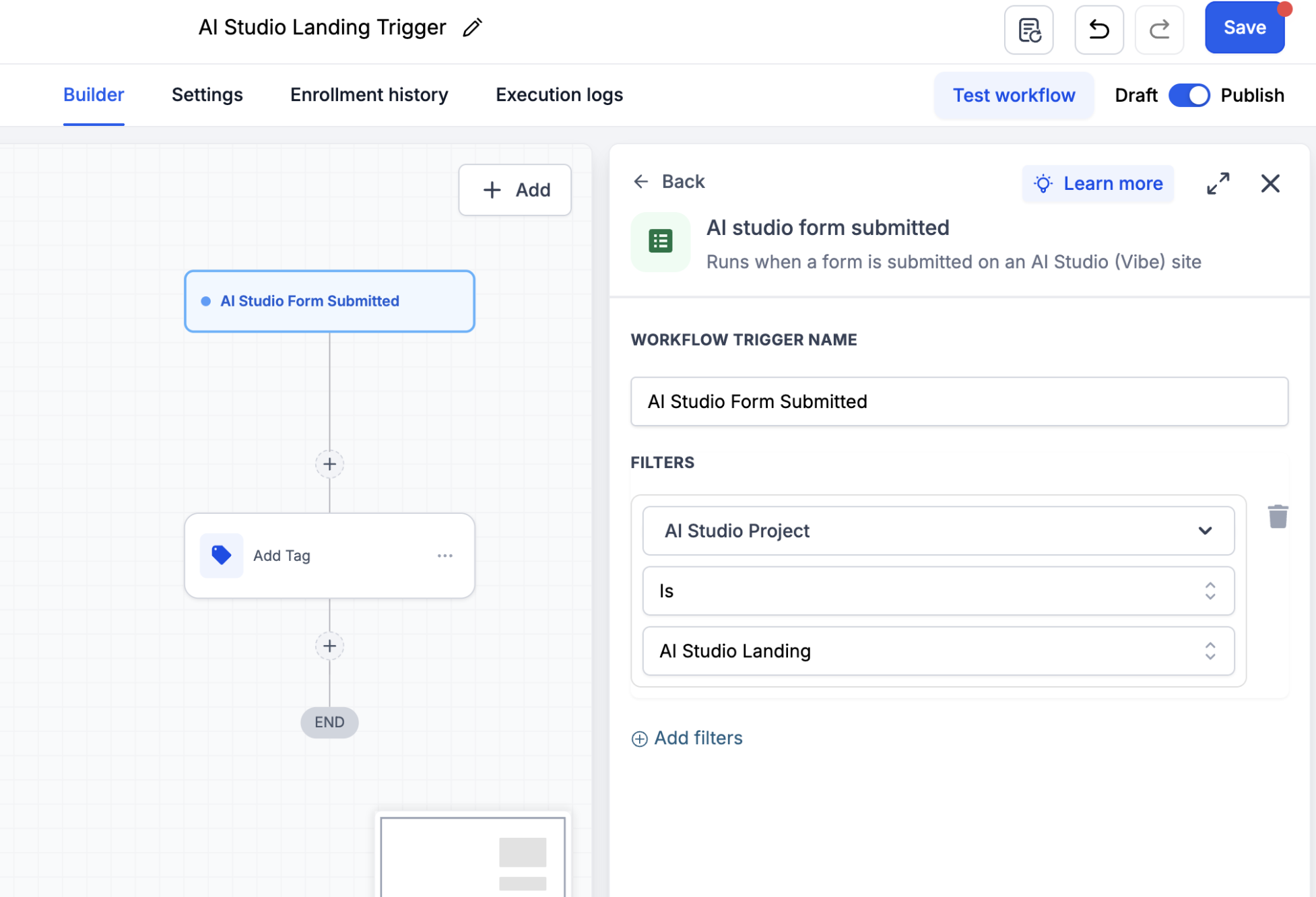
- Available filters: AI Studio Project, AI Studio Form, Page Path, Domain.
05Before you start
- Enable AI Studio for the subaccount.
- Create a form inside the AI Studio project.
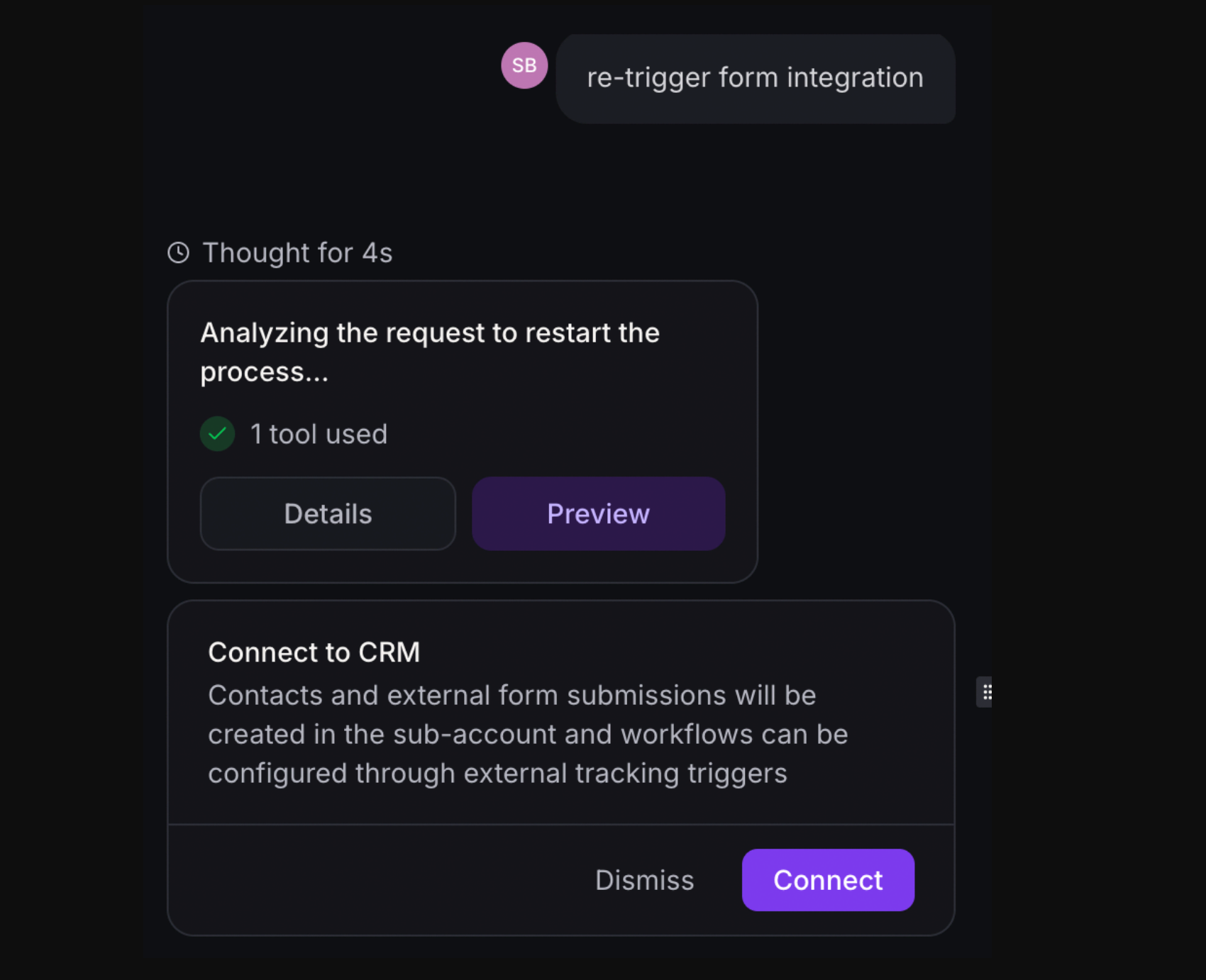
- Connect the form to CRM tracking.
- Publish the AI Studio project.
- Submit a test entry so filter options load.
06How to set up and use AI Studio Form Submitted trigger in HighLevel
Reconnect existing AI Studio forms
- Open the AI Studio project that contains the target form.
- In the AI Studio chat, request a form integration re trigger by typing: Re trigger form integration.
- After AI Studio updates the integration, reconnect the form to CRM tracking.
- Publish the project again to apply the refreshed tracking setup.
- Visit the live site and submit a test entry to confirm the tracking works.
Create a workflow using the AI Studio Form Submitted trigger
- Go to Automation > Workflows and open a new or existing workflow.
- Add a new trigger and select AI Studio Form Submitted from the list.
- Optionally add filters for project, form, page path, or domain.
- Insert the desired workflow actions such as email, SMS, tag, or opportunity creation.
- Save the workflow and switch it to Published.
07What it looks like in HighLevel
08Settings that matter
- AI Studio Project filter. Limits the workflow to submissions coming from the chosen AI Studio project.
- AI Studio Form filter. Runs the workflow only when the selected form is submitted.
- Page Path filter. Triggers the workflow for submissions made on specific page URLs.
- Domain filter. Restricts the workflow to form submissions originating from designated domains.
09Things to know before you rely on it
- Existing forms keep working with the External Tracking trigger; they only need reconnection if you want to use the new AI Studio Form Submitted trigger.
- Filters are optional; without them the workflow fires for all AI Studio form submissions in the account.
10If something goes wrong
- Project or form does not appear in the filter list. Verify the form is linked to CRM tracking, re trigger the form integration, reconnect to CRM tracking, submit another test entry, then refresh the workflow builder.
- Workflow does not run after a form submission. Make sure the workflow is published, the form is connected to CRM tracking, re trigger integration if needed, submit a fresh entry on the published site, and confirm filter settings match the test submission.
11How it connects to the rest of HighLevel
- Learn how to connect AI Studio forms to CRM tracking. Connect forms in AI Studio
- Details on publishing AI Studio projects and custom domains. Publish AI Studio
- Start a 30 day trial to access AI Studio and workflow features. 30 day trial
Michael's take

When a lead fills out a form on an AI Studio site, you need a reliable way to start a follow up sequence without manual steps. The biggest win is getting that lead into a workflow the moment the form is submitted so you can send a thank you email, tag the contact, or create an opportunity right away.
The first setting to get right is connecting the AI Studio form to CRM tracking and retriggering the integration if the form existed before this trigger was introduced. Once the form shows up in the filter list, the rest of the workflow runs exactly as any other HighLevel trigger would.