
01Who this is for
- Founders of SaaS startups, need their AI Studio sites to appear in search results and social previews.
- Local service businesses, rely on accurate Google listings and quick indexing of their landing pages.
- Online educators, want curriculum pages and course listings to be discoverable by AI assistants.
02Advanced SEO Support, explained
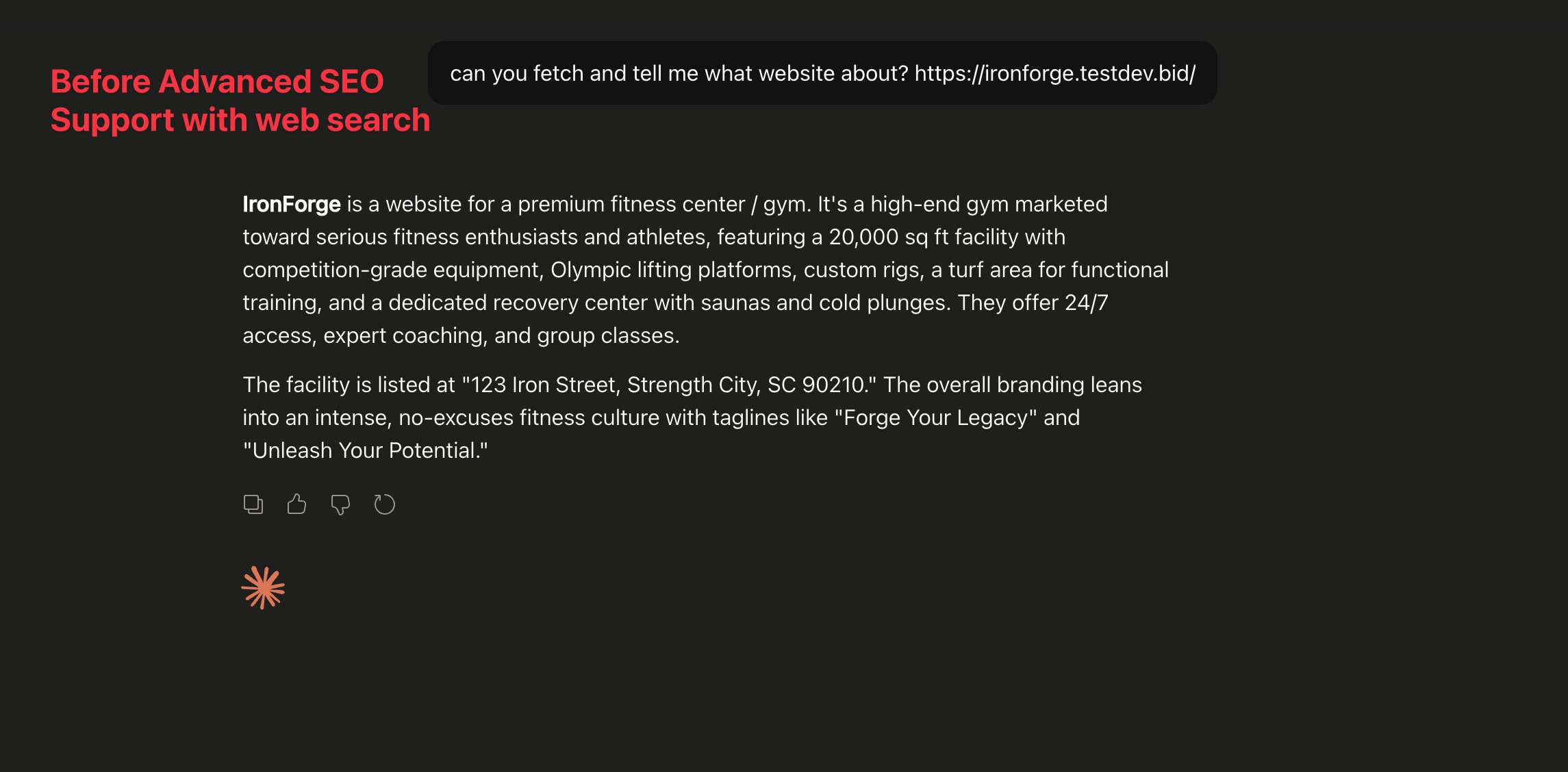
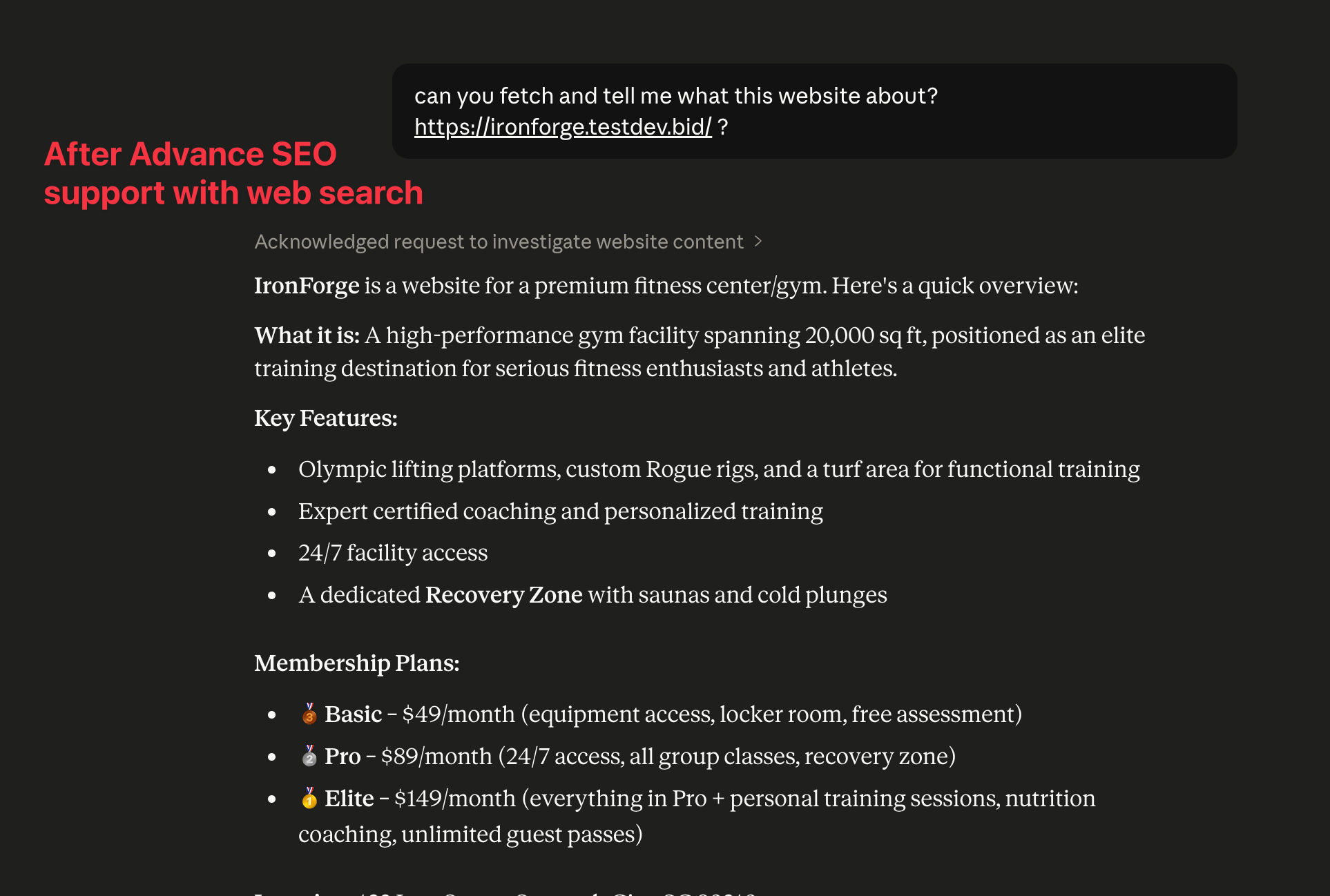
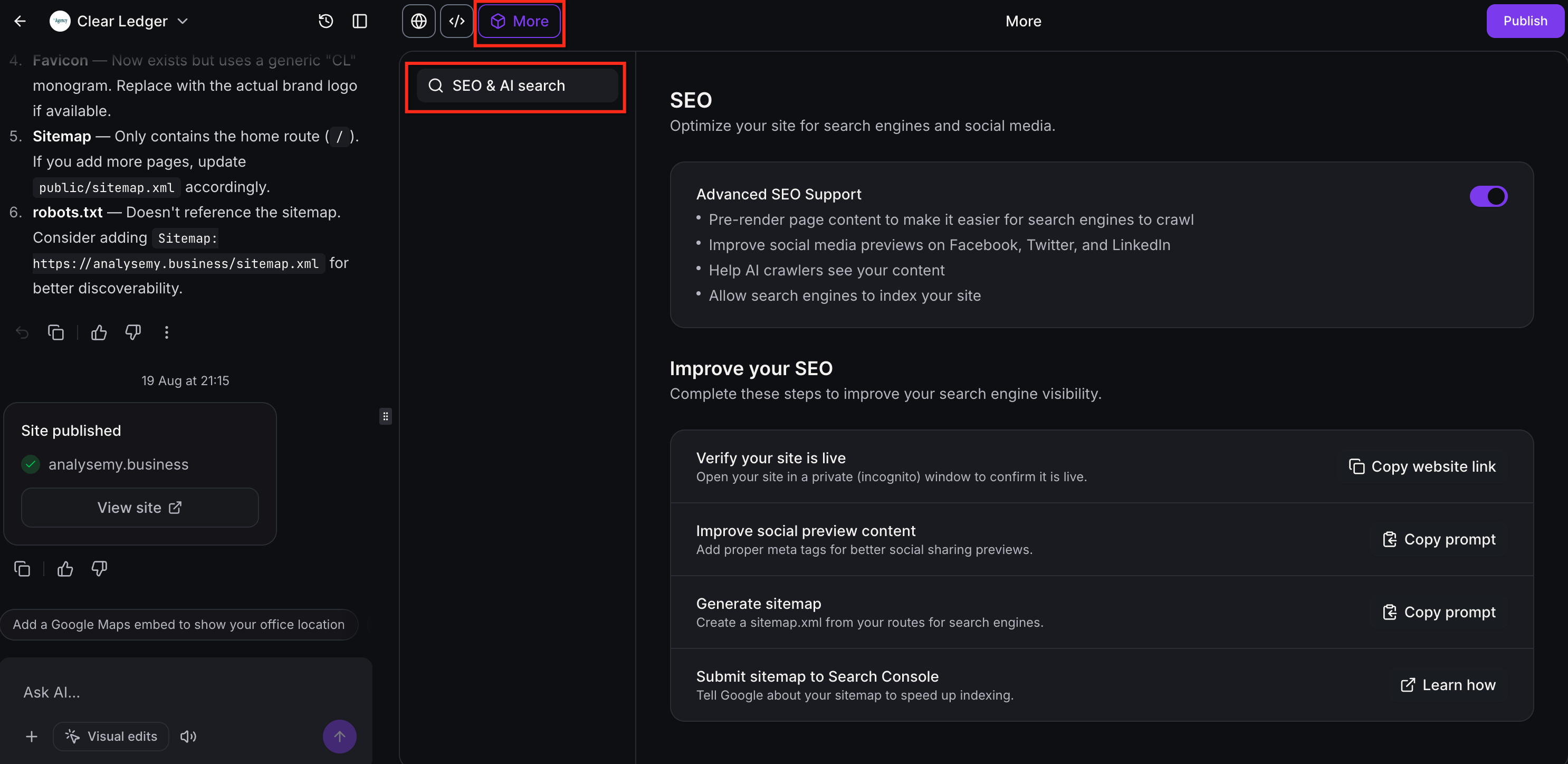
The feature provides a toggle that activates pre rendering for older single page AI Studio projects. When enabled, supported bots receive full HTML instead of a blank JavaScript shell, while human visitors keep the interactive experience. The toggle and related SEO fields live in the SEO & AI search panel, accessed from the More menu at the top of the builder.
For new projects built on TanStack Start, server rendering is automatic and no toggle is needed. Both project types share tools to edit titles, descriptions, social preview images, favicon, generate a sitemap and verify the site in Google Search Console. All changes require publishing the project to make them visible to crawlers.
03How businesses use advanced SEO Support
- Ecommerce store. Enable Advanced SEO Support to let product pages be indexed quickly. Edit each product page title, description and preview image in the SEO panel, then publish. Generate a sitemap so search engines discover all catalog URLs and submit it to Google Search Console.
- Local service provider. Turn on the pre render toggle, add a unique title and description for the service landing page, and upload a favicon that matches the brand. Create a sitemap and verify the custom domain in Google Search Console to improve local search visibility.
- Online education platform. Use the SEO panel to set specific titles and Open Graph images for each course page. Generate a sitemap that lists all public lesson pages and submit it to Google to help AI assistants cite the content.
04The numbers and rules that matter
- Projects created on or after September 8 2026 use TanStack Start and render on the server.
- Projects created before September 8 2026 are single page apps and need Advanced SEO Support enabled.
- The system handles up to 150 routes per site.
05Before you start
- The project must be published.
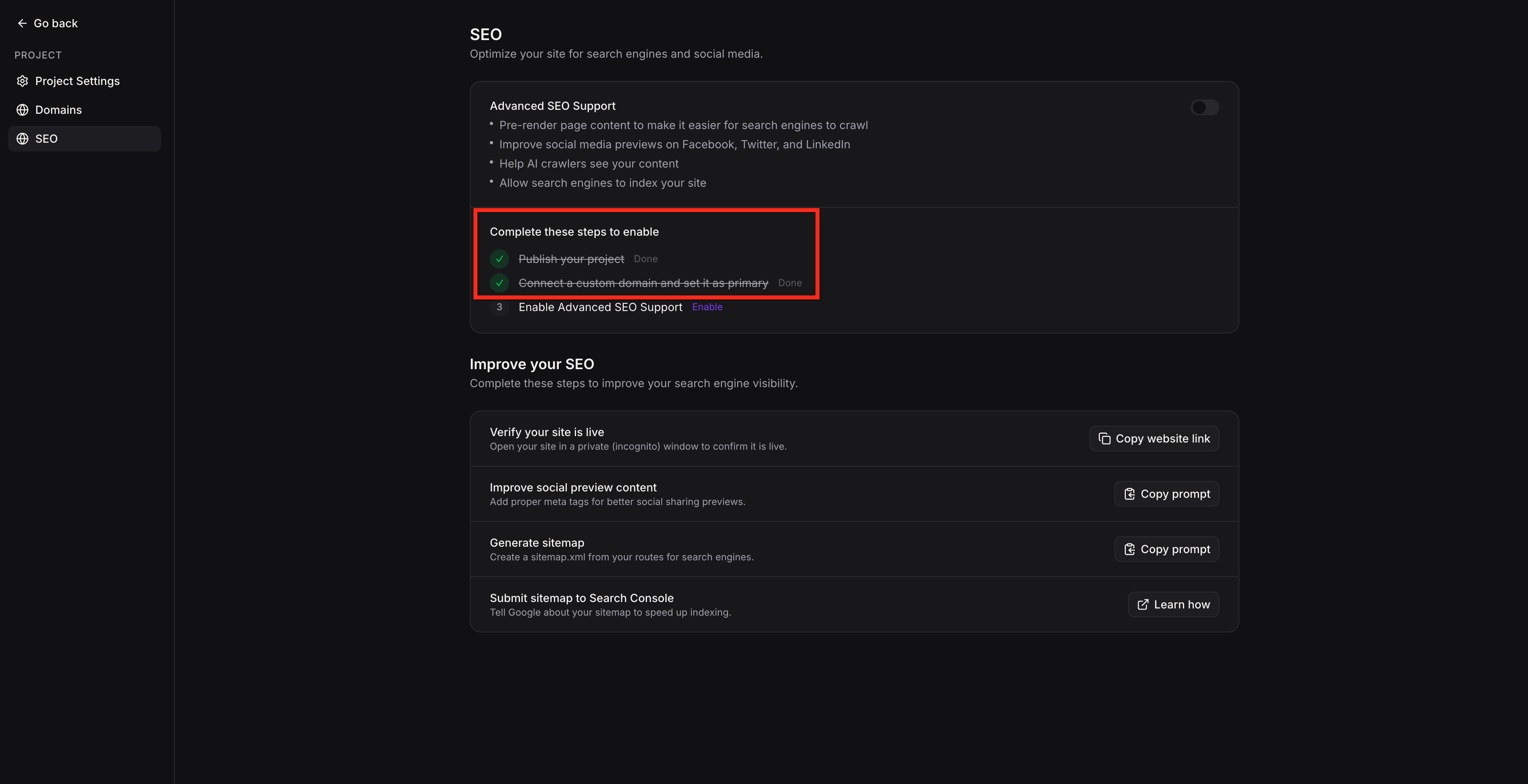
- A custom domain must be connected and set as the primary domain for older projects.
06How to set up and use advanced SEO Support in HighLevel
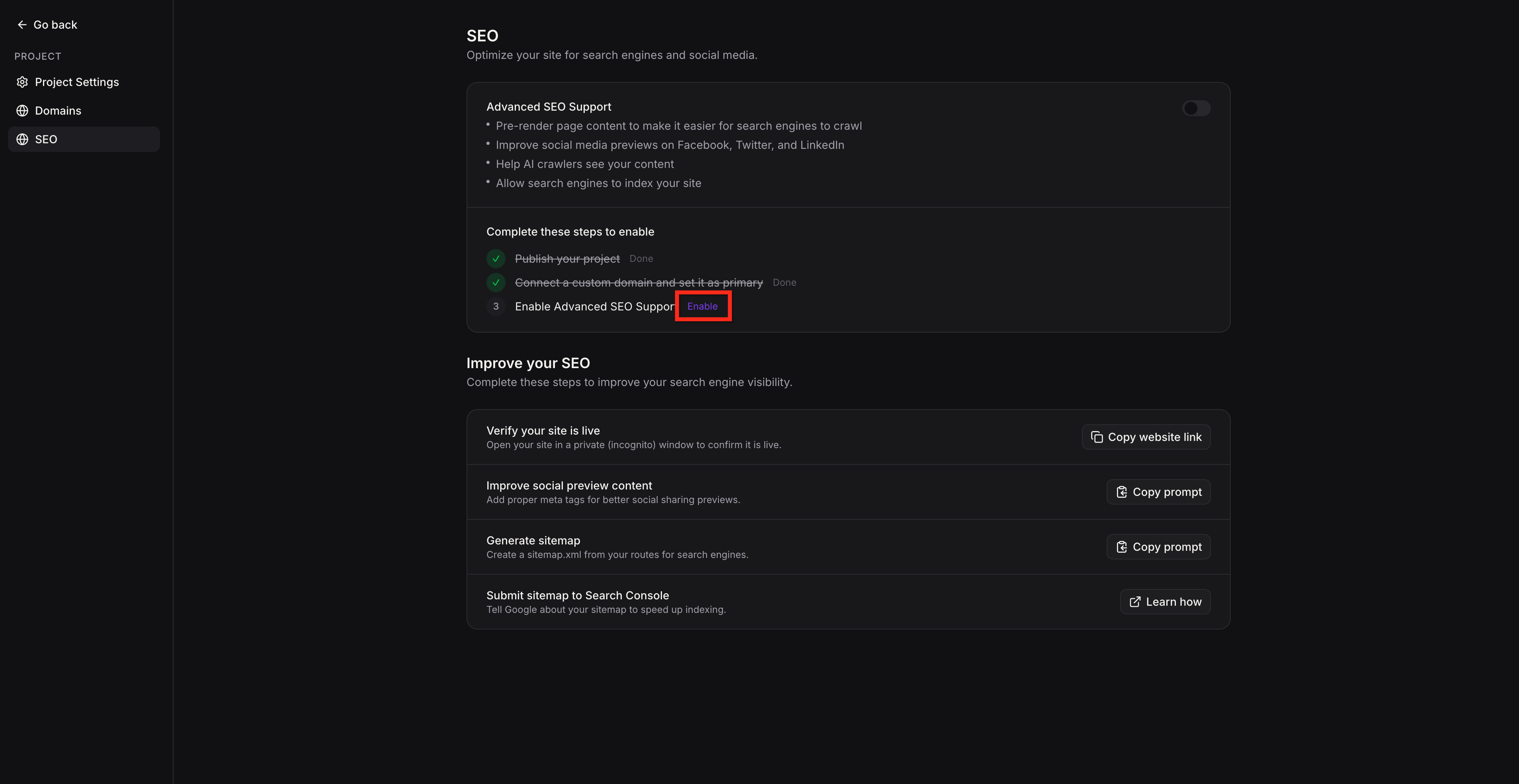
Turn on Advanced SEO Support
- Open the AI Studio project you want to configure.
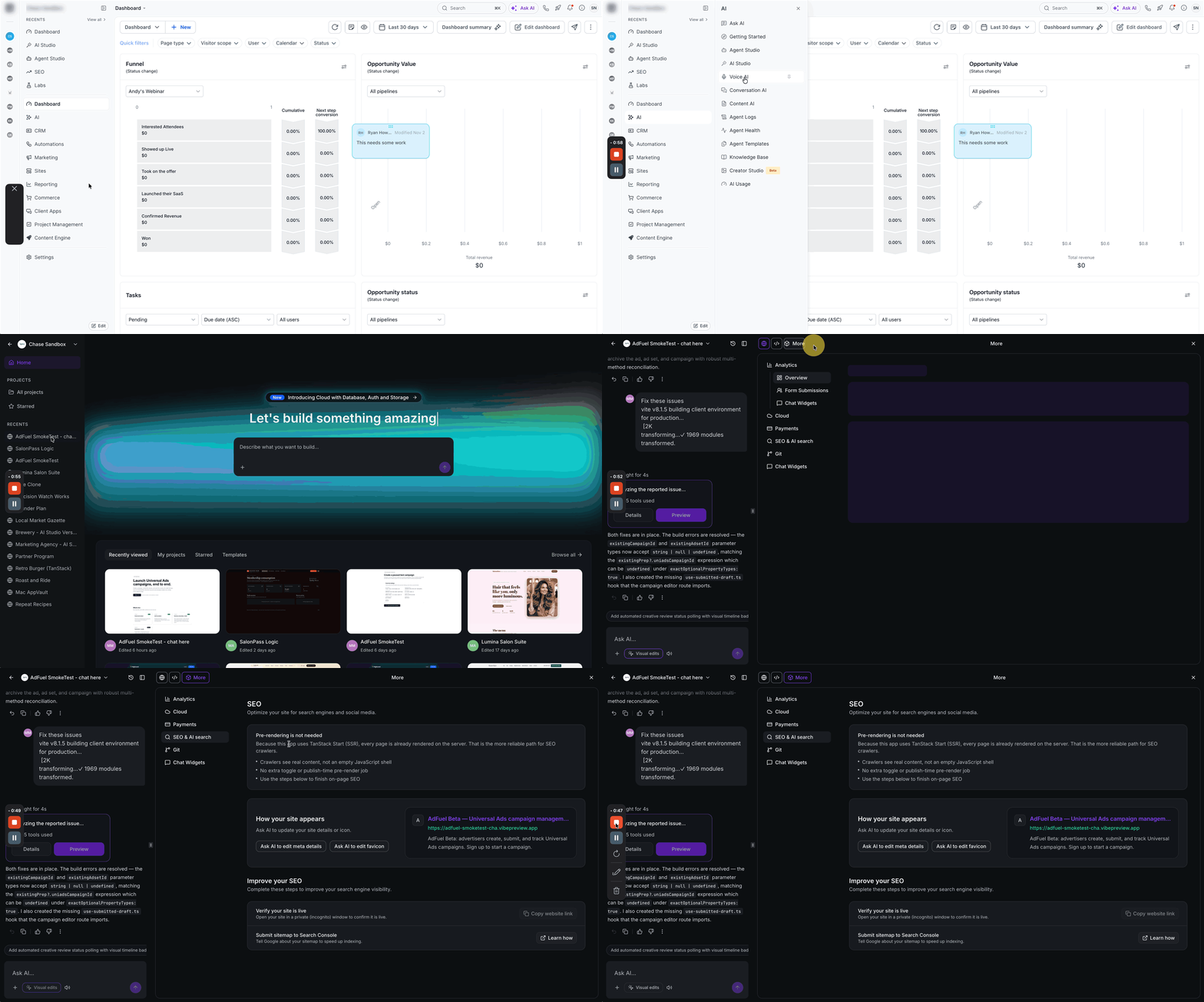
- Click More at the top of the builder, then open the SEO & AI search panel.
- Confirm the project is published.
- Ensure a custom domain is connected and set as the primary domain.
- Click Go to Domains if the domain setup is not complete.
- Click the Enable button to activate Advanced SEO Support.
- Verify that the toggle turns purple.
- Re publish the project so the pre rendered output is available to supported bots.
Edit titles, descriptions and social previews
- Open the AI Studio project you want to update.
- Click More at the top of the builder, then open the SEO & AI search panel.
- If the project is new, click Ask AI to edit meta details; if older, find Improve social preview content and click Copy prompt.
- For older projects, paste the copied prompt into the AI Studio chat.
- Review the update summary that appears in the builder.
- Publish the project to apply the changes.
Update your favicon
- Open the AI Studio project.
- Click More at the top of the builder, then open the SEO & AI search panel.
- Click Ask AI to edit favicon for new projects, or ask in the AI Studio chat to update the favicon to match the logo.
- Publish the project to apply the new favicon.
Generate a sitemap
- Open the AI Studio project.
- Click More at the top of the builder, then open the SEO & AI search panel.
- For older projects, locate Generate sitemap and click Copy prompt; for new projects, ask the chat to create a sitemap.xml for all public pages.
- If using a copied prompt, paste it into the AI Studio chat.
- Review the update summary and publish the project.
- Click Details, then open yourdomain.com/sitemap.xml to confirm the listed pages.
Verify site and submit sitemap to Google
- Click Copy website link and open the URL in a private (incognito) window to confirm the site is live.
- Add the site to Google Search Console and complete verification.
- In Search Console, open the Sitemaps section and submit the sitemap URL.
- Use URL Inspection to request indexing for important pages.
07What it looks like in HighLevel
08Settings that matter
- Advanced SEO Support toggle. Turns pre rendering on or off for older single page AI Studio projects.
- Ask AI to edit meta details. Generates page titles, descriptions and Open Graph data through an AI prompt.
- Ask AI to edit favicon. Creates a favicon image that matches the site logo via an AI prompt.
09Things to know before you rely on it
- Pre rendering serves rendered HTML only to supported search engine, social and AI crawlers; other bots receive the normal SPA.
- The system can handle up to 150 routes per site when generating pre rendered pages.
- Pre rendering does not run on the default preview domain; a custom domain is required.
- Advanced SEO Support does not add schema markup automatically.
10How it connects to the rest of HighLevel
- Learn more about AI Studio features and custom domains AI Studio in HighLevel
- View pricing and usage tiers for AI Studio AI Studio pricing
- Start a 30 day HighLevel trial to test SEO features 30 day trial
Michael's take

The prerendering only works for older single page apps and only if you have a custom domain set as primary. Without those pieces the toggle won’t activate and bots will keep seeing an empty shell.
When it’s set up, search engines, social platforms and AI tools can read the rendered content.