
01Who this is for
- Marketers who need a fast way to capture leads without building separate landing pages.
- Service providers who want visitors to schedule appointments directly from an AI generated page.
02Forms and calendars, explained
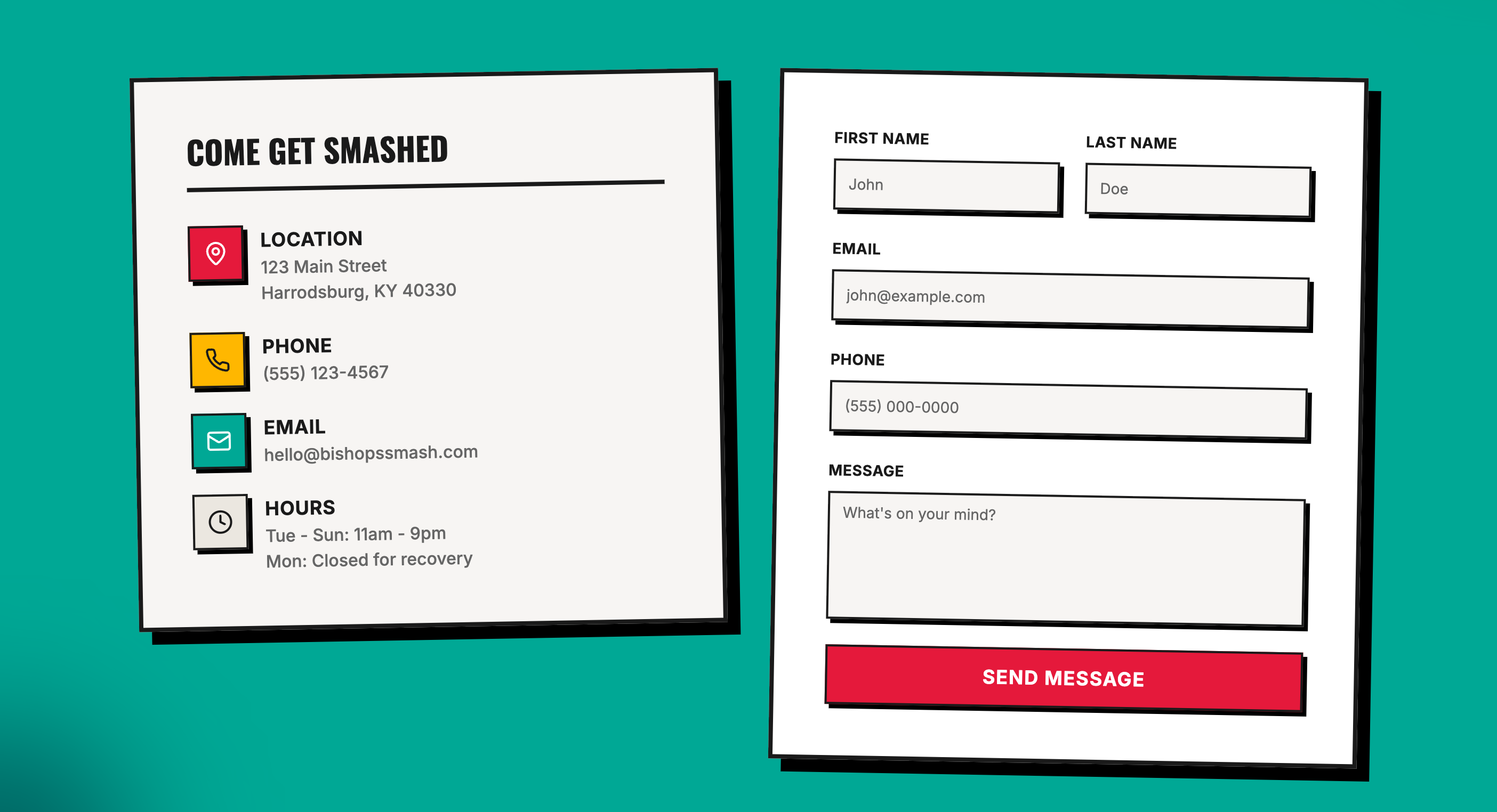
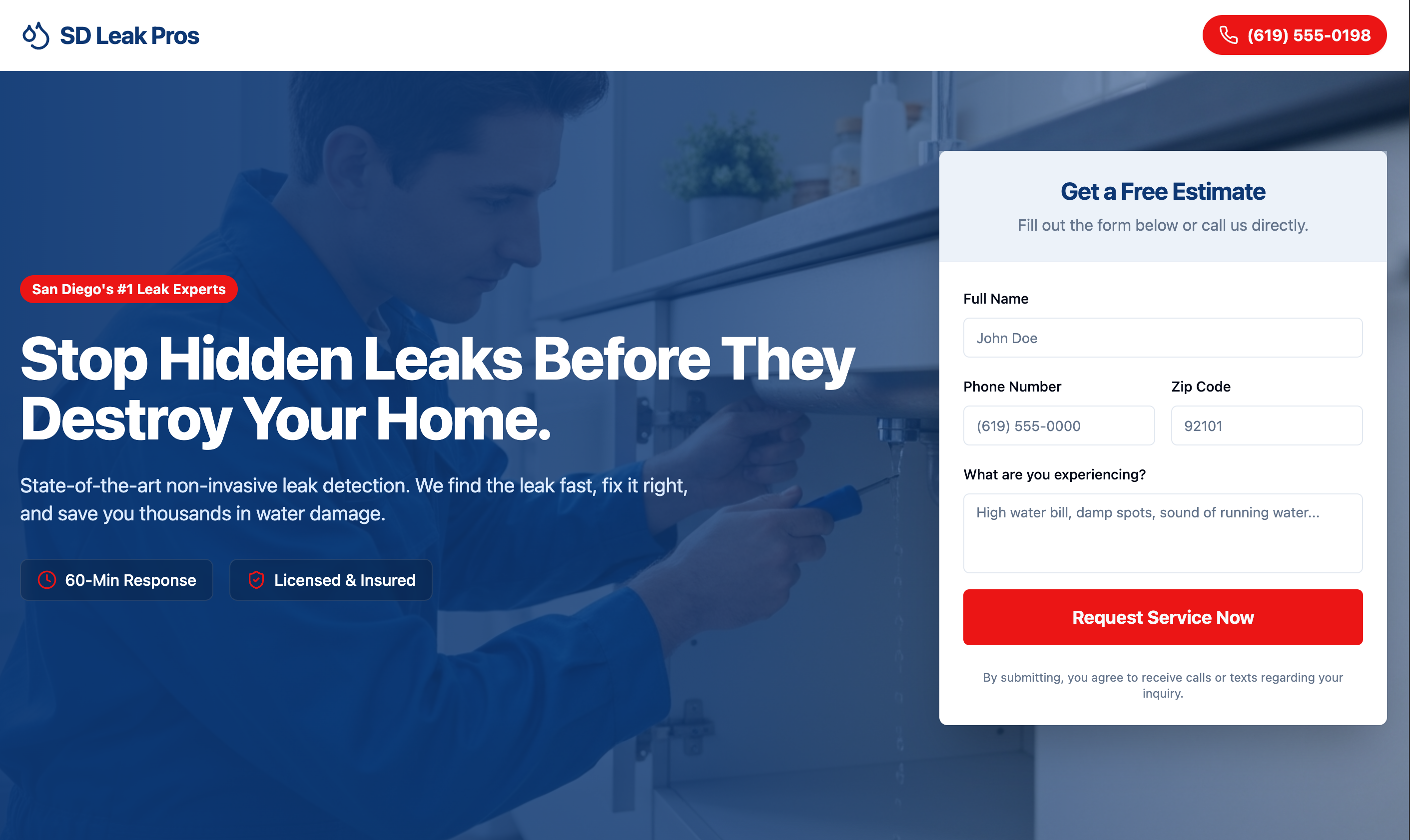
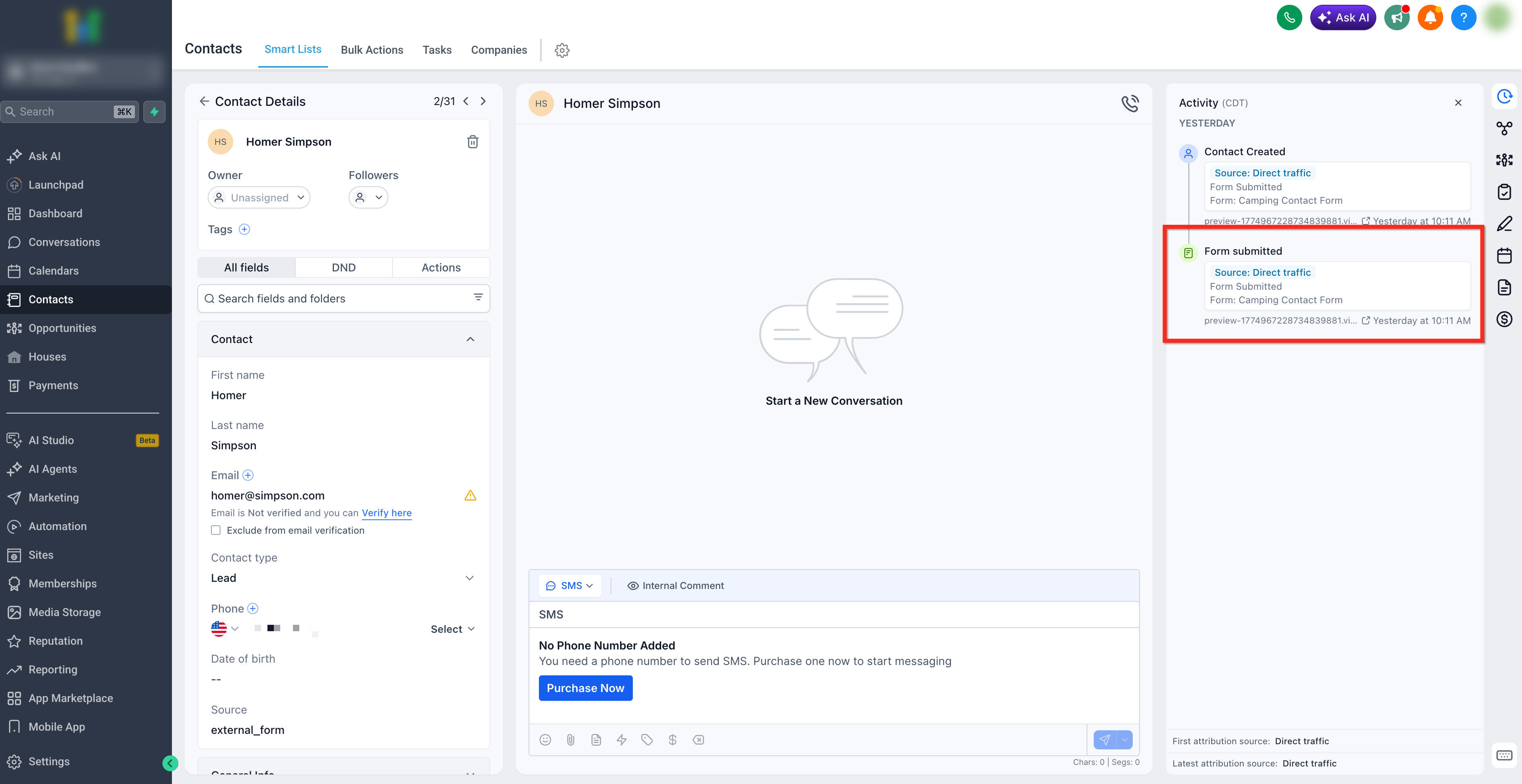
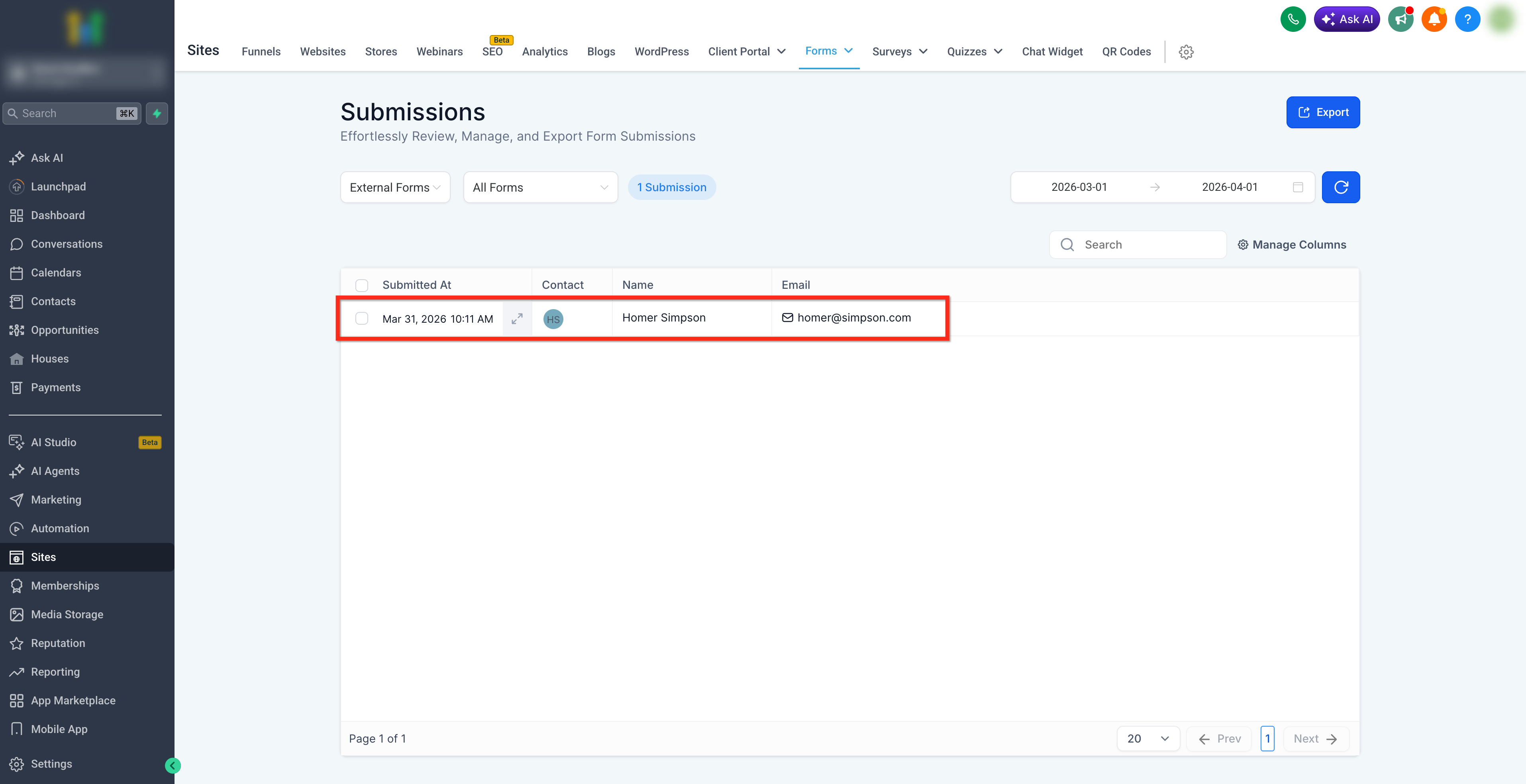
AI Studio builds the visual layout for a form or a calendar on a page. The component stays only on the front end until you tell the system to connect it to your HighLevel subaccount. When you trigger the connection, HighLevel’s external tracking feature routes the data back to the subaccount. Form submissions appear under Contacts and under Sites > Forms > Submissions > External Forms. Calendar bookings are recorded in the calendar you chose, using its existing availability and automation settings.
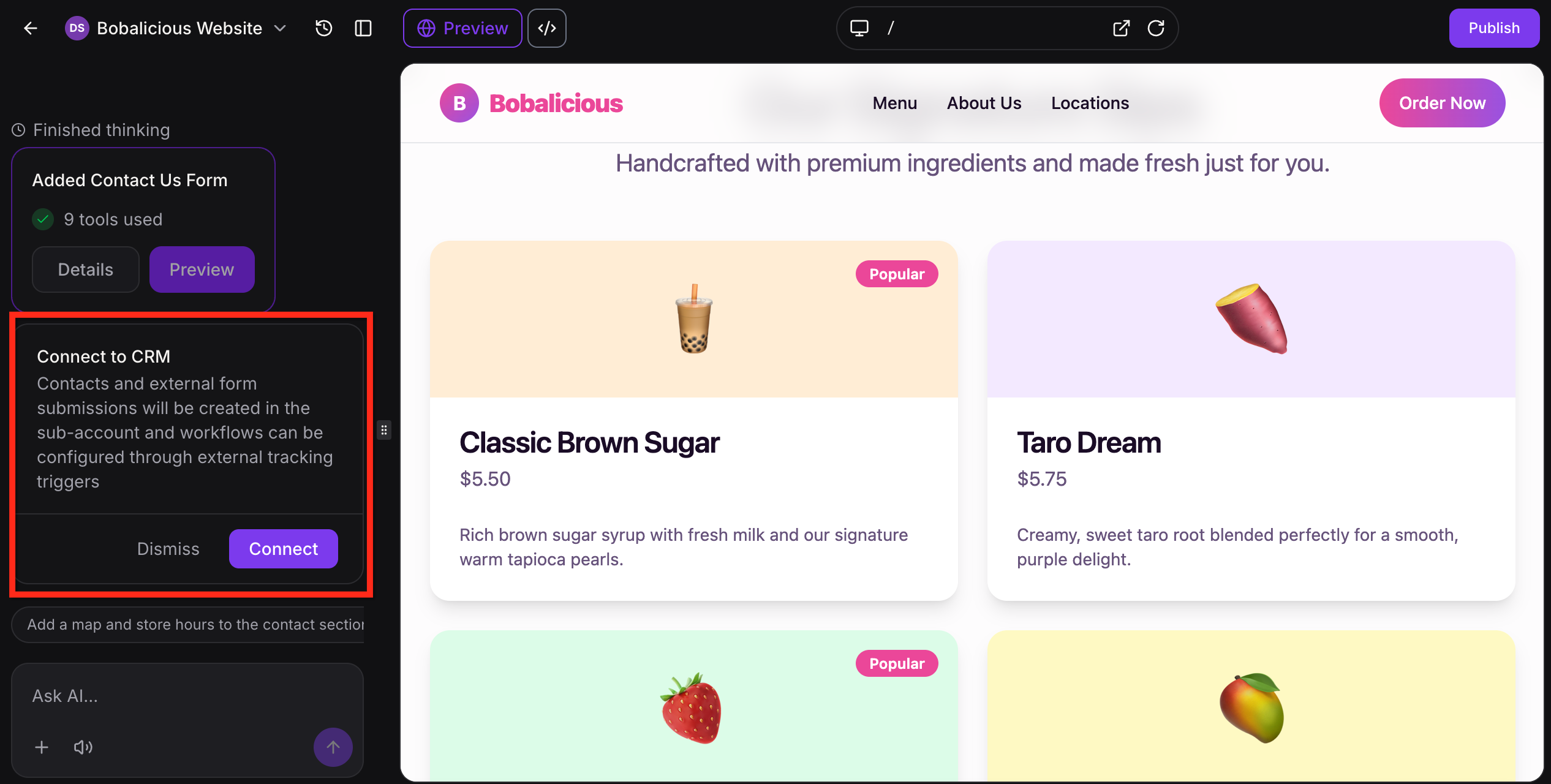
The connection steps start in the AI Studio chat. You either type a command such as “connect forms to my CRM” or click the Connect button that appears on the selection card. After you pick the resource from the list, the page becomes live for lead capture or scheduling while the underlying HighLevel objects handle storage and follow up.
03How businesses use forms and calendars
- Dental practice. The practice asks AI Studio to create a new appointment page. After the layout appears, they select their existing dentist calendar from the subaccount, click Connect and then preview the page. Bookings made on the page are added to their calendar and trigger reminder automations.
- Online course provider. The provider generates a registration form for a new class. They click Connect when prompted, which links the form to external tracking. Submitted registrations show up as contacts in HighLevel and can start a welcome workflow.
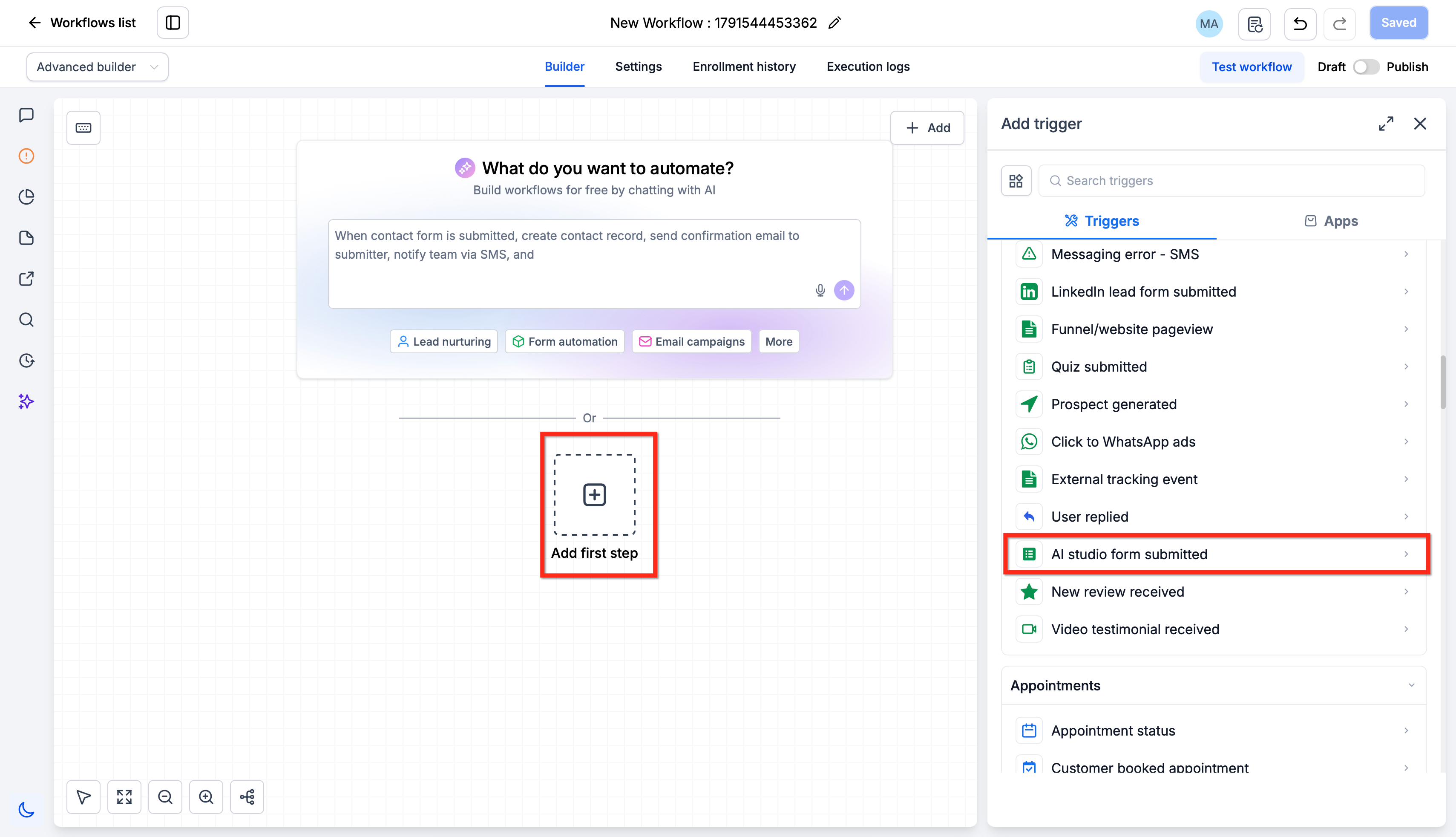
- Consulting firm. The firm builds a contact section on a landing page. Using the chat, they request to connect the form to their subaccount, confirm the connection, and then set up an AI Studio Form Submitted trigger to send a follow up email to each new inquiry.
04Before you start
- A HighLevel subaccount must contain a calendar or be ready to receive form submissions.
- The AI Studio page with the form or calendar layout should be created before attempting to connect.
05How to set up and use forms and calendars in HighLevel
Connect forms in AI Studio
- Ask AI Studio to connect the form or click the Connect button that appears in the chat.
- Select the form or calendar you want to use from the list.
- If the list does not load, click Try again.
- If you do not want to connect yet, click Dismiss to continue building and connect later.
- Confirm the connection so that future submissions are sent to the HighLevel subaccount.
Connect calendars in AI Studio
- Ask AI Studio to create a booking focused page or scheduling section.
- When the chat prompts you, choose the desired calendar from the subaccount list.
- If the list fails to load, click Try again.
- Click Connect to attach that calendar to the page component.
- Preview the page and test the booking experience to verify the connection.
06What it looks like in HighLevel
07Things to know before you rely on it
- Forms and calendars are not linked to HighLevel automatically; you must run the connection steps for each component.
08How it connects to the rest of HighLevel
- Use the AI Studio Form Submitted trigger to start workflows after a form is connected. AI Studio Form Submitted trigger
- Review pricing and usage tiers for AI Studio features. AI Studio pricing
- See HighLevel pricing and plans for account options. HighLevel pricing
Michael's take

Connecting these pieces can feel risky until you see the data actually move. The split between design and activation means you won’t accidentally start collecting leads or appointments until you’re truly ready.
Once you connect, the page can start collecting leads or booking appointments that are sent to HighLevel and the connected calendar.