
Home/HighLevel/Guides/Build a website in AI Studio
HighLevel Guides · Volume 09 · AI Studio
How to build a website in GoHighLevel AI Studio and put it on your domain.
AI Studio turns a written description into a working website inside your HighLevel subaccount. This guide takes you from the first prompt to a published site on your own domain, with a form that feeds your CRM, a booking section tied to your calendar, and search engines able to read every page. At the end you have a live business website that captures leads and appointments without a separate builder. HighLevel is the same platform many people still search for as GoHighLevel.
What you are building
What you are building and what it does.
The finished system is a published website on your business domain, generated and refined inside AI Studio. Visitors fill in a form and the submission lands in your subaccount as a contact, which starts a workflow. Visitors book from the page and the appointment lands on the HighLevel calendar you already manage, so confirmations and reminders run as usual. Search engines and AI tools receive a full HTML version of each page, and social links show the right title, description and image.
- A multipage website generated from one prompt and refined in the preview
- A lead form connected to CRM tracking so submissions create contacts
- A booking section connected to an existing HighLevel calendar
- A workflow that fires on every AI Studio form submission
- The site live on your custom domain with Advanced SEO Support enabled
- A saved version on every change, so you can roll back an edit that broke the page
Before you start
Before you start, have these ready.
Gather these first so you never stop halfway through the build.
- AI Studio access in the subaccount: free on any agency plan subject to fair use, or an AI Employee subscription (Starter, Growth or Unlimited) or pay per use billing for subaccount users
- A user role with View & Manage AI Studio permission so you can create, edit and publish
- A written description of the business, the pages you want, the services and the main call to action
- Any logo files, images or a reference URL you want to use as inspiration
- A HighLevel calendar already set up in the subaccount for the booking section
- Ownership of the domain you want to use and a login to its DNS provider
- A decision on whether the site lives on the root domain or a subdomain such as www
Part 01 of 06
Describe the site and generate the first draft.
AI Studio builds the layout, copy, images and page structure from a single prompt. The better the description, the less you fix later. Write the prompt as if you were briefing a designer.
- Open your subaccount in HighLevel.
- Click AI Studio in the left navigation.
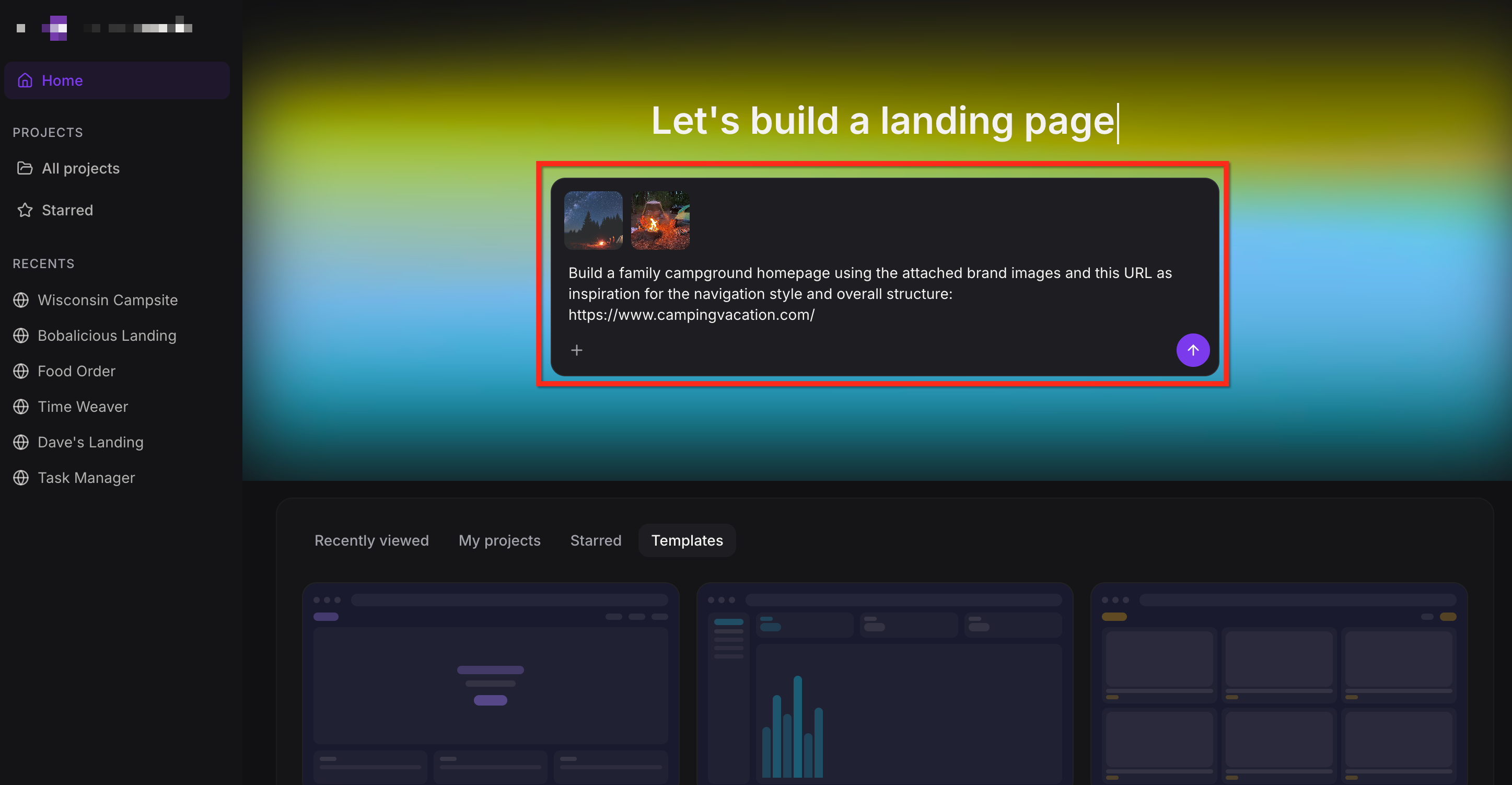
- On the home screen, type a prompt that describes the business, the pages you want, the services and the main call to action.
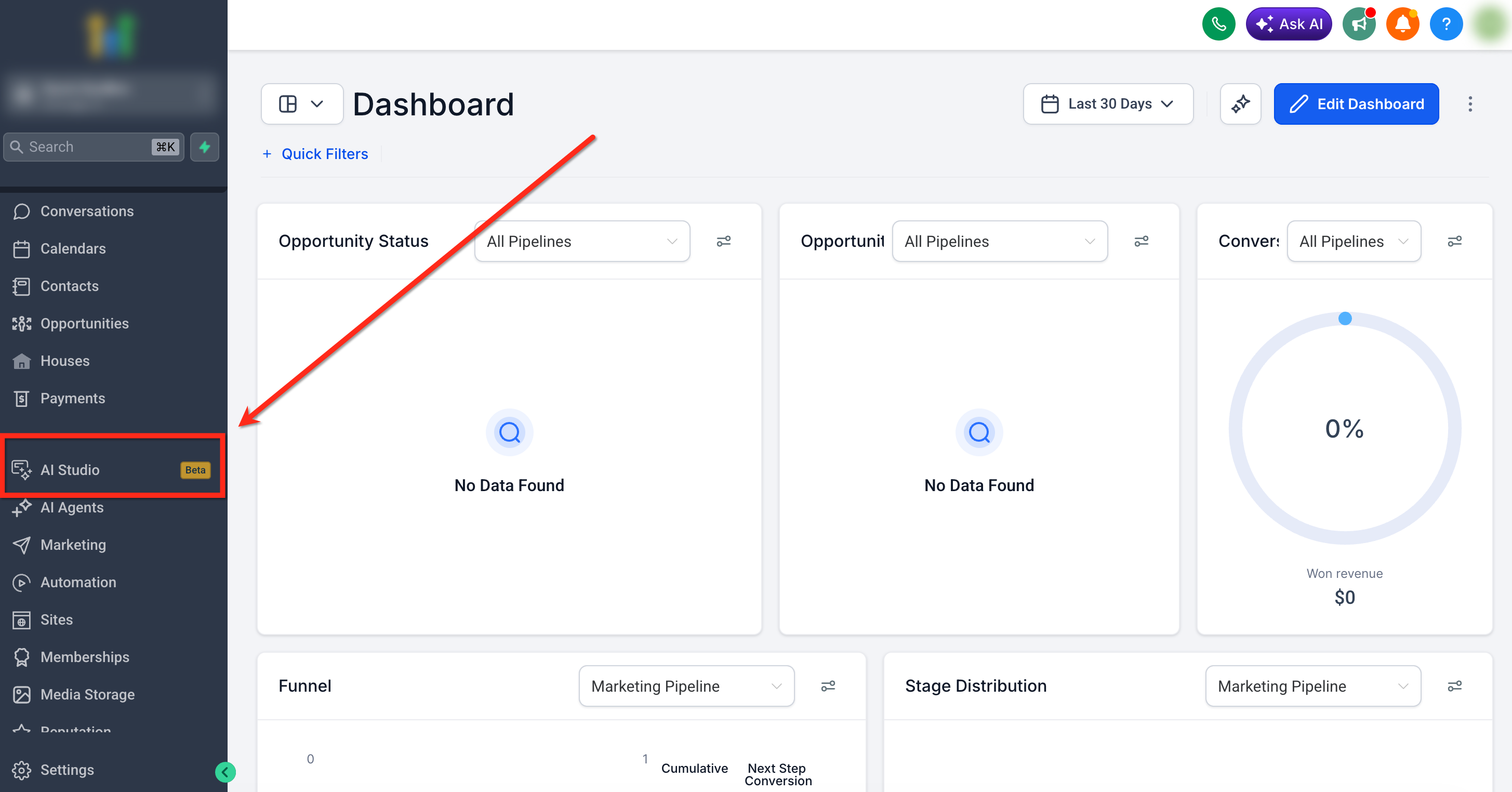
The prompt box on the AI Studio home screen is where the build starts. - Attach files, images or a live URL for inspiration if you have them.
- Click Generate and wait for the AI to produce the first draft.
- Use the preview options to check the layout on desktop, tablet and mobile views.
- Send a follow up prompt in the chat for any page or section that needs a change.
Part 02 of 06
Polish the page with Visual Edits.
Visual Edits let you click any element in the live preview and change it without code. Text, colors, spacing, icons and images all have controls in a side panel. These direct edits do not use AI tokens, so this is the cheap way to finish a page.
- Open the project in AI Studio.
- Click Visual Edits in the prompt area at the bottom left of the builder.
- Click the hero heading in the preview, then double click it and type the new headline directly on the page.
- Click the hero image, open the image layout dropdown and update the image URL and alt text.
- Click a button and use the color controls to pick a theme color for its background.
- Select a section and use the margin and padding sliders in the spacing controls to tighten the layout.
- Select several elements that share a style, type a targeted instruction in the Visual Edits prompt area and submit it.
The Visual Edits panel changes its controls to match the selected element. - Click Save to apply the changes to the project.
Part 03 of 06
Fix the details in the Code Editor.
Some changes are faster in code: a phone number repeated on every page, a wrong business name, a link that points to the wrong place. The Code Editor shows every file AI Studio generated and refreshes the preview in seconds when you save.
- Open the AI Studio project you want to update.
- Click Code in the project workspace to open the Code Editor.
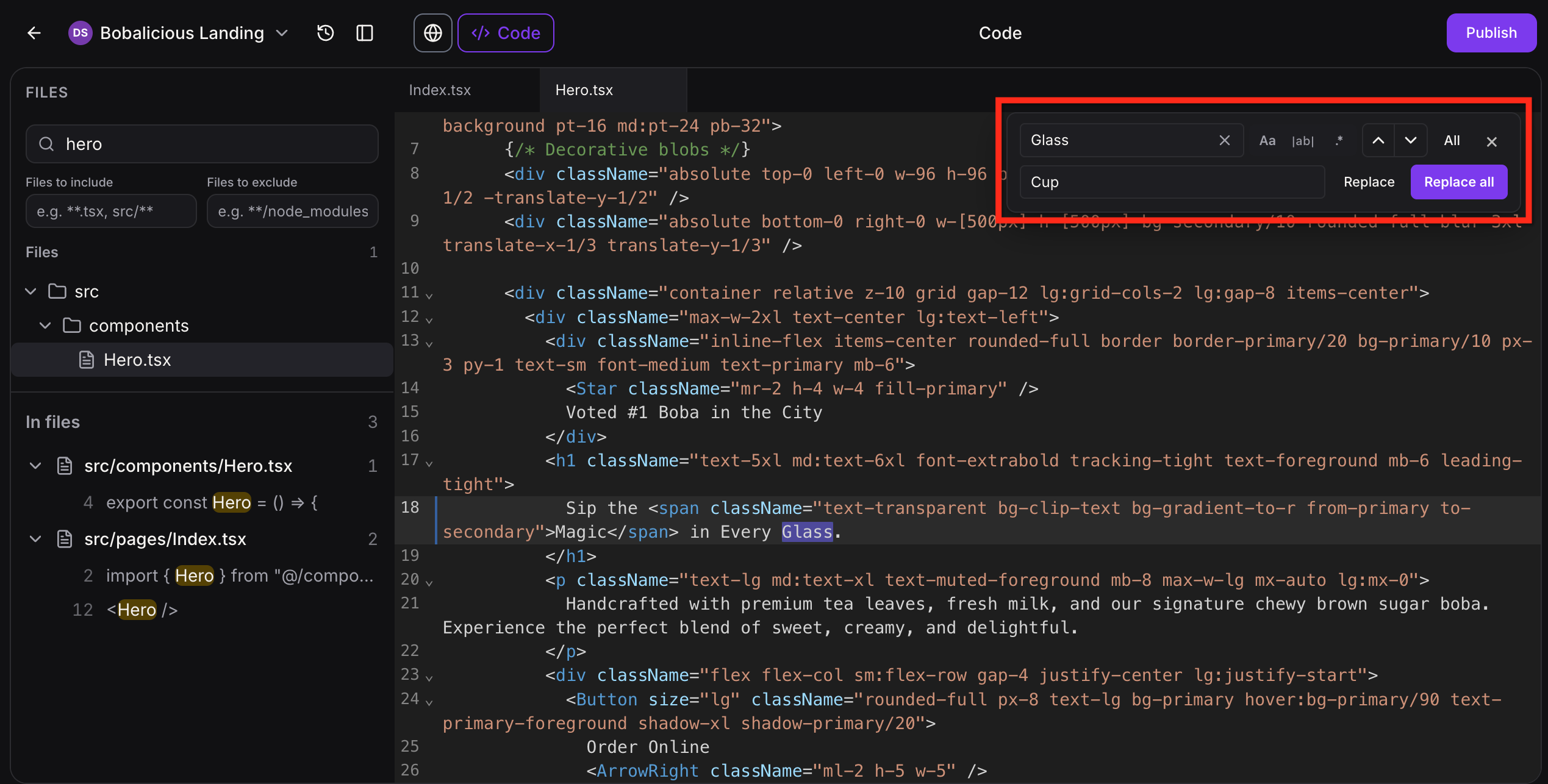
The file tree on the left lists every file the AI generated for the site. - Select the file to edit from the file tree.
- Press Cmd/Ctrl + F to open Find & Replace and correct the text in the current file.
- Use Global Project Search to find the same text across all project files and jump to each line.
- Click Save to apply the updates and refresh the preview.
- If a build error appears, click Details, then click Try to fix.
- Check the preview again for correct layout and functionality.
Part 04 of 06
Connect the form and calendar so leads reach the CRM.
The form and booking section on your page are front end components. They look finished, but they send nothing to HighLevel until you connect them. This part wires both, then adds a workflow that fires on each submission.
- In the AI Studio chat, ask AI Studio to connect the form, or click Connect when the chat prompts you.
The Connect prompt appears in the chat once the form is on the page. - In the Connect to CRM flow, choose the CRM tracking option you want.
- Ask AI Studio to add a booking section to the page if the draft does not have one.
- When prompted, choose the calendar you want to use from the subaccount and connect it to the page component.
- Go to Automation, then Workflows, and create a new workflow.
- Click Add New Trigger, search for and select AI Studio Form Submitted.
- Add filters for the AI Studio project or form, then add the actions you want, such as an email, an SMS, a tag or opportunity creation.
- Save the workflow and toggle it to Published.
Part 05 of 06
Publish the site on your business domain.
AI Studio publishes straight from the workspace. You do not move the project into Websites or Funnels. Publish to the preview URL first, then attach the custom domain and set it as primary so every other address redirects to it.
- In the project, click Publish in the top right corner.
- Update the preview URL if needed and click Publish again.
- Edit the icon, name, description and social image, click Apply Changes, then click Publish.
- Click Publish, then select Add Custom Domain.
Publish first, then add the custom domain from the same dialog. - Enter the domain you want to connect, either the apex domain or the www version.
- If the domain is managed in HighLevel, follow the in app flow; otherwise add the DNS records shown at your DNS provider.
- Click Verify DNS and wait for the confirmation in the AI chat.
- Use Set as primary on the connected domain so other attached domains redirect to it.
Part 06 of 06
Turn on SEO support so bots can read the site.
An AI Studio site is a single page app. Advanced SEO Support serves a prerendered HTML version to supported crawlers, so search engines and AI tools see the full content. It also adds social preview metadata and a sitemap.
- Open the AI Studio project and click More at the top of the builder, then open SEO & AI search.
- Confirm the project is published, a custom domain is connected and the custom domain is set as primary.
- Click Enable to turn on Advanced SEO Support and confirm the toggle turns purple.
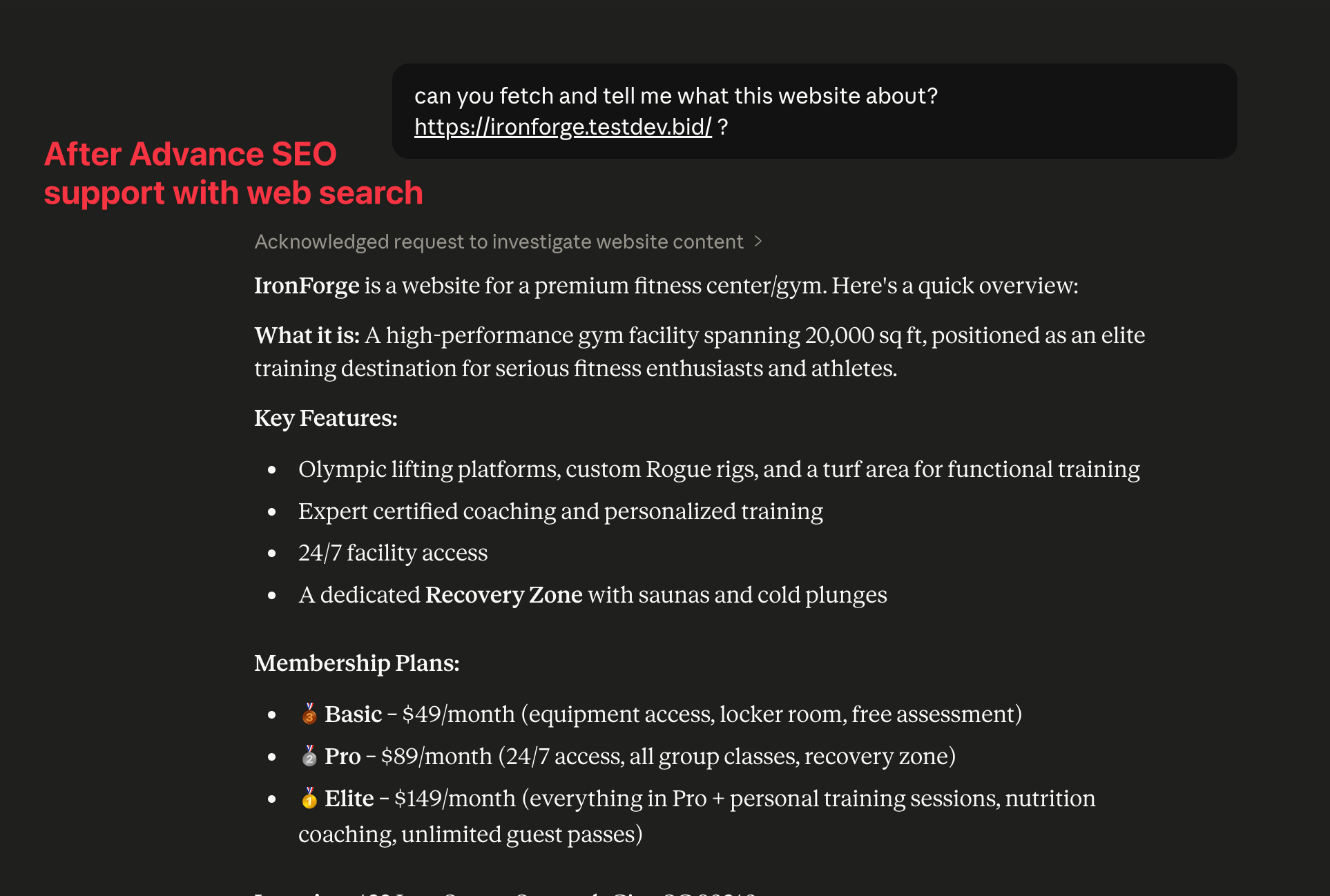
The toggle turns purple once Advanced SEO Support is on. - Find Improve social preview content, click Copy prompt and paste it into the AI Studio chat.
- Find Generate sitemap, click Copy prompt and paste it into the AI Studio chat.
- Review each update summary in the builder.
- Republish the project so the latest rendered output is available to supported bots.
- Click Details to view your sitemap.
Test it
Test the site before you send traffic.
Run through the live site as a visitor and confirm every connection fires.
- Open the custom domain in a browser. You should see the published site with a valid SSL padlock.
- Open the root version and the www version of the domain. Both should land on the primary domain.
- Submit a test entry on the form. The contact should appear in the subaccount's CRM.
- Go to Automation, then Workflows, open the workflow and check the Execution Logs tab. The AI Studio Form Submitted trigger should show a run with the actions completed.
- Book a test appointment from the page. It should appear on the connected HighLevel calendar and the calendar's confirmation should send.
- Share the site link in a social post draft. The title, description and image should match what you set in the social preview prompt.
- Open More, then SEO & AI search, and click Details. The sitemap should list every page on the site.
For the two builders side by side, read the GoHighLevel website builder and AI Studio. AI Studio builds sites and apps. Agent Studio builds AI agents, and it has its own Agent Studio complete guide. Plan prices are on the GoHighLevel pricing hub, you can build this site during a 30 day trial through Michael's link, and if you plan to sell sites like this, read what a Founder is.
When a step fails
When something fails, check these first.
Most problems come from a skipped connection step or a DNS record that was never saved.
- Form submissions never reach the CRM
- The form was never connected. In the AI Studio chat, ask AI Studio to connect the form or click Connect, complete the Connect to CRM flow and publish the project again. Then submit a test entry.
- The workflow does not fire on a submission
- Confirm the project is published and the workflow is toggled to Published. If the form was connected before the trigger was released, send the prompt "Retrigger form integration" in the chat, reconnect the form to CRM tracking, republish and submit a new test entry.
- HighLevel cannot verify the DNS record
- Confirm which provider hosts the active DNS and add the record there. Make sure the hostname does not already have an A or CNAME record pointing elsewhere, enter only the hostname portion in the Host or Name field, save, allow time to propagate and retry Verify DNS.
- The domain shows an SSL or privacy error
- Remove conflicting A, CNAME or AAAA records for the hostname. If Cloudflare manages the DNS, set the HighLevel record to DNS only. Allow time for propagation and SSL provisioning.
- Search engines still see an empty page
- Advanced SEO Support only works on a published project with a custom domain set as primary. Confirm the toggle is purple, then republish so the latest rendered output reaches the bots.
- The project becomes stale or unresponsive
- Ask AI Studio in the chat to recover the environment. It restores functionality and verifies the result before completing the request.
Questions
Common questions.
These questions come up most when people build a site in AI Studio.
- What does GoHighLevel AI Studio cost?
- AI Studio is free for agency users on all agency plans, subject to fair use. Subaccount users need an AI Employee Starter, Growth or Unlimited subscription, or pay per use billing. Usage is measured in rolling five hour windows. Direct visual edits do not use AI tokens.
- Do I need to move the AI Studio project into Websites or Funnels before publishing?
- No. AI Studio projects publish directly from the AI Studio workspace and can have a custom domain attached without moving them. They cannot be moved into the standard Sites or Funnels builders, so plan to manage the site in AI Studio from the first draft through to publishing.
- Are forms and calendars connected automatically?
- No. AI Studio builds the form or booking layout first, then connects it after you ask it to in the chat or click Connect when the chat prompts you. Submissions flow into your subaccount only after that connection step, so submit a test entry and book a test appointment before launch.
- Do Visual Edits use AI tokens?
- Direct visual edits do not use AI tokens, because the changes go through editing controls. That makes them the cheap way to finish a page. A prompt applied to selected elements does use tokens, so save prompts for changes the editing controls cannot make.
- Does Advanced SEO Support change the site for regular visitors?
- No. Human visitors still get the same fast, interactive experience. Only supported bots and crawlers receive the prerendered HTML snapshots, for up to 150 routes per site, so search engines and AI tools see the full content of each page while people see the normal site.
- Can AI Studio copy an existing website?
- No. A reference URL or image is used as inspiration for structure, layout and style. It is not an exact copy, so do not expect a clone of another site.
From the field
Michael’s take.

The first thing I do on any AI Studio build is write the prompt properly. Most people type one line, get a generic page and then spend an hour prompting fixes that cost tokens. Give it the business name, the pages, the services, the offer and the call to action up front. Then do the cosmetic work in Visual Edits, because those edits are free and they are faster than describing a color change in chat.
Where people go wrong is the data flow. They publish a pretty site, drive traffic to it and never notice the form was never connected. The page looks finished, so they assume it works. I connect the form and the calendar before I touch the domain, submit a test entry, check the contact landed and check the workflow fired. Only then do I publish to the domain and turn on Advanced SEO Support. And I republish after the SEO toggle, because the prerendered pages do not exist until you do.
This build pays off for a Founder who needs a real site quickly and wants it tied to the same CRM and calendar the business already runs on. It also pays off for an agency doing client sites, because the clone option lets you reuse a finished project in another subaccount. Watch your usage if you are testing heavily or running several large projects at once. The banners at 70 and 85 percent are there for a reason.
Go deeper
The features behind this build.
Every feature this guide touches has its own page in the library, with the settings, limits and Michael’s notes.
- AI EmployeeAI Studio in HighLevel: Build sites and experiences with AI
- AI EmployeeVisual edits in HighLevel AI Studio
- AI EmployeeCode editor in HighLevel AI Studio for direct code editing
- AI EmployeeConnect Forms and Calendars in AI Studio
- AI EmployeeAdvanced SEO support in HighLevel AI Studio
- AI EmployeeAI Studio form submitted trigger for HighLevel workflows
- AI EmployeeAI Studio pricing and usage in HighLevel
- SitesSetting up root domains and subdomains in HighLevel
Get the guide
Take it with you. The PDF is yours.
The whole build, cover to cover, as a PDF you can keep open on a second screen or print for the team. HighLevel's Founder page opens alongside it.
Next step
Want this built with the CRM Pros team behind you?
Start your HighLevel trial through Michael and the CRM Pros team comes with it. You get the same people who build these sites every week, on your account, from day one.
The how to library has step by step HighLevel builds for Conversation AI, Voice AI, funnels, calendars, workflows and AI Studio. Go back to the full list.
Back to the GuidesAll the step by step builds