
01Who this is for
- Marketing agencies benefit because they can give each client a custom URL for hosted funnels.
- Ecommerce operators gain a branded address for their online store without sharing a generic platform domain.
- Coaches and consultants can host webinars and landing pages on a personal domain that matches their brand.
02Root domains and subdomains, explained
The domain feature lets you link a root address (example.com) or a prefixed subaddress (www.example.com) to any HighLevel site product. Once the DNS record points to HighLevel, the system verifies the host, attaches the selected Funnel or Website page and automatically creates an SSL certificate.
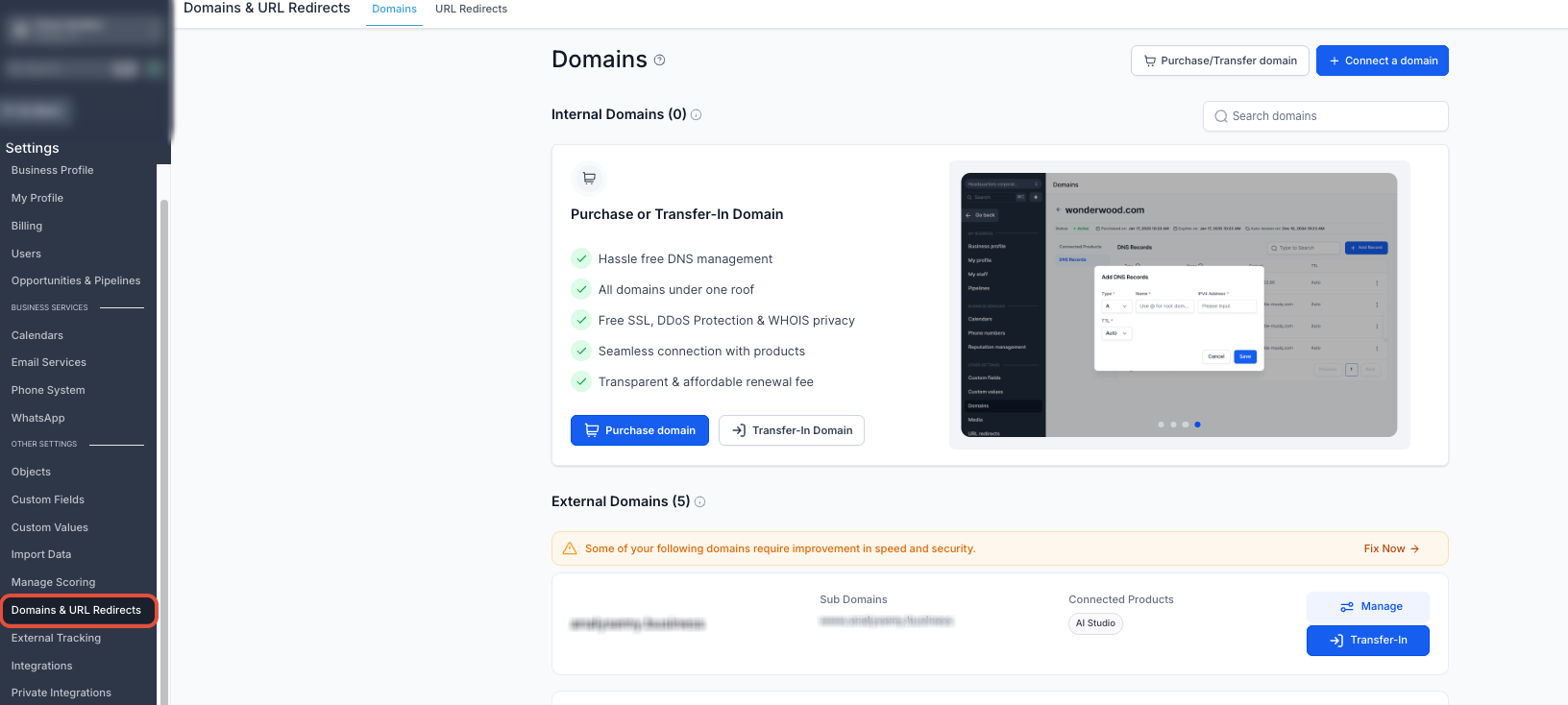
You start the flow from the Settings > Domains & URL Redirects screen, choose a product, enter the hostname and pick automatic Domain Connect or manual DNS entry. After verification you configure which page loads by default and which page appears for invalid URLs.
All domain management lives inside the Domains & URL Redirects area where you can also edit default pages, delete a domain or view reminders about missing configurations.
03How businesses use root domain or subdomain
- Coaching business. The coach creates a subdomain like offers.mycoaching.com, connects it to a HighLevel funnel and selects the enrollment page as the default landing page. The subdomain then displays the funnel under the coach’s brand.
- Local restaurant. The restaurant points its root domain example.com to a HighLevel website, sets the home page as the default and defines a custom 404 page for broken links. Visitors reach the menu and reservation form on the restaurant’s own address.
- Real estate agency. The agency adds leads.myagency.com, links it to a lead capture funnel and configures the funnel step that shows the property search form as the default page. The domain then acts as the entry point for new client leads.
04The numbers and rules that matter
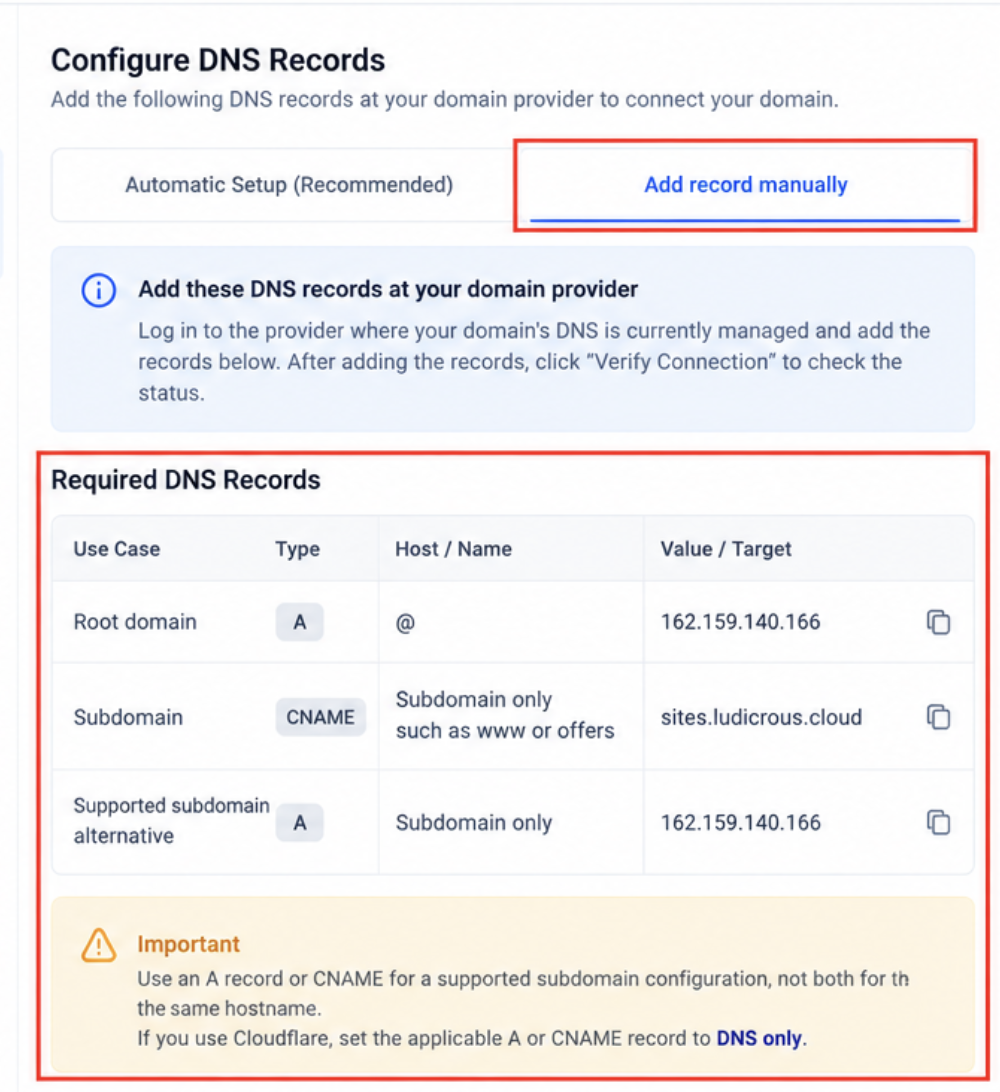
- A record value for root domains: 162.159.140.166.
- DNS propagation may take up to 24 hours.
- HighLevel does not currently specify a limit on the number of domains that can be added to a subaccount.
05Before you start
- Own the root domain or subdomain you plan to connect.
- Have access to the DNS provider that manages the domain’s records.
- Decide whether the address will be a root domain or a subdomain.
06How to set up and use root domain or subdomain in HighLevel
Connect a root domain or subdomain to HighLevel
- Choose whether you will point a root domain (example.com) or a subdomain (www.example.com).
- Open Settings and select Domains & URL Redirects in the subaccount.
- Press the + Connect a domain button.
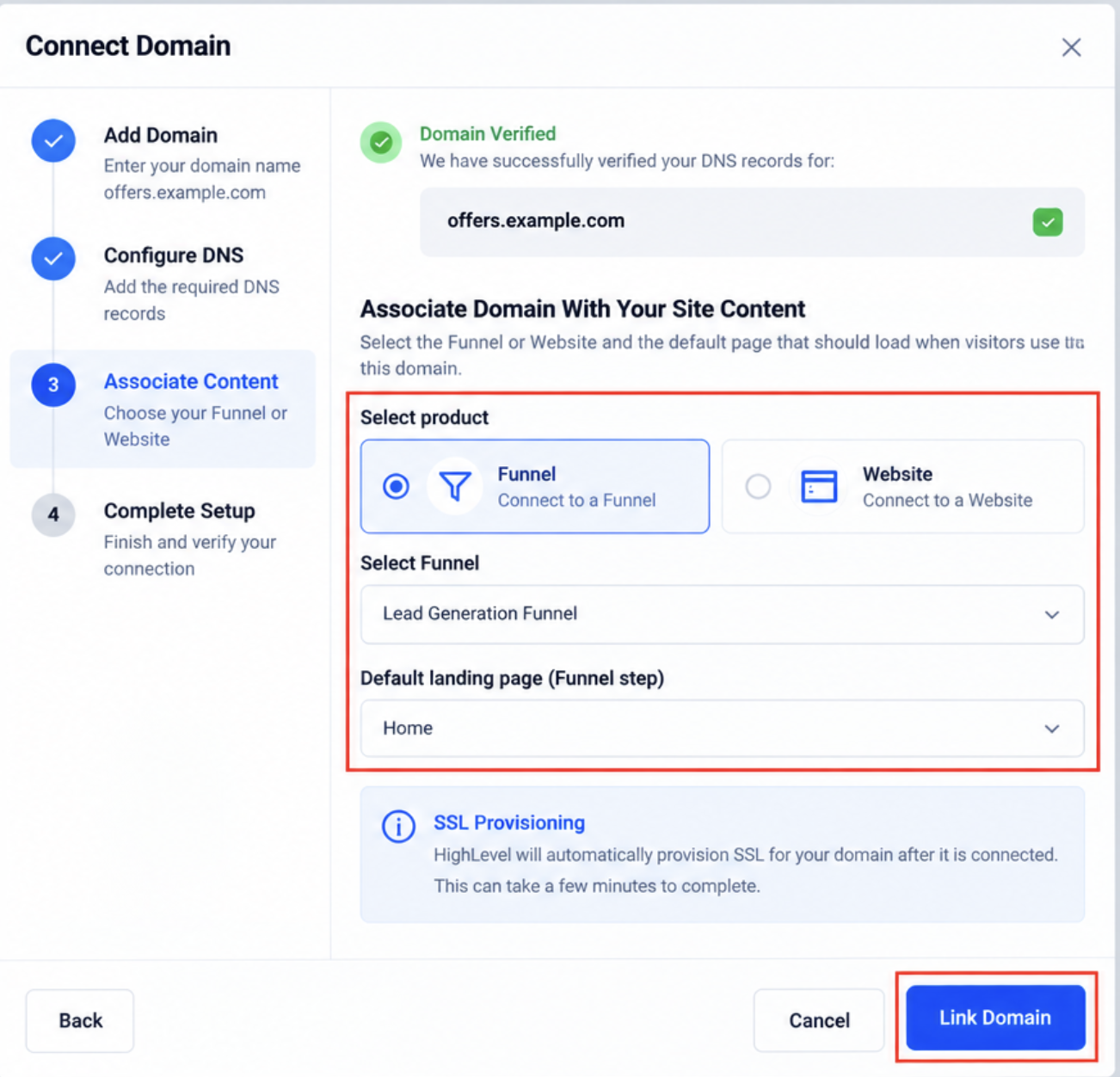
- Pick the product type (Funnel, Website, Store, Blog, Webinar) and click Connect.
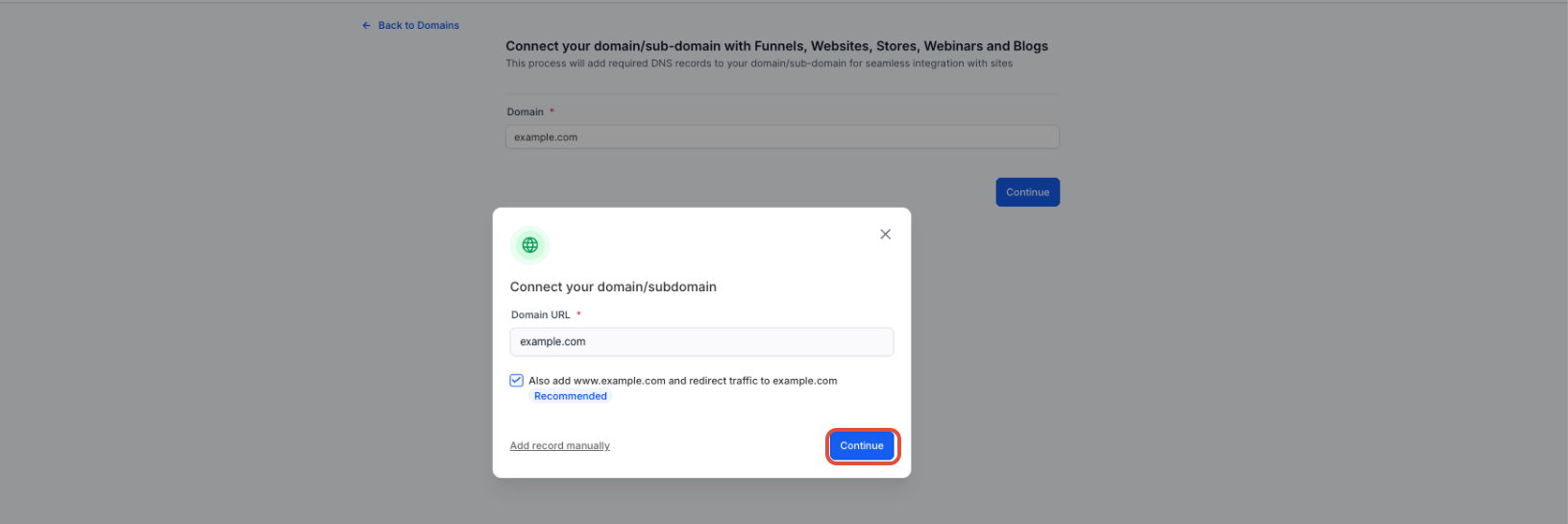
- Enter the desired hostname into the Domain URL field.
- Select Continue for automatic Domain Connect or Add record manually for manual DNS.
- If using automatic setup, enter the domain in the provider flow and click Continue.
- Authorize the connection in the provider window and sign in when prompted.
- Approve the DNS changes, close the provider tab and let HighLevel verify the records.
- After verification, choose the Funnel step or Website page that will serve as the default landing page and click Link Domain.
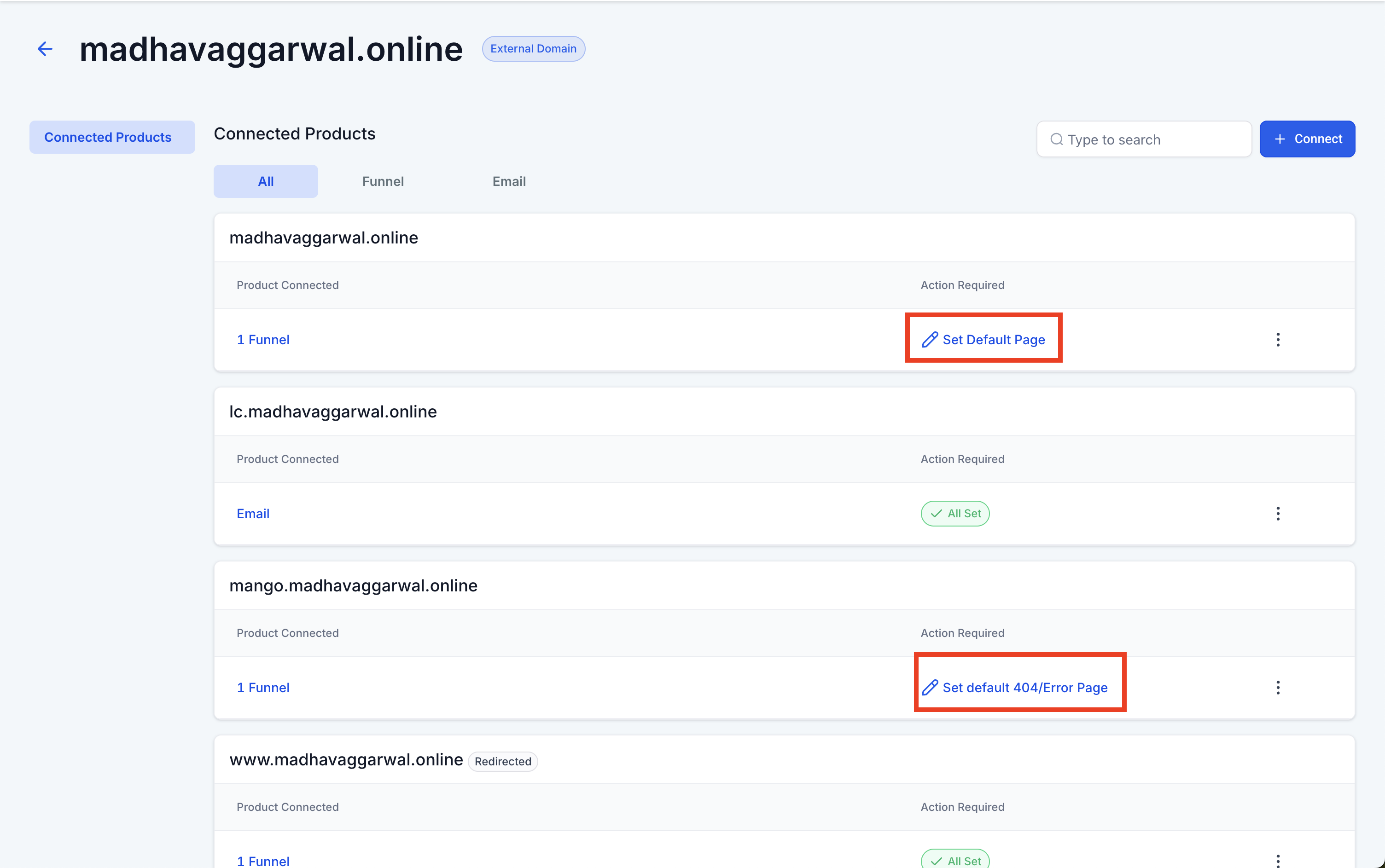
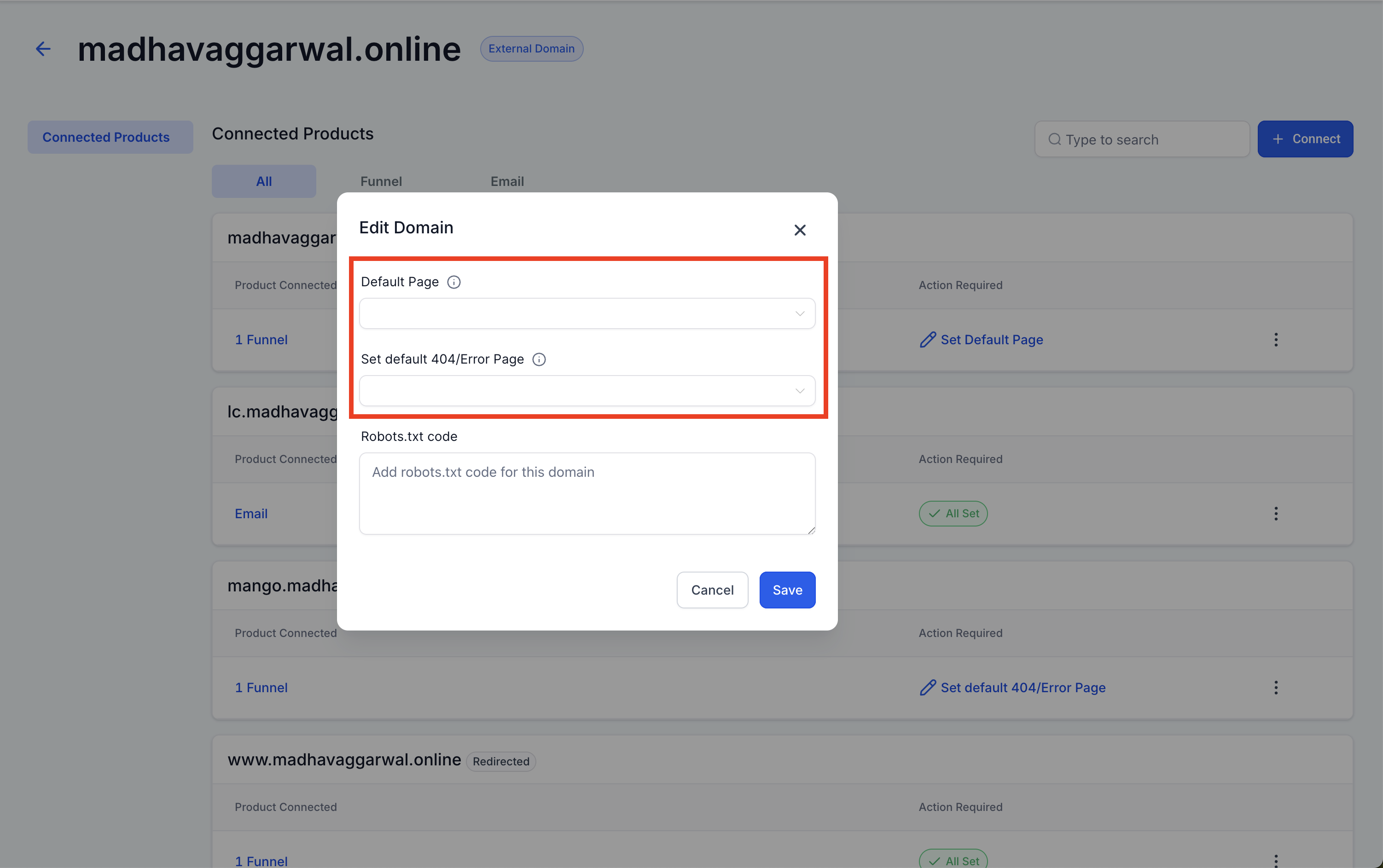
- Open the domain’s Manage screen, assign a default page and a default 404 Error page, then save the settings.
Delete a connected domain from a subaccount
- Navigate to Settings > Domains & URL Redirects.
- Find the domain you want to remove and click Manage.
- Open the three dot menu for that domain.
- Choose Delete from the menu.
- Confirm the deletion in the dialog that appears.
Verify that DNS records are correctly published
- Open a public DNS lookup tool such as MXToolbox.
- Select the appropriate lookup type, for example DNS or CNAME lookup.
- Enter the root domain or subdomain you connected.
- Run the lookup.
- Check that the expected HighLevel record (A 162.159.140.166 or CNAME sites.ludicrous.cloud) is visible.
07What it looks like in HighLevel
08Settings that matter
- Domain URL field. Accepts the hostname you are connecting, such as example.com or www.example.com.
- Connection method. Lets you choose between automatic Domain Connect or manual DNS record entry.
- Default Page dropdown. Selects which Funnel step or Website page loads when visitors open the domain without a path.
- Default 404 Error Page dropdown. Designates the page shown when a visitor requests a URL that does not exist.
- Action Required reminder. Displays a notice in the subaccount where the domain was first connected if the default page or error page is not set.
09Things to know before you rely on it
- A single hostname can point to only one HighLevel platform at a time.
- Do not create both an A record and a CNAME for the same hostname.
- When using Cloudflare set the HighLevel A or CNAME record to DNS only, not Proxied.
- DNS propagation may take up to 24 hours before HighLevel can verify the record.
- The Action Required reminder appears only in the subaccount where the domain was originally linked.
10If something goes wrong
- HighLevel cannot find the CNAME or A record. Confirm which provider hosts the active DNS, add the record there, ensure only one supported record exists, use the correct host name (for example www), save the changes, allow propagation and then retry verification.
- Domain shows an SSL or privacy error. Remove any conflicting A or CNAME records, verify the required HighLevel record is present, set Cloudflare records to DNS only, wait for propagation and let SSL provision again.
- Cloudflare domain does not connect correctly. Log into Cloudflare, go to DNS for the domain, change the proxy status of the HighLevel record to DNS only, save and retry the connection in HighLevel.
- Domain intermittently displays a 404 page. Check whether both root and www versions are being used, configure a 301 redirect if needed, ensure the intended page is set as default and assign a default 404 Error page.
11How it connects to the rest of HighLevel
- Full website setup guide, including domain connection Website setup overview
- Pricing and plan details for HighLevel HighLevel pricing
- Start a free 30 day trial of HighLevel 30 day trial
- Guide to configuring different domain types in HighLevel Different domain types
Michael's take

Avoid the mistake of creating both an A record and a CNAME for the same hostname.