
01Who this is for
- Agency owners need a whitelabel domain so their clients log in using the agency’s branded URL.
- Marketing managers use a dedicated sending domain to improve email deliverability for campaigns.
- Ecommerce Founders require a site domain to publish storefronts without interfering with other services.
02Domain types, explained
The domain feature lets you map a root domain or subdomain to a specific HighLevel product. You add the domain in the appropriate Settings section, copy the DNS records HighLevel generates, and create those records at your registrar. Once DNS resolves, the platform verifies the connection and the domain becomes active for that product.
Each product, Websites/Funnels, WordPress, email sending, client portal, whitelabel login, API/Branded links, has its own domain entry point. The system keeps the DNS records separate, so a record used for a website does not automatically serve a WordPress site or email service. This separation avoids conflicts and protects existing mailboxes or sites.
All domain management lives inside HighLevel under various menus: Agency View > Settings > Company Settings for whitelabel and API domains, Subaccount > Settings > Domains for site domains, and Subaccount > Settings > Email Services for dedicated sending domains. WordPress and client portal domains are accessed through their respective site sections.
03How businesses use domain types
- Digital marketing agency. The agency creates a CNAME record that points a sub domain like app.agency.com to HighLevel. After adding the record, they configure the whitelabel domain in Agency Settings, upload their logo and set terms. Clients then log in using the agency’s branded URL.
- SaaS product team. The team sets a sub domain for API links, such as links.saas.com, in the Company Settings. This domain is used for all system generated links, improving brand consistency and link deliverability across forms, surveys and calendars.
- Online store owner. The owner adds a sub domain like shop.mybrand.com in Subaccount > Settings > Domains, copies the DNS records HighLevel provides, creates them at their registrar, and then verifies the domain. The store becomes reachable at the new URL without affecting email or other services.
04The numbers and rules that matter
- Website/Funnel Domain | Publishing Websites, Funnels, Stores, Blogs, and other supported Sites experiences.
05How to set up and use domain types in HighLevel
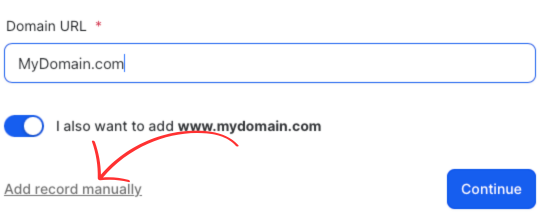
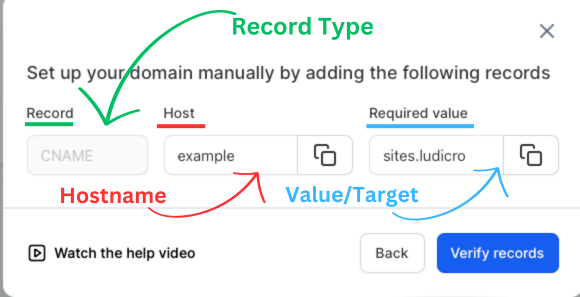
Add manual DNS record
- Open your DNS provider’s management console.
- Navigate to the DNS manager for the domain.
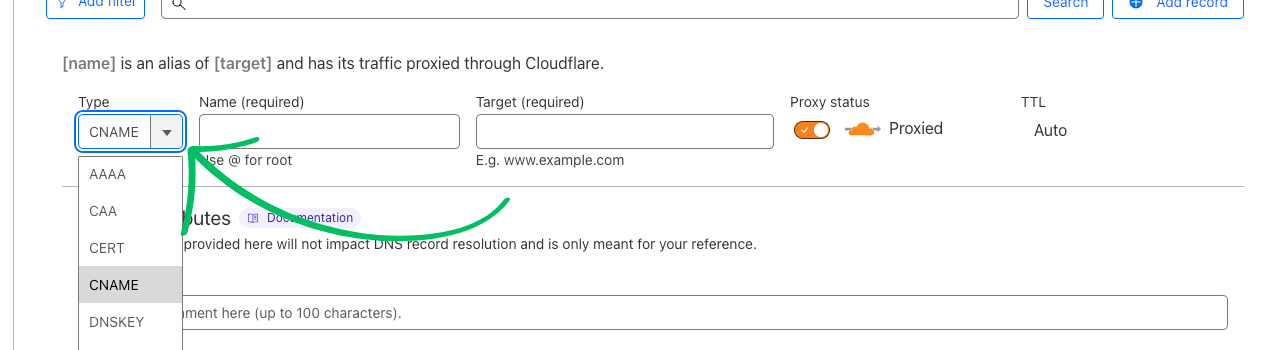
- Click the option to add a new DNS record.
- Select the record type that HighLevel shows (CNAME, A, TXT, etc.).
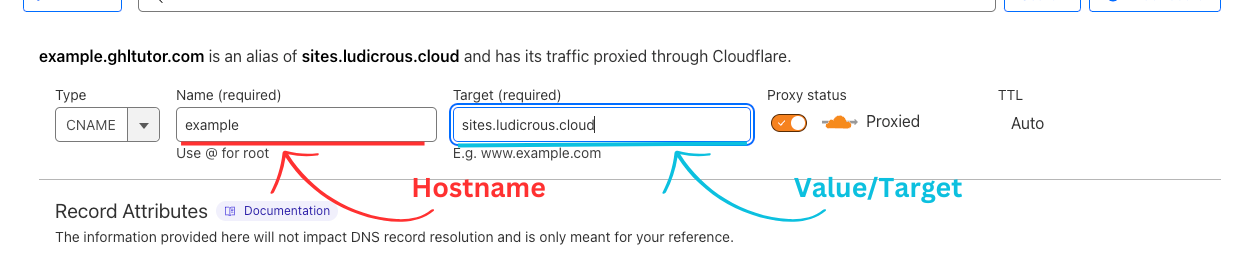
- Enter the hostname in the Name field and the value/target in the Target field.
- Save the record and, if using Cloudflare, turn the proxy status off.
Set up a whitelabel domain
- Create a CNAME record at your DNS provider that points the chosen sub domain to HighLevel.
- In the Agency View, go to Settings > Company Settings > Whitelabel and enter the sub domain.
- Upload your agency’s logo in the whitelabel configuration.
- Update the agency Terms & Conditions and save the changes.
Connect a site domain
- Open the Subaccount and navigate to Settings > Domains.
- Click to add a new domain and choose the external domain option.
- Copy the DNS records that HighLevel displays for the domain.
- Create those records at your domain registrar.
- Return to HighLevel and click Verify to complete the connection.
Add a dedicated sending domain
- Go to Settings > Email Services > Dedicated Domain and IP.
- Click Add Domain and enter the domain you want to use for email.
- Copy the DNS records generated for the sending domain.
- Add the records at your DNS provider and then verify the domain in HighLevel.
Set up a Client Portal domain
- In the Subaccount, open Sites > ClientPortal > Settings.
- Click to add a new portal domain and type the desired sub domain.
- Copy the DNS records shown for the portal domain.
- Create the records at your registrar, then verify the domain in HighLevel.
Connect a WordPress domain
- Enter the Subaccount, go to Sites > WordPress.
- Select the WordPress site you want to connect.
- Open the domain management panel for that site.
- Enter the domain, copy the DNS records HighLevel provides, add them at your registrar, and verify.
06What it looks like in HighLevel

07Settings that matter
- Whitelabel Domain. Controls the branded URL that clients use to access the agency’s HighLevel login and dashboard.
- API/Branded Domain. Sets the base domain for system generated links such as forms, surveys and calendar invites.
- Sites Domains. Defines the public URLs for Websites, Funnels, Stores and Blogs.
- Dedicated Sending Domain. Authenticates a domain used to send email through HighLevel’s LC Email system.
- Client Portal Domain. Provides a custom URL for the client portal, courses and community areas.
- WordPress Domain. Assigns the public URL for a WordPress site hosted on HighLevel.
08Things to know before you rely on it
- Each domain type requires its own DNS records; records should not be reused across different HighLevel products.
- Using a root domain that is already active elsewhere can disrupt existing mailboxes or sites; a sub domain is recommended in such cases.
- When adding a CNAME record in Cloudflare, the proxy status must be turned off for the record to propagate.
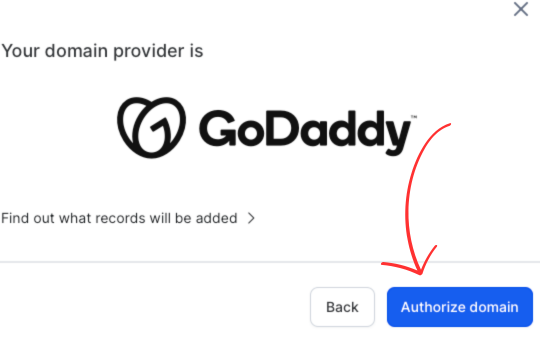
- Domain Connect works only with supported providers; otherwise manual DNS entry is required.
09If something goes wrong
- Incorrect DNS records. Compare the records at your DNS provider with the values displayed in HighLevel and correct any mismatches.
- Duplicate A or CNAME records. Check for multiple records using the same hostname and remove the duplicates.
- Incomplete DNS propagation. Allow adequate time for DNS changes to propagate before re verifying in HighLevel.
- Editing DNS at the wrong provider. Confirm you are editing DNS settings at the registrar that currently hosts the domain’s nameservers.
10How it connects to the rest of HighLevel
- How to connect a root domain or subdomain for funnels and websites Root/subdomain setup
- HighLevel pricing and plans Pricing
- Start a 30 day HighLevel trial Free trial
Michael's take

Wondering which domain you should point at your HighLevel funnel versus your agency app? Pick the product first, then match the domain type. A site or funnel needs a Site domain, an agency branded login needs a White label subdomain, and email campaigns need a Dedicated Sending subdomain. That way each service gets its own DNS records and you avoid stepping on any existing mail or site.
If I were setting up a new client, I would start with a subdomain for the white label portal, then add a separate subdomain for email sending. The separation keeps branding tidy and protects the client’s existing inbox. I’d still double check that the DNS provider you’re editing actually controls the nameservers before you save any records.