
01Who this is for
- Marketing managers who oversee site SEO and need to guide crawlers toward key pages.
- Content creators with large archives that are not well linked internally, ensuring all articles can be discovered.
02XML sitemaps, explained
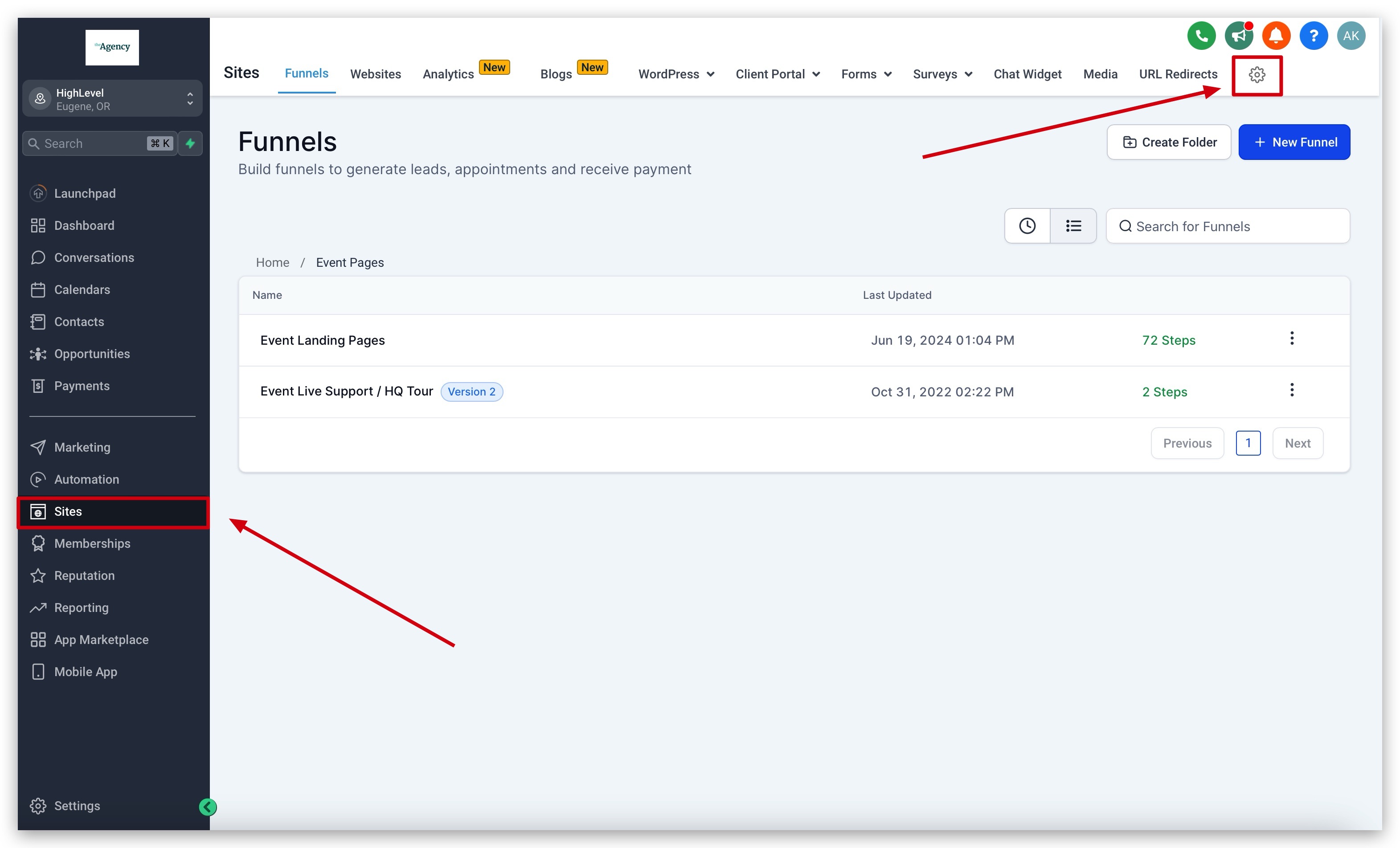
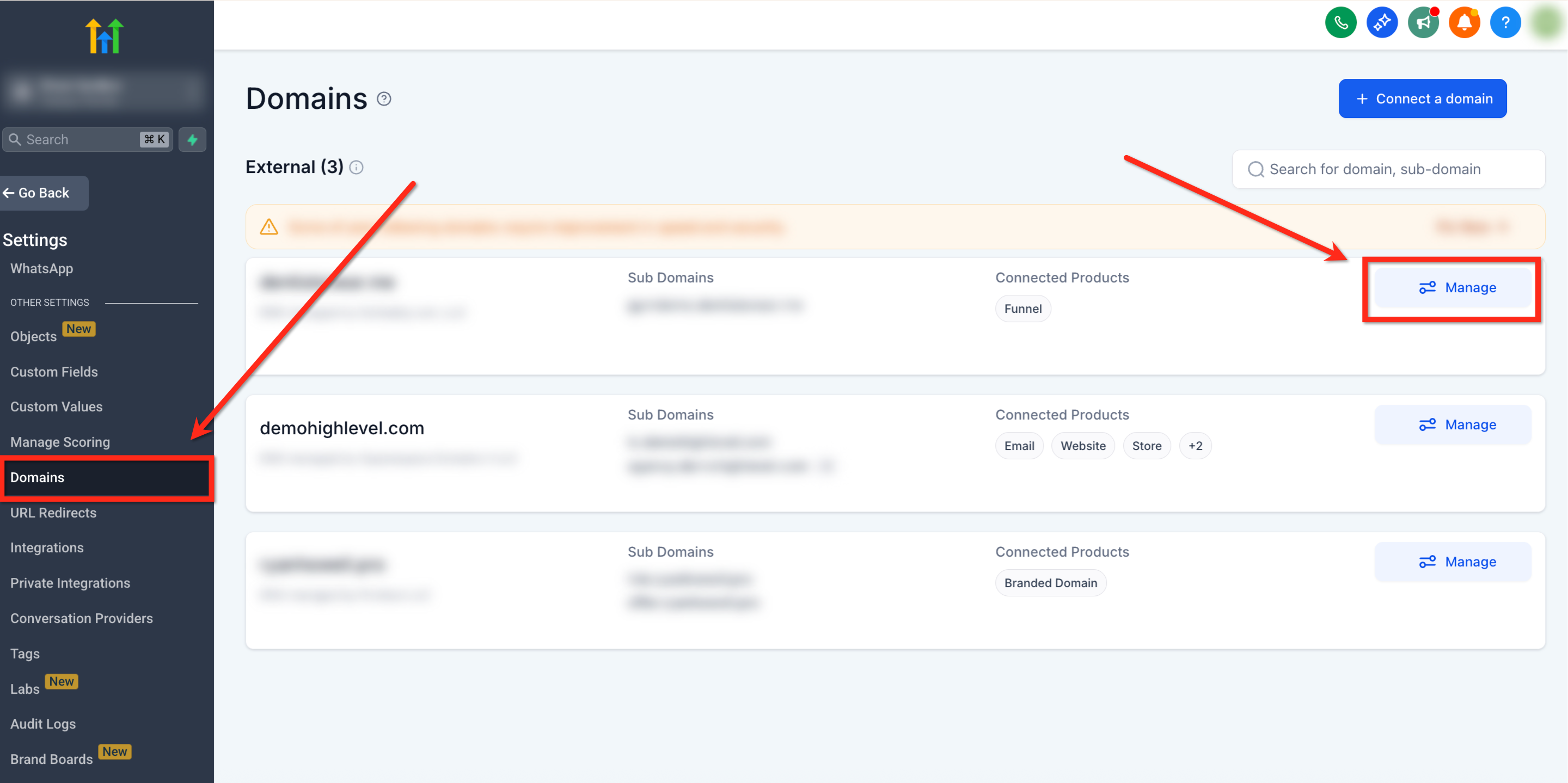
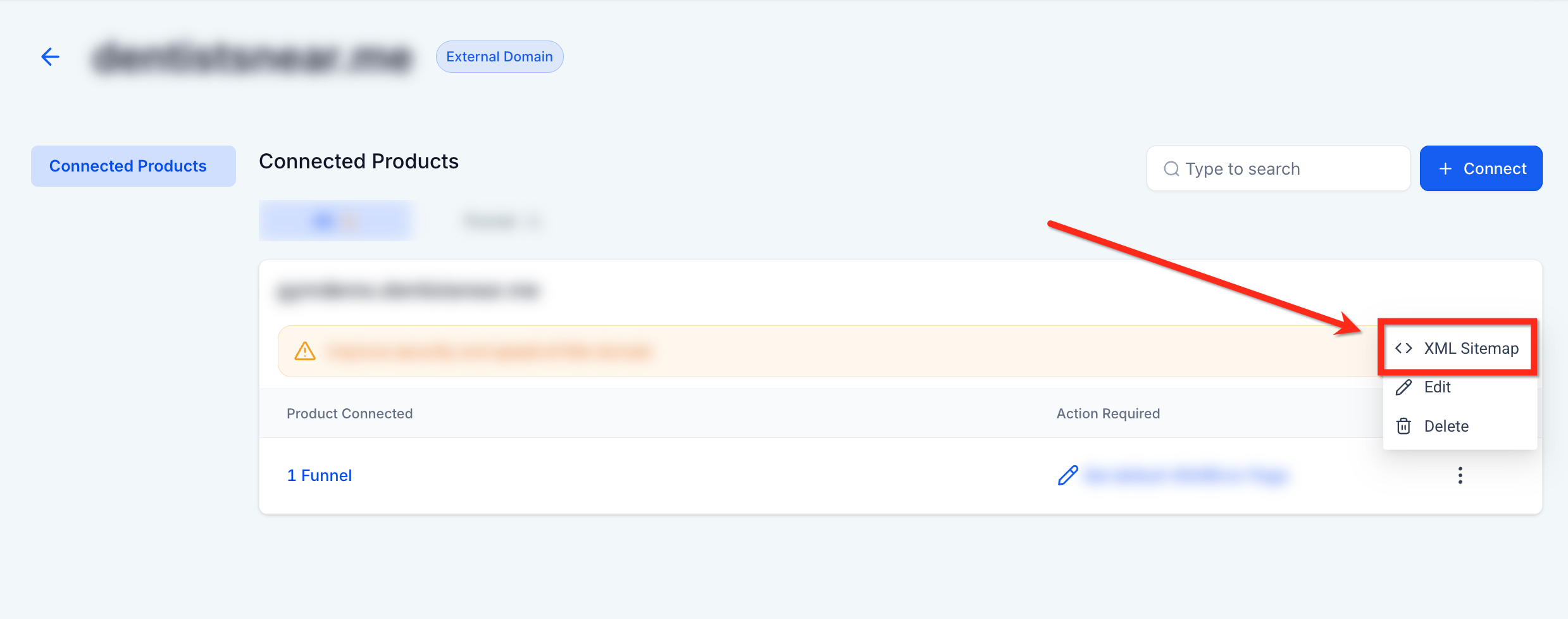
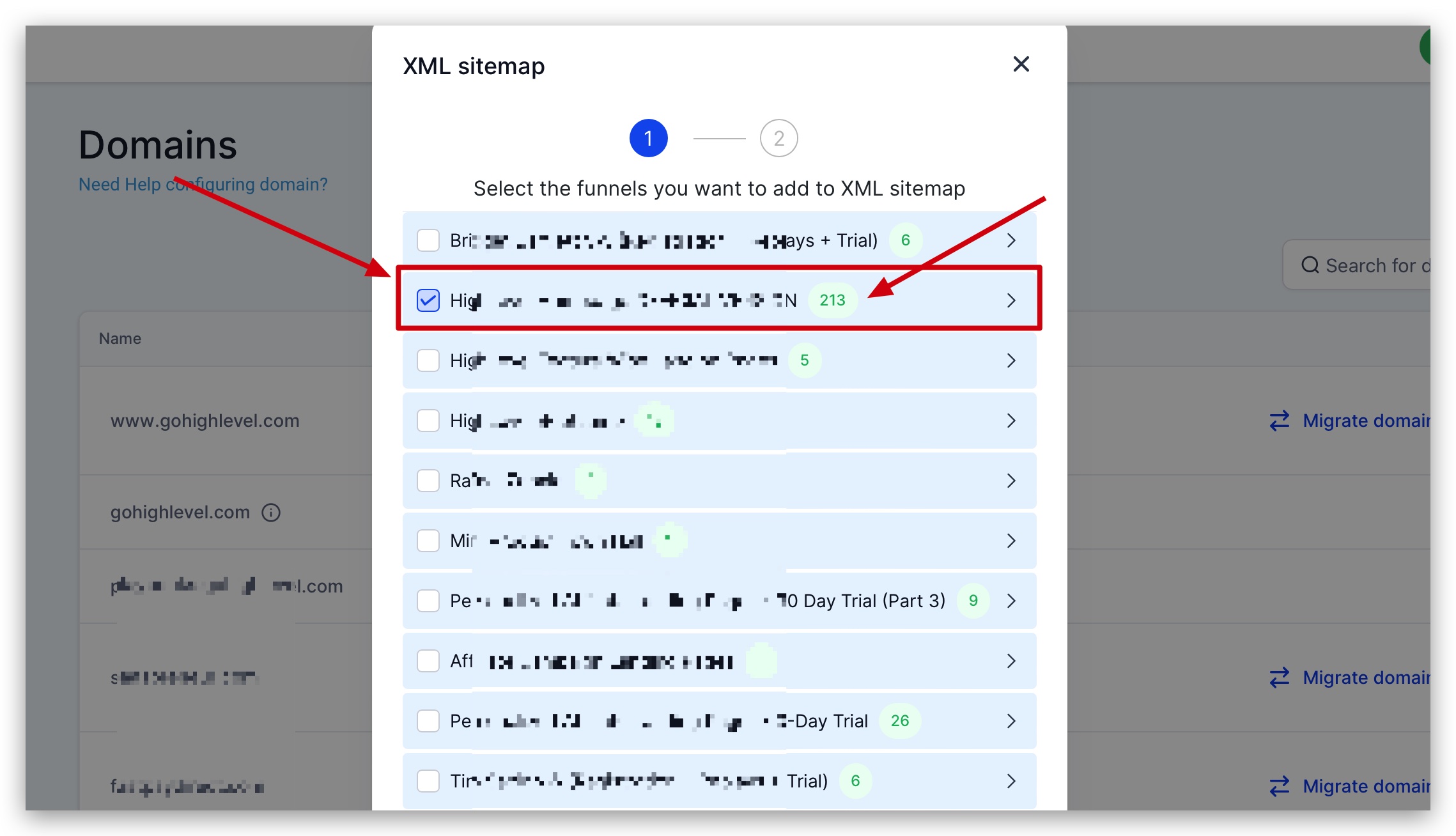
The XML sitemap feature lives in the Sites area of a HighLevel subaccount. After adding a domain, you open the domain’s settings, choose the XML Sitemap action, and select which website or funnel pages belong in the file. The platform builds a sitemap at a custom URL path that you can edit later. When you generate the sitemap, HighLevel records the last modified date, shows a confirmation message with the sitemap URL, and you then submit that URL to Google.
03How businesses use XML sitemaps
- Ecommerce store. Select product and category pages in the sitemap wizard, generate the file, then submit the URL in Google Search Console so new items are crawled promptly.
- Online course platform. Choose lesson and module pages, customize the sitemap path if needed, and resubmit after adding new courses to keep Google aware of the latest content.
- Local service provider website. Add service pages and the contact page to the sitemap, generate it, and submit the link to Google to help the site appear in local search results.
04The numbers and rules that matter
- Small sites (about 500 pages or less) may not need a sitemap.
05Before you start
- A domain must be added to the HighLevel subaccount before the Manage option appears.
- Websites or funnels need to be connected to that domain so they appear in the sitemap selector.
06How to set up and use XML sitemaps in HighLevel
Create or edit an XML sitemap for a domain
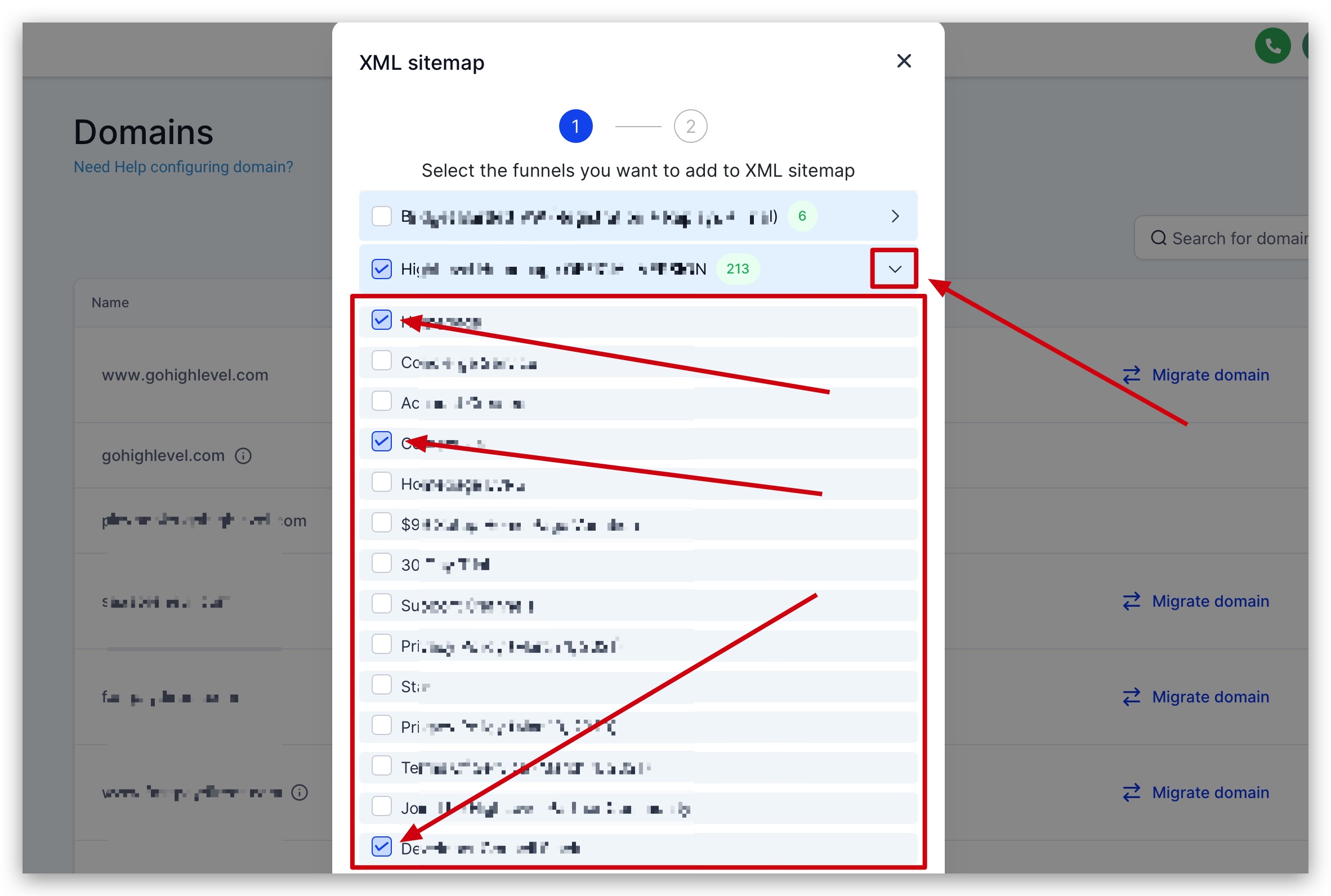
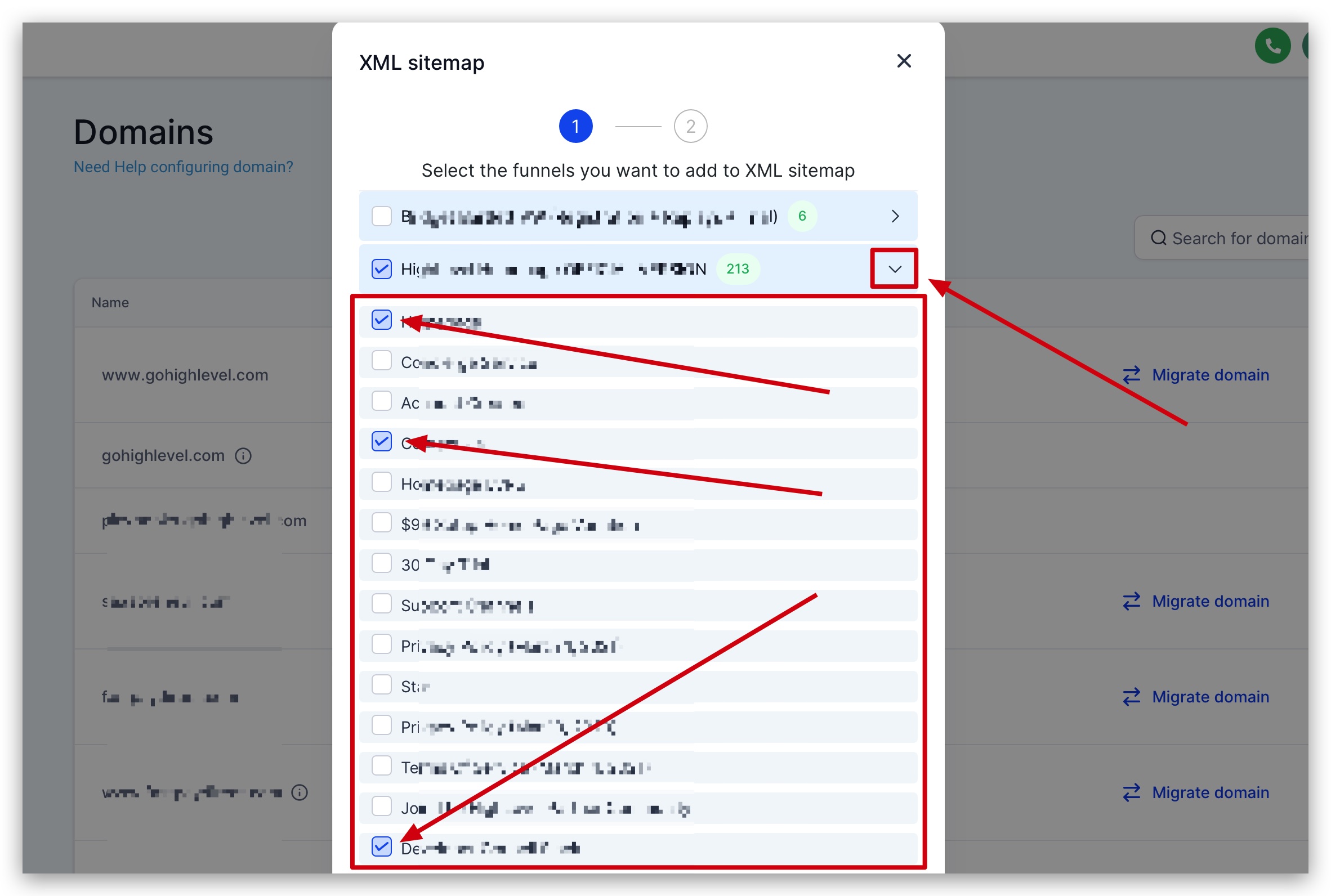
- Click the arrow icon next to the desired website or funnel in the sitemap configuration view.
- Check the boxes for the pages you want Google to crawl, or expand the list and pick individual pages.
- Press the Proceed button at the bottom of the list.
- If no sitemap exists, click the Add New button to start a new file.
- Review the popup that shows existing sitemaps, the custom path, and the last modified date.
- Use the three dot action button in the popup to choose Edit if you need to change the path or page selection.
- Click the Generate & Save button to finalize the creation or edit.
- Read the confirmation message that displays the new sitemap URL.
- Note the URL because you will need it when submitting to Google.
Submit the XML sitemap to Google Search Console
- Open the Google Sitemaps Report via the support link and click the Open Sitemaps Report button.
- Add your website property to Search Console if it is not already listed.
- Verify ownership of the new property as prompted by Google.
- Navigate to the Sitemaps section inside Search Console.
- Enter the sitemap URL provided by HighLevel (typically sitemap.xml) and submit it.
- Wait for Google to crawl the site and review the results in the Pages section of Search Console.
07What it looks like in HighLevel
08Settings that matter
- XML Sitemap. Opens the wizard where you can add, edit, or delete sitemaps for a domain.
- Custom Path. Defines the URL segment of the sitemap file and can be changed any time.
- Last Modified Date. Shows when the sitemap was last updated; changing pages or the path updates this timestamp.
- Generate & Save. Commits the selected pages and custom path, creating or updating the sitemap file.
09Things to know before you rely on it
- Sites with about 500 pages or fewer may not need a custom sitemap.
- Not adding a page to the sitemap does not block it from being crawled; additional restrictions are required for that.
- Google only processes a new or changed sitemap; avoid repeatedly pinging an unchanged file.
- If you modify the custom path, you must resubmit the sitemap to Google.
10If something goes wrong
- Unable to submit the sitemap through Google Search Console. Add the sitemap URL to your robots.txt file or use the Google ping service to request a crawl.
11How it connects to the rest of HighLevel
- Learn how to set up domains for HighLevel websites and funnels Domain setup guide
- Overview of all Sites features, including sitemaps All Sites features
- Step by step guide to creating and customizing HighLevel websites Website setup overview
Michael's take

Michael ReimerFounder of CRM Pros, HighLevel Commander and Certified Admin
XML sitemaps are worth the effort for sites that are large, complex, or rich in media. If your site is tiny and fully linked, you can probably skip this.
Skip it if you run a simple blog on a platform that already provides a sitemap for you.
Get More InformationOpens on HighLevelPublished November 2, 2026 · Updated November 16, 2026