
01Who this is for
- Agency owners who need to host client websites without leaving the platform.
- Marketing managers who want to give clients direct access to a WordPress dashboard while keeping control over domains and backups.
02WordPress hosting, explained
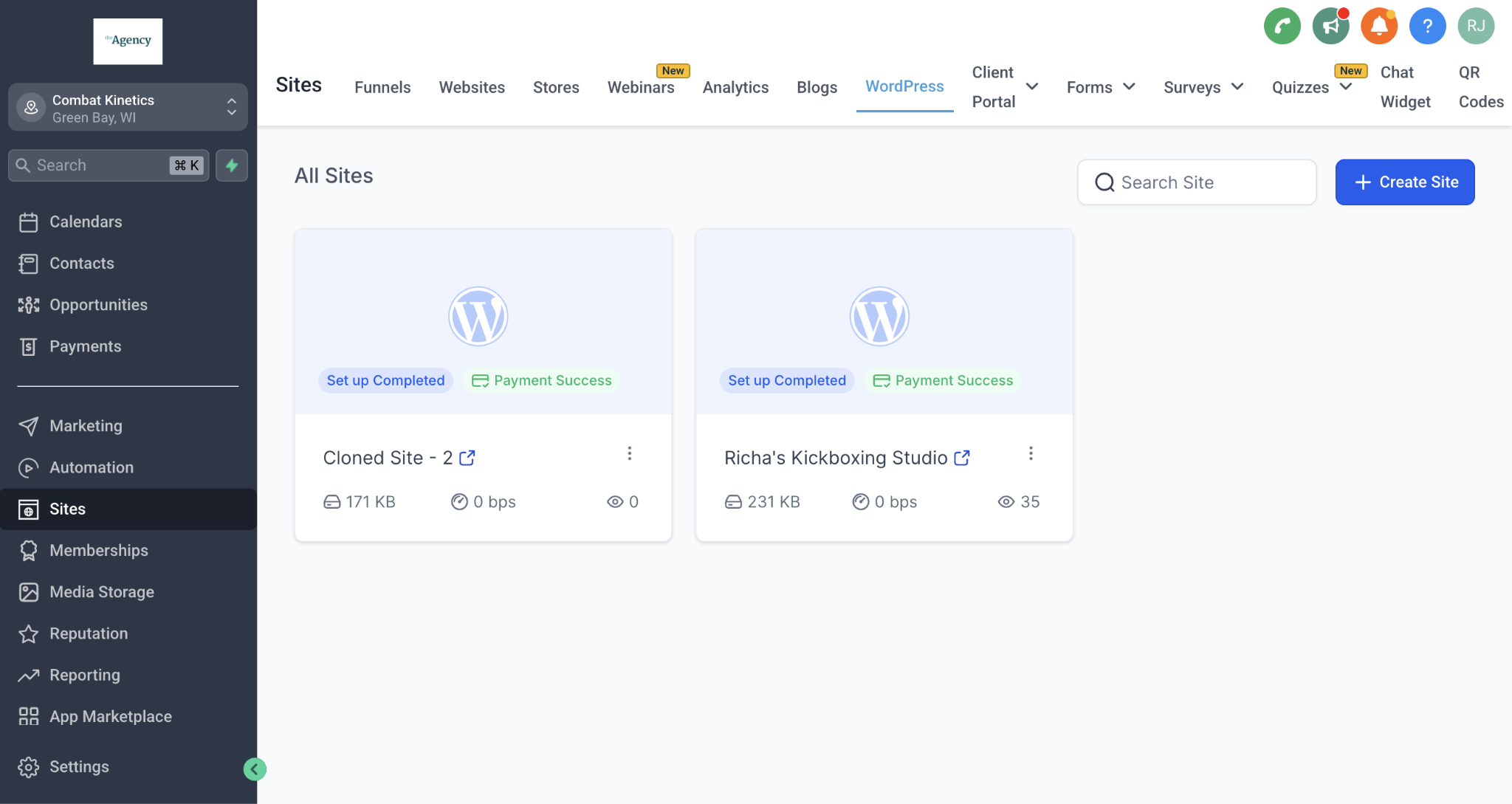
The feature creates a fully hosted WordPress installation inside HighLevel. Once the site is provisioned, the LeadConnector plugin is added automatically and can be monitored via a Plugin Status indicator.
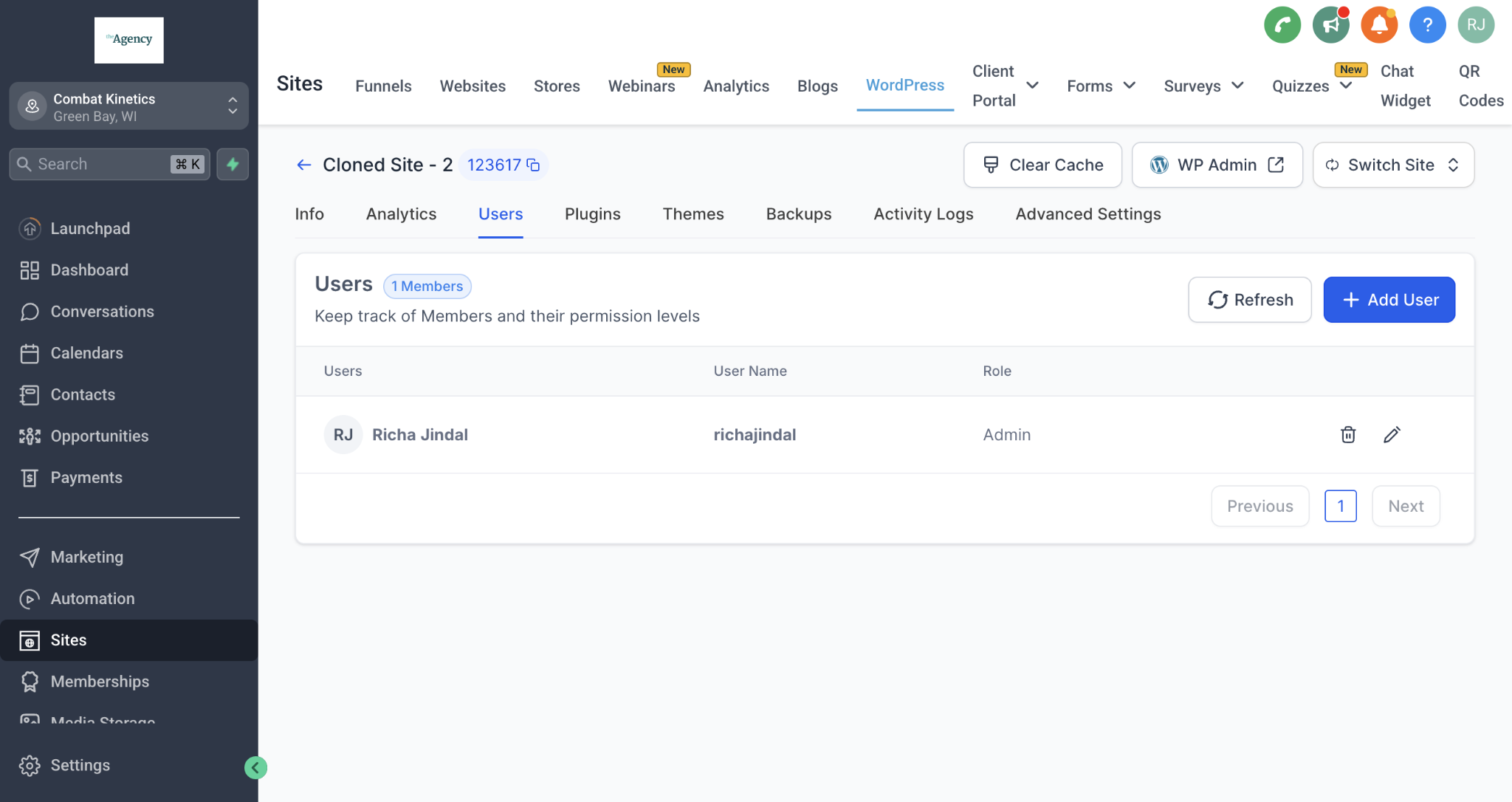
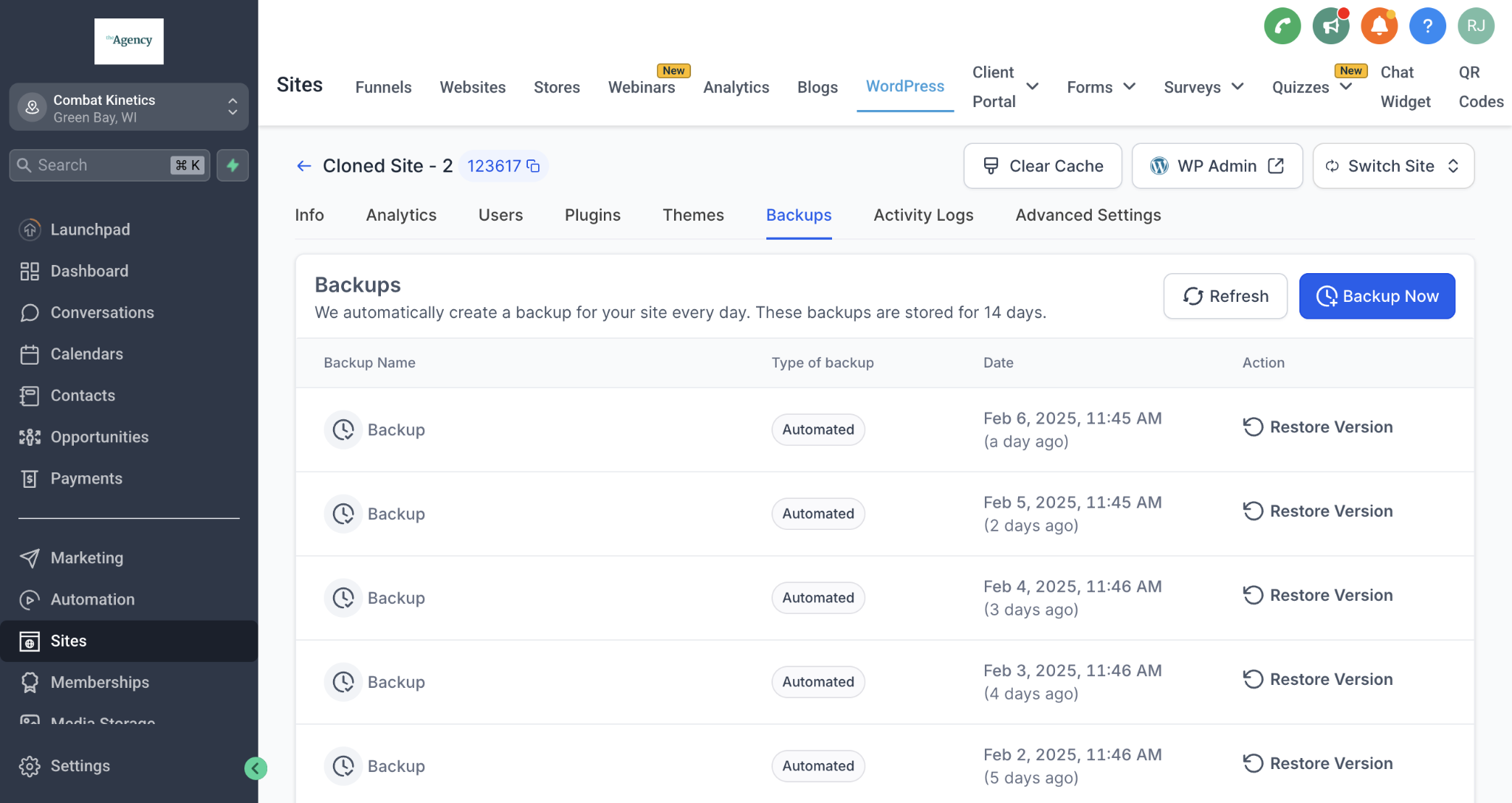
From the WordPress dashboard you can reach the site admin, add primary and additional domains, run daily backups, refresh cache, and open advanced settings for FTP, caching, debugging, and database access.
03How businesses use WordPress hosting
- Digital agency. The agency purchases hosting, clicks the + Create Site button, selects a template, and fills out the site and user information. After the site is ready, the agency assigns client users, connects the client’s domain, and enables daily backups.
- Coaching business. A coach creates a new WordPress site from scratch, adds their domain, and turns on WordPress debugging to monitor any PHP warnings while building custom landing pages.
- Real estate firm. The firm clones an existing property showcase site, updates the additional domain to a new sub domain, and schedules manual backups before publishing the cloned site.
04The numbers and rules that matter
- Backups happen daily at 05:00 AM CST.
- Backups visible for the last 30 days.
- Unlimited WordPress sites per subaccount.
- Same domain/subdomain cannot be used in 2 locations simultaneously.
05Before you start
- Purchase the WordPress hosting feature under the Sites tab.
06How to set up and use WordPress hosting in HighLevel
Set up a new WordPress site
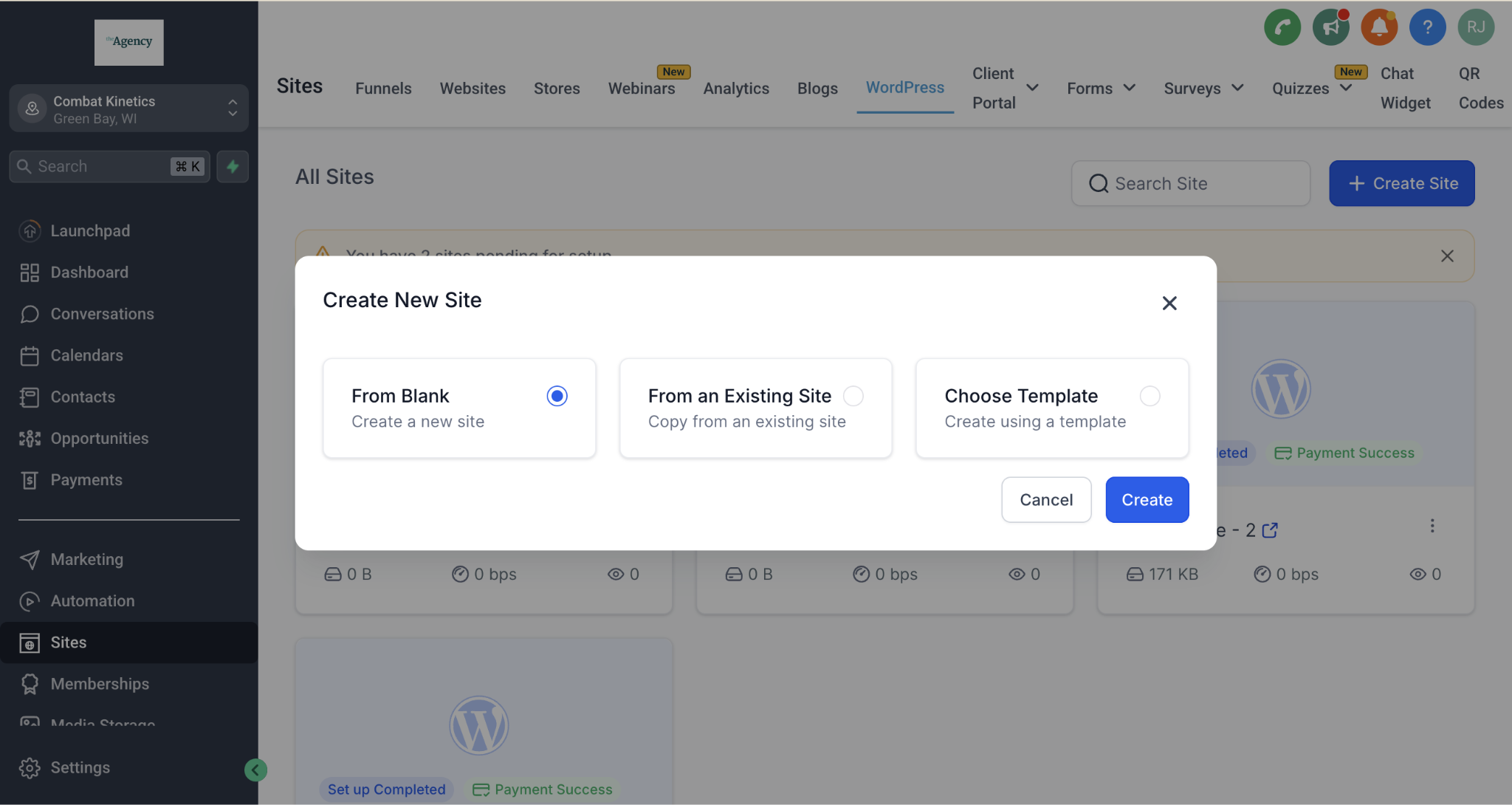
- Click the "+ Create Site" button.
- Choose to start from scratch, use a template, or clone an existing site.
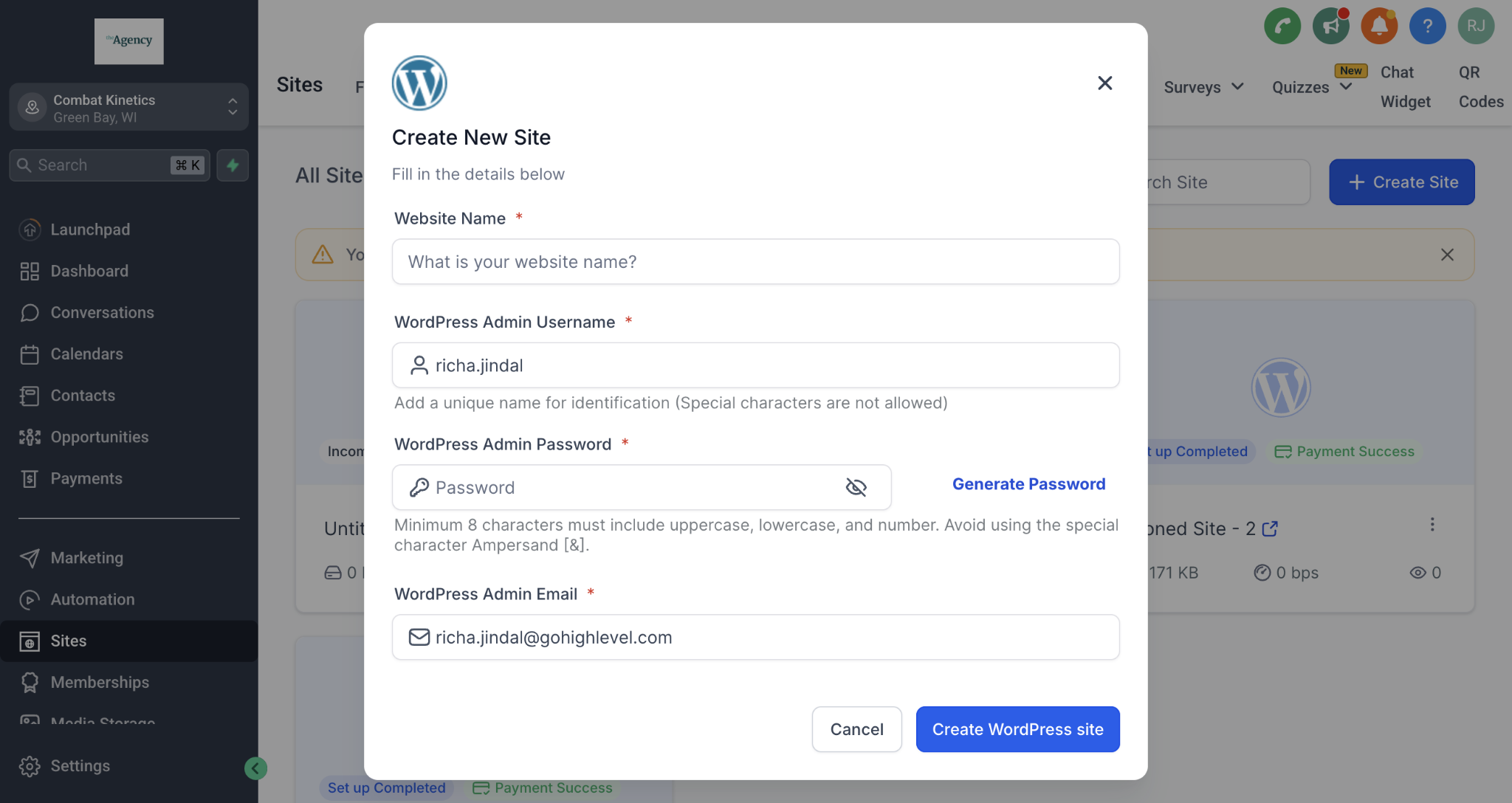
- Enter the required site and user details.
- Wait two to five minutes for the installation to finish.
- After installation, access the WordPress dashboard, user management, backup & restore, and additional settings.
07What it looks like in HighLevel
08Settings that matter
- LeadConnector plugin. Automatically installed on newly provisioned sites to integrate HighLevel functionality.
- Plugin Status indicator. Shows whether the LeadConnector plugin is Connected or Disconnected.
- FTP Access. Controls file transfer permissions for the site.
- Communication Settings. Manages how the site communicates with external services.
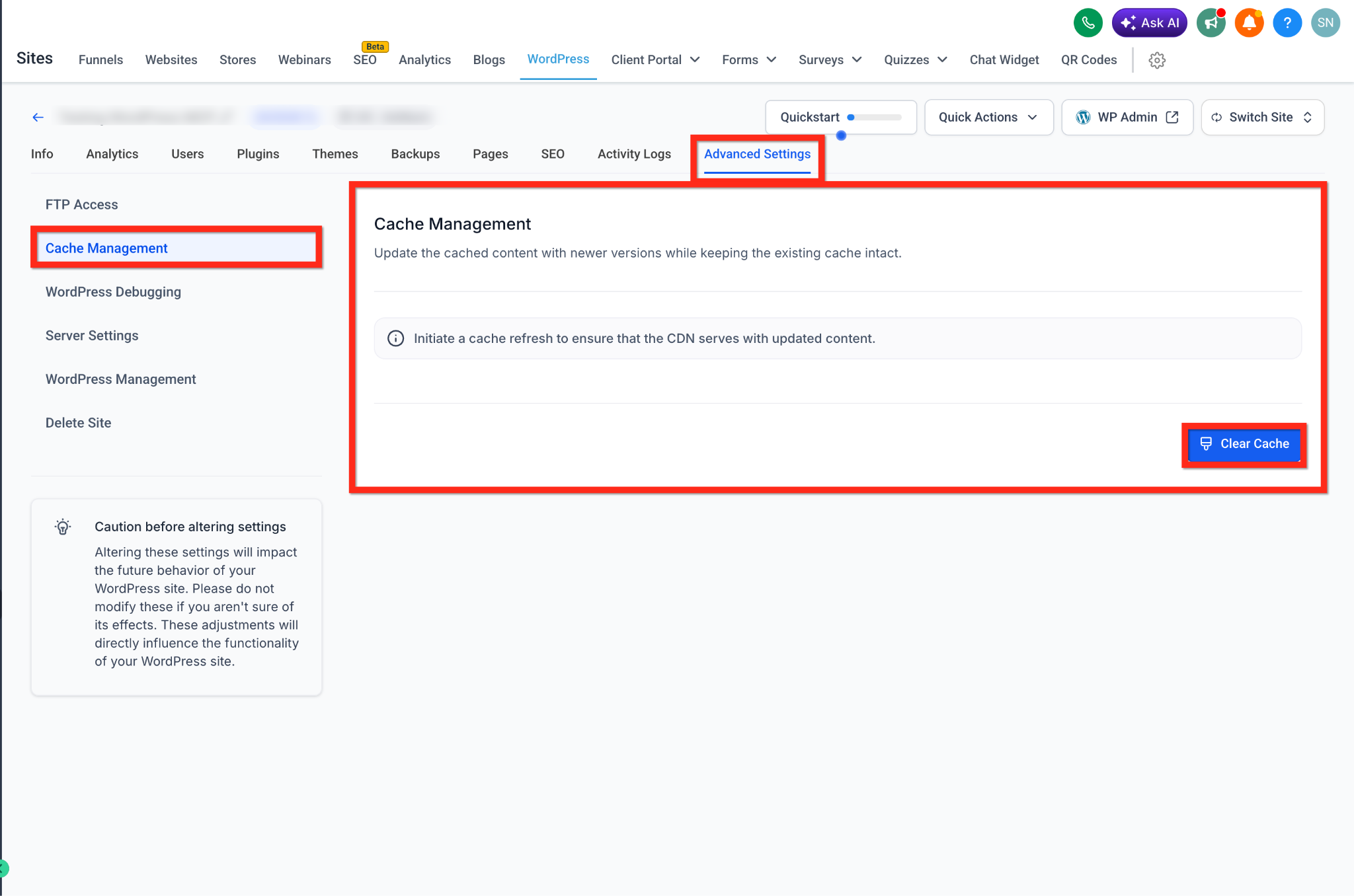
- Cache Management. Allows refreshing or clearing the site cache from the dashboard.
- WordPress Debugging. Enables PHP error messages, warnings, and notices for troubleshooting.
- Server Settings. Provides access to phpMyAdmin for direct database management.
- Backup schedule. Creates daily backups at 05:00 AM CST and permits manual backups.
09Things to know before you rely on it
- There is no limit on the number of WordPress sites per subaccount.
- The same domain or subdomain cannot be used in two locations at the same time.
- The primary domain can be updated only after an additional domain has been added.
- Domain changes may require DNS propagation, which can take several hours.
- Root domains must not have extra A, AAAA, TXT or other records when used for WordPress.
10If something goes wrong
- Plugin not installing. Confirm you have admin access and check hosting restrictions.
- Site not displaying widgets. Clear cache (plugin, server, or CDN) and temporarily disable conflicting plugins.
- Connection errors. Recheck credentials and ensure the correct location/account is selected in HighLevel.
11How it connects to the rest of HighLevel
- Configure WordPress hosting reselling for client subaccounts Resell WordPress
- Clone an existing WordPress site to create a duplicate Clone site
- Manage WordPress plugins and themes within HighLevel Plugins & themes
Michael's take

Michael ReimerFounder of CRM Pros, HighLevel Commander and Certified Admin
WordPress hosting in HighLevel is handy for agencies that need a single place to spin up client sites. Agencies that never host WordPress should skip this feature.
Get More InformationOpens on HighLevelPublished November 2, 2026 · Updated November 16, 2026