
01Who this is for
- Agency owners can adjust client sites without logging into each WordPress admin panel.
- Small business Founders can quickly apply plugin updates from the HighLevel dashboard.
- Web developers can test changes in Staging before publishing to Live, limiting risk.
02Wordpress plugin and theme management, explained
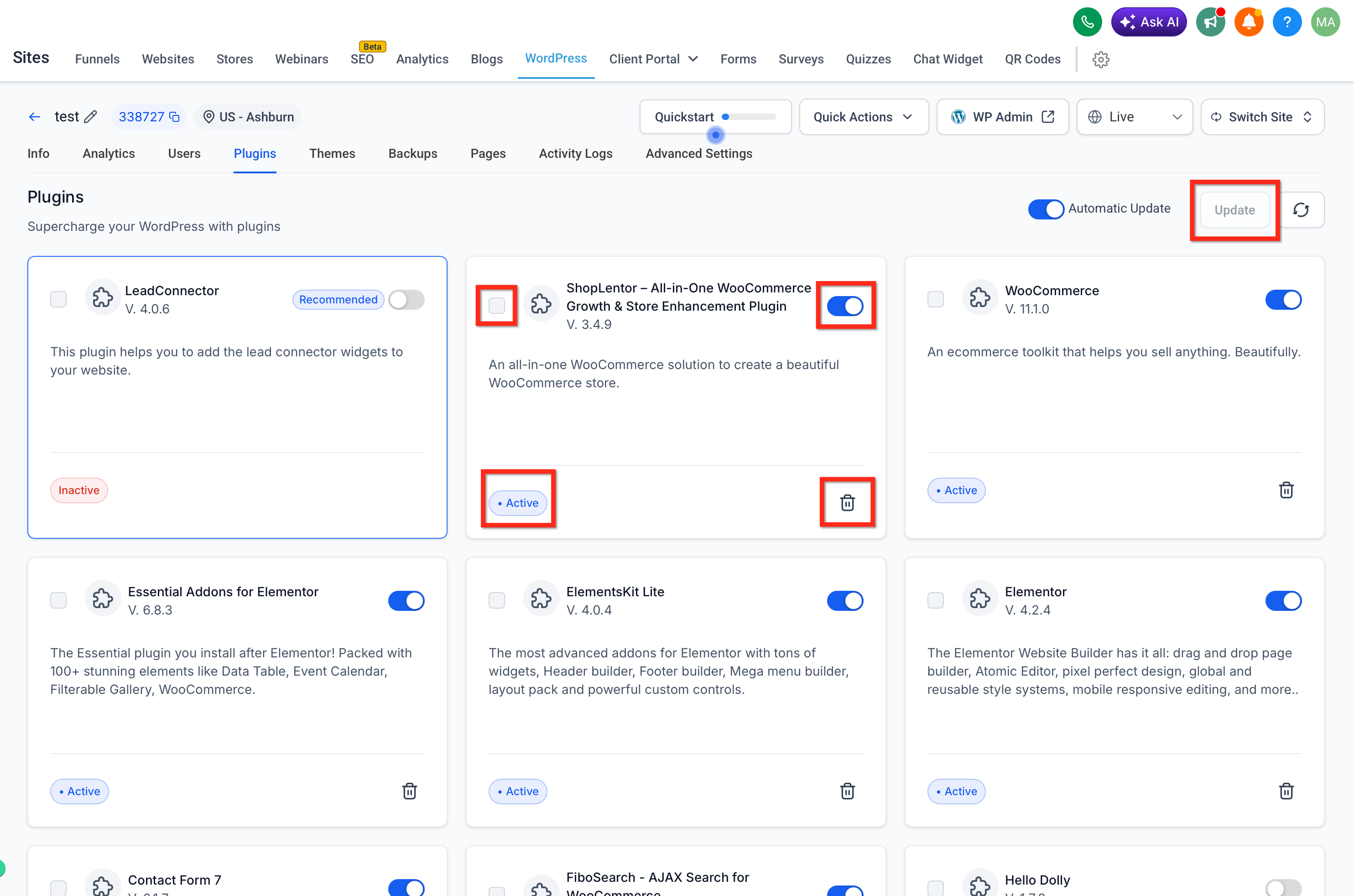
The feature centralizes control of installed WordPress plugins and themes inside HighLevel. It shows the current version of each extension and the most recent version that is available, letting you decide when to update.
From the management screen you can update an extension to its latest version, activate it, deactivate it, or delete it entirely. The dashboard does not allow downgrading or installing new plugins; those actions must be done in native WordPress.
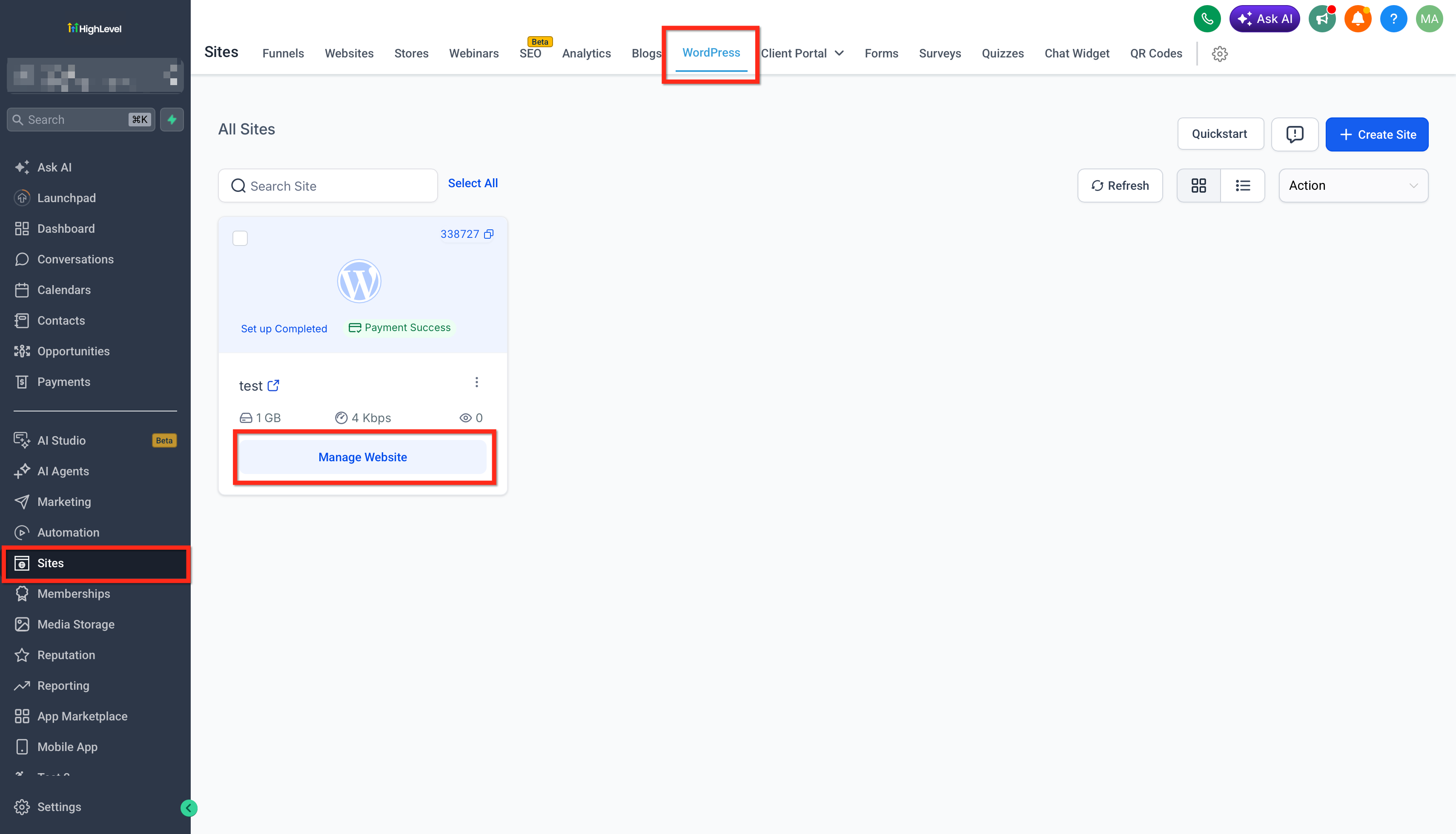
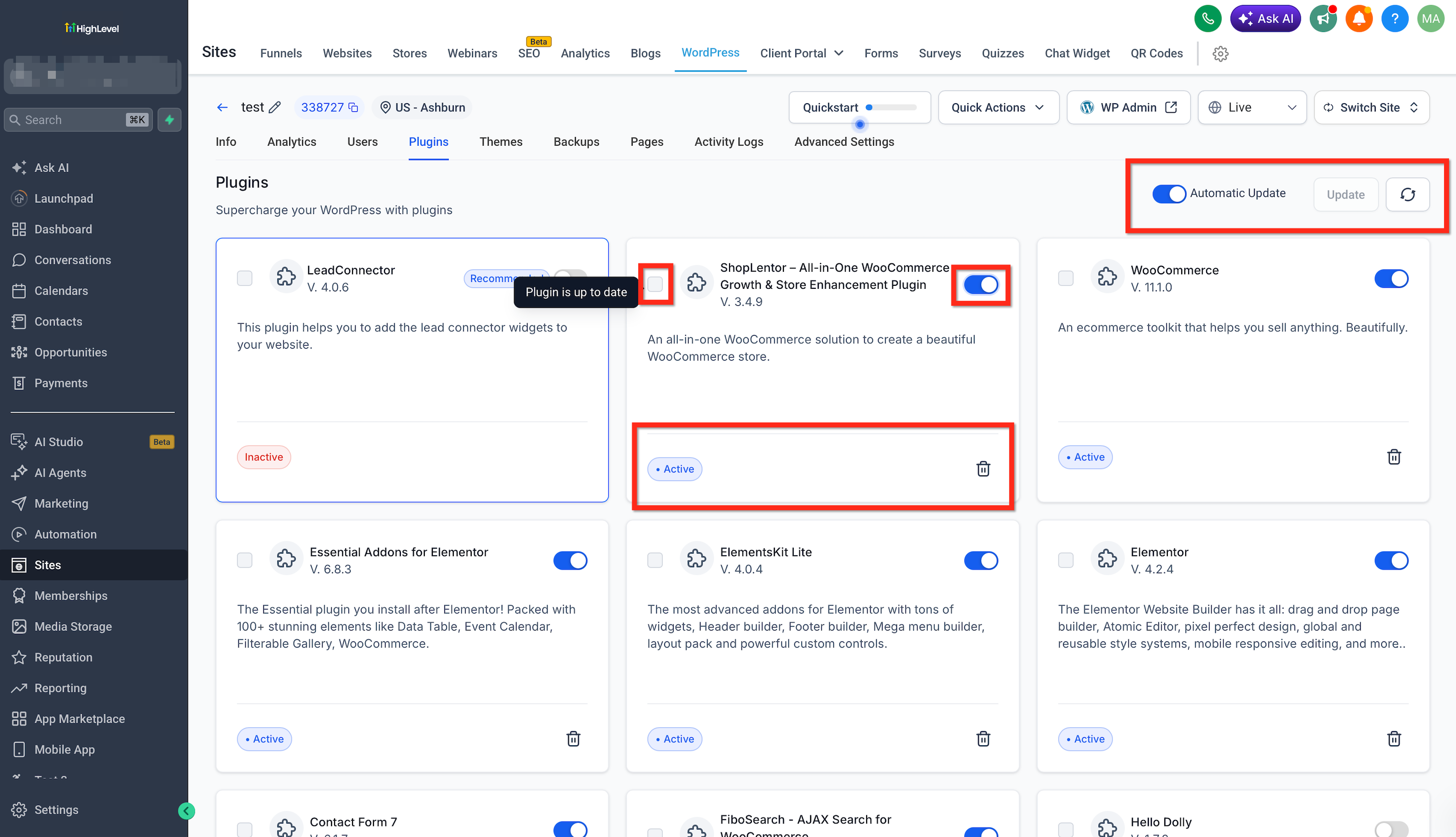
Access the tool by navigating to Sites > WordPress and selecting Manage Site for the site you wish to edit. Then open the Plugins or Themes tab to see the list of installed items and perform the desired actions.
03How businesses use wordpress plugin and theme management
- Digital marketing agency. An agency can open the WordPress management view for a client site, check which plugins have newer versions, and push updates from HighLevel. If a plugin needs to be turned off for a campaign, the agency can deactivate it without leaving the platform.
- Real estate brokerage. The brokerage can keep its property listing theme up to date by reviewing the Available Version column and applying the update directly. Should a theme cause layout issues, the brokerage can delete it and use the native WP Admin button to restore the site if needed.
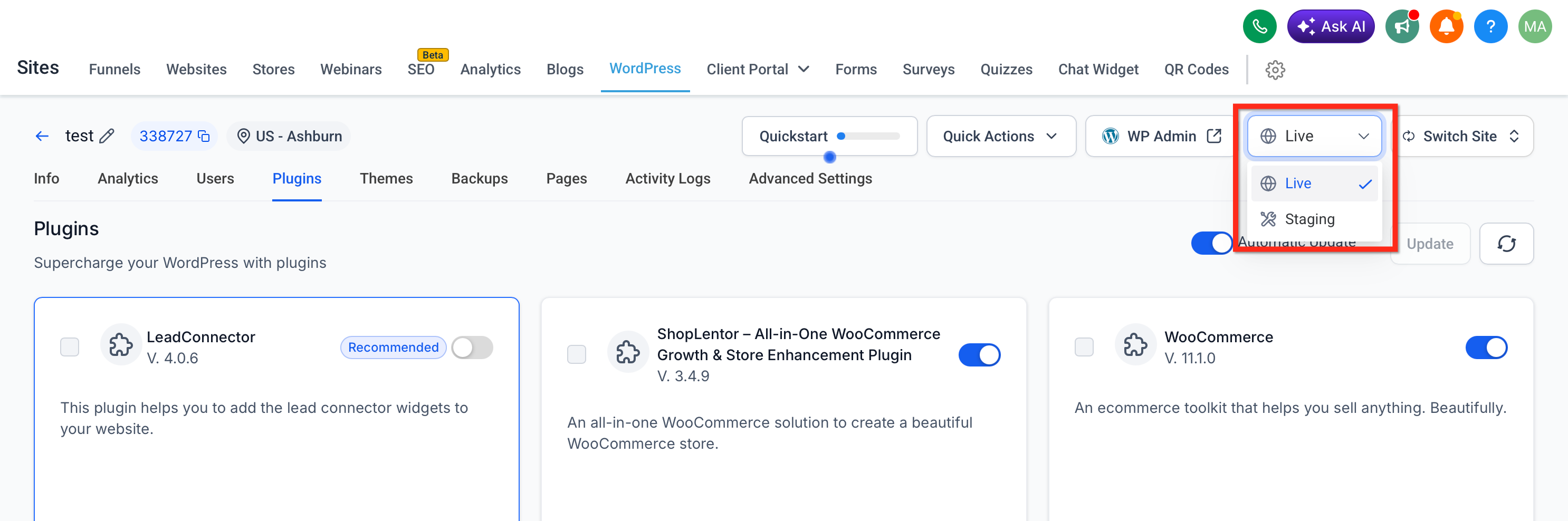
- Health clinic. The clinic can test a new plugin version in the Staging environment first, confirming that appointment scheduling still works. Once verified, the clinic publishes the Staging changes so the Live site receives the updated plugin.
04How to set up and use wordpress plugin and theme management in HighLevel
Manage WordPress plugins and themes
- Navigate to Sites > WordPress and click Manage Site for the target site.
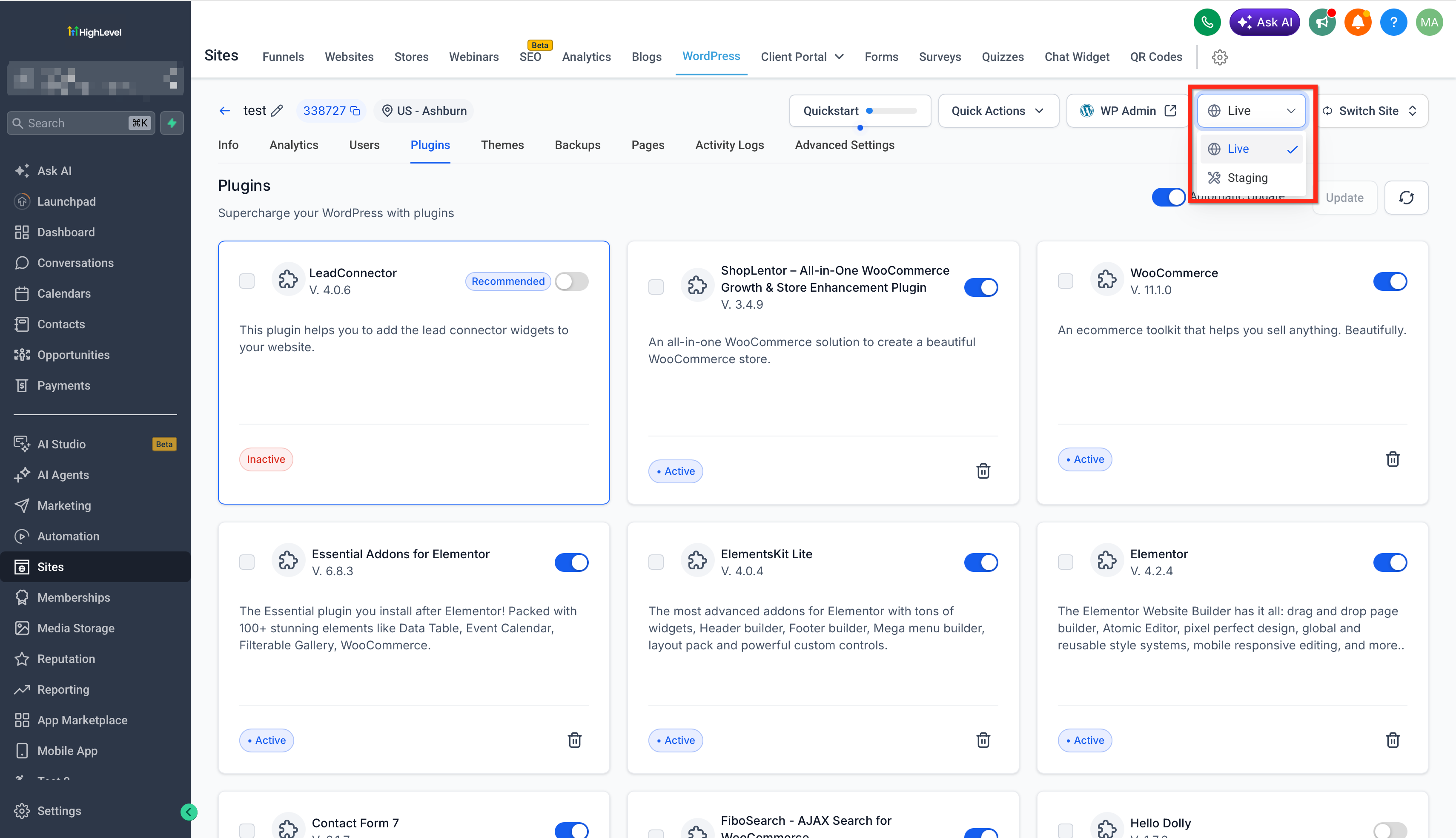
- Confirm whether you are working in the Live or Staging environment.
- Open the Plugins or Themes tab to display installed items.
- Locate the plugin or theme you want to manage.
- Check the Current Version and Available Version values.
- If a newer version exists, choose Update to bring the item up to date.
- Open the action menu and select Activate, Deactivate, or Delete as needed.
- Review your website after making changes.
05What it looks like in HighLevel
06Settings that matter
- Current Version. Shows the version that is presently installed on the site.
- Available Version. Displays the newest version that can be installed for the item.
- Activate. Turns on an installed plugin or theme without removing it.
- Deactivate. Turns off an installed plugin or theme while keeping it available.
- Delete. Removes the selected plugin or theme from the site entirely.
- Update. Replaces the current version with the latest available version.
07Things to know before you rely on it
- The dashboard cannot install new plugins or themes; those must be added during site creation or via native WordPress.
- Downgrading a plugin or theme to an earlier version is not supported.
- Some plugins are blocked in HighLevel’s hosting environment; check the blocked plugin list for details.
- Changes made in Staging do not affect the Live site until you publish Staging.
08If something goes wrong
- A plugin causes a site issue. Run the WordPress Plugin Troubleshooter or restore the site from an available backup.
09How it connects to the rest of HighLevel
- Access the native WordPress admin dashboard directly from HighLevel WP Admin button
- Add or change the domain that points to your WordPress site Add domains
- Clone an existing WordPress site for a new client or project Clone WordPress sites
Michael's take

I appreciate having a single place to update plugins and themes across multiple client sites; it keeps my workflow tidy.
When I need to test a change, the Staging area gives me confidence before the update goes live.