
01Who this is for
- Coaches who need a home page and service pages to showcase programs without funnel complexity.
- Local retailers that require a product catalog site and a contact page to attract foot traffic.
- Consultants who want to publish a portfolio site, connect their own domain, and track visitor stats.
02HighLevel websites, explained
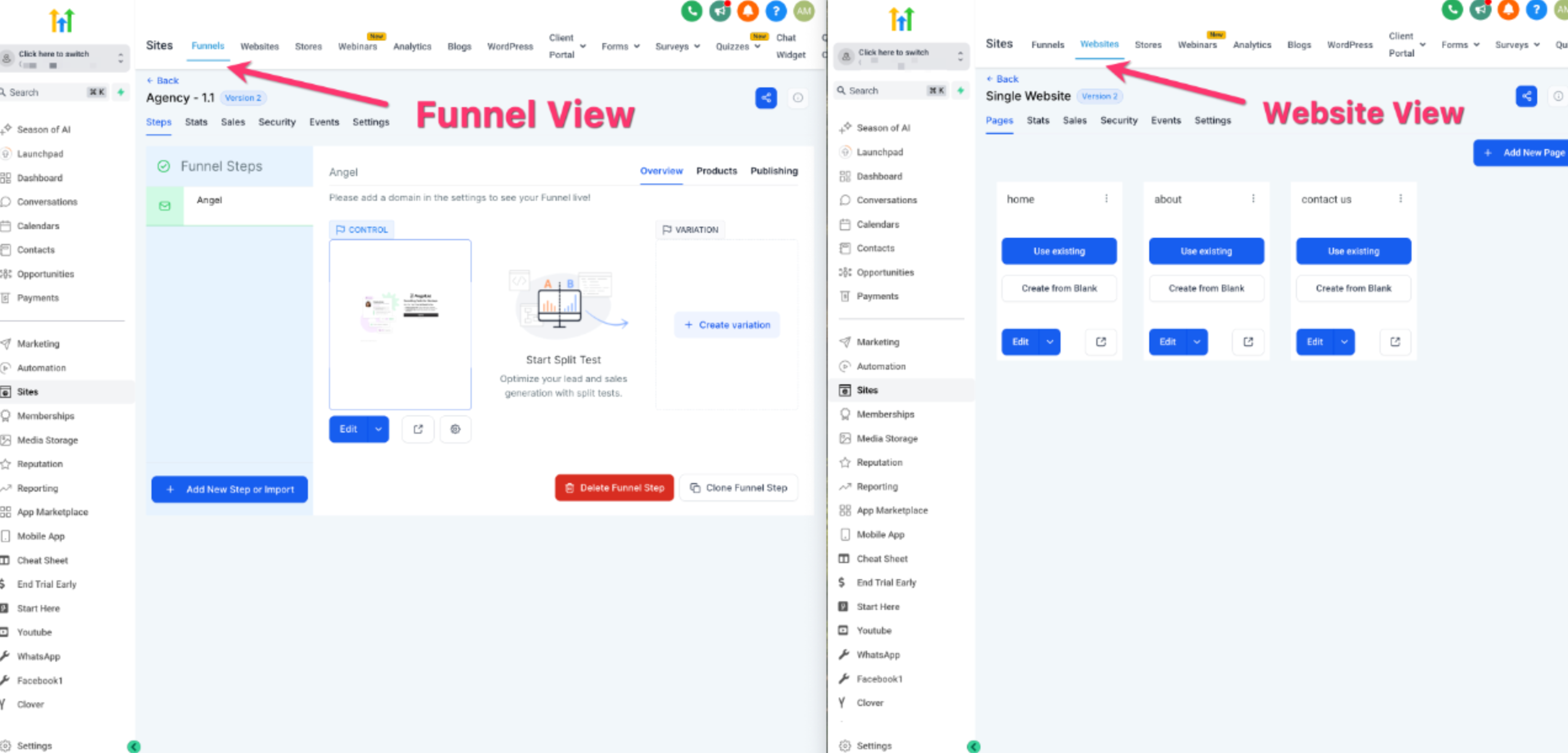
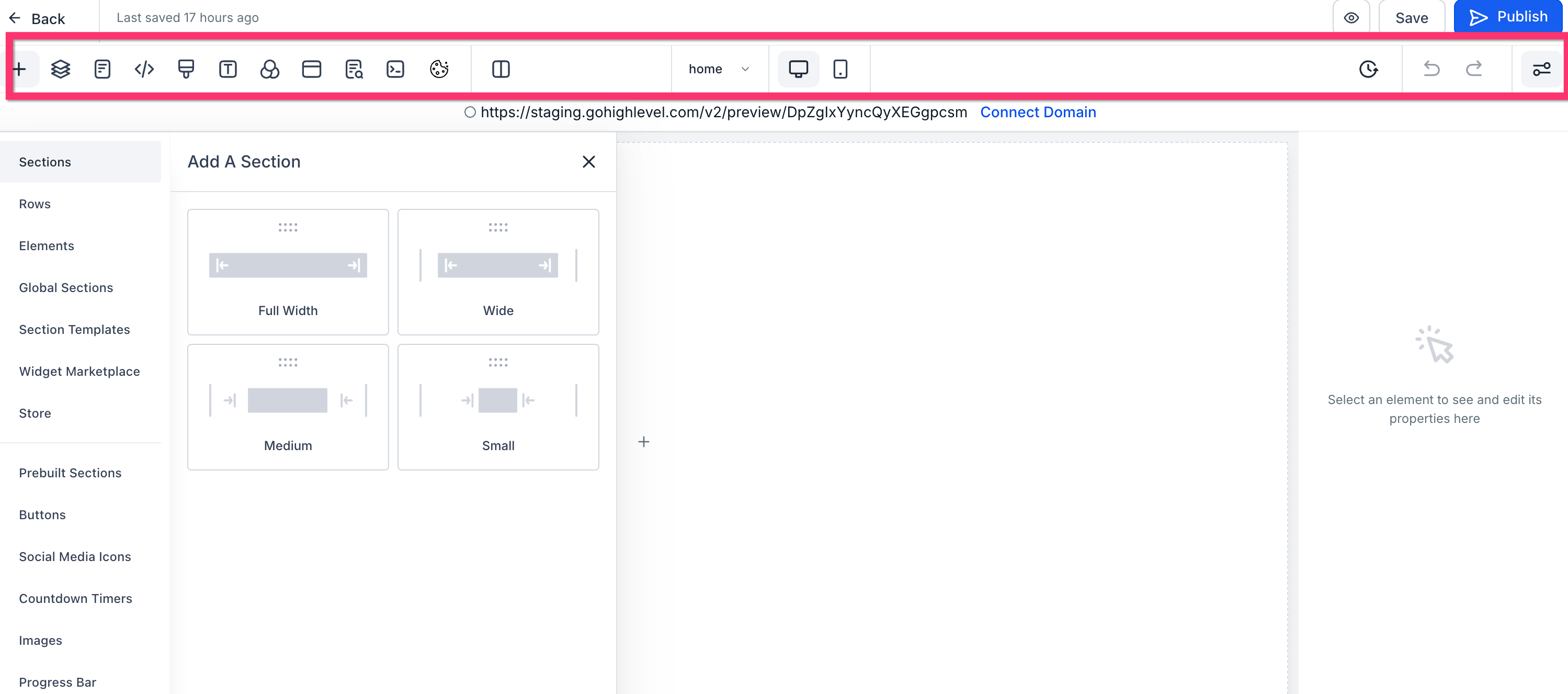
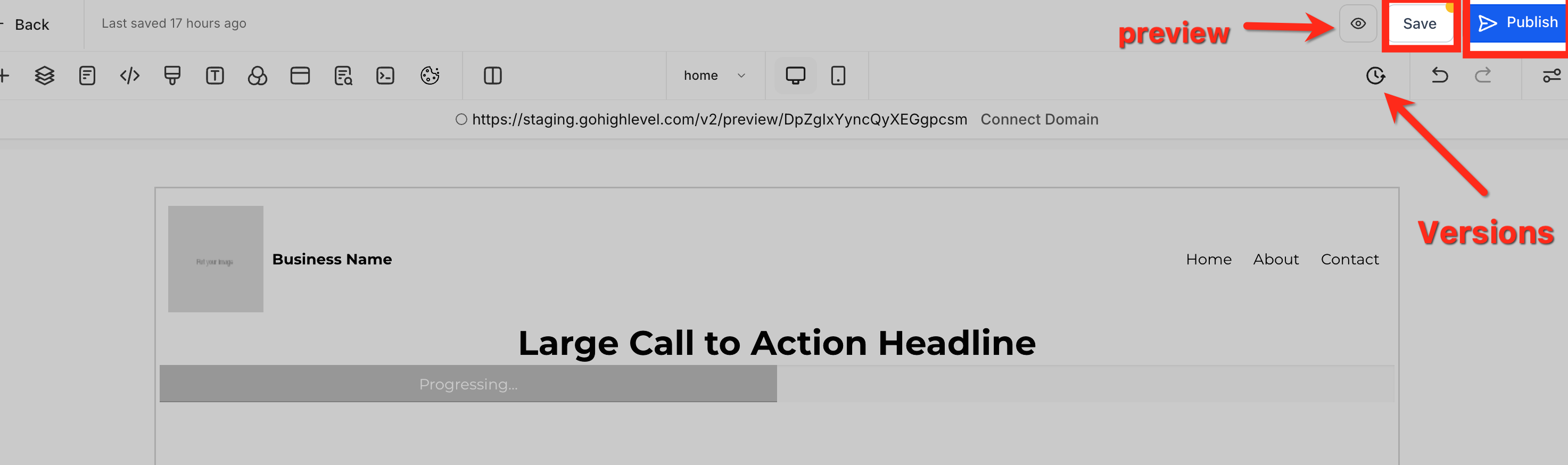
Websites in HighLevel are collections of pages that live under the Sites section of a subaccount. They use the same builder as funnels, letting you add sections, rows, columns and individual elements. You can edit each page, preview changes, and save drafts before making them live.
Pages are listed in a grid where you can rename, reorder, or delete them without opening the builder. The builder also offers mobile desktop toggles, typography and background controls, and options for custom CSS or tracking scripts. After design, you assign a root domain or subdomain and publish the saved version.
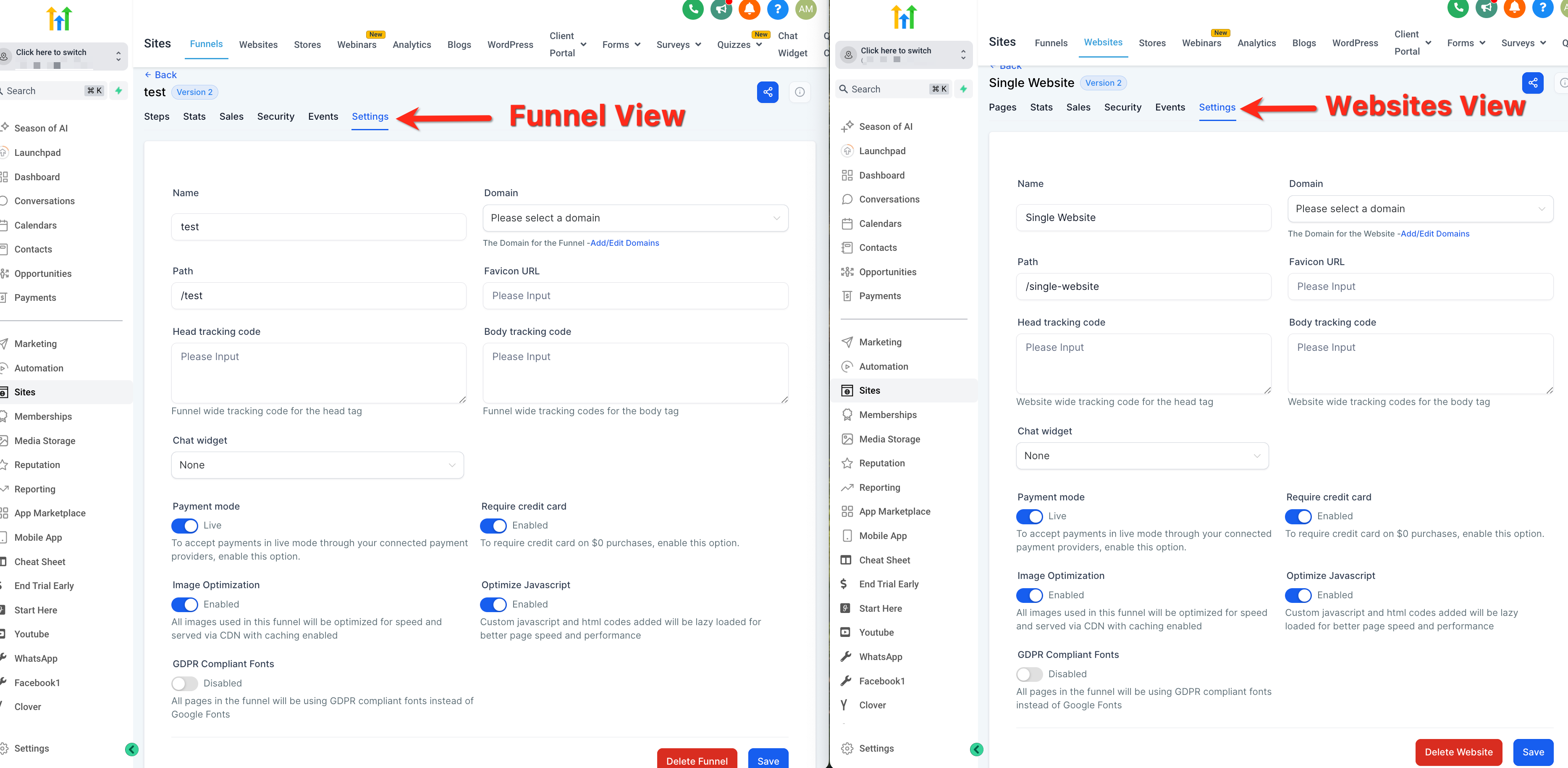
Performance data such as page views, opt ins, and sales are displayed in the site’s Stats panel. Site level settings let you manage domain mapping, favicon, tracking code, payment mode and image optimization.
03How businesses use websites
- Digital marketing agency. The agency creates a client website by adding pages in the Pages grid, builds each page with sections and elements, connects the client’s domain, and publishes the site once all mobile and SEO metadata are set.
- Fitness studio. The studio adds class schedule and membership pages, customizes the design, sets mobile visibility for the sign up button, attaches its branded subdomain, and publishes to capture new members.
- Online course creator. The creator builds a landing page, an about page, and a checkout page, configures SEO titles and descriptions, connects a custom domain, and publishes the complete site to drive traffic from search engines.
04How to set up and use websites in HighLevel
Set up a website
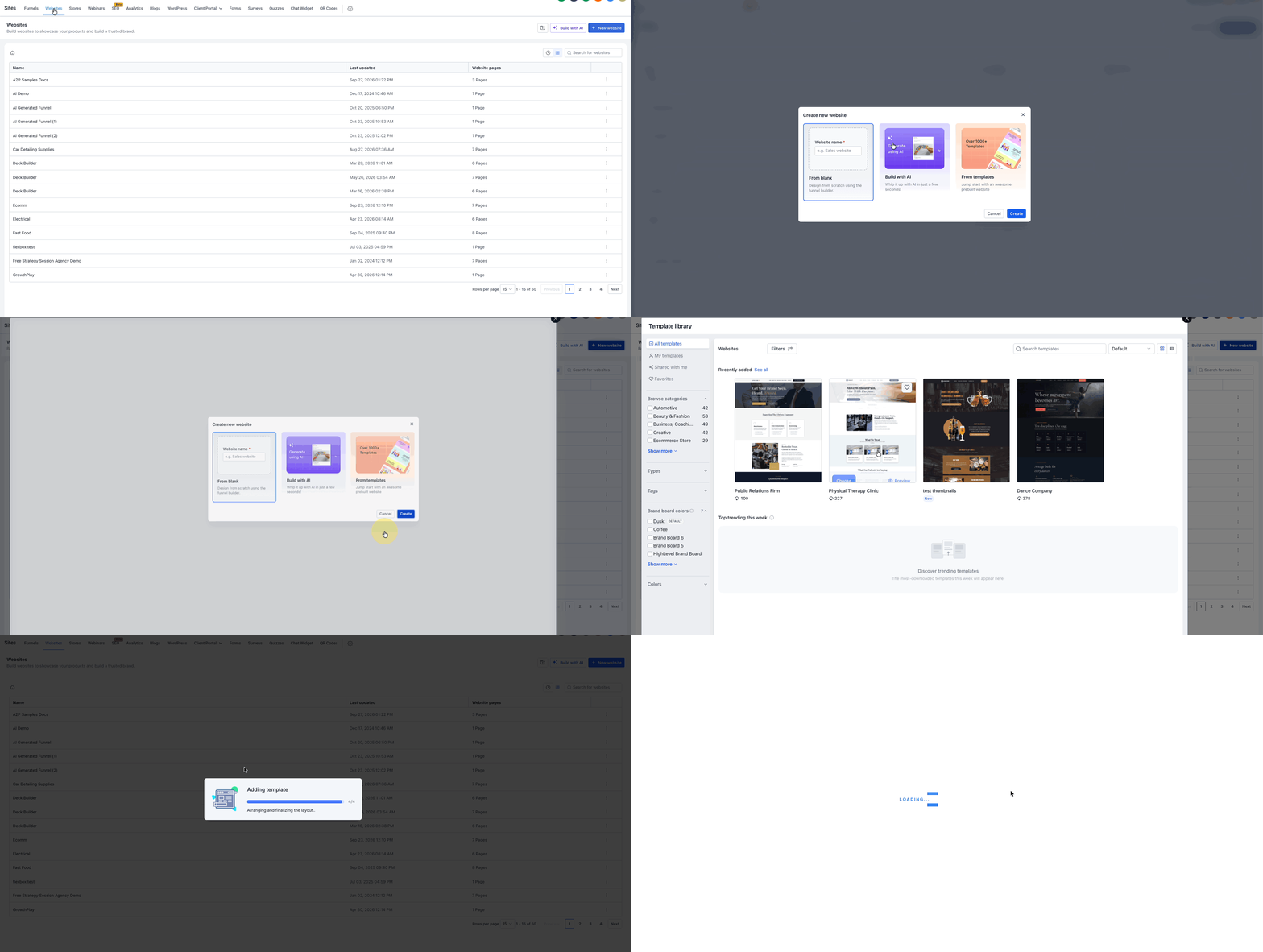
- From the subaccount view, navigate to Sites > Websites.
- Click the + New Website button.
- Select either From Blank or From Templates.
- Enter a name for the website and click Create.
- Add pages, build each page’s content, review mobile and SEO settings, connect a domain, and click Publish.
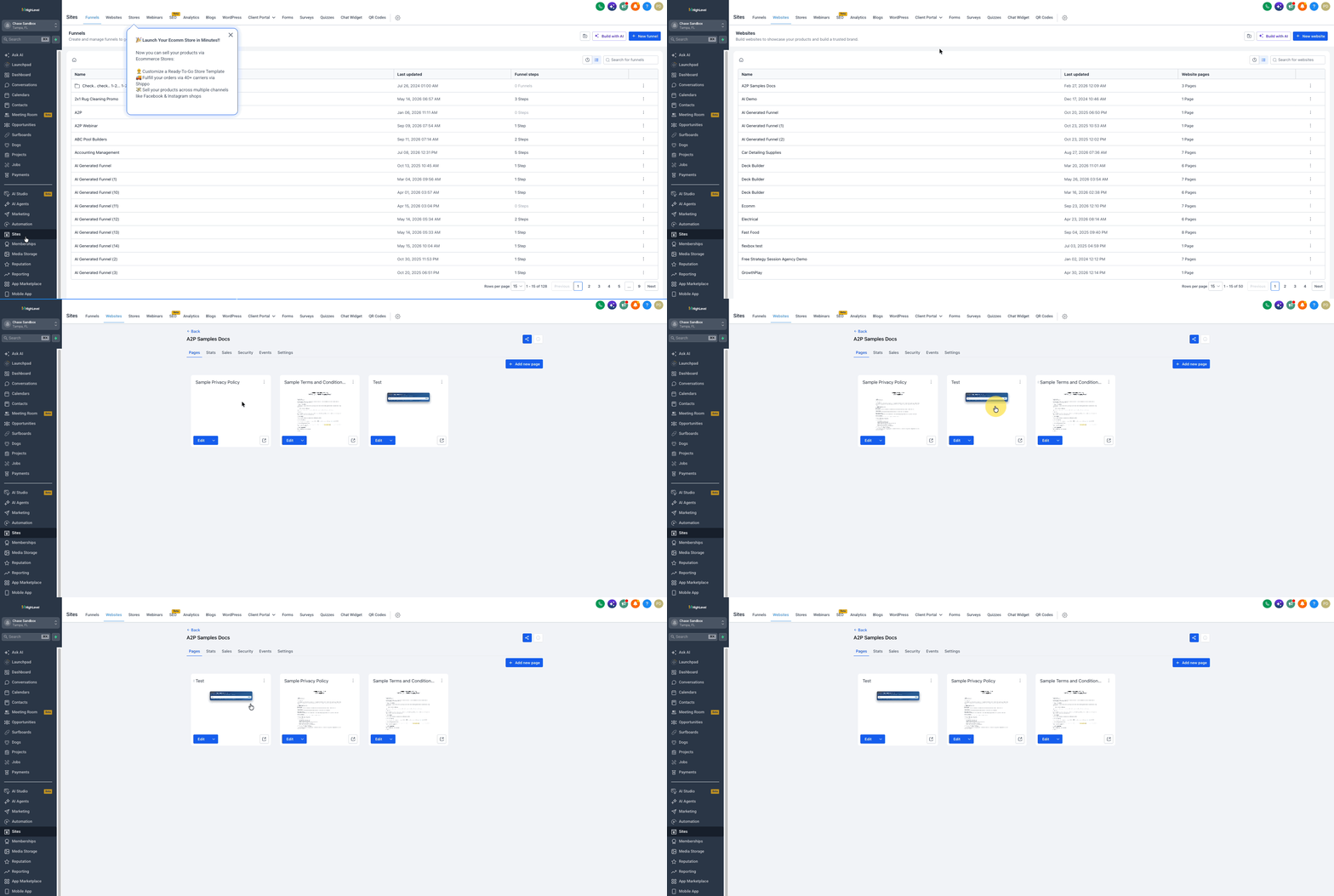
Reorder website pages
- From the subaccount view, select Sites in the left menu.
- Choose Websites.
- Open the website you want to edit.
- Select the Pages tab.
- Click and hold the page card you wish to move.
- Drag the card to the new position; a placeholder shows where it will land.
- Release the card; the new order saves automatically.
05What it looks like in HighLevel
06Settings that matter
- Website Settings. Controls site level options such as the site name, domain mapping, default path, favicon, tracking code, payment mode, and image optimization.
- Page title. Sets the HTML title tag for the page, used by browsers and search engines.
- Meta description. Provides a short description for search engine listings and social sharing.
- Tracking code. Allows insertion of supported third party scripts for analytics or marketing.
- Custom CSS. Enables additional styling rules that apply to the page.
07Things to know before you rely on it
- Split testing is not available for website pages.
- If a page reorder fails, HighLevel restores the previous order and displays an error message.
08If something goes wrong
- Reordering pages does not change the order. HighLevel will revert to the last saved order and show an error; repeat the drag and drop action.
09How it connects to the rest of HighLevel
- How to connect a root domain or subdomain in HighLevel Domain connect guide
- Add tracking code to funnels and websites in HighLevel Tracking code guide
- HighLevel pricing and plans Pricing page
Michael's take

Most people think they can just throw a template together and publish, but they may encounter broken navigation or missing mobile tweaks. I would first map out the site structure, name each page clearly and set the correct paths before diving into the builder.
Once the layout is solid, I would add the domain, run a full preview on desktop and mobile, and only then hit publish. A quick check of the Stats tab after launch can help you see whether the pages are drawing traffic as expected.