
01Who this is for
- Marketers who use long form landing pages benefit because they can guide visitors to key sections without extra clicks.
- Web designers building funnels gain a simple way to add in page navigation without custom code.
- Small business owners with product pages can create "Jump to Pricing" links that improve user flow.
02Scroll to elements, explained
The feature links a clickable object to a page section identified by its CSS selector. When the object is clicked, the browser scrolls smoothly to the target area instead of jumping abruptly. This works on both website pages and funnel steps built in HighLevel.
Smooth scrolling is applied automatically; no extra settings are required. The action is limited to the current page, so it cannot move users between different funnel steps. Mobile browsers handle the scrolling the same way as desktop browsers.
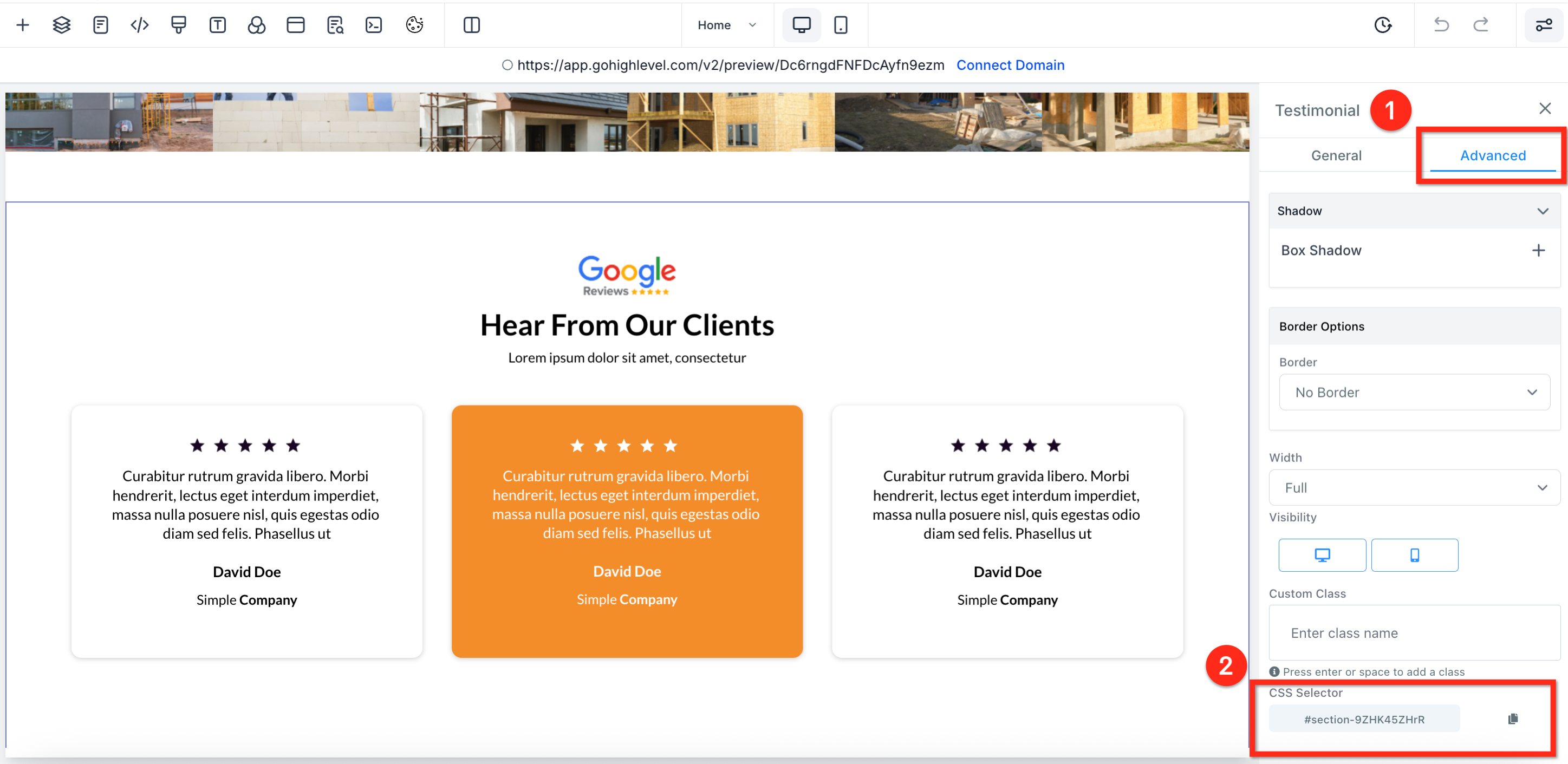
All configuration happens inside the page builder. The selector is copied from a section’s Advanced tab, then attached to text, a button, or a navigation menu item using the Link To or Go to fields.
03How businesses use scroll to element
- Digital marketing agency. The agency copies the selector of a testimonial section, then adds a "Read More" text link that includes the full page URL plus the selector. Clicking the link smoothly scrolls visitors to the testimonials without leaving the page.
- Ecommerce store. A store designer selects a "Buy Now" button, chooses the Scroll to Element action, and picks the product details section from the dropdown. When shoppers click, the page scrolls directly to the pricing area.
- Coaching business. The coach edits the site navigation menu, sets each item to "Go to website URL" and appends the appropriate selector. Visitors can use the top menu to jump to sections like "About", "Services" or "Contact".
04How to set up and use scroll to element in HighLevel
Set up scroll to element
- Open the funnel or website in the HighLevel builder.
- Click the section you want to target.
- In the right hand panel, select the Advanced tab.
- Copy the value shown in the CSS Selector field.
Create a hyperlink text that scrolls
- Highlight the text you want to turn into a link.
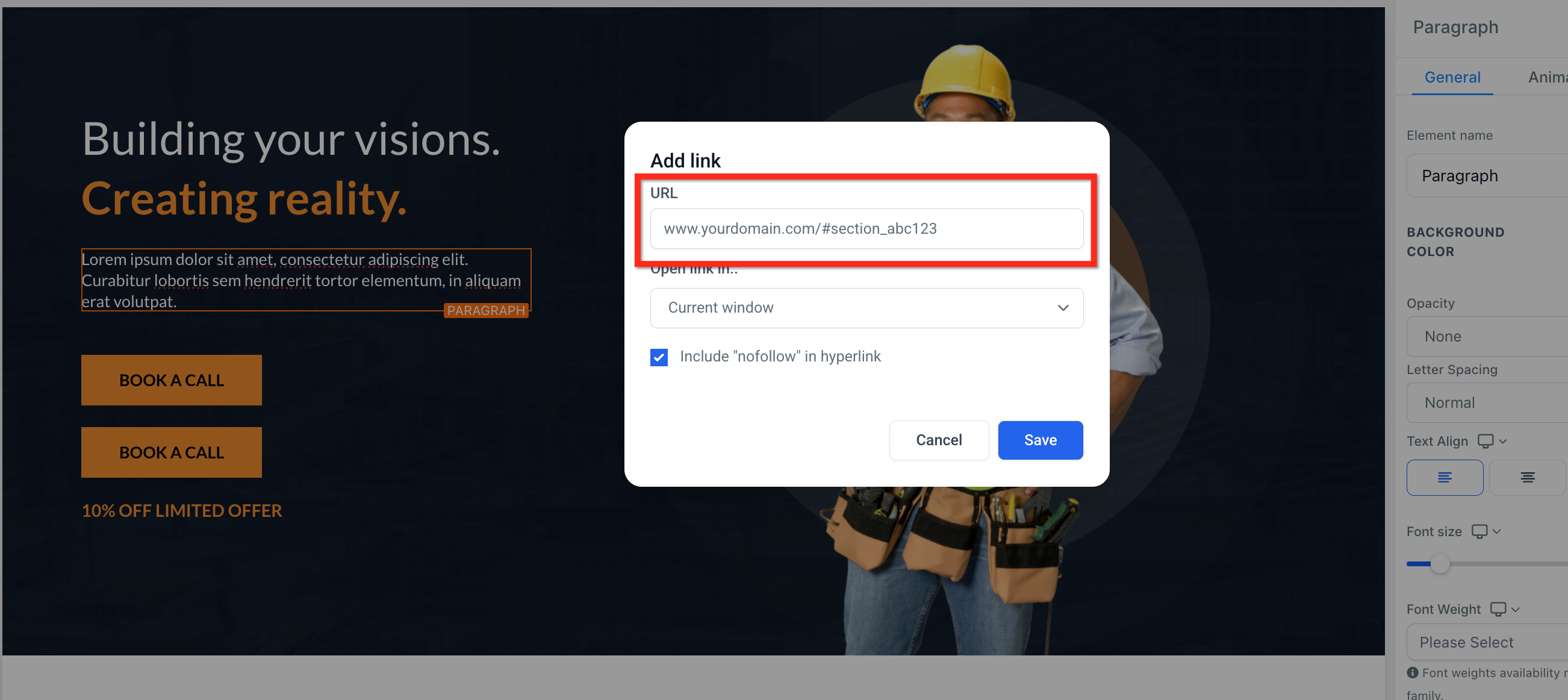
- Click the Link icon in the formatting toolbar.
- Paste the full page URL followed by the copied CSS selector.
Add a button with a URL link that scrolls
- Select the button inside the builder.
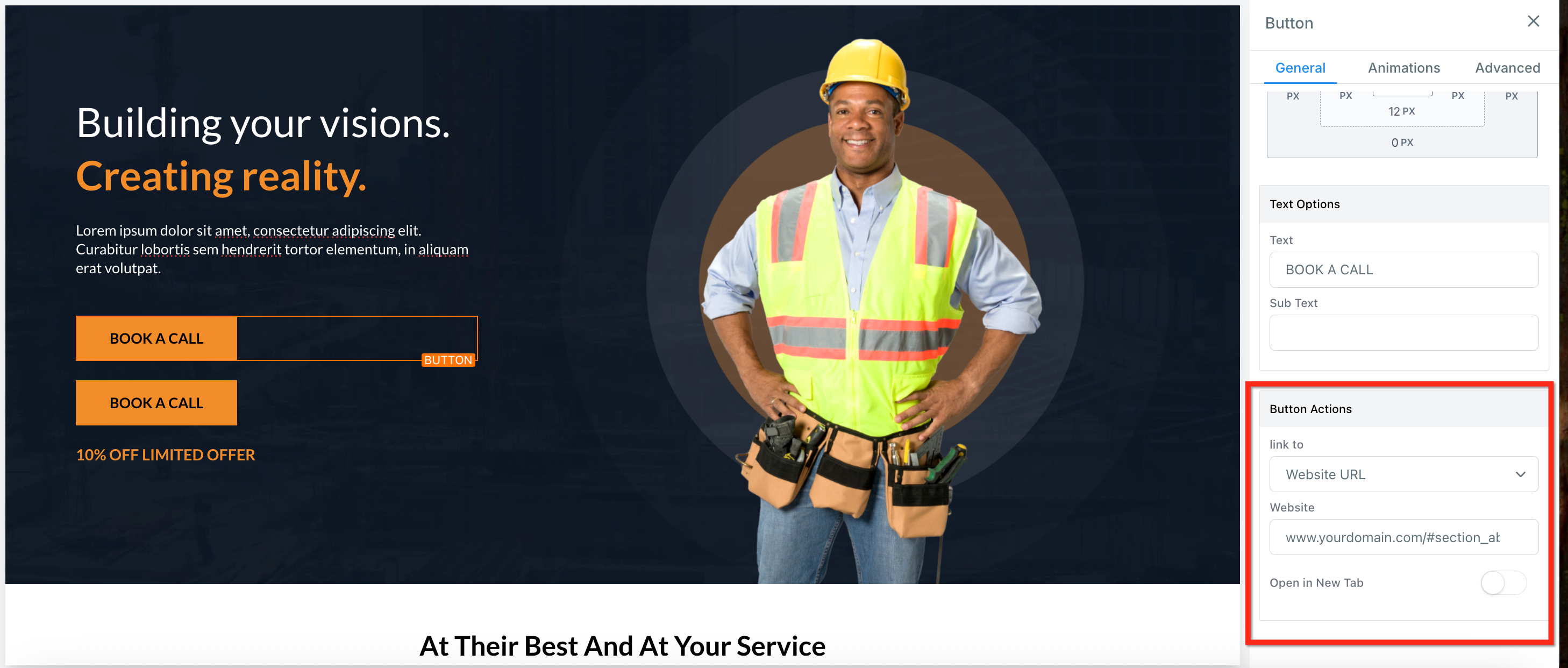
- In Button Actions, open the Link To dropdown and choose Website URL.
- Enter the full page URL plus the copied CSS selector.
Add a button using the built in scroll action
- Select the button you want to modify.
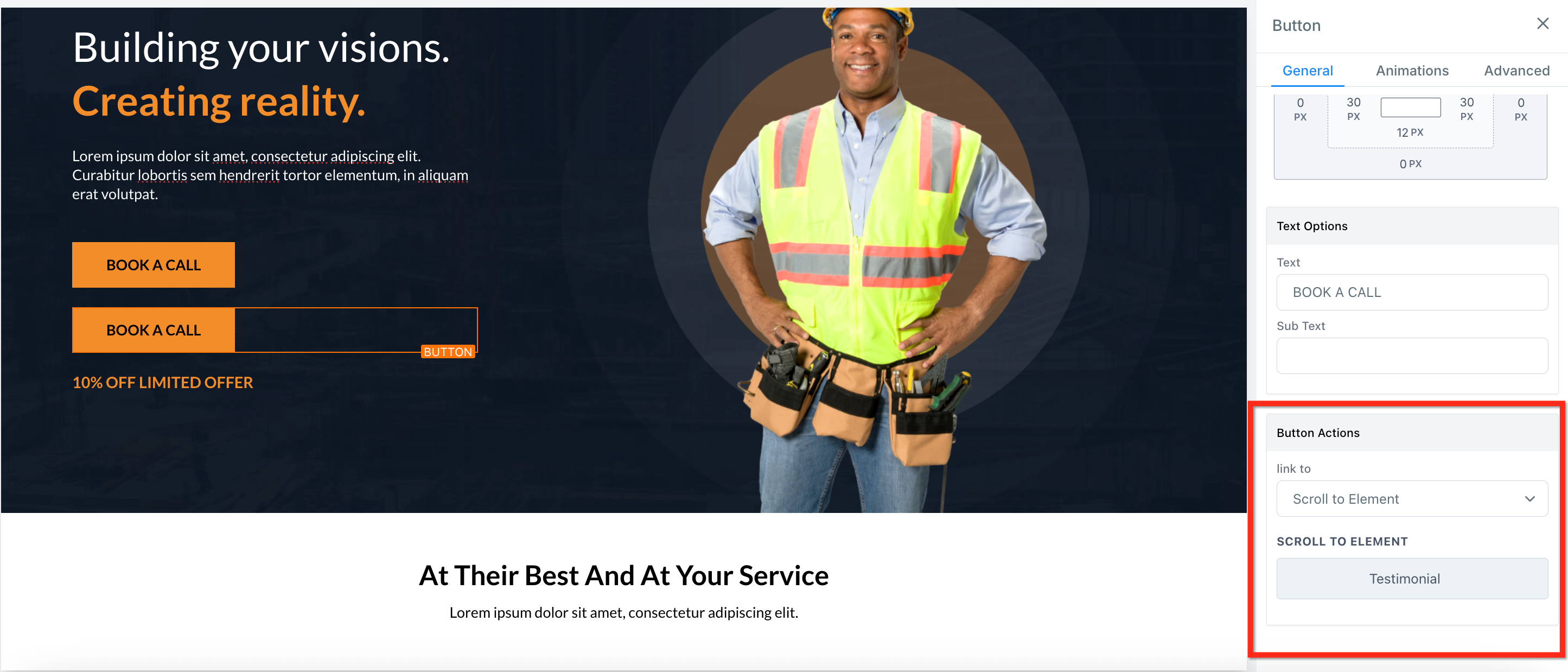
- In Button Actions, open the Link To dropdown and select Scroll to Element.
- Choose the target section from the dropdown list.
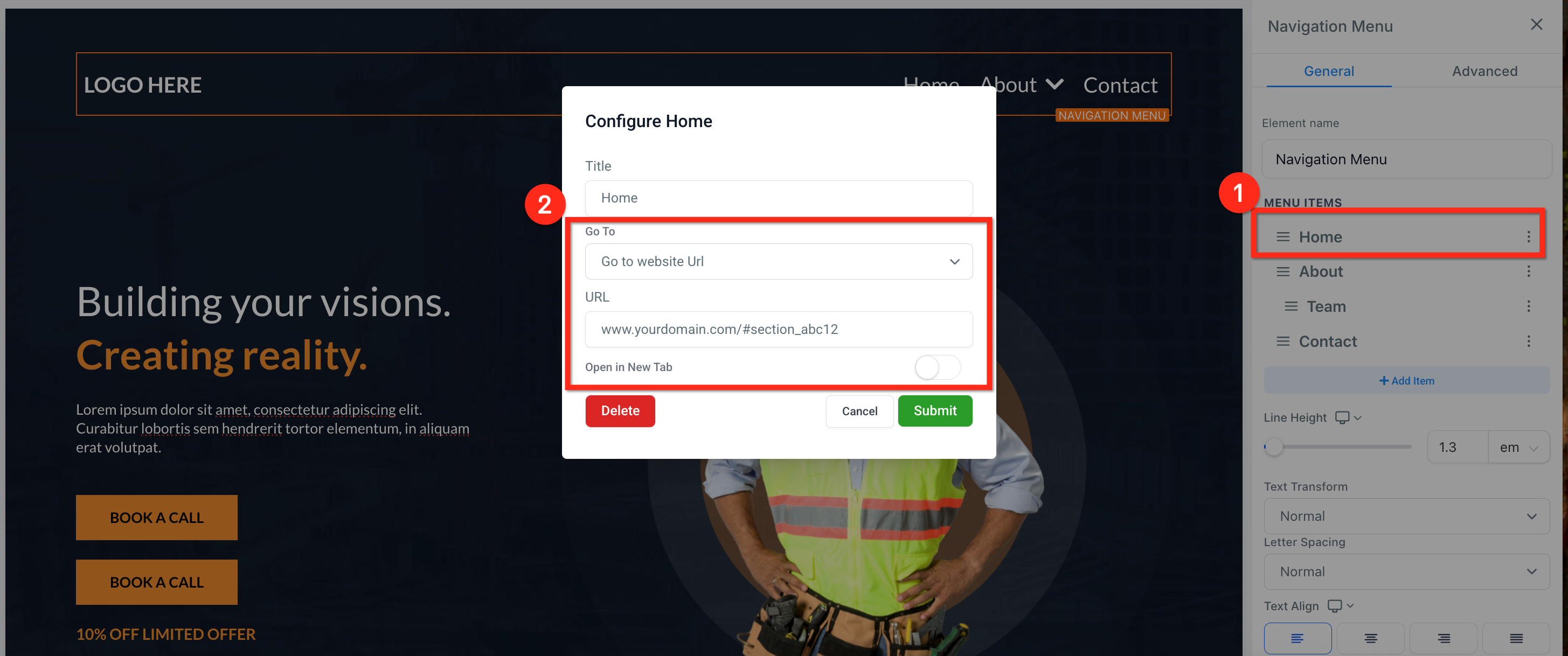
Configure a navigation menu item to scroll
- Select the Navigation Menu component.
- Click the three dots next to the menu item you wish to edit.
- Change the Go to field to Go to website URL.
- Enter the full page URL plus the copied CSS selector.
- Click Submit to save the change.
05What it looks like in HighLevel
06Settings that matter
- CSS Selector. Identifies the page section that a scroll action will target.
- Advanced tab. Contains the CSS Selector field used for scroll to linking.
- Button Actions. Group of options that define what happens when a button is clicked.
- Link To dropdown. Allows selection of Website URL, Scroll to Element, or other link types.
- Go to field. Specifies the destination of a navigation menu item; can be set to a website URL.
07Things to know before you rely on it
- Scroll to works only on the same page; it cannot move between different funnel steps.
- The feature automatically adds smooth scrolling; no extra configuration is needed.
- If two sections share the same CSS selector, the first match on the page will be used.
- The selector must start with a # character for the scroll to function.
08If something goes wrong
- Scroll is not working. Verify that the CSS selector is correct and begins with #. Refresh the page and test the link again.
09How it connects to the rest of HighLevel
- Overview of all Sites features in HighLevel Sites features
- Guide to creating and customizing HighLevel websites Website setup
- HighLevel pricing and plan details Pricing
Michael's take

People often try to link directly to another funnel step and expect the page to scroll there. It won’t work because scroll to is limited to the current page.
I would copy the selector from the section I want to highlight, then attach it to a clear call to action button. That gives visitors a smooth jump to the exact spot.