
01Who this is for
- Founders of SaaS startups who need a fast way to point a custom subdomain to a funnel without managing DNS records manually.
- Marketing agencies that manage multiple client websites and want a consistent, error free method to connect each client’s domain.
- Local business owners who have bought a domain and need an easy, secure link to their HighLevel landing page.
02Domain Connect feature, explained
Domain Connect is a HighLevel feature that links a domain you already own to the platform. When you start the process, HighLevel identifies whether the domain is hosted with Google Domains, Go Daddy, Cloudflare, or IONOS. It then requests permission to modify the DNS settings on your behalf. After you grant access, the system adds the required A, CNAME or other records automatically. The connection is verified inside HighLevel, confirming that the domain now points to your website, funnel or other web service. If your provider is not supported, the interface supplies the exact DNS values you must add yourself. The feature lives under Settings > Domains in each subaccount, where you can add, edit, or delete domain entries and view the connection status.
03How businesses use Domain Connect feature
- SaaS startup. The team opens Settings > Domains, clicks Add Domain, enters their app’s subdomain, and authorizes Cloudflare. Domain Connect creates the DNS entry, and the subdomain right away resolves to the HighLevel funnel.
- Marketing agency. An account manager selects the client’s root domain, enables the ‘Also add www domain’ option, and authorizes Go Daddy. The platform adds both the apex and www records, removing the need for the agency to edit DNS manually for each client.
- Local restaurant. The owner enters their purchased domain from IONOS, chooses to add the www version, and follows the manual record instructions provided if IONOS is unsupported. Once the records are added, the restaurant’s website appears on the custom domain.
04The numbers and rules that matter
- Supported providers: Google Domains, Go Daddy, Cloudflare, IONOS.
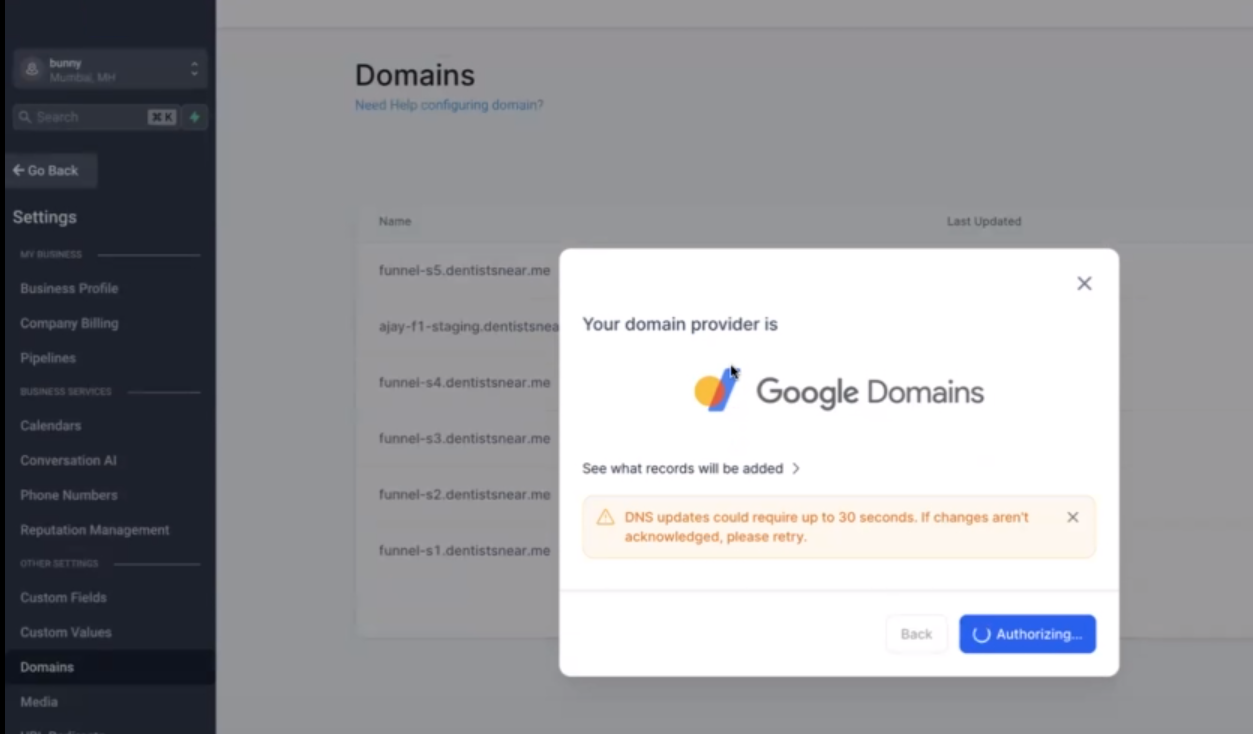
- Changes may take up to 30 seconds or more to reflect.
05Before you start
- Purchase the domain through Google Domains, Go Daddy, Cloudflare, or IONOS.
- If using Cloudflare, ensure the automatically created DNS records have the Cloudflare proxy turned off.
06How to set up and use Domain Connect feature in HighLevel
Add domain via Domain Connect
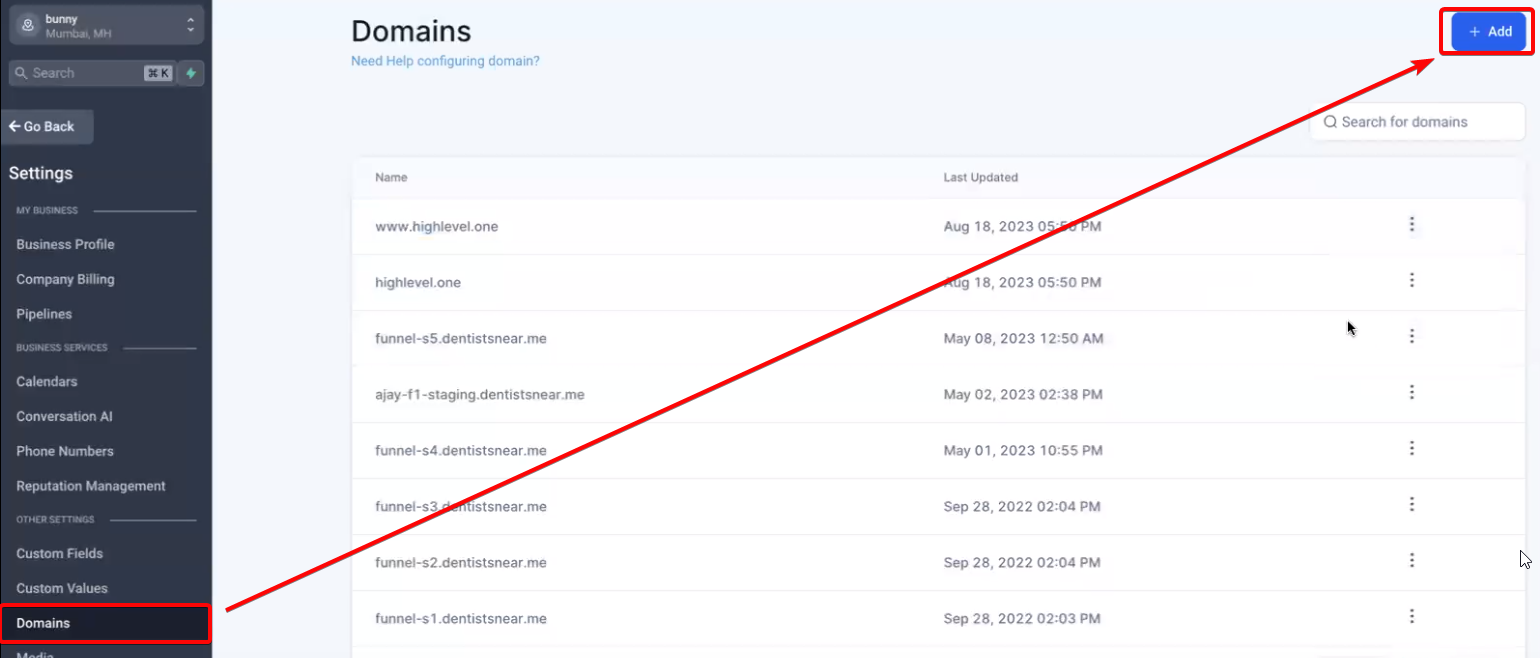
- Log in to the subaccount and open Settings > Domains.
- Click the Add Domain button.
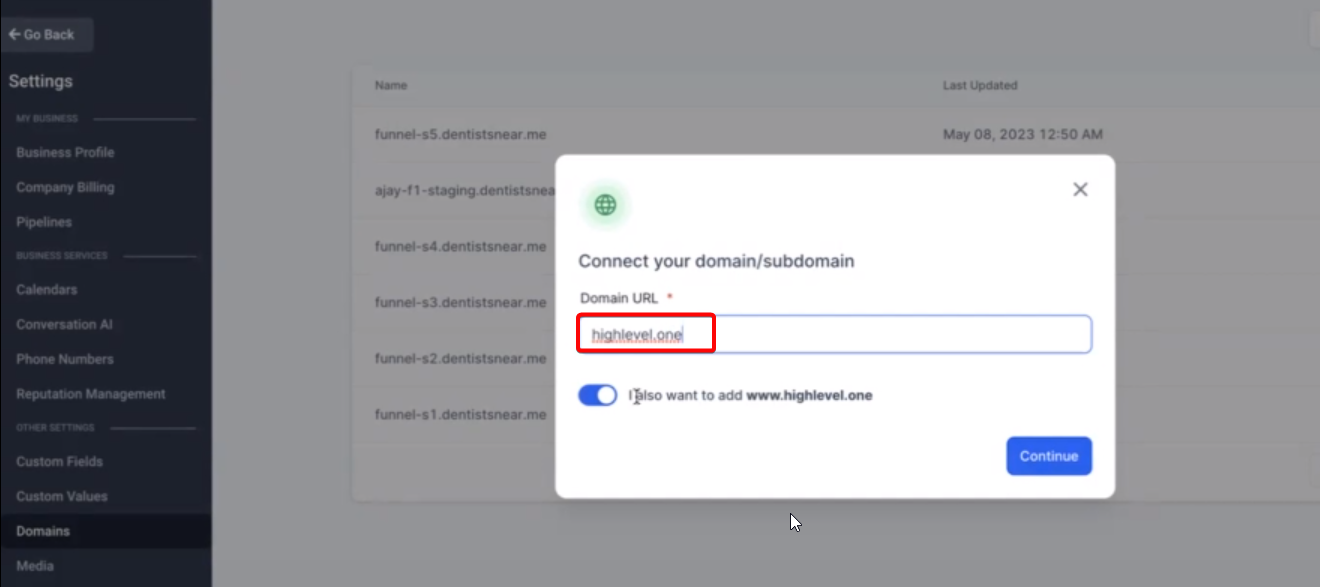
- Enter the root domain or subdomain; optionally toggle the ‘Also add www domain’ option.
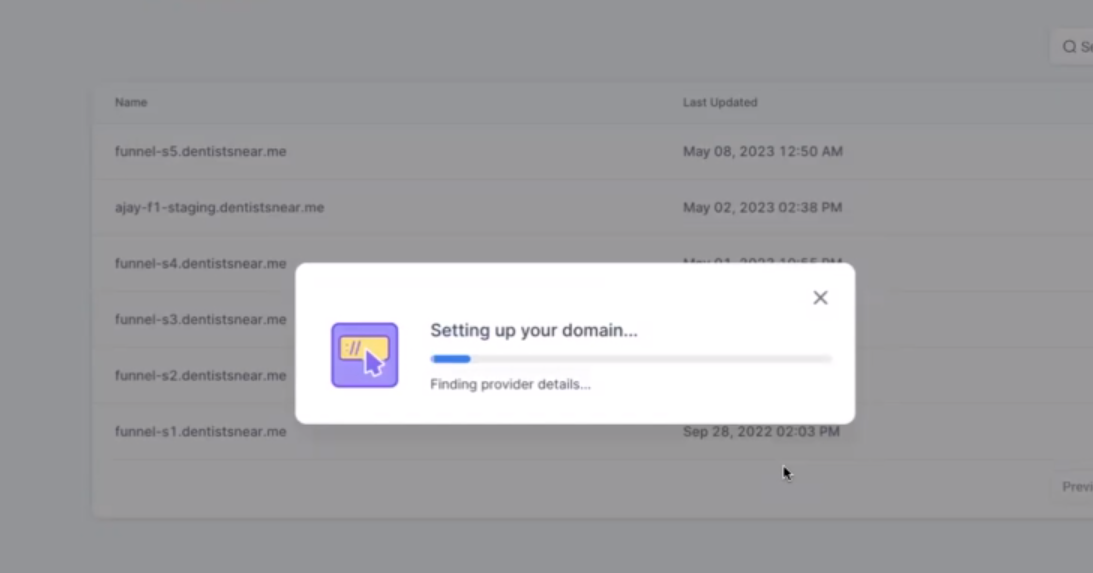
- Press the Continue button.
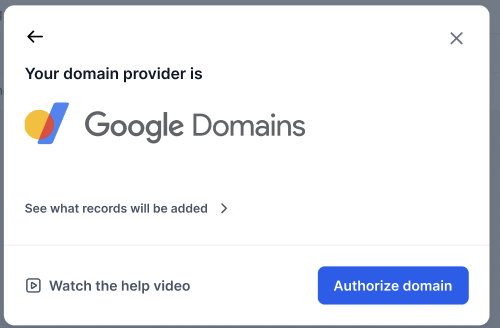
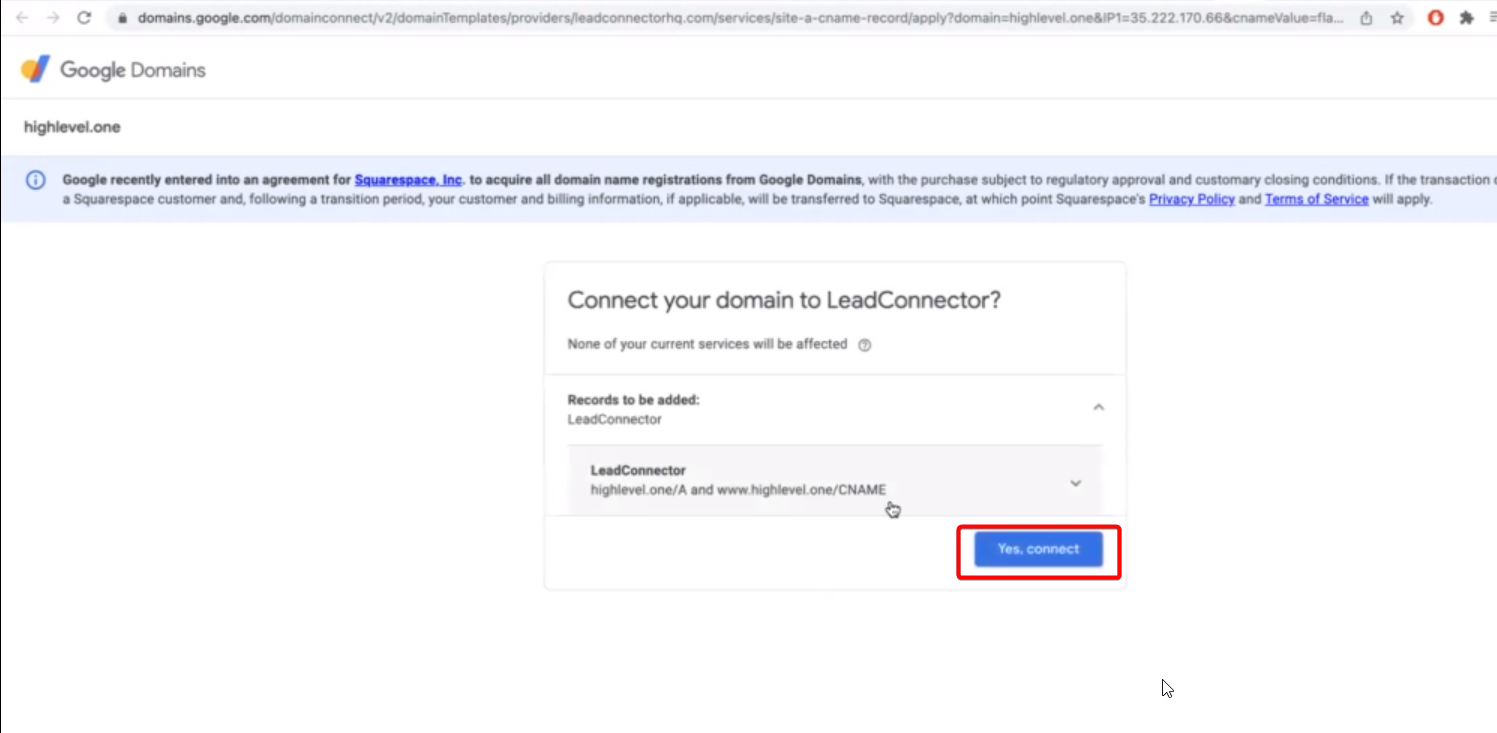
- If the provider is Google Domains, Go Daddy, or Cloudflare, click the Authorize button to grant DNS access.
- Complete the provider’s on screen prompts; Domain Connect will add the required DNS records.
- Important: After the provider tab has been authorized, close it to proceed to the domain verification process.
- For Google Domains, the authorization will not finish until you close the tab and return to your subaccount.
- If your provider is not supported, follow the manual DNS record instructions shown in the interface.
- Verify the connection by testing the domain; changes may take up to 30 seconds or more to propagate.
07What it looks like in HighLevel
08Settings that matter
- Also add www domain. When enabled, Domain Connect creates a DNS entry for the www subdomain in addition to the root domain.
09Things to know before you rely on it
- The feature works only with domains purchased from Google Domains, Go Daddy, Cloudflare or IONOS.
- Domain Connect does not host domains; it only connects them to HighLevel.
- If the www subdomain already points elsewhere, the created CNAME will not replace the existing record, you must delete the old record yourself.
- Support for additional providers is planned but not yet available.
10If something goes wrong
- Authorization error or other message appears during provider login. Close the provider tab, return to the Domain Connect interface, and repeat the authorization step.
11How it connects to the rest of HighLevel
- Connect a root domain or subdomain in HighLevel Root/subdomain setup
- HighLevel website setup overview Website setup
- HighLevel pricing and plans Pricing
Michael's take

Getting a new domain hooked up to your HighLevel funnel should not feel like a tech heavy chore. Domain Connect talks directly to Google Domains, Go Daddy, Cloudflare or IONOS and sets the needed records for you. The first thing I would get right is making sure the domain is actually purchased with one of those providers and that any Cloudflare proxy is turned off, otherwise the automatic records never take effect.
Once the domain is verified, the platform takes care of the rest. You just confirm the connection and test the URL. If you run into a conflict with an existing www record, delete it yourself so the new CNAME can point to HighLevel.