
01Who this is for
- Founders who sell physical goods can simplify checkout and reduce abandoned carts by splitting the process.
- Coaches offering online programs can collect client details first, then handle subscription payments on the second screen.
- Ecommerce managers can enable cart mode and order bumps to upsell complementary items during checkout.
02Two step order forms, explained
The Two Step Order Form element splits the checkout flow into two lightweight pages. Step 1 gathers contact information and optional shipping details. Step 2 collects payment data, applies any discounts, and finalizes the order.
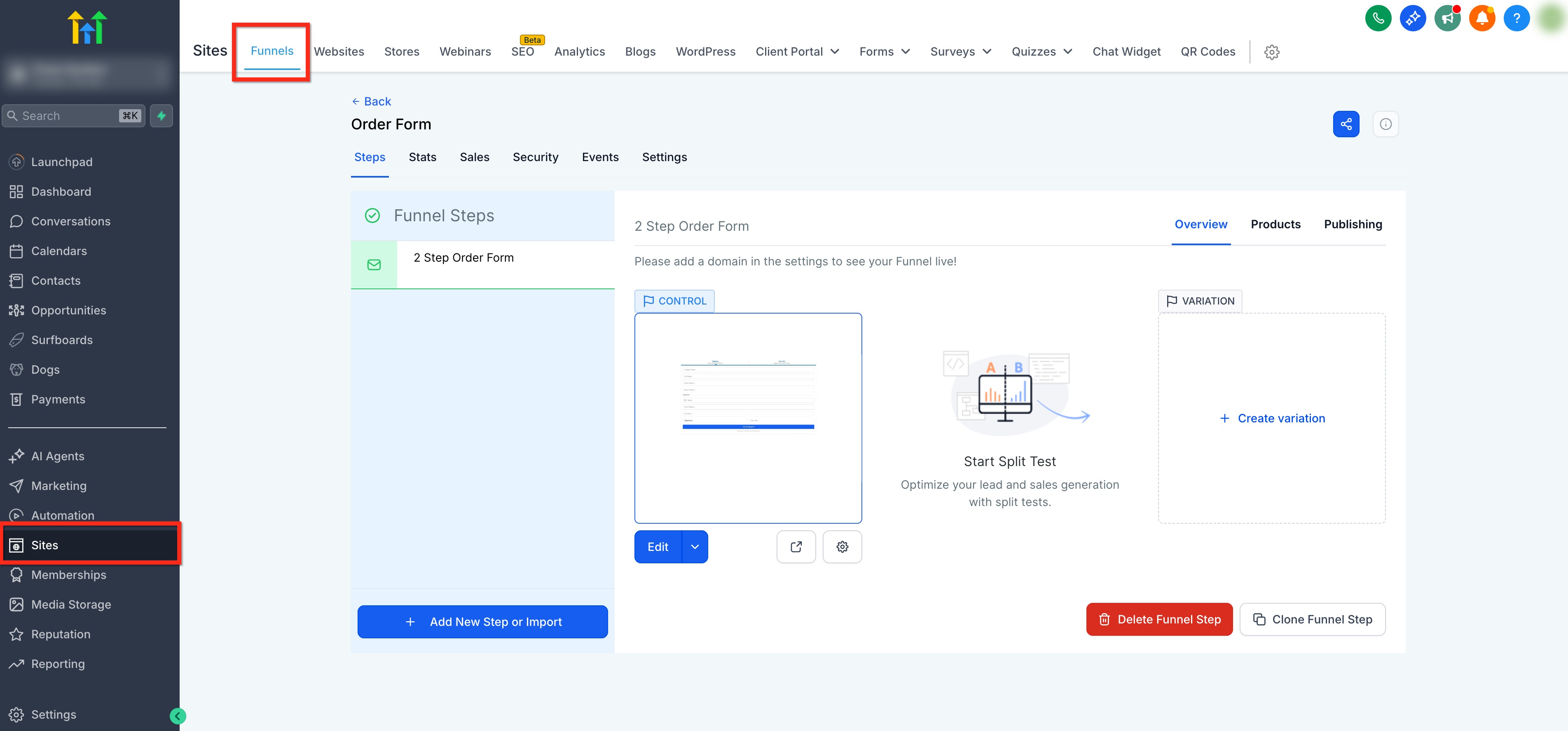
You add the element inside a funnel step from Sites > Funnels. The form pulls product and pricing information that you previously attached to the same funnel step. Optional features include cart mode, order bumps, coupon codes and the ability to show or hide product descriptions.
All visual settings, such as colors and button text, are controlled in the element’s style and form option panels. After configuring, you preview the form and publish the funnel to make the checkout live.
03How businesses use two step order forms
- Online course provider. Create a product for the course and a price in the funnel step. Add the Two Step Order Form, enable coupon codes for promotional discounts, and customize the fields to collect student information before payment.
- Fitness studio. Attach membership plans as products, turn on cart mode to let members select add on classes, and configure an order bump for a nutrition guide. Adjust the form’s styling to match the studio brand.
- Retail boutique. Set up physical products with multiple quantity options, define a maximum per order, and enable the order bump to offer a matching accessory. Use the shipping toggle to collect shipping addresses only when needed.
04The numbers and rules that matter
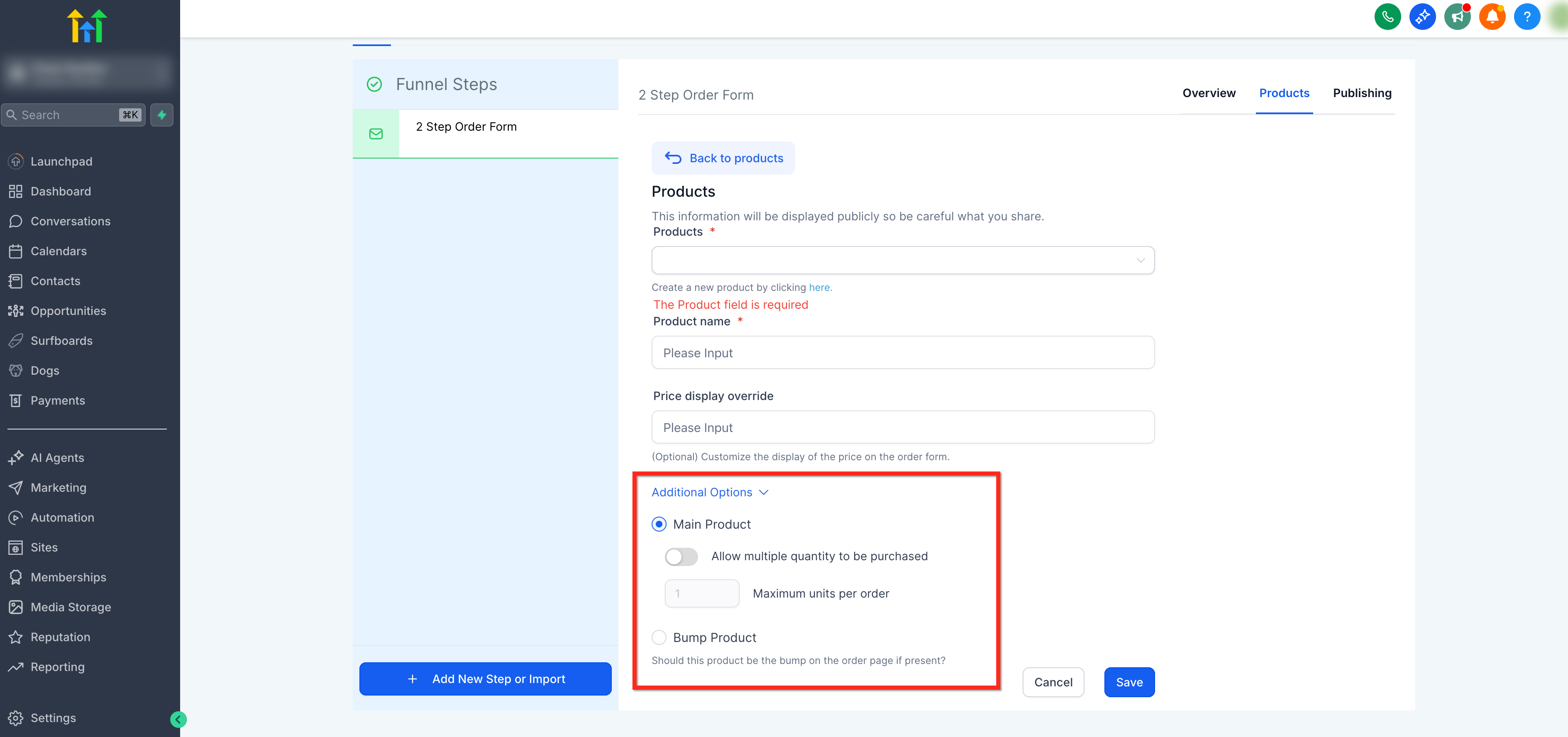
- Max per order limit can be set from 1, 999 units.
- Cart Mode is available for supported V2 funnel order forms.
05Before you start
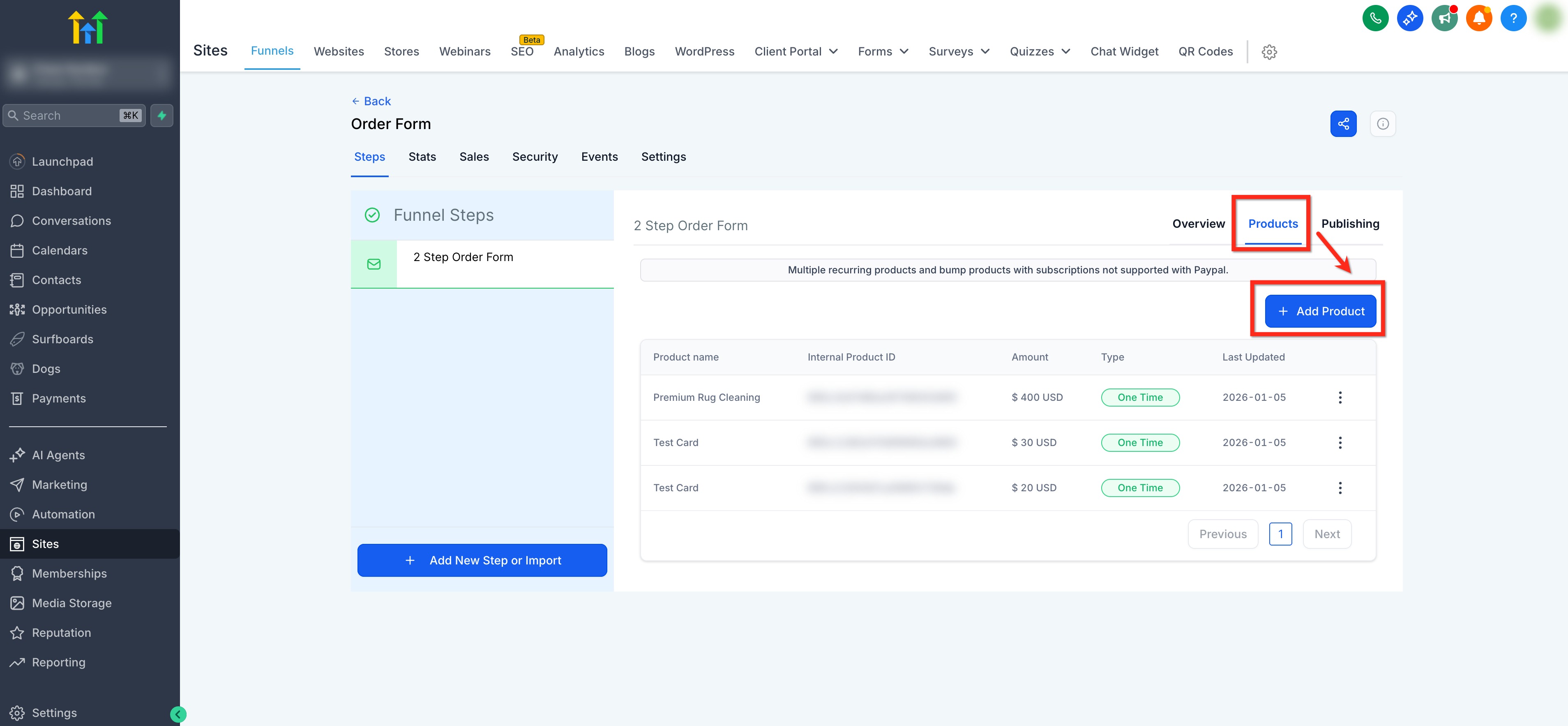
- Create the products you intend to sell and add at least one price for each product.
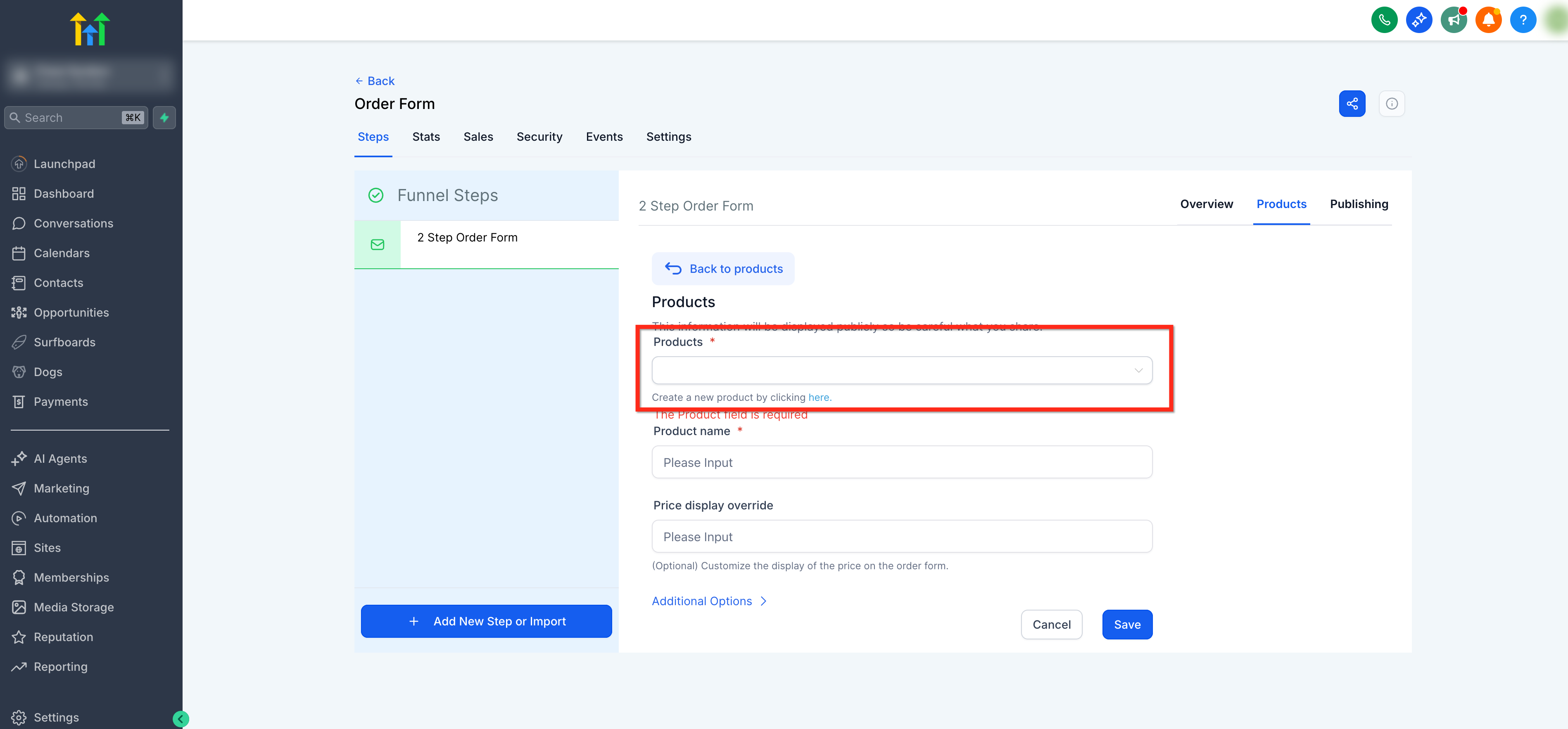
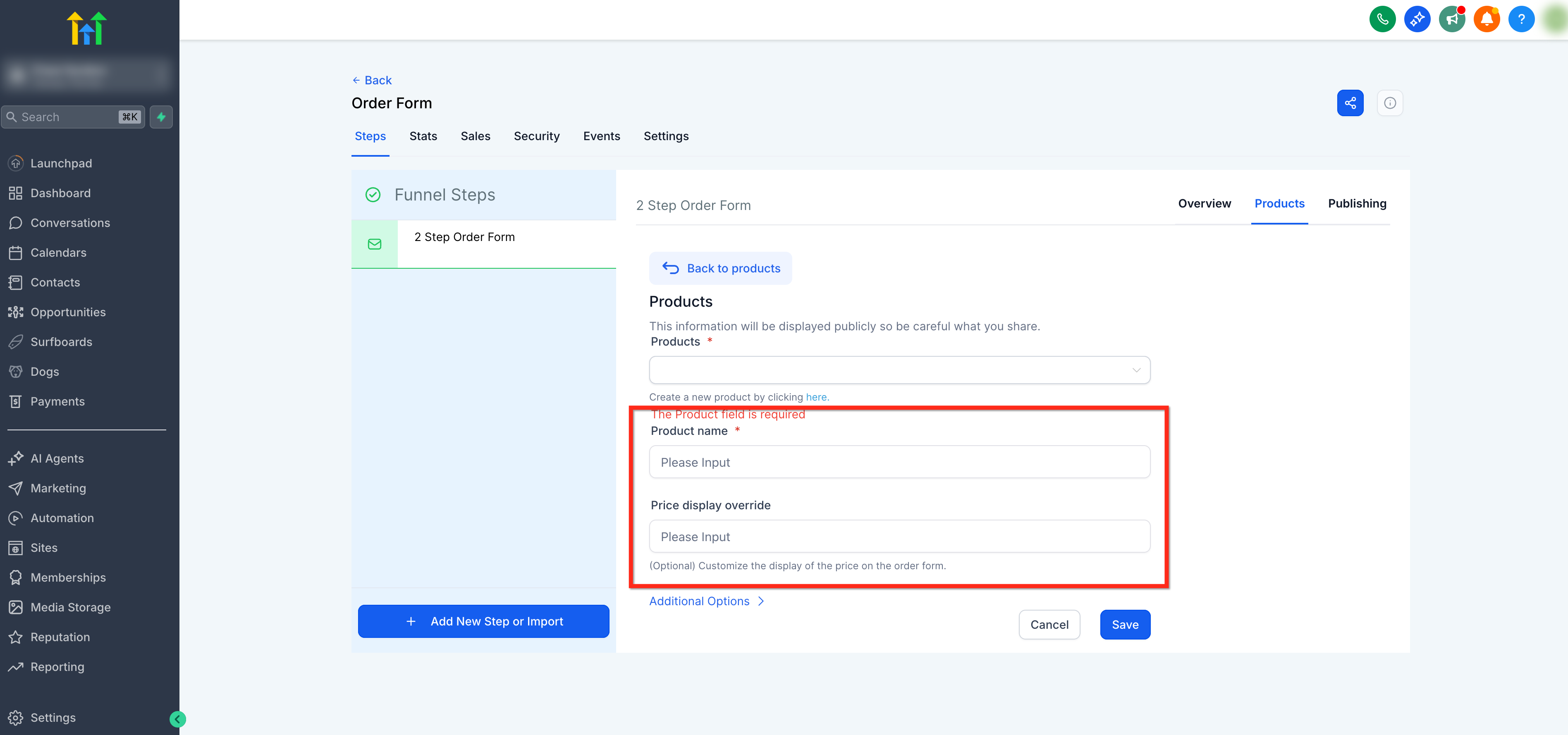
- Attach those products to the funnel step where the order form will be placed.
06How to set up and use two step order forms in HighLevel
Add a Two Step Order Form to a funnel
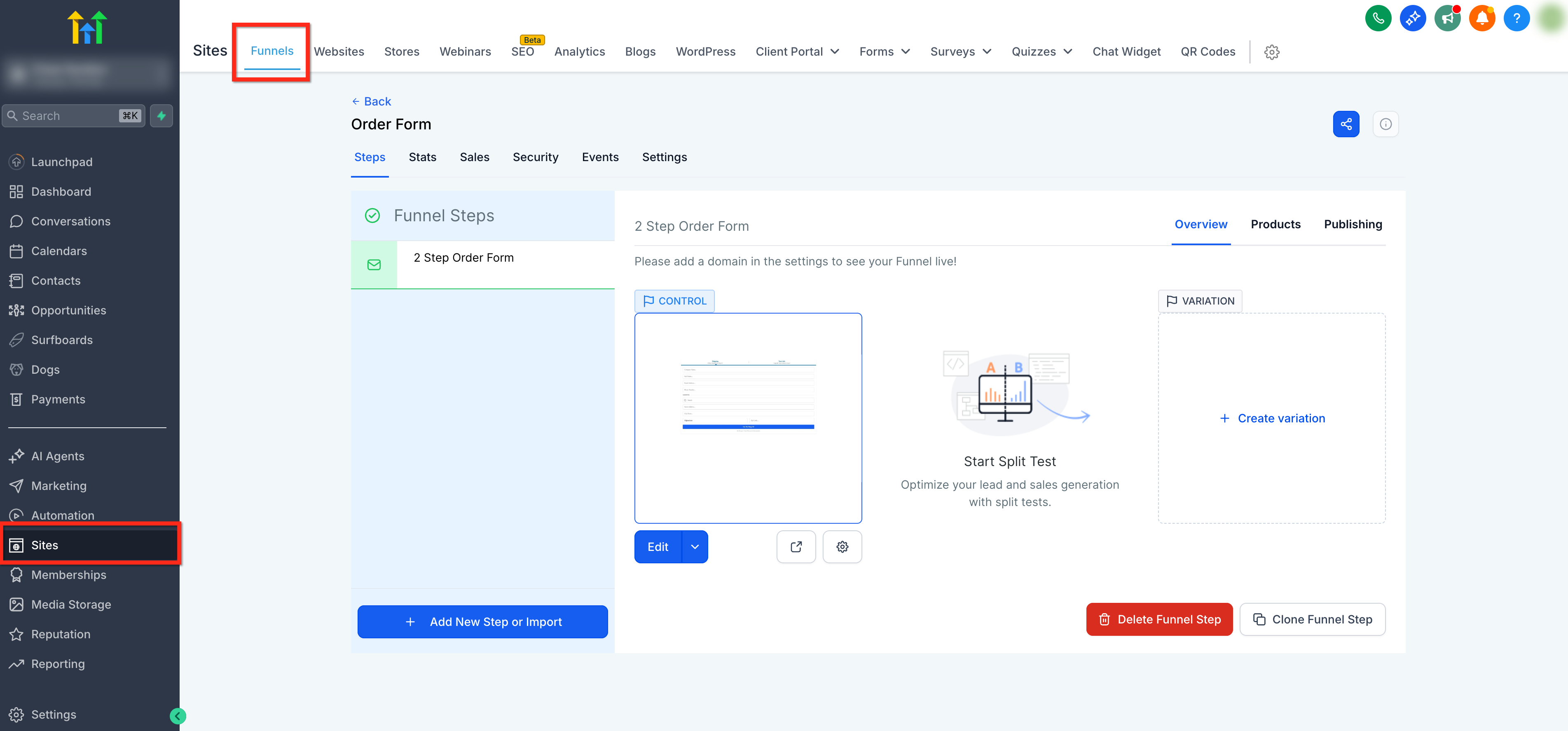
- Open Sites > Funnels, select the funnel, and choose the step that will host the checkout.
- Click Add Elements (+), pick the Two Step Order element under Order elements, and drag it onto the canvas.
- In the element settings, open Form options, select Step 1, and configure headline, sub headline, company name visibility, phone field, shipping toggle, and button text.
- Switch to Step 2 in Form options and edit the labels, headers and button text for payment and confirmation.
- Optionally enable cart mode, decide whether product descriptions and pricing show, set up an order bump, and turn on coupon codes.
- Adjust button, text and background colors in the style section to align with your brand.
- Click Preview to test the form, then click the blue Publish button to make it live.
07What it looks like in HighLevel
08Settings that matter
- Enable cart mode. Activates the ability for customers to choose multiple products and adjust quantities on a single order form.
- Product Description. Controls whether the product’s details appear on the checkout form.
- Pricing. Determines if pricing information is displayed alongside each product.
- Enable and configure an Order Bump. Allows adding a complementary offer that appears during checkout.
- Enable Coupon Codes. Lets buyers enter discount codes to reduce the order total.
- Company name. Set to hidden, optional, or required to collect or omit a company name.
- Phone. Define the phone field as required, optional, or hidden.
- Shipping. Toggle on or off to collect shipping address information.
- Button text. Customize the label shown on navigation and submission buttons.
09Things to know before you rely on it
- Maximum quantity per order can be set between 1 and 999 units.
- Cart mode is only available for supported V2 funnel order forms.
- Products must be attached to the same funnel step for the form to display and charge.
10If something goes wrong
- Products do not appear in the Two Step Order Form. Confirm that at least one product with a price is added in the Products tab for the same funnel step.
- Customers cannot purchase multiple quantities. In Products > Additional options, enable Allow multiple quantity and set the desired Max per order.
11How it connects to the rest of HighLevel
- Set up your domain before adding the order form to ensure visitors reach the checkout. Domain Connect
- Add tracking scripts to monitor checkout performance and conversions. Add tracking code
- Review pricing and plan eligibility for using V2 funnel features such as cart mode. HighLevel pricing
Michael's take

When I have a steady flow of visitors and a small catalog of products, the two step order form seems useful. Splitting the checkout reduces friction, which may help conversion.
If sales are occasional or you sell high ticket items that need a custom sales call, the extra steps might add complexity, so a simple one page checkout could keep the experience leaner.