
01Who this is for
- Marketing managers can embed conversion pixels on thank you pages to capture lead data.
- Ecommerce owners can apply a Google Analytics base script site wide for unified reporting.
02Tracking code, explained
Tracking code is a script that records visitor activity or triggers events when a page loads. It can be a Google Analytics tag, a Meta Pixel, or any conversion script supplied by a third party service.
Page level tracking runs only on the page you place it on, while site wide tracking runs on every page inside a funnel or website.
In HighLevel, page level scripts are added in the builder under Header Tracking or Footer Tracking. Site wide scripts are entered in the funnel or website Settings under Head tracking code or Body tracking code.
03How businesses use tracking code
- Ecommerce store. The store adds a Meta Pixel as site wide tracking in Settings so the pixel fires on every product and checkout page. It then verifies the pixel using Meta's test tool.
- Real estate agency. The agency places a conversion script on the property inquiry thank you page using page level Header Tracking, ensuring the event fires only when a lead submits the form.
- Coaching business. The coach inserts a Google Analytics base script as site wide tracking so all funnel steps are captured in a single analytics property.
04Before you start
- A funnel or website must already exist in HighLevel.
- The tracking script from the provider must be ready to paste.
05How to set up and use tracking code in HighLevel
Add page level tracking code
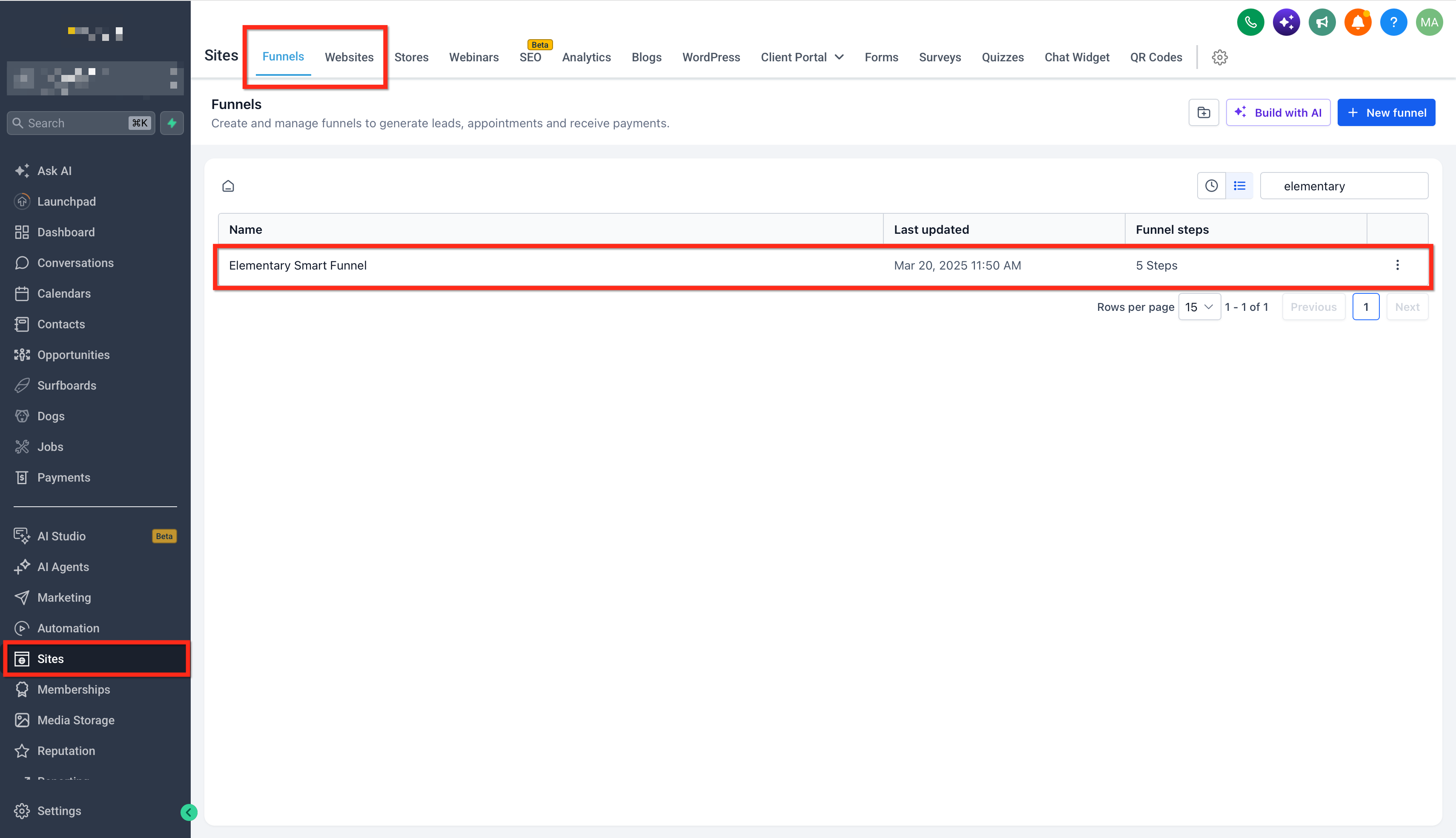
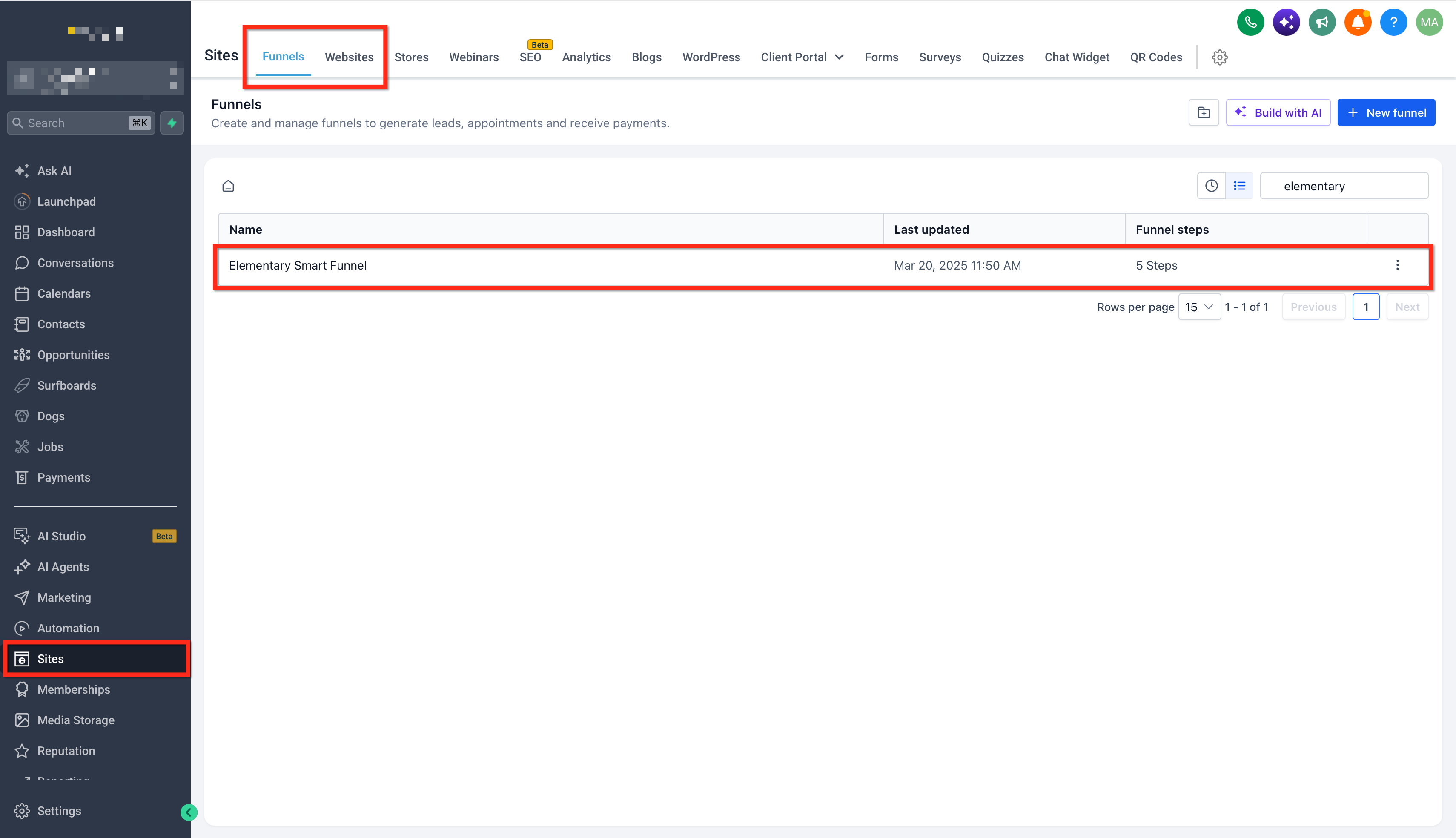
- Navigate to Sites and open the funnel or website that contains the target page.
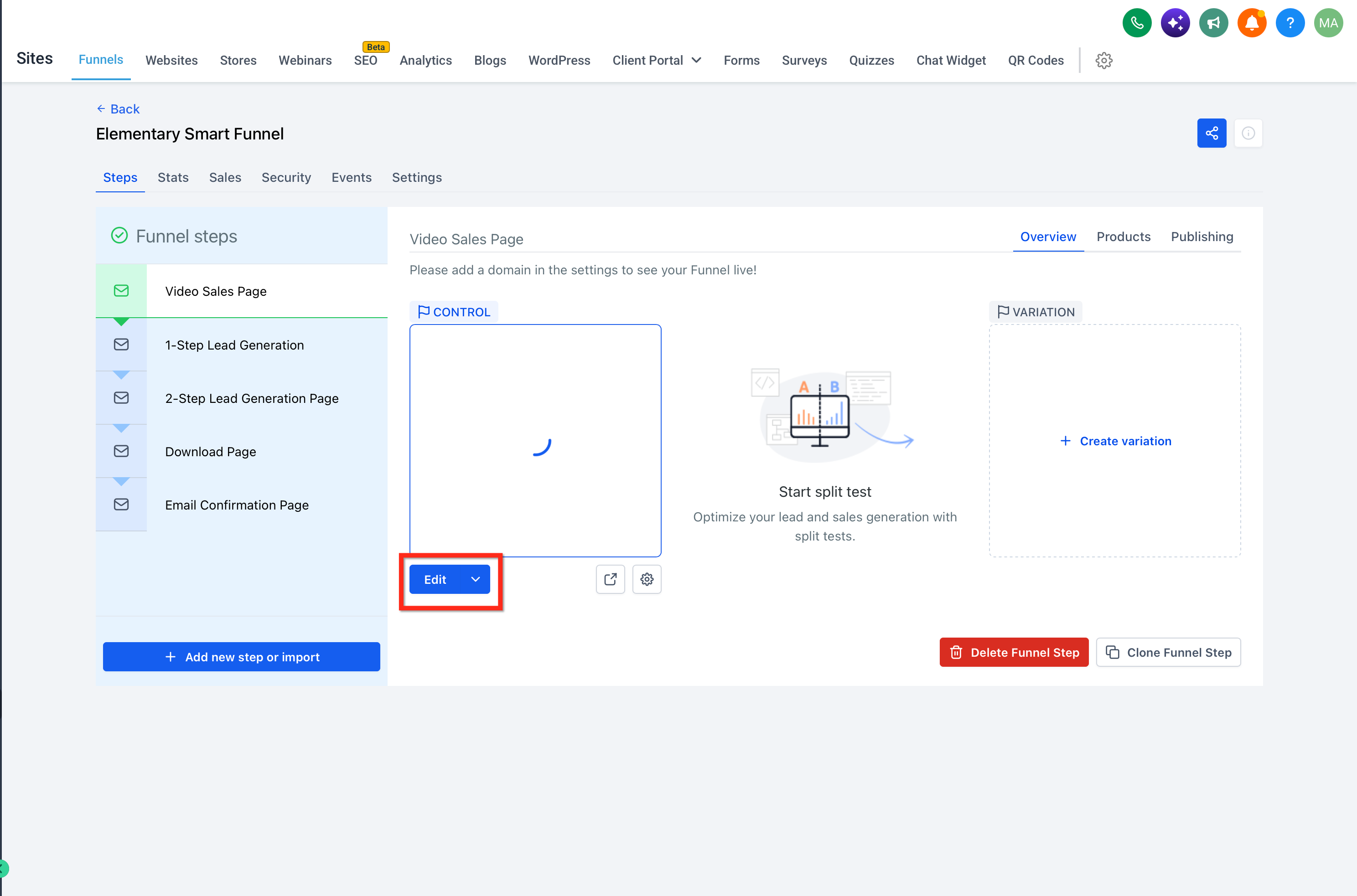
- Select the specific page or funnel step and launch it in the builder.
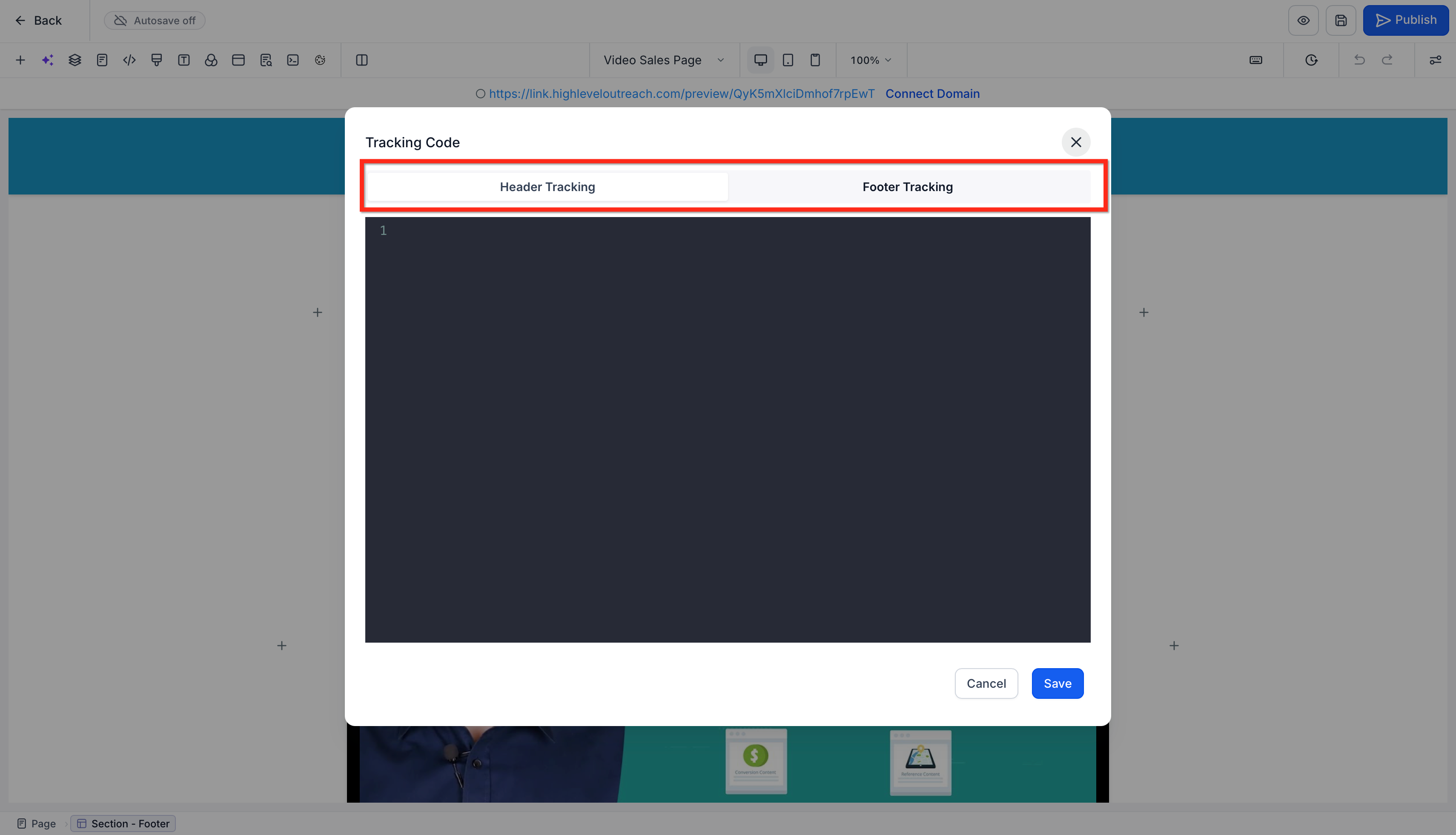
- Click the Tracking Code button within the builder toolbar.
- Choose Header Tracking or Footer Tracking according to the provider’s instructions.
- Paste the supplied script into the selected field.
- Click Save to store the script on the page.
- Follow the placement instructions provided by the tracking provider.
- Open the published page and use the provider’s testing tool to confirm the script runs.
Add site wide tracking code
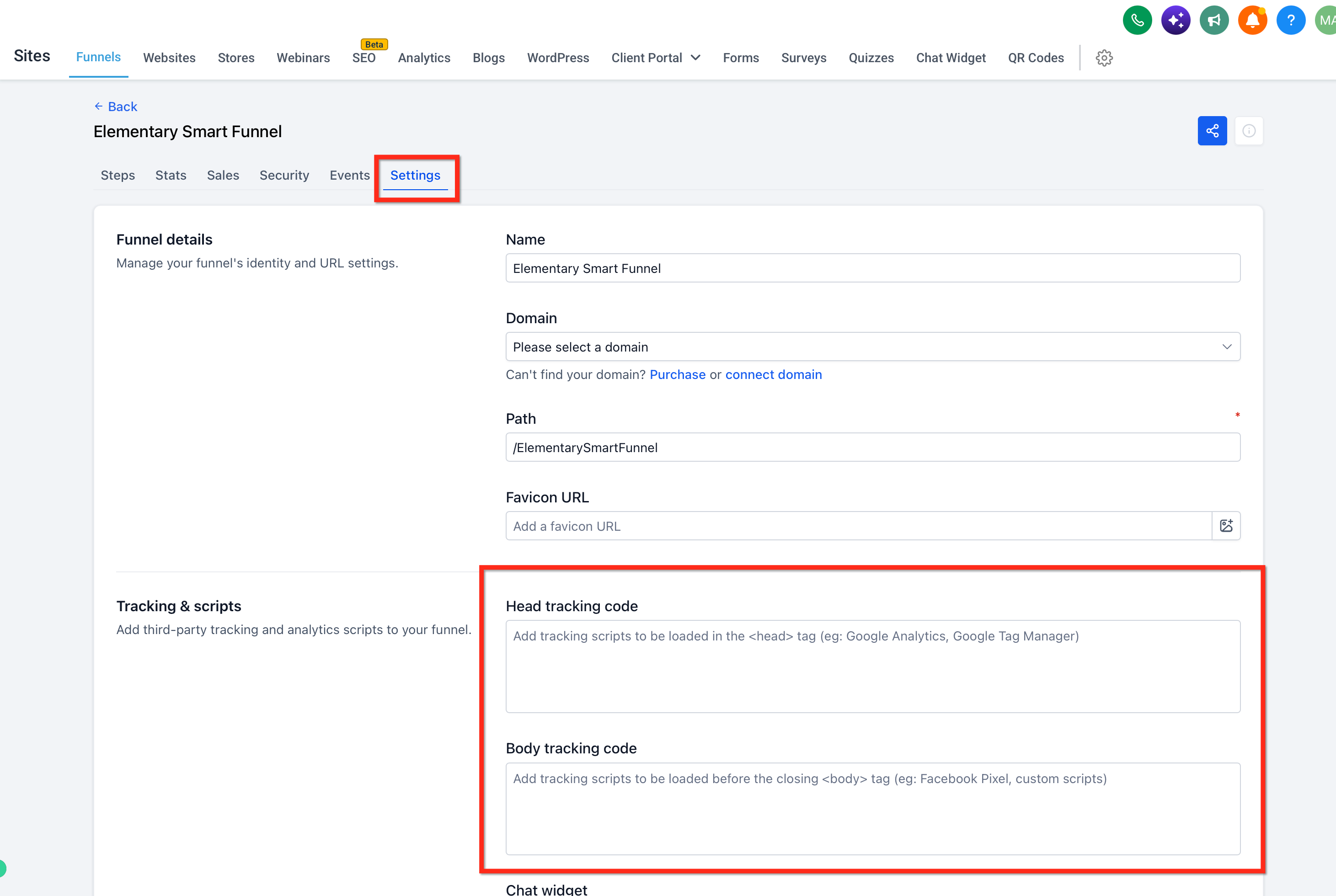
- Go to Sites > Funnels or Sites > Websites and open the desired funnel or website.
- Click the Settings tab at the top of the screen.
- Locate the Head tracking code and Body tracking code input boxes.
- Insert the script into the appropriate box based on the provider’s placement guidance.
- Press Save to apply the changes across the entire funnel or website.
- Follow the placement instructions provided by the tracking provider.
- Visit a published page and verify the script with the provider’s testing tool.
06What it looks like in HighLevel

07Settings that matter
- Header Tracking. Controls scripts that run in the page head for a single page when using page level tracking.
- Footer Tracking. Controls scripts that run at the bottom of a single page when using page level tracking.
- Head tracking code. Holds scripts that are injected into the head section of every page in a funnel or website.
- Body tracking code. Holds scripts that are injected into the body section of every page in a funnel or website.
08Things to know before you rely on it
- Adding the same script at both page level and site wide creates duplicate page views, events, and conversions.
- Page level tracking does not copy when a funnel step or website page is duplicated.
- Tracking scripts are injected dynamically and may not appear in a static View Page Source output.
- Scripts that place cookies may require the platform’s Cookie Consent Banner to meet privacy regulations.
09If something goes wrong
- Tracking code not visible in View Page Source. Use browser developer tools or the tracking provider’s testing utilities to confirm the script is executing.
- Events are firing twice. Check that the same script is not installed both at the page level and at the funnel or website level.
10How it connects to the rest of HighLevel
- Overview of website and funnel features All Sites features
- How to set up a root domain or subdomain for funnels and websites Root/subdomain setup
- HighLevel pricing and plans Pricing page
Michael's take

Michael ReimerFounder of CRM Pros, HighLevel Commander and Certified Admin
Mixing page level and site wide scripts can easily create duplicate counts that bloat your reports.
Double checking where each pixel lives before you publish saves headaches later.
Get More InformationOpens on HighLevelPublished November 2, 2026 · Updated November 17, 2026