
01Who this is for
- Founders of agencies that manage multiple client sending domains need a structured way to protect deliverability.
- Marketing teams at SaaS companies benefit from automatic stage progression based on actual sending volume.
- Email specialists at ecommerce firms can monitor daily thresholds to avoid sudden spikes that trigger spam filters.
02Fixed stage email domain warmup, explained
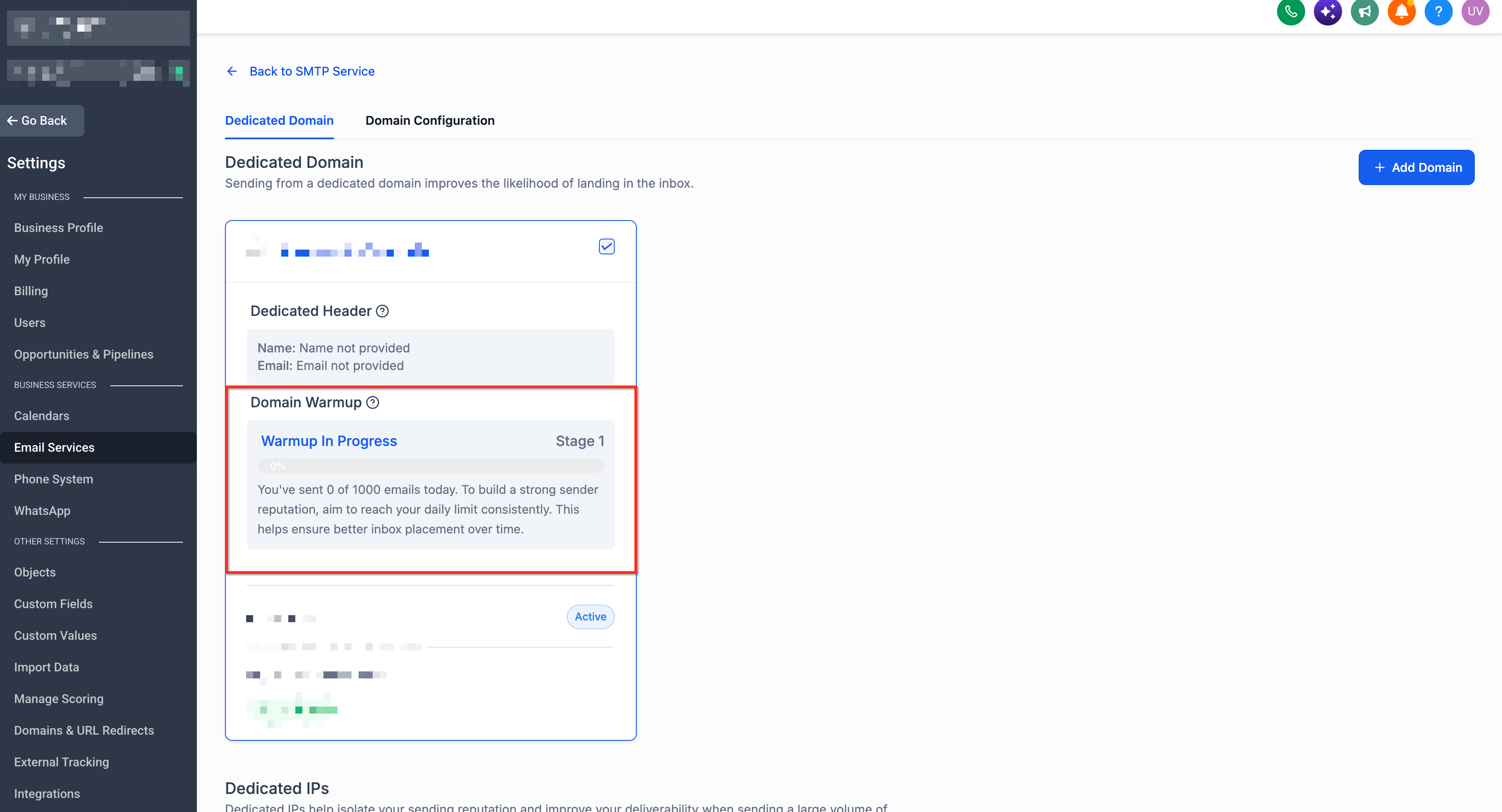
The feature watches the number of emails a dedicated sending domain sends each day. When the domain reaches the daily limit for its current stage, it automatically moves to the next stage. If the limit is not met, the domain stays at the same stage.
Warmup lives under Email Services > SMTP Service > Dedicated Domain and IP in both agency and subaccount settings. The system records only emails sent through the domain being warmed up. It does not enforce hourly caps, and it does not stop extra emails from being sent once the threshold is met.
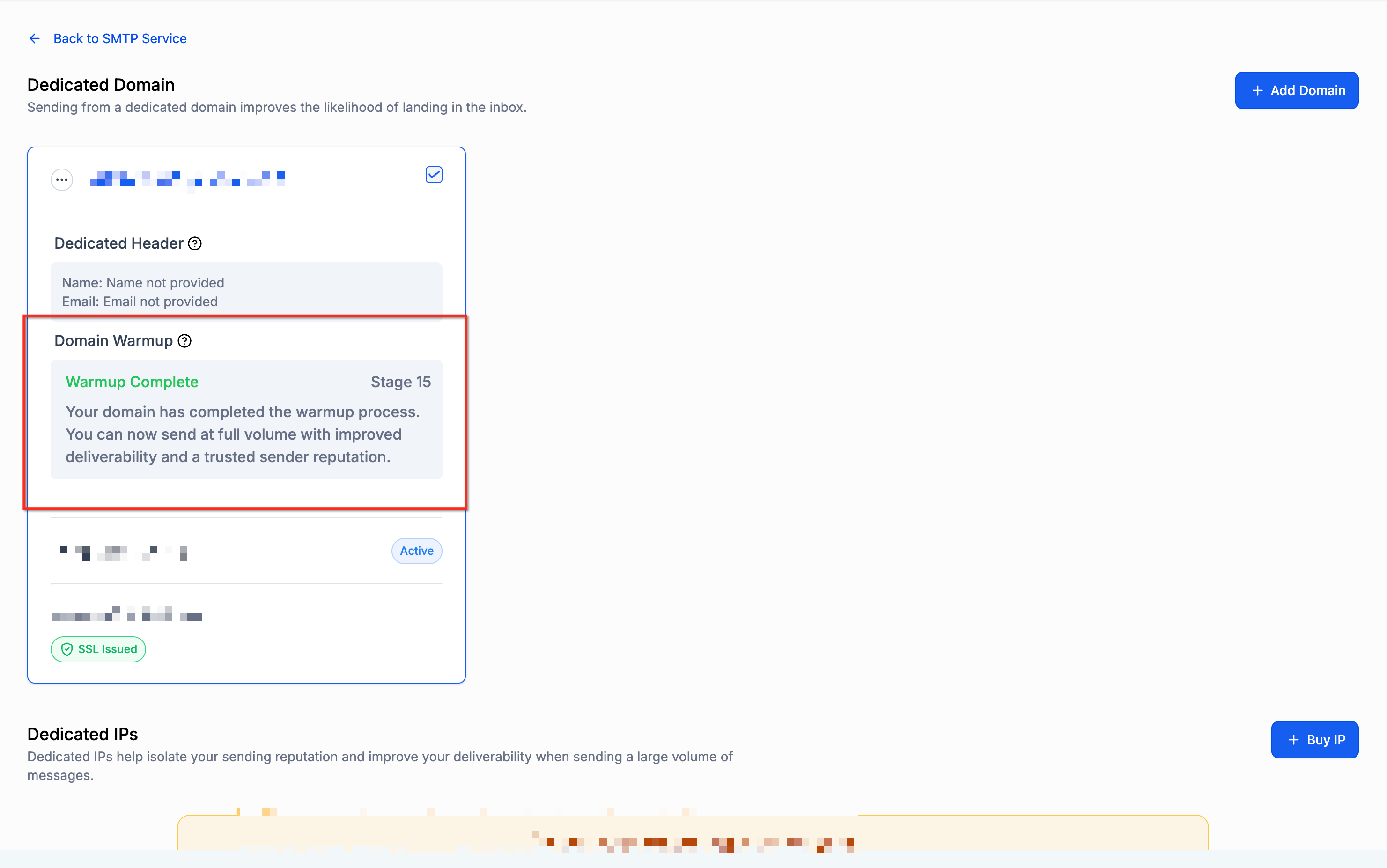
The model includes 15 stages, starting at 1,000 emails per day and ending at 250,000. Existing domains receive a recommended starting stage based on past sending history and Google Postmaster data, but users cannot skip stages manually.
03How businesses use fixed stage email domain warmup
- Marketing agency. The agency opens its account, navigates to Agency Settings > Email Services > SMTP Service, selects the client’s dedicated domain, clicks Start Warmup, and then sends campaigns through that domain to move through the stages.
- Online retailer. The retailer accesses its subaccount, goes to Settings > Email Services > SMTP Service, chooses its verified sending domain, activates Start Warmup, and runs regular promotional emails to meet each stage’s daily limit.
- SaaS startup. The startup opens its subaccount, selects Email Services > SMTP Service > Dedicated Domain and IP, clicks Start Warmup for its new domain, reviews the suggested starting stage, and begins sending onboarding emails to progress.
04The numbers and rules that matter
- The model does not enforce hourly sending limits.
- Warmup thresholds are separate from other account level sending restrictions, recipient provider rate limits, and email compliance controls.
- Stage 1 to 1,000 emails per day.
- Stage 2 to 2,500 emails per day.
- Stage 3 to 5,000 emails per day.
- Stage 4 to 6,500 emails per day.
- Stage 5 to 8,000 emails per day.
05Before you start
- A dedicated sending domain must be created and DNS verified.
- The account must have the warmup feature available (rolled out in phases).
- You must be in the correct agency or subaccount view to access the settings.
06How to set up and use fixed stage email domain warmup in HighLevel
Enable warmup for agency domains
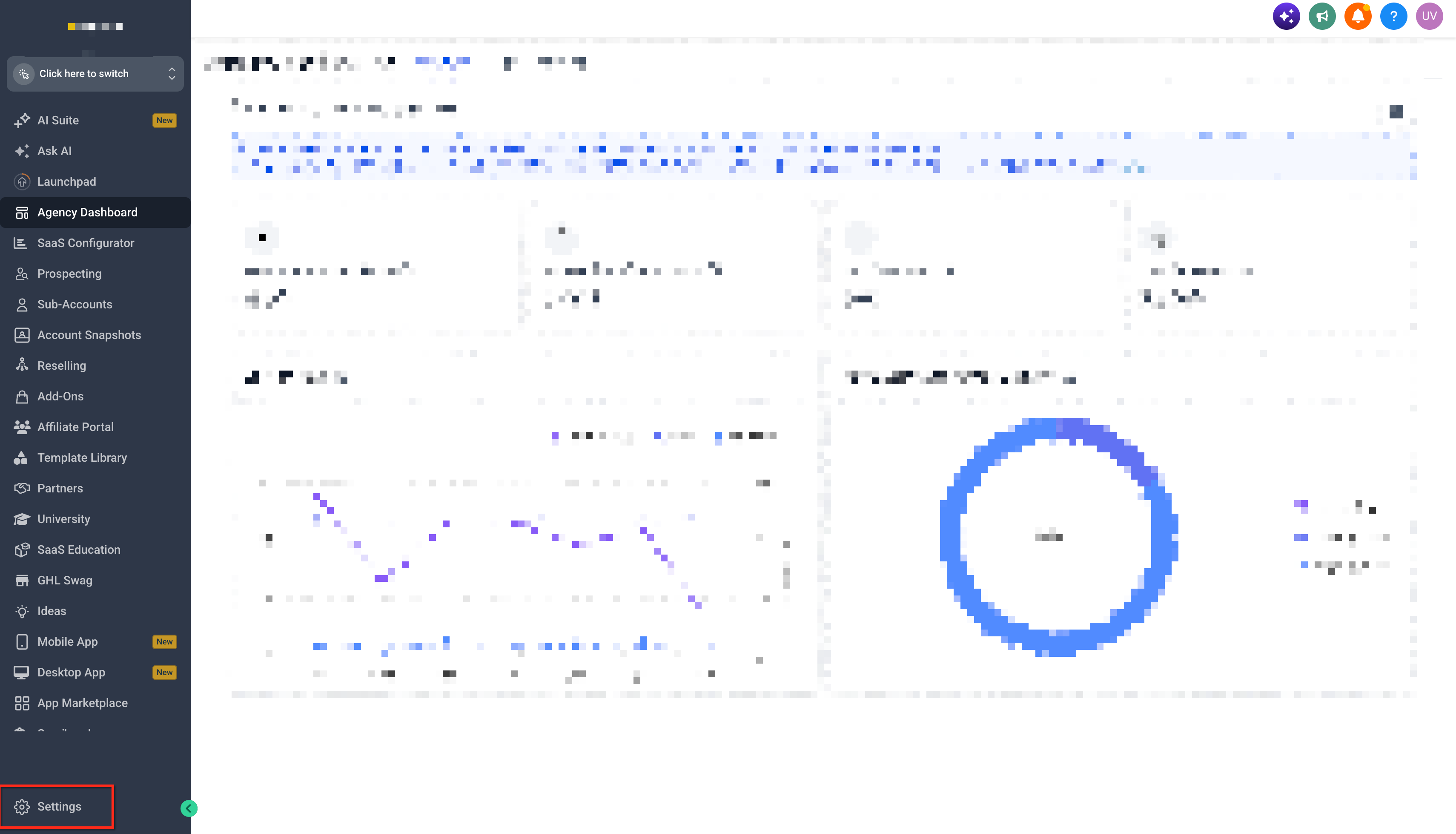
- Open your HighLevel agency account.
- Navigate to Agency Settings.
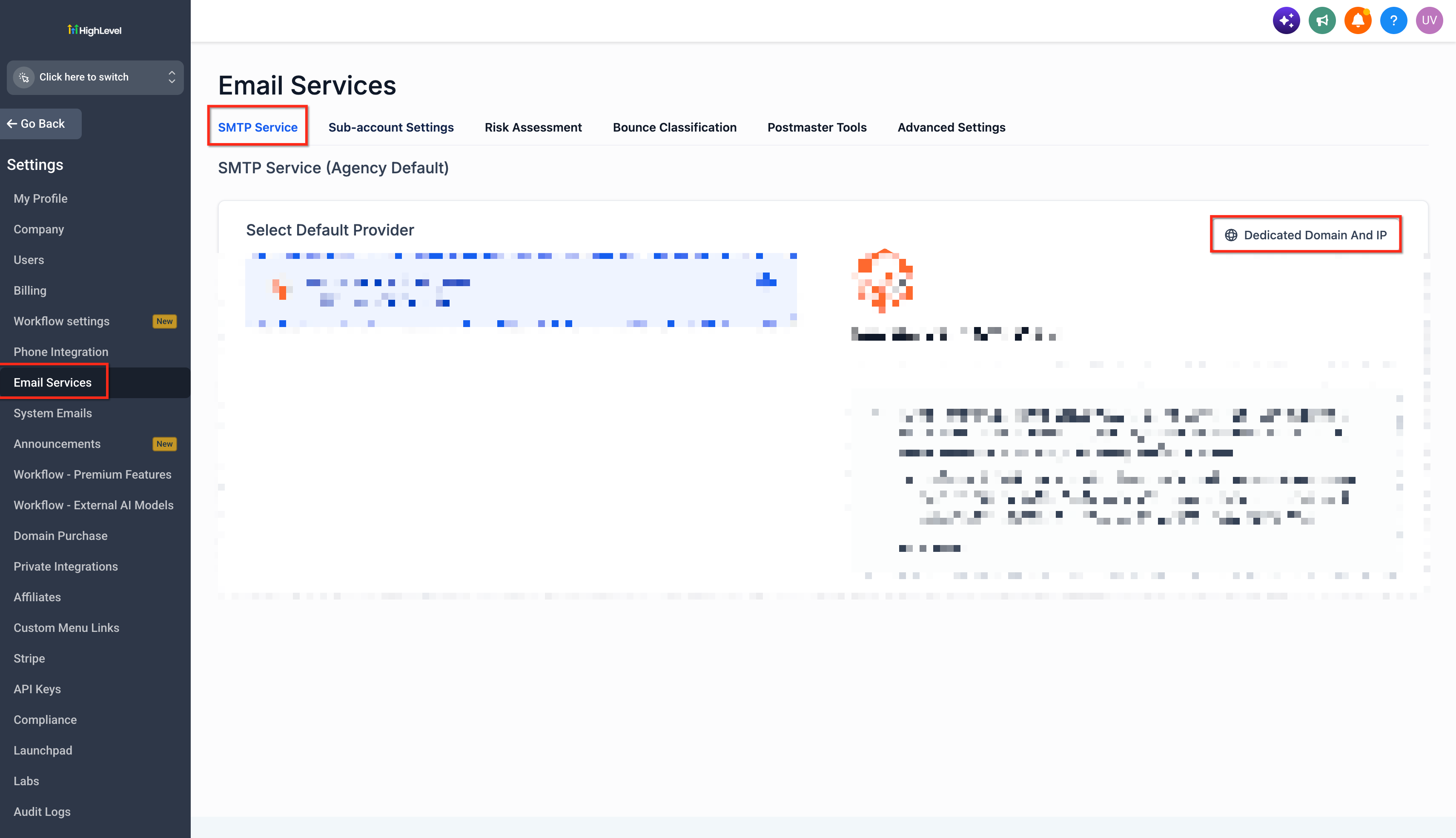
- Select Email Services.
- Open the SMTP Service tab.
- Select Dedicated Domain and IP.
- Locate the existing dedicated domain you want to warm up.
- Click Start Warmup.
- Review the recommended starting stage provided by HighLevel.
- Begin sending emails through the configured domain to progress through warmup.
Enable warmup for subaccount domains
- Open the appropriate subaccount.
- Navigate to Settings.
- Select Email Services.
- Open SMTP Service.
- Select Dedicated Domain and IP.
- Locate the existing dedicated sending domain.
- Click Start Warmup.
- Review the recommended starting stage.
- Send emails through the selected domain to begin progressing through the warmup stages.
Monitor warmup progress
- Navigate to Settings > Email Services > SMTP Service > Dedicated Domain and IP at the applicable account level.
- Locate the domain currently undergoing warmup.
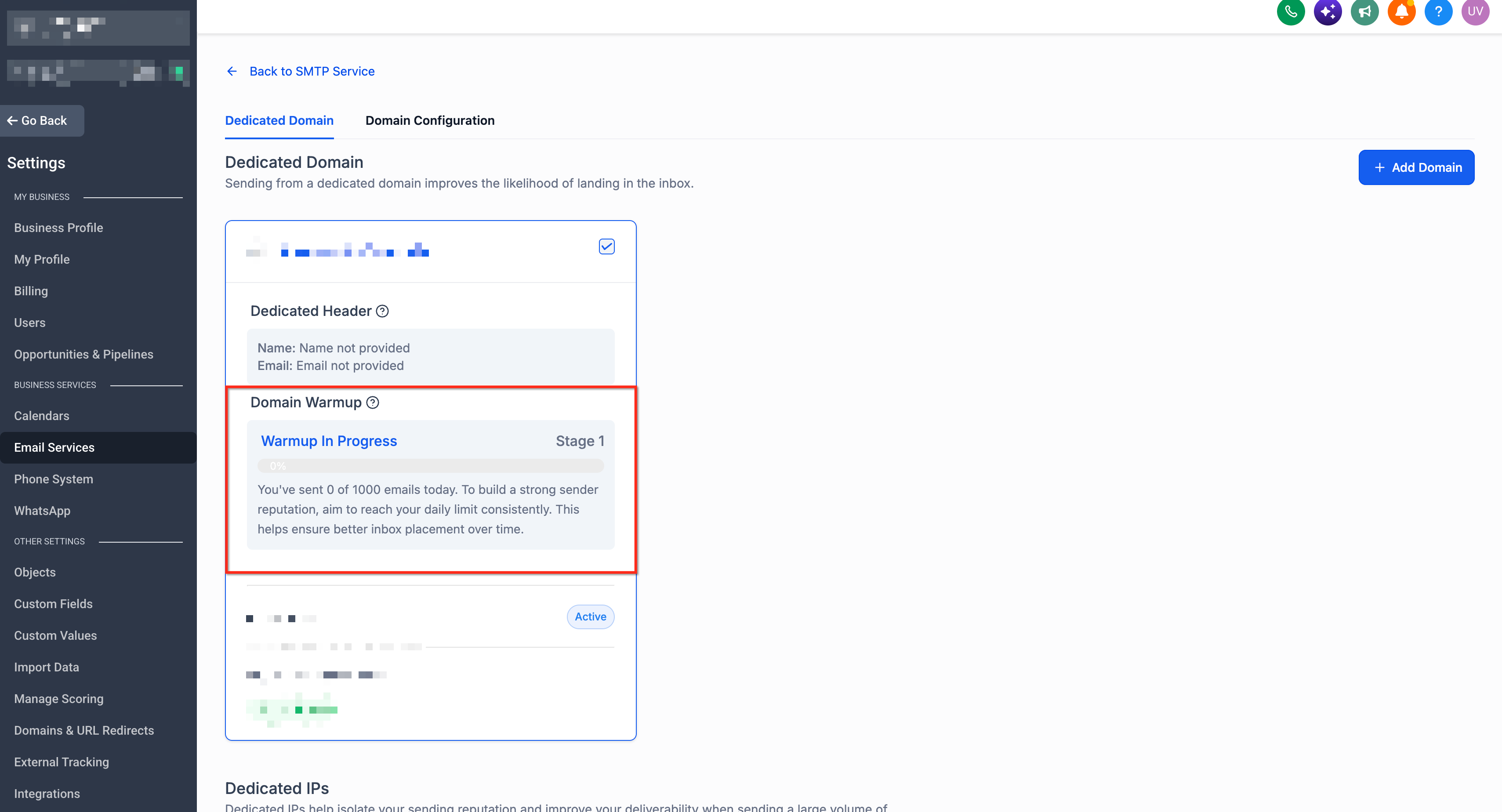
- Review its displayed warmup stage and status.
- Compare your sending activity against the daily threshold for that stage.
- Review available deliverability and reputation information.
07What it looks like in HighLevel
08Settings that matter
- Start Warmup. Activates the fixed stage warmup process for the selected dedicated sending domain.
- SMTP Service. Provides the tab where dedicated domains and IPs are managed, including warmup activation.
- Dedicated Domain and IP. Identifies which verified domain the warmup settings and progress apply to.
09Things to know before you rely on it
- Warmup applies only to dedicated sending domains; shared domains follow separate rules.
- Feature rollout is phased, so it may not be present for every account.
- New domains start automatically after verification; existing domains require manual activation.
- Daily thresholds are recommendations; exceeding them does not block additional emails at present.
- No hourly sending limits are enforced by the warmup model.
- Stage advancement occurs only when the full daily threshold for the current stage is met.
10If something goes wrong
- Start Warmup button not visible. Confirm the feature is available for your account and that you are viewing an eligible dedicated sending domain in the correct settings area.
11How it connects to the rest of HighLevel
- Learn how to connect a root domain or subdomain for funnels and websites. Root/subdomain setup
- Guidance on setting up website, email, and WordPress domains in HighLevel. Domain types guide
- Review HighLevel pricing and plan eligibility for email warmup features. Pricing
Michael's take

Many small businesses struggle to get their new email domains into inboxes because providers treat sudden spikes as suspicious. Fixed stage email domain warmup smooths that transition by nudging the sending volume upward in measured steps, letting reputation grow organically.
The first setting I would lock down is the daily sending threshold for the current stage. Make sure you’re actually hitting that number each day through the verified domain; otherwise the domain stalls and the reputation gains slow down.