
01Who this is for
- Sales teams that need instant live chat alerts to reach leads the moment they appear.
- Support staff who want SMS or WhatsApp notifications for incoming website messages.
02Chat widgets, explained
The chat widget is a piece of code that can be placed on any HighLevel funnel or external website. Visitors can start a conversation via live chat, SMS, or WhatsApp if the account has that channel enabled.
When a visitor sends a message, the platform can trigger a workflow. The workflow can send an email, an in app notification, or an SMS to a chosen user, and it can include the visitor’s message using a placeholder.
All configurations live inside the Workflows section of HighLevel. The widget itself is managed under the Chat Widget settings of the subaccount.
03How businesses use chat widgets
- Real estate agency. The agency adds the chat widget to its property listings site. When a prospect clicks the widget, a workflow sends an in app notification to the assigned agent, who can reply right away through the platform.
- Dental practice. The practice installs the widget on its appointment page. A visitor’s message triggers an SMS alert to the front desk staff, including the entered text via the {{message.body}} placeholder, so they can respond by text.
- Ecommerce store. The store enables WhatsApp on the widget. When a shopper uses the chat, a workflow emails the sales team with the visitor’s message, allowing them to continue the conversation on WhatsApp if needed.
04The numbers and rules that matter
- Requires a purchased phone number and completed A2P registration in the subaccount for SMS replies.
- You can create more than one chat widget per subaccount.
05Before you start
- A phone number must be purchased in the subaccount.
- A2P registration must be completed for the subaccount to send SMS replies.
06How to set up and use chat widgets in HighLevel
Set up chat widget workflow (2 steps)
- Open the Workflows area and create a new workflow.
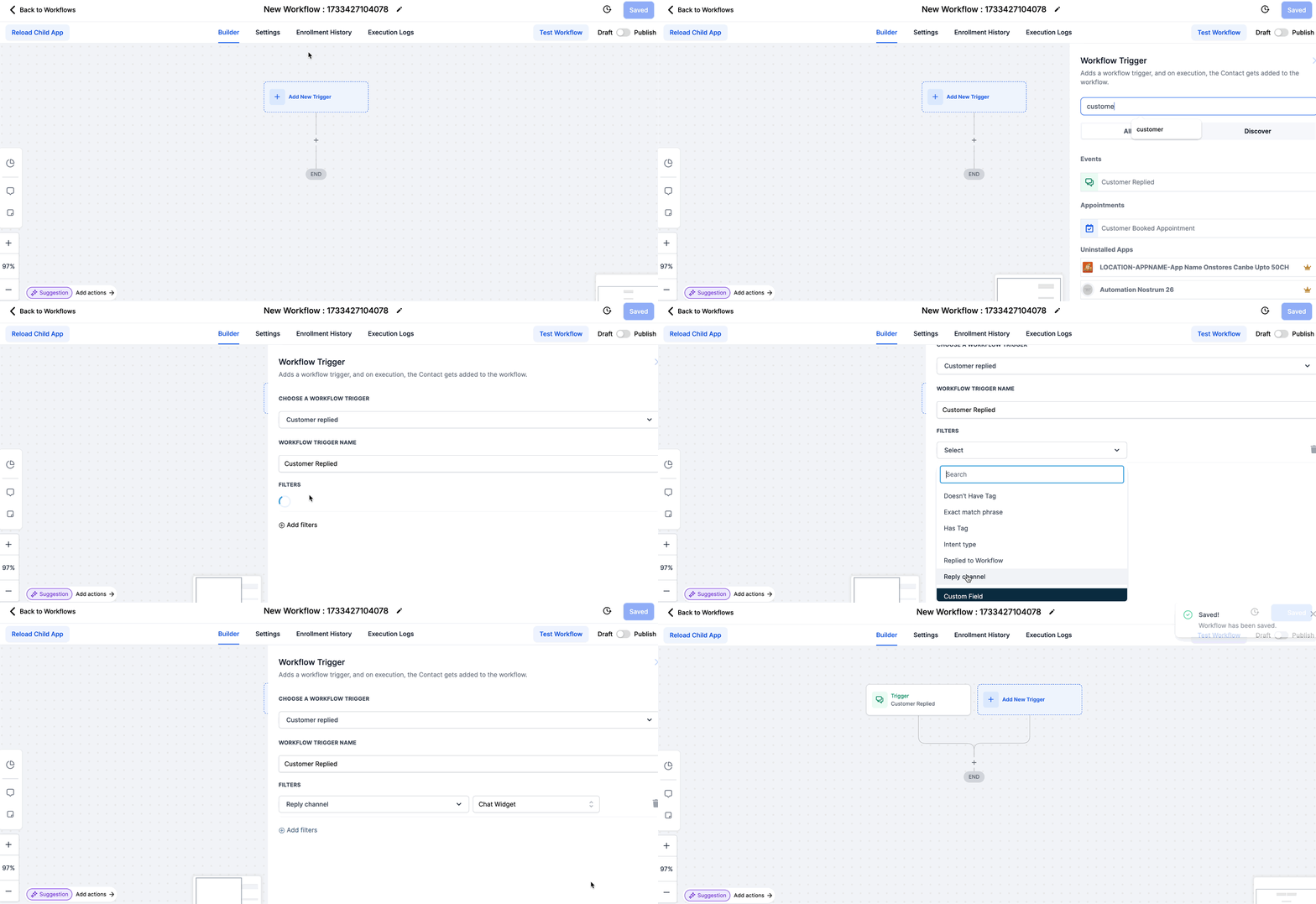
- Add a trigger, select the “Customer Replied” event, and filter where “Reply Channel” equals “Chat Widget”.
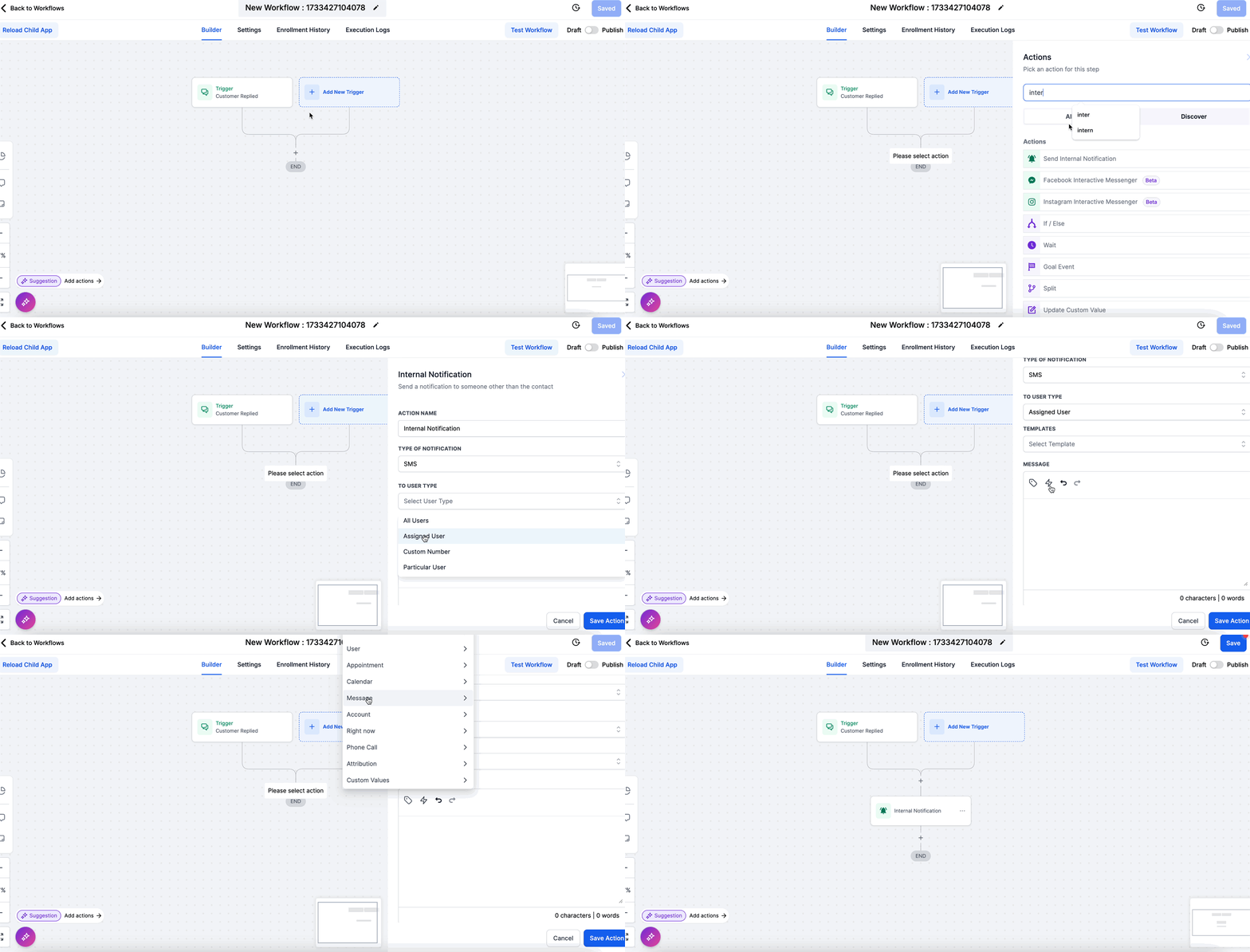
- Click the + button, search for “Internal notifications”, and choose Email, In app notification, or SMS as the action.
- Insert the {{message.body}} placeholder into the notification content to show the visitor’s message.
07What it looks like in HighLevel
08Settings that matter
- Reply Channel. Filters workflow triggers so that only messages that arrive through the chat widget start the automation.
09Things to know before you rely on it
- Messaging on the widget cannot be customized per page; the same text appears on every page where the widget is placed.
- Multiple chat widgets can be created in a single subaccount, each with its own static messaging.
- SMS replies require a purchased phone number and completed A2P registration in the subaccount.
10How it connects to the rest of HighLevel
- Add the chat widget to a Wix website Wix guide
- Add the chat widget to a Shopify website Shopify guide
- How to use the All in One Chat widget in HighLevel All in One guide
Michael's take

The chat widget allows a small business to capture leads without ad spend and does not require development knowledge.
Remember to purchase a phone number and complete the A2P registration before expecting SMS replies to work.