
01Who this is for
- Founders who need a quick view of how visitors interact with live chat on their landing pages.
- Digital marketers tracking conversion paths that include chat engagement before a form is submitted.
02Chat widget GA4 tracking, explained
The feature links the HighLevel chat widget to a GA4 property so that specific widget actions generate events in Google Analytics. The widget itself does not require extra GA4 settings; it sends events once the GA4 library is present on the page.
Two scripts are involved. The first is the GA4 Global Site Tag, which loads the analytics library and configures it with your measurement ID. The second script follows the widget embed and listens for widget load, open, close and form submit actions, then forwards them to GA4 as custom events.
These scripts are placed directly in the HTML of the site, the GA4 tag goes in the <head> section, the widget code in the <body>, and the custom event script immediately after the widget code. The setup works on HighLevel sites, funnels, WordPress, Wix, Shopify and other platforms.
03How businesses use chat widget GA4 tracking
- Real estate agency. The agency embeds the chat widget on property listing pages, then adds the GA4 custom event script. This records when a prospect opens the chat, closes it, or submits an inquiry form, allowing the agency to see which listings generate the most chat interaction.
- Dental practice. A dental office places the widget on its appointment booking page and includes the tracking script. GA4 captures widget opens and form submissions, giving the practice data on how many visitors initiate chat before scheduling a cleaning.
- Ecommerce store. The online store adds the widget to product pages and attaches the GA4 event script. Events for widget open, close and form submit are sent to GA4, letting the store analyze chat usage alongside purchase funnels.
04The numbers and rules that matter
- No additional configuration is required for the Chat Widget to send events to GA4.
- Applies to all platforms. Including HighLevel sites, funnels, WordPress, Wix, Shopify, and others.
- GA4 Global Site Tag code loads the GA4 library using your measurement ID.
05Before you start
- Google Analytics 4 must already be installed on the site or funnel where the chat widget will appear.
06How to set up and use chat widget GA4 tracking in HighLevel
Add GA4 Global Site Tag
- Copy the GA4 Global Site Tag code from the article.
- Paste the code into the <head> section of the website or into a GTM Custom HTML tag.
- Replace "your GA code" with your GA4 measurement ID.
Embed the chat widget on a page
- Click the "Get Code" button in the subaccount and choose the "Via GTM" option to view the widget snippet.
- Copy the complete embed snippet that includes the data widget id and data location id attributes.
- Paste the snippet into the <body> section of the website’s HTML.
Add GA4 custom event tracking script
- Copy the custom event tracking script provided in the guide.
- Place the script directly after the chat widget embed code in the page body.
- Save the changes and publish the page so the script runs when the widget loads.
07What it looks like in HighLevel
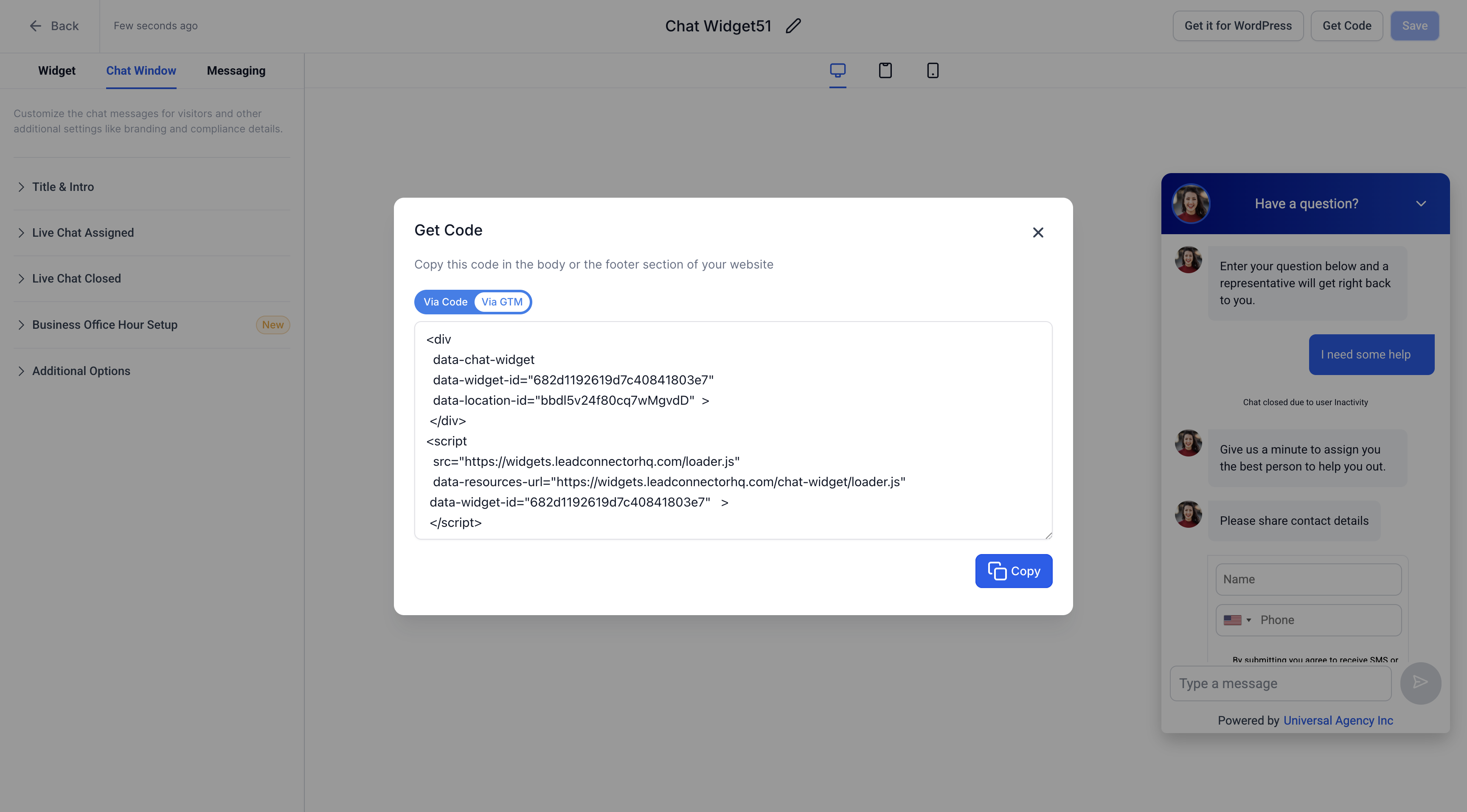
08Settings that matter
- data widget id. Identifies the specific chat widget instance to load.
- data location id. Links the widget to the business or location it represents.
- your GA code. Your GA4 measurement ID used to initialise the analytics library.
09Things to know before you rely on it
- Only three predefined events, widget open, widget close and form submit, are sent to GA4; custom events cannot be added.
- No extra GA4 configuration is required for the widget to send its events.
10How it connects to the rest of HighLevel
- Installing HighLevel chat widget and configuring its workflow Install Chat Widget
- How to use the All in One Chat widget in HighLevel All in One Chat
- Start a 30 day HighLevel trial Free Trial
Michael's take

Adding GA4 tracking to the Chat Widget feels like a helpful addition for understanding visitor interaction.