
01Who this is for
- Marketing managers can capture leads who prefer messaging, directing them straight to a business WhatsApp line.
- Customer support teams gain a quick entry point to handle inquiries via WhatsApp while keeping the chat inside HighLevel.
- Sales representatives can pre qualify prospects using the widget’s field collection before the WhatsApp handoff.
02WhatsApp chat widgets, explained
The WhatsApp Chat Widget creates a bridge from a website to a WhatsApp conversation. Visitors see a chat window, provide any required information, and then click to continue. The widget sends them to WhatsApp using the number that has been linked in the subaccount.
After the visitor sends a message in WhatsApp, the conversation is recorded in HighLevel Conversations, allowing the team to follow up within the platform. The exact behavior depends on the visitor’s device, browser, and installed apps, so the experience may differ between users.
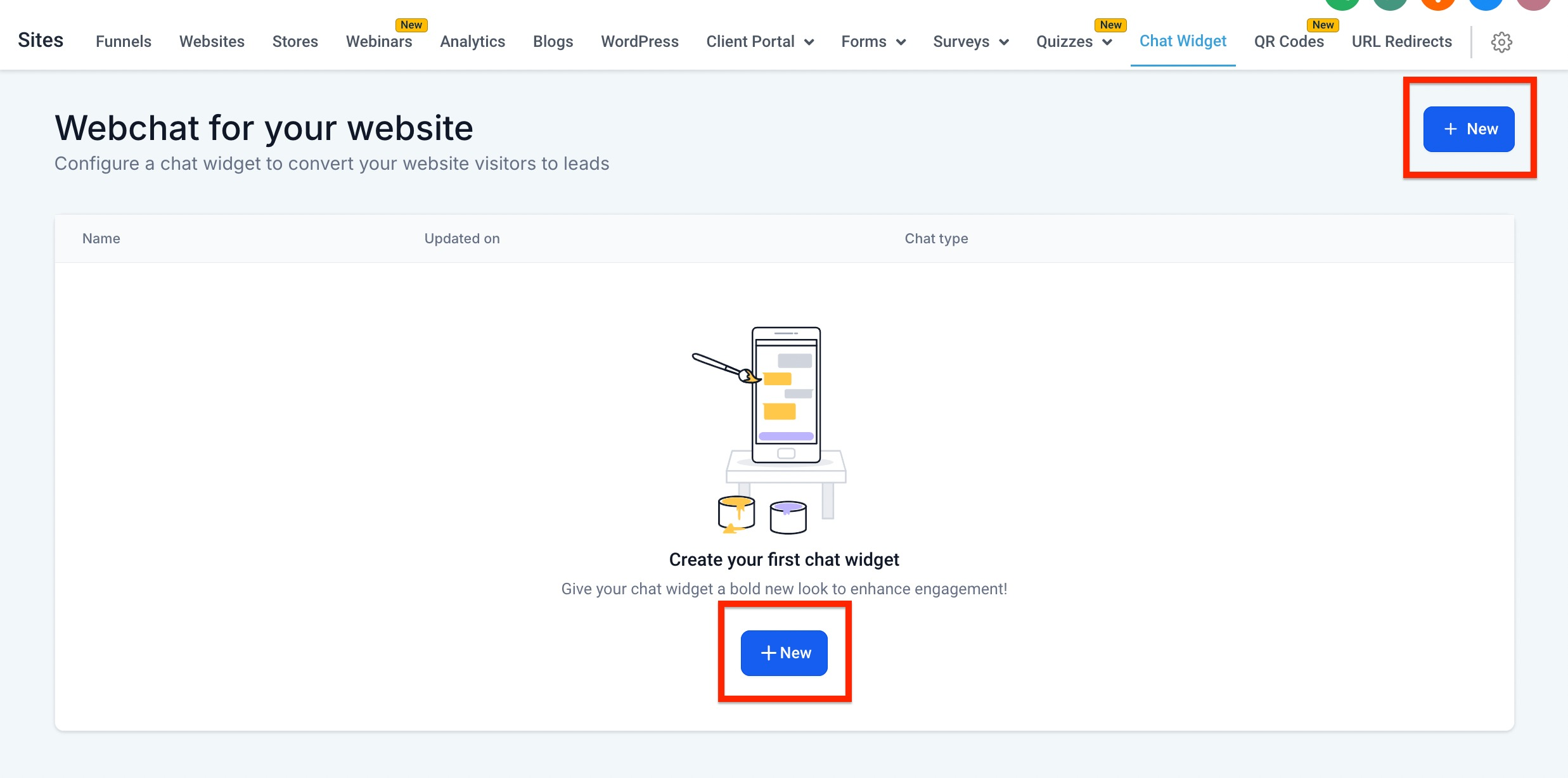
All settings for the widget are located under Sites > Chat Widget. From there you can create or edit a widget, choose WhatsApp as the chat type, select the destination number, and adjust appearance and prefilled text before deploying it.
03How businesses use the WhatsApp chat widget
- Business coach. The coach creates a widget, sets a prefilled message like “I’m interested in coaching sessions,” and adds the widget to their coaching portal. Prospects fill in their name and email, then click to start the WhatsApp chat, where the conversation is captured in HighLevel.
- Restaurant. The restaurant builds a widget that asks for reservation date and party size, then redirects diners to WhatsApp with a default message. The staff receives the WhatsApp messages and can manage the reservations through HighLevel Conversations.
- Ecommerce store. The store adds the widget to product pages, collects the shopper’s name and order reference, and preloads a question about the product. Shoppers click through to WhatsApp, and the sales team tracks the chats in HighLevel.
04Before you start
- A WhatsApp number must be configured and connected in the subaccount before you can use the WhatsApp Chat Widget.
05How to set up and use the WhatsApp chat widget in HighLevel
Set up the WhatsApp Chat Widget
- Navigate to Sites > Chat Widget.
- Create a new widget or open an existing one.
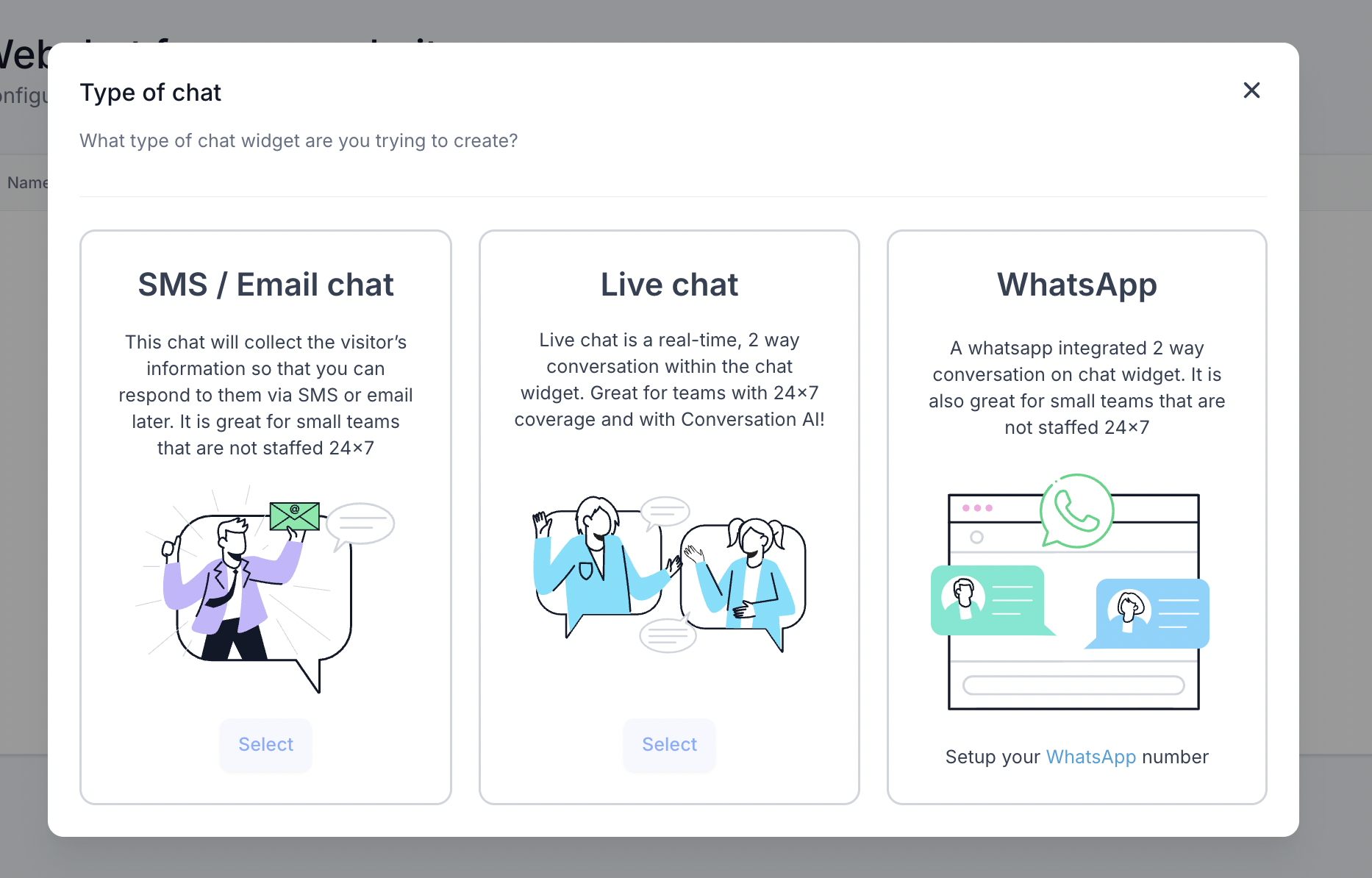
- Select WhatsApp Chat as the chat type.
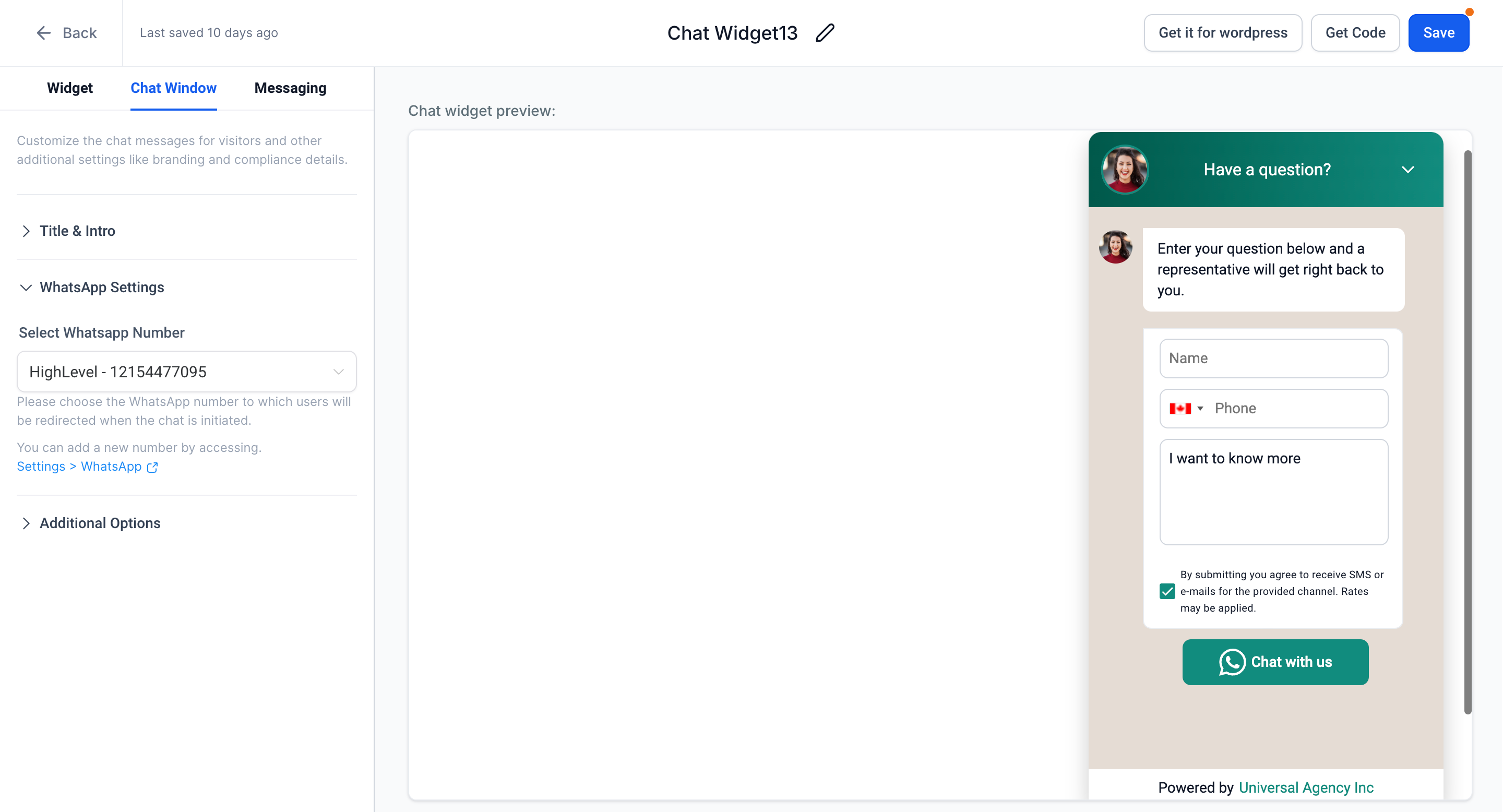
- Choose the WhatsApp number that visitors will contact.
- Adjust the widget’s appearance and the fields shown to visitors.
- Save the widget configuration.
- Remember that the WhatsApp experience depends on the visitor’s device, browser, and installed apps.
Install the widget on a HighLevel site
- Open the website or funnel where the widget will appear.
- Go to the site’s settings panel.
- Enable the previously created widget.
- Save the changes and publish the site.
Install the widget on an external site
- Open the widget’s installation options.
- Copy the generated embed code.
- Paste the code into the appropriate section of the external website.
- Publish the website updates.
- Test the live page to confirm the widget works.
06What it looks like in HighLevel
07Settings that matter
- Chat type. Determines which messaging channel the widget uses; selecting WhatsApp directs visitors to a WhatsApp conversation.
- WhatsApp number. Specifies the WhatsApp account that receives the visitor’s message after they click continue.
- Heading and welcome message. Sets the title and introductory text displayed in the chat window before the visitor proceeds.
- Colors and branding. Controls the visual style of the widget to match the business’s brand colors.
- Supported visitor information fields. Defines which pieces of visitor data (such as name or email) are collected within the widget.
- Message field. Provides the area where the visitor can type an initial message before being sent to WhatsApp.
- Prefilled Message. Offers a default message that appears in the Message field, which the visitor can keep or edit.
08Things to know before you rely on it
- The set of visitor information fields that appear can change depending on how the widget is configured.
- The experience of opening WhatsApp may vary based on the visitor’s device, browser, and installed applications.
- If WhatsApp is not available as a chat type or no destination number is set, the widget cannot be used.
09If something goes wrong
- WhatsApp is not listed as a chat type or no destination number appears. Verify that a WhatsApp number has been properly configured and connected in the subaccount.
- Widget does not appear on the site after installation. Confirm the widget was saved, enabled in the site settings, and that the site was republished.
- Conversation does not show up in HighLevel Conversations. Make sure the visitor actually sends a message in WhatsApp after being redirected.
10How it connects to the rest of HighLevel
- How to install and configure a HighLevel chat widget Install chat widget
- Add the HighLevel chat widget to a Wix website Wix integration
- HighLevel pricing and plans overview Pricing
Michael's take

Wondering if adding a WhatsApp button to your site actually moves leads into your inbox? The widget creates a clean handoff so visitors click, fill a quick form, and land in WhatsApp with a prefilled note. Once they hit send, the chat shows up in HighLevel Conversations where you can follow up like any other lead.
If I were setting it up, I’d first double check the WhatsApp number is linked in the subaccount, then spend a few minutes matching the widget colors to the site. After placing the embed code, I’d test on both desktop and mobile to see which app opens. That way you know the experience works before you start counting on it.