
01Who this is for
- Founders who run a Squarespace site and need a direct way to talk to visitors, because the widget adds live chat without external tools.
- Marketing managers aiming to capture leads from website traffic, since chat messages feed into HighLevel contacts.
02Chat widget, explained
The chat widget is a piece of JavaScript that creates a live chat window on a Squarespace website. When the code runs, visitors see a button or box they can click to start a conversation, and their messages are recorded inside HighLevel.
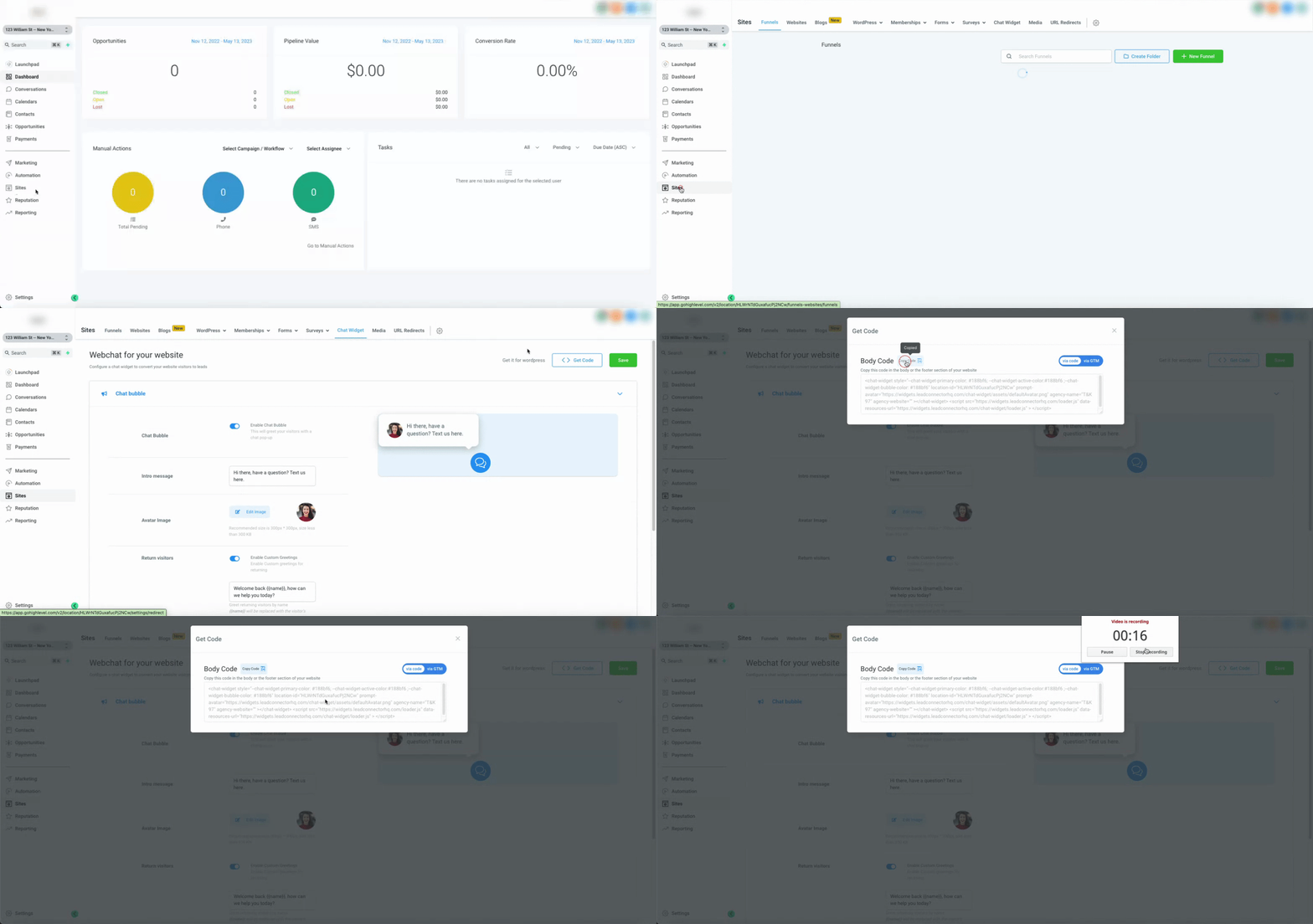
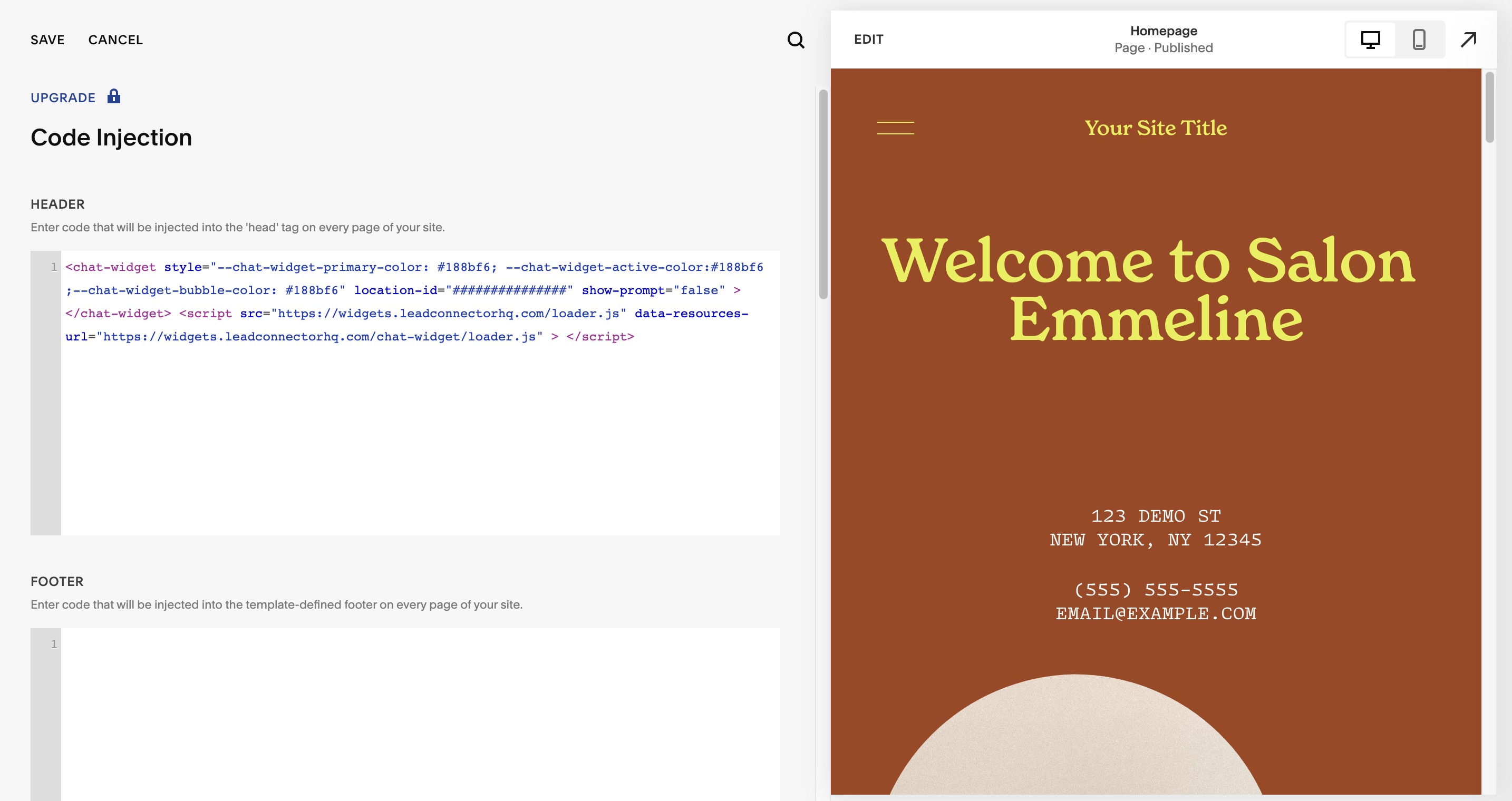
To use the widget, first copy its embed code from Sites > Chat Widget > Get Code. Then choose either a site wide placement via Code Injection or a page specific placement with an Embed block. Both methods paste the same code into a designated field and save the changes.
The widget appears wherever the code is inserted, either in the site header or footer for all pages, or inside the selected page block for a single location. After saving, preview the site to confirm the chat box shows up.
03How businesses use the chat widget
- Real estate agency. The agency adds the chat widget to property pages on Squarespace. Prospects click the chat to ask about listings, and their inquiries become contacts in HighLevel for follow up.
- Fitness studio. The studio places the widget on its class schedule page. Visitors can ask about membership options, and each message is captured as a lead inside HighLevel.
- Online tutoring service. The service embeds the widget on the homepage. Students type questions, which are logged in HighLevel so the team can respond and track new prospects.
04Before you start
- Obtain the chat widget embed code via Sites > Chat Widget > Get Code.
05How to set up and use the chat widget in HighLevel
Add chat widget using Code Injection (8 steps)
- Obtain the chat widget code as described above.
- Log in to Squarespace and open the desired website.
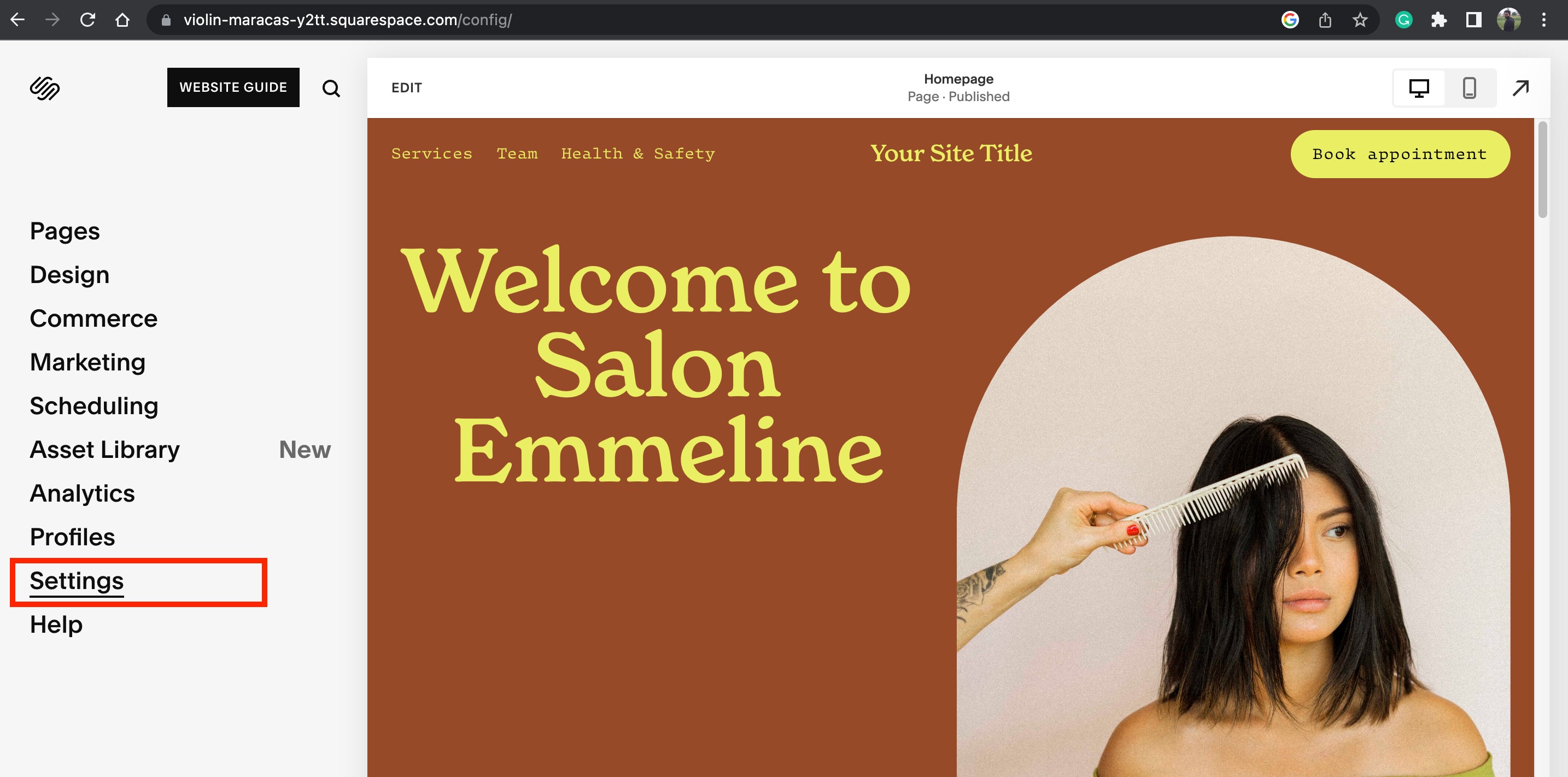
- Click Settings in the main menu.
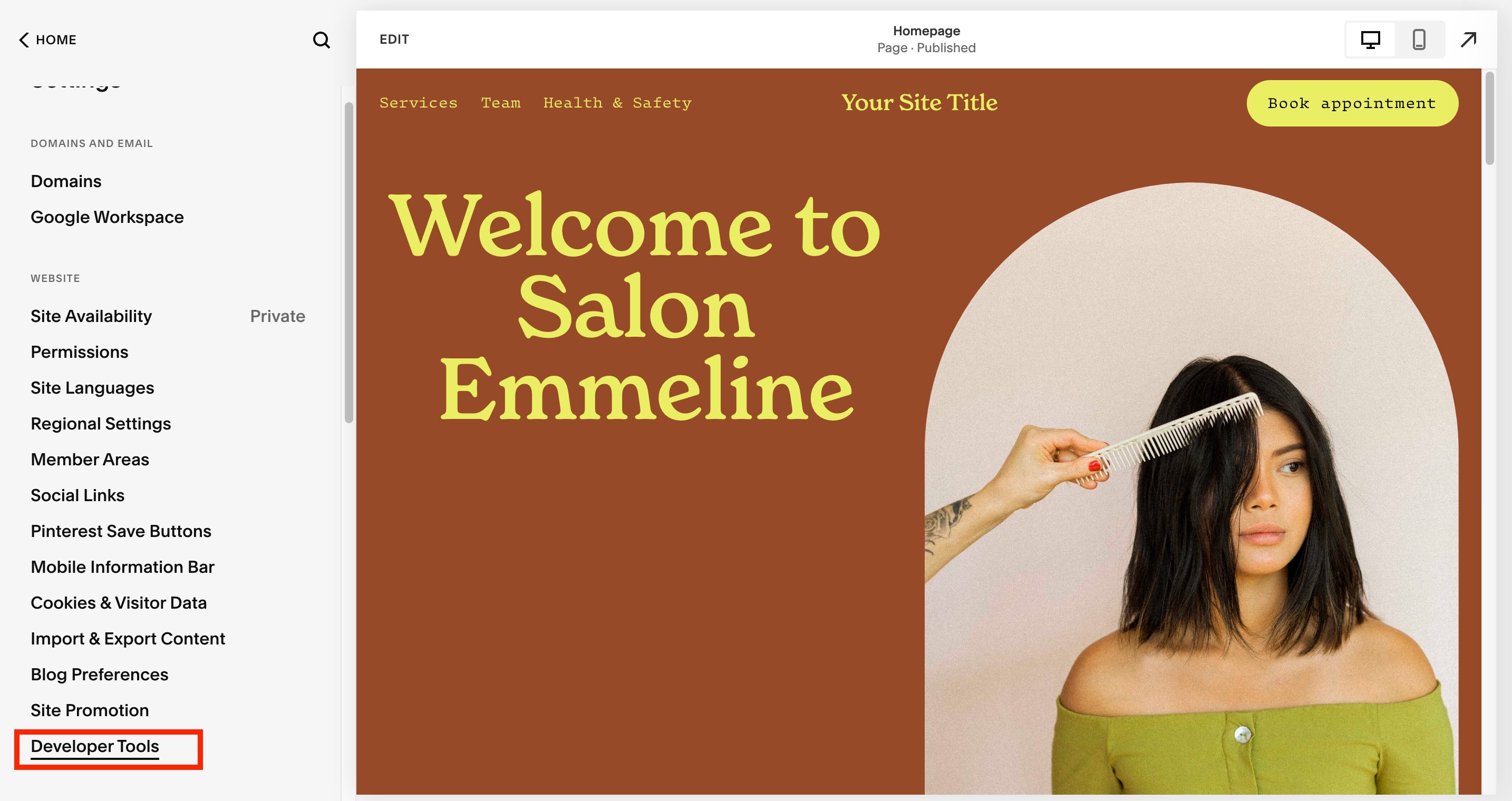
- Select Developer Tools under the Website section.
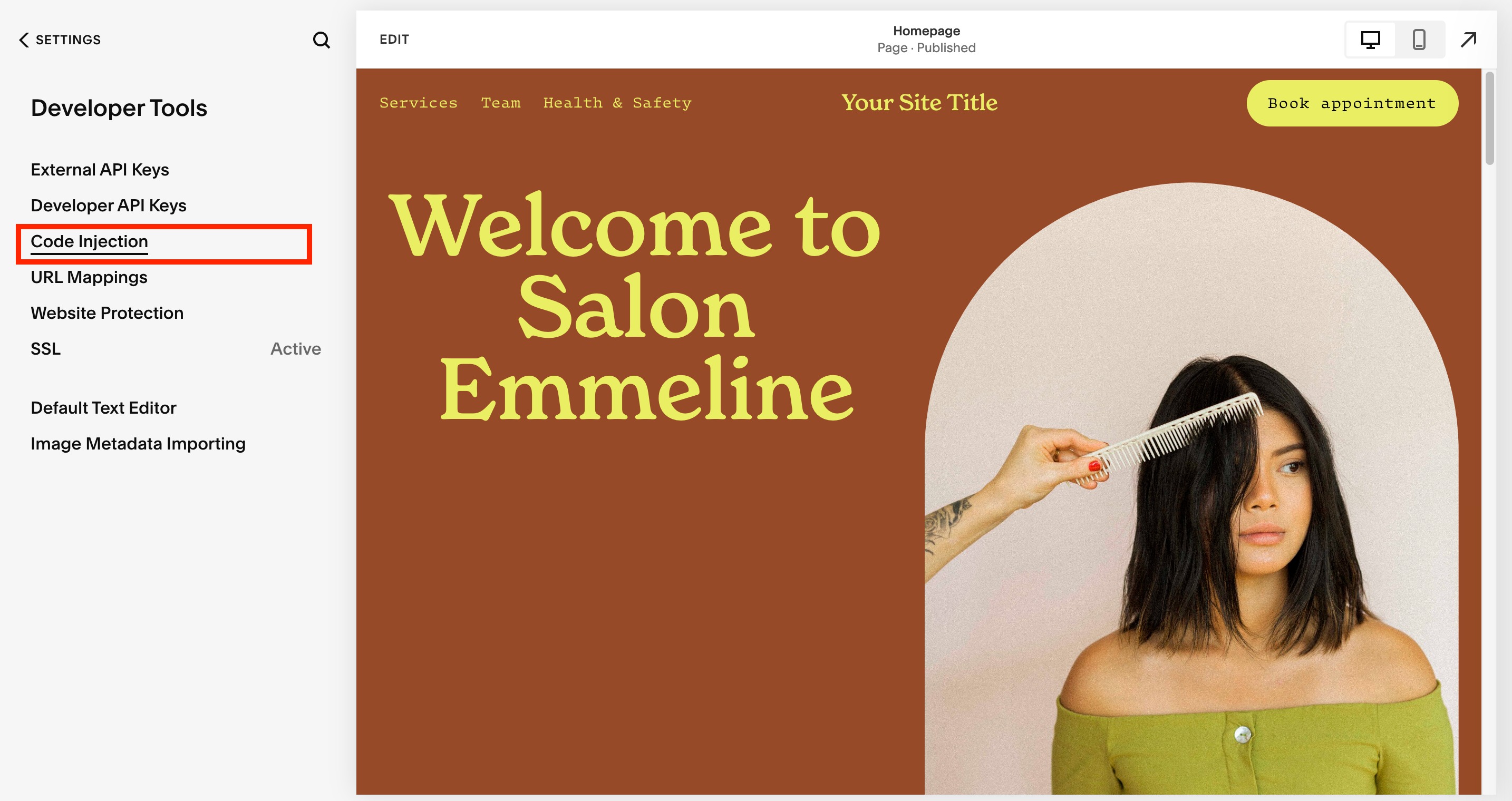
- Open Code Injection.
- Paste the chat widget code into the Header or Footer field.
- Click Save to store the changes.
- Preview the website to ensure the widget appears correctly.
Add chat widget using an Embed Block (6 steps)
- Log in to Squarespace and navigate to the page where the widget will be placed.
- Open the page editor and choose the section for the widget.
- Click the plus icon to add a new content block.
- Select Embed from the drop down menu.
- Paste the chat widget code into the Code Snippet field.
- Click Apply and preview the page to confirm the widget displays.
06What it looks like in HighLevel
07Settings that matter
- Get Code. Retrieves the JavaScript snippet needed to display the HighLevel chat widget.
- Header. Designates the part of the site where the widget code runs, affecting all pages.
- Footer. Alternative placement for the widget code, also affecting all pages.
- Code Snippet. Field inside an Embed block where the widget code is inserted for a single page.
08How it connects to the rest of HighLevel
- Installing HighLevel chat widget and configuring its workflow Install chat widget
- How to set up HighLevel chat widget tracking with GA4 GA4 tracking
- HighLevel pricing and plans Pricing
Get More InformationOpens on HighLevelPublished November 2, 2026 · Updated November 16, 2026