
01Who this is for
- Admins who need to organize many automations across departments, because nested folders give a clear hierarchy.
- Marketing teams that run multiple campaign automations, as they can separate each campaign into its own folder tree.
02Nested folders, explained
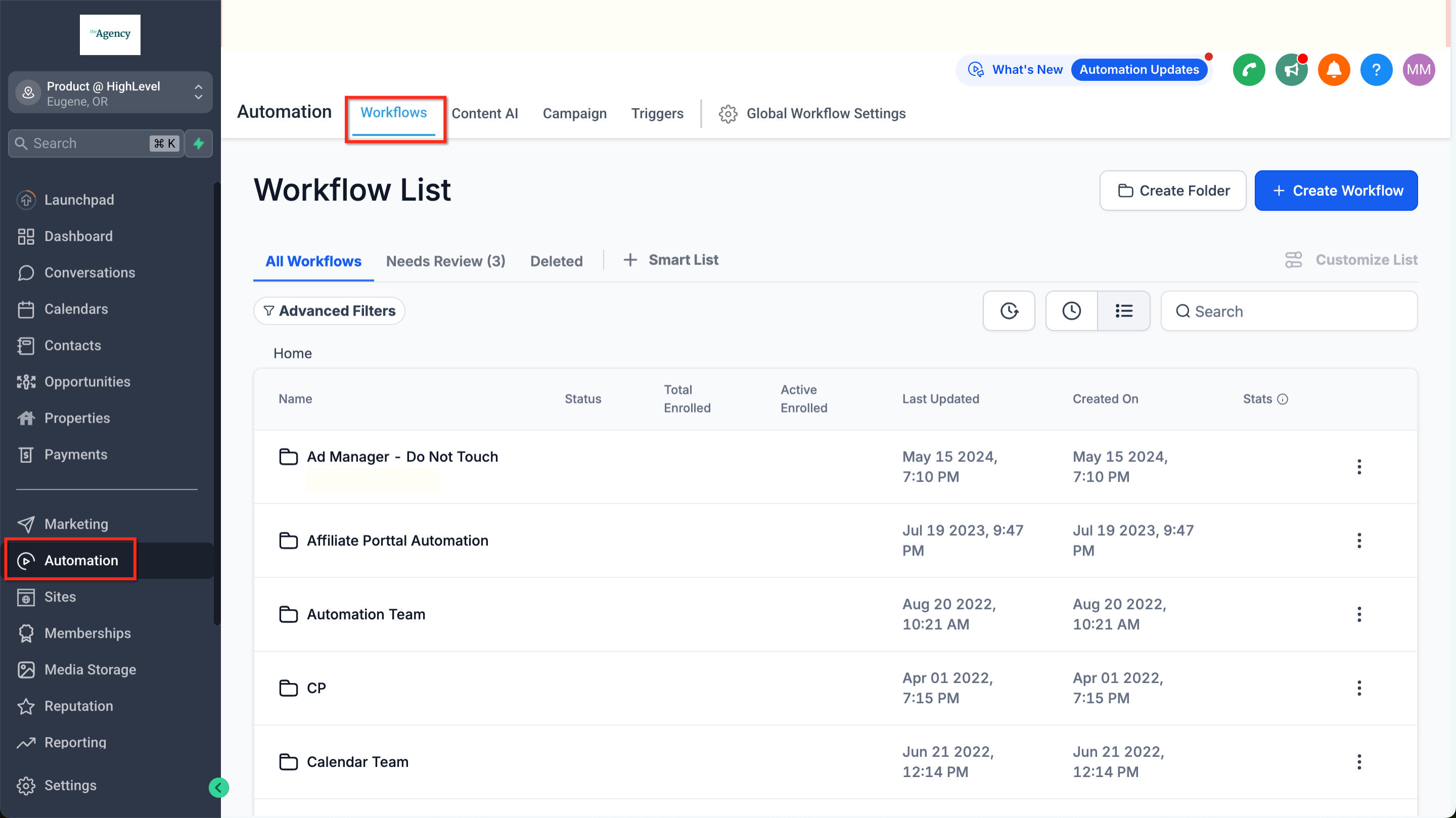
Nested folders are a way to group workflows inside other folders, creating a multi level hierarchy. This structure replaces a flat list of workflows with a tree view, helping users locate automations faster. The feature lives in the Automations > Workflows area of HighLevel.
You can create a top level folder, then open it to add sub folders, and repeat as needed. Each folder can contain workflows or additional folders. Moving a folder or workflow re parents it, and renaming updates its label. Deleting a folder lifts its contents one level up, preserving the workflows inside.
Permissions for folders follow role based rules. Admins have full control, while sub users may receive view only or limited edit rights, inherited from parent folders unless overridden.
03How businesses use nested folders
- Digital marketing agency. The agency creates a top level folder for each client and nests folders for individual campaigns. Team members move campaign workflows between client folders as projects evolve, and rename folders to reflect new branding. Deleting an old campaign folder lifts its workflows, keeping them accessible.
- Real estate brokerage. The brokerage groups workflows by sales stage, lead capture, nurturing, closing, using nested folders. Agents relocate a lead nurture workflow to the closing folder when a deal advances, and rename folders to match regional naming conventions. Unused folders are removed without losing the underlying automations.
- Healthcare clinic. The clinic organizes patient onboarding and appointment reminder workflows in nested folders by department. Staff move a reminder workflow into a specific department folder for targeted messaging, rename folders when services change, and delete obsolete department folders while retaining the workflows.
04The numbers and rules that matter
- There is no fixed limit on the number of folders you can create.
- A maximum of 2 to 3 levels of nesting is recommended.
05How to set up and use nested folders in HighLevel
Create a nested folder
- Navigate to Automations > Workflows.
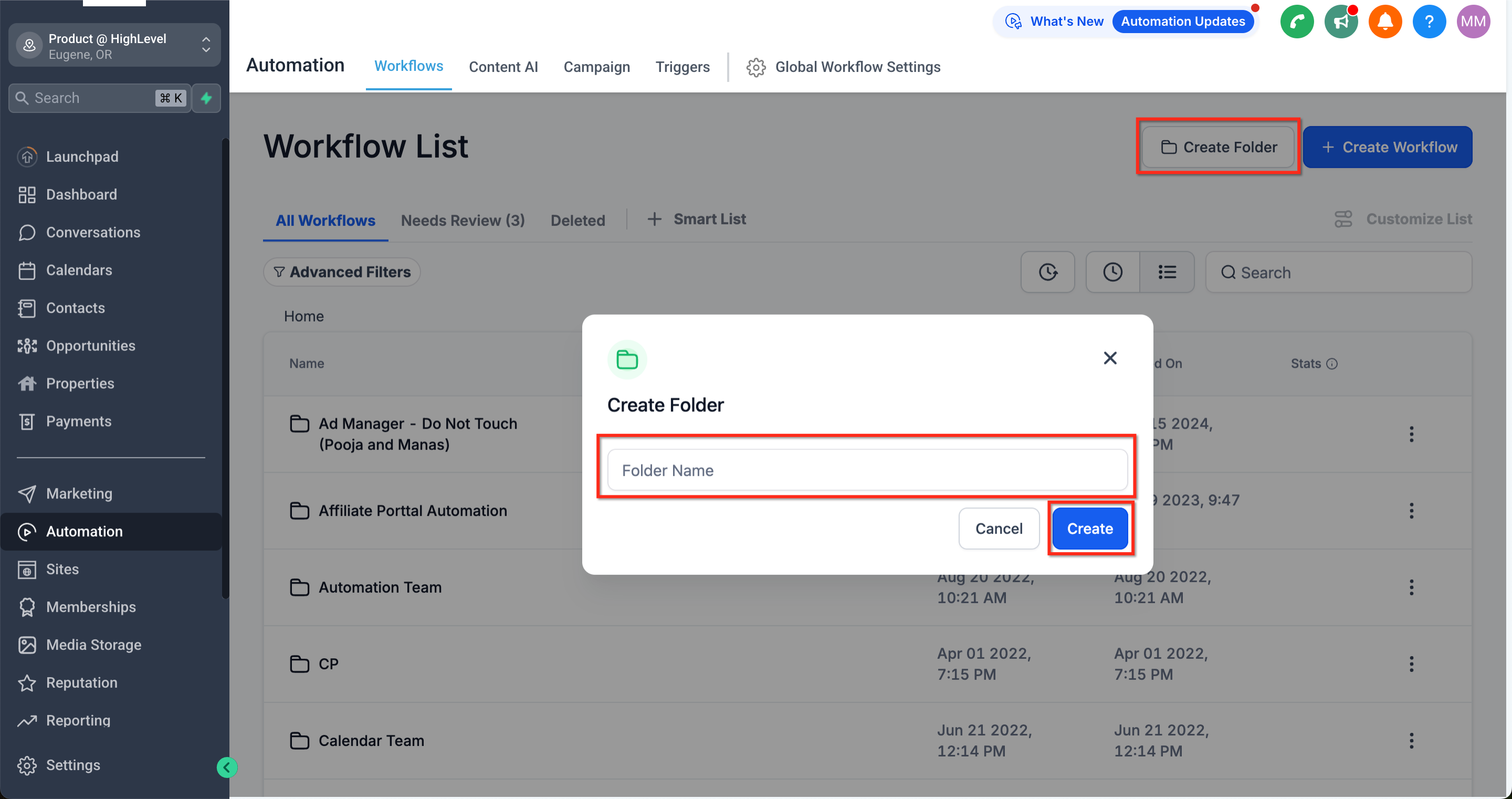
- Click the Create Folder button, type a name, and click Save.
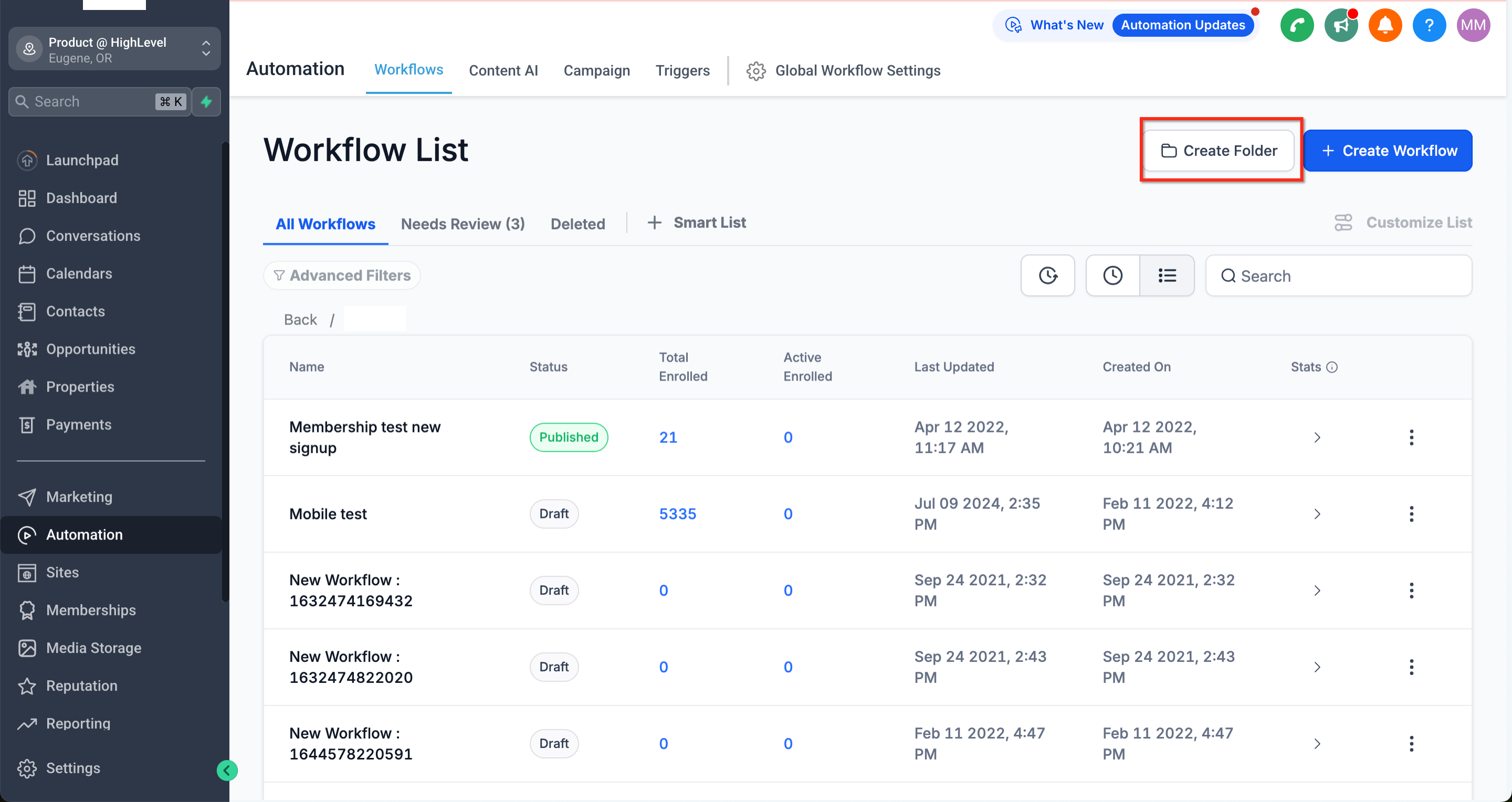
- Open the folder where the new sub folder will live.
- Click Create Folder again, enter a name for the nested folder, and click Save.
Move a workflow or folder
- Find the workflow or folder you want to move.
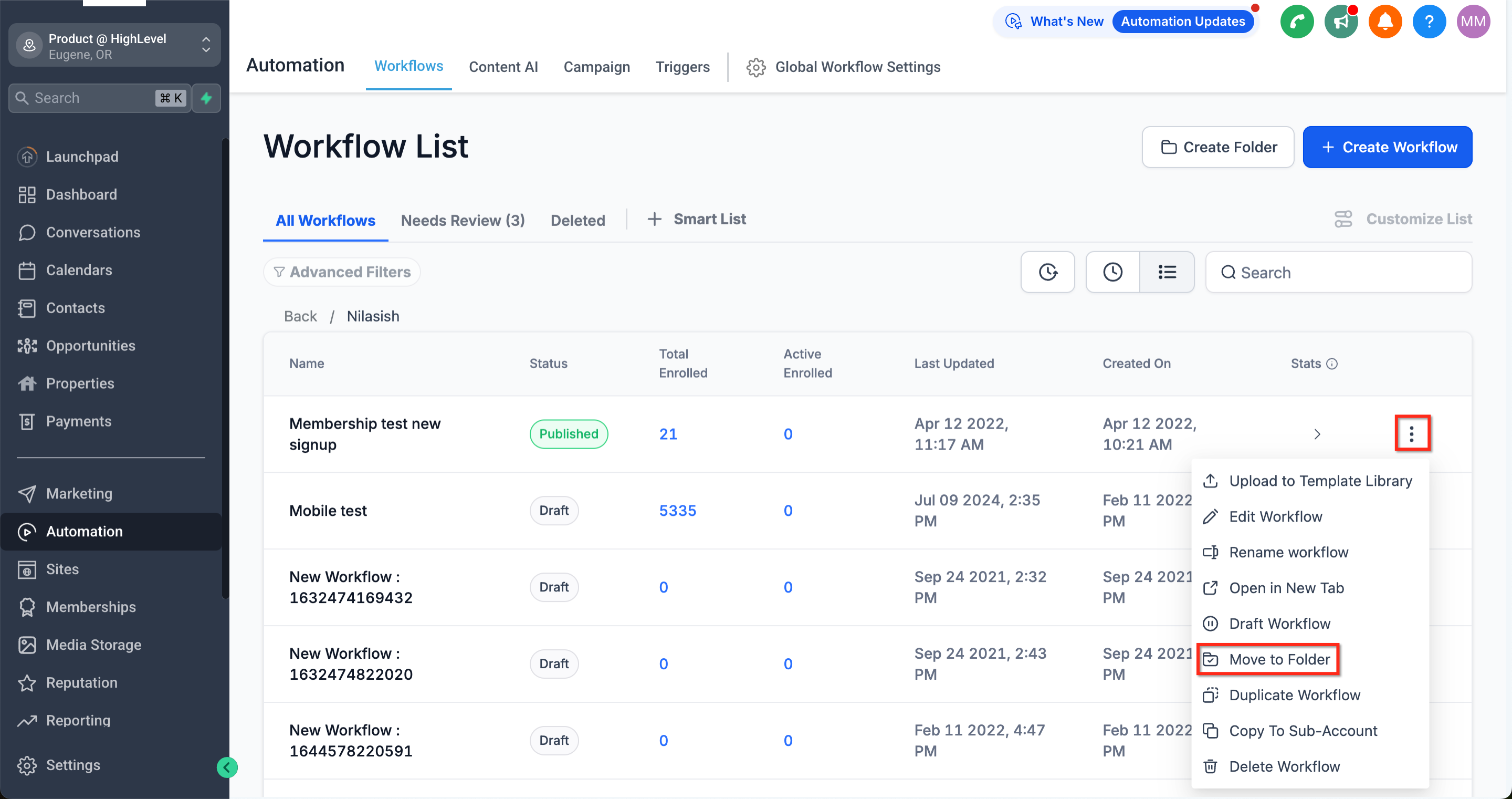
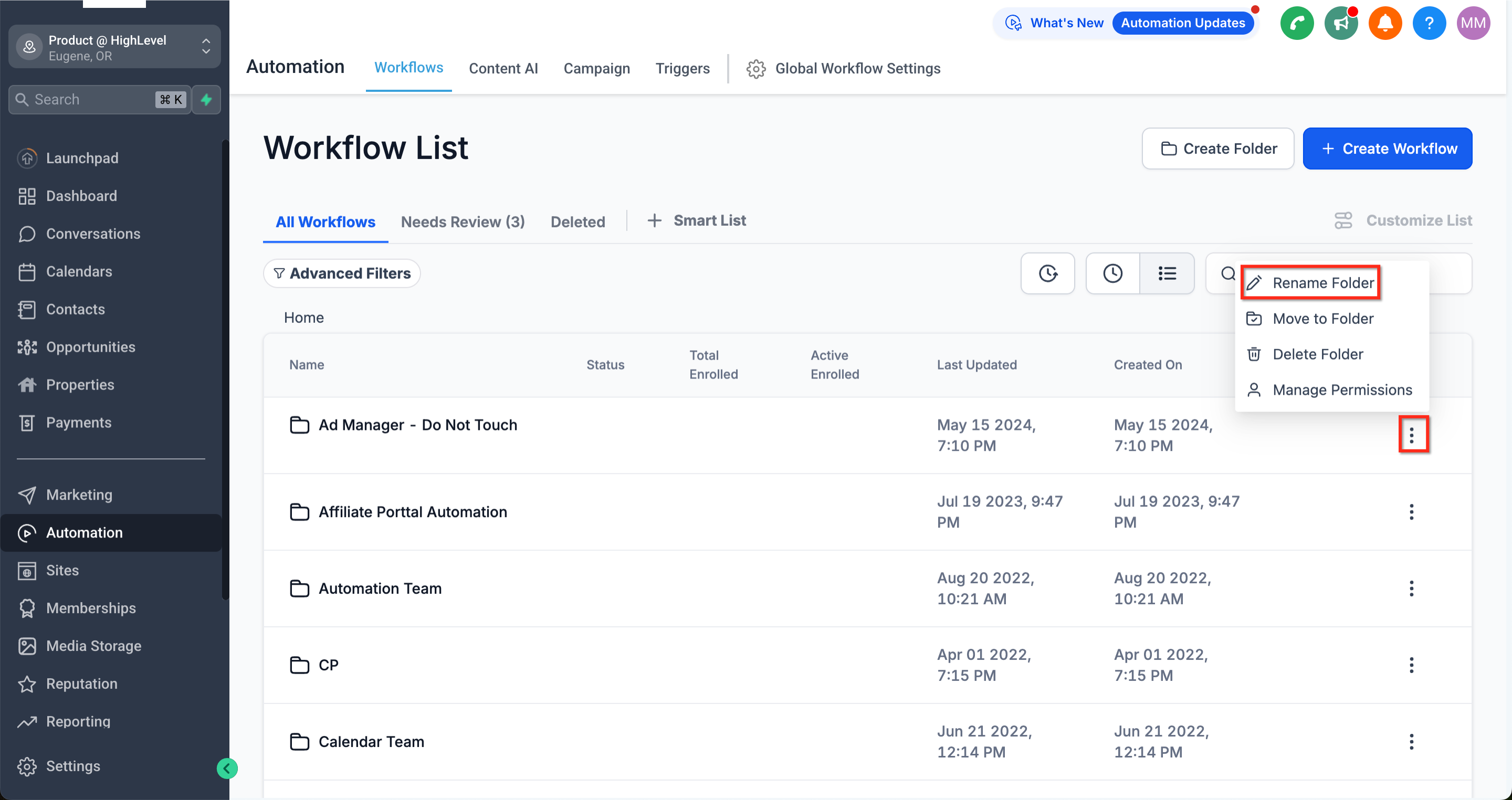
- Click the three dot menu on the right side of its line.
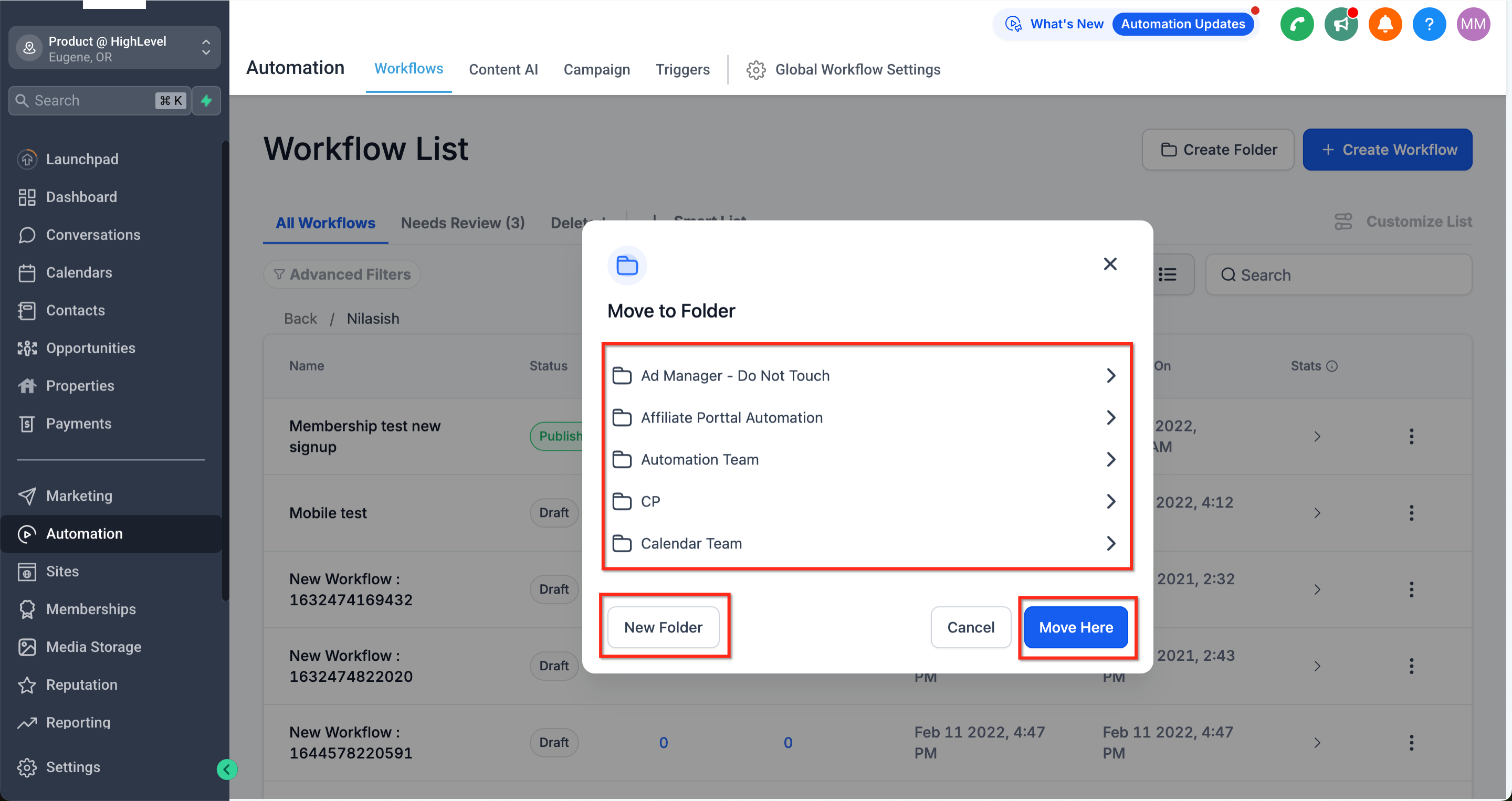
- Select Move To Folder from the menu.
- In the modal, browse to and select the target folder.
- Click Move Here, or create a new folder before moving.
Rename a workflow or folder
- Locate the folder you wish to rename.
- Open the three dot menu next to it.
- Choose Rename Folder.
- Enter the new name and click Save.
Delete a folder
- Click the three dot menu beside the folder.
- Select Delete Folder.
- Confirm by clicking Delete.
06What it looks like in HighLevel
07Settings that matter
- Role Based Access. Controls which user roles can view, edit, or manage folders and their contents.
- Inherited Permissions. Determines whether a sub folder automatically receives the same access rights as its parent.
- View Only vs. Full Control. Sets whether a user can only see folder contents or can also create and edit workflows inside.
08Things to know before you rely on it
- There is no fixed limit on the number of folders you can create, but keeping the hierarchy shallow improves navigation.
- A maximum of two to three folder levels is recommended for easy access.
- Deleting a folder does not delete its inner folders or workflows; they move up one level.
- When a folder is moved, its permissions may stay the same or adjust based on the new location.
09How it connects to the rest of HighLevel
- Getting started with HighLevel workflows Workflow basics
- HighLevel workflow automation: basics and set up guide Workflow guide
- Understanding HighLevel Workflow Pro Plan pricing tiers Workflow pricing
- HighLevel workflow AI Builder: create and edit automations AI Builder
- Start a 30 day HighLevel trial Free trial
Michael's take

Nested folders give a small business a clean way to keep dozens of automations tidy, so you can find the right workflow without scrolling forever.
Don’t bury a critical workflow too deep; keep the hierarchy shallow so the team can locate it quickly.