
01Who this is for
- Agency owners who need to spin up client automations quickly, because the AI builds full workflows from a single description.
- Small business Founders who want to use existing forms and pipelines without manually configuring each step.
- Marketing teams that require consistent email or SMS sequences and prefer a fast way to generate them from natural language.
02Workflow AI Builder, explained
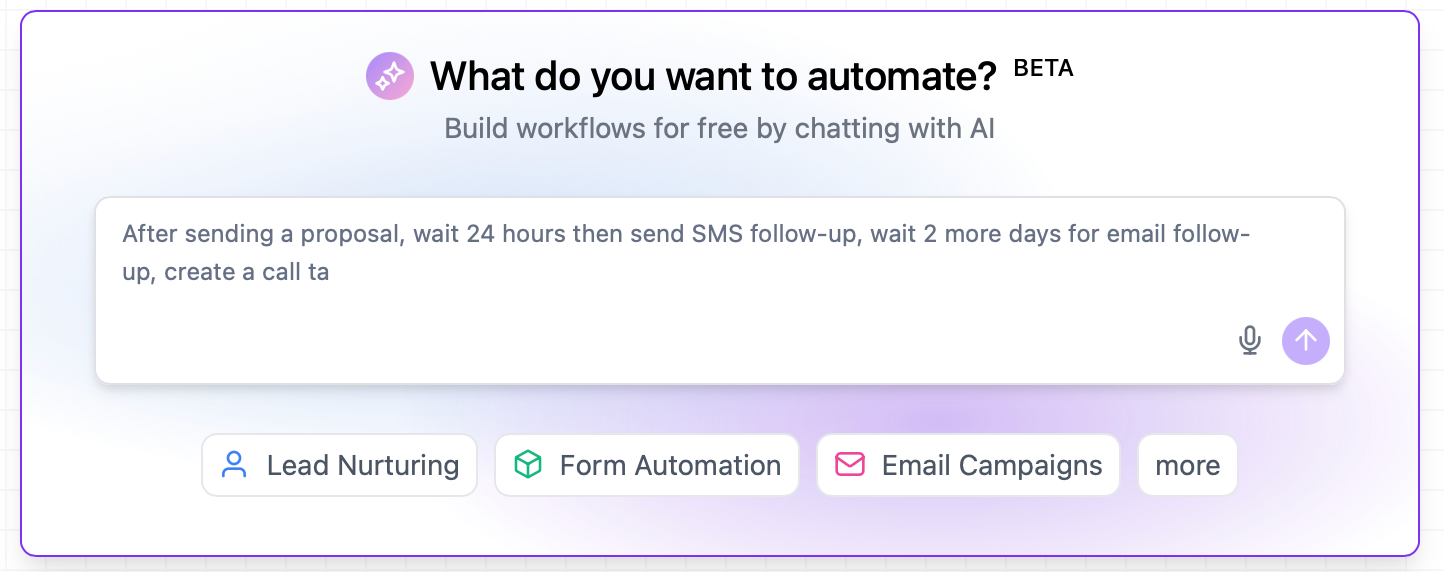
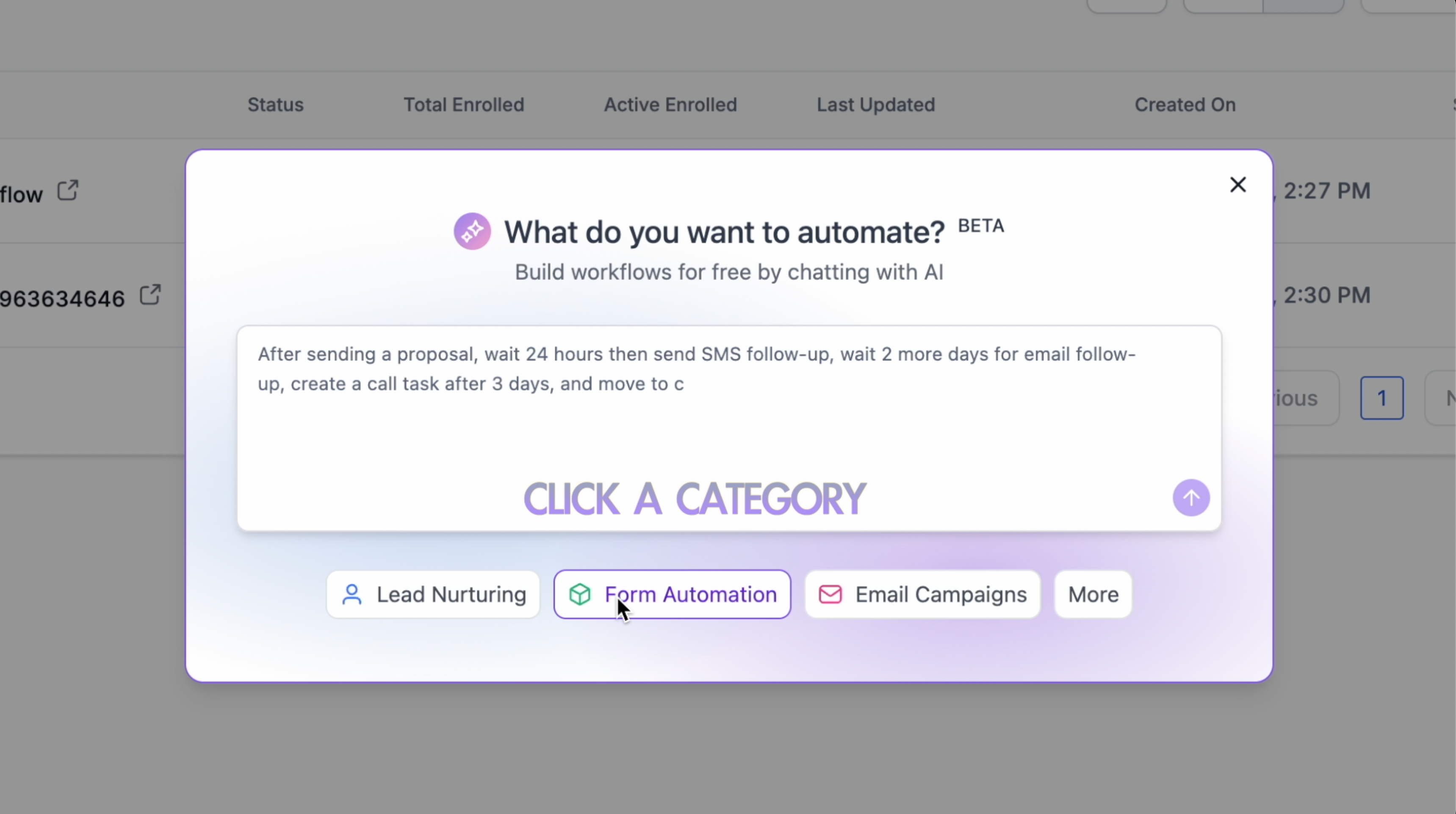
Workflow AI Builder is a feature in HighLevel that converts a textual prompt into a ready to use automation. You describe the goal, optional settings and exact record names, and the AI creates triggers, actions and the overall flow in a single operation while showing a live streaming progress view. The generated workflow appears on the canvas where you can review each step, verify that the correct form, pipeline stage, email snippet, tag or custom field was used, and make conversational edits. Edits can add, remove, replace or move actions, adjust triggers, or modify If/Else and Wait branches. You can also target a specific set of steps with Point and Edit or apply a bulk change across matching actions. All AI generated changes are saved automatically when autosave is on, and you can undo or redo the latest AI edit with standard keyboard shortcuts. A post generation To Do list highlights any required manual inputs before the workflow can be published.
03How businesses use Workflow AI Builder
- Real estate brokerage. The broker types a prompt like “when a lead submits the property inquiry form, create a new opportunity in the Sales pipeline at New Lead and email the listing details.” The AI finds the existing inquiry form, pipeline and email template, builds the workflow, and the broker reviews the steps before activating it.
- Online fitness studio. The studio manager asks the AI to “send a welcome video and a 3 day follow up SMS after a new member signs up via the membership form.” The builder matches the membership form and existing video snippet, creates the trigger and actions, and the manager confirms the SMS timing.
- SaaS startup. The product team prompts, “when a trial user schedules a demo, wait 24 hours then send a reminder email and tag the contact as ‘Demo Scheduled’.” The AI identifies the calendar event, adds a wait step, configures the email action and the tag, and the team fine tunes the wait duration via a conversational edit.
04The numbers and rules that matter
- AI Builder v3 streams results in real time.
- Average workflow generation time is under 30 seconds.
- Clarifying Agent may ask up to three questions before proceeding.
05Before you start
- Existing records such as forms, pipelines, stages, email snippets, tags, users, workflows or custom fields must already be created and named exactly as they appear in the account.
06How to set up and use Workflow AI Builder in HighLevel
Build a workflow with AI
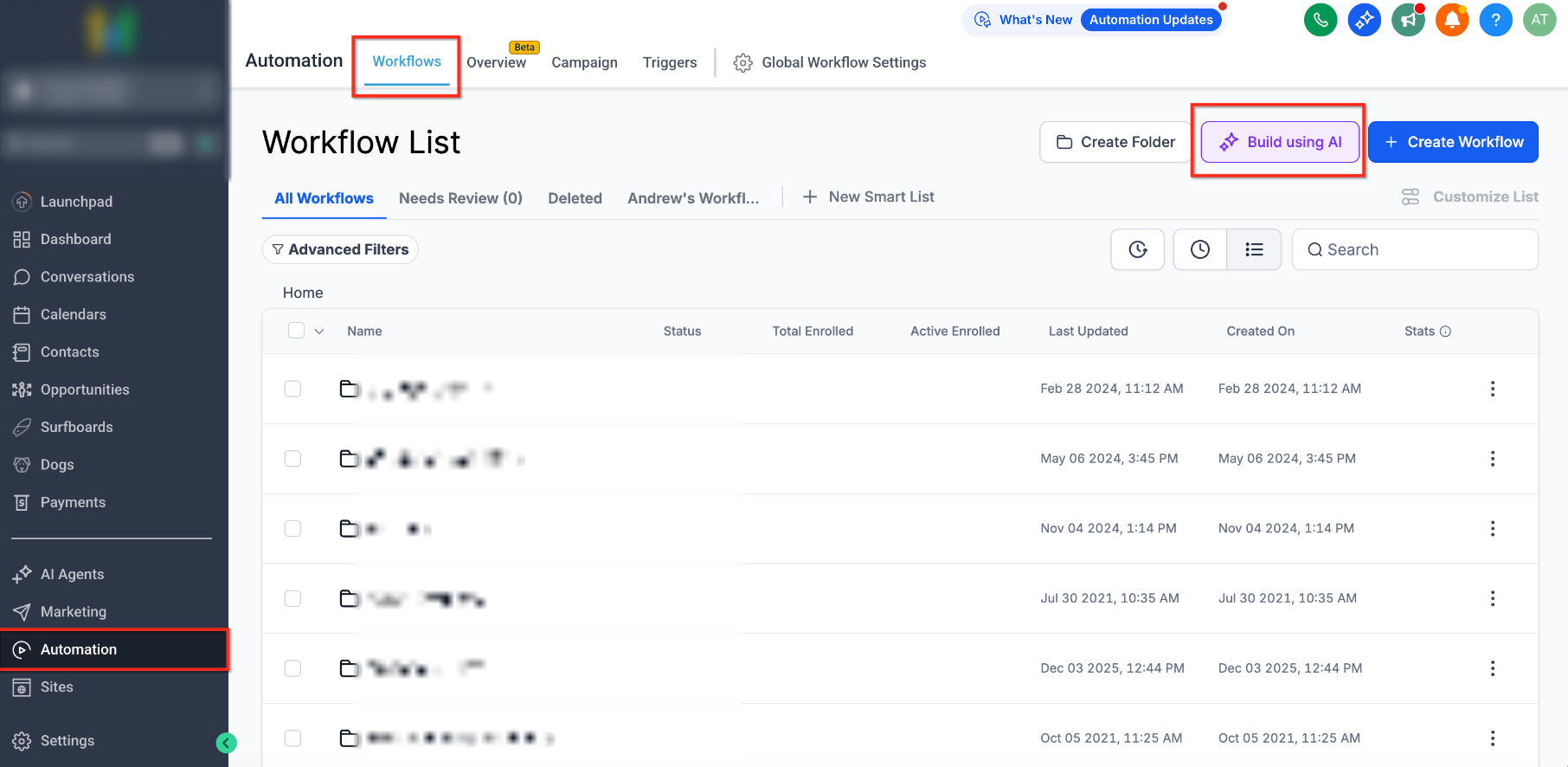
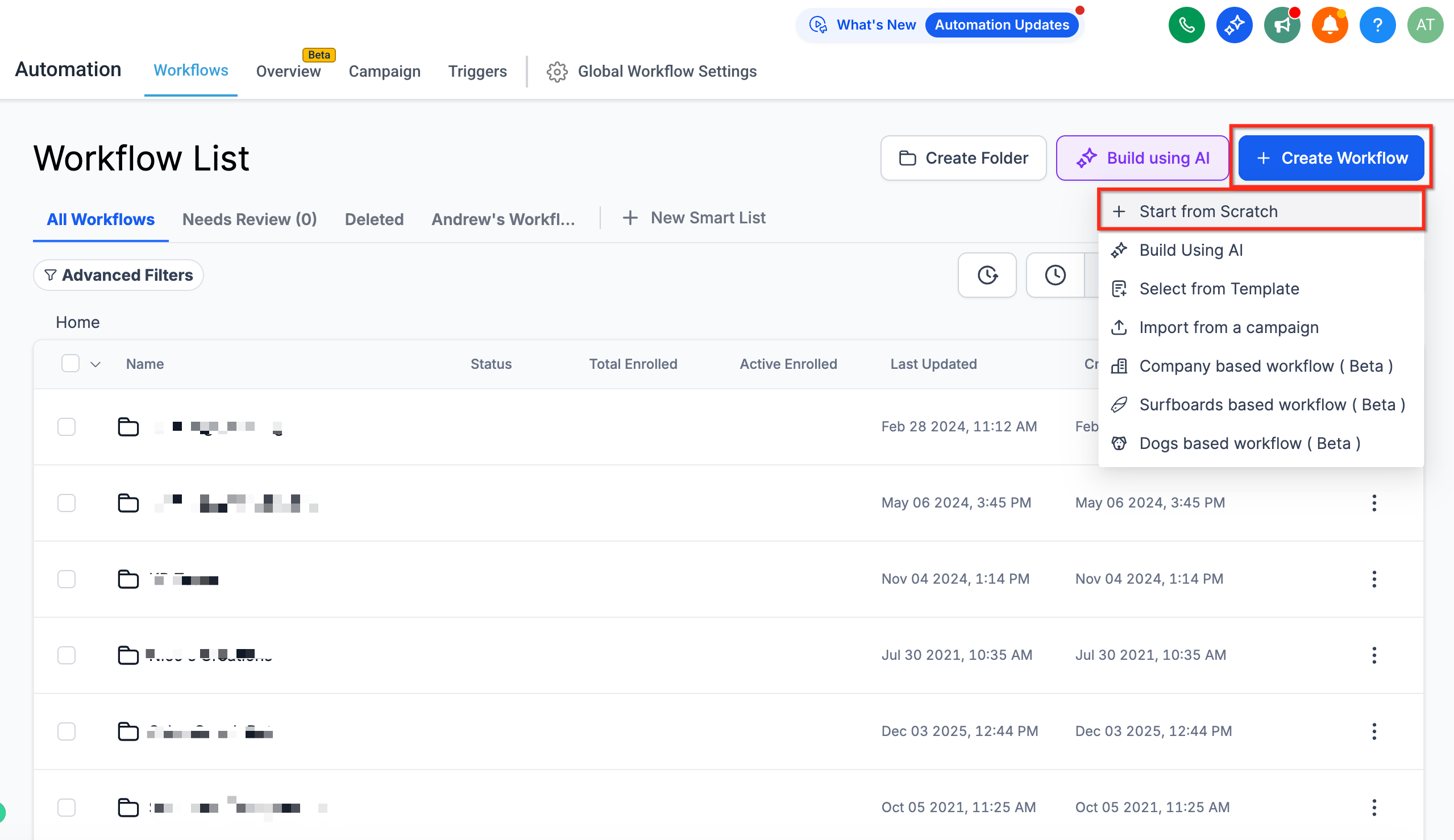
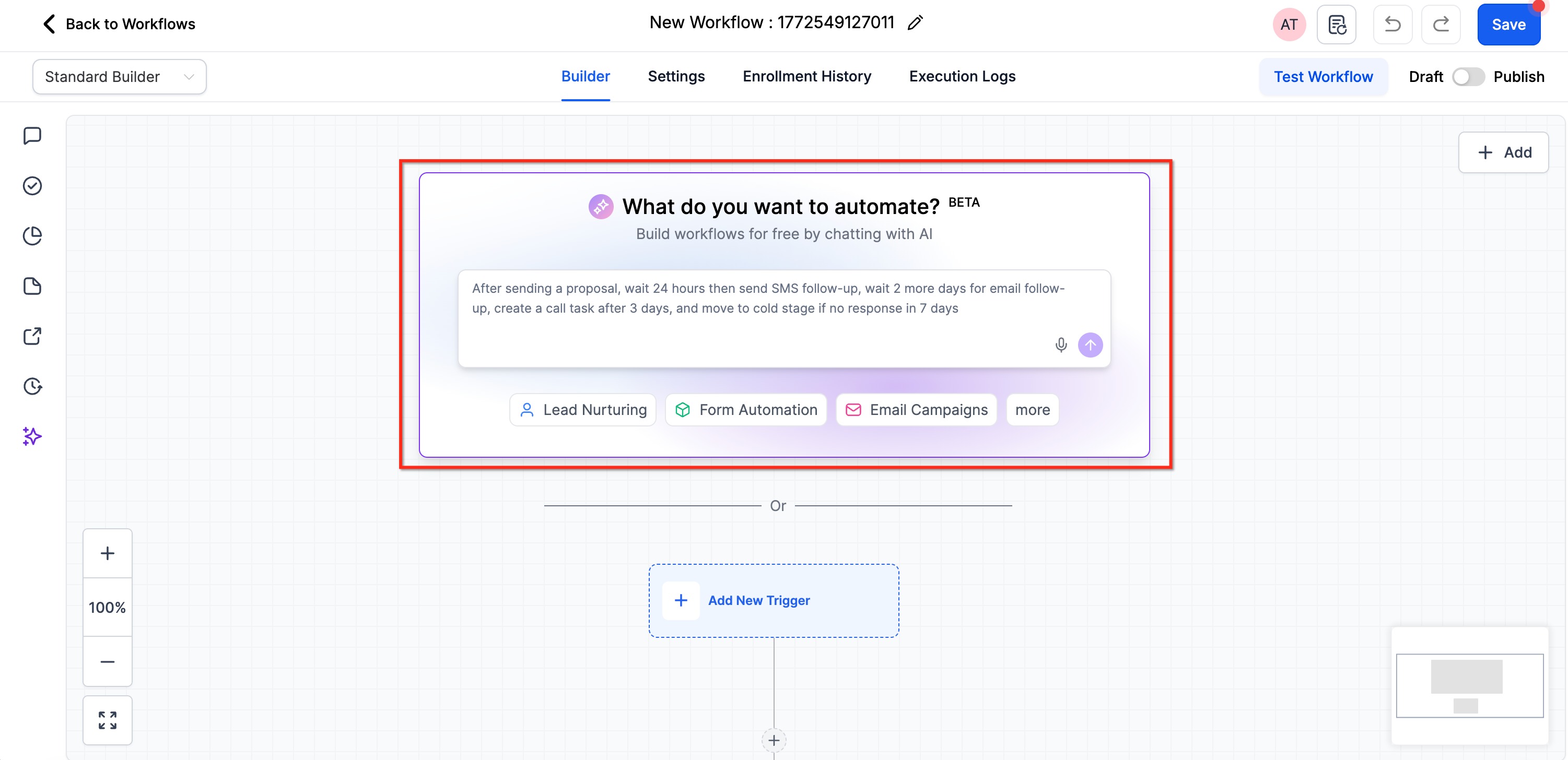
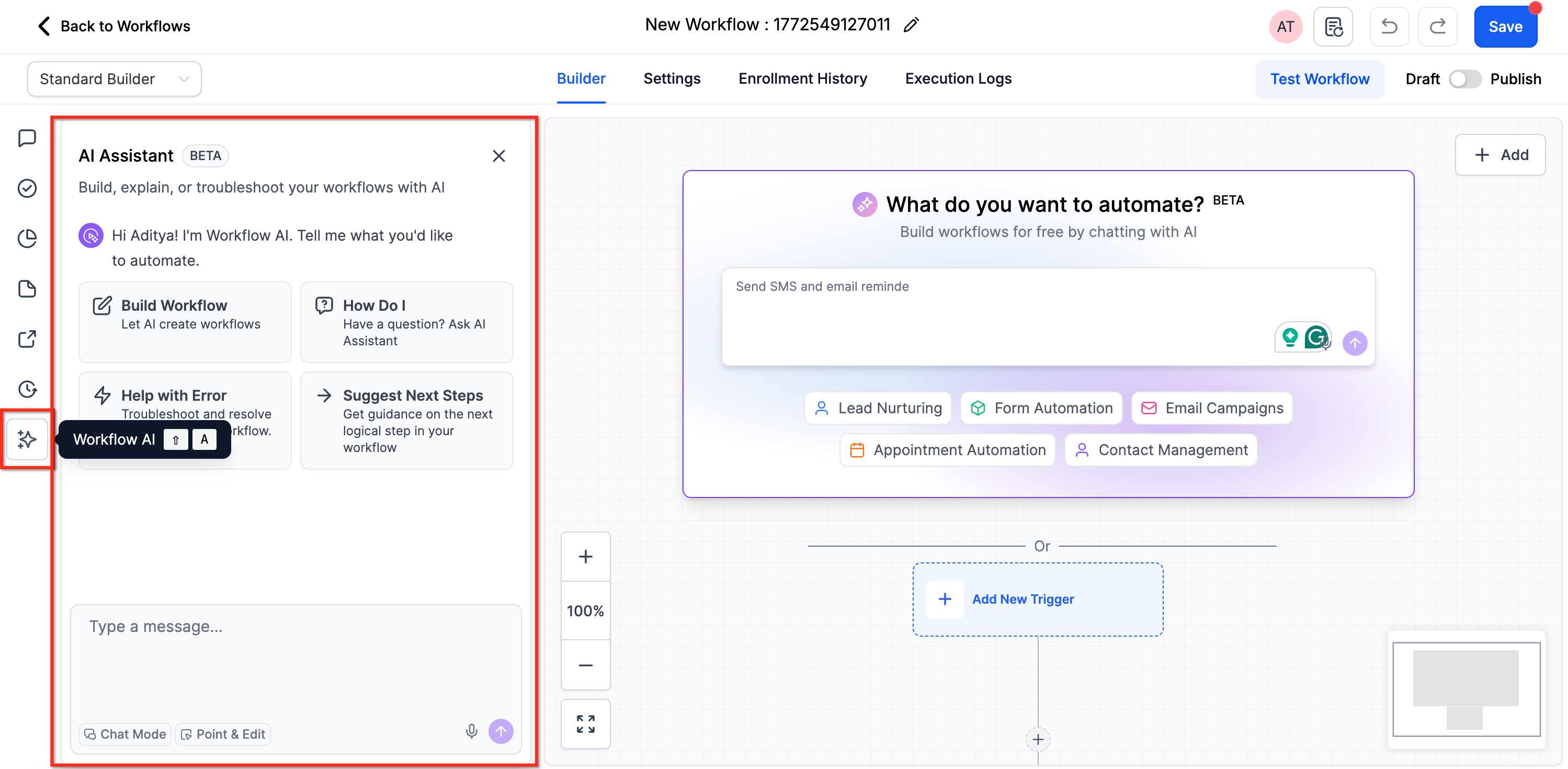
- Open the AI Builder from the Workflow List page (Automation > Workflows > Build using AI button), from the AI prompt box inside the builder, or from the AI chatbot assistant.
- If you use the prompt box, you can type or dictate a plain language description of the desired automation; voice dictation is also supported.
- Add optional details such as the workflow name, sender information, apps to use, data linking instructions, and the exact names of records.
- Click the Build Workflow button (or Send) to submit the request.
- A loader with live streaming progress cards appears; generation typically completes in under 30 seconds.
- If the canvas already contains a workflow, the AI panel asks for confirmation before starting a fresh workflow.
- When the process completes, view the new workflow on the canvas.
- Review the overall structure, confirm each trigger and action, and verify that named records were matched.
- If needed, refine the draft with conversational edits in the AI chatbot before publishing.
Edit a workflow using AI
- Open the existing workflow in the workflow builder.
- Activate the AI panel if it is not already visible.
- Enter a natural language instruction describing the change and define its scope (all matching steps, a specific number, or particular actions).
- Submit the instruction; the AI updates only the targeted steps.
- Review the modified workflow to ensure the edit matches the intent.
- Press Ctrl+Z (Windows) or Cmd+Z (Mac) to undo, or Ctrl+Y / Cmd+Y to redo the AI generated change.
Answer clarifying questions
- When the AI detects missing details, it presents up to three clarifying questions.
- Read each question displayed in the AI panel.
- Select one of the provided answers, type a custom response, or skip to let the AI decide.
- After all questions are addressed, the AI proceeds to generate or edit the workflow with the added context.
07What it looks like in HighLevel
08Settings that matter
- Allow Re, entry. Controls whether contacts can re enter the same workflow after completing it.
- Allow multiple Opportunities. Determines if the workflow can create more than one opportunity per contact.
- Stop on Response. Stops further actions when a contact replies to a message.
- Timezone and Time Window (business hours). Sets the time zone and allowed hours during which workflow actions may execute.
- Sender Details (From Name, From Email, From Number). Specifies the sender identification used in email and SMS actions.
- Conversations, Mark as Read. Marks incoming conversations as read when the workflow processes them.
- Workflow name. Defines or renames the workflow title.
09Things to know before you rely on it
- Workflow AI Builder is in beta; manual review of triggers, actions and configurations is required before publishing.
- Complex configurations may need manual adjustments after AI generation.
- The AI cannot execute tests; users must manually test the workflow.
- The feature may ask up to three clarifying questions when prompts lack sufficient detail.
10If something goes wrong
- First draft does not match expectations. Refine the prompt by adding more detail or split the goal into smaller parts, then regenerate.
- Wrong trigger created. Specify the exact trigger type in the prompt or edit the trigger using a conversational AI instruction.
- Missing actions in the workflow. List the desired actions explicitly in the prompt or add them later with a conversational edit.
- Incorrect timing for a wait step. Provide a precise time reference such as “after 2 days” in the prompt or update the wait attribute via AI.
- Wrong record selected for a step. Use the exact record name as it appears in the account or correct the step with a conversational edit.
11How it connects to the rest of HighLevel
- Learn the basics of HighLevel workflow automation. Workflow basics
- Review the pricing tiers for the Workflow Pro Plan. Pro Plan pricing
- Find out how to enable and rebill workflow premium features. Enable premium features
- Start a 30 day trial of HighLevel. Free trial
- Read about the HighLevel Founder Plan for agencies. Founder Plan
Michael's take

Workflow AI Builder is overkill for simple automations that you can set up in a few clicks.
If you are comfortable building workflows manually, you can skip it.