
01Who this is for
- Founders who need a single place for workflow documentation, ensuring every team member sees the same instructions.
- Marketing managers who coordinate multi step campaigns and want to add step specific guidance without leaving the builder.
- Support leads who train new agents and require visual reminders on the workflow canvas.
02Workflow notes, action notes & sticky notes, explained
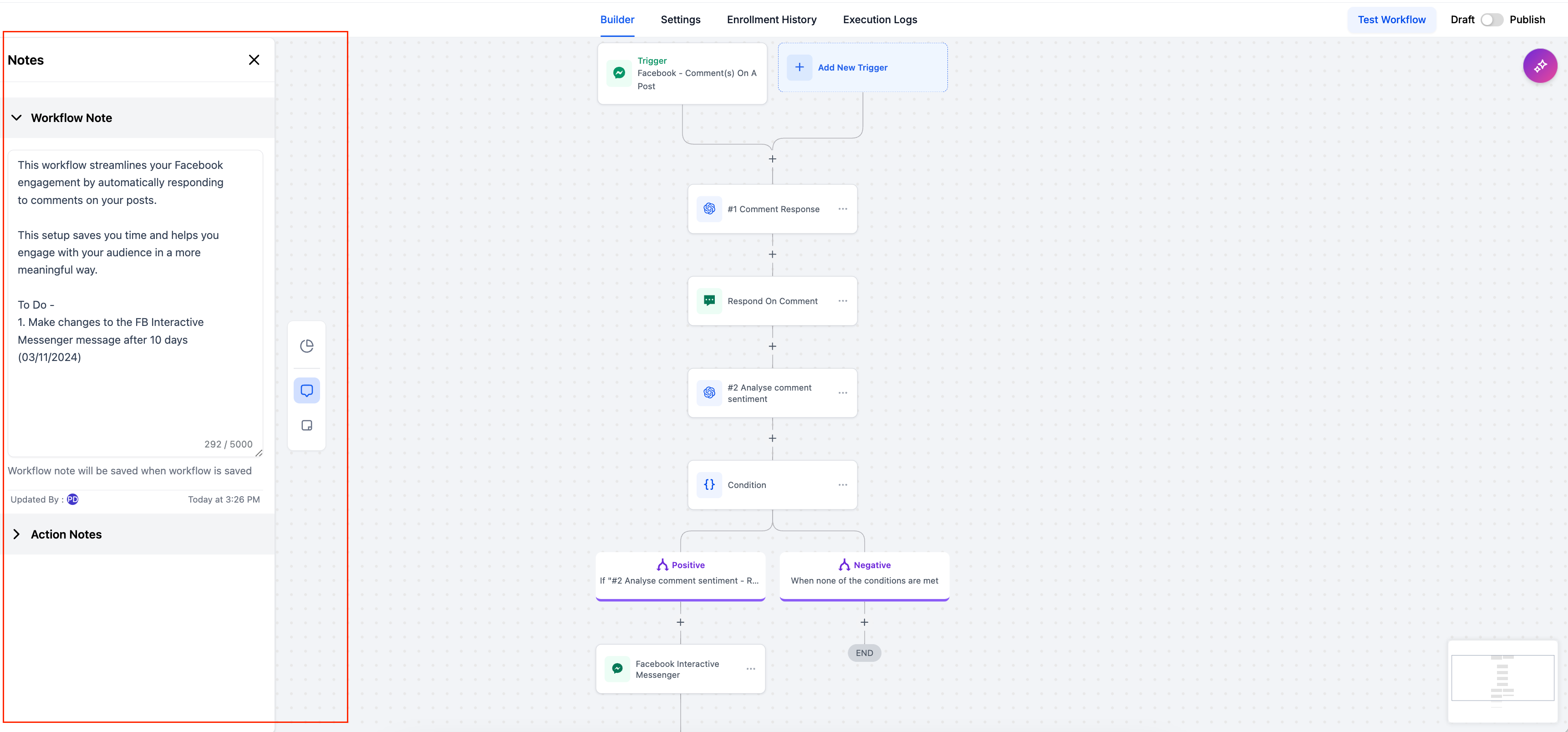
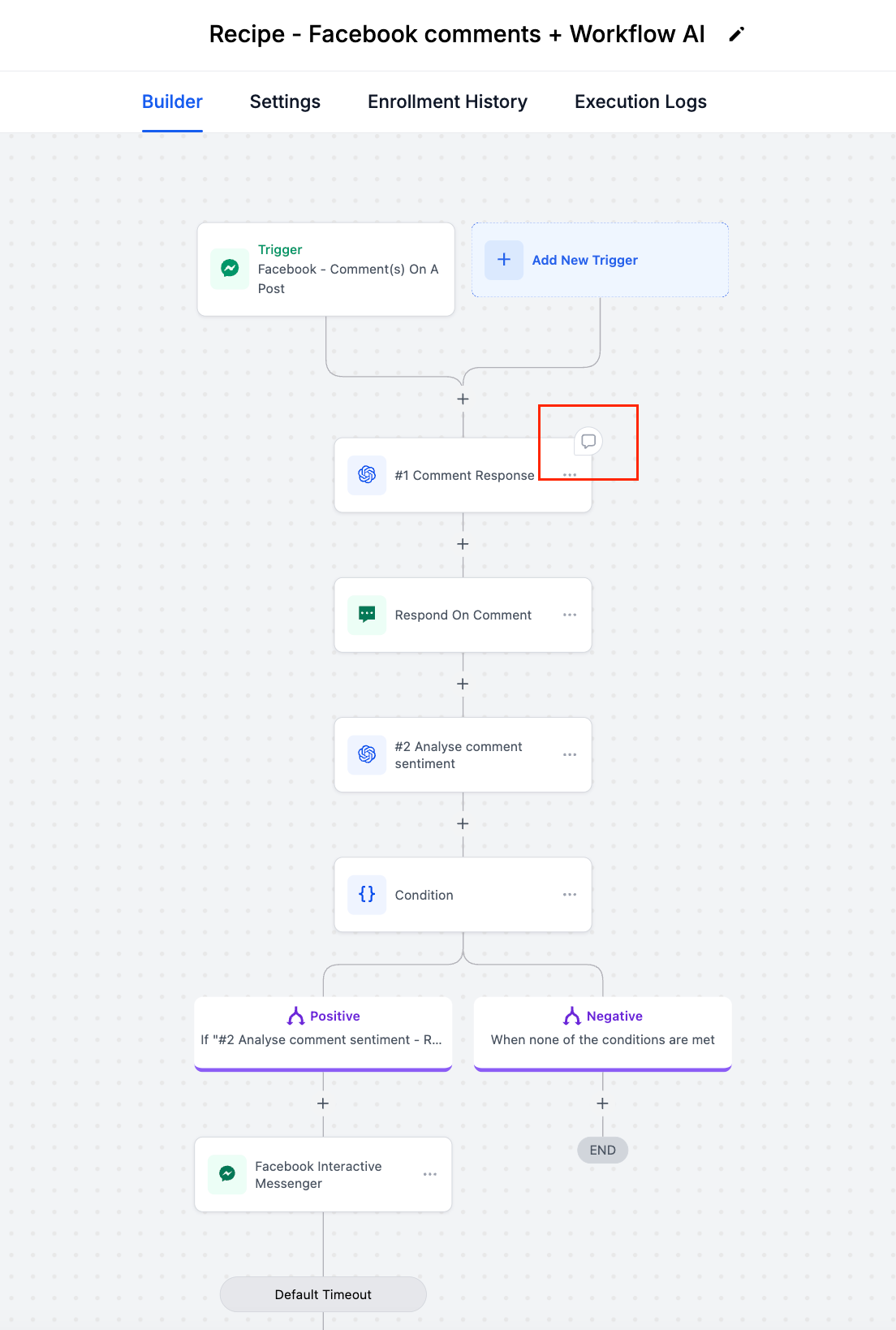
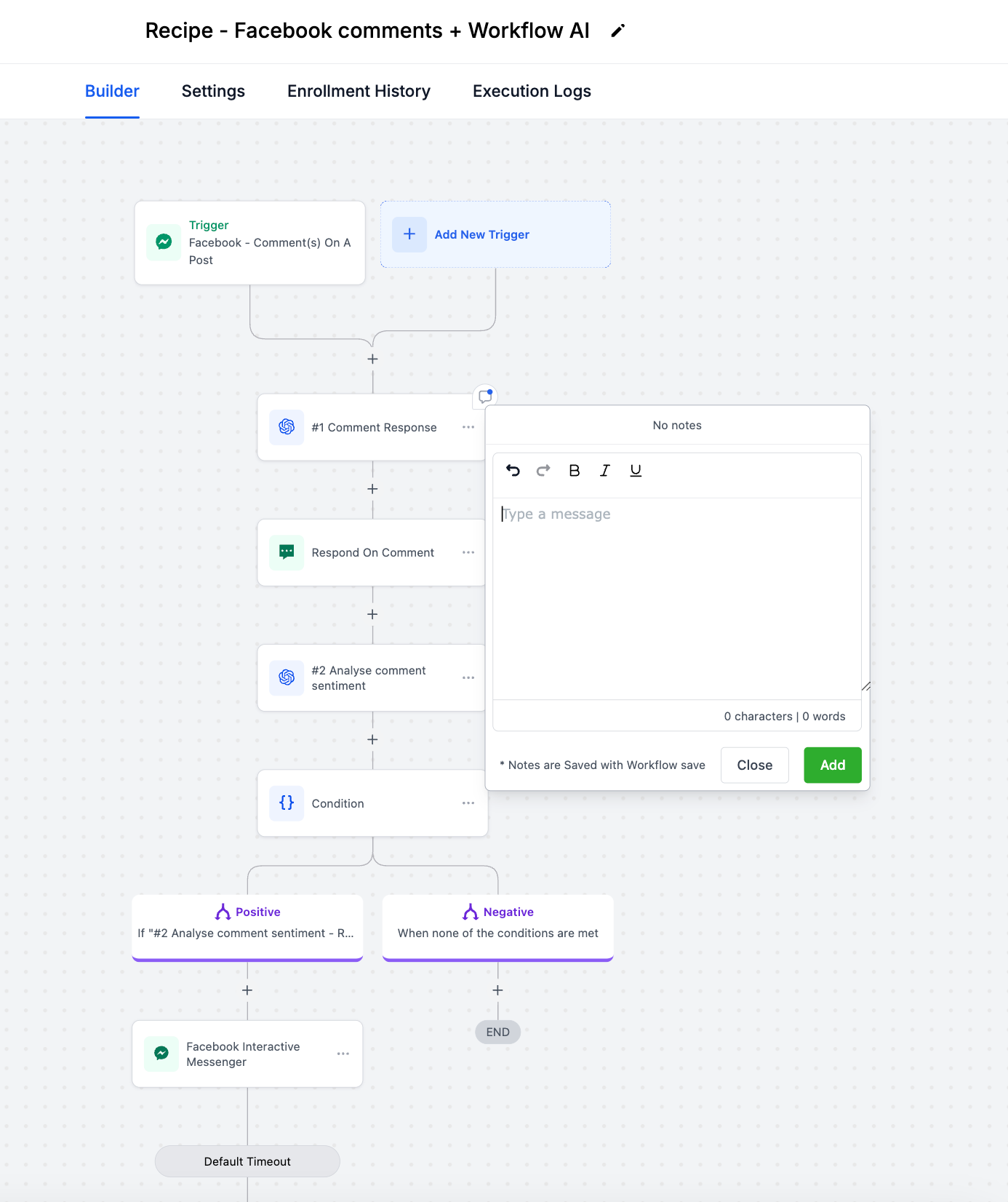
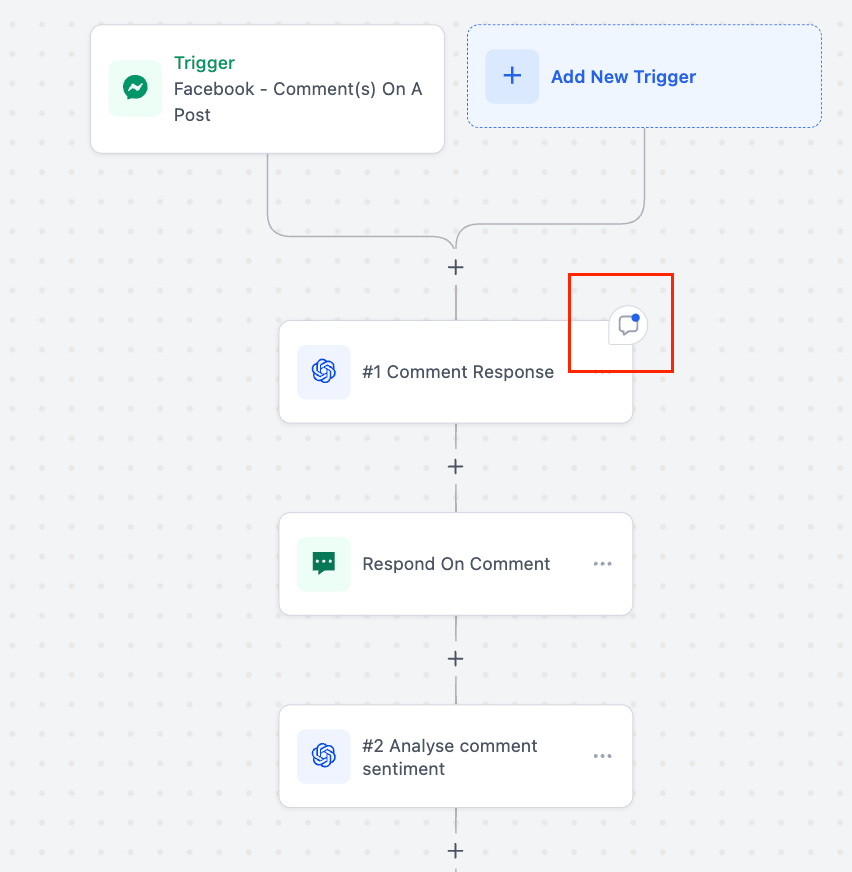
Workflow level notes are added from the sidebar while a workflow is open. They appear to all users who can view the workflow and record who created or edited the note with timestamps. Action level notes attach to individual actions; hovering over an action reveals a notes icon that stays visible after a note is saved. Sticky notes are canvas pinned items created via the Sticky Notes icon, offering color choices, rich text formatting, image attachment, and a hide show toggle. All three note types are stored automatically when the workflow is saved.
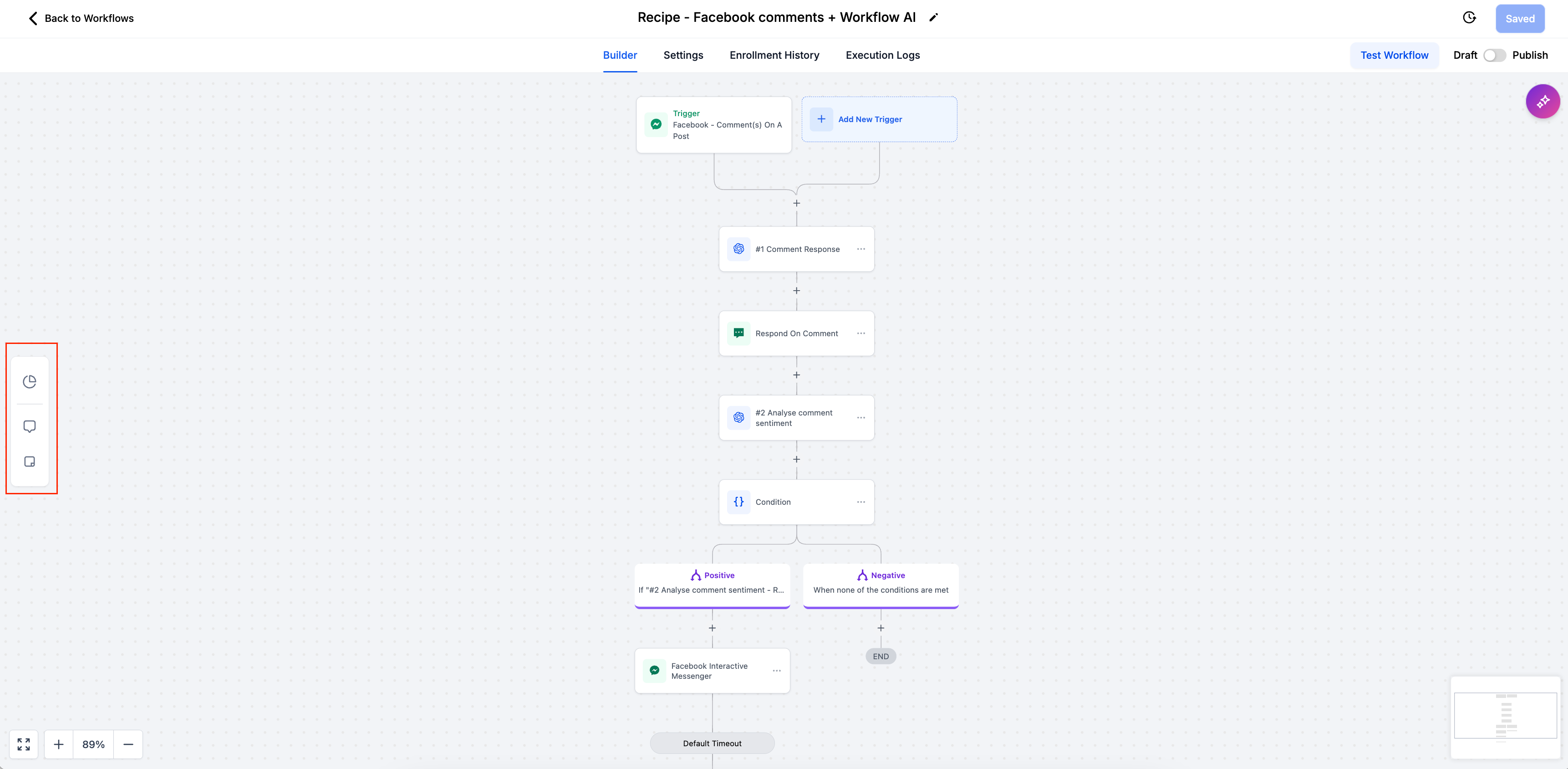
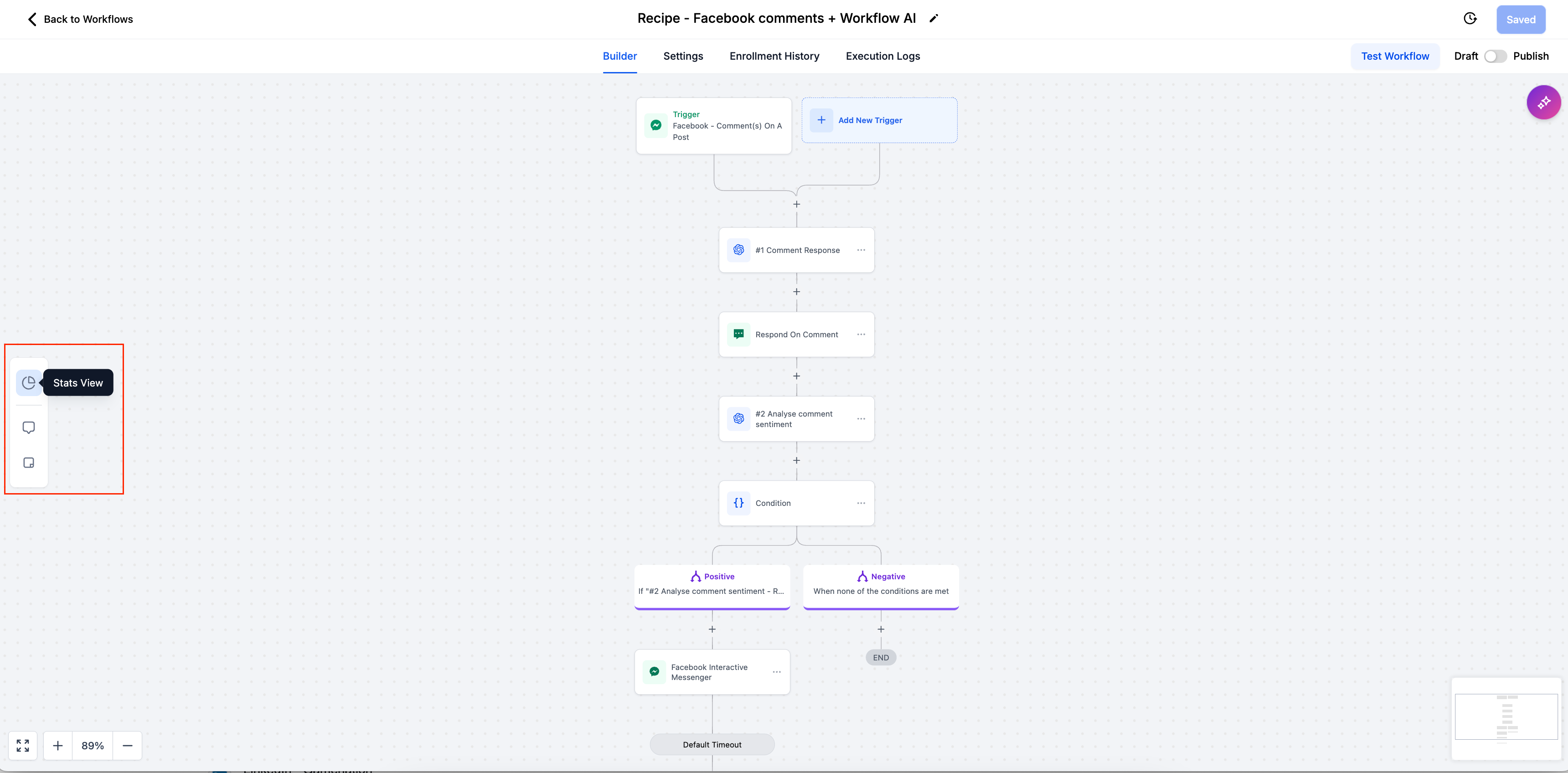
These note features live in the workflow builder’s new sidebar alongside the Stats View. The sidebar houses the Notes icon for workflow notes and the Sticky Notes icon for canvas notes. Action notes are accessed directly on each action card. A centralized notes view lets users search across all action notes.
Visibility is controlled by role and toggle. Admins can add workflow notes, while any user can add action notes. Sticky notes are visible to everyone unless the Hide Notes button is used. History tracking shows who created or edited each note and when.
03How businesses use workflow notes, action notes & sticky notes
- Real estate agency. Agents add workflow notes to outline the stages of a property sale, giving new team members a clear overview. Action notes are placed on specific email send steps to explain required client information. Sticky notes with the agency's branding colors highlight urgent compliance reminders.
- SaaS startup. Product managers insert workflow notes describing overall onboarding flow goals. Developers attach action notes to API call actions, detailing test credentials and expected responses. Sticky notes in bright colors mark experimental features, and images of UI mockups are attached for quick reference.
- Dental practice. Office staff create a workflow note summarizing patient intake procedures. Action notes are added to appointment reminder actions to specify script variations for different treatment types. Sticky notes with color codes label steps for new hygienists, and the hide option is used during patient consultations.
04How to set up and use workflow notes, action notes & sticky notes in HighLevel
Add a workflow level note
- Open the desired workflow in the HighLevel builder.
- Click the "Notes" icon located in the sidebar.
- Enter the comment, description, or instruction in the panel that appears.
- Save the workflow; the note is stored automatically.
Add an action level note
- Hover the cursor over the target action within the workflow canvas.
- Select the notes icon that appears in the top right corner of that action.
- Type the action specific comment in the pop up field.
- Close the pop up; the note remains attached and the icon stays visible.
Add a sticky note to the builder
- Click the "Sticky Notes" icon in the sidebar.
- Choose a colour for the new sticky note.
- The note appears on the canvas; click inside it to start editing.
- Use the rich text editor to format text or attach an image.
- If desired, press the "Hide Notes" button to toggle its visibility.
05What it looks like in HighLevel
06Settings that matter
- Notes icon. Opens the workflow level notes panel where admins can write or edit notes.
- Sticky Notes icon. Creates a new canvas pinned sticky note with colour selection.
- Hide Notes button. Toggles whether sticky notes are shown on the workflow builder.
07Things to know before you rely on it
- Only admins can add workflow level notes.
- Every user can add notes to individual actions.
- Sticky notes can be hidden with the Hide Notes button.
- Color choices for sticky notes are limited to the preset palette.
08How it connects to the rest of HighLevel
- HighLevel workflow automation basics Workflow basics
- Advanced workflow filters and smart lists Advanced filters
- HighLevel pricing and plans Pricing
Michael's take

The workflow notes suite is a small convenience that can become a real shift when a team needs to keep track of why a step exists or what a whole process aims to achieve. Adding a quick colour coded sticky note for a new subaccount user, for instance, shows them exactly where to click next without flooding the main workflow with long descriptions.
For a coaching business that runs multiple onboarding sequences, I would use sticky notes to flag where a new client’s paperwork needs review, then add action notes on the email send step to remind the coach of the most recent template. The visual cue stays in place, and the history tracking lets the team see who updated each reminder.