
01Who this is for
- Agency managers who need to sort client automations quickly for reporting and collaboration.
- Small business owners who want to avoid duplicate workflows and keep their automation library organized.
- Team leads overseeing multiple campaigns and requiring easy access to specific workflow sets.
02Advanced filters and Smart Lists, explained
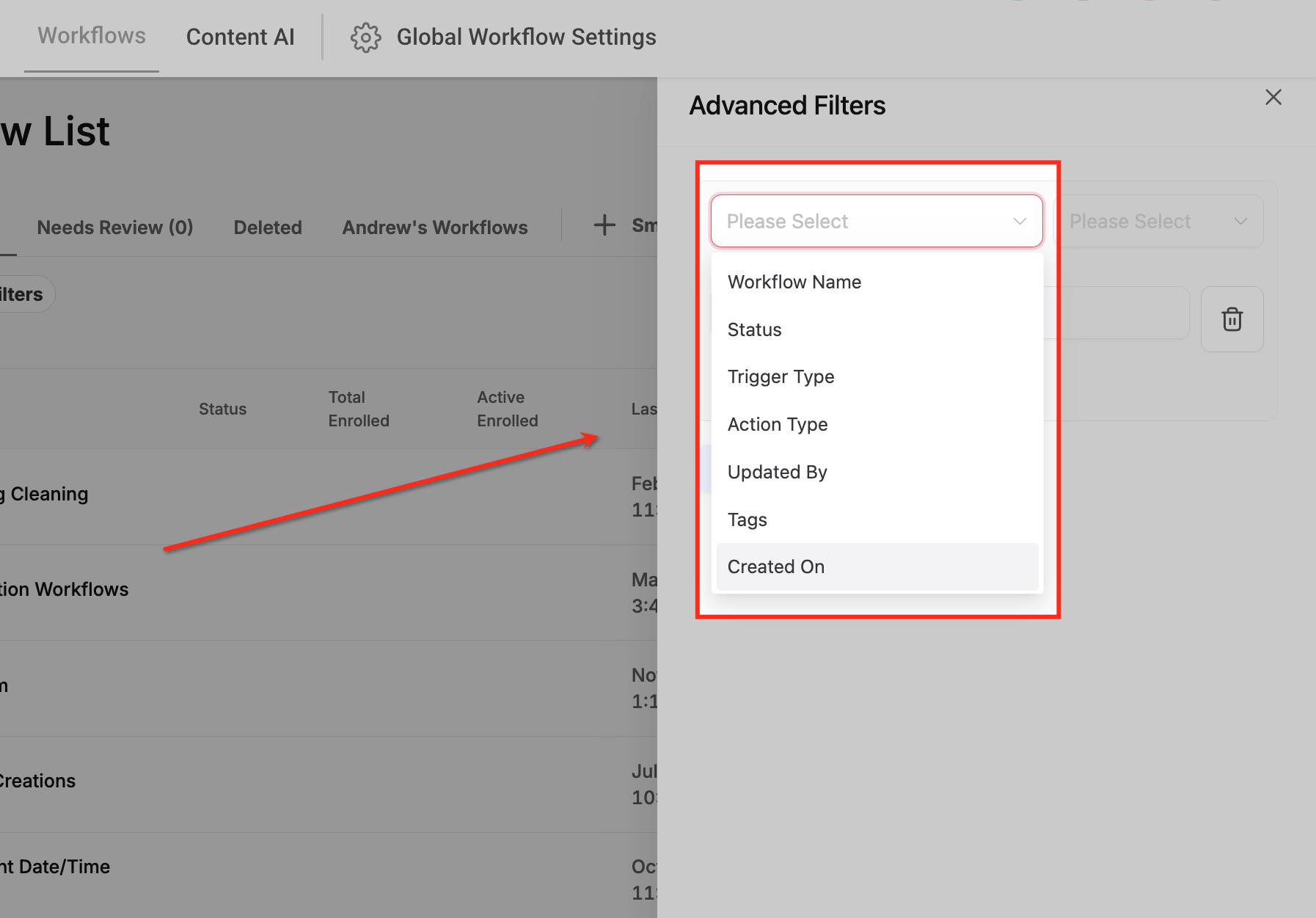
Advanced Filters are a one time tool that lets you narrow the workflow list by selecting criteria like trigger, action, tag, status, last update date, or editor. You combine conditions with And, Or, or individual filters, then apply them to right away see matching workflows.
Smart Lists store the filter configuration you create. After clicking Save, the view becomes a named list that appears at the top of the Workflows page. Selecting a Smart List re applies its filters, giving you immediate access to the same set of workflows without rebuilding the criteria.
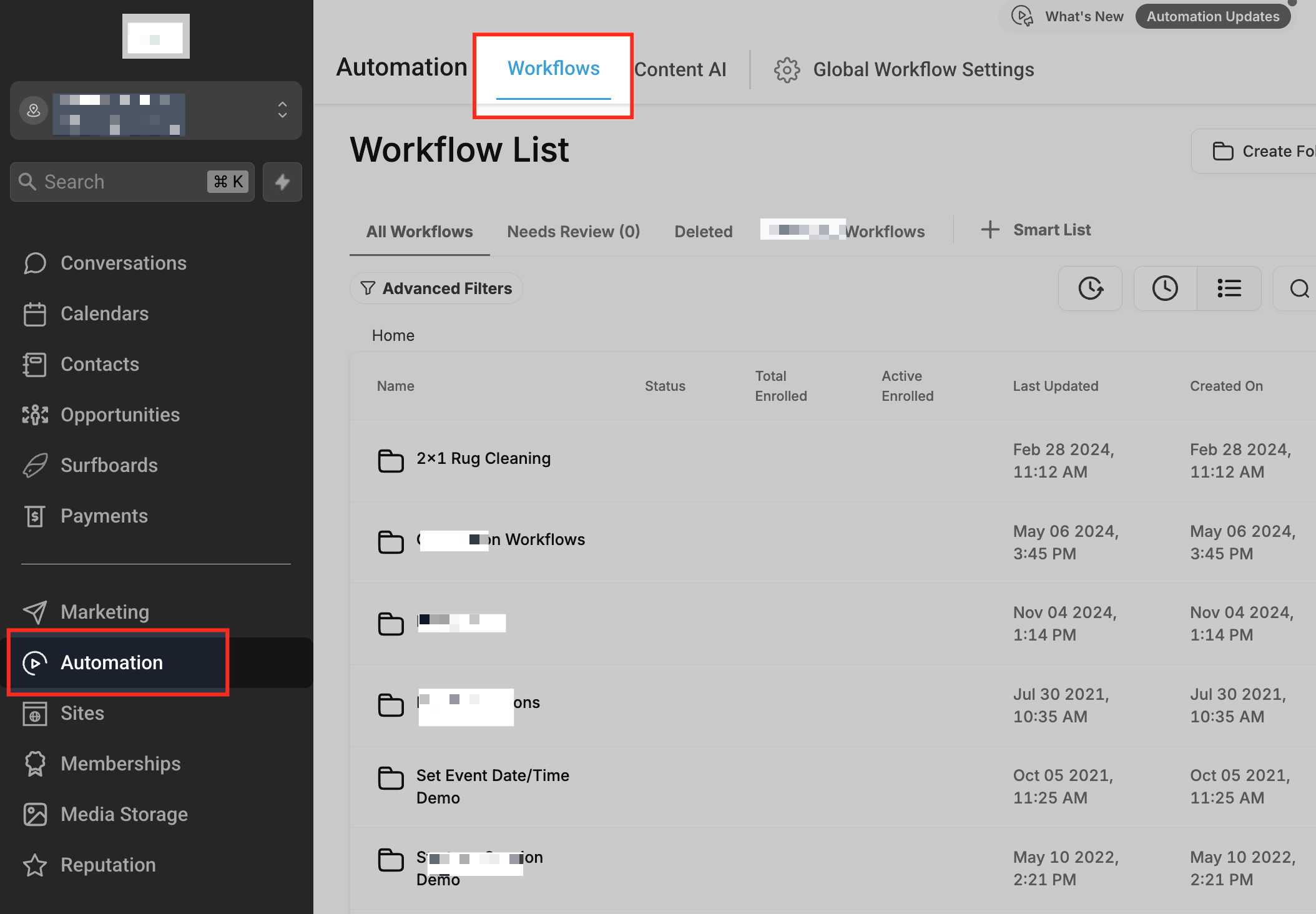
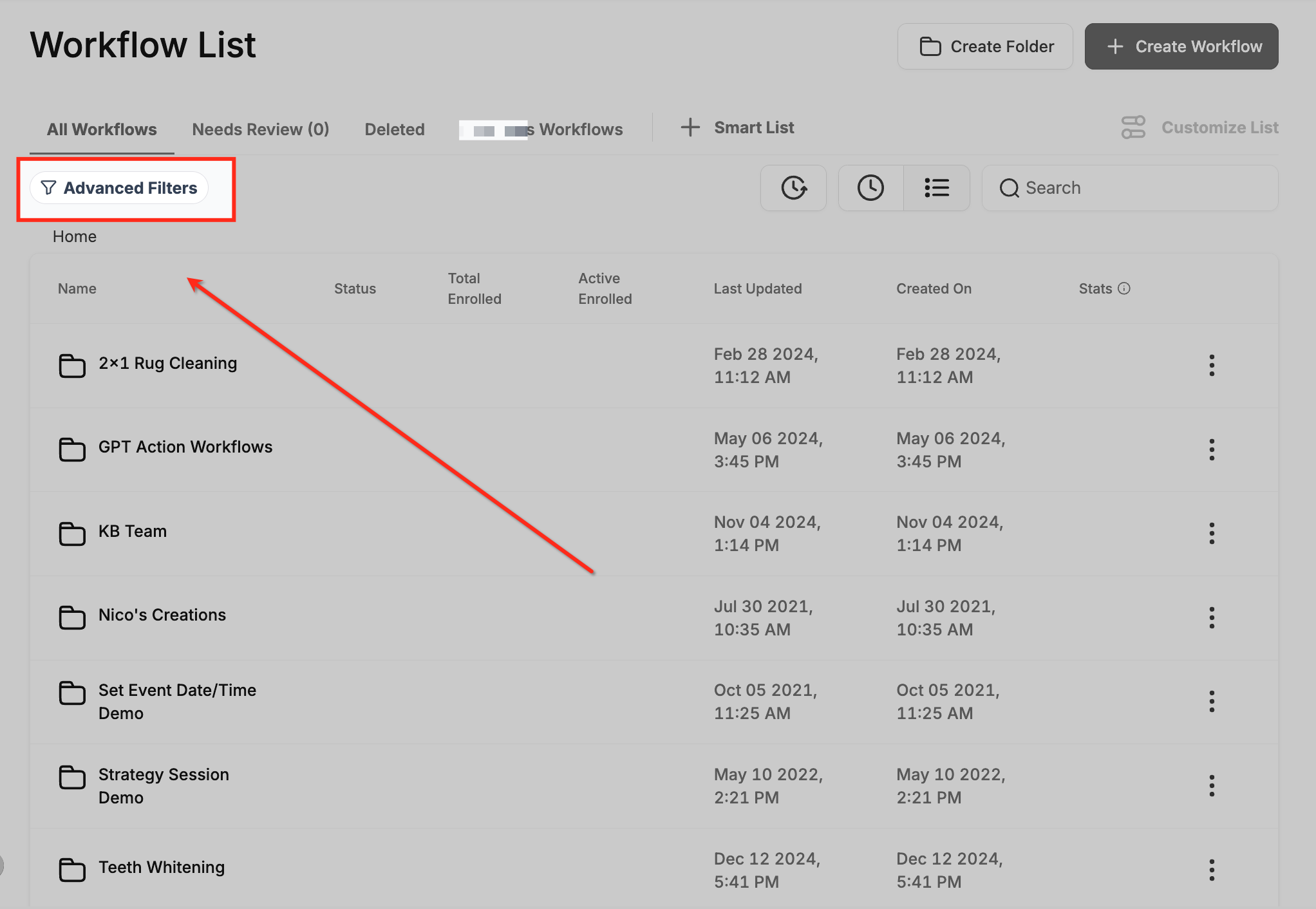
Both features are found on the Workflows page inside the Automations tab. The Advanced Filters button opens a side panel for condition building, and the + Smart List button creates a saved view.
03How businesses use advanced filters and Smart Lists
- Digital marketing agency. The agency filters workflows to show only those that send SMS messages, then saves that view as a Smart List. Team members can click the Smart List to review all SMS related automations without rebuilding the filter each time.
- Ecommerce store. The store applies an Advanced Filter for workflows with the "Order Completed" trigger and a tag of "VIP". The filtered list helps staff quickly locate high value order automations for troubleshooting.
- Co working space. The space creates a Smart List that shows all draft workflows created by the facilities manager. This saved view lets admins monitor pending automations and publish them when ready.
04The numbers and rules that matter
- There is no strict limit on the number of filters you can apply at once.
05How to set up and use advanced filters and Smart Lists in HighLevel
Use advanced filters
- Open the Automations tab and select the Workflows section.
- Click the Advanced Filters button in the top right corner of the page.
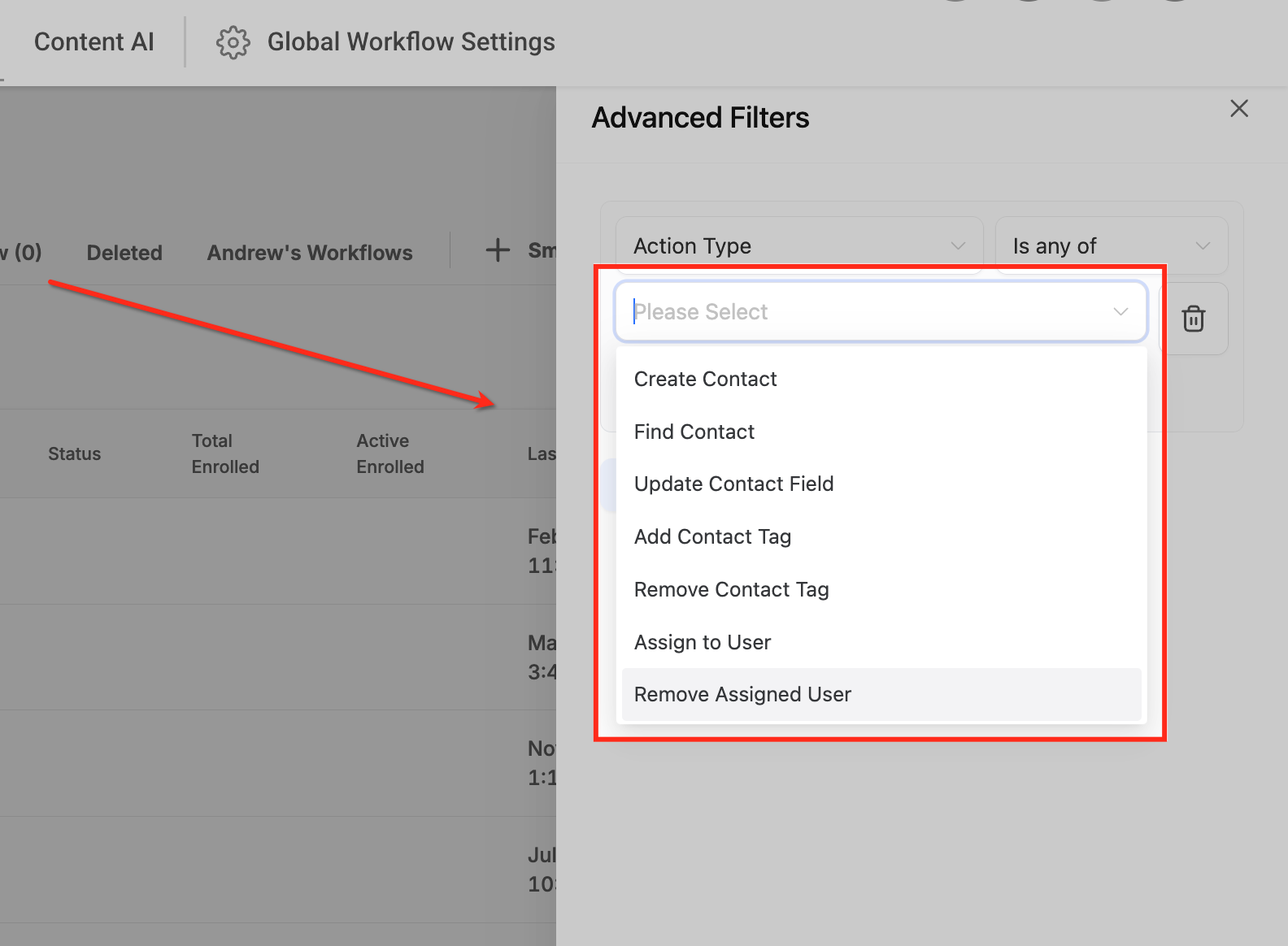
- Pick a filter type such as Trigger, Action, or Tag from the dropdown menu.
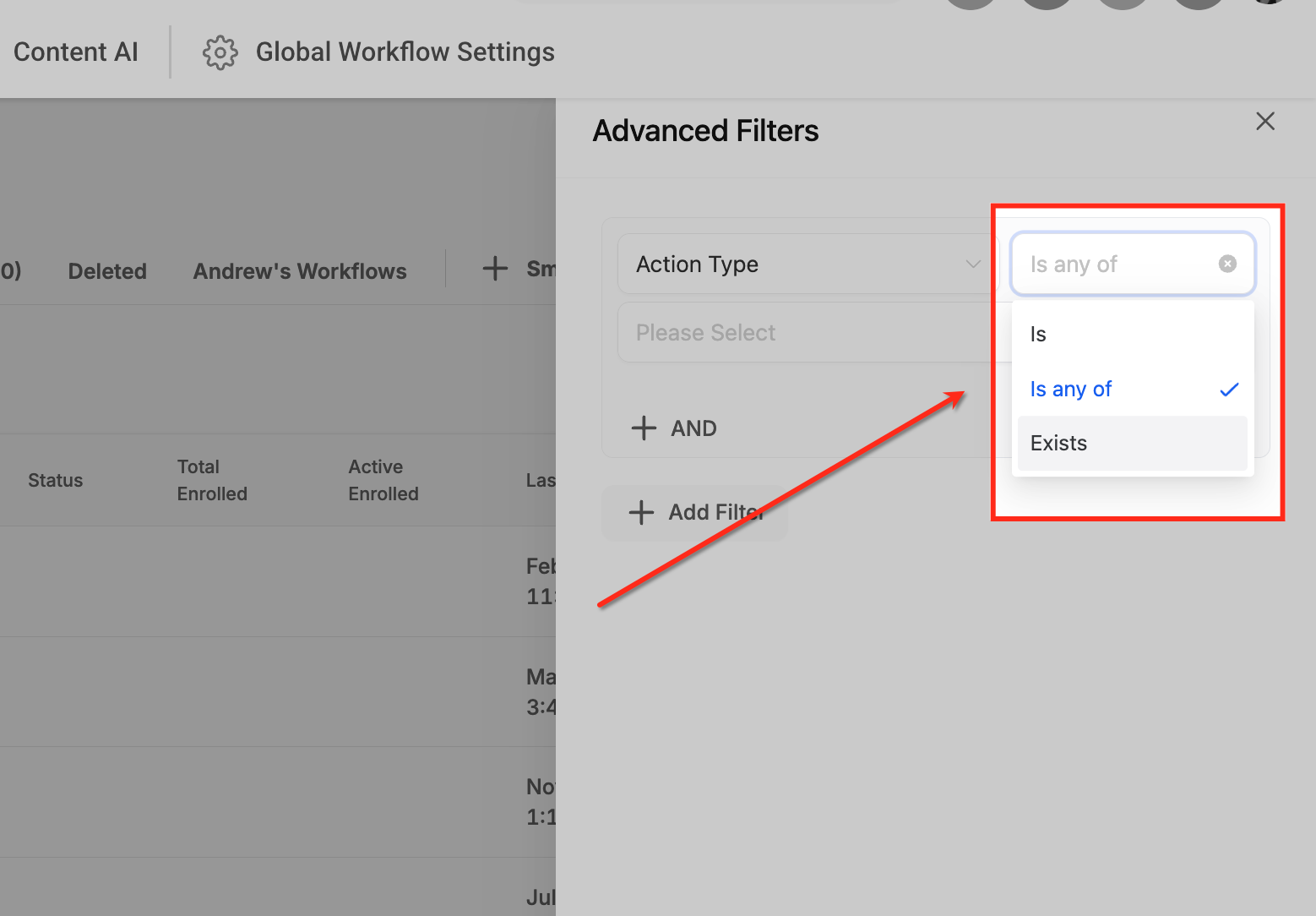
- Choose an operator like equals, contains, or does not contain.
- Enter or select the value that matches the chosen filter.
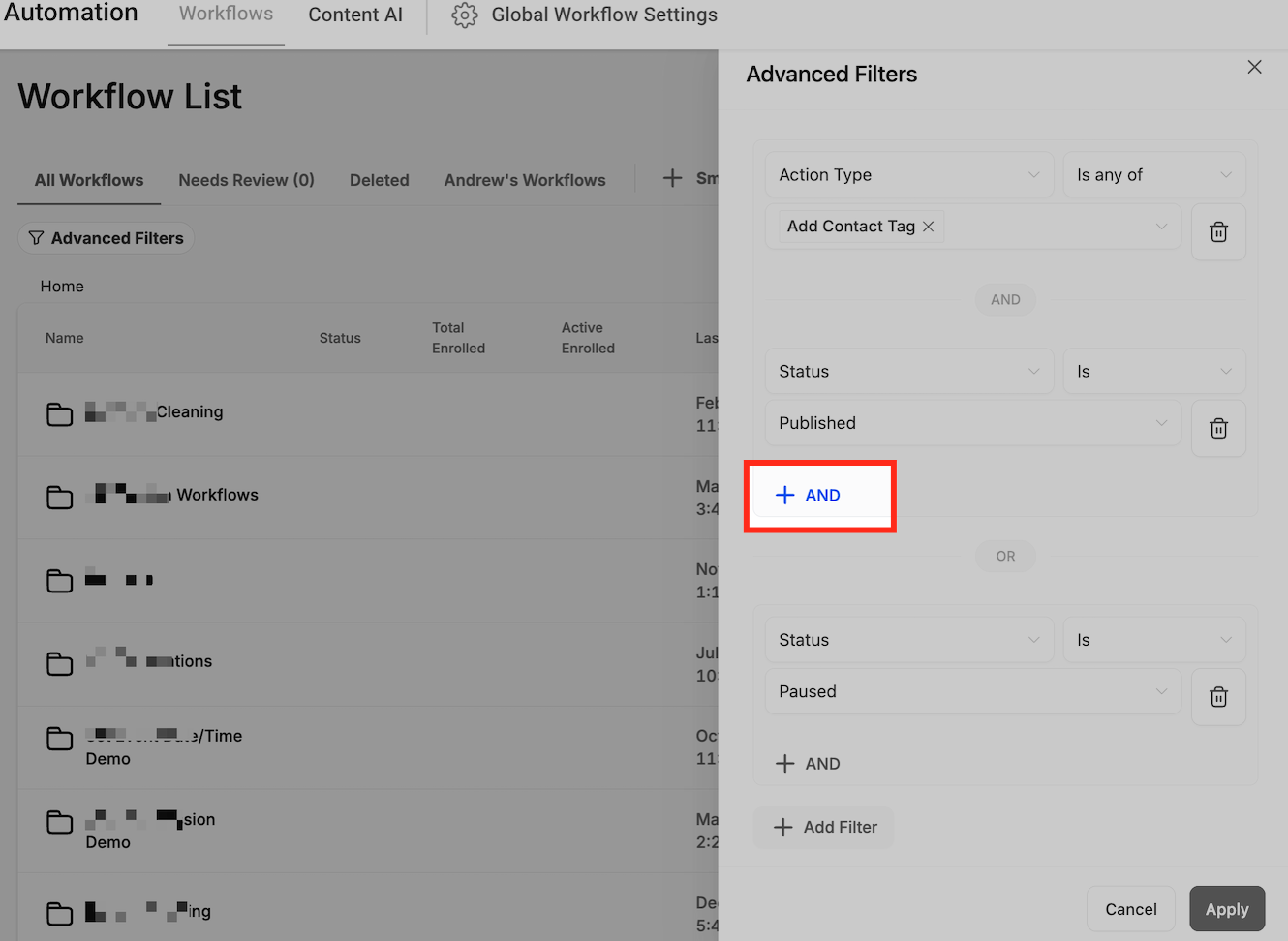
- Add additional conditions using + And Condition, Or Condition, or + Add Filter Condition, and remove any unwanted filters with the trash icon.
- Press the Apply button to display workflows that meet all set criteria.
Create and manage a smart list
- Apply the desired Advanced Filters to the workflow list.
- Click the Save button that becomes active after filters are applied.
- Select Save as New Smart List to store the filtered view.
- Find the new Smart List at the top of the Workflows page and click it to re apply the saved filters.
- To edit or delete the list, open it, click Customize List, adjust or remove filters, and then Save any changes.
06What it looks like in HighLevel
07Settings that matter
- Advanced Filters. Controls temporary filtering of workflows by criteria such as trigger, action, tag, status, date, or editor.
- Smart List. Saves a set of filter conditions as a reusable view that appears on the Workflows dashboard.
- And Condition. Requires every selected filter to match for a workflow to appear in the results.
- Or Condition. Allows a workflow to match if any one of the selected filters is true.
- Customize List. Enables editing or deleting an existing Smart List’s filter settings.
08Things to know before you rely on it
- There is no fixed maximum on the number of filters you can apply at once.
- Advanced Filters are not saved; they disappear after you exit the view.
- Only the creator of a Smart List and admins can see that list; regular users see only their own lists.
09How it connects to the rest of HighLevel
- Learn the basics of building workflows in HighLevel. Workflow basics
- Explore all workflow related features and settings. All Workflows features
- Review pricing details for plans that include workflow capabilities. Pricing and plans
Michael's take

When a team’s automation library grows, finding the right workflow can become a daily headache. Advanced Filters cut through the clutter by letting you zero in on workflows by trigger, action, tag, or status, and Smart Lists keep those views at your fingertips for the next time you need them.
The first setting I would lock down is the filter that isolates the most commonly accessed workflows. Often those triggered by form submissions. Getting that saved as a Smart List makes the rest of the day run smoother.