
01Who this is for
- Founders of service based businesses who schedule client meetings, because they can automate reminders and follow ups based on appointment changes.
- Marketing managers at firms that run webinars or workshops, since the filter lets them tailor promotions to upcoming or past sessions.
- Operations leads in clinics or salons, because they can separate rescheduled clients from no shows for better resource planning.
02Appointment filter options, explained
The Appointment option is a conditional filter inside the If/Else action of a HighLevel workflow. It evaluates an appointment record linked to the workflow trigger and lets you check whether the appointment was rescheduled, or whether its start or end date meets a specified condition.
When the condition matches, the workflow follows the designated branch; when it does not, it follows the alternative branch. This logic lives in the workflow builder under Automation and works only with appointment related triggers.
The filter offers three choices, Rescheduled, Start Date, and End Date, and each choice presents operators such as True/False for rescheduling or date comparisons for start and end times. Only one appointment filter can be used per If/Else condition, but additional If/Else steps can be added to handle other filters.
03How businesses use appointment filter options
- Dental practice. Create a workflow that triggers on a booked appointment. Add an If/Else condition with the Rescheduled filter set to True and send a reminder SMS to patients who changed their time. Use the False branch to send a standard confirmation.
- Fitness studio. Set the trigger to Appointment Status. Add an If/Else condition using the Start Date filter with the operator "After" a specific date to enroll new members in a welcome email sequence for upcoming classes.
- Coaching service. Use the End Date filter in an If/Else step to detect appointments that ended yesterday. Branch to a post session survey email, while the other branch handles sessions that are still ongoing.
04The numbers and rules that matter
- Time Based operators include Today, Tomorrow, Yesterday, After, Before, Date.
- Only one appointment filter can be used per If/Else condition.
05Before you start
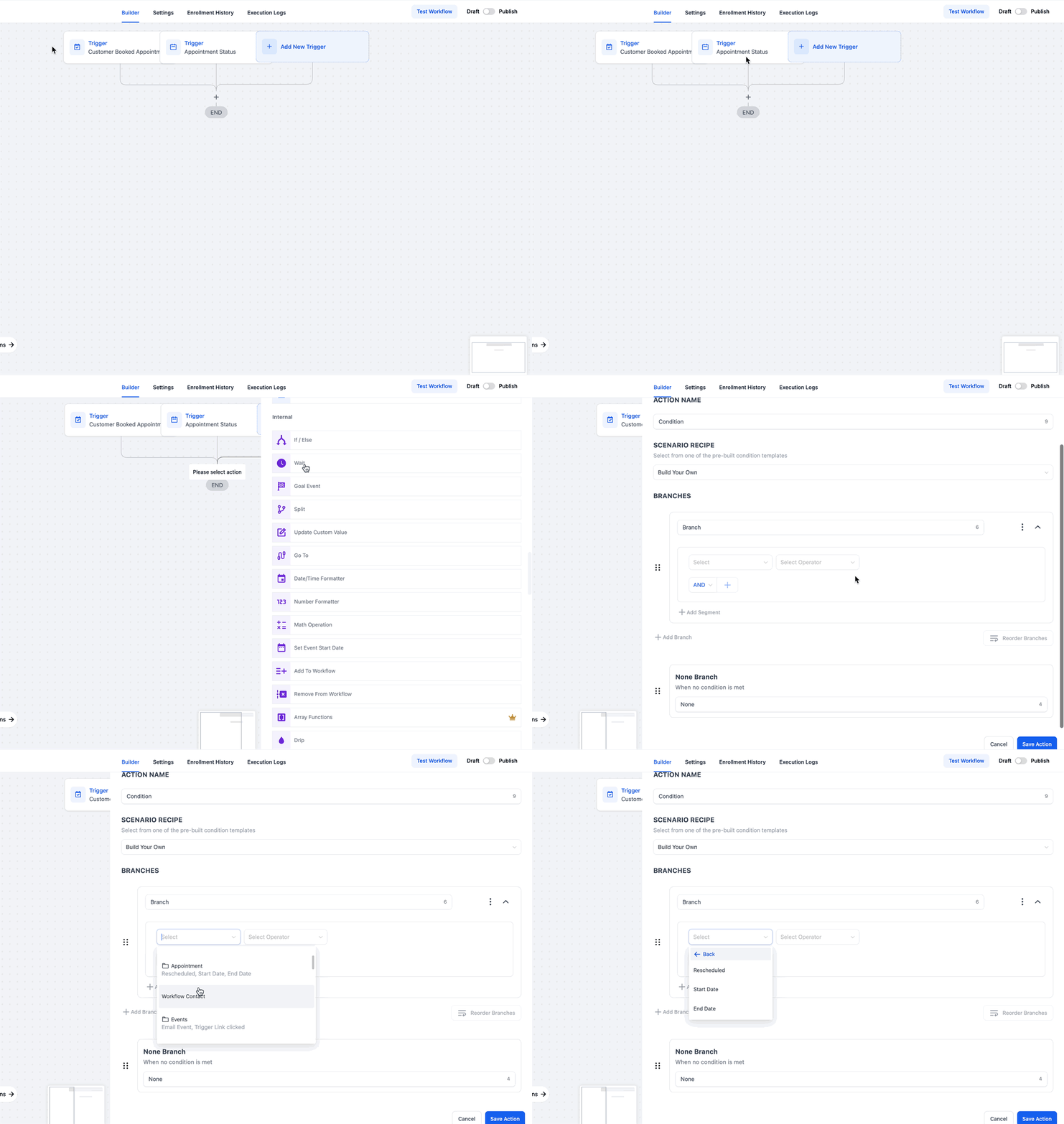
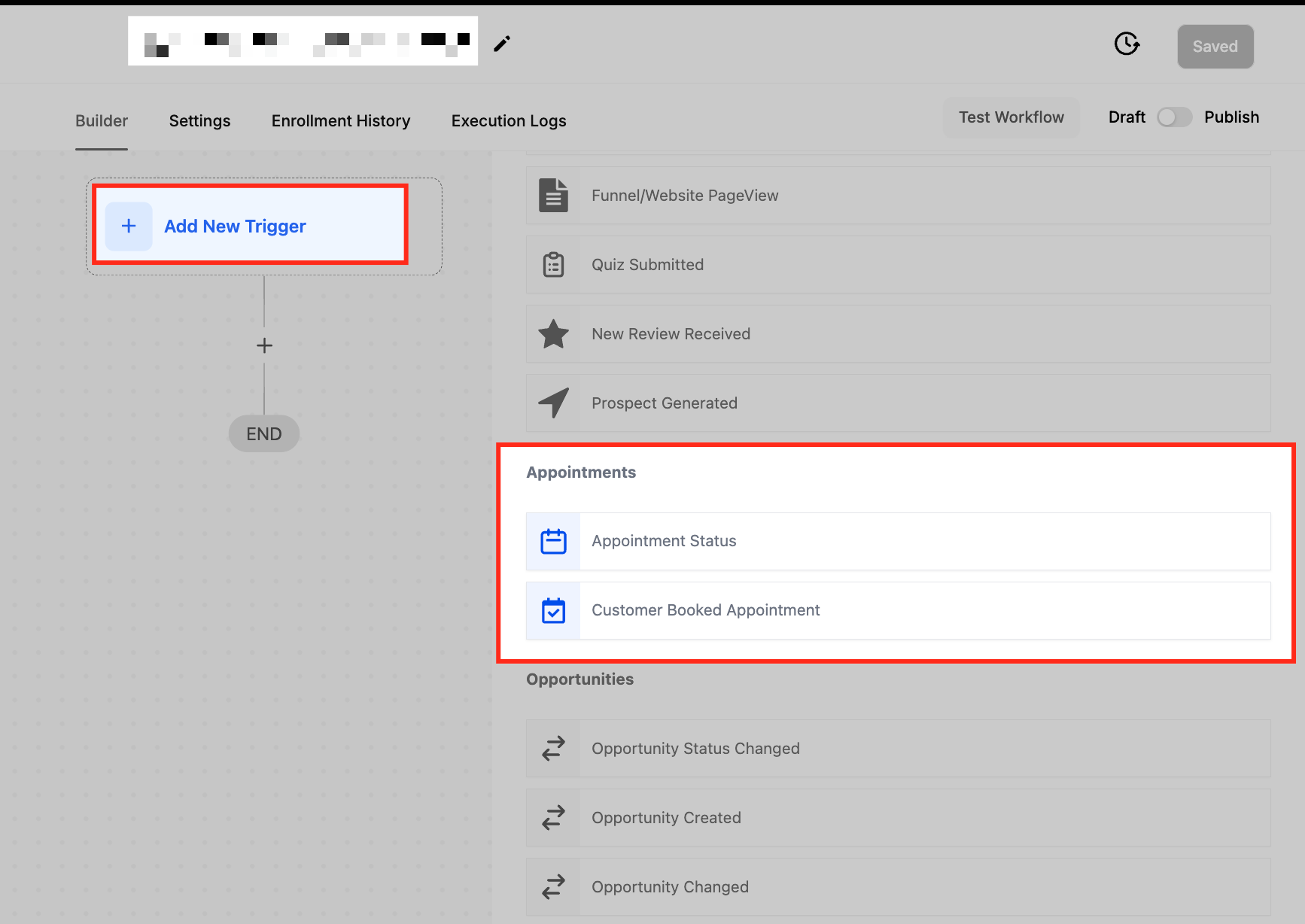
- The workflow must use an appointment related trigger: either Customer Booked Appointment or Appointment Status.
06How to set up and use appointment filter options in HighLevel
Add appointment filter
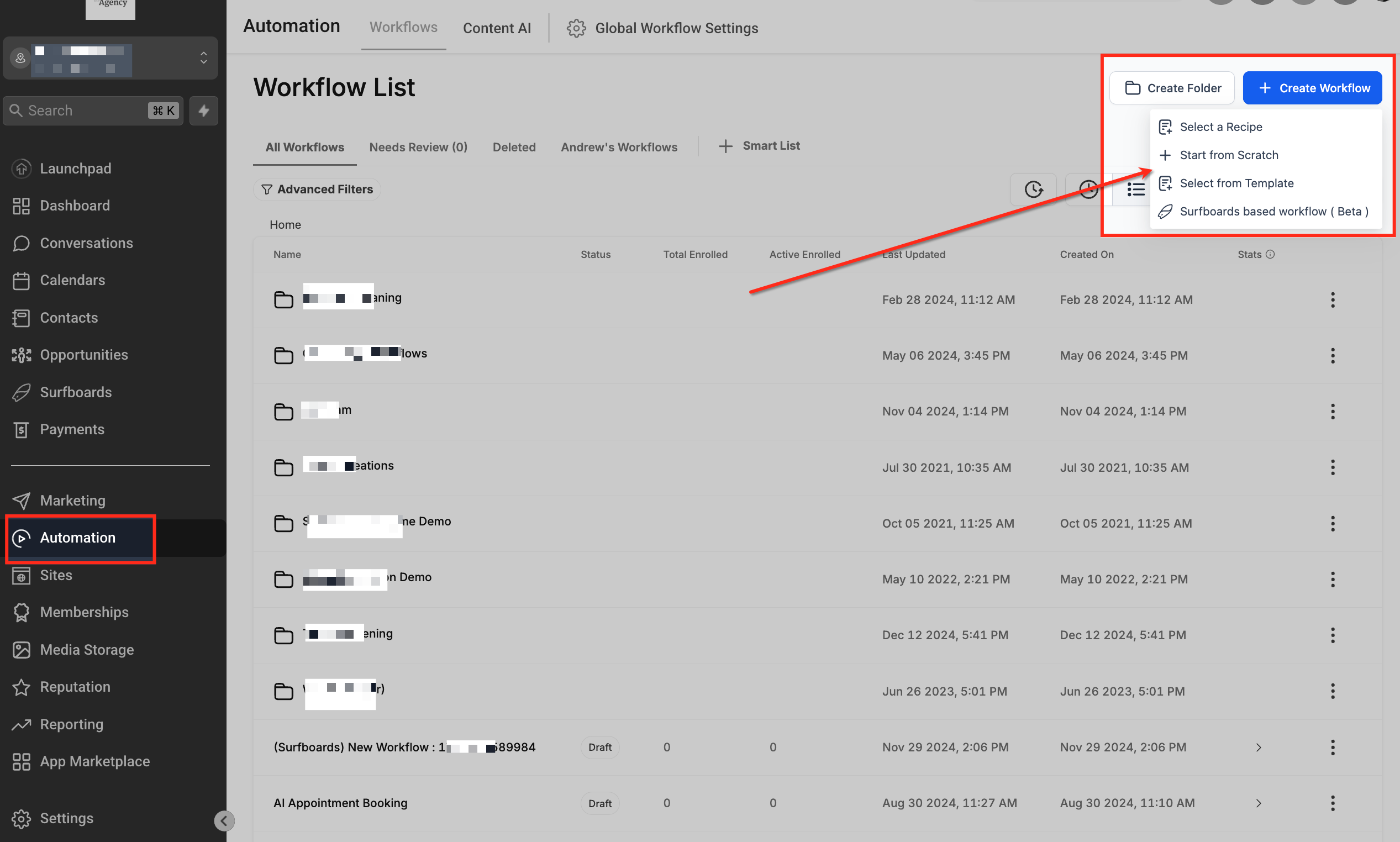
- Open Automation, start a new workflow or edit an existing one.
- Select a trigger of type Customer Booked Appointment or Appointment Status.
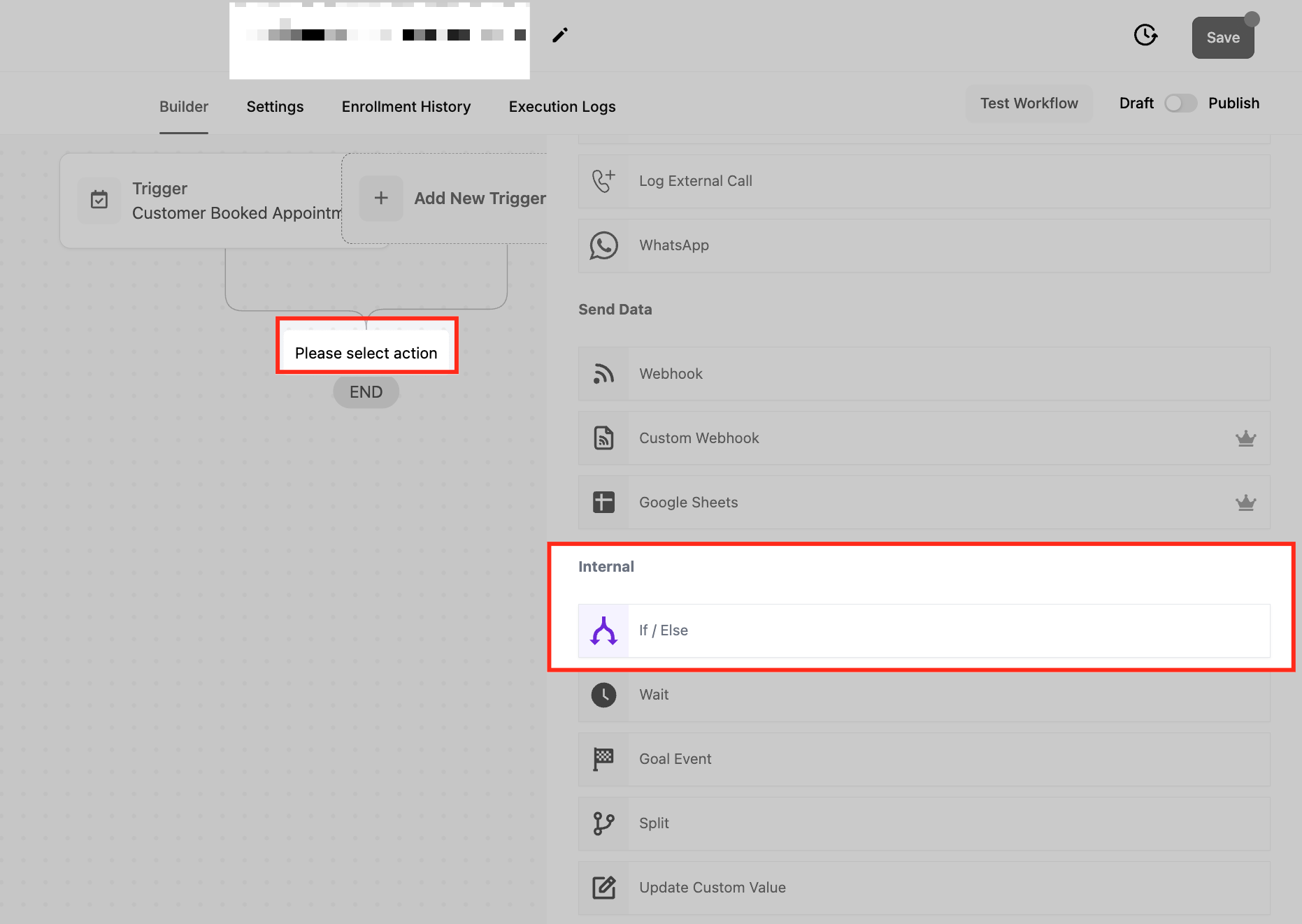
- Click the ‘+’ button and choose If/Else Condition.
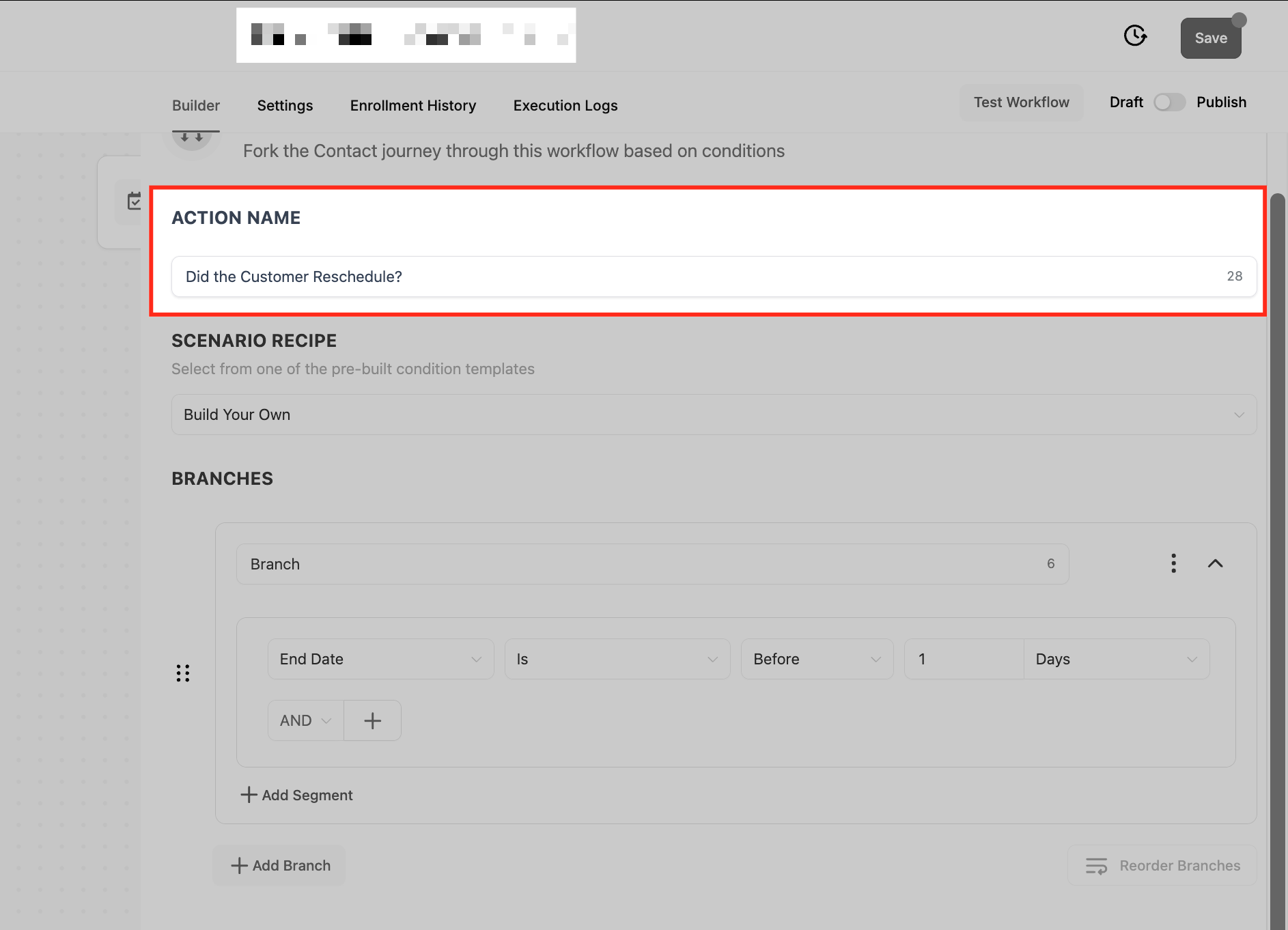
- Enter a descriptive Action Name at the top of the condition panel (optional).
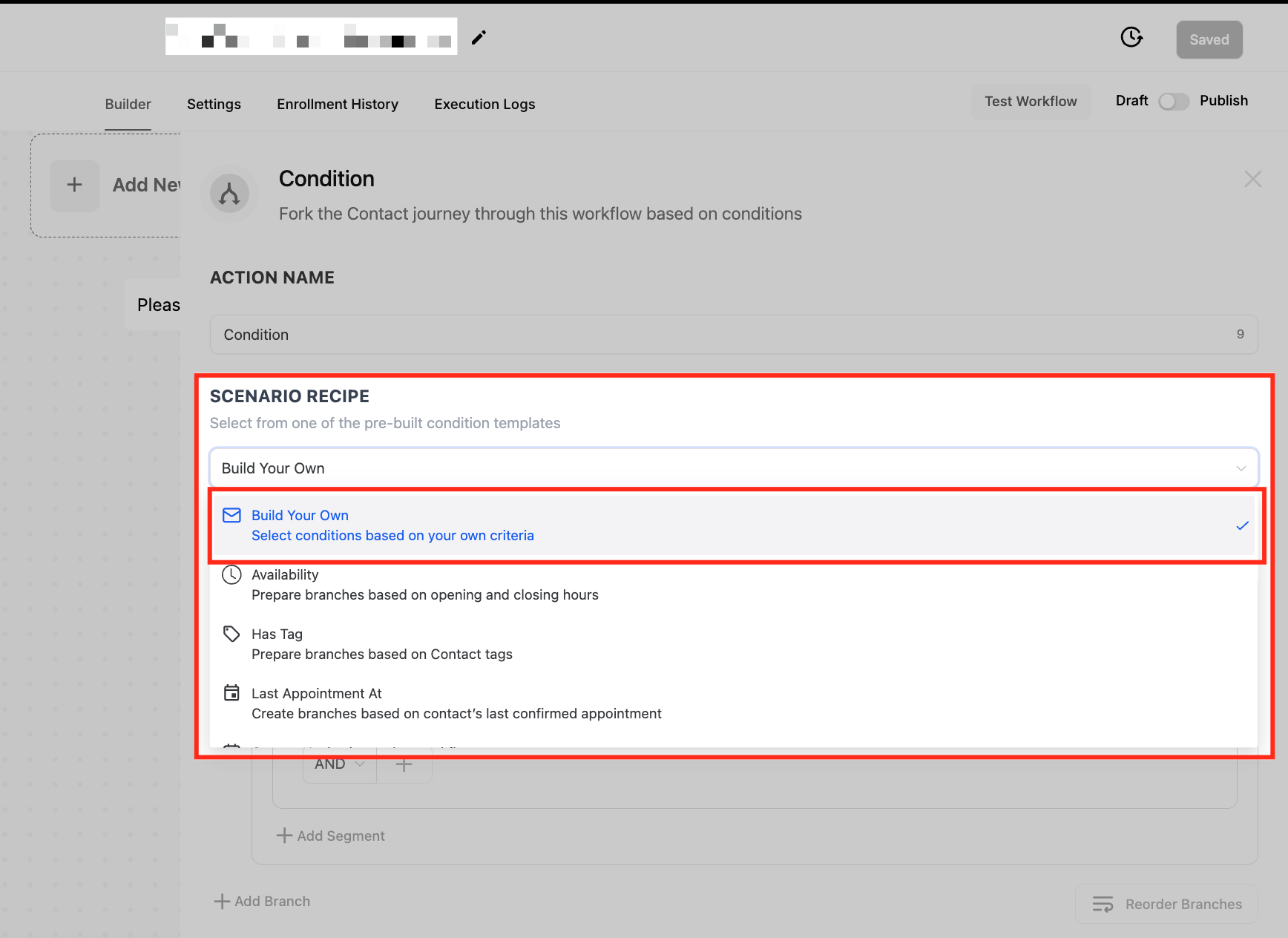
- In the Scenario Recipe dropdown, pick Build Your Own.
- Rename the If and Else branches to reflect the expected outcome.
- Choose the Appointment option, select one of Rescheduled, Start Date, or End Date, configure its parameters, and add the branch.
07What it looks like in HighLevel
08Settings that matter
- Action Name. Defines the label for the If/Else condition, helping identify its purpose in the workflow.
- Scenario Recipe. Offers pre built condition templates; selecting Build Your Own provides full flexibility for appointment filters.
- Rescheduled. Evaluates whether the appointment was rescheduled, with True or False as possible outcomes.
- Start Date. Compares the appointment’s start date against operators such as Is, Is Not, Today, Tomorrow, After, Before, or a specific date.
- End Date. Applies the same comparison logic as Start Date but uses the appointment’s end date.
09Things to know before you rely on it
- The Appointment option appears only when the workflow uses a Customer Booked Appointment or Appointment Status trigger.
- Only one appointment based filter can be selected per If/Else condition; additional filters require separate If/Else steps.
- The Rescheduled condition checks only the most recent execution, so multiple reschedules are evaluated based on the latest status.
10If something goes wrong
- Appointment option does not appear in the If/Else condition.. Confirm that the workflow trigger is either Customer Booked Appointment or Appointment Status, as the option is limited to those triggers.
- Attempting to add more than one appointment filter in the same If/Else condition.. Use separate If/Else conditions for each appointment filter, because only one can be selected per condition.
11How it connects to the rest of HighLevel
- Learn the basics of building workflows in HighLevel. Workflow basics
- See the pricing tiers for workflow premium features. Workflow pricing
- Start a 30 day trial to explore workflow automation. Free trial
Michael's take

Businesses often struggle with sending the right message at the right time when appointments shift. The Appointment filter options give you that granularity. Branching based on whether a meeting moved, when it starts or when it ends. The first thing I would lock in is the Rescheduled filter, because getting a quick confirmation after a change keeps the client experience smooth.
From there you can layer date based filters for reminders or postmeeting offers. Test the filter with a single branch first, watch the execution, then expand to more nuanced branches as you get comfortable.