
01Who this is for
- Marketing managers can automate follow up emails that match each viewer’s watch percentage.
- Sales teams can prioritize leads that consume larger parts of product demo videos.
- Content creators can re engage viewers who stop watching before a video ends.
02Video tracking triggers, explained
The Video Tracking trigger monitors how much of a hosted video a contact watches and then enrolls that contact in a workflow when the defined condition is met. The contact must be linked to a contact record, typically by submitting a form before the video plays.
When the video is closed or completed, HighLevel evaluates any filters you added, funnel, video, or percentage watched, and fires the trigger if the criteria match. If no percentage filter is set, the trigger runs whenever the video is closed or finished.
You find this trigger inside Automation > Workflows while building a workflow with either the Standard Builder or the Advanced Builder. After adding the trigger, you can attach any downstream actions such as emails, lead score updates, or segment assignments.
03How businesses use the video tracking trigger
- Online course provider. Add a Video Tracking trigger that fires when a student watches less than 50% of a lesson video. The workflow then sends a reminder email with a link to continue the lesson. This keeps learners engaged without manual checks.
- Real estate agency. Create a trigger that runs when a prospect watches at least 75% of a property tour video. The workflow adds lead score points, helping agents focus on highly interested buyers.
- SaaS company. Set up a trigger for contacts who watch 100% of a webinar recording. The following action emails them a special offer or a meeting link, turning full viewers into qualified prospects.
04The numbers and rules that matter
- Video Duration (%) filter supports: Between, Equal to, Greater than, Greater than or Equal to, Is Empty, Is Not Empty, Less than, Less than or Equal to, Not Equal to.
05Before you start
- The hosted video must be prepared for progress tracking.
- The viewer must be identified as a contact record, usually by submitting a form before playing the video.
06How to set up and use the video tracking trigger in HighLevel
Set up video tracking trigger
- Sign in to your HighLevel account.
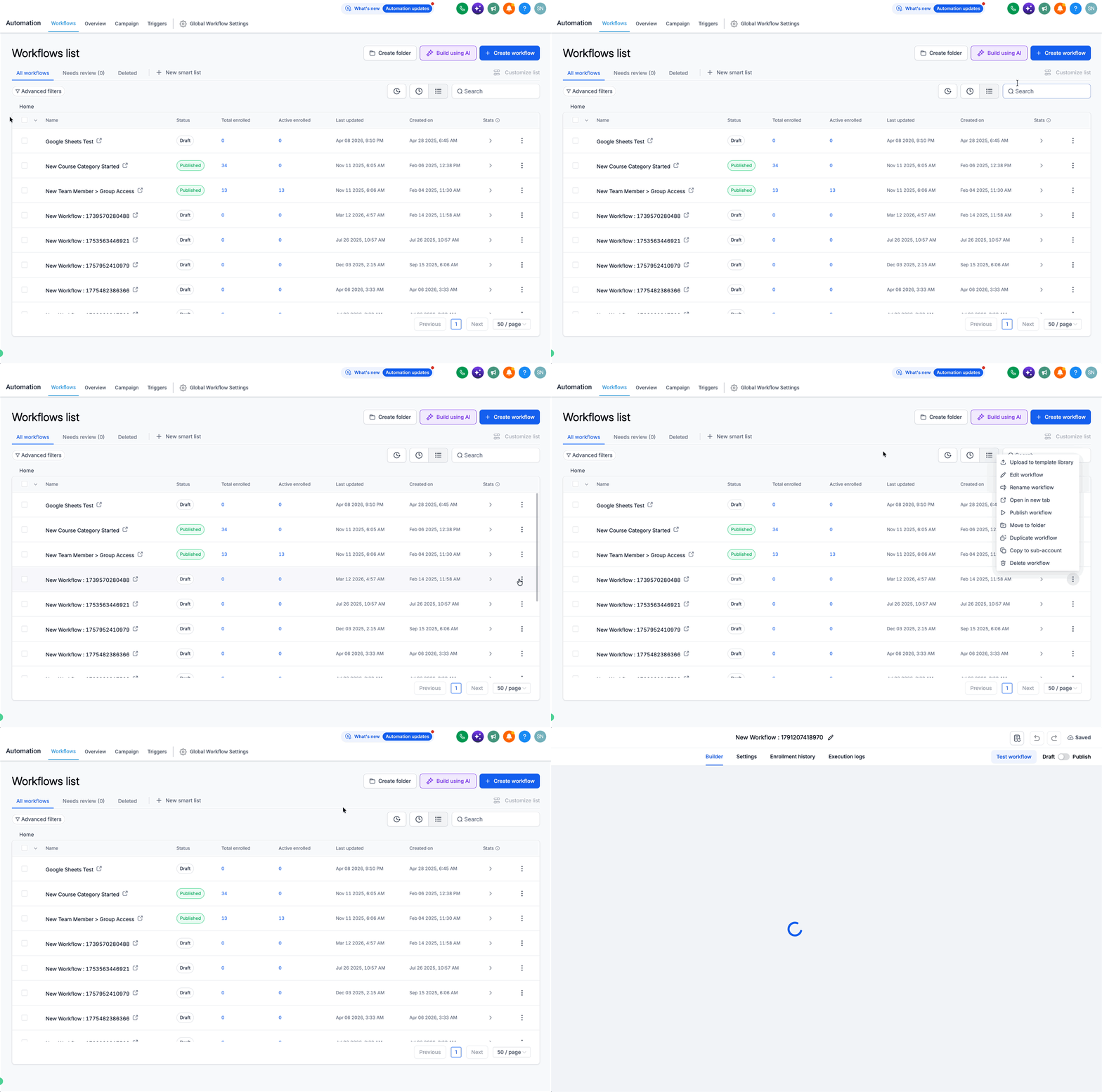
- Open Automation > Workflows from the left navigation menu.
- Create a new workflow or open an existing workflow.
- Choose Standard Builder or Advanced Builder as preferred.
- Press the + Add New Trigger button.
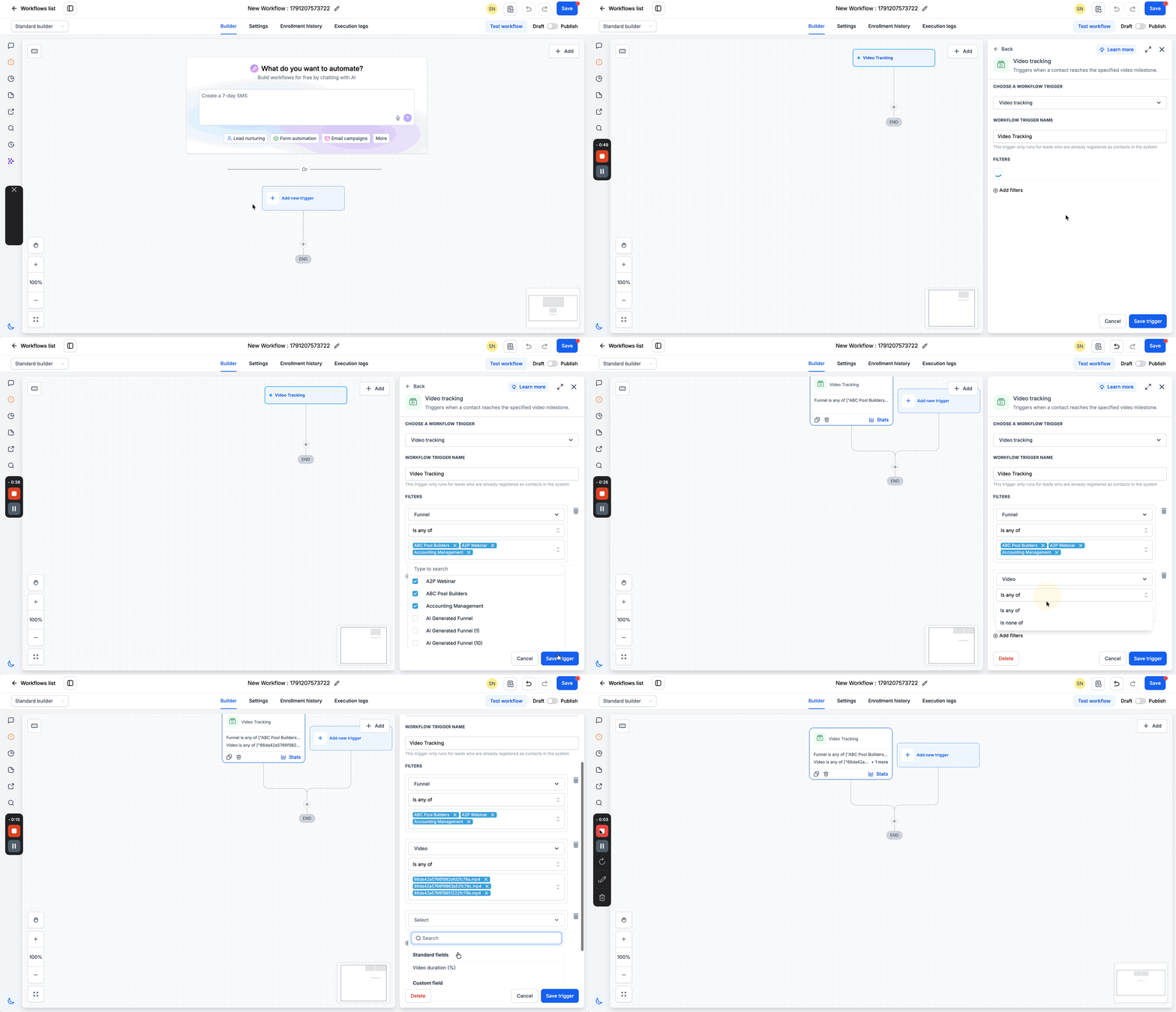
- Enter “Video” in the trigger search field.
- Select Video Tracking from the search results.
- Rename the trigger or workflow if you want a clearer label.
- Click Save Trigger to store the configuration.
07What it looks like in HighLevel
08Settings that matter
- Funnel. Limits the trigger to videos embedded in specific funnels; you can include or exclude multiple funnels.
- Video. Restricts the trigger to particular videos or omits selected ones; supports include and exclude conditions.
- Video Duration (%). Evaluates the percentage of the video watched and lets you set conditions such as Greater than, Between, or Equal to.
09Things to know before you rely on it
- All three filters are optional; you may use none, one, or a combination.
- If no Video Duration (%) condition is set, the trigger fires when the video is closed or finished, regardless of watch percentage.
- Browser privacy settings or ad blocking extensions can stop the tracking request, preventing the trigger from firing.
10If something goes wrong
- The Video Tracking trigger does not fire for some contacts.. Check whether the contact’s browser or any installed extensions block tracking requests; privacy focused browsers may prevent the analytics call.
11How it connects to the rest of HighLevel
- Learn the basics of workflow automation in HighLevel. Workflow basics
- Explore how to add filters and actions to any workflow trigger. Workflow creation guide
- Review the pricing tiers that include advanced workflow triggers. Workflow Pro Plan pricing
Michael's take

Many businesses lose momentum after a prospect starts a video but never finishes, missing a clear signal to follow up. Getting that engagement data into a workflow lets you act at the right moment, whether it’s a thank you email, a lead score bump, or a nudge to finish watching.
The first setting I would lock down is the Video Duration (%) filter; make sure the percentage threshold matches the action you want. If the trigger fires too early or too late, the follow up loses relevance, so I double check that number before adding any downstream steps.