
01Who this is for
- Small businesses that receive frequent inbound calls and need to route callers without hiring additional staff.
- Medical or dental practices that want to offer after hours appointment scheduling or voicemail capture.
- Service companies that require callers to select options for billing, support or sales before speaking to an agent.
02Interactive voice response (IVR), explained
The IVR feature is built entirely inside HighLevel workflows. A trigger starts the IVR when a call reaches a chosen phone number. Actions then play recorded or text to speech prompts, collect keypress input, and branch the call based on that input.
Depending on the caller’s selection, the workflow can connect the call to a user, a department, or an external number, or it can record a voicemail. Conditional logic lets you define fallback actions such as repeating the prompt or sending the caller to voicemail when no input is received.
All IVR components live in the Automation > Workflows area, where you can create a new workflow from a recipe or start from scratch and add the specific IVR actions you need.
03How businesses use interactive voice response (IVR)
- Dental practice. The practice creates an IVR workflow that greets callers and offers options to schedule appointments or leave a message. Using the Gather Input action, patients press 1 for appointments, which routes the call to the scheduling team, or 2 to leave a voicemail.
- Home repair service. The service builds a custom IVR that asks callers to choose between emergency repairs, estimate requests, or billing questions. Each keypress directs the call via the Connect Call action to the appropriate technician or records a voicemail if no one is available.
- Online retailer. The retailer sets up an IVR to provide order status and returns information. Callers press a key to hear a recorded message or are transferred to a sales representative through the Connect Call action, with voicemails saved for follow up.
04The numbers and rules that matter
- Number of loops default is 1.
- Recommended audio format is.wav;.mp3 may not be compatible.
- Timeout default is 10 seconds; configurable 1 to 600 seconds.
- Time limit default is no limit; configurable up to 24 hours.
- Stop gathering after seconds range 5 to 30.
- Maximum recording length default 3,600 seconds; range 1 to 14,400 seconds.
- Up to 10 numbers can be added in Connect Call action.
05Before you start
- Access to the Automation section in HighLevel.
- At least one phone number available in the account.
06How to set up and use interactive voice response (IVR) in HighLevel
Set up IVR using the recipe (6 steps)
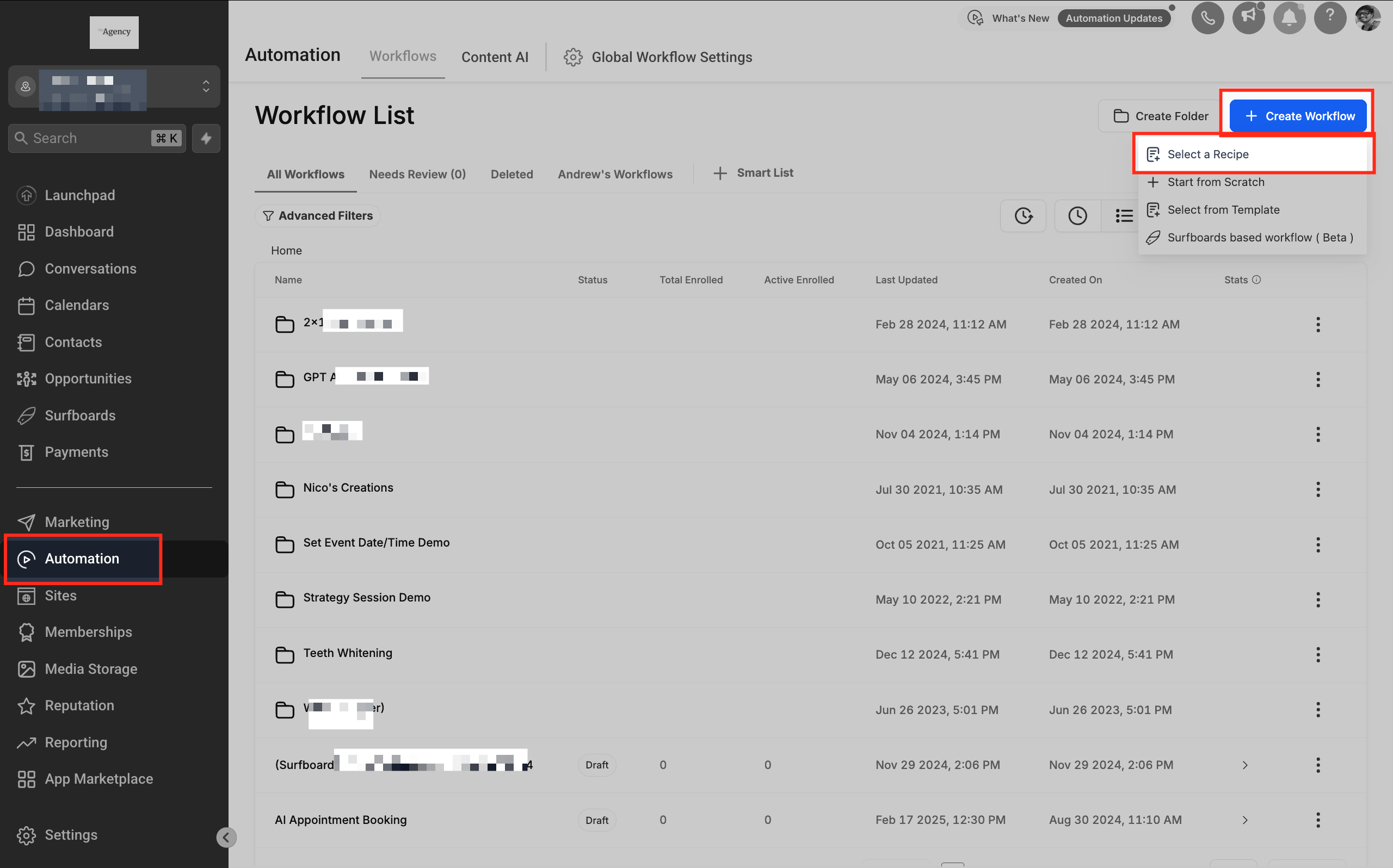
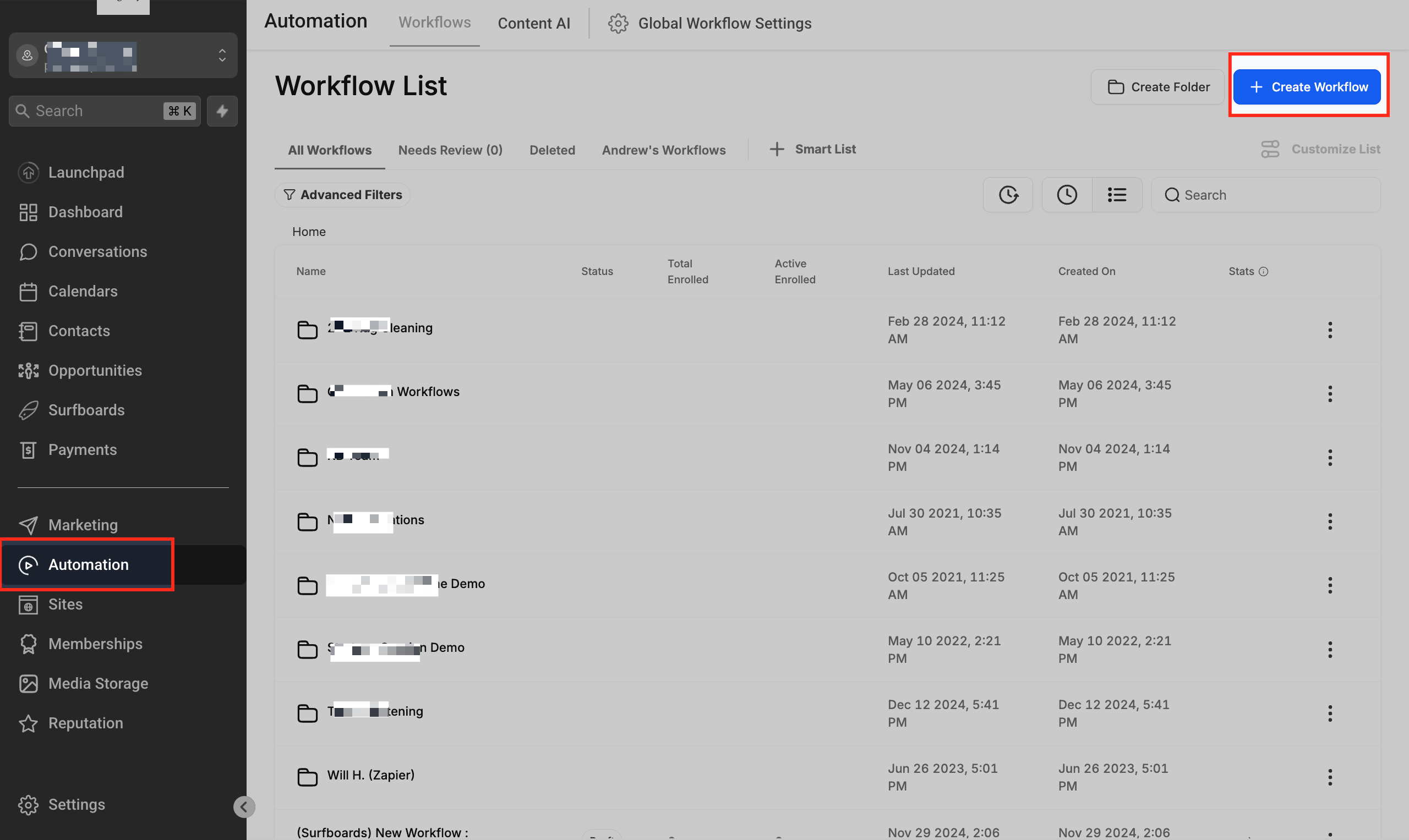
- Open Automation from the HighLevel dashboard and click Create Workflow.
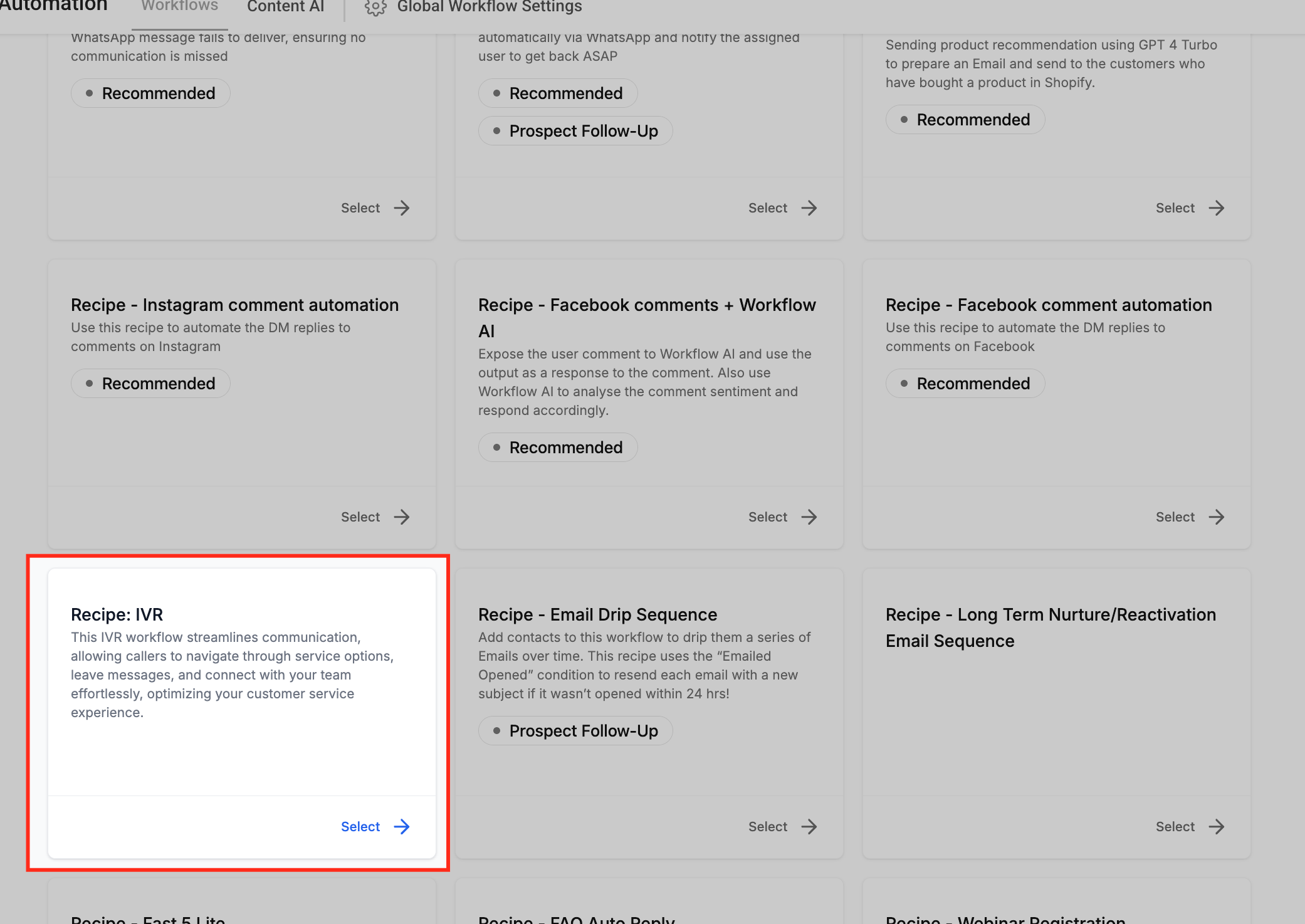
- Select the option to choose a recipe.
- Pick the IVR Workflow recipe from the list.
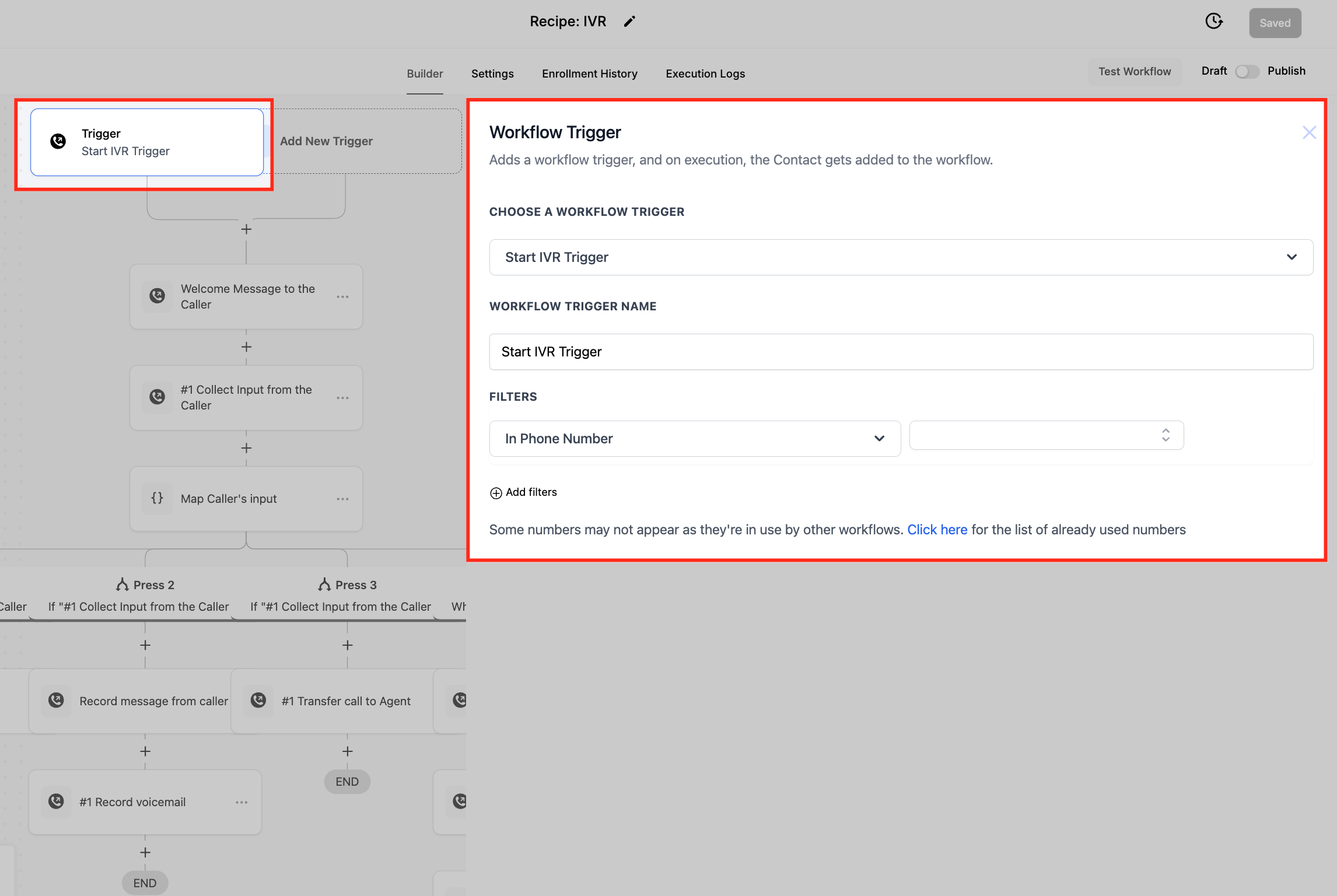
- In the trigger settings, choose the phone number that will activate the IVR.
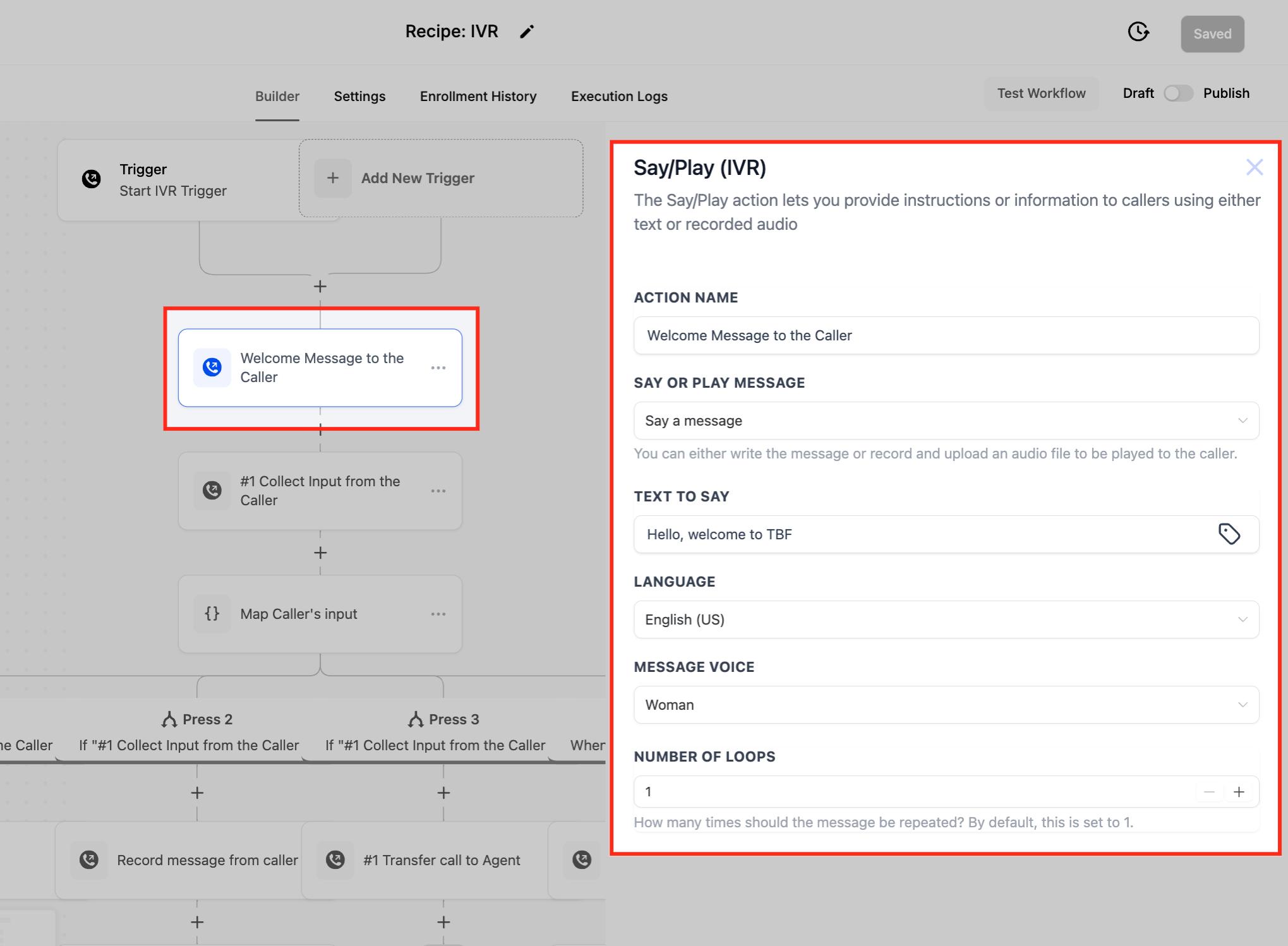
- Edit the Say/Play Message action to customize the greeting or menu prompts.
- Adjust the input conditions to define call routing, then Save and Publish the workflow.
Create IVR from scratch (8 steps)
- Go to Automation and click + Create Workflow, then choose Start from scratch.
- Click + Add New Trigger and search for Start IVR to add the trigger.
- In the trigger settings, assign the phone number that will launch the IVR and click Save.
- Add a Gather Input on Call action and configure the message, language, loops and match conditions.
- Add a Say/Play Message action and set the desired text to speech or audio file.
- Add a Connect Call action and select users or enter an external number to receive the call.
- Add an End Call action and optionally configure a final voice message before disconnecting.
- Add a Record Voicemail action and set beep, silence timeout and maximum recording length.
07What it looks like in HighLevel
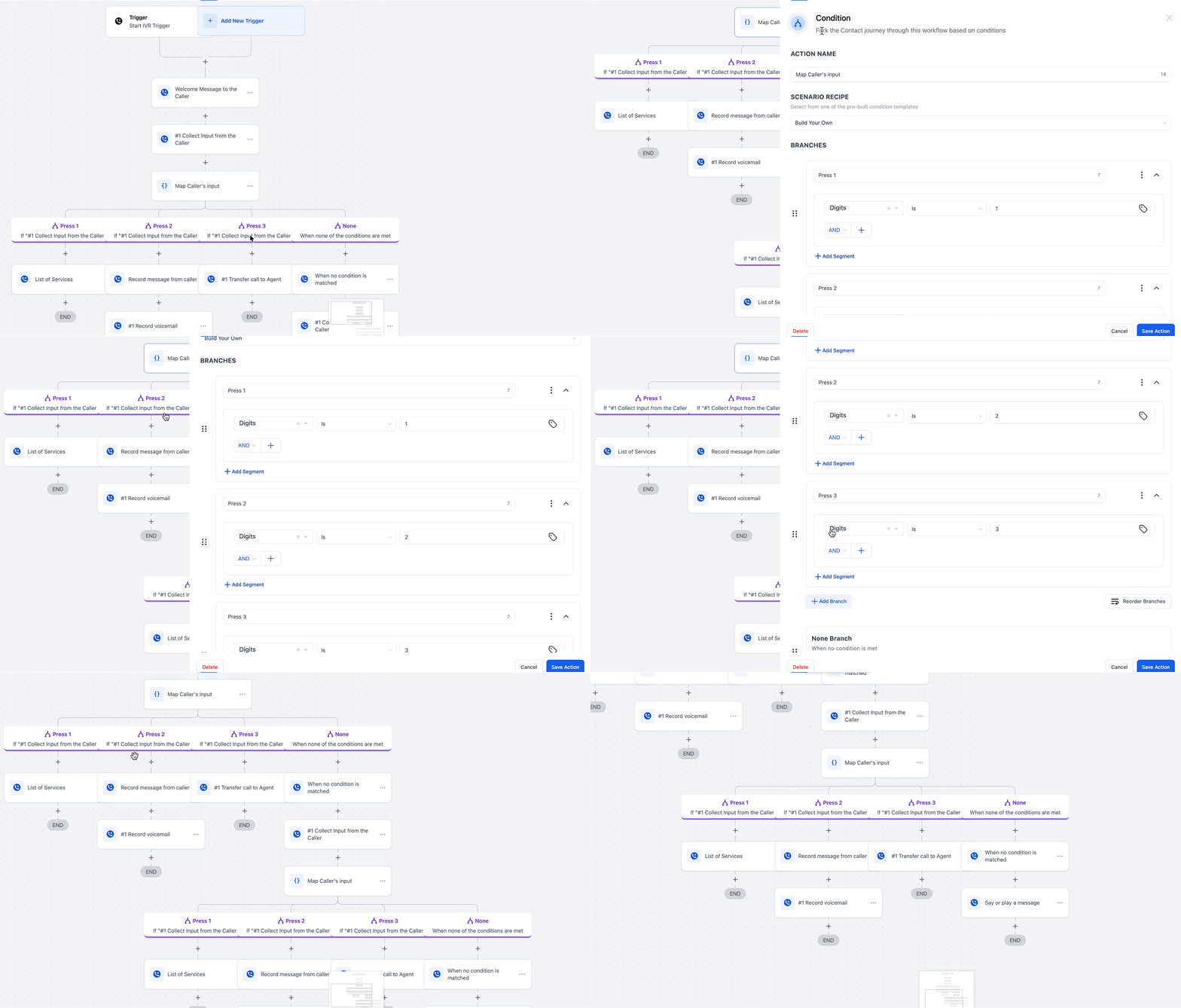
08Settings that matter
- Phone Number. Selects which inbound number triggers the IVR workflow; each number can belong to only one IVR workflow.
- Say or Play Message. Determines whether the IVR uses text to speech or an uploaded audio file for prompts.
- Language & Message Voice. Chooses the language (currently US English) and male or female voice for text to speech messages.
- Number of Loops. Sets how many times a message repeats before the workflow proceeds.
- Match Conditions. Enables branching based on specific keypress inputs, defining separate paths for each selection.
- Stop Gathering After (Seconds). Specifies the time limit for collecting caller input, from 5 to 30 seconds.
- Stop Gathering on Key Press. Stops input collection immediately when the caller presses a key if enabled.
- Stop Gathering After (Digits). Defines how many digits the system expects before automatically submitting the input.
- Detect Voicemail. When enabled, the system checks whether the call was answered by a person or sent to voicemail.
- Record Call. If turned on, the connected call is recorded for quality or compliance.
- Timeout (Seconds). Sets the maximum wait time for the call recipient to answer, between 1 and 600 seconds.
- Time Limit (Seconds). Limits the total duration of the connected call, up to 24 hours.
09Things to know before you rely on it
- A phone number can be assigned to only one IVR workflow at a time.
- The Connect Call action can include up to 10 numbers for simultaneous ringing.
- Voicemail recordings can be up to 14,400 seconds (4 hours) in length.
- Text to speech supports only US English; other languages are not available.
- Audio files should be in .wav format; .mp3 files may not be compatible.
- Blind and warm transfers are not supported within IVR calls.
10How it connects to the rest of HighLevel
- Learn the basics of HighLevel workflow automation. Workflow basics
- Explore other workflow triggers you can use with IVR. Workflow triggers
- Check pricing and plan details for workflow features. Workflow pricing
Michael's take

In my experience, the IVR feature can be valuable for businesses handling inbound calls. If you only need a simple greeting and occasional call forwarding, you can skip it.