
01Who this is for
- Project managers who need automatic alerts for tasks nearing their deadlines, keeping schedules on track.
- Service agencies that want to automate notifications when client work is due or overdue, reducing manual follow up.
- Support teams that rely on task assignments and require timely reminders to avoid missed tickets.
02Task reminder triggers, explained
The Task Reminder trigger monitors any task that has a due date. When the configured number of days before or after that date arrives, the workflow starts. The trigger works for completed tasks if they match the criteria and adapts when a due date changes, as long as the task exists at the reminder moment.
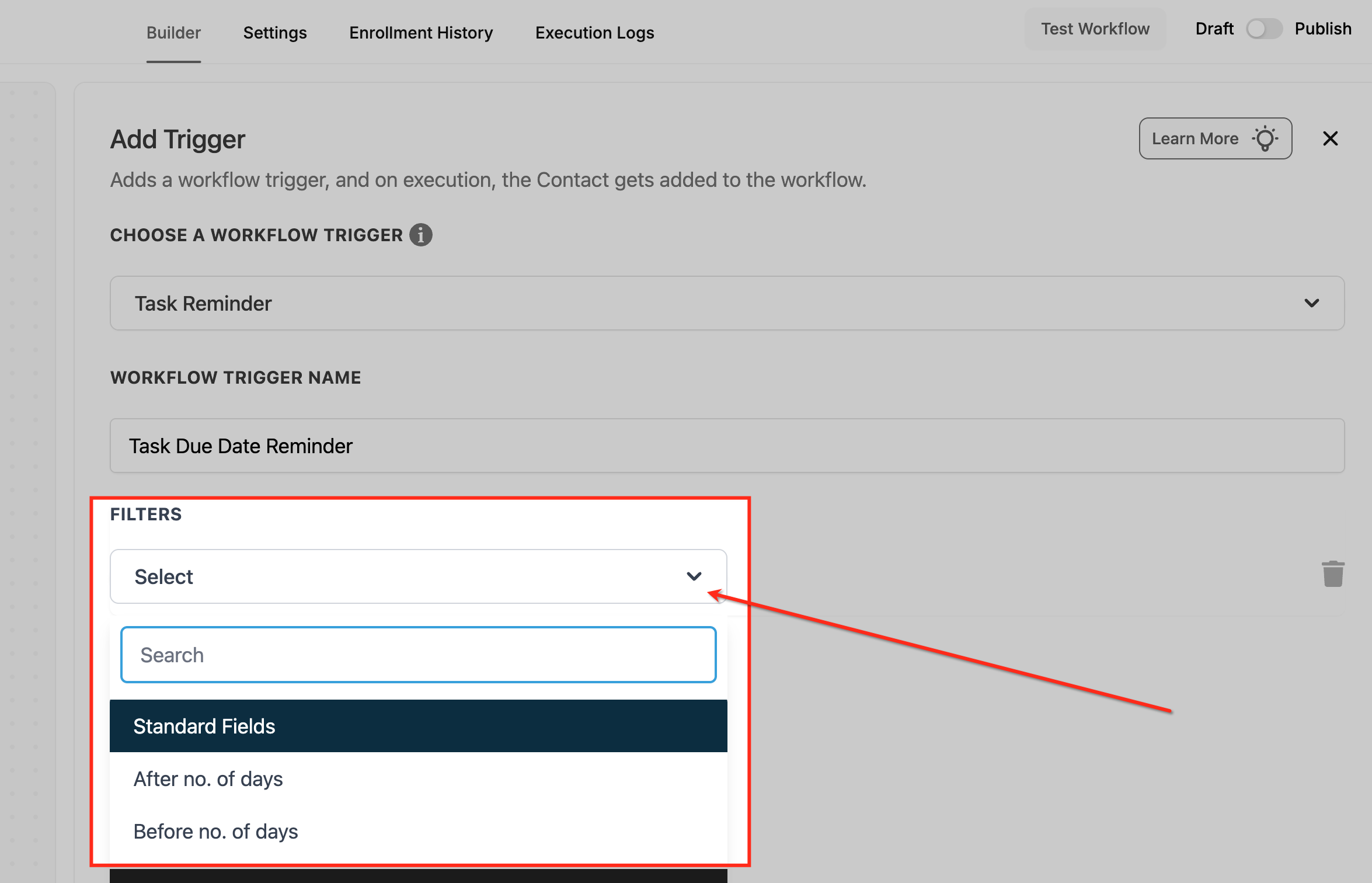
The trigger is selected inside the workflow builder under task related triggers. After choosing it, you give the trigger a name and select a filter, either “Before no. of days” or “After no. of days”, to set the offset. Once saved, the workflow runs the actions you define.
If a task is deleted before the reminder time, the trigger will not fire. Reassigning the task does not affect the timing. A due date is required; without one, no reminder is calculated.
03How businesses use task reminder trigger
- Marketing agency. Create a workflow that sends a notification to the account manager a few days before a campaign task is due, using the “Before no. of days” filter.
- Real estate office. Set up a workflow that emails the listing coordinator when a closing task is overdue, using the “After no. of days” filter.
- IT support firm. Configure a workflow that updates a task status to “Escalated” when a ticket remains open several days after its due date, using the “After no. of days” filter.
04Before you start
- A task with a defined due date must exist before the trigger can be configured.
05How to set up and use task reminder trigger in HighLevel
Set up a Task Reminder trigger
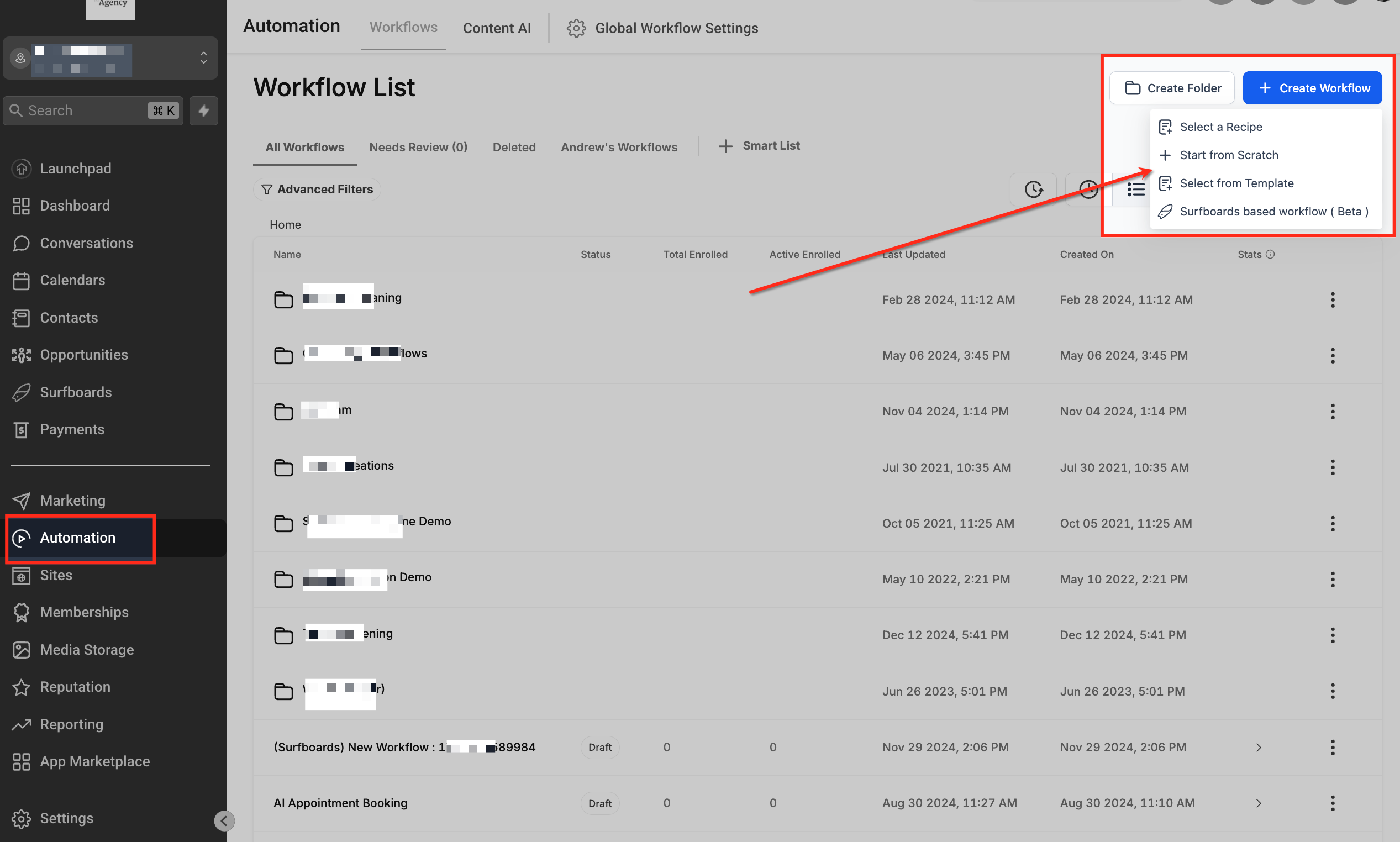
- Open the Automation area and click Create Workflow to start a new automation.
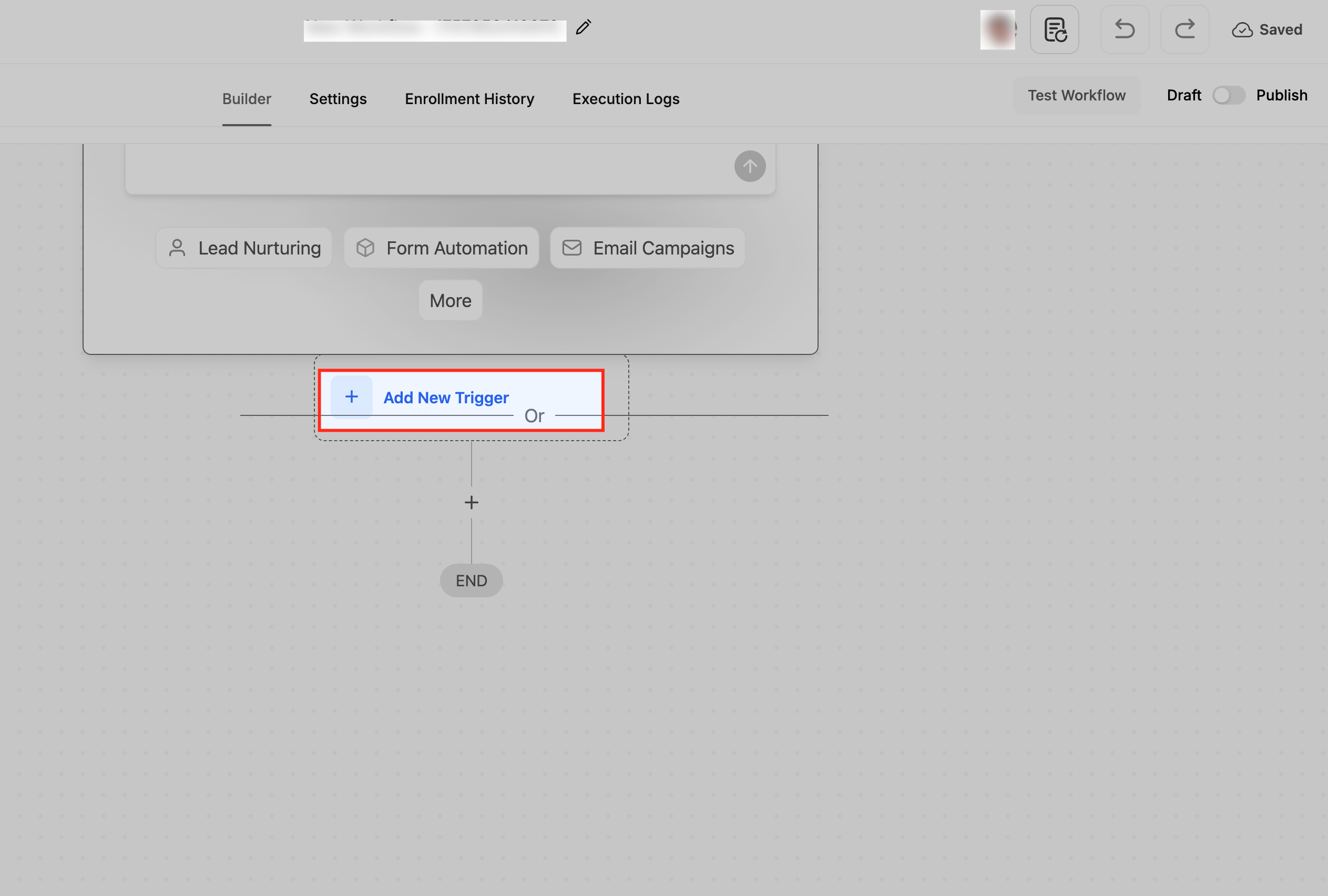
- In the workflow canvas, press Add New Trigger to pick the enrollment event.
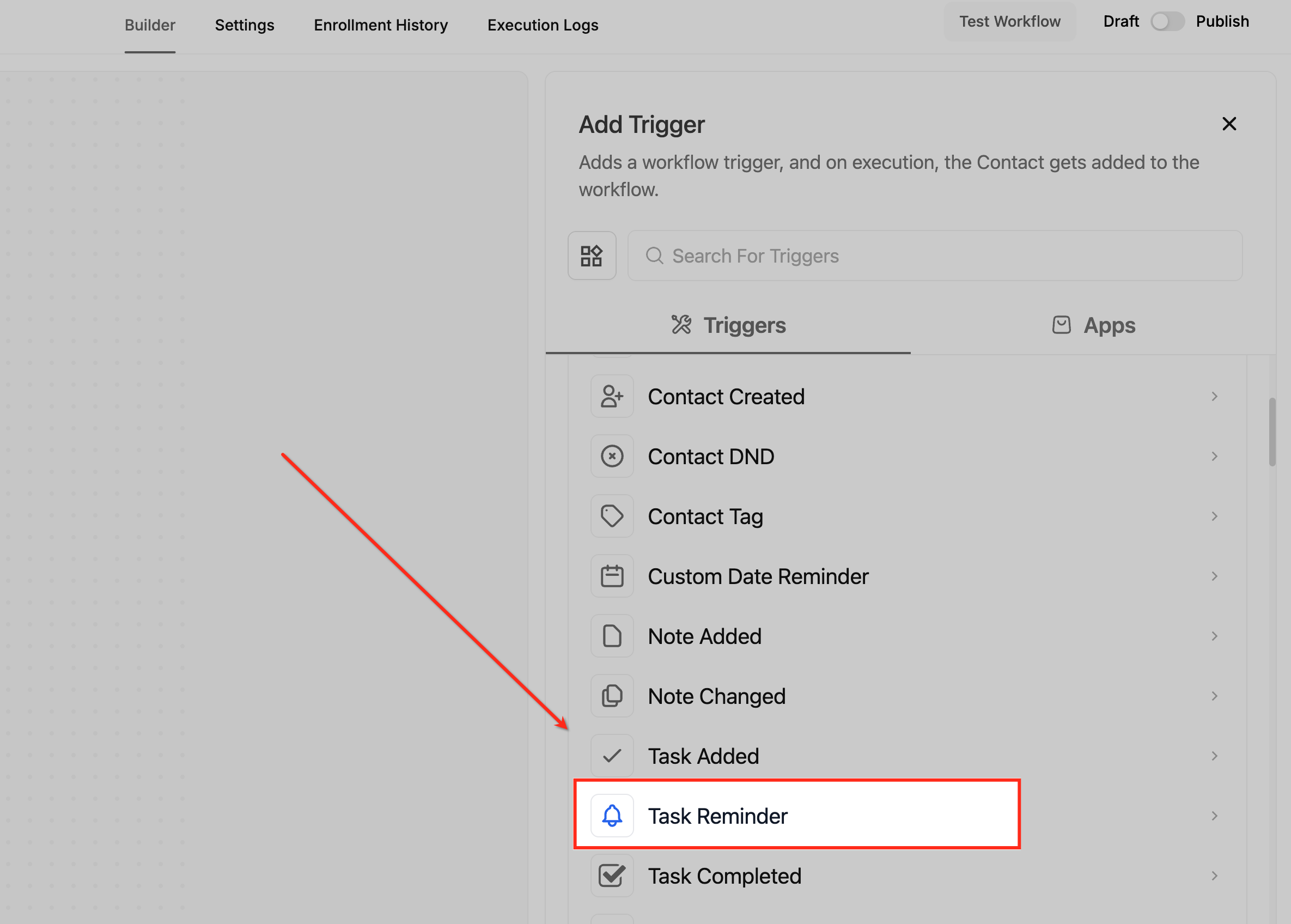
- Scroll the trigger list and select Task Reminder from the task related options.
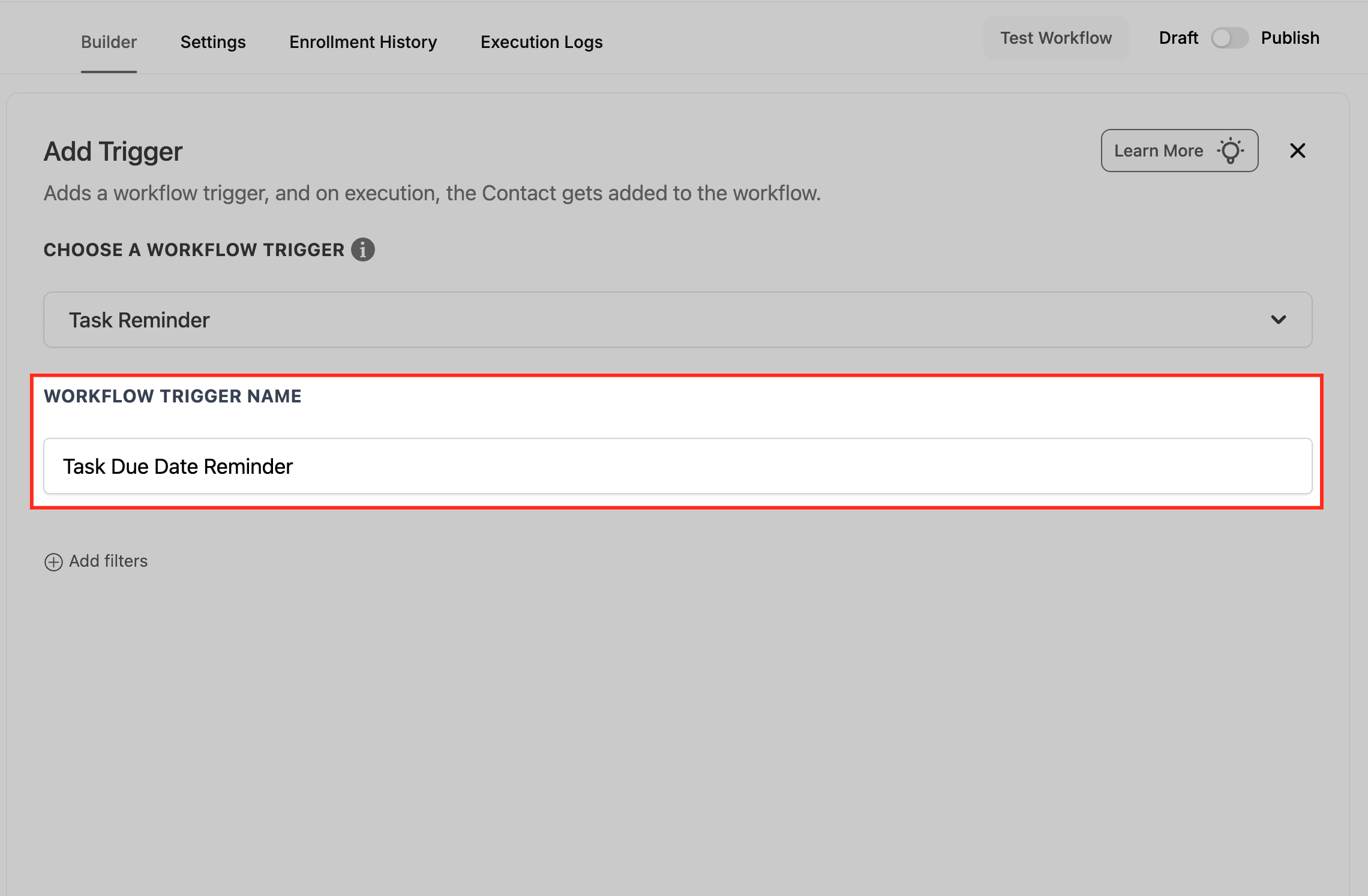
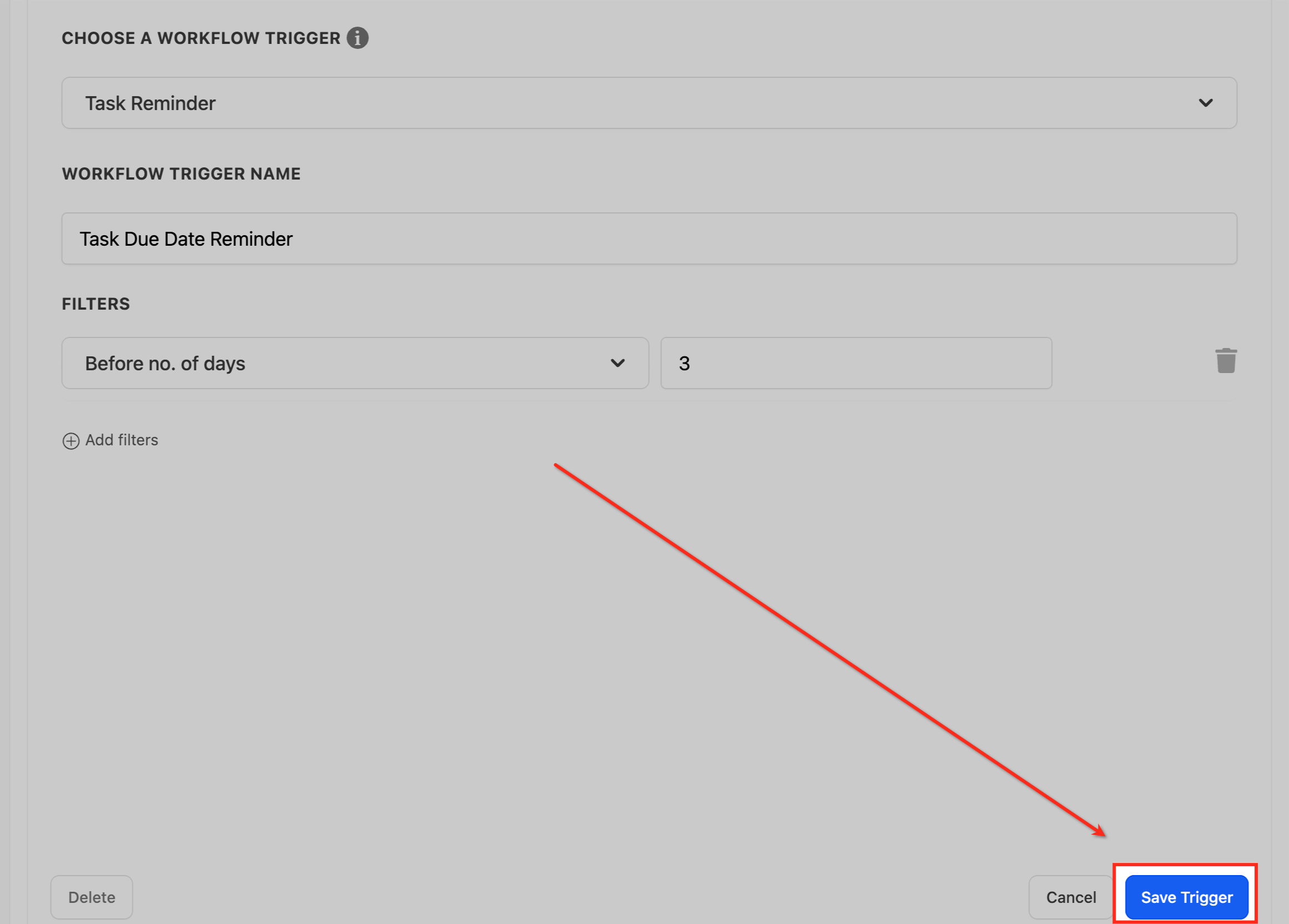
- Enter a descriptive name for the trigger, such as Task Due Date Reminder.
- Click the Select dropdown under Filters to view timing options.
- Choose either Before no. of days or After no. of days, type the number of days, then click Save Trigger.
06What it looks like in HighLevel
07Settings that matter
- Before no. of days. Defines how many days prior to a task's due date the workflow should run.
- After no. of days. Specifies the number of days after a task's due date that will activate the workflow.
08Things to know before you rely on it
- The trigger only works for tasks that have a due date assigned.
- If a task is removed before the reminder time, the trigger will not fire.
- Changing a task's due date automatically updates the reminder timing.
09How it connects to the rest of HighLevel
- Learn the basics of building workflows and automations Workflow basics
- View the pricing tiers for workflow automation features Workflow pricing
- Start a free 30 day trial to test workflow triggers 30 day trial
Michael's take

What happens if I miss a deadline because I’m juggling too many tasks? The task reminder trigger lets the system send a heads up before the due date or flag an overdue item so nothing slips through the cracks.
Use it to automate a simple reminder before a deadline, then add a second workflow that escalates after the due date. Test each timing setting with a dummy task to make sure the alerts land when you expect them.