
01Who this is for
- Sales managers can ensure new leads are assigned right away, reducing response time.
- Marketing teams can automatically deliver welcome emails to every new subscriber.
- Customer support leads can keep contact records up to date without manual entry.
02Contact Created workflow triggers, explained
The Contact Created trigger launches a workflow each time a contact is added to the platform. It reacts to manual entry, form submissions, API calls, or integrations, making it a universal entry point for automation.
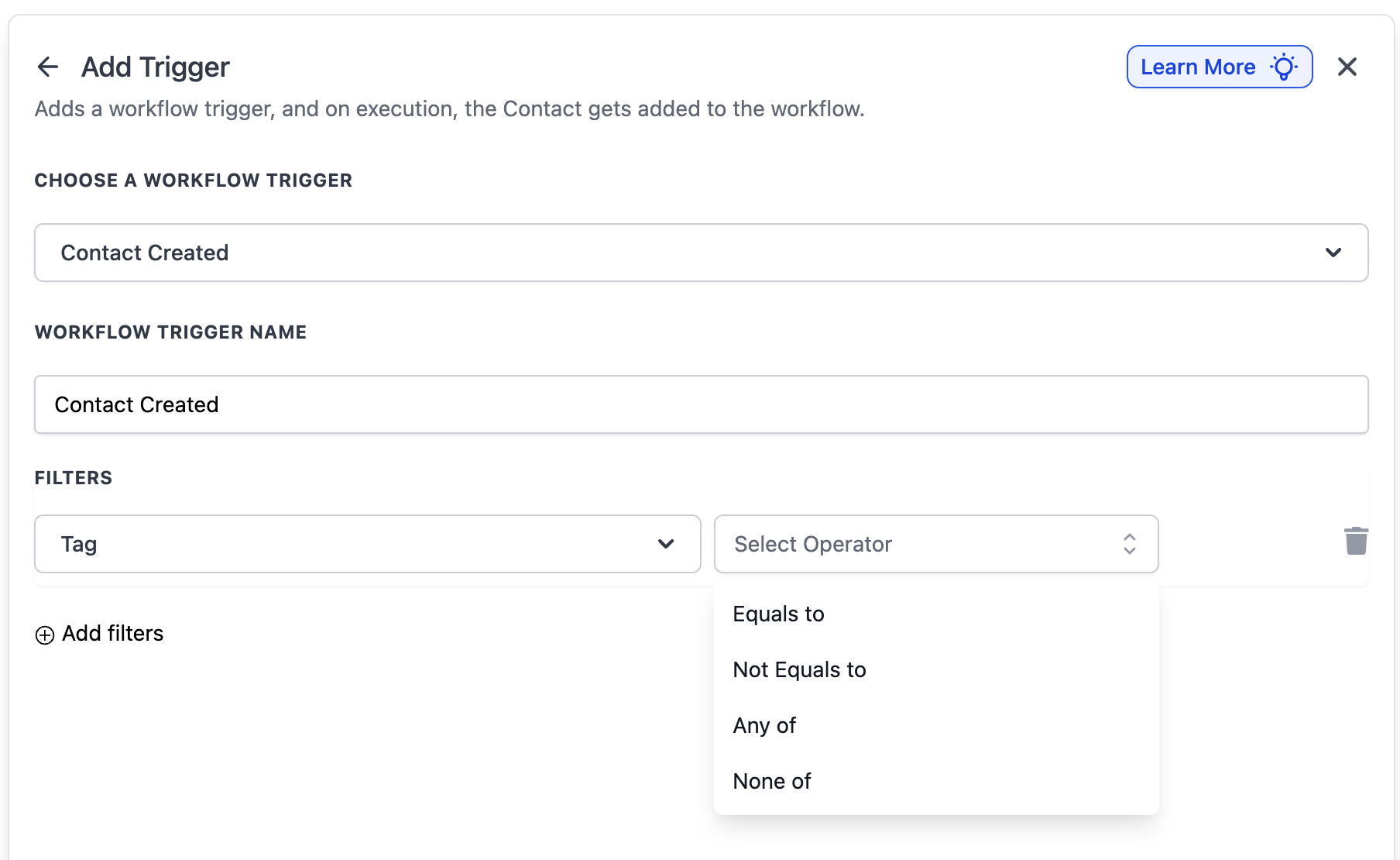
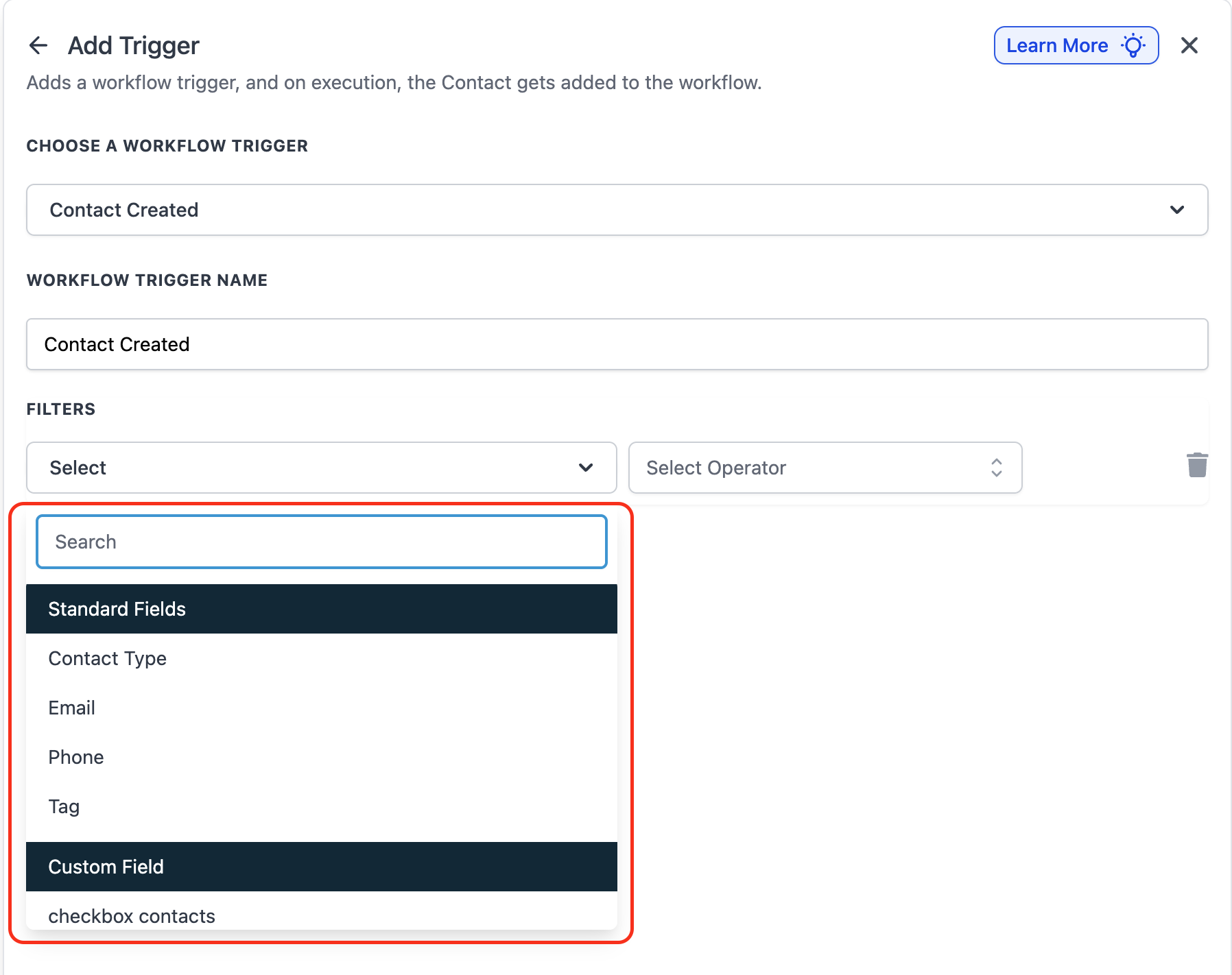
Filters can be applied to the trigger. Tag filters let you include or exclude contacts based on specific tags, using operators such as equals, not equals, any of, or none of. Custom field filters let you target contacts whose custom attributes meet defined criteria.
The trigger is configured inside the Automations area of HighLevel. After creating or editing a workflow, you add the Contact Created trigger, name it, set any desired filters, and then attach actions such as emails, assignments, or data updates.
03How businesses use the Contact Created workflow trigger
- Real estate agency. The agency adds the Contact Created trigger to a workflow, filters contacts by a "New Lead" tag, and automatically sends a personalized welcome email and assigns the lead to an agent. This ensures every new prospect receives immediate outreach.
- SaaS startup. The startup configures the trigger with a custom field filter for "Trial Start Date" and uses it to add new trial users to a drip email sequence that guides them through onboarding steps.
- Fitness center. The center sets the trigger to fire only for contacts tagged "Gym Member" and automatically sends an introductory class schedule and assigns the member to a personal trainer within HighLevel.
04How to set up and use the Contact Created workflow trigger in HighLevel
Configure the Contact Created workflow trigger
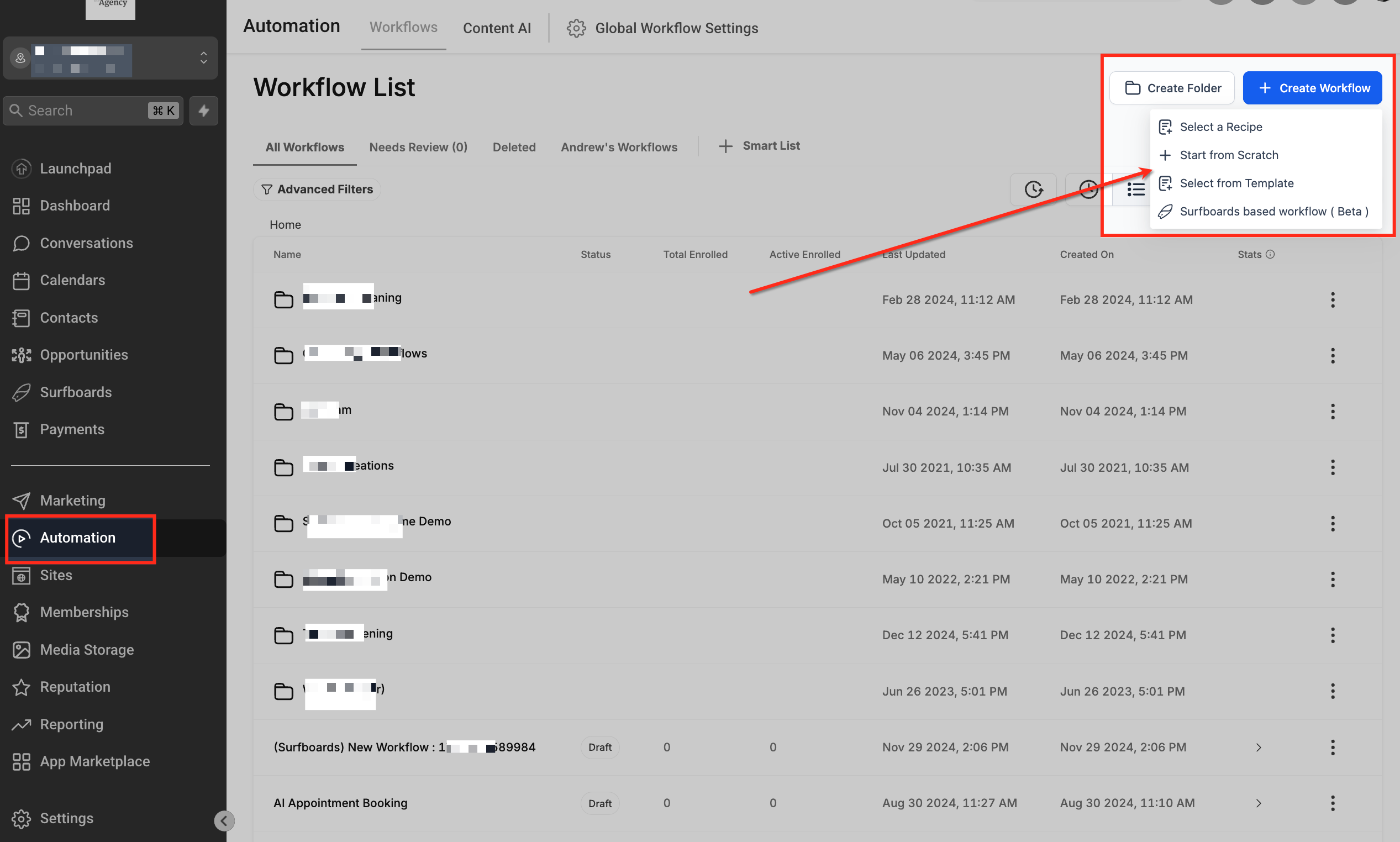
- Open Automations, click + Create Workflow and choose Start from Scratch or edit an existing workflow.
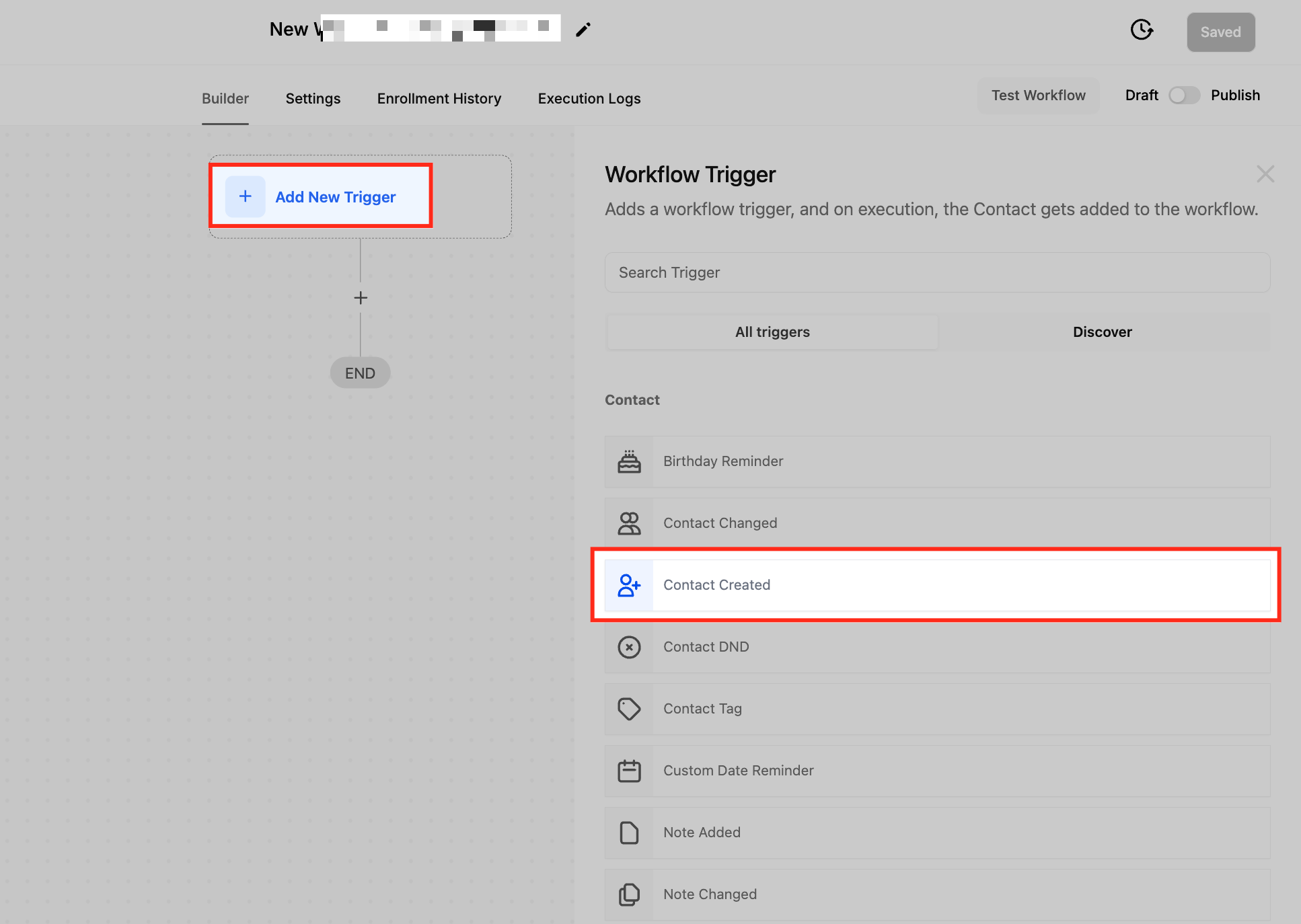
- Click Add New Workflow Trigger.
- Select "Contact Created" from the list of triggers.
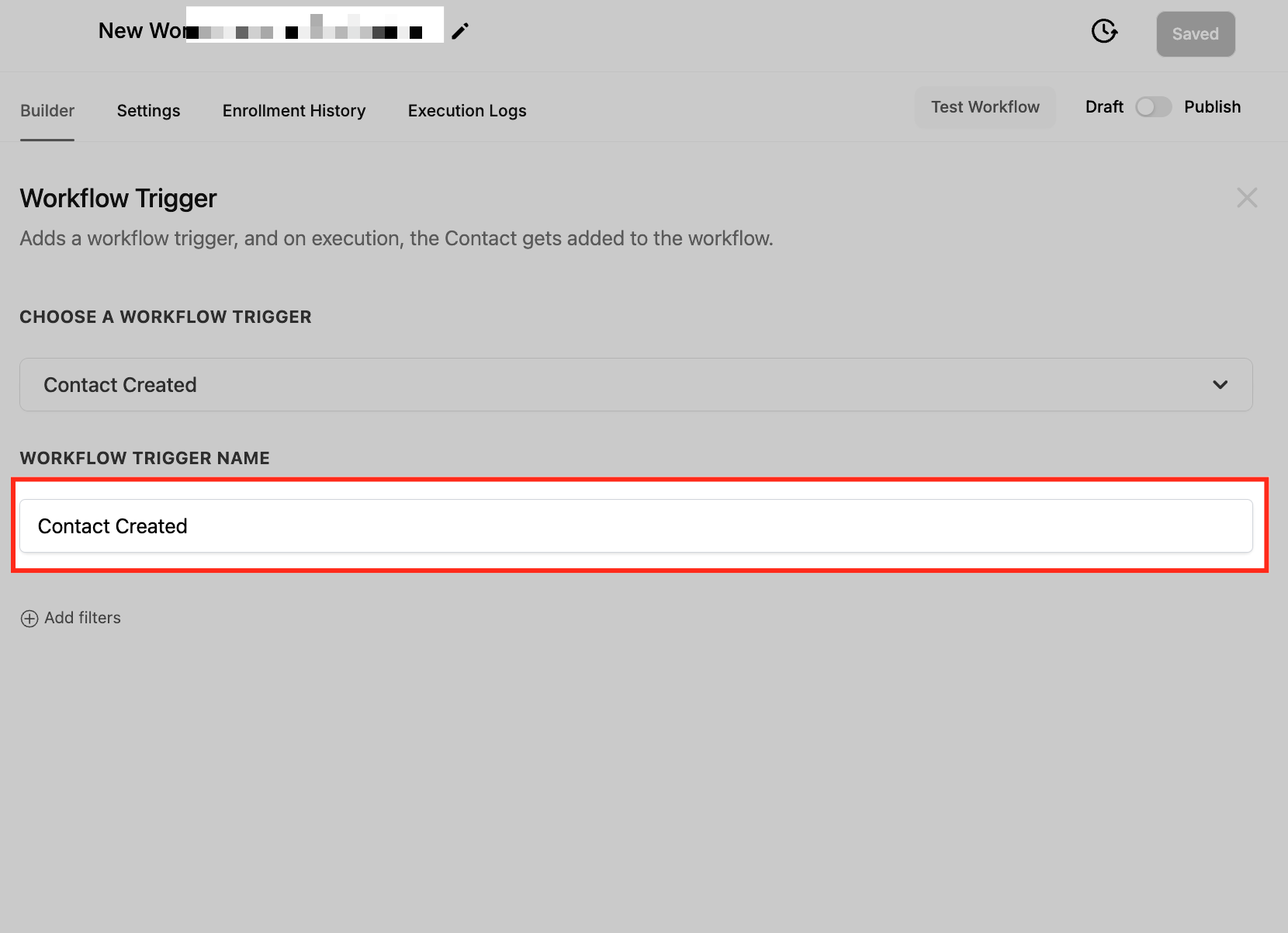
- Enter a descriptive name for the trigger.
- Add Tag or Custom Field filters to limit which contacts start the workflow.
- Save the trigger configuration.
05What it looks like in HighLevel
06Settings that matter
- Tag. Controls which contacts can enter the workflow based on their assigned tags, using operators such as equals, not equals, any of, or none of.
- Custom Fields. Controls workflow activation by evaluating values in user defined fields, allowing segmentation by attributes like industry type or lead score.
07Things to know before you rely on it
- The trigger does not fire for contacts imported in bulk.
- If a duplicate contact is merged, the workflow will not trigger again for that record.
- The trigger activates only when a contact is added manually, via form, API, or integration.
08How it connects to the rest of HighLevel
- Configure the Contact Tag trigger in HighLevel workflows Contact Tag trigger
- Contact changed workflow trigger in HighLevel Contact changed trigger
- HighLevel workflow automation: basics and set up guide Workflow basics
Michael's take

The Contact Created trigger feels like a small convenience that can turn a handful of manual steps into an instant response loop. For a business that depends on quick follow up. Say a boutique real estate agency. It removes the lag between a lead showing up and the agent reaching out.
If I were setting it up, I’d start with a simple welcome email and a tag based assignment rule. I’d watch the execution logs for the first few days to confirm the right contacts are entering the flow and that duplicates aren’t causing extra sends.