
01Who this is for
- Marketers can use this trigger to track link engagement and launch follow up actions.
- Businesses can segment contacts based on which link they click to personalize future communications.
02Trigger link clicked, explained
The Trigger Link Clicked trigger starts a workflow each time a contact clicks a specific trigger link. You can place these links in emails, SMS or other communication channels. Only contacts who click the selected link will activate the workflow.
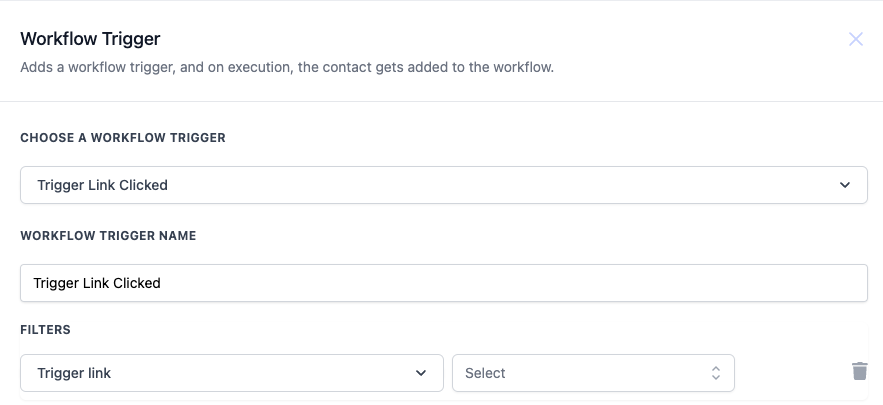
This trigger is configured inside the workflow editor under the list of available triggers. After selecting the trigger, you name it, apply a filter to choose the exact link, and then save the configuration. Subsequent workflow steps can send messages, tag contacts or perform other actions.
03How businesses use trigger link clicked
- Ecommerce store. Create a trigger link for a seasonal sale promotion. Set up a workflow that sends a thank you email and tags the buyer as interested when the link is clicked. Use the tag to include the customer in future sale campaigns.
- Fitness studio. Add a trigger link to a class booking SMS. Configure a workflow that sends a confirmation email and updates the contact record with a "Class Booked" tag when the link is tapped.
- Real estate agency. Insert a trigger link in a property listing email. Build a workflow that follows up with property details and tags the contact as "Property Viewed" after the link is clicked.
04How to set up and use trigger link clicked in HighLevel
Set up trigger link clicked workflow
- Open the workflow editor and select Trigger Link Clicked as the trigger.
- Enter a descriptive name for the trigger.
- Add a filter and choose the specific trigger link from the dropdown menu.
- Save the trigger configuration to activate the workflow.
05What it looks like in HighLevel
06Settings that matter
- Trigger link. Selects the exact link that will start the workflow when a contact clicks it.
07Things to know before you rely on it
- The trigger link selection is mandatory for the workflow to fire.
08How it connects to the rest of HighLevel
- Learn the basics of workflow automation in HighLevel. Workflow basics
- Start a free 30 day trial to test trigger link workflows. 30 day trial
- Review pricing and plan options for workflow features. Pricing
Michael's take

Michael ReimerFounder of CRM Pros, HighLevel Commander and Certified Admin
I find the Trigger Link Clicked useful for automatically sending follow up emails or adding tags after a contact clicks a tracked link.
Get More InformationOpens on HighLevelPublished November 2, 2026 · Updated November 16, 2026