
01Who this is for
- Founders who need to enforce opt out rules across email, SMS and calls to stay compliant.
- Marketing managers who want to automatically remove contacts from outbound campaigns when they unsubscribe.
- Support teams that must block inbound spam calls or messages from contacts flagged as DND.
02Contact DND workflow triggers, explained
The Contact DND trigger watches a contact’s Do Not Disturb setting. When the status flips, either enabled or disabled, the trigger can start a workflow. You can limit the activation to inbound or outbound changes and choose specific channels such as SMS, email, phone calls, GMB or Facebook messages.
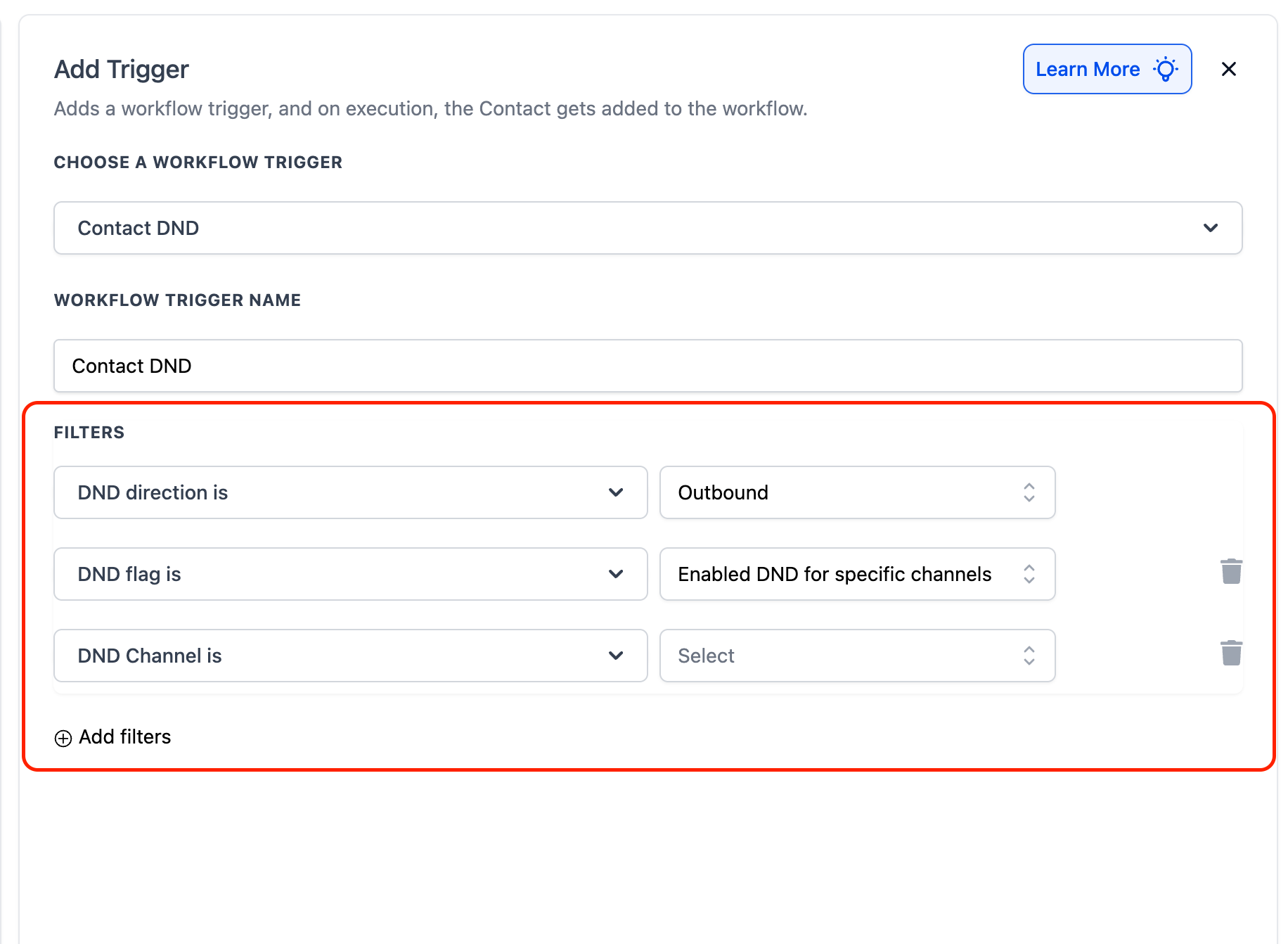
The trigger lives inside the Workflow Builder. After adding it, you define filters for direction, flag (enabled/disabled, all or specific channels) and optional tag conditions. Once saved and published, the workflow runs each time a matching DND change occurs, automatically skipping steps that conflict with the contact’s preferences.
03How businesses use contact DND workflow trigger
- Dental practice. The practice adds a Contact DND trigger for outbound SMS. When a patient opts out of text reminders, the workflow tags the record and removes the patient from reminder workflows, ensuring no further SMS are sent.
- Real estate agency. The agency sets the trigger for inbound calls. When a lead blocks inbound calls, the workflow tags the lead and stops any call center outreach, keeping the pipeline clean.
- Ecommerce store. The store creates a trigger for outbound email when DND is disabled for all channels. If a shopper re enables email, the workflow removes the “Do Not Contact” tag and adds the shopper back into promotional email sequences.
04The numbers and rules that matter
- DND Flag options: Disabled DND for All Channels, Disabled DND for Specific Channels, Enabled DND for All Channels, Enabled DND for Specific Channels.
- Specific Channels list: SMS, Email, Phone Calls, Google My Business (GMB) Messages, Facebook Messages.
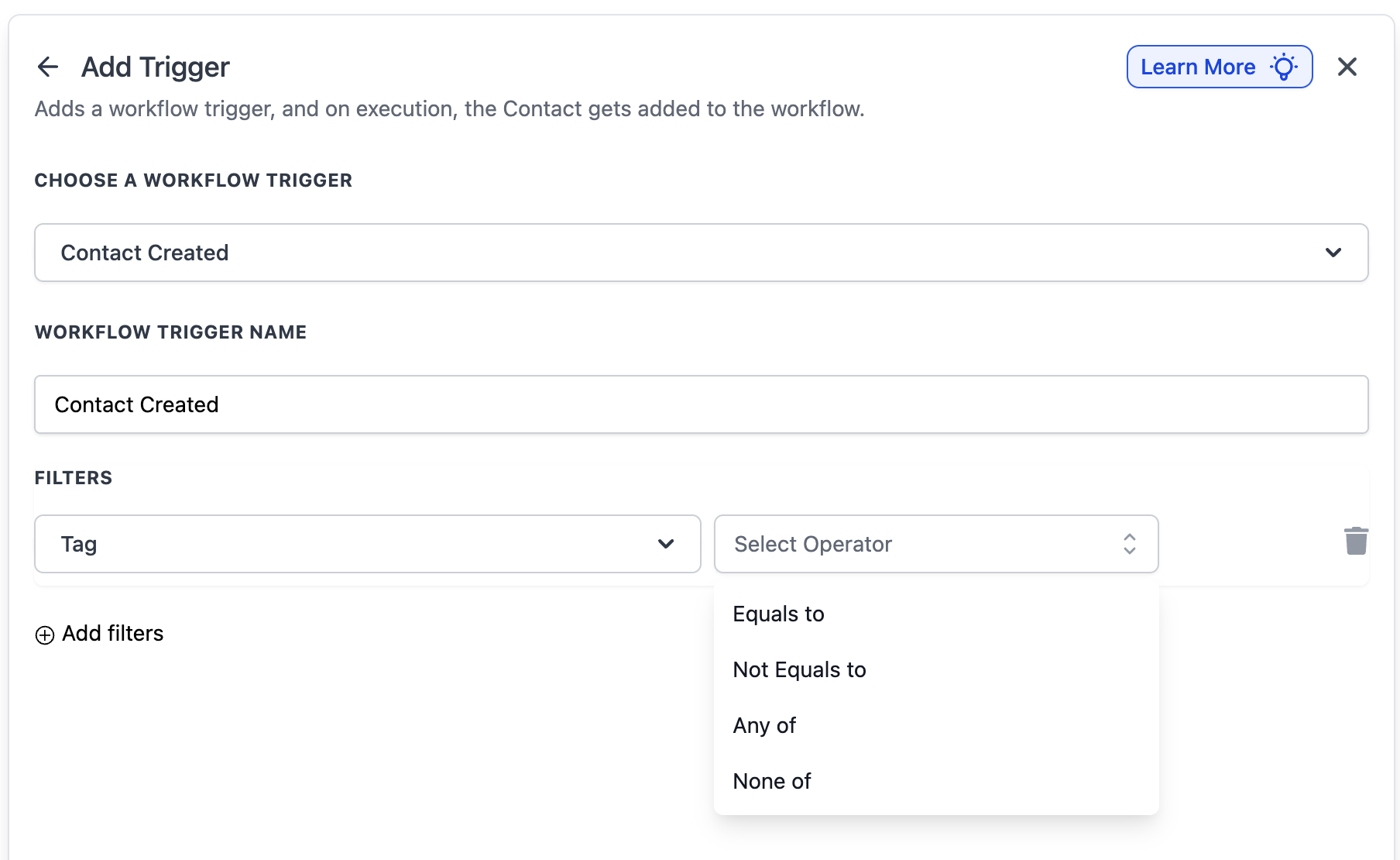
- Tag operators: Equals to / Not equals to, Any of, None of (multiselect supported).
05Before you start
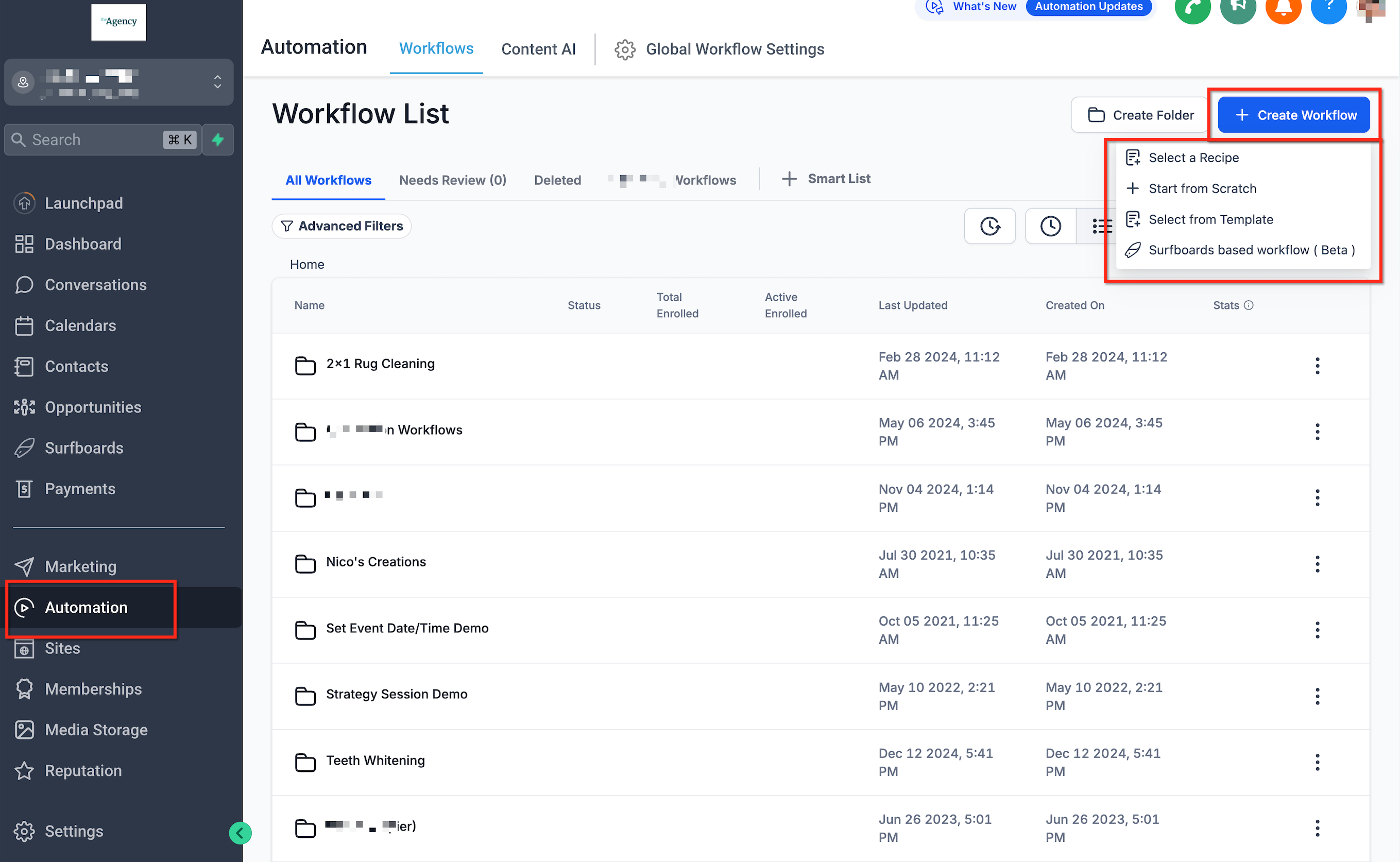
- Navigate to the Automation section and click “+ Create New Workflow.”
- Choose “Start from Scratch” to build a new workflow or select an existing workflow to edit.
06How to set up and use contact DND workflow trigger in HighLevel
Configure contact DND workflow trigger
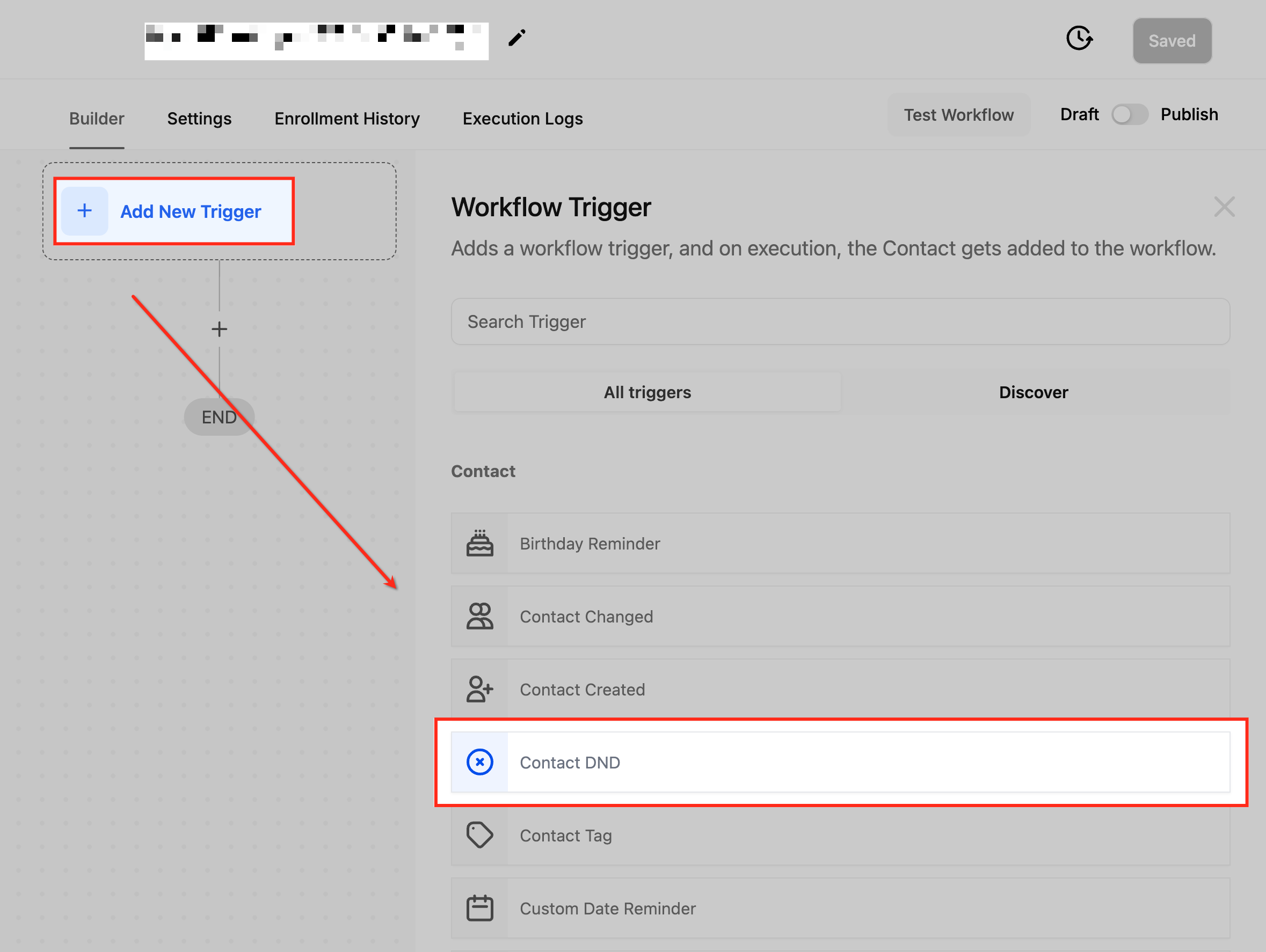
- Open Automation, click + Create New Workflow, and choose Start from Scratch or edit an existing workflow.
- Click Add New Trigger and locate the Contact DND option.
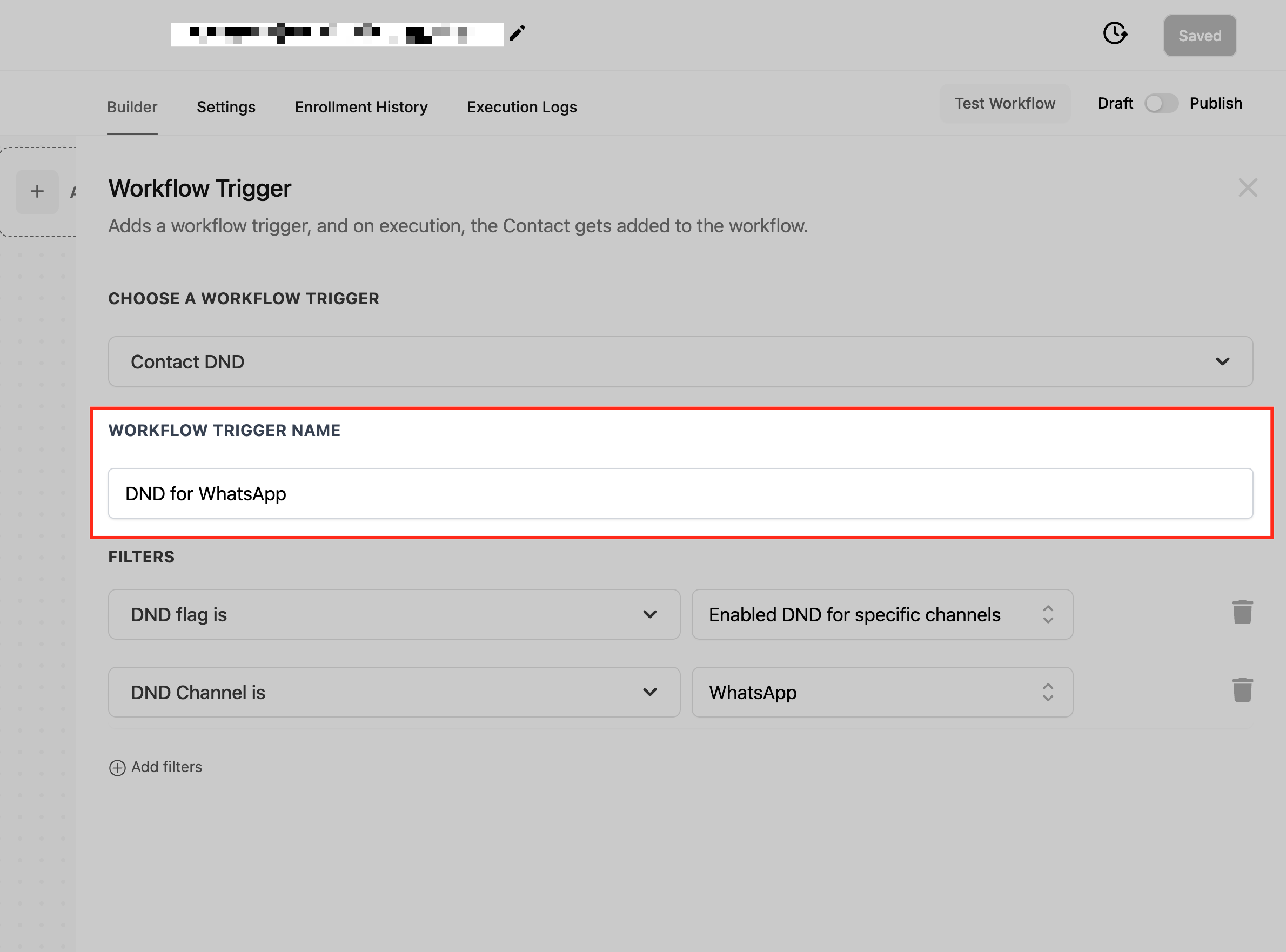
- Enter a descriptive name for the trigger, such as DND for WhatsApp.
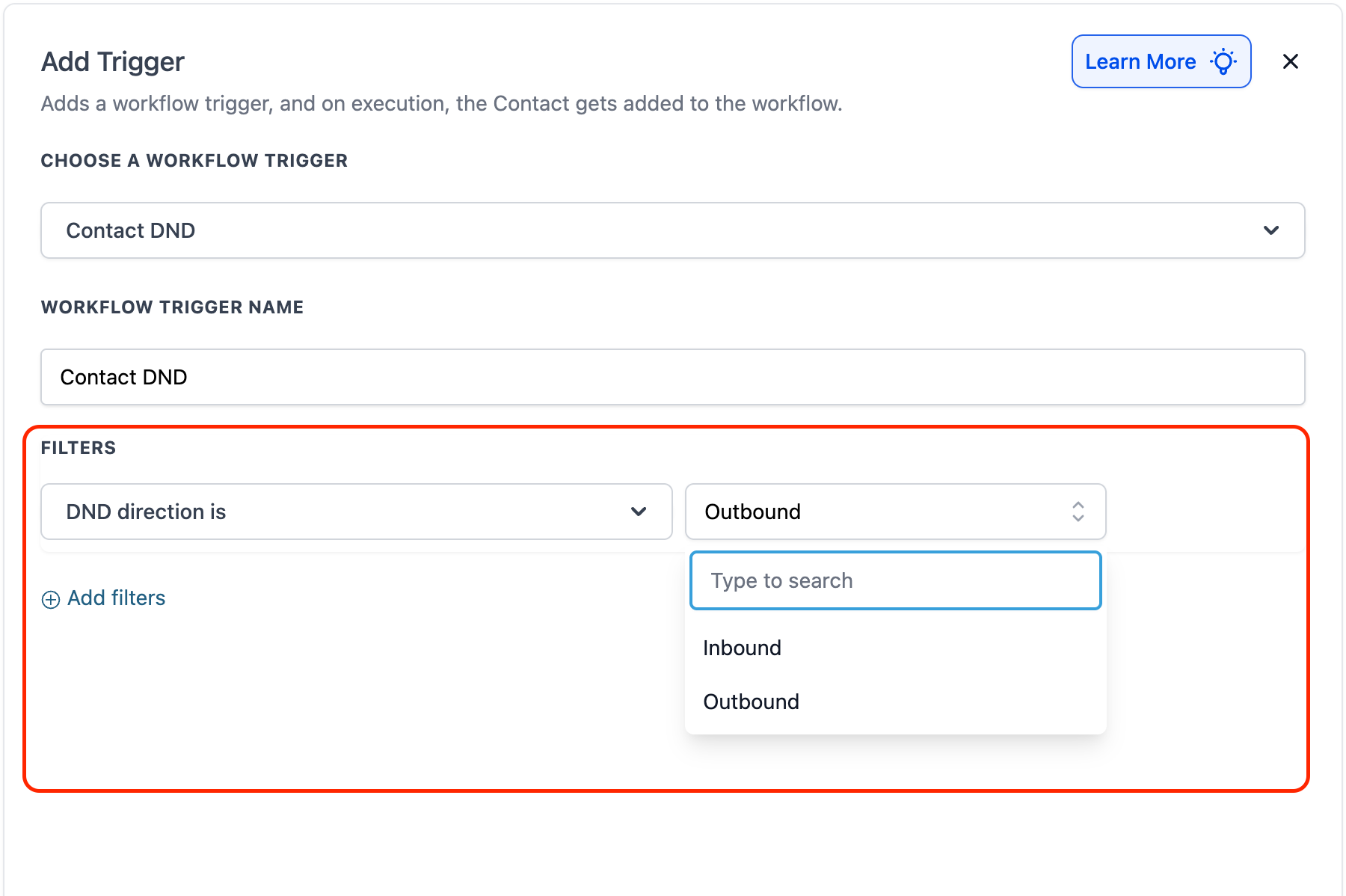
- Open the filter settings for the trigger.
- Select the DND Direction (Inbound or Outbound) to define which change type fires the trigger.
- Choose the DND Flag (Enabled or Disabled, for All Channels or Specific Channels).
- If Specific Channels are selected, pick the relevant channels: SMS, Email, Phone Calls, GMB Messages, Facebook Messages.
- Optionally add Tag filters to limit the trigger to contacts with specific tags.
- Save the trigger and toggle the workflow from Draft to Publish.
07What it looks like in HighLevel
08Settings that matter
- DND Direction. Determines whether the trigger fires on inbound DND changes (blocking incoming calls/SMS) or outbound DND changes (blocking outgoing communications).
- DND Flag. Specifies if the trigger activates when DND is Enabled or Disabled, and whether it applies to all channels or only selected ones.
- Specific Channels. Limits the trigger to particular communication channels such as SMS, Email, Phone Calls, GMB Messages, or Facebook Messages.
- Tag. Allows the trigger to run only for contacts that meet tag conditions, using operators like Equals, Not equals, Any of, or None of.
09Things to know before you rely on it
- Inbound DND only affects Calls and SMS channels.
- Specific Channels can be chosen only after selecting the Specific Channel option in the DND Flag filter.
10How it connects to the rest of HighLevel
- Configure a Contact Tag trigger to add or remove tags based on DND changes. Contact Tag trigger
- Learn about HighLevel workflow basics before adding triggers. Workflow basics
Michael's take

Most people set the DND trigger and then forget to add a tag or notification, so the change goes unnoticed and contacts may still receive unwanted messages. I start by defining a clear tag, like “SMS Opt Out,” and add an internal notification so the team knows the preference was captured.
If I were building a workflow, I would first test the trigger with a single contact, toggle their DND status, and watch the workflow fire. That quick check confirms the filters and actions work before scaling the automation to all contacts.