
01Who this is for
- Marketing managers can automate birthday and seasonal campaign messages, keeping outreach timely.
- Customer support teams use it to schedule service renewal alerts, reducing missed follow ups.
02Custom date reminder triggers, explained
The trigger evaluates a date field on the record the workflow runs against. Depending on the workflow type, it can read contact birthdays, opportunity dates, custom object dates, or company dates. When the current day matches the configured condition, before, on, or after the chosen date, the workflow starts.
The trigger lives inside the workflow builder under Automation. After adding it, users name the trigger, apply filters, and select the precise date field. Options let the trigger fire only when the year also matches, enabling yearly repeats. Advanced filters such as after number of days or has tag narrow the activation to specific contacts or time windows.
03How businesses use custom date reminder trigger
- Insurance agency. Select the policy expiry date field and set a before number of days filter for three days. The workflow will launch a reminder email to the policy holder three days prior to expiration.
- Healthcare practice. Choose the birthday (MM/DD) field and enable match on year along with day and month. The workflow sends a birthday greeting each year on the contact's birthday.
- Consulting firm. Pick the proposed appointment time field and add a day is filter for Monday. The workflow triggers a preparation task every Monday before a scheduled consultation.
04The numbers and rules that matter
- Has Tag filter limits activation to contacts with a specific tag.
05How to set up and use custom date reminder trigger in HighLevel
add custom date reminder trigger
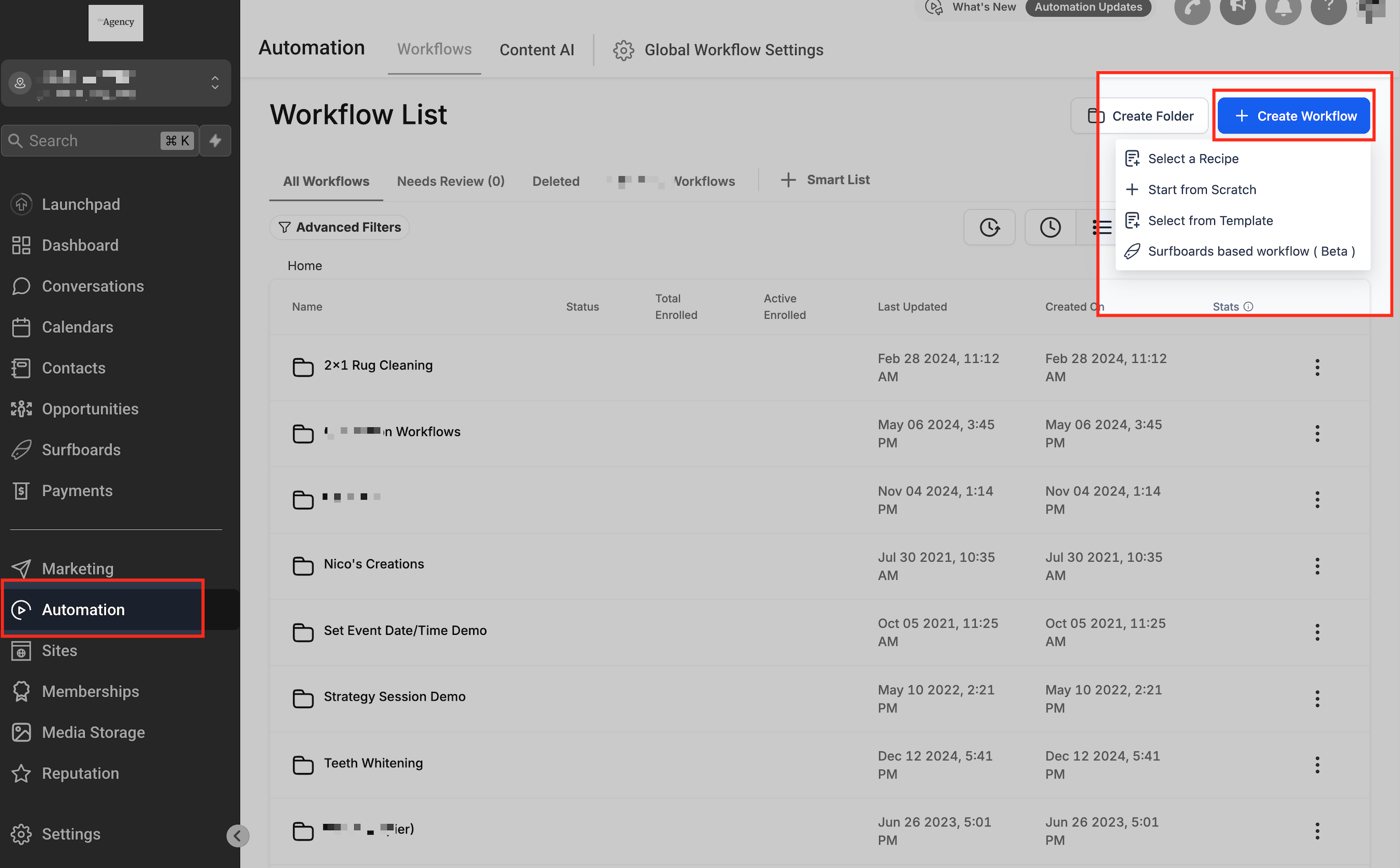
- Open Automation and click + Create New Workflow.
- Pick Start from Scratch or select a Template.
- Locate an existing workflow, hover over it, and choose Edit if needed.
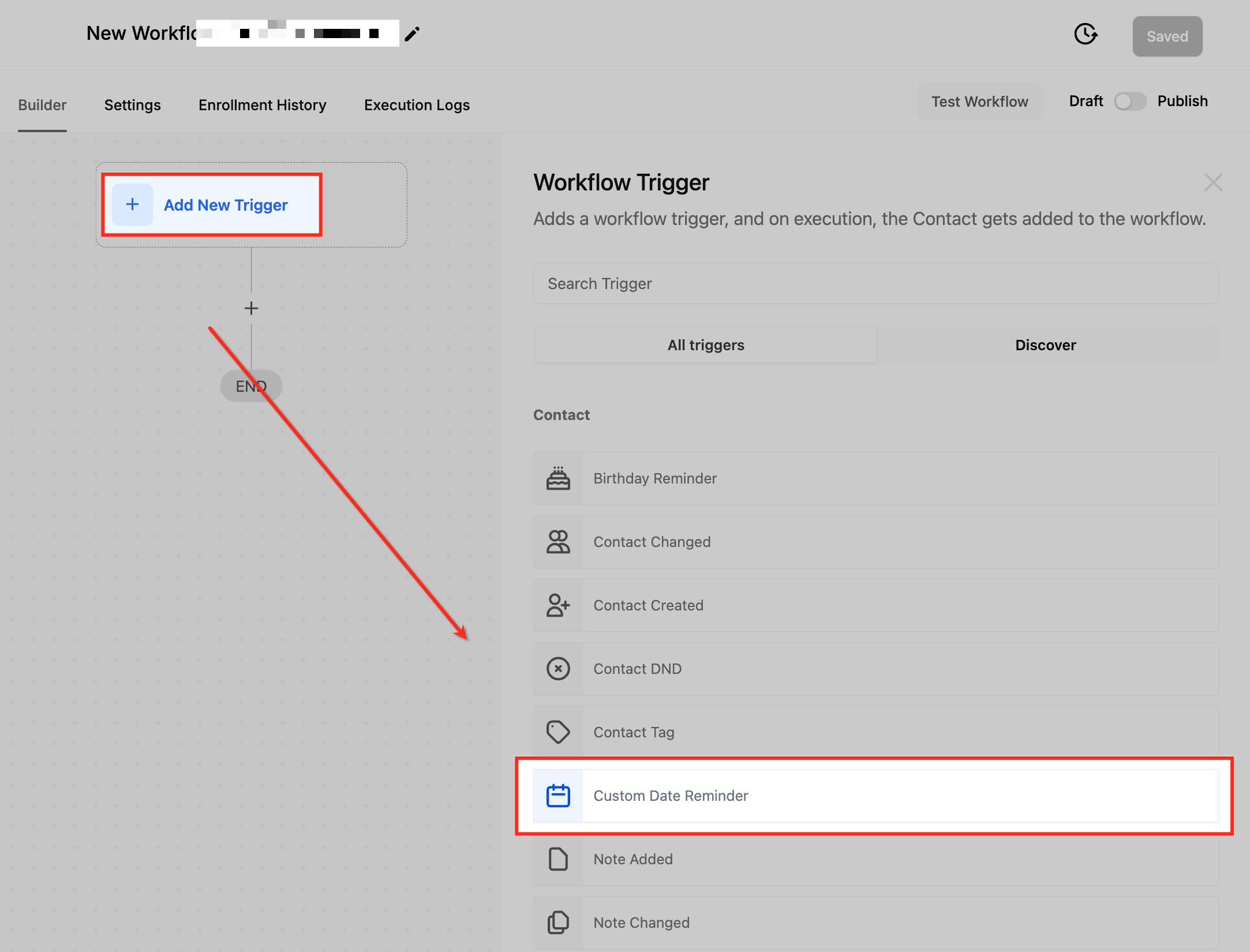
- Press Add New Trigger.
- Choose Custom Date Reminder from the list.
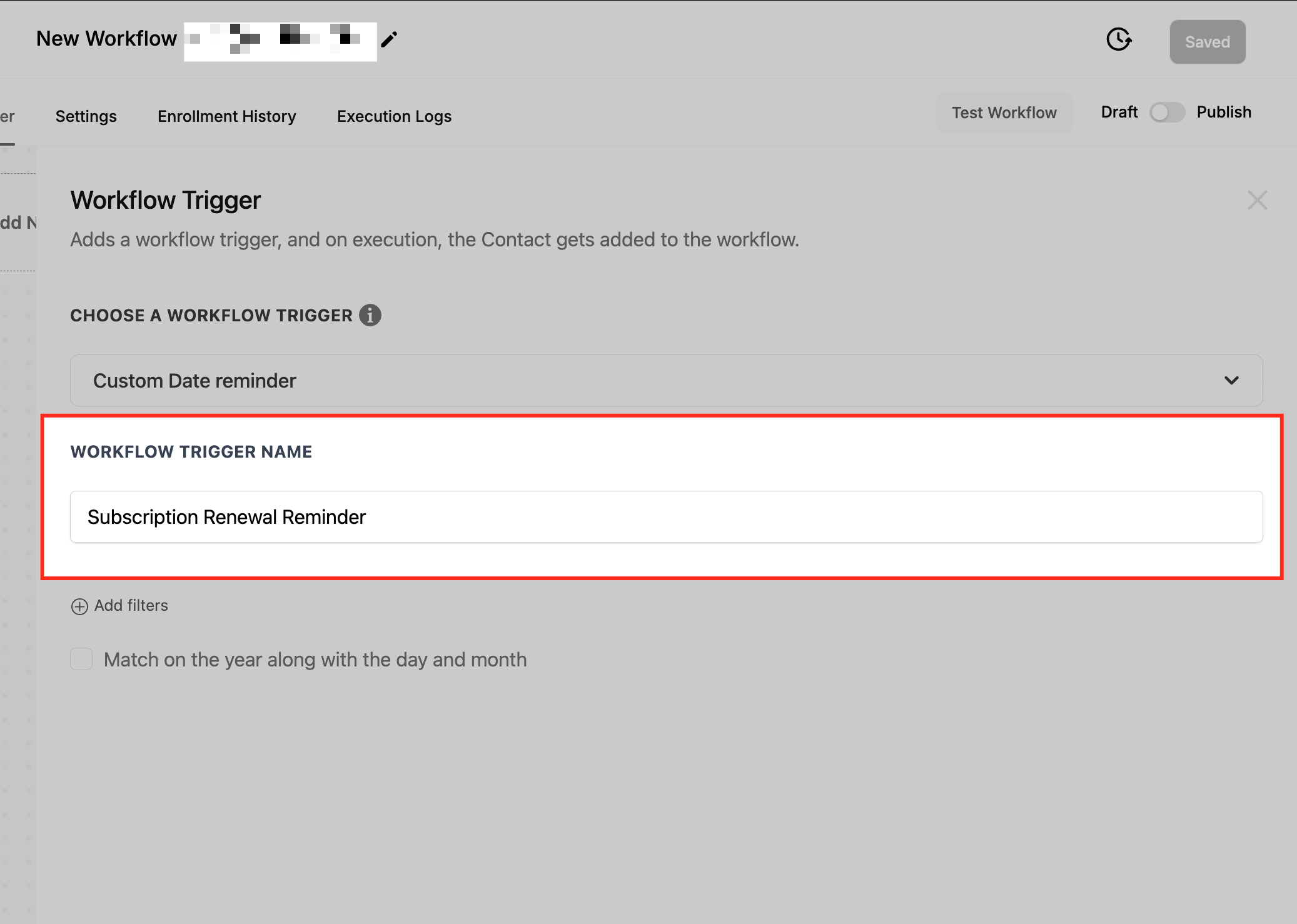
- Enter a clear name for the trigger.
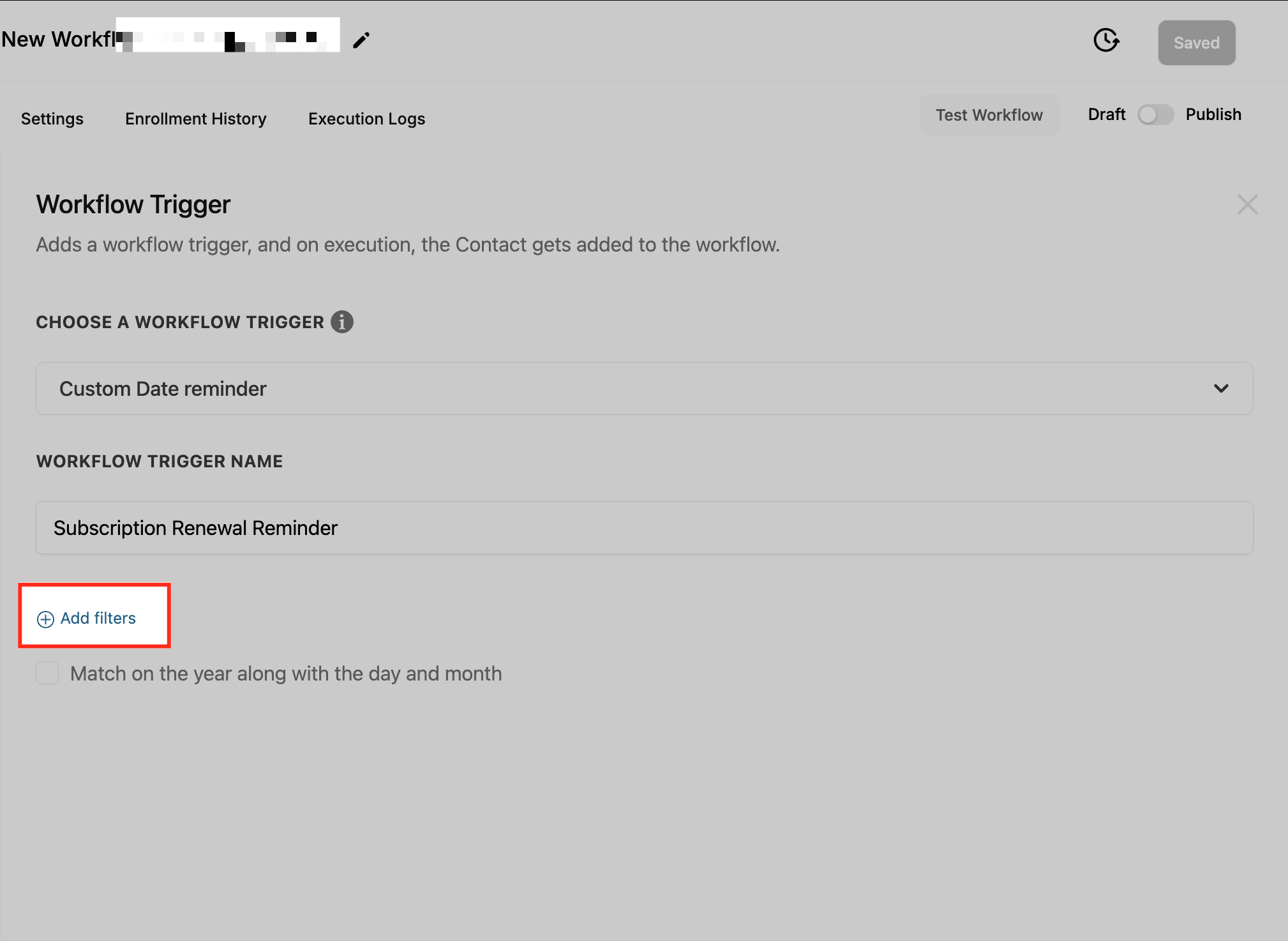
- Select Add Filters to open filter options.
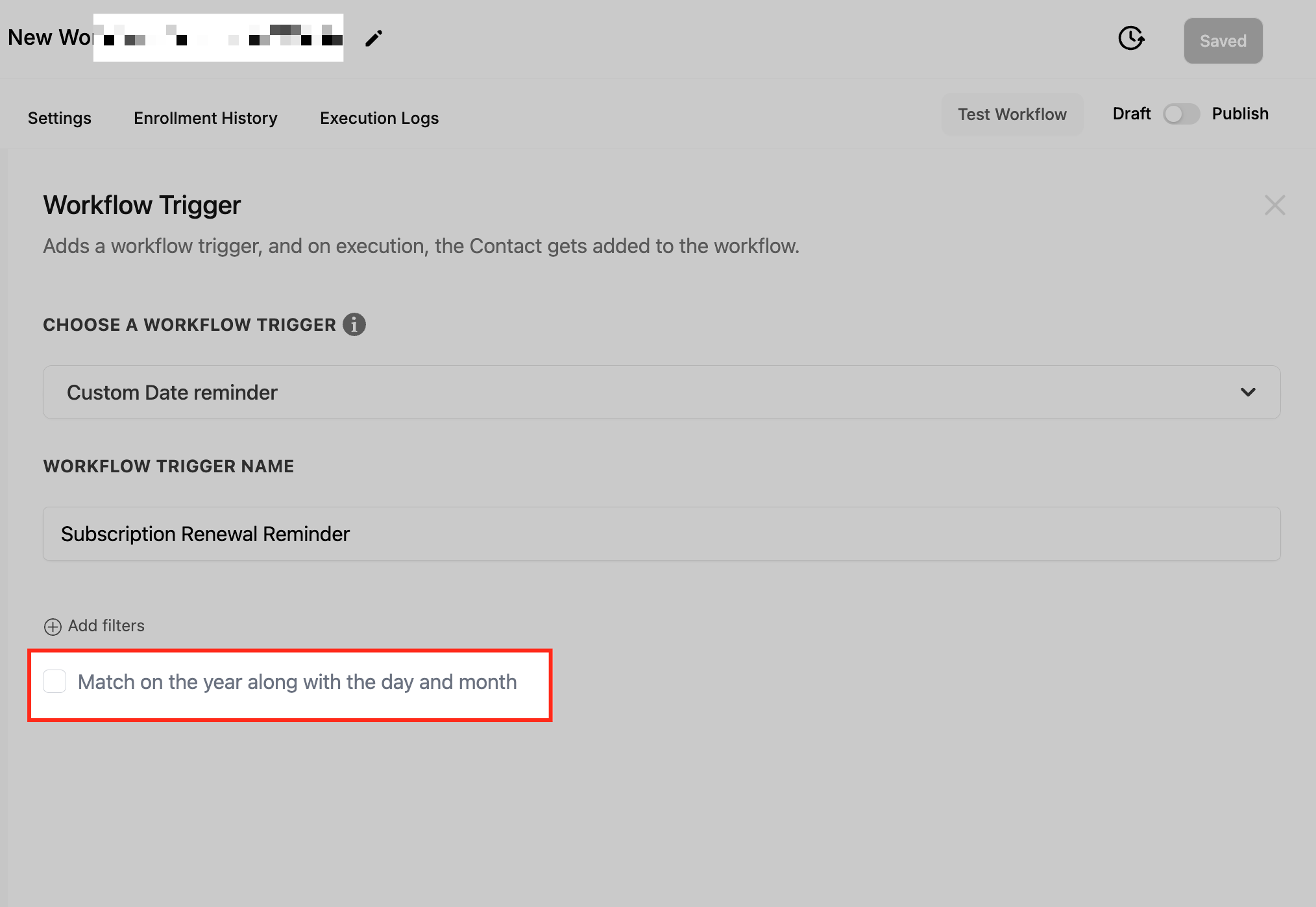
- Turn on Match on Year Along with Day and Month if an annual repeat is required.
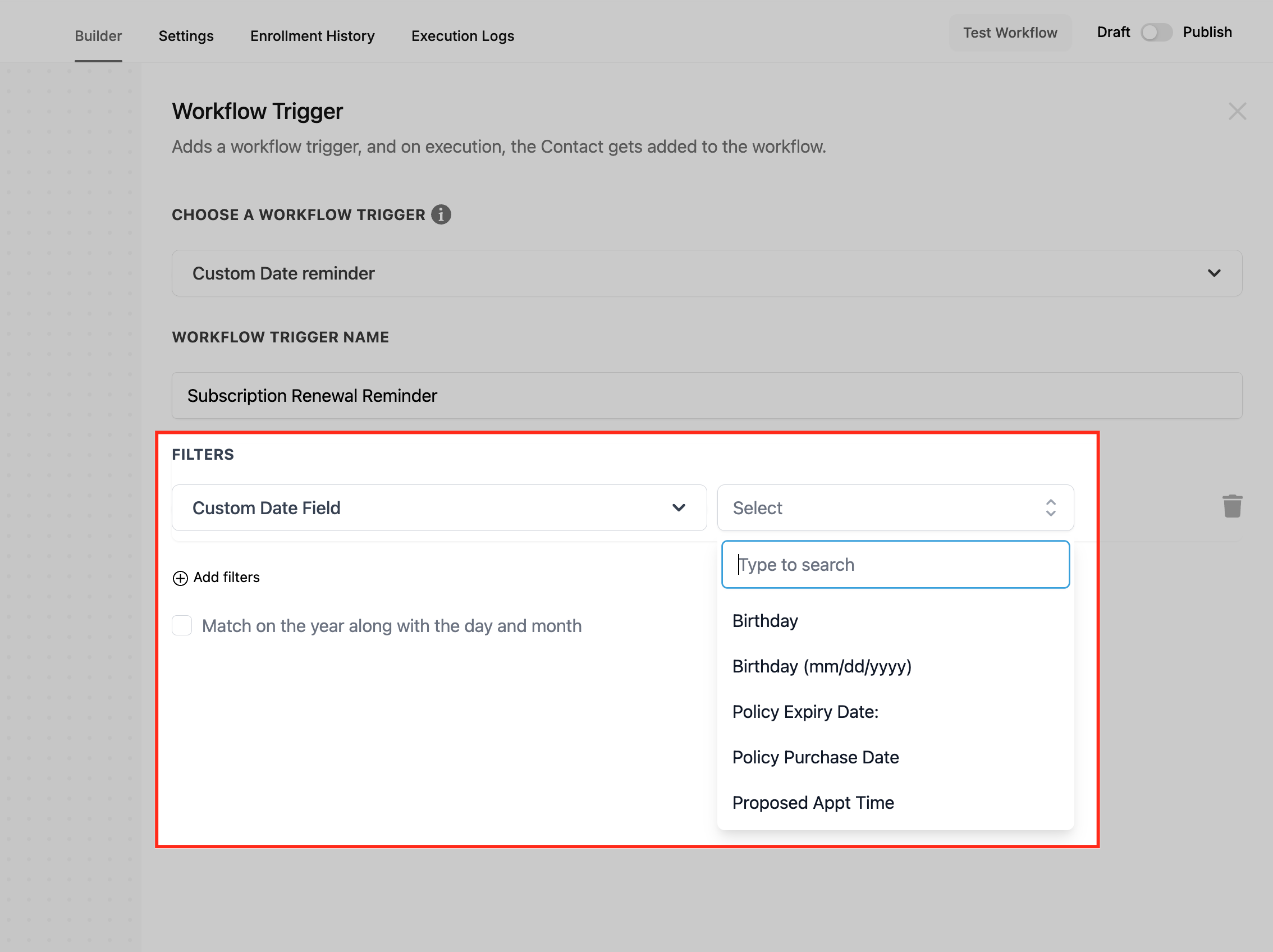
- Open the Custom Date Field Filter and pick the relevant date field.
- Add any needed advanced filters such as After Number of Days, Before Number of Days, Has Tag, Day Is, or Month Is.
- Save the workflow and switch its status from Draft to Publish.
06What it looks like in HighLevel
07Settings that matter
- Match on Year Along with Day and Month. Controls whether the trigger also checks that the year in the date field matches the current year, enabling true annual repeats.
- Custom Date Field Filter. Lets you select which date field the trigger should evaluate, limited to fields supported by the workflow type.
- After Number of Days. Sets the trigger to fire a specific number of days after the chosen date.
- Before Number of Days. Sets the trigger to fire a specific number of days before the chosen date.
- Has Tag. Limits activation to contacts that carry a specified tag.
- Day Is. Specifies a particular day of the week for the trigger to activate.
- Month Is. Specifies a particular month for the trigger to activate.
08Things to know before you rely on it
- The date field selector only shows fields that the workflow type supports.
- If a contact’s custom date field is empty, the trigger does not fire for that contact.
09How it connects to the rest of HighLevel
- learn how to add a contact tag trigger contact tag trigger
- set up a birthday reminder workflow birthday reminder
- overview of workflow creation basics workflow basics
- view workflow pricing tiers pricing tiers
- start a free 30 day trial 30 day trial
Michael's take

Businesses often lose track of contract expiries or birthdays, leading to missed opportunities and unhappy customers. Getting those reminders right can keep relationships warm and revenue flowing.
The first setting I would lock in is the Match on Year Along with Day and Month option when I need a yearly reminder, because it ensures the trigger fires on the exact date each year.