
01Who this is for
- Sales managers need automatic progression of opportunities once related tasks are done.
- Service team leads want instant alerts when field or support tasks reach completion.
- Marketing coordinators require follow up actions to start after a campaign task is finished.
02Task Completed workflow triggers, explained
The Task Completed trigger watches for any task in the platform that changes its status to completed. When that event occurs, the workflow associated with the trigger begins running its defined actions without any manual input.
A filter called Assigned User can be added to the trigger. This filter lets you narrow the automation to tasks finished by particular team members, or to tasks that have no owner. The trigger lives inside the Automation section where all workflow builders are managed.
03How businesses use the Task Completed workflow trigger
- Real estate agency. When an agent closes a property related task, the trigger can start a workflow that sends a closing packet email to the client and updates the deal stage. The agent is selected through the Assigned User filter.
- Dental practice. After a hygienist marks a patient follow up task as done, the workflow can create a reminder for the front desk to call the patient and log the interaction in the contact record.
- SaaS startup. When a developer finishes a bug fix task, the trigger can move the associated support ticket to the next pipeline stage and notify the account manager via a platform notification.
04How to set up and use the Task Completed workflow trigger in HighLevel
Configure the Task Completed workflow trigger
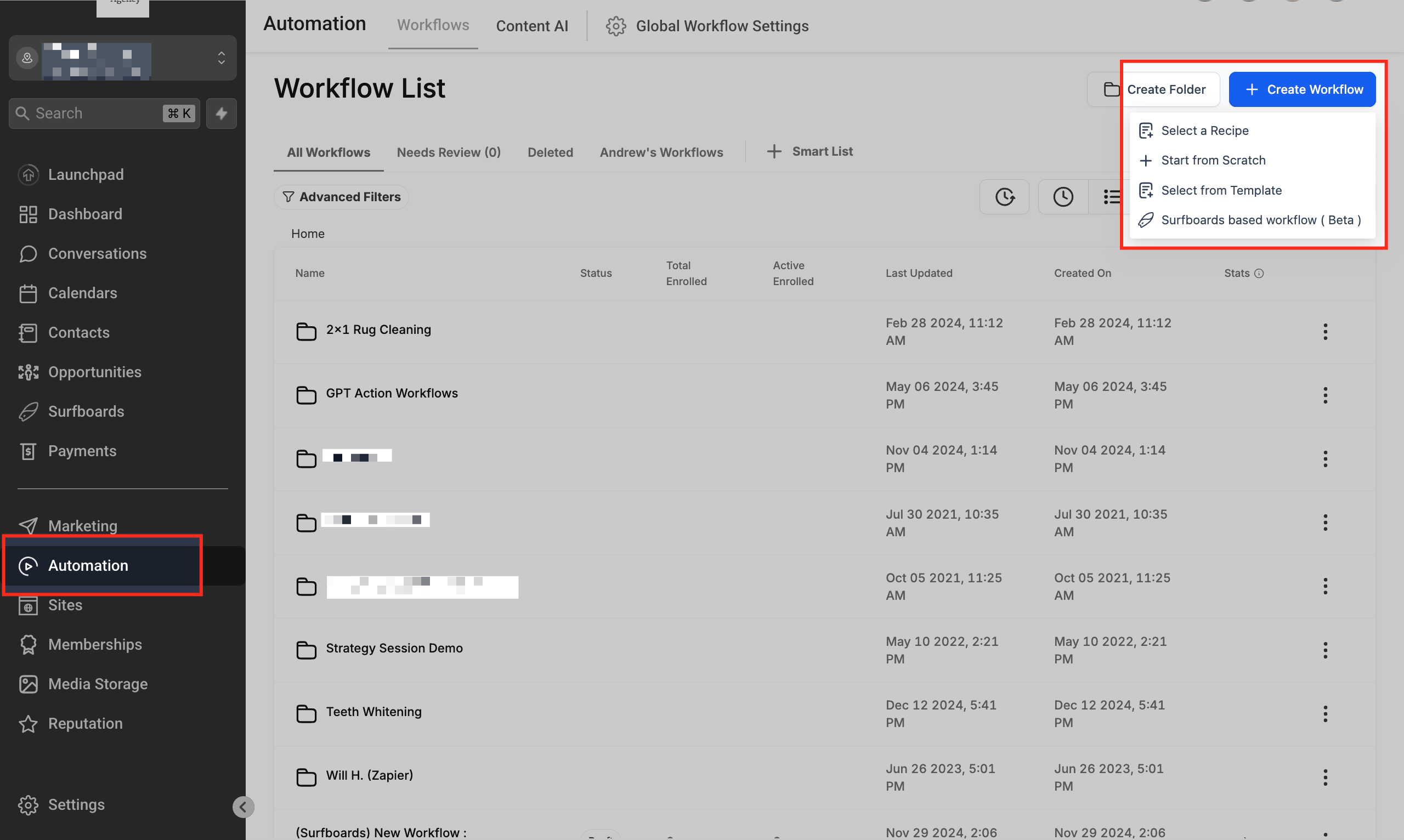
- Open the Automation area from the HighLevel dashboard.
- Click the + Create Workflow button.
- Choose the + Start from Scratch option or select an existing workflow to edit.
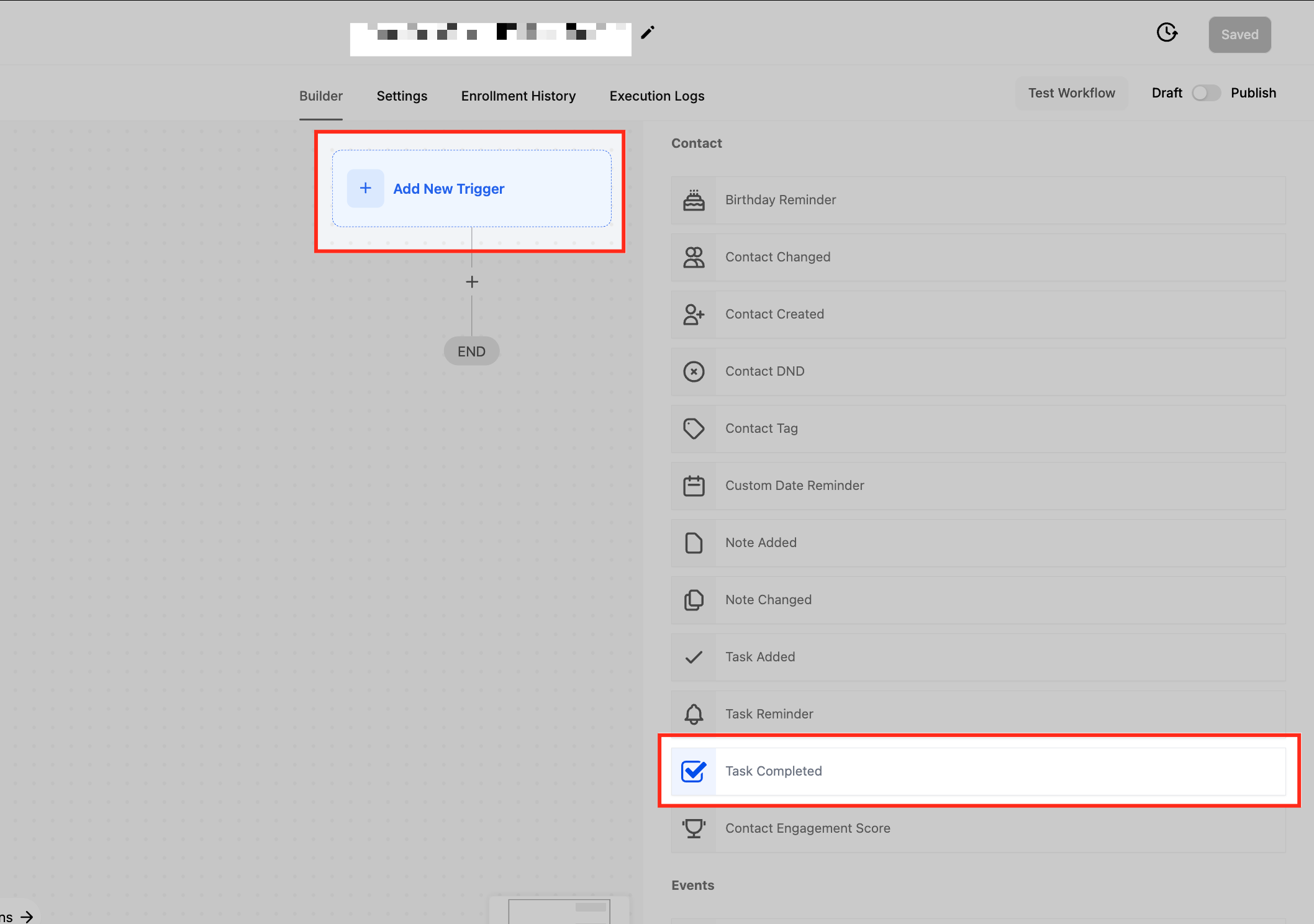
- Press + Add New Trigger.
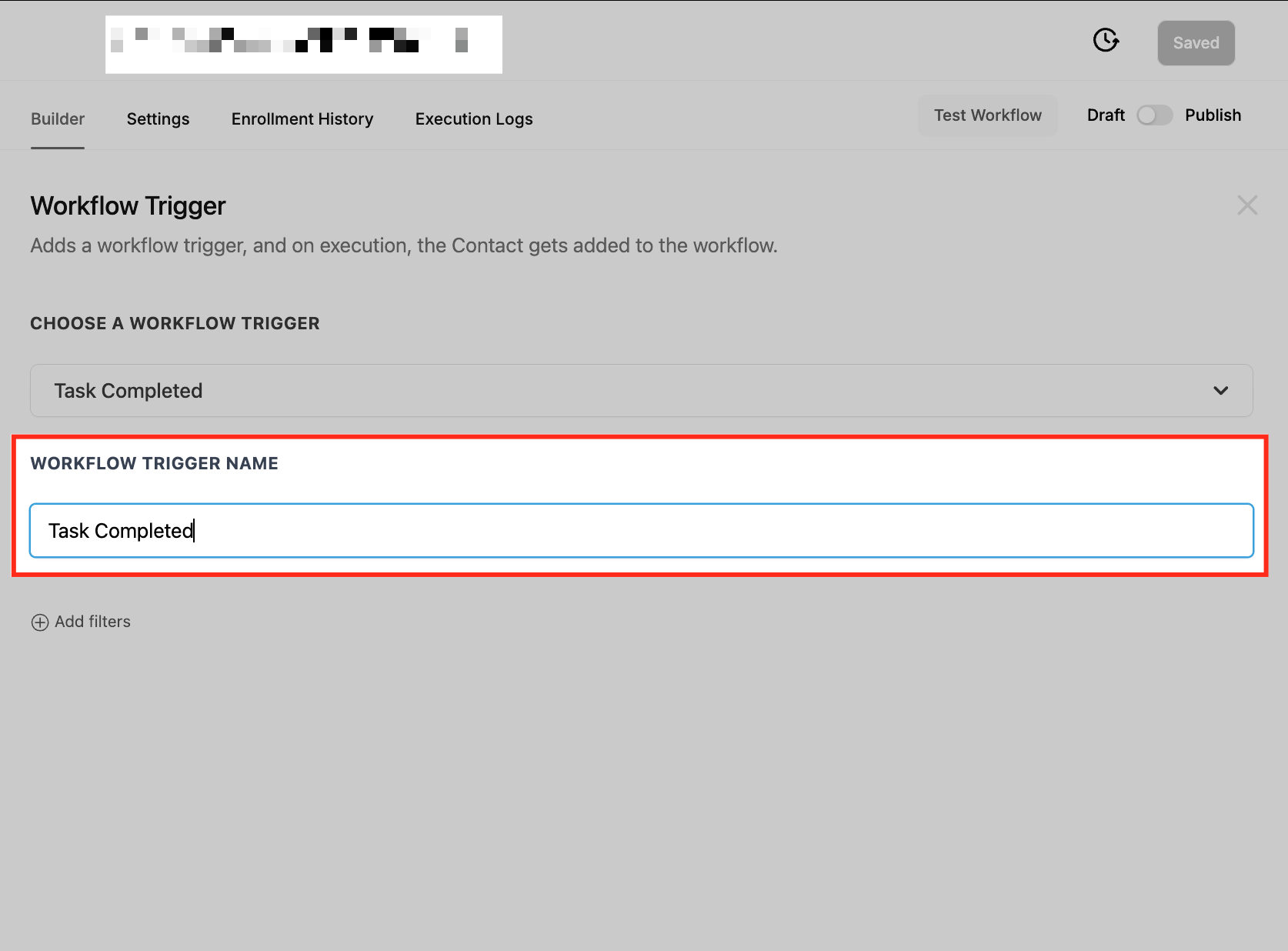
- Search for Task Completed in the list and select it.
- Apply the Assigned User filter and set the desired operator and user.
- Add one or more actions such as notifications, record updates, or moving an opportunity.
05What it looks like in HighLevel
06Settings that matter
- Task Completed. Activates a workflow whenever a task’s status changes to completed in the platform.
- Assigned User filter. Limits the trigger to tasks completed by a specific user, no user, all users except a selected one, or any task that has an assigned owner.
07Things to know before you rely on it
- The trigger itself does not send notifications; a separate Send Notification action must be added for alerts.
- If the Assigned User filter is left unset, the workflow fires for task completions by any user.
08How it connects to the rest of HighLevel
- Learn the basics of building workflows in HighLevel Workflow basics
- Set up a task reminder trigger for automated alerts Task reminder trigger
- Explore other trigger options such as Contact Tag Contact Tag trigger
Michael's take

When a task slips through the cracks, teams waste time chasing updates. The first thing I would get right is the Assigned User filter, making sure only the right person’s completed tasks fire the automation. That keeps the flow clean and avoids noise.
Once that filter is set, I’d add a simple notification action to confirm the trigger works, then layer in record updates or stage moves as needed. A quick check in the Execution Log tells you everything is running as expected.