
01Who this is for
- Sales teams can automatically add new leads and assign follow up tasks when a form is submitted.
- Event organizers can right away register attendees, send confirmations, and keep attendee lists up to date.
02Form submitted triggers, explained
The Form Submitted trigger watches a specific form and starts the workflow whenever that form is submitted. Filters let you limit activation to particular forms or submission criteria. The trigger is set up inside the workflow automation area, where you create or edit a workflow. When the form matches the filter, all actions in the workflow run in real time. Each submission creates a separate workflow run unless additional conditions are added.
03How businesses use form submitted workflow trigger
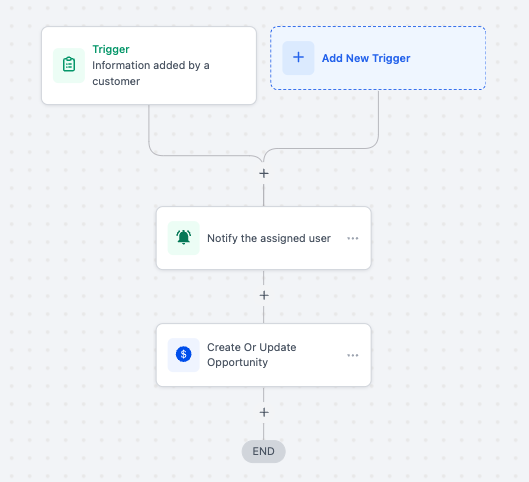
- Customer information collection. When the Customer Information Form is submitted, the workflow adds the data to records, notifies the sales team, and creates a follow up task.
- Lead qualification workflow. A submission of the Lead Capture Form triggers lead scoring, updates the lead record, and alerts the sales team for next steps.
- Event registration management. Submitting the Event Registration Form sends a confirmation email to the registrant and adds their details to the attendee list.
04The numbers and rules that matter
- Data Accuracy: Directly integrates submitted form data into HighLevel, ensuring accurate and up to date records.
05Before you start
- A form must already exist in HighLevel to select it in the trigger filter.
- Access to the workflow automation area is required to create or edit workflows.
06How to set up and use form submitted workflow trigger in HighLevel
Set up the Form Submitted workflow trigger
- Open the workflow automation section and start a new workflow or open an existing one.
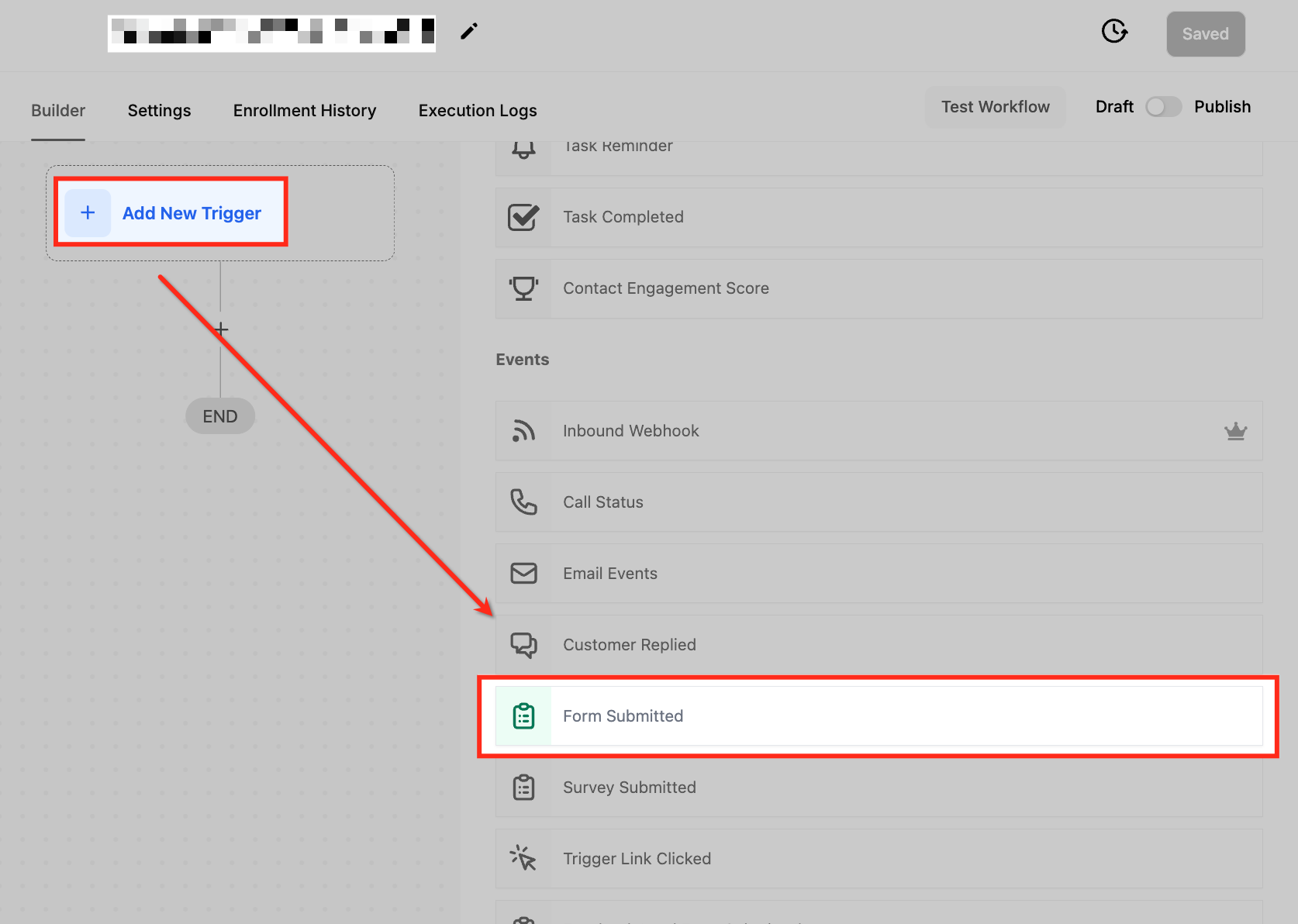
- Click Add New Trigger and choose Form Submitted from the dropdown menu.
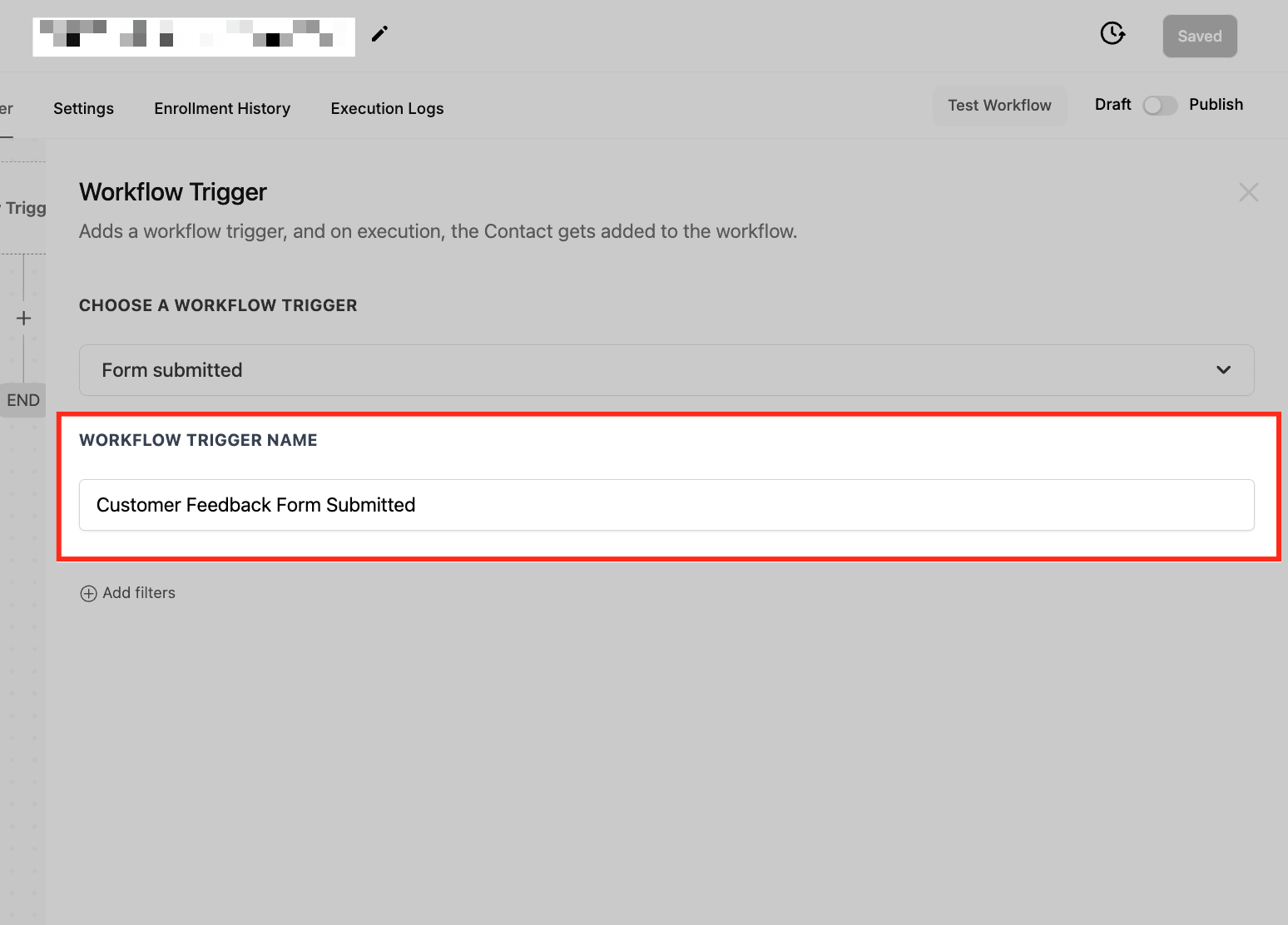
- Enter a descriptive name for the trigger, such as Customer Feedback Form Submitted.
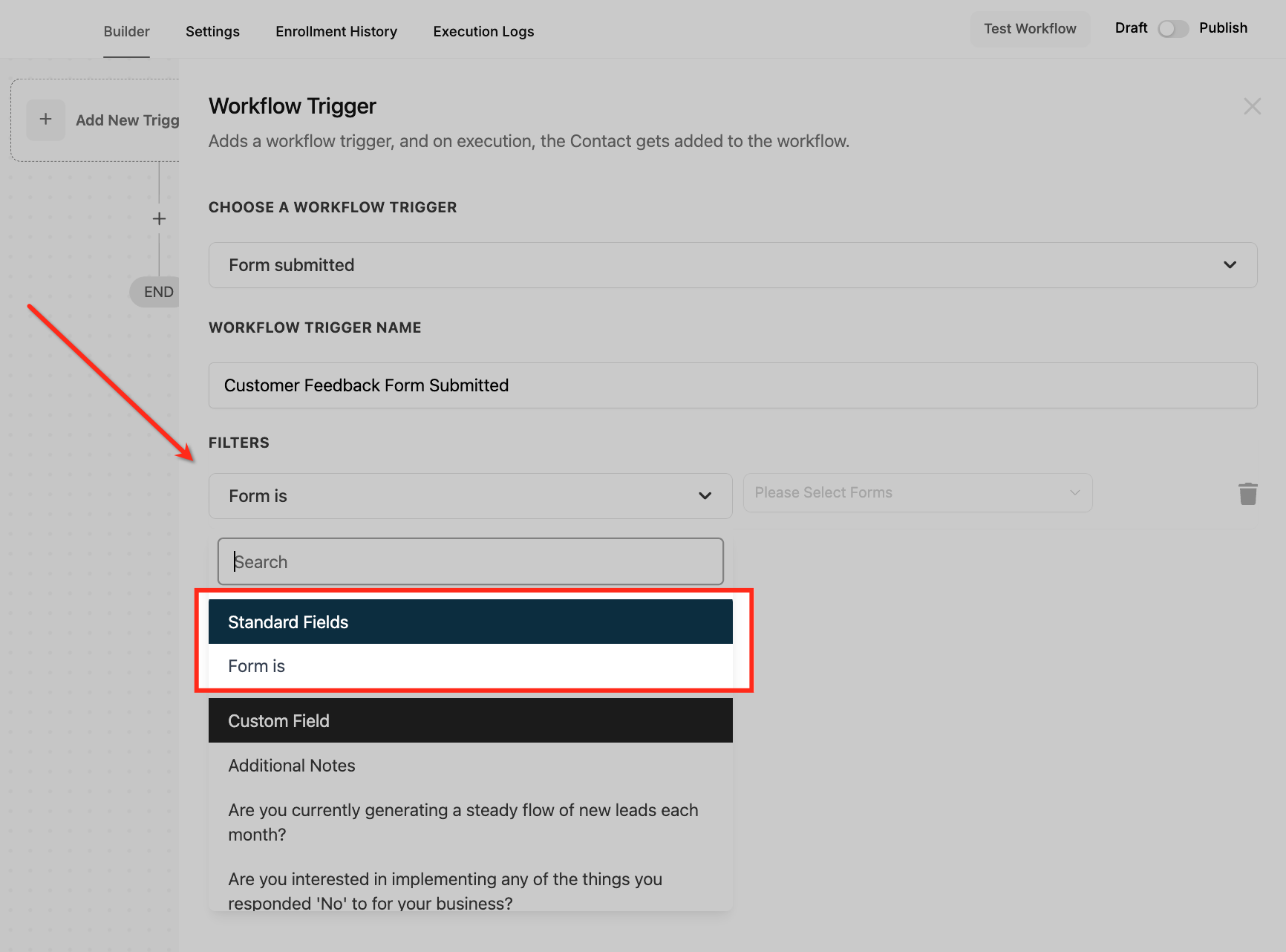
- Select the target form in the Form Is filter to define which submission starts the workflow.
- Click Save to store the trigger configuration.
- Test the workflow with sample data and toggle the Publish switch to activate it.
07What it looks like in HighLevel
08Settings that matter
- Form Is. Specifies the exact form whose submission will launch the workflow.
- Trigger name. Provides a readable identifier for the trigger within the workflow list.
09Things to know before you rely on it
- The trigger fires each time the form is submitted, so repeated submissions create separate workflow runs unless additional conditions are added.
- It works only with forms built inside HighLevel; external forms need an integration or inbound webhook.
- Multiple forms can be handled by adding extra filters or using broader criteria in the same workflow.
10How it connects to the rest of HighLevel
- Learn the basics of building workflows in HighLevel. Workflow basics
- Use an inbound webhook trigger to capture submissions from external form tools. Inbound webhook trigger
- Explore the pricing tiers for workflow automation features. Workflow pricing
Michael's take

Michael ReimerFounder of CRM Pros, HighLevel Commander and Certified Admin
The first thing I would get right is the filter that points to the exact form you want to act on, so the workflow only fires at the right moment.
Read the full details on HighLevel →Published November 2, 2026 · Updated November 16, 2026