
01Who this is for
- Sales teams that need to capture new leads from any address sent to a sales inbox.
- Support groups that want to route incoming support requests to the right queue based on mailbox or subject.
- Operations staff that must flag emails with attachments for compliance processing.
02Inbound email triggers, explained
The Inbound Email trigger monitors mailboxes linked to a dedicated LC Email or Mailgun domain. When an email arrives, the trigger can start a workflow regardless of whether the sender already exists in the platform. It handles cold emails, warm emails, and optional customer replies, and can be limited to new conversations only.
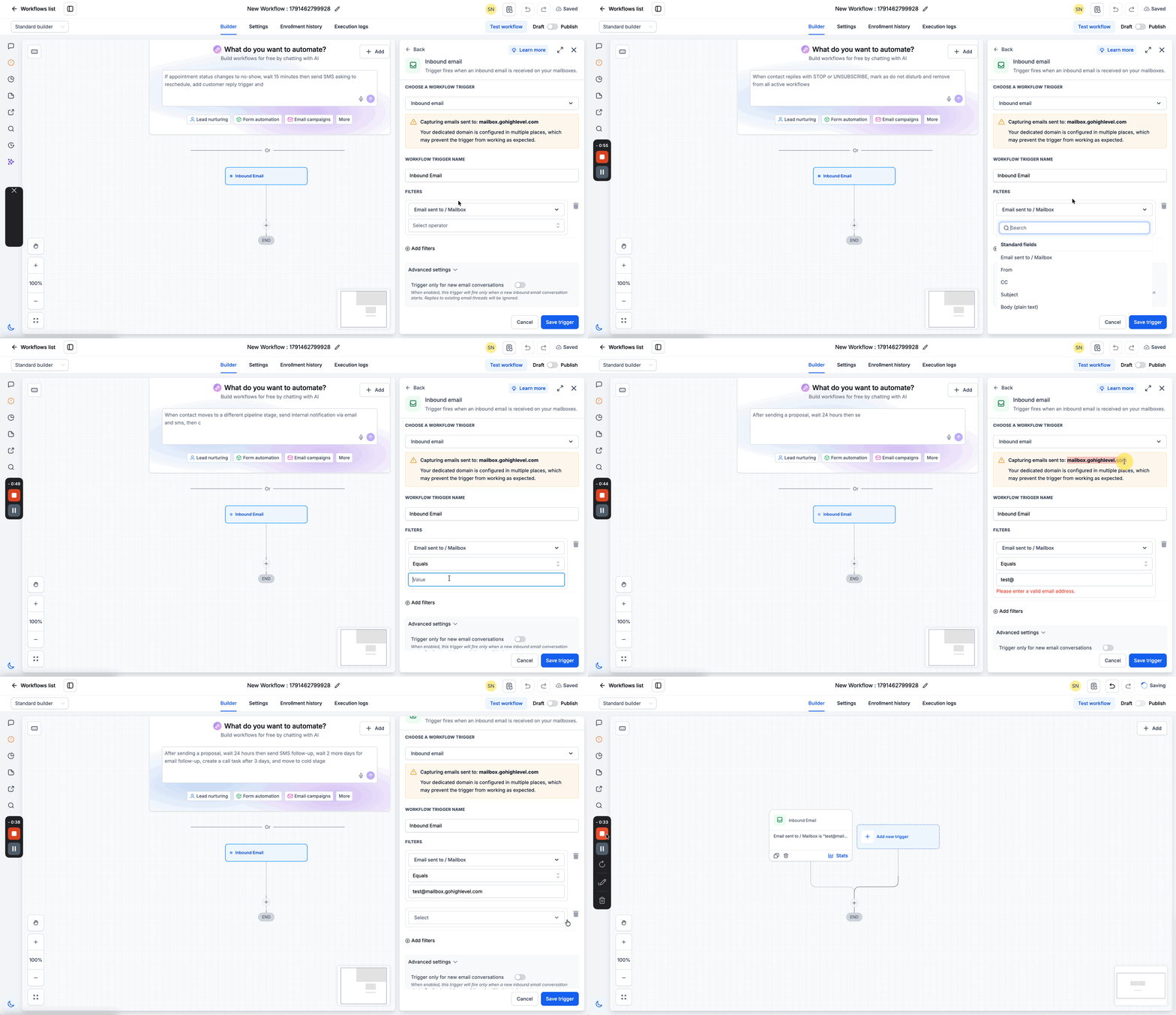
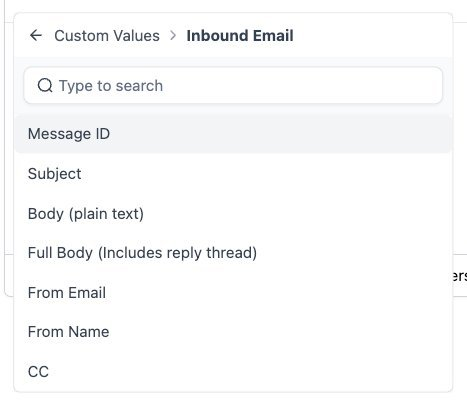
The trigger lives inside the Workflows editor under Automations > Workflows. After adding the trigger, you can apply filters on fields such as To address, From address, Subject, Body content, attachment presence, or contact tags. Advanced settings let you control reply tracking and automatic contact creation.
Once configured, any matching inbound email activates the workflow actions you define, sending replies, creating contacts, adding tags, or assigning owners, allowing real time handling of email leads and requests.
03How businesses use the inbound email trigger
- Consulting firm. The firm creates a workflow that triggers on emails to consulting@mydomain.com, filters for the word "proposal" in the subject, and then automatically creates a contact, adds a "Proposal Request" tag, and assigns the lead to a sales rep.
- IT support desk. A support desk sets the trigger on the support@mydomain.com mailbox, adds a filter for attachments, and configures actions to notify the support team, tag the contact with "Has Attachment", and move the ticket to the next pipeline stage.
- Ecommerce retailer. The retailer adds the Inbound Email trigger for returns@mydomain.com, filters for the phrase "return request" in the body, and uses actions to send an automated acknowledgment, create a return case, and tag the customer for follow up.
04Before you start
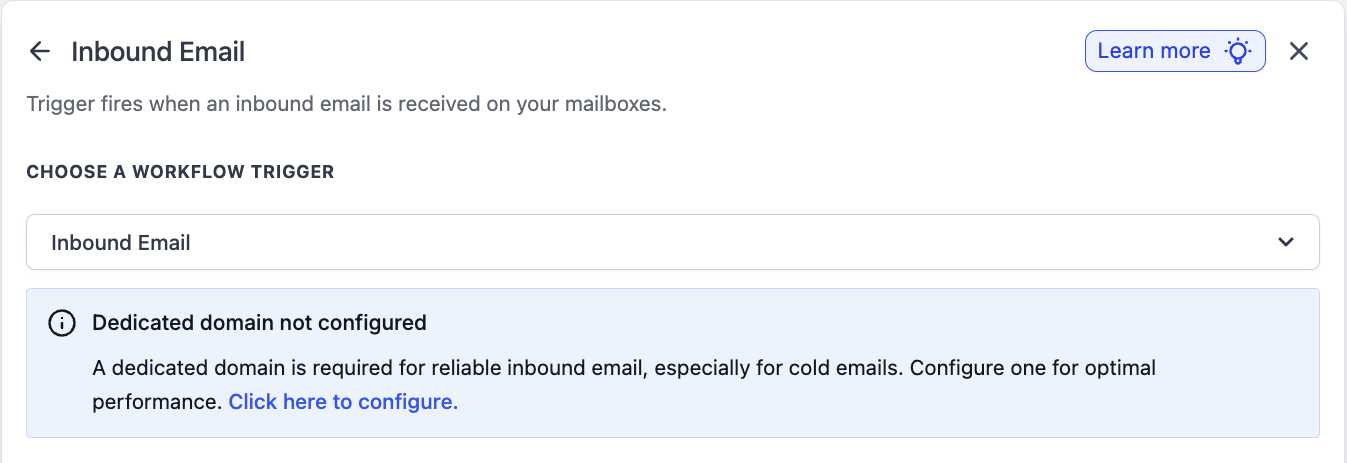
- A dedicated LC Email or Mailgun domain must be configured for the subaccount.
- Each subaccount should have its own unique dedicated email subdomain.
05How to set up and use the inbound email trigger in HighLevel
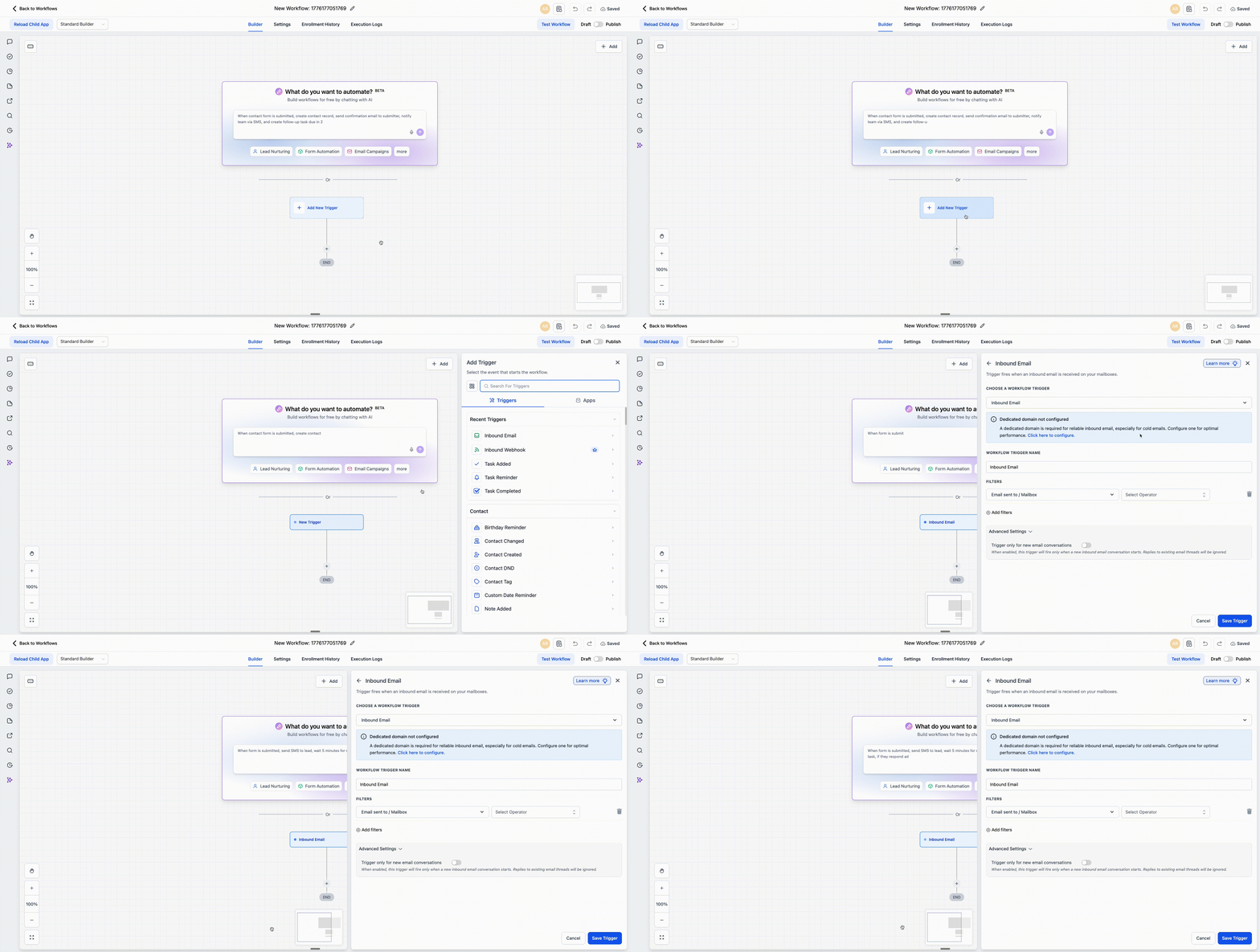
Set up the Inbound Email workflow trigger
- Log in to the HighLevel account.
- Go to Automations > Workflows.
- Create a new workflow or open an existing one.
- Click + Add New Trigger and choose Inbound Email from the list.
- Enter a descriptive Trigger Name.
- Click + Add Filters to define when the workflow should run.
- Select the desired Trigger Settings checkboxes such as Track replies in existing threads and Automatically create a contact.
- Click Save Trigger.
- Add the required workflow actions such as Send Email, Create Contact, Add Tag, or Assign to User.
- Publish the workflow to activate it.
06What it looks like in HighLevel

07Settings that matter
- Track replies in existing threads. Controls whether the trigger fires for replies within an ongoing email conversation.
- Automatically create a contact. If enabled, a new contact record is generated automatically when a cold inbound email is received.
- Trigger Only for New Email Conversations. When turned on, the trigger activates only for the first email in a thread, ignoring subsequent replies.
08Things to know before you rely on it
- Cold inbound emails are captured only when the mailbox uses an LC Email or Mailgun dedicated domain.
- Two way sync setups (Gmail/Outlook) and other SMTP providers capture only emails from existing contacts.
- If the same dedicated domain is used in multiple subaccounts, routing may become unpredictable.
- The "Trigger Only for New Email Conversations" toggle is off by default, causing the trigger to fire on all inbound messages.
09If something goes wrong
- Trigger fires on every reply in a thread. Disable the "Track replies in existing threads" setting.
- Cold emails are not being captured. Verify that the subaccount uses an LC Email or Mailgun dedicated domain.
10How it connects to the rest of HighLevel
- Learn how the Customer Replied trigger differs and how to set it up Customer Replied trigger
- Set up email events trigger for other email based automations Email Events trigger
- Get started with workflow creation basics Workflow basics
Michael's take

When a prospect drops an email into a generic inbox, you often lose the chance to qualify them quickly. The inbound email trigger solves that by turning any inbound message into a trigger for lead capture or routing. The first setting I would lock down is the dedicated domain. Without an LC Email or Mailgun dedicated domain the trigger can’t see cold emails at all.
Once the domain is confirmed, I would enable the “Trigger Only for New Email Conversations” toggle for any workflow that should fire just on the first inbound message. That prevents the automation from running on every back and forth reply, keeping the process clean and focused.