
01Who this is for
- Customer support managers benefit because they can measure how quickly agents answer inbound messages.
- Sales directors use it to halt drip campaigns once a sales rep engages a prospect personally.
- Agency owners gain insight into team activity by logging each outbound reply for reporting.
02User replied triggers, explained
The User Replied trigger is an event that begins a workflow when a user on your team sends a message from the conversation view. It detects both first outbound messages to a contact and replies inside an existing thread. The trigger activates only after the message is delivered, not at send time.
The trigger works for all major conversation channels, SMS, Email, WhatsApp, Facebook Messenger, Instagram DM, and Live Chat. Each channel defines what counts as a new outbound message versus a reply, as detailed in the channel behavior table. Messages generated by workflow actions or Conversation AI do not fire this trigger.
You find the trigger under Automations > Workflows. After adding it, you can apply filters such as who sent the message, the channel used, specific phrases, or contact tags. Custom values like {{user_replied.senderName}} and {{user_replied.messageBody}} become available for later actions.
03How businesses use user replied trigger
- SaaS customer support team. The team adds the User Replied trigger to a workflow that logs each agent reply. Filters limit the trigger to the assigned support rep, ensuring the "Last Contacted By" field stays current. The workflow also sends an internal notification to supervisors when a reply contains the phrase "escalated".
- Real estate brokerage. Agents use the trigger to stop an automated property follow up sequence the moment they reply to a buyer. A filter selects the "User assigned to the Contact" so only that agent’s message ends the drip. The workflow then updates the lead status to "In conversation".
- Dental practice. Front desk staff set up a workflow that records every outbound SMS reminder. The trigger captures the rep’s name and timestamp, populating custom fields for audit purposes. If the message includes the phrase "appointment confirmed," the workflow moves the patient to a confirmed appointments list.
04The numbers and rules that matter
- Supported channels: SMS, Email, WhatsApp, Facebook Messenger, Instagram DM, Live Chat.
- Custom Values available: {{user_replied.senderName}}, {{user_replied.userId}}, {{user_replied.messageBody}}, {{user_replied.channel}}, {{user_replied.timeStamp}}, {{user_replied.conversationId}}, {{user_replied.senderEmail}}.
05How to set up and use user replied trigger in HighLevel
Set up User Replied trigger in a workflow
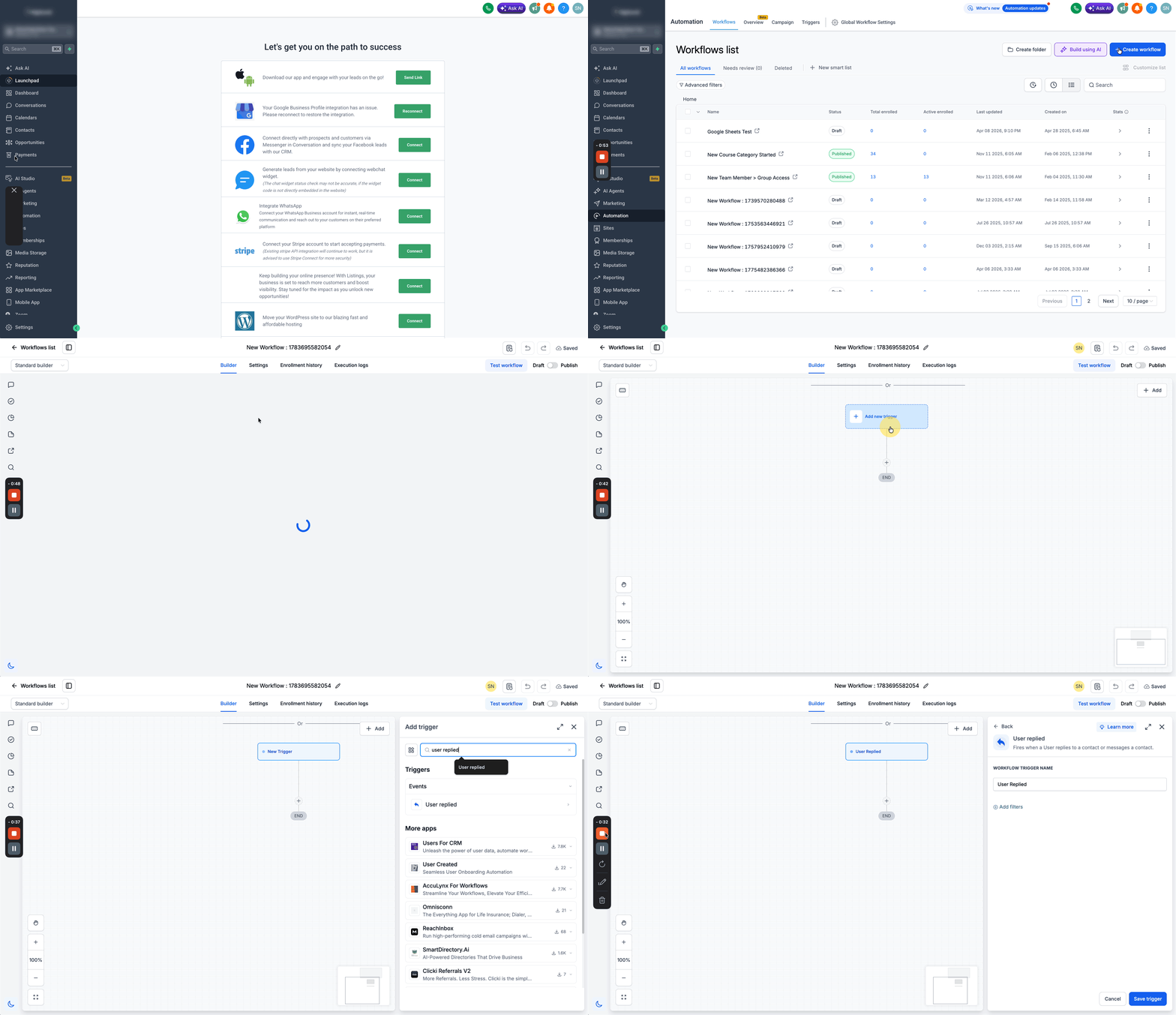
- Log in to the HighLevel account.
- Navigate to Automations > Workflows.
- Create a new workflow or open an existing one for editing.
- Select + Add New Trigger and choose User Replied from the Events list.
- Enter a clear Trigger Name, for example "Rep Replied (SLA Timer)".
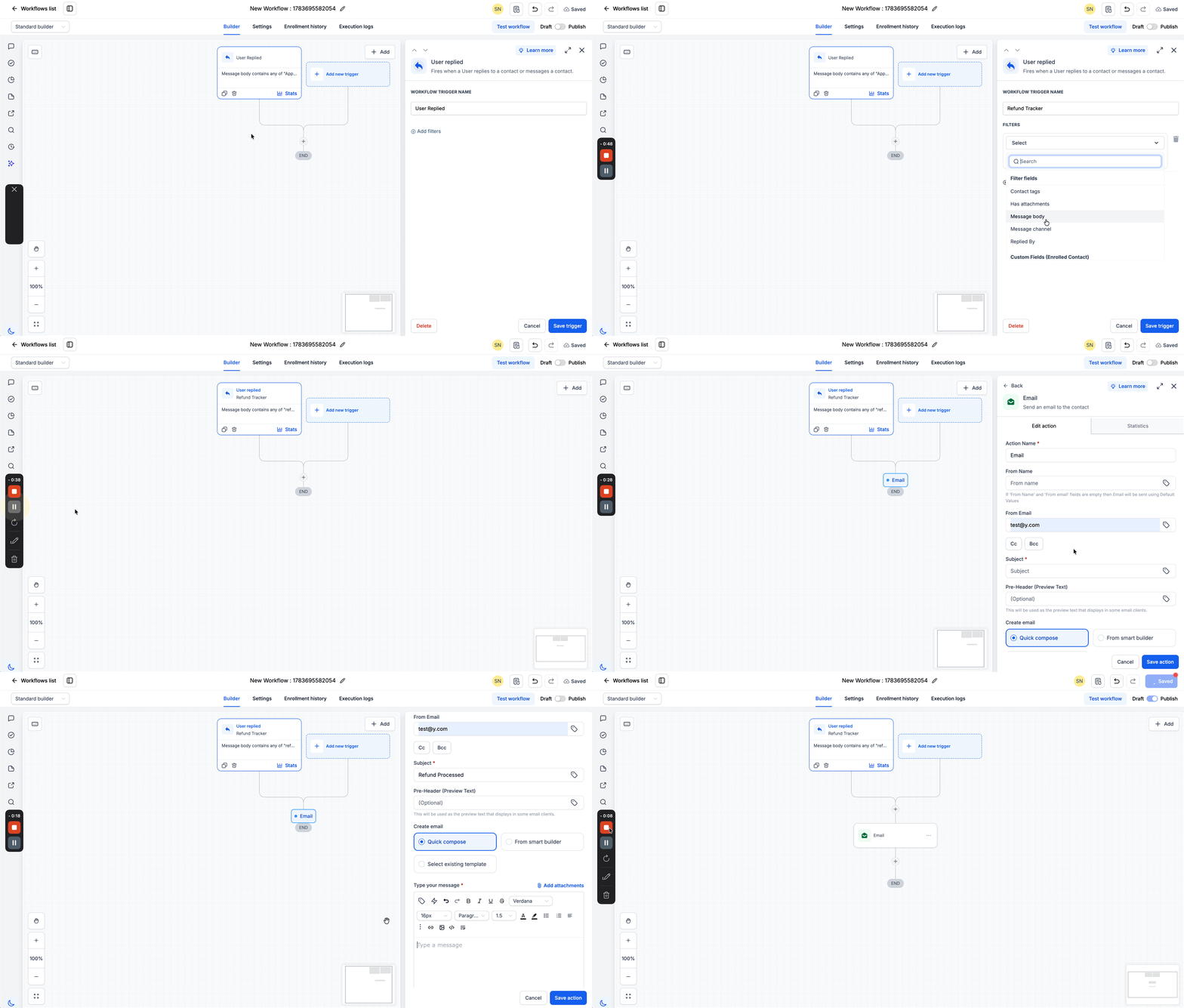
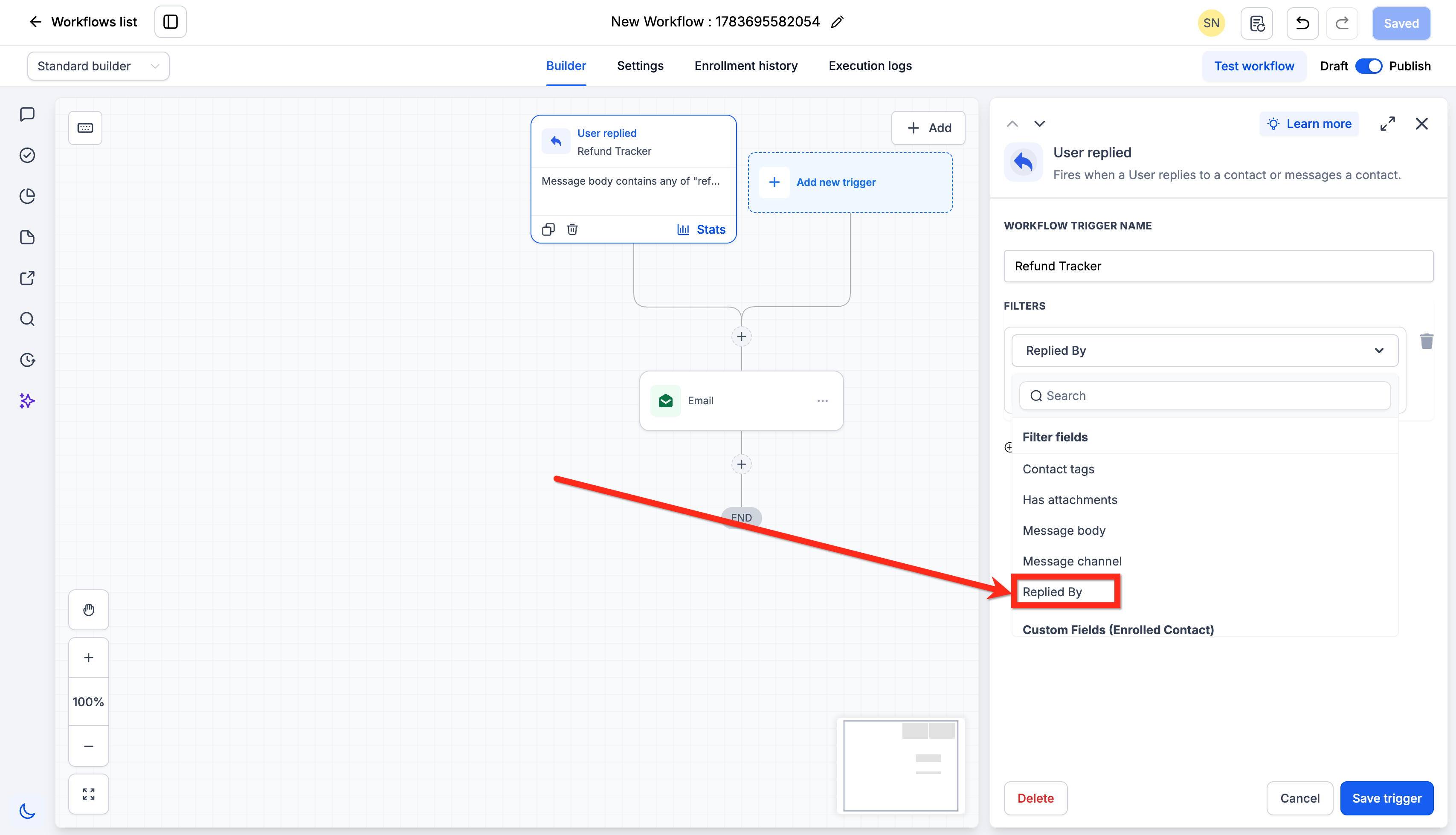
- Click + Add Filters to define when the trigger should run; omit filters to fire on all user replies.
- Click Save Trigger to confirm the configuration.
- Add desired actions to the workflow and publish it.
06What it looks like in HighLevel
07Settings that matter
- Sent By. Selects which users’ messages can start the workflow; you can pick specific users or the contact’s assigned user.
- Message Channel. Limits the trigger to chosen communication channels such as SMS, Email, WhatsApp, Facebook Messenger, Instagram DM, or Live Chat.
- Contains Phrase. Runs the workflow only when the message body includes any of the entered case insensitive phrases.
- Exact Match Phrase. Requires the message body to match the entered text exactly, after trimming whitespace.
- Has Tag. Triggers only if the contact currently holds one of the selected tags.
- Doesn't Have Tag. Triggers only if the contact does not have any of the selected tags.
08Things to know before you rely on it
- The trigger fires only on messages sent manually from the conversation view, not on messages generated by workflow actions or Conversation AI.
- It activates after the message is delivered, not at the moment of sending.
- Cold or mass outbound outreach does not reliably trigger this event because it is designed for reply focused activity.
- Each individual message generates a separate trigger event unless the workflow blocks re enrollment.
09If something goes wrong
- User replies are not starting the workflow. Confirm the message was sent manually from the conversation view and that delivery completed. Check that no filter criteria are unintentionally excluding the reply.
10How it connects to the rest of HighLevel
- Explore the Customer Replied trigger for inbound messages Customer Replied trigger
- Learn how inbound email triggers work in HighLevel Inbound Email trigger
- Get an overview of workflow basics and creation steps Workflow basics
Michael's take

The User replied trigger is a useful but niche feature.
Teams that don’t need to track individual rep replies should skip it.