
01Who this is for
- Sales teams can automatically follow up with leads who click a link, ensuring timely outreach.
- Marketing departments can route bounced or unsubscribed contacts to suppression lists to protect sender reputation.
- Customer support groups can trigger alerts when a contact marks an email as spam, allowing rapid response.
02Email events workflow trigger, explained
The Email Events trigger is a workflow start condition that reacts to real time email activity. When an email is opened, a link is clicked, it bounces, a contact unsubscribes, or a spam complaint is registered, the trigger starts the associated workflow.
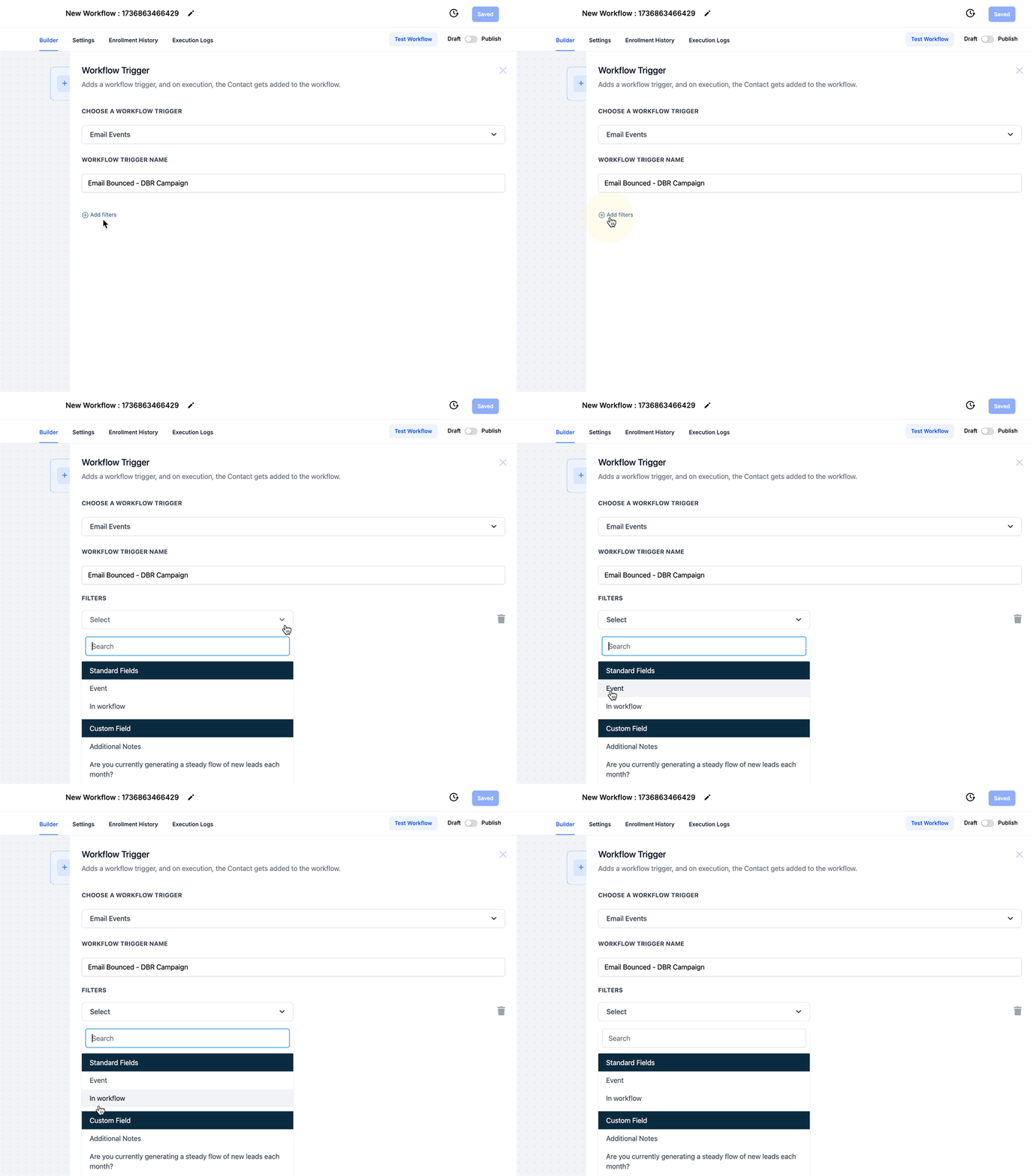
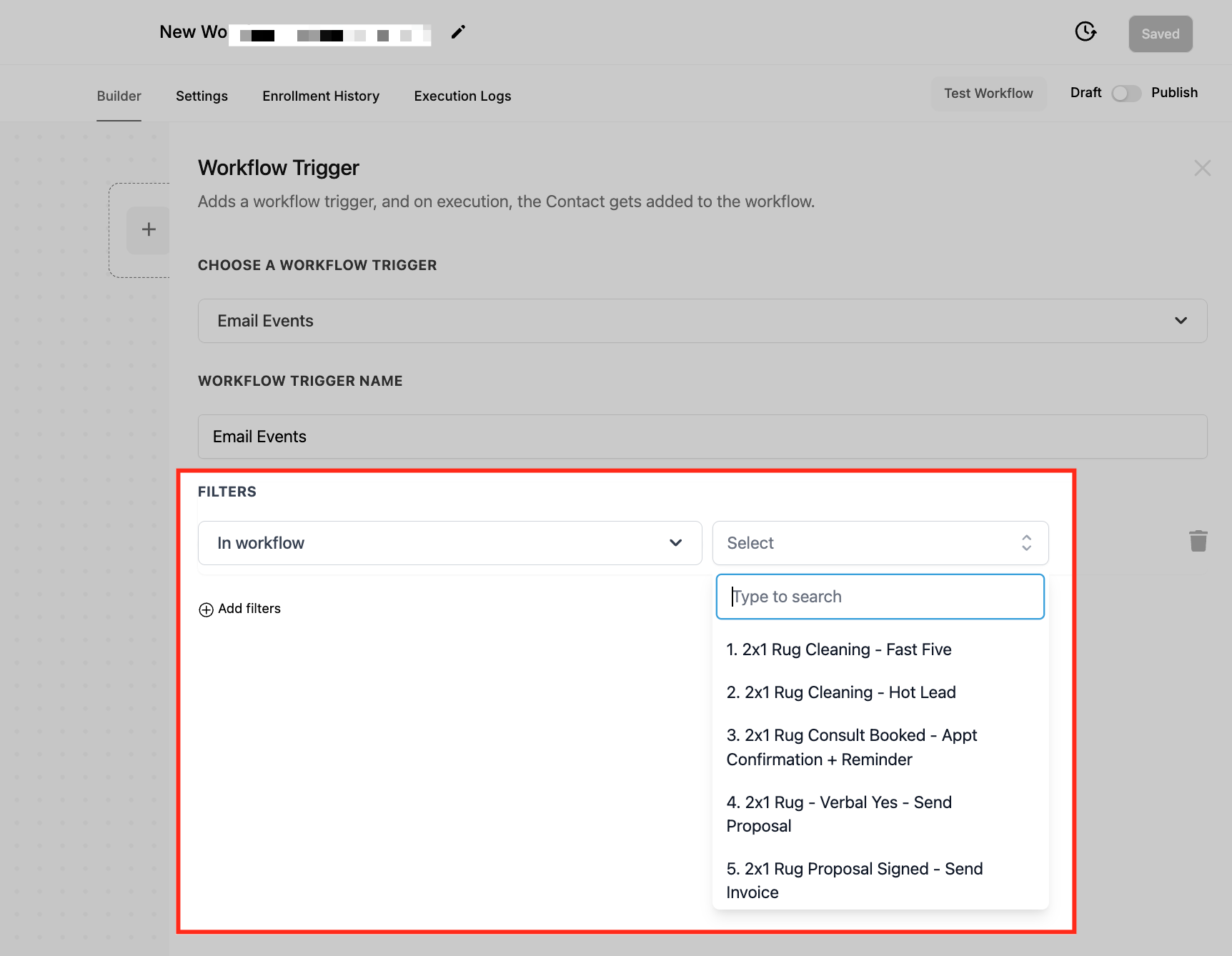
The trigger lives in the Automation section of HighLevel. After adding it to a workflow, you can narrow activation with two filters: Event and In Workflow. The Event filter selects which email actions to watch, while the In Workflow filter limits the trigger to events that happened inside a specific workflow.
Once configured, the workflow runs automatically, delivering follow up messages, tagging contacts, or updating lists based on the chosen event. The system records the event for reporting but does not perform any outside actions beyond what the workflow defines.
03How businesses use email events workflow trigger
- Sales team. Create a workflow with the Email Events trigger set to the Clicked event. When a prospect clicks a promotional link, the workflow sends a booking email and notifies the sales rep, enabling rapid follow up.
- Marketing department. Build a workflow using the Bounced event filter. When an email bounces, the workflow tags the contact as Invalid and moves the record to a suppression list, keeping the mailing list clean.
- Customer support unit. Set up a workflow with the Complained (Spam) event filter. When a contact marks an email as spam, the workflow removes the contact from all active campaigns and flags them as Do Not Disturb.
04The numbers and rules that matter
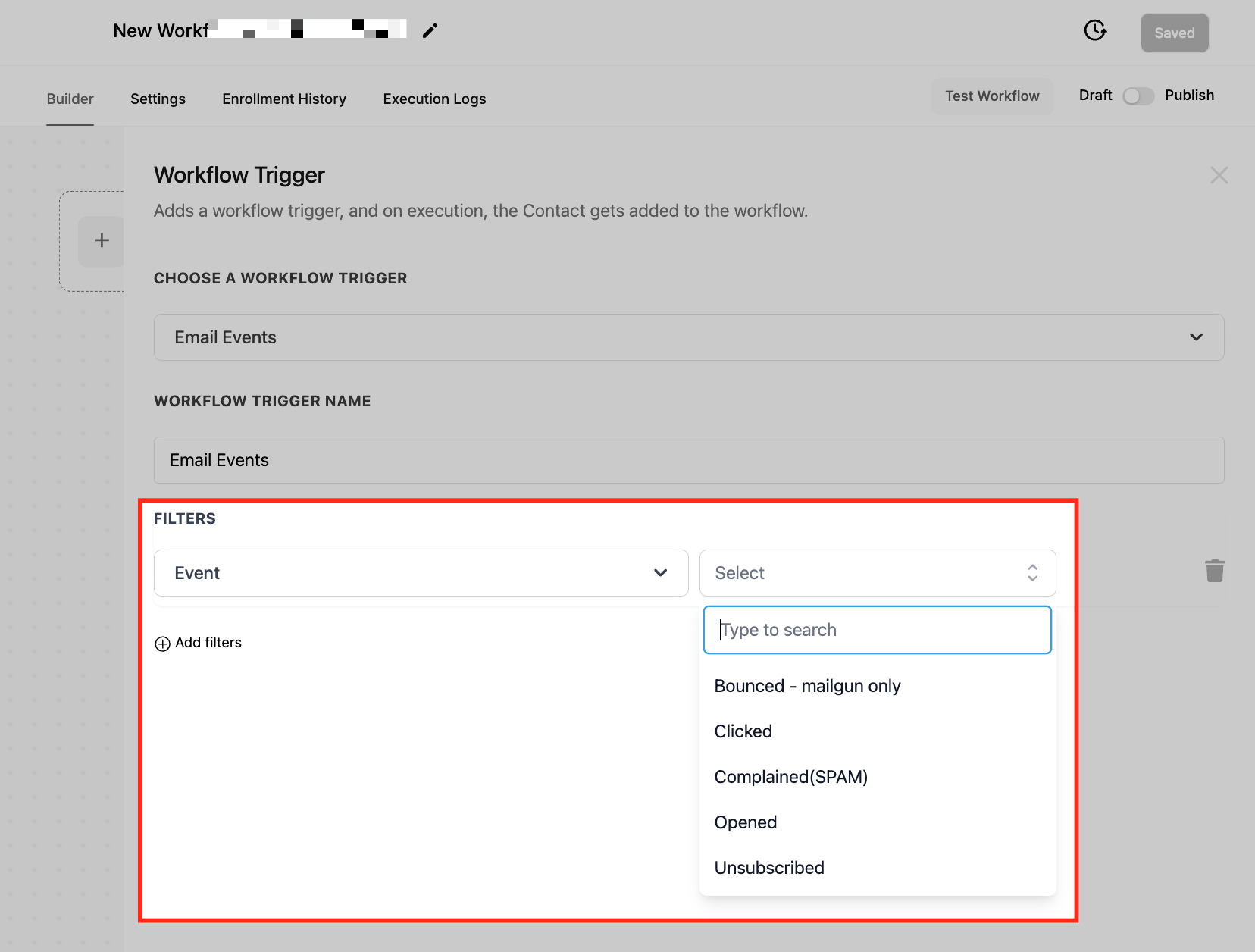
- Available events: Clicked, Opened, Bounced, Unsubscribed, Complained (Spam).
05How to set up and use email events workflow trigger in HighLevel
Configure email events workflow trigger
- Open the Automation area and select or create the workflow that will use the trigger.
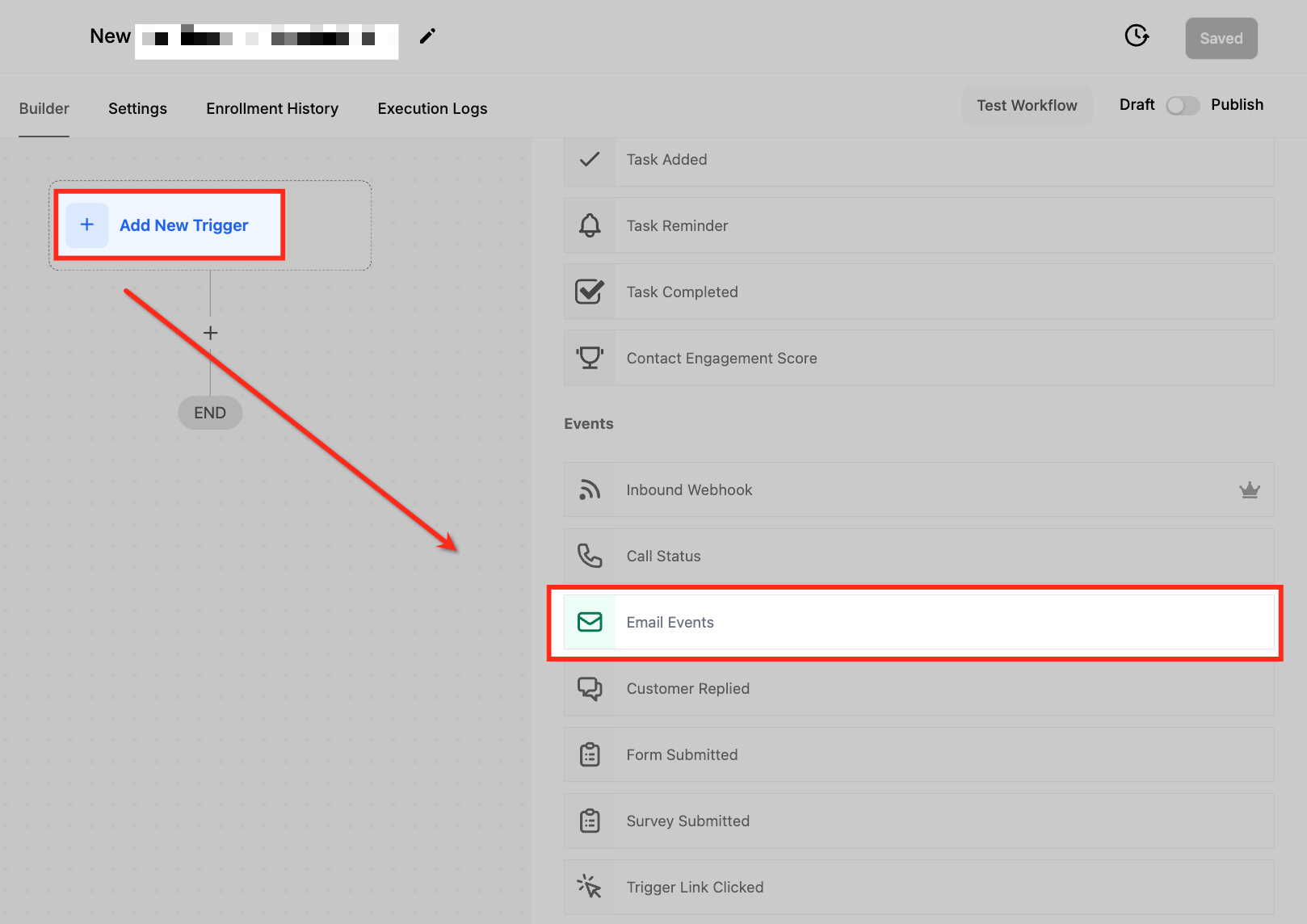
- Click + Add New Trigger and choose Email Events from the list.
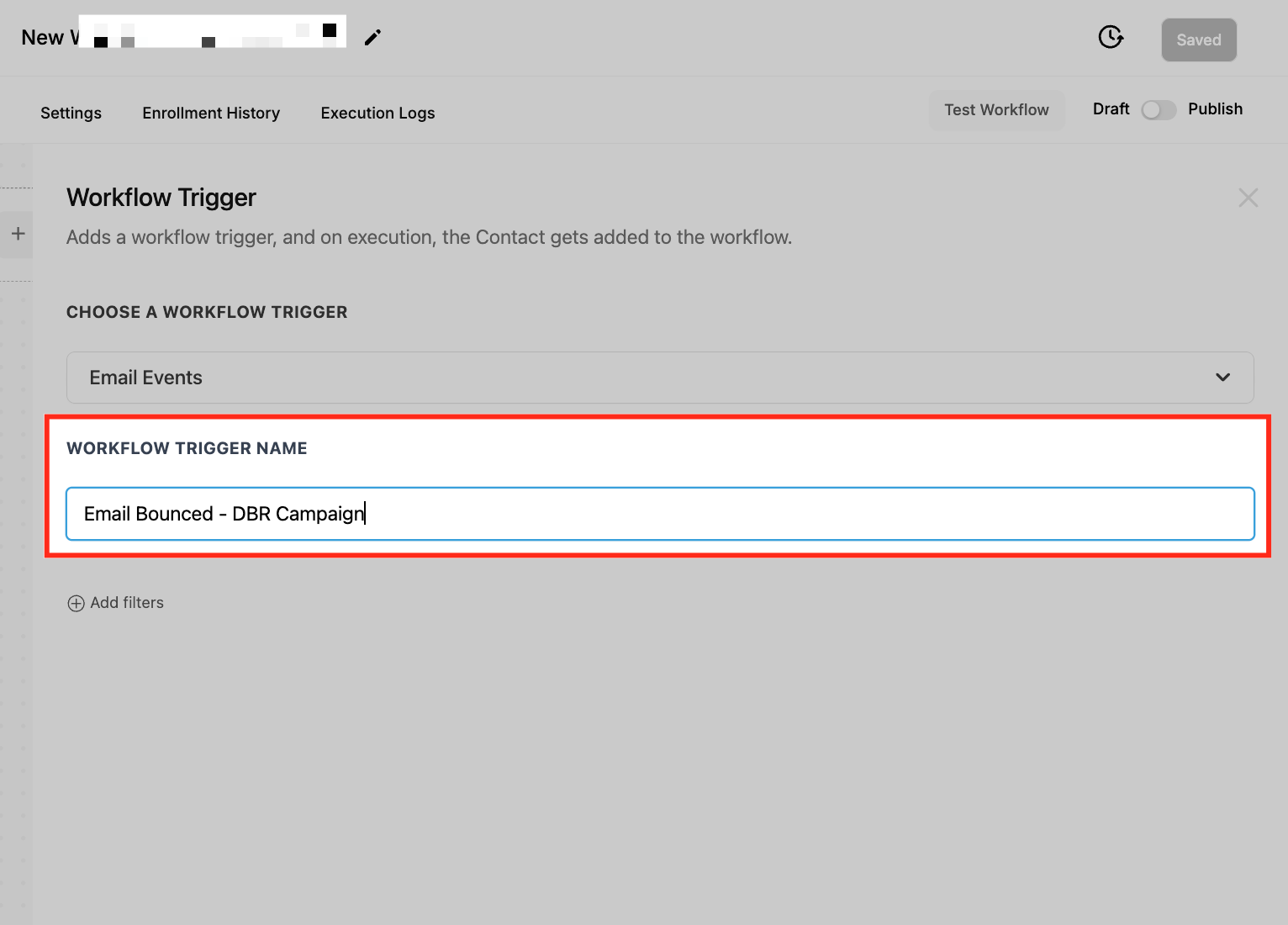
- Enter a clear name for the new trigger.
- Choose the Event filter and select the email actions that should start the workflow.
- Optionally set the In Workflow filter to limit activation to a specific workflow.
- Save the trigger settings and publish the workflow.
06What it looks like in HighLevel
07Settings that matter
- Event Filter. Determines which email interactions, Clicked, Opened, Bounced, Unsubscribed, or Complained, activate the workflow.
- In Workflow Filter. Limits the trigger to events that occur within a designated workflow, adding precision to automation.
08Things to know before you rely on it
- The trigger only supports the five events listed in the Event filter; it cannot fire for unopened emails.
- Spam complaints may affect sender reputation, and the trigger can only log the complaint, not prevent future blocks.
- Multiple workflows can use the same event, but each must have its own filter configuration.
09How it connects to the rest of HighLevel
- Learn how inbound email triggers work in HighLevel. Inbound Email Trigger
- See how to set up the User Replied workflow trigger for follow ups. User Replied Trigger
- Get an overview of workflow creation, triggers, filters, and actions. Workflow Basics
Michael's take

The Email events workflow trigger feels like a modest convenience that can become a real shift for anyone who relies on timely email follow ups. It gives you a way to react quickly to what a prospect does in your inbox, which can tighten the sales cycle and keep your lists clean.