
01Who this is for
- Founders who need instant follow up after a prospect replies, ensuring no lead slips through.
- Customer support teams that must route replies from chat widgets or live chat to the correct queue.
- Sales managers who want to flag high intent replies for immediate opportunity creation.
02Customer replied triggers, explained
The Customer Replied trigger starts a workflow each time a contact sends a reply. You can attach filters to limit activation to specific phrases, tags, intent types, or the channel the reply used. When the conditions match, the workflow runs the actions you defined.
The trigger lives inside the Workflows section of HighLevel. After adding it, you give the trigger a name, select optional filters, and save. The workflow then appears in the automation list and can be published.
Reply Channel filtering adds a second layer. Selecting All in One Chat opens a dynamic filter where you choose Chat Type (Chat Widget or Live Chat) and then specify the exact widget or live chat configuration. This enables separate automations for each chat experience.
03How businesses use customer replied trigger
- Real estate agency. The agency creates a workflow that fires when a prospect replies via the All in One Chat widget on a property landing page. The filter narrows to the specific widget, and the actions assign the conversation to the listing agent and create a follow up task.
- Dental practice. A dental office sets a trigger for Live Chat replies. The filter selects Live Chat and the particular live chat configuration. When a patient answers a reminder, the workflow creates a ticket, tags the patient as "appointment confirm," and notifies the front desk.
- SaaS startup. The startup adds a Contains Phrase filter for words like "pricing" or "demo" and chooses the email channel. When a lead replies with those terms, the workflow generates an opportunity, alerts the sales rep, and sends a personalized follow up email.
04Before you start
- Be signed into the appropriate subaccount before opening the workflow builder.
05How to set up and use customer replied trigger in HighLevel
Set up Customer Replied trigger
- Log in to the subaccount.
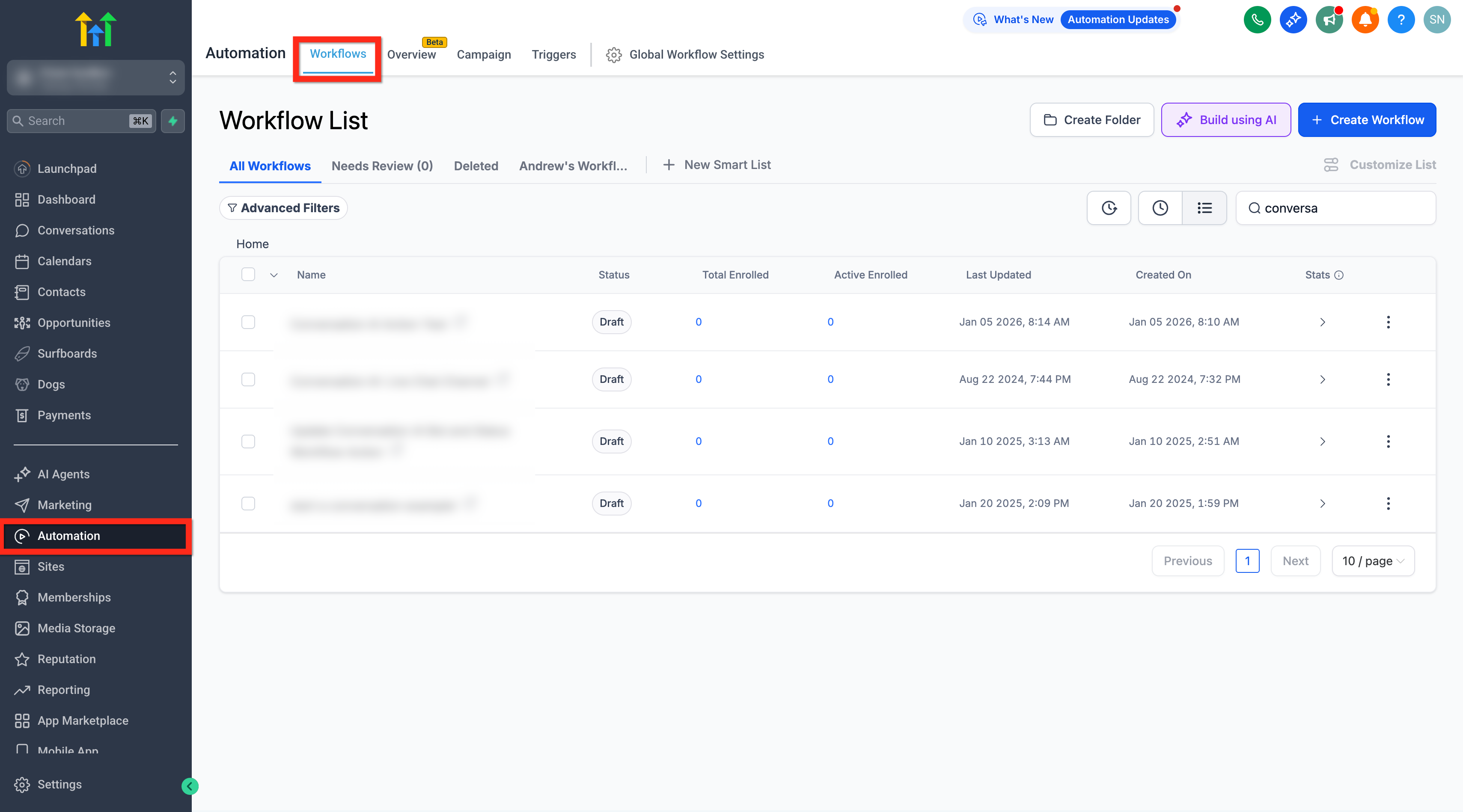
- Navigate to Automations > Workflows.
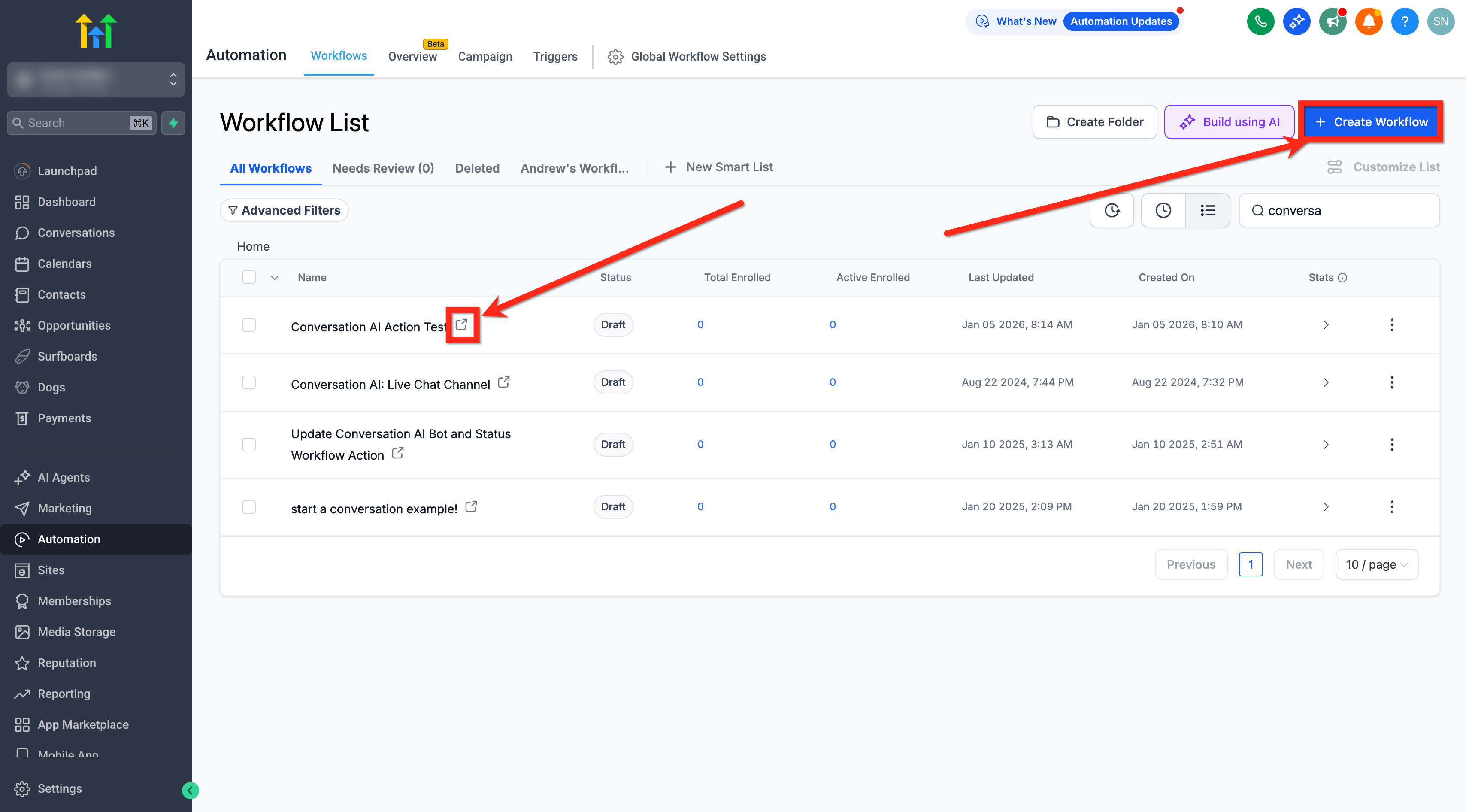
- Create a new workflow or open an existing one.
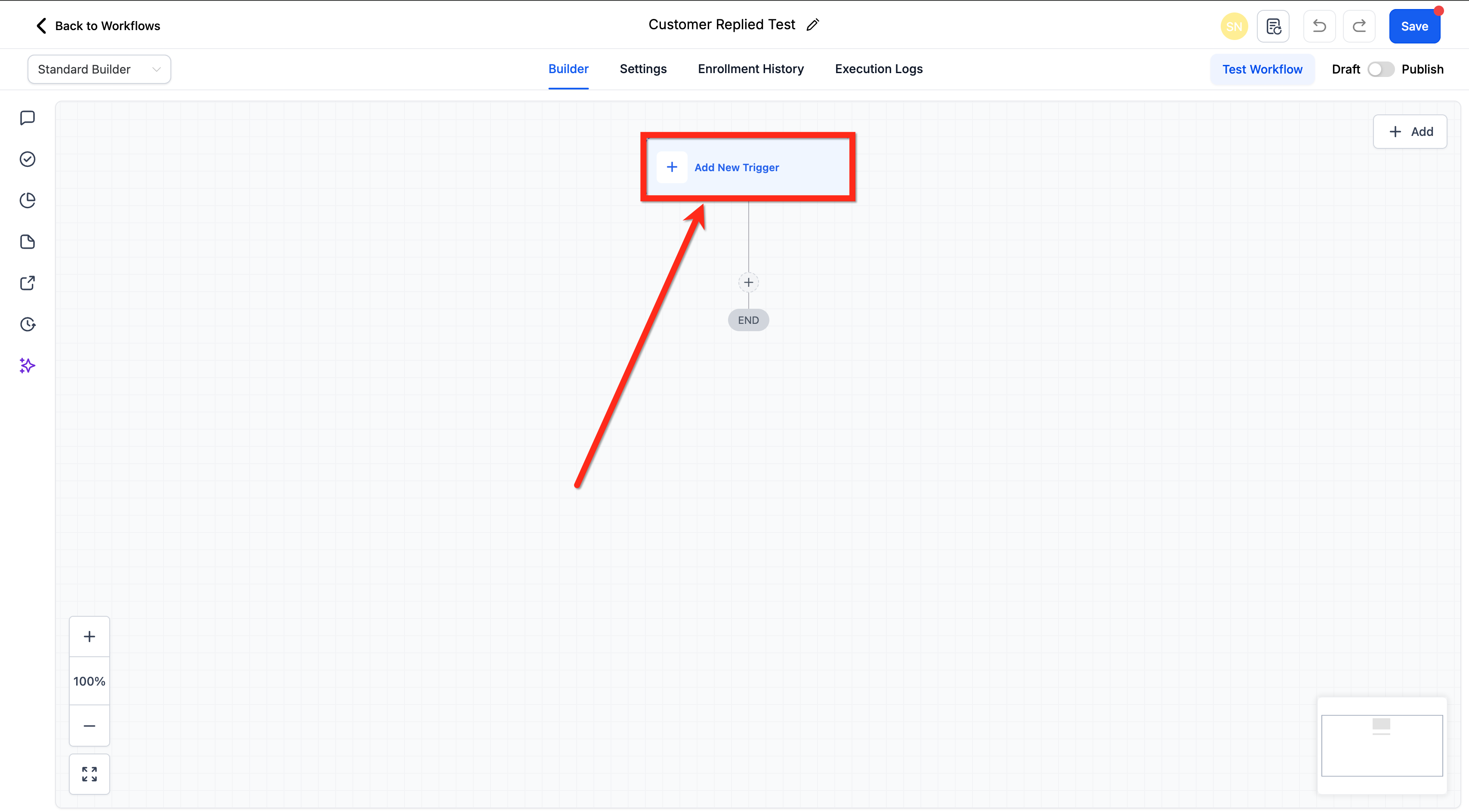
- Click the + Add New Trigger button.
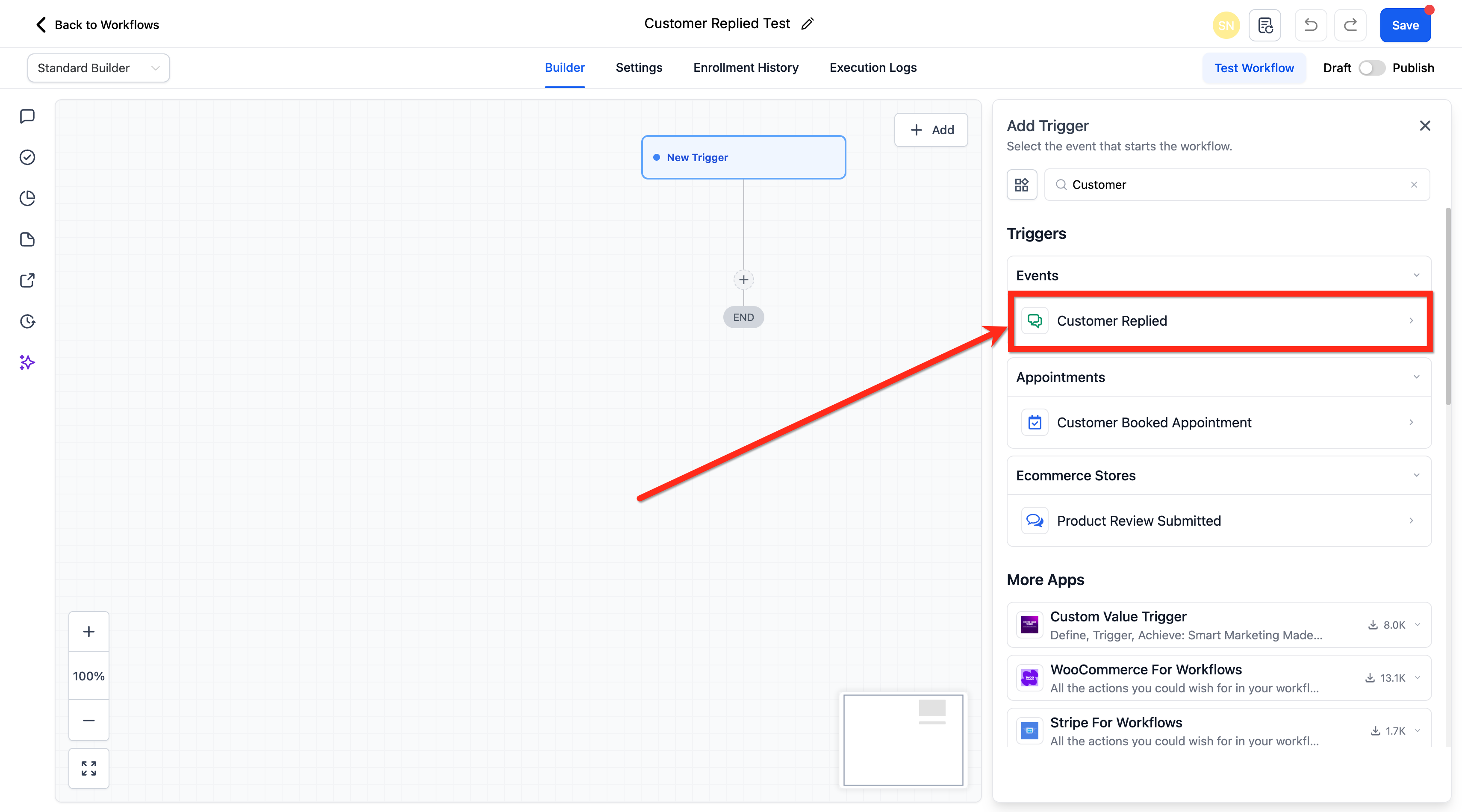
- Select Customer Replied from the trigger list.
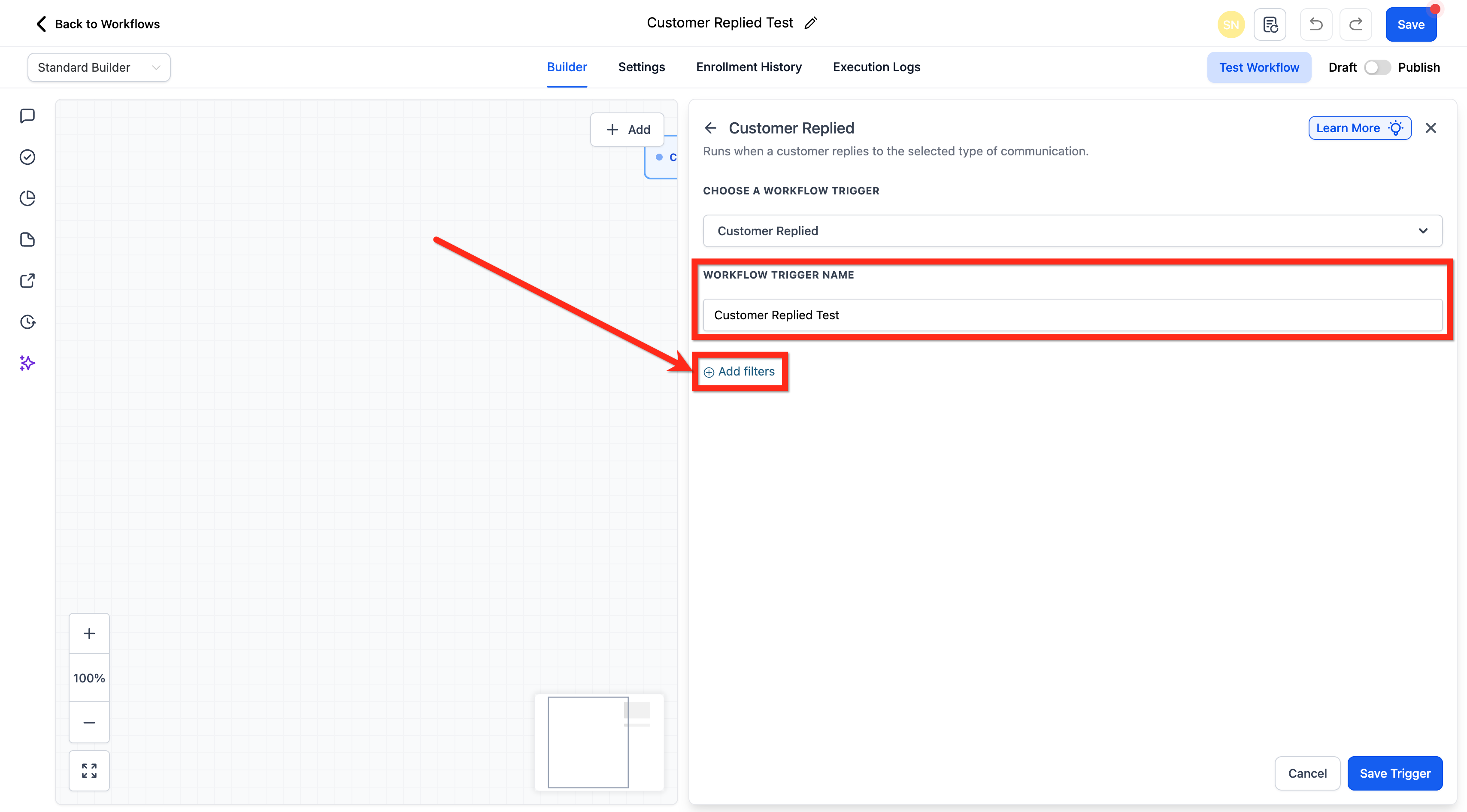
- Enter a clear name for the trigger.
- Press + Add Filters to open filter options.
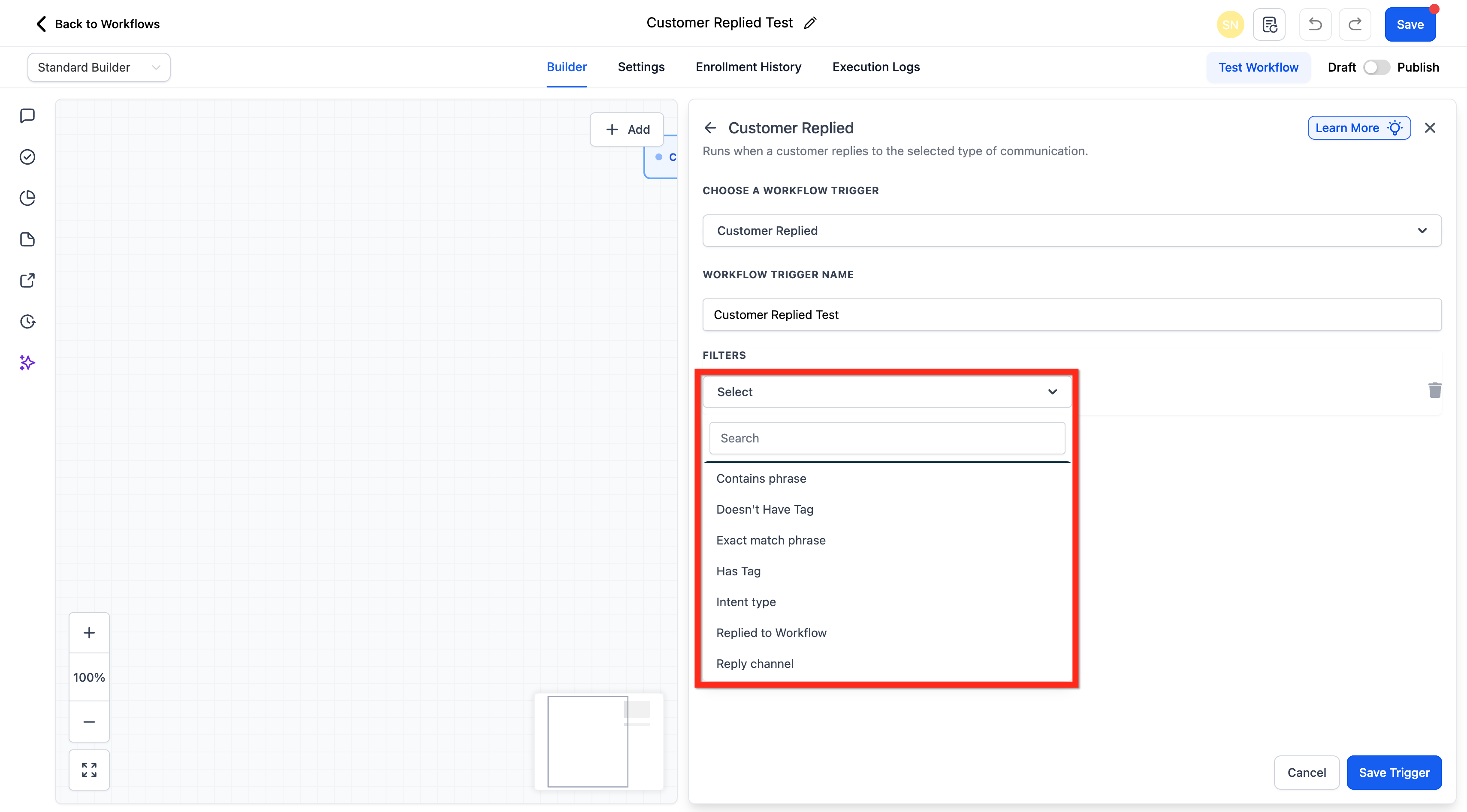
- Choose any needed filters such as Contains Phrase, Exact Match Phrase, Has Tag, Doesn’t Have Tag, Intent Type, Replied to Workflow, or Reply Channel.
- Provide values for each selected filter.
- Ensure the trigger is configured cleanly to avoid misfires.
- Click Save Trigger, add actions, and Publish the workflow.
Configure Reply Channel filter for All in One Chat
- Open the Reply Channel filter within the trigger filters.
- Select All in One Chat as the channel.
- Choose the Chat Type (Chat Widget or Live Chat).
- If Chat Type is Chat Widget, pick the specific Chat Widget from the dropdown.
- If Chat Type is Live Chat, choose the appropriate Live Chat configuration.
06What it looks like in HighLevel
07Settings that matter
- Contains Phrase. Runs the workflow only when the reply includes the specified words or phrases.
- Exact Match Phrase. Triggers the workflow only if the reply matches the entered phrase exactly.
- Has Tag. Includes contacts that carry the selected tags.
- Doesn’t Have Tag. Excludes contacts that have the chosen tags.
- Intent Type. Uses NLP to classify the reply (e.g., question, complaint, positive) and triggers based on that classification.
- Replied to Workflow. Activates only when the contact replied to a message from a specific workflow.
- Reply Channel. Limits the trigger to replies that arrived through a selected communication channel.
- Chat Type. When Reply Channel is All in One Chat, defines whether the reply came from a Chat Widget or Live Chat.
- Chat Widget. Specifies the exact All in One Chat widget that must have generated the reply.
- Live Chat. Specifies the particular All in One Live Chat configuration that must have generated the reply.
08Things to know before you rely on it
- All in One Chat support appears only in the Reply Channel filter of the Customer Replied trigger.
- Existing Chat Widget based triggers continue to work unchanged.
09How it connects to the rest of HighLevel
- How to set up a Form Submitted workflow trigger Form Submitted trigger guide
- Using inbound email as a workflow trigger Inbound Email trigger
- HighLevel workflow automation basics Workflow basics
- Start a 30 day HighLevel trial Free trial
- HighLevel pricing and plans overview Pricing page
Michael's take

Wondering if it’s worth automating replies across email, SMS, and chat? The Customer Replied trigger lets you fire a workflow the moment a contact answers, and you can narrow it down by phrase, tag, intent, or channel so you only act on the replies that matter.
I’d start by mapping the most common reply paths in my sales funnel and then set up a simple trigger that catches a keyword like “pricing.” From there I’d add a notification to the sales rep and a follow up message. Test it on a few leads, watch the timing, and adjust the filters until the automation feels tight.