
01Who this is for
- Sales teams, receive automated tasks when outgoing calls are completed, keeping the pipeline moving.
- Customer support departments, get instant notifications for missed or voicemail calls to schedule callbacks.
- Managers, generate reports on call statuses such as canceled or busy to monitor operational performance.
02Call details workflow trigger, explained
The Call Details trigger watches every call that passes through HighLevel. When a call changes to a status you select, busy, canceled, voicemail, completed, or not answered, the trigger fires and starts the attached workflow. This lets you react automatically to how a call ends.
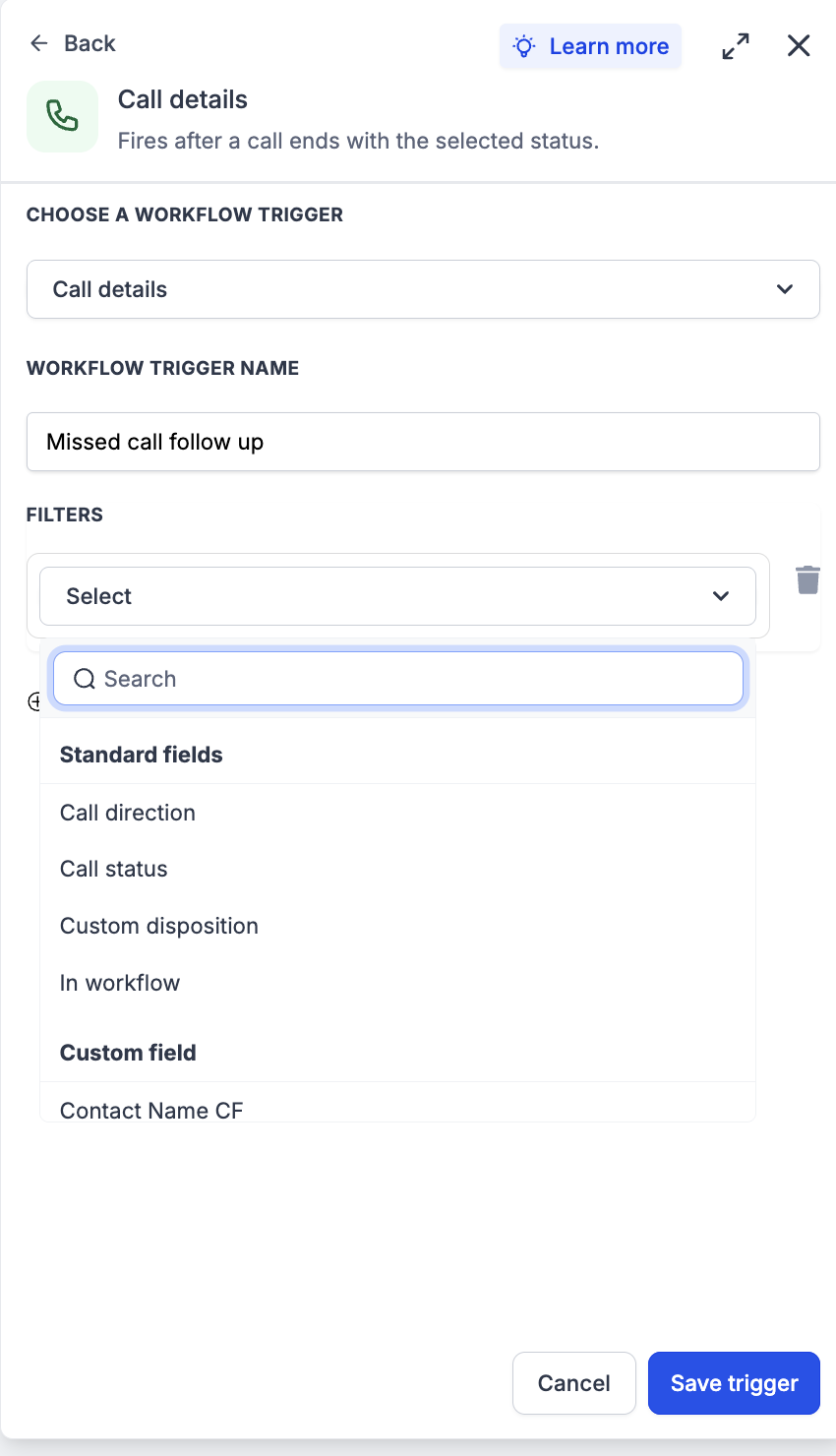
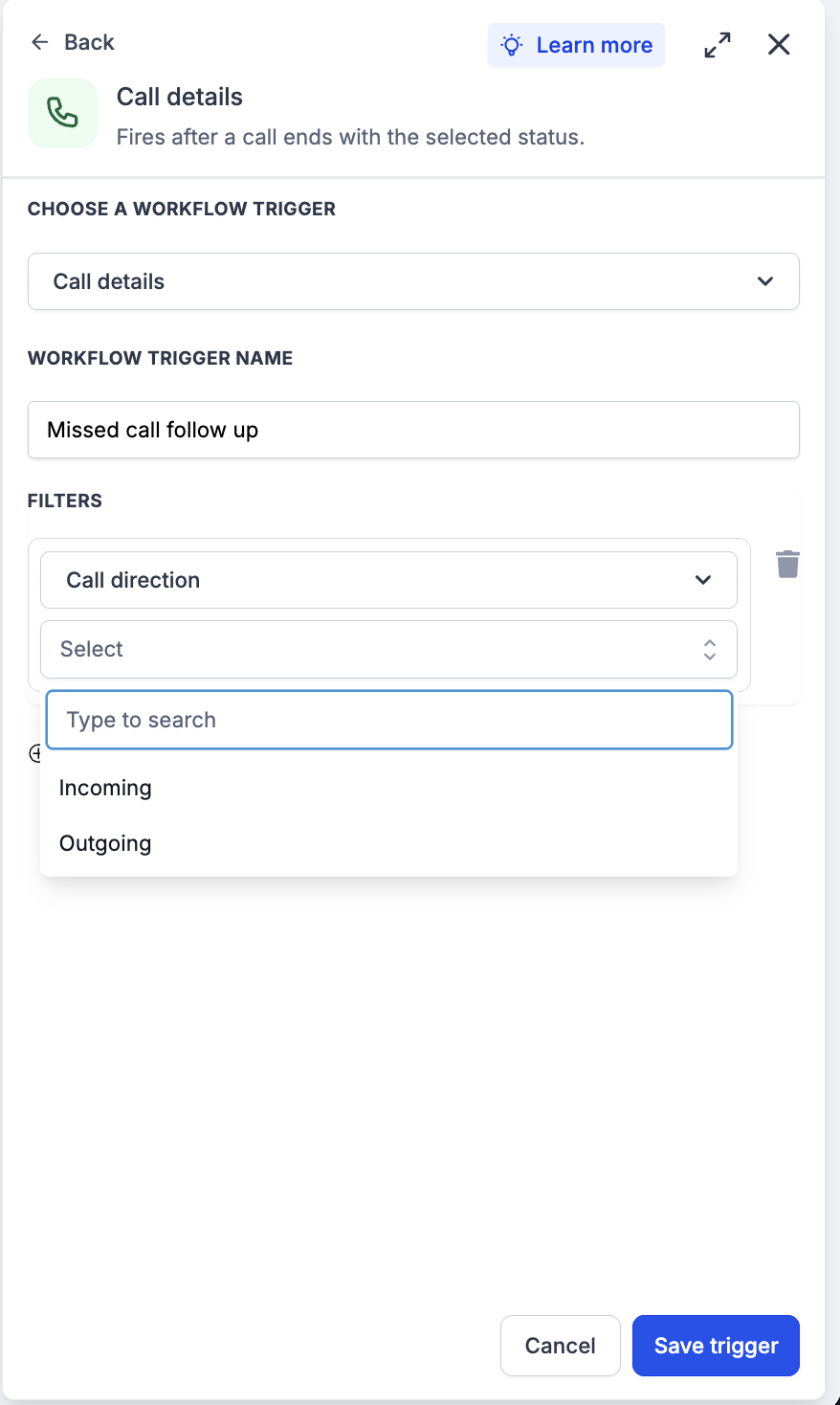
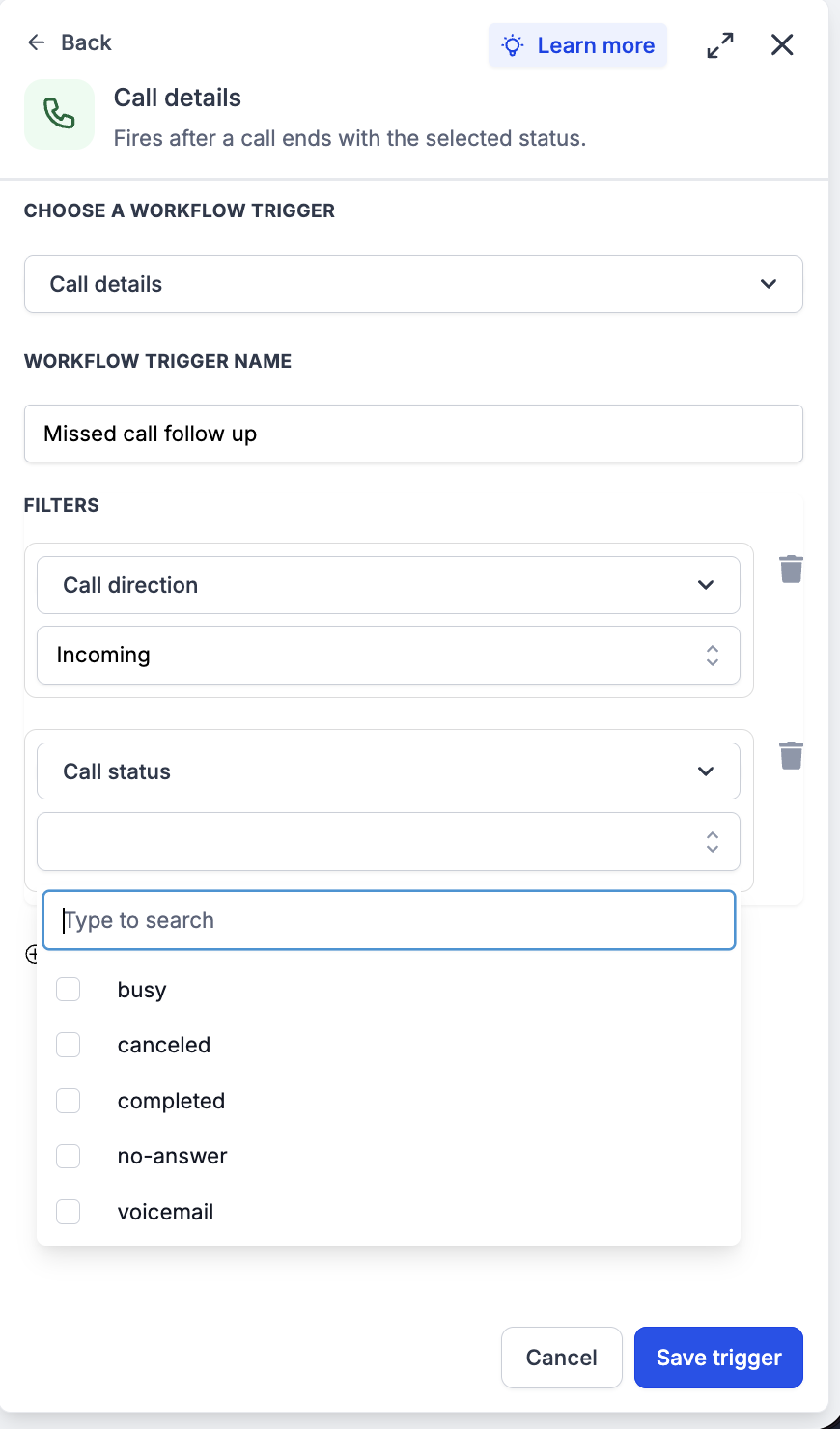
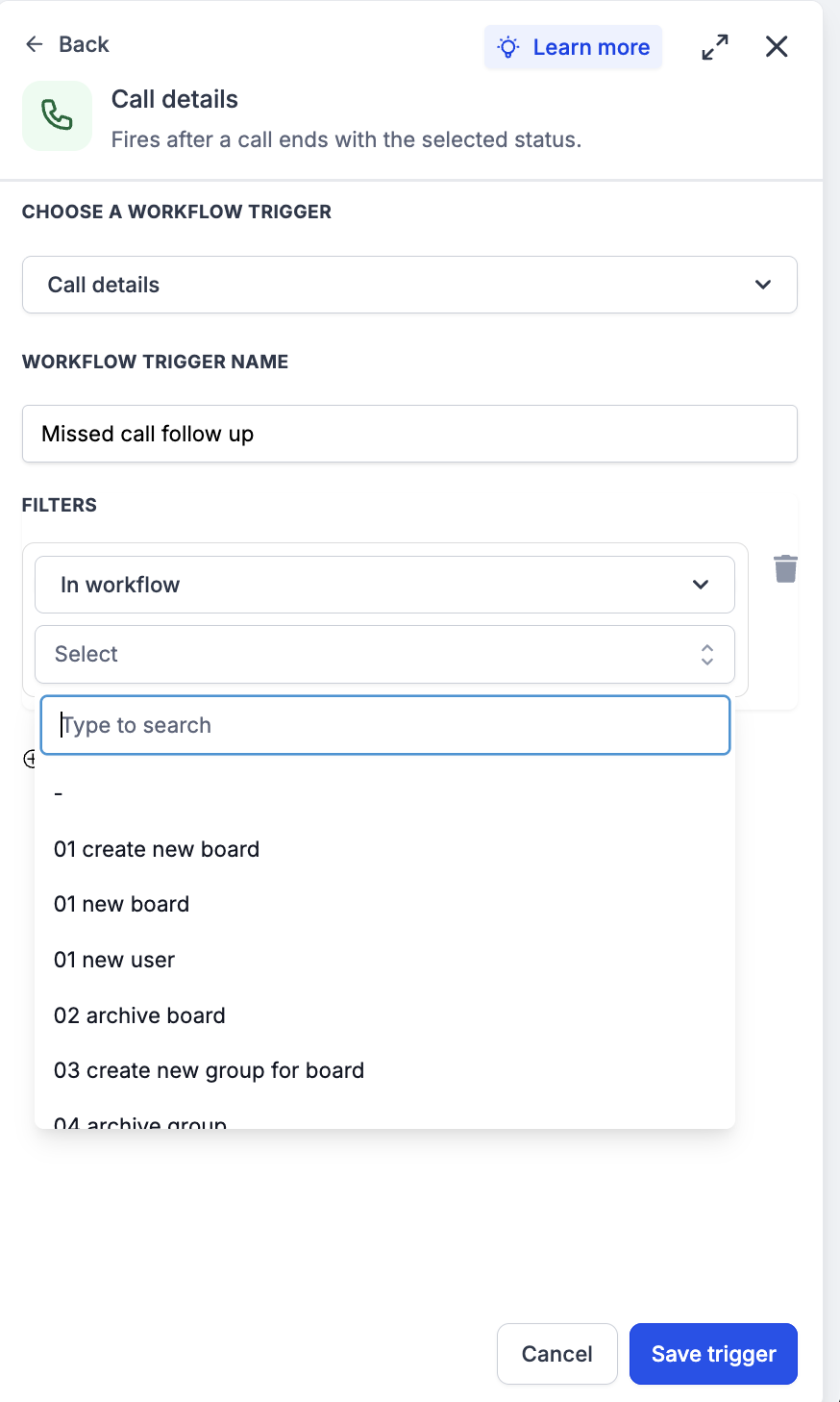
You can refine the trigger with two filters. The Call Direction filter limits the automation to incoming or outgoing calls. The Call Details filter selects the specific call status or statuses that should launch the workflow. An optional In Workflow filter lets you hand off the call event to another pre built workflow, chaining automations together.
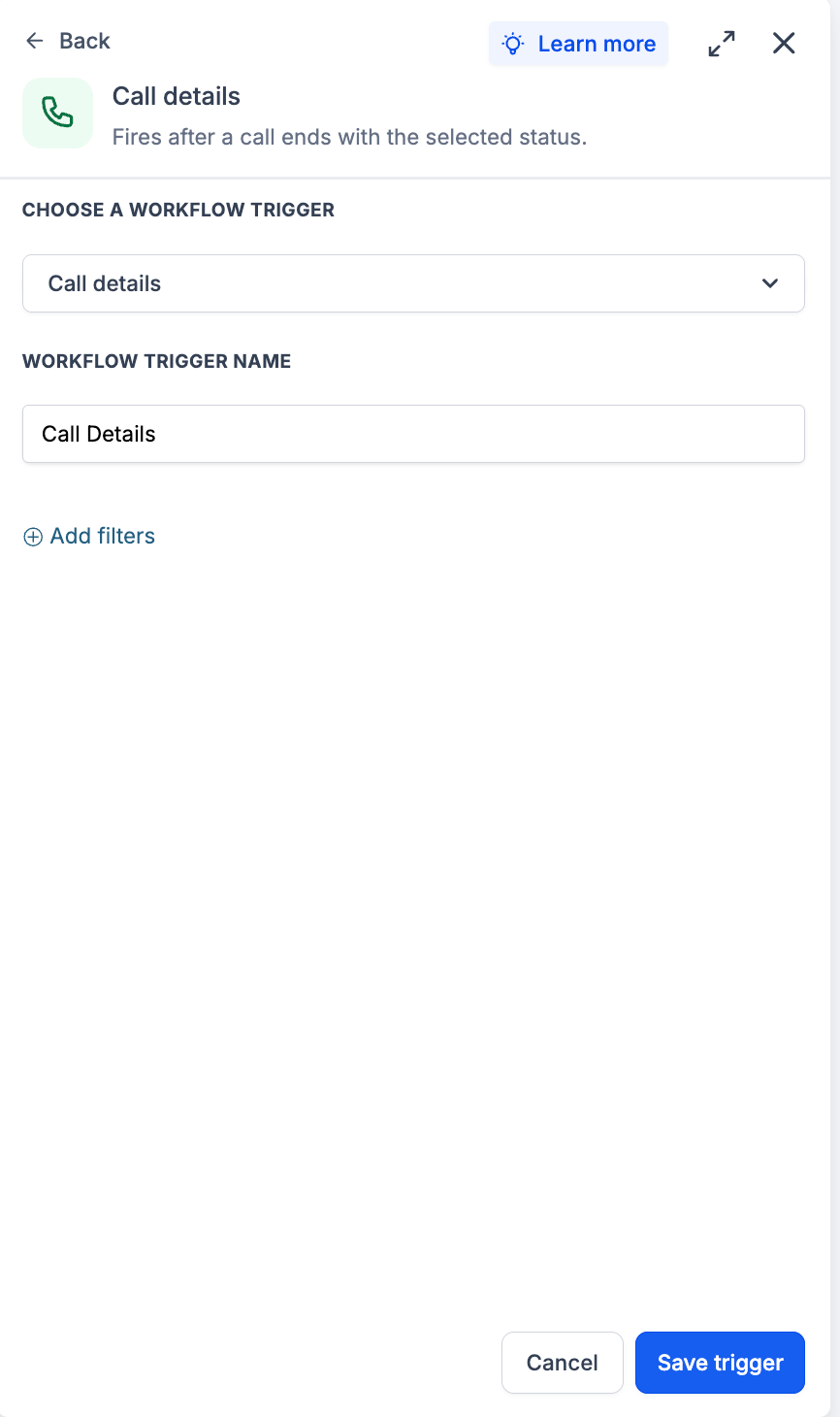
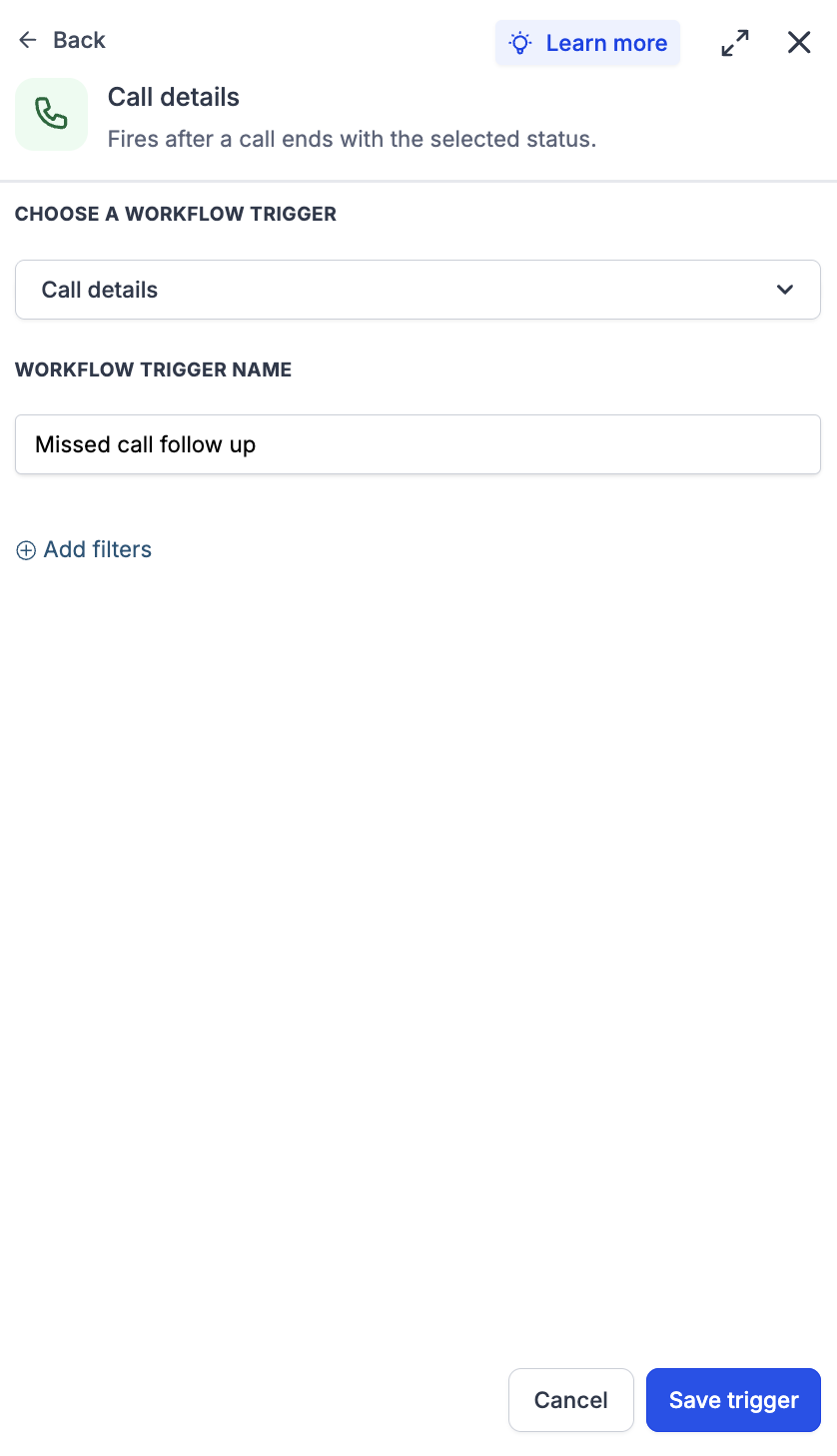
The trigger is created inside the Automation area of HighLevel. Open a workflow, add a new trigger, choose "Call details" from the list, name it, set your filters, save, then test and publish. Once active, any matching call will execute the actions you defined in that workflow.
03How businesses use call details workflow trigger
- Sales team. Set the trigger to fire when an outgoing call is marked "completed." The workflow logs the call outcome, sends a follow up email to the prospect, and creates a task for the next sales activity.
- Customer support department. Configure the trigger for incoming calls with the status "not answered." The automation notifies the support staff, schedules a callback, and updates the contact’s activity log within HighLevel.
- Management reporting. Apply filters for call statuses like "canceled" or "busy." The workflow compiles a weekly summary of those calls and emails the report to the manager for review.
04How to set up and use call details workflow trigger in HighLevel
Set up the Call Details workflow trigger
- Navigate to the Automation section and open an existing workflow or create a new one.
- Click Add New Trigger and select Call details from the dropdown menu.
- Provide a descriptive name for the trigger.
- Choose the Call Direction filter and set it to incoming or outgoing as needed.
- Select the Call Details filter and pick the call statuses that should start the workflow.
- Optionally use the In Workflow filter to link to another workflow.
- Click Save to store the trigger configuration.
- Test the workflow with sample data and toggle Publish to activate it.
05What it looks like in HighLevel
06Settings that matter
- Call Direction. Determines whether the trigger applies to incoming calls, outgoing calls, or both.
- Call Details. Specifies which call statuses, busy, voicemail, completed, canceled, or not answered, activate the workflow.
- In Workflow. Allows the trigger to pass control to another workflow, creating a chain of automations.
07How it connects to the rest of HighLevel
- Learn the basics of creating workflows and adding triggers in HighLevel. Workflow basics
- Use inbound webhook triggers to start workflows from external call systems. Inbound webhook trigger
- Check the pricing tiers for workflow features and plan eligibility. Workflow pricing
Michael's take

The Call details workflow trigger helps ensure phone interactions are captured without manual steps.
Don’t forget to add a cooldown or condition, or you’ll end up spamming your team each time a call flips status.