
01Who this is for
- Real estate teams that need a follow up whenever a Contact becomes a buyer of a Property.
- Car dealerships that assign a Dealer to a Car using a custom label and want to coordinate the hand off automatically.
- Account teams that must alert members when an Opportunity is linked to a Company.
02Association created trigger, explained
The Association Created trigger fires each time a relationship is formed between two contact records that match the defined filters. It works inside standard, Custom Object, and Company workflows. The trigger does not create the association; it only reacts to its creation.
Filters let you limit the trigger to a specific object, such as Property, Dealer, or Opportunity, and optionally to a particular association label, like Buyer or Assigned Dealer. If no label filter is set, the workflow runs for any new association involving the chosen object.
03How businesses use association created trigger
- Real estate agency. Create a standard workflow, select Property as the associated object and Buyer as the label. When a Contact is linked as a buyer, the workflow can generate a task for the agent or send a notification.
- Car dealership. In a Cars custom object workflow, choose Dealers as the associated object and Assigned Dealer as the label. When a Car is linked to a Dealer, the workflow can run actions that coordinate the assignment.
- Account management team. Set up a Company workflow, pick Opportunities as the associated object and apply the appropriate label. When an Opportunity becomes associated with a Company, the workflow can trigger an internal notification.
04The numbers and rules that matter
- Supported contact records: Contacts, Opportunities, Custom Objects, Companies.
- Supported workflow types: Standard workflows, Custom Object workflows, Company workflows.
05Before you start
- Enable the Association Created trigger in Labs for the location.
- Make sure the needed CRM objects and association labels are already defined.
- Create the association labels you want to use for filtering.
- Choose the workflow type based on the record that should enroll.
06How to set up and use association created trigger in HighLevel
Set up the trigger
- Open Automation > Workflows and open the appropriate Standard, Custom Object, or Company workflow.
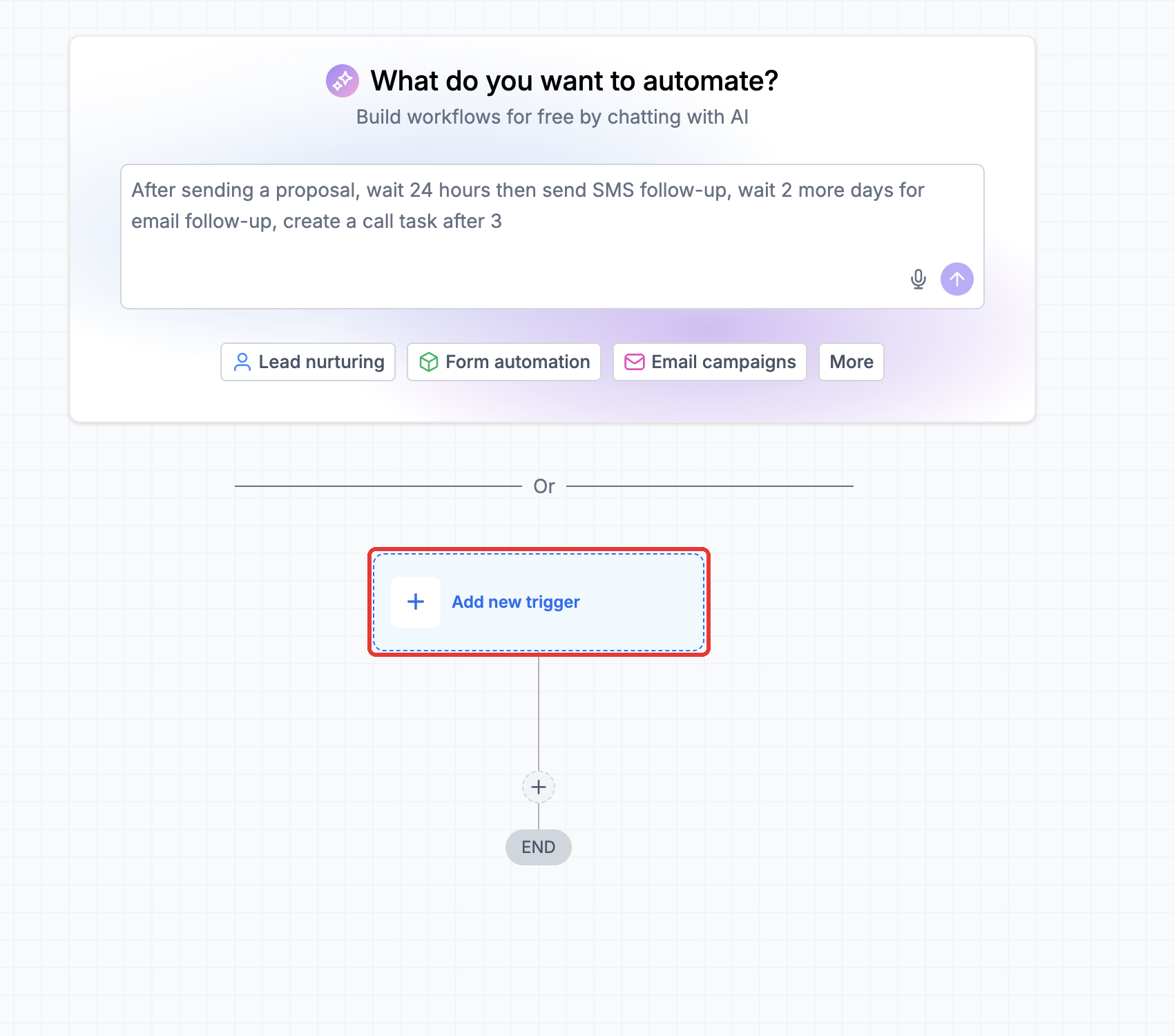
- In the workflow builder, click Add new trigger.
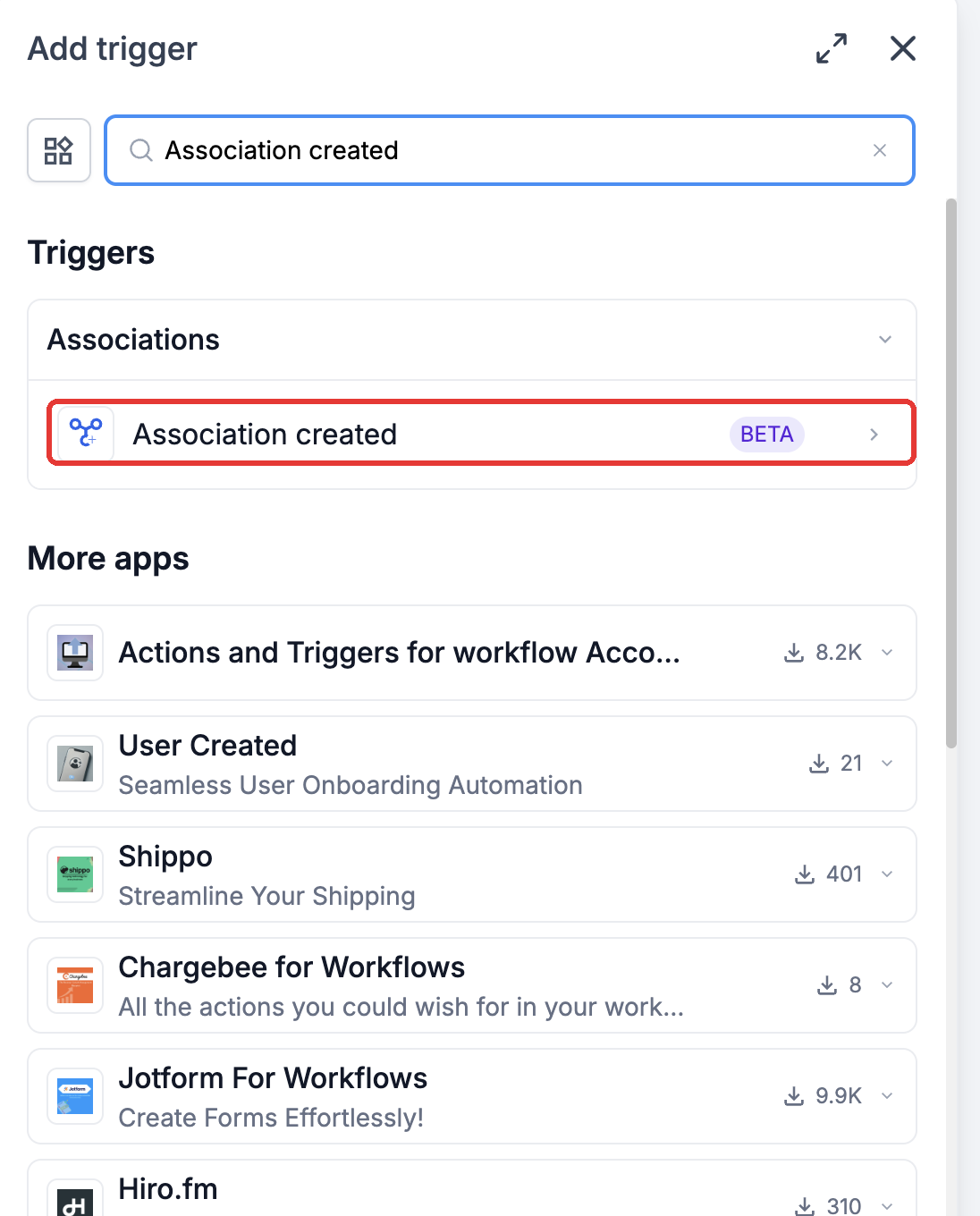
- Search for Association Created and select it.
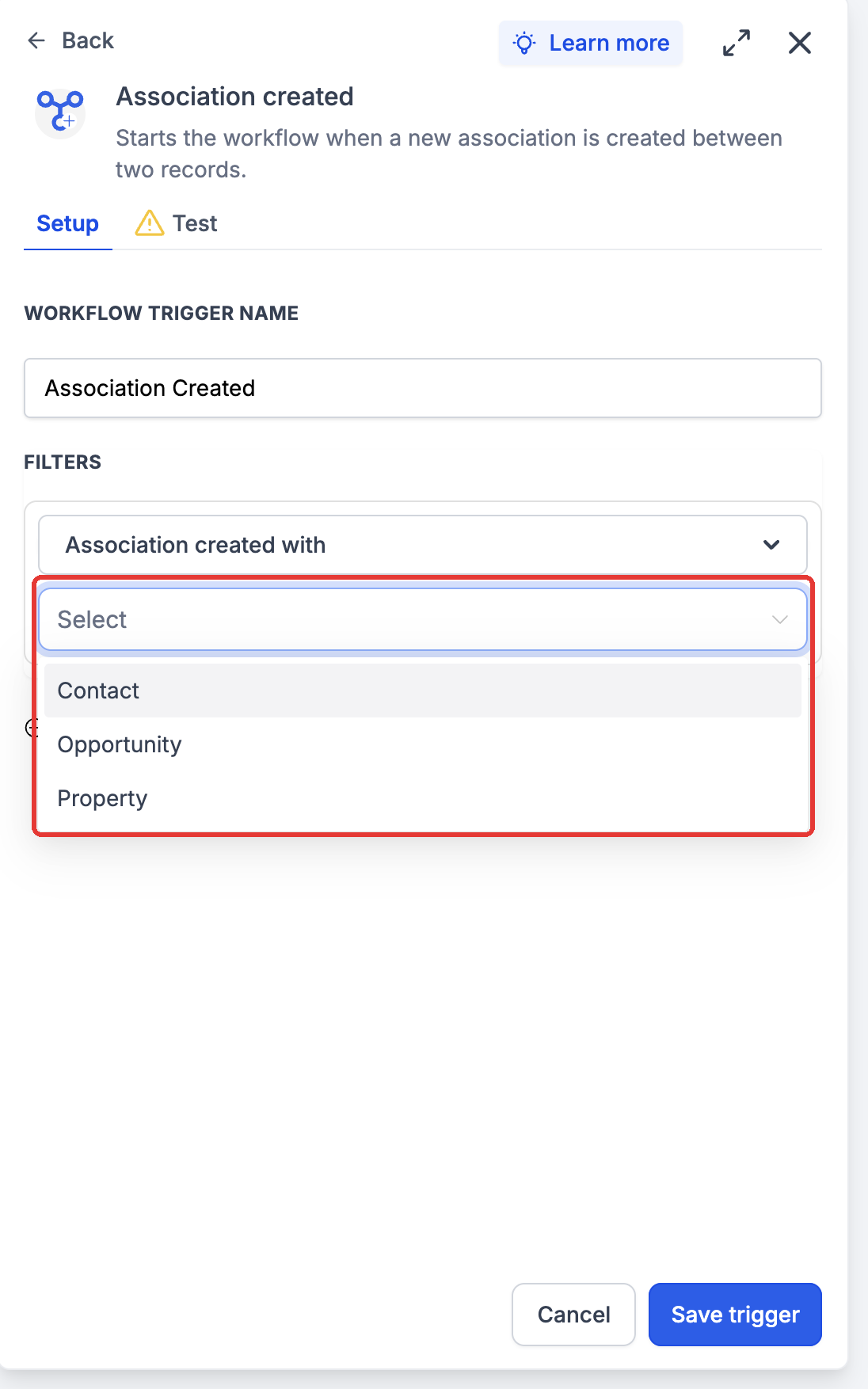
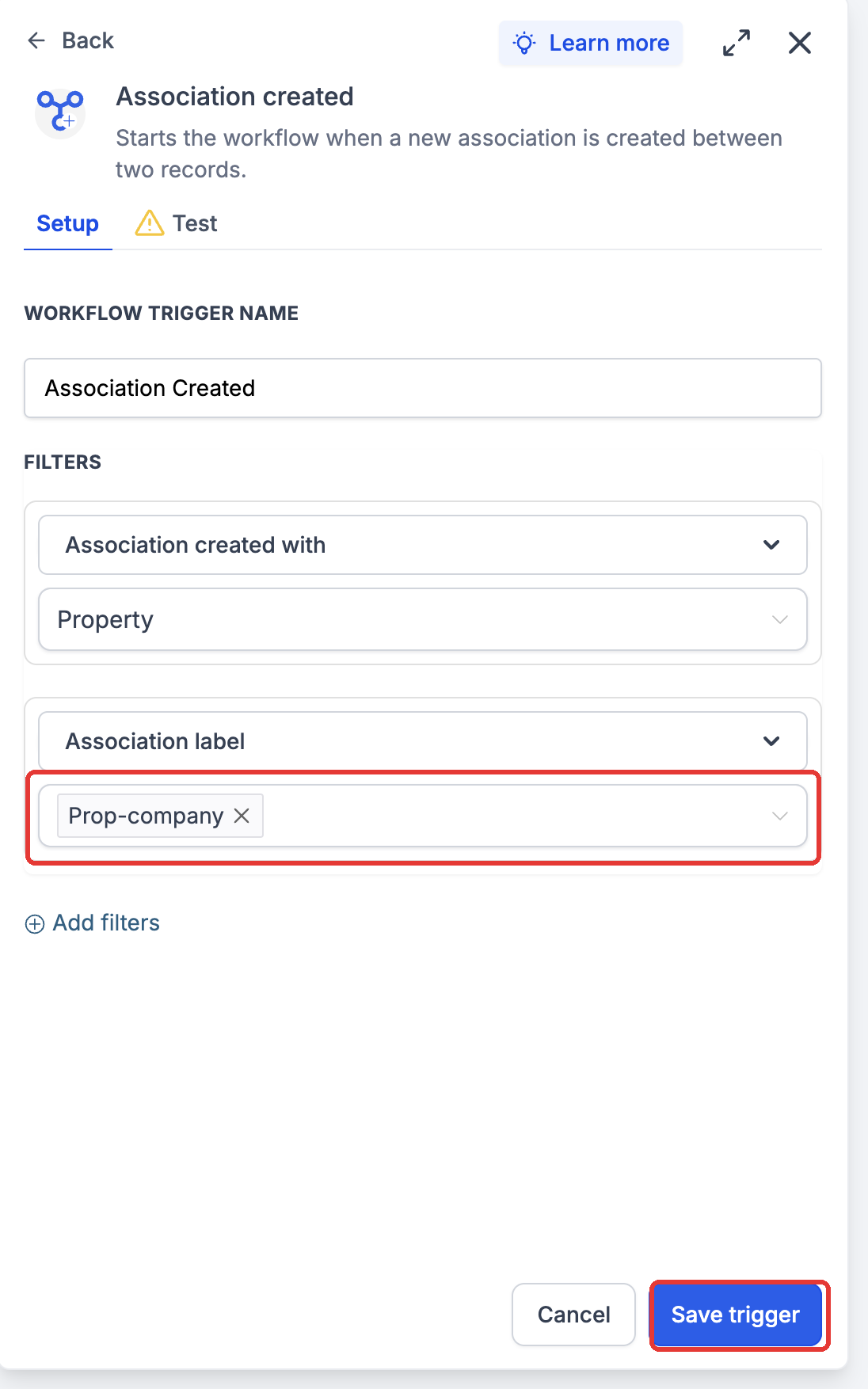
- In the Association created with field, choose the object that will be linked.
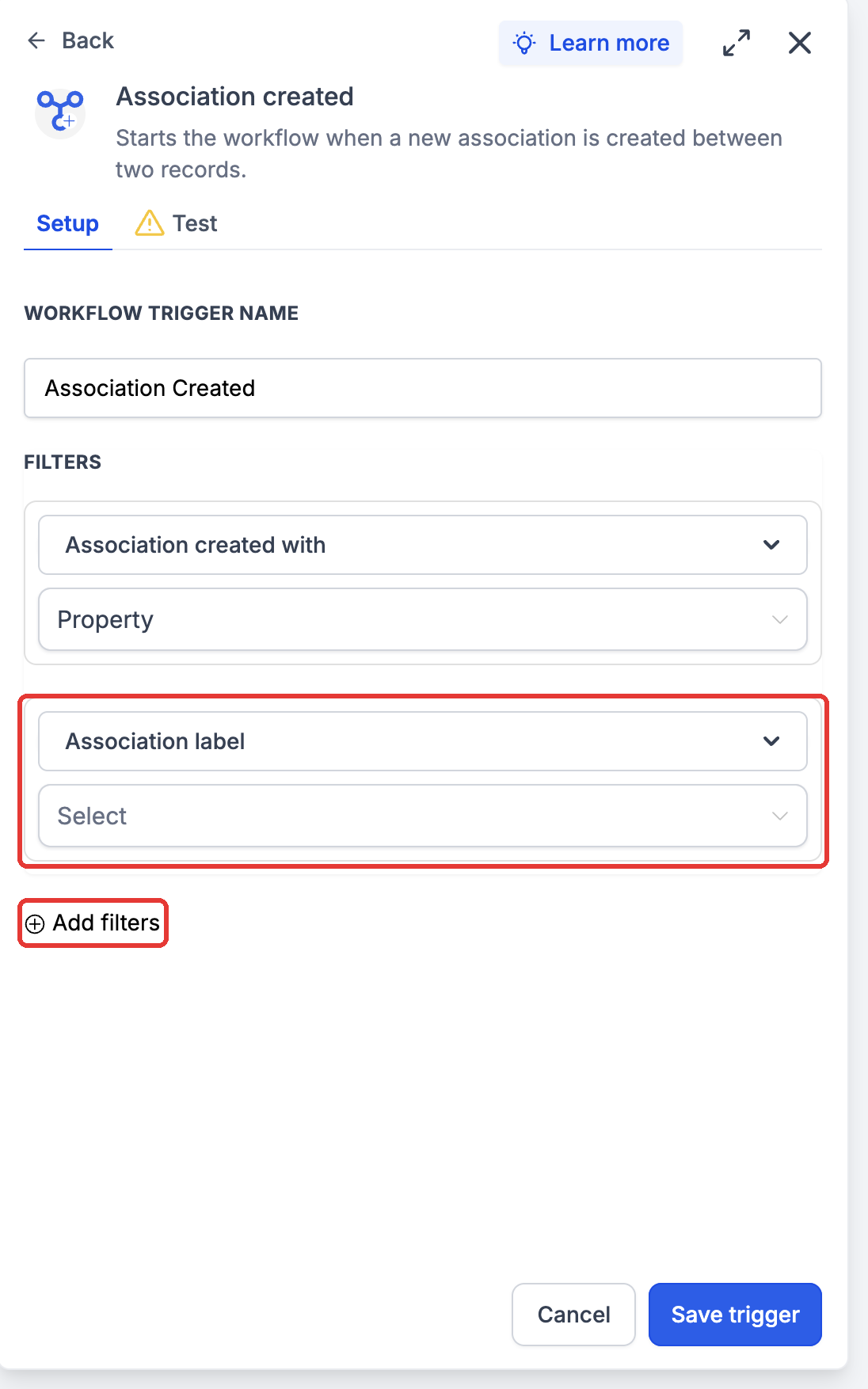
- Click Add filters and add an Association label filter (optional).
- Select the desired label and click Save trigger.
- Add any actions you want the workflow to perform after the trigger fires.
- Publish the workflow.
- Create a new association that matches the configuration, then check Enrollment history and Execution logs to verify the result.
07What it looks like in HighLevel
08Settings that matter
- Association created with. Specifies which CRM object is being linked to the record that runs the workflow.
- Association label. Optional filter that narrows the trigger to a particular relationship type between the objects.
09Things to know before you rely on it
- The feature is available only when the Association Created Trigger is enabled in Labs.
- Supported contact records types are Contacts, Opportunities, Custom Objects, and Companies.
- Workflow types that can use the trigger are Standard, Custom Object, and Company workflows.
- The trigger fires only for newly created associations, not for existing links.
10If something goes wrong
- Workflow does not enroll records after creating an association.. Confirm the workflow is published, the selected object and label match the new association, and the trigger is enabled in Labs. Review Enrollment history and Execution logs.
11How it connects to the rest of HighLevel
- HighLevel workflow creation: triggers, filters, actions Workflow basics
- HighLevel inbound webhook trigger: how to set up and use Webhook trigger
- HighLevel pricing and plans Pricing
Michael's take

The biggest pitfall is forgetting to turn the feature on in Labs. Without that step the trigger never fires, leaving you wondering why your automations are silent. Make sure the Labs toggle is active for the location before you build anything.
Once it’s live, the trigger is a clean way to turn a relationship event into an action. Whether you’re a real estate team needing a buyer follow up or a dealership coordinating dealer assignments, the ability to react the moment two records link can keep your pipeline moving without manual checks.