
01Who this is for
- Founders who receive image attachments from customers can pull text automatically and store it in contact records.
- Marketing teams that need alt text or product descriptions for images can generate them without manual copywriting.
02AI Analyze Image actions, explained
The AI Analyze Image action lives under AI Actions in the workflow builder. It accepts a publicly reachable image URL and a custom prompt, then calls an AI vision model to produce a text answer.
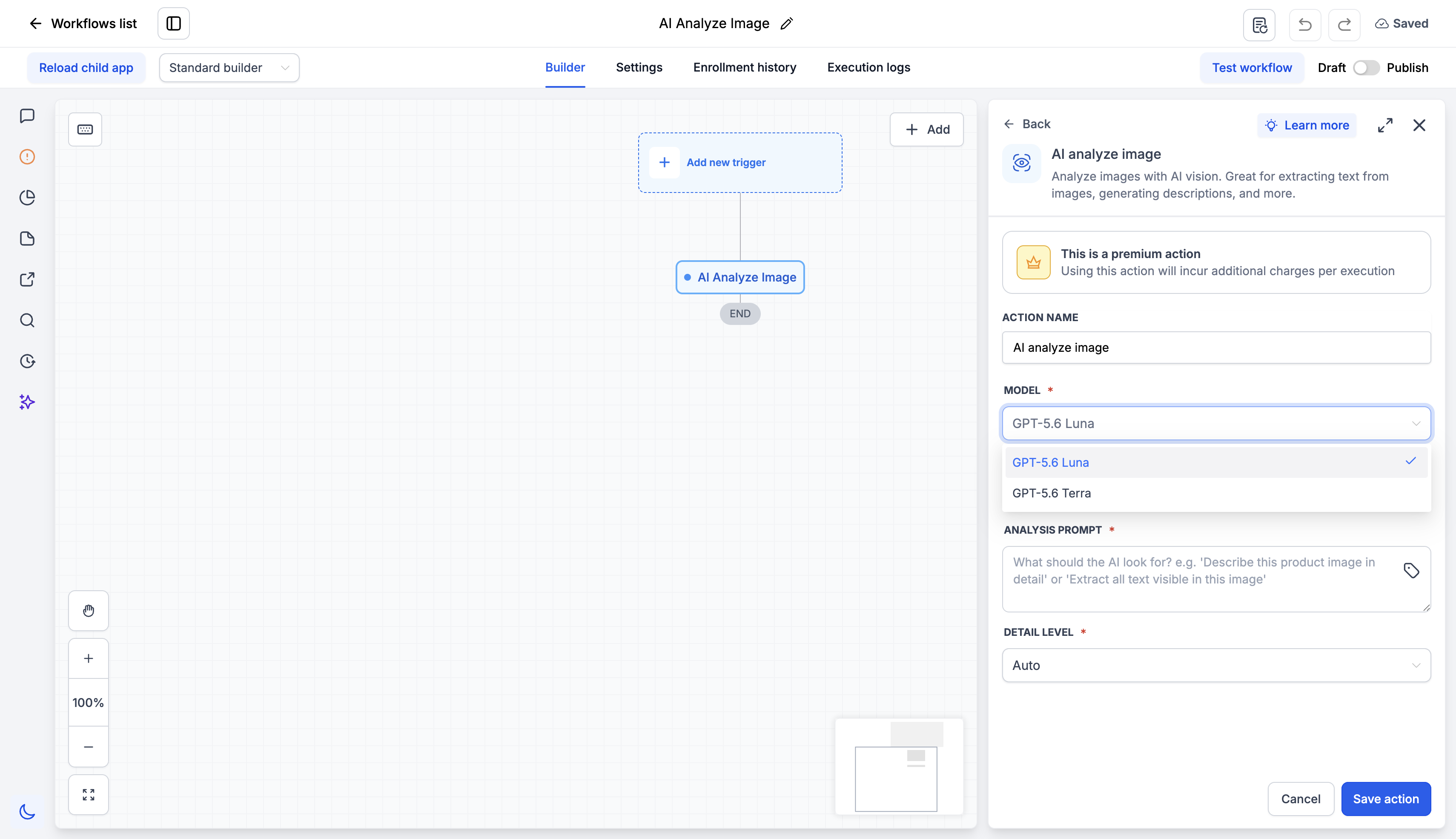
The model choice is between GPT-5.6 Luna and GPT-5.6 Tera. A detail level setting tells the system how deep the analysis should be, with Auto as the default.
When the action runs, the text answer appears as a variable that any downstream action can read, such as updating a contact field, sending an email, or triggering another AI step.
03How businesses use AI Analyze Image action
- Ecommerce store. When a new product image arrives via webhook, the store adds an AI Analyze Image step with a prompt to describe colour, material and style. The description is sent to the catalogue system through an outbound webhook.
- Service appointment business. A customer replies with a receipt photo. The workflow runs AI Analyze Image with a prompt to extract all visible text. The extracted text is saved to a custom contact field for later verification.
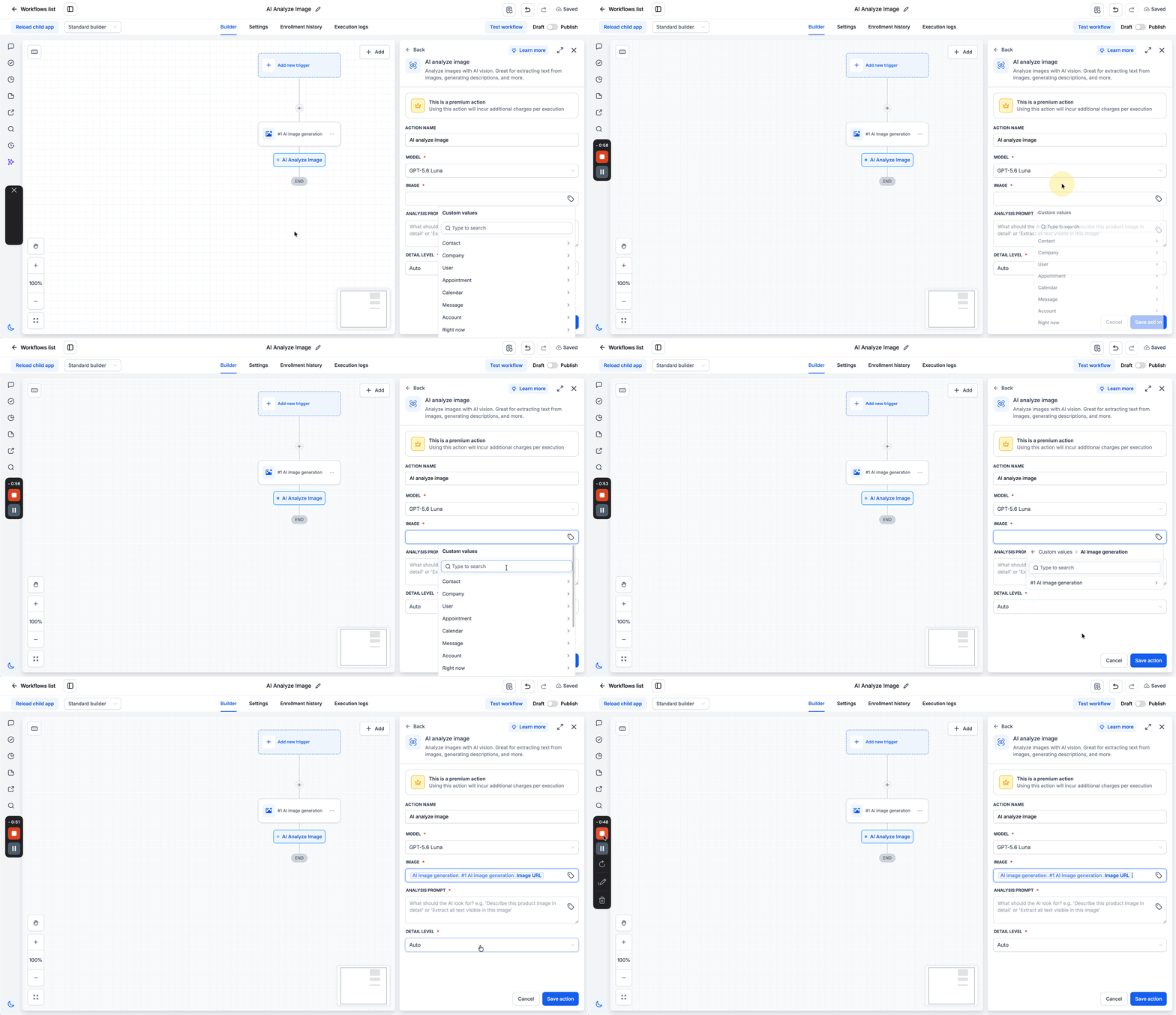
- Digital agency. After generating a mockup with AI Image Generation, the agency adds AI Analyze Image to read the generated image URL and get a detailed description. The description is routed through an If/Else step to approve or revise the design.
04The numbers and rules that matter
- Two models are available: GPT 5.6 Luna and GPT 5.6 Tera.
- Median cost per analysis is $0.0004 (0.04¢) (per HighLevel's help center, checked November 2026).
- Average cost per analysis is $0.0013 (0.13¢) (per HighLevel's help center, checked November 2026).
05Before you start
- A workflow must exist in Automation > Workflows before adding the action.
06How to set up and use AI Analyze Image action in HighLevel
Add and configure AI Analyze Image action
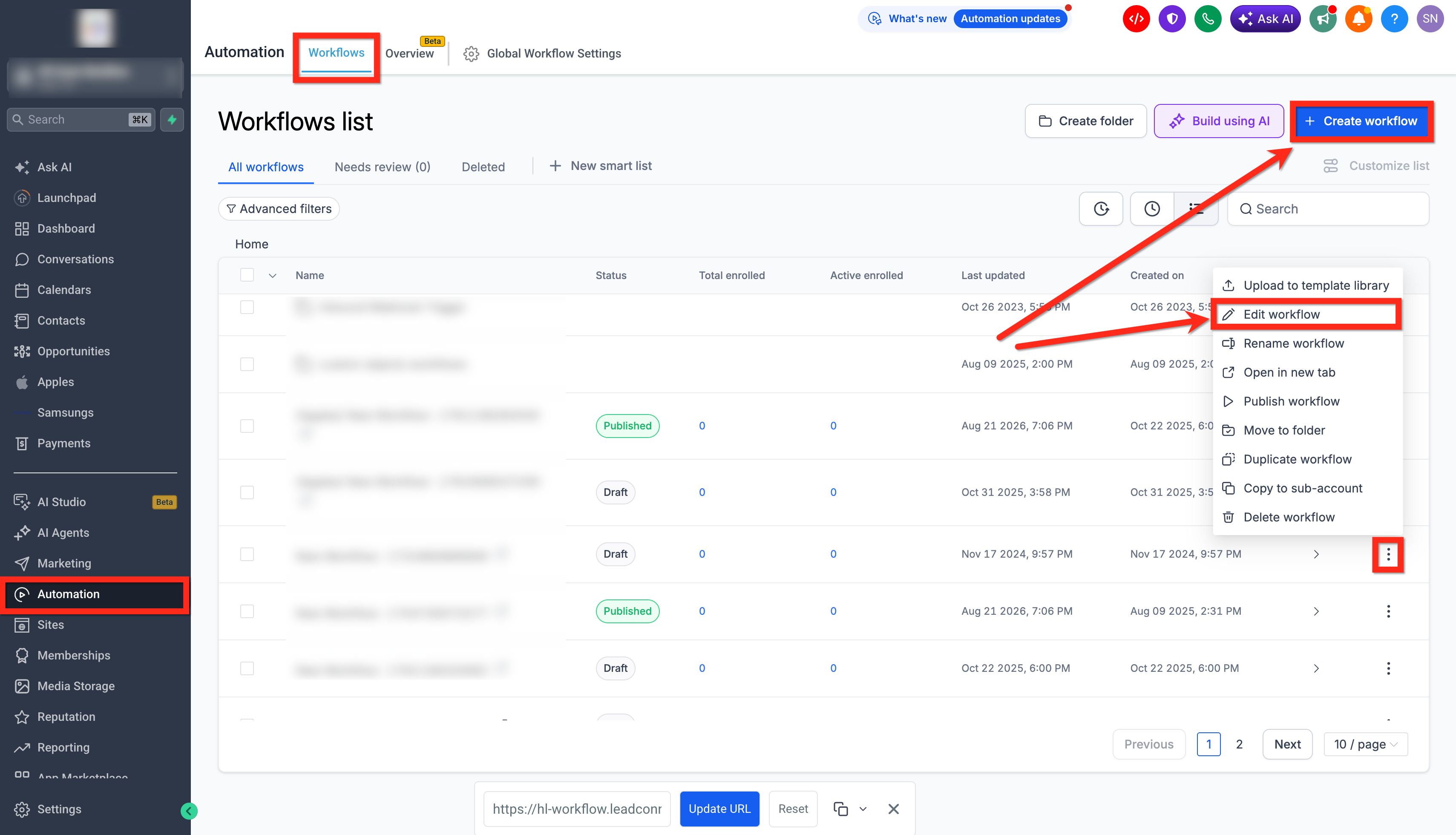
- Open Automation > Workflows.
- Create a new workflow or edit an existing one.
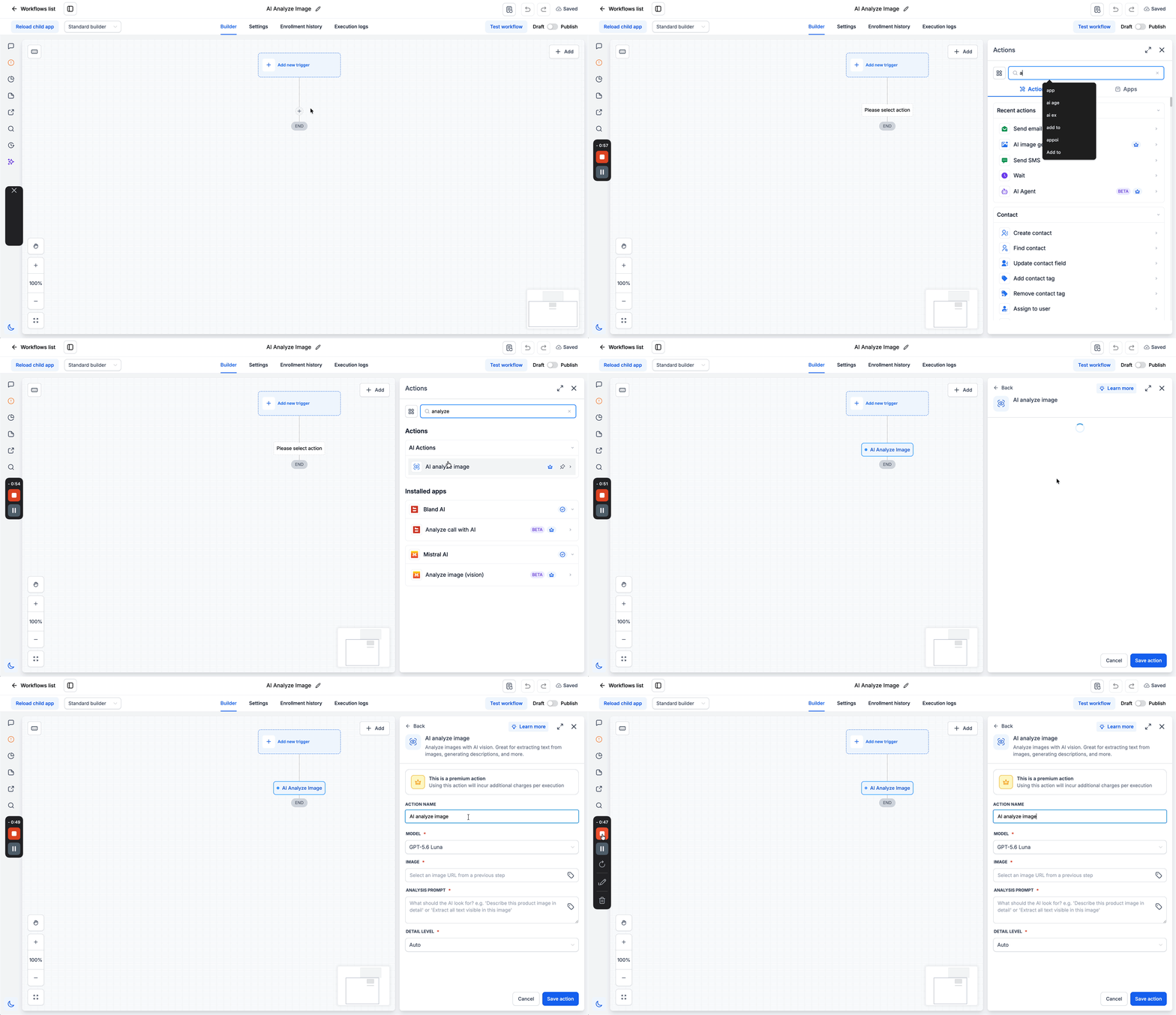
- Click the plus icon to add a new action.
- Find AI Analyze Image under AI Actions and select it.
- Give the action a clear descriptive name.
- Choose the AI vision model, either GPT-5.6 Luna or GPT-5.6 Tera.
- Supply the image URL, pulling it from a prior step or a custom value.
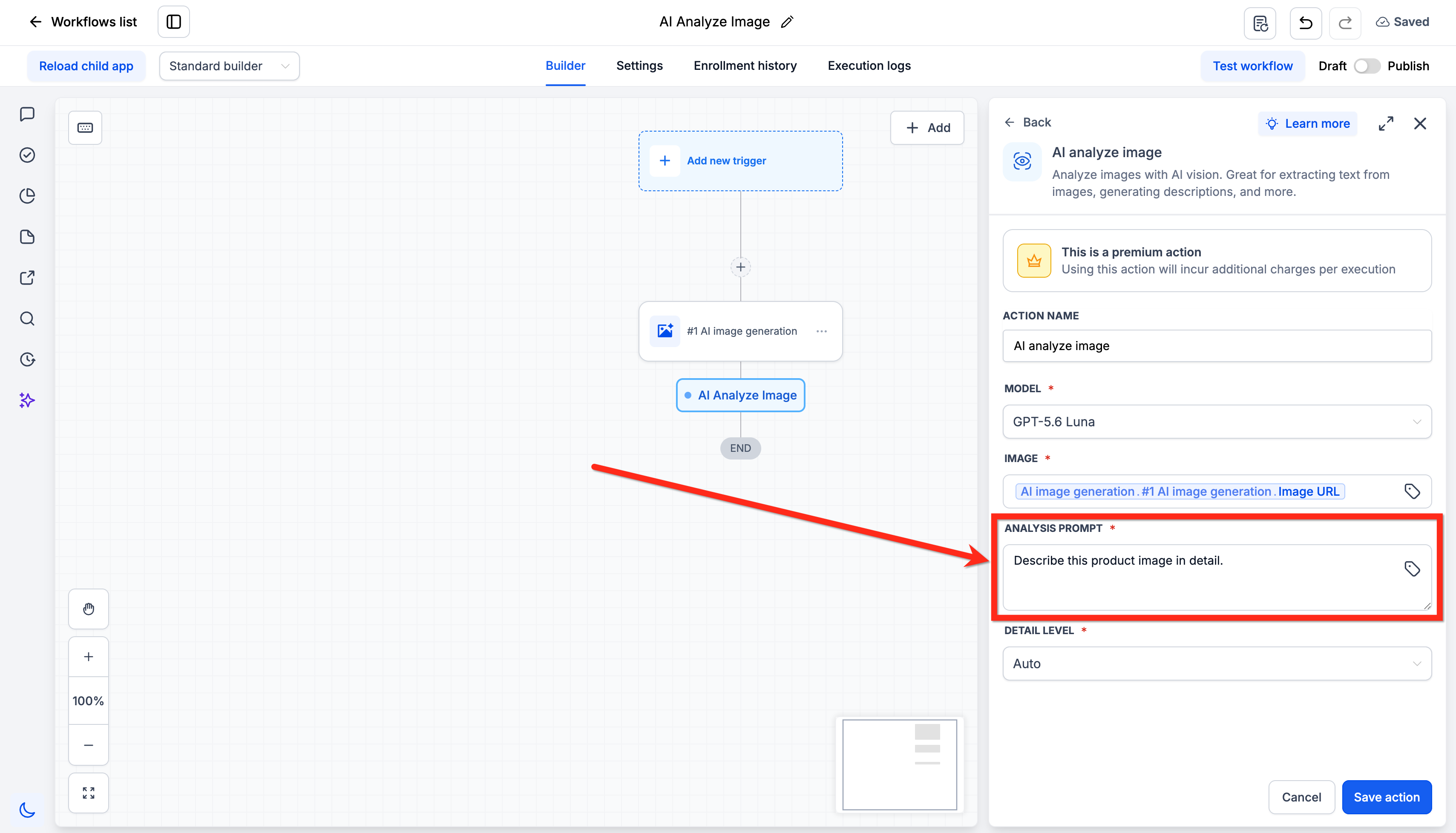
- Write the analysis prompt that tells the AI what to look for.
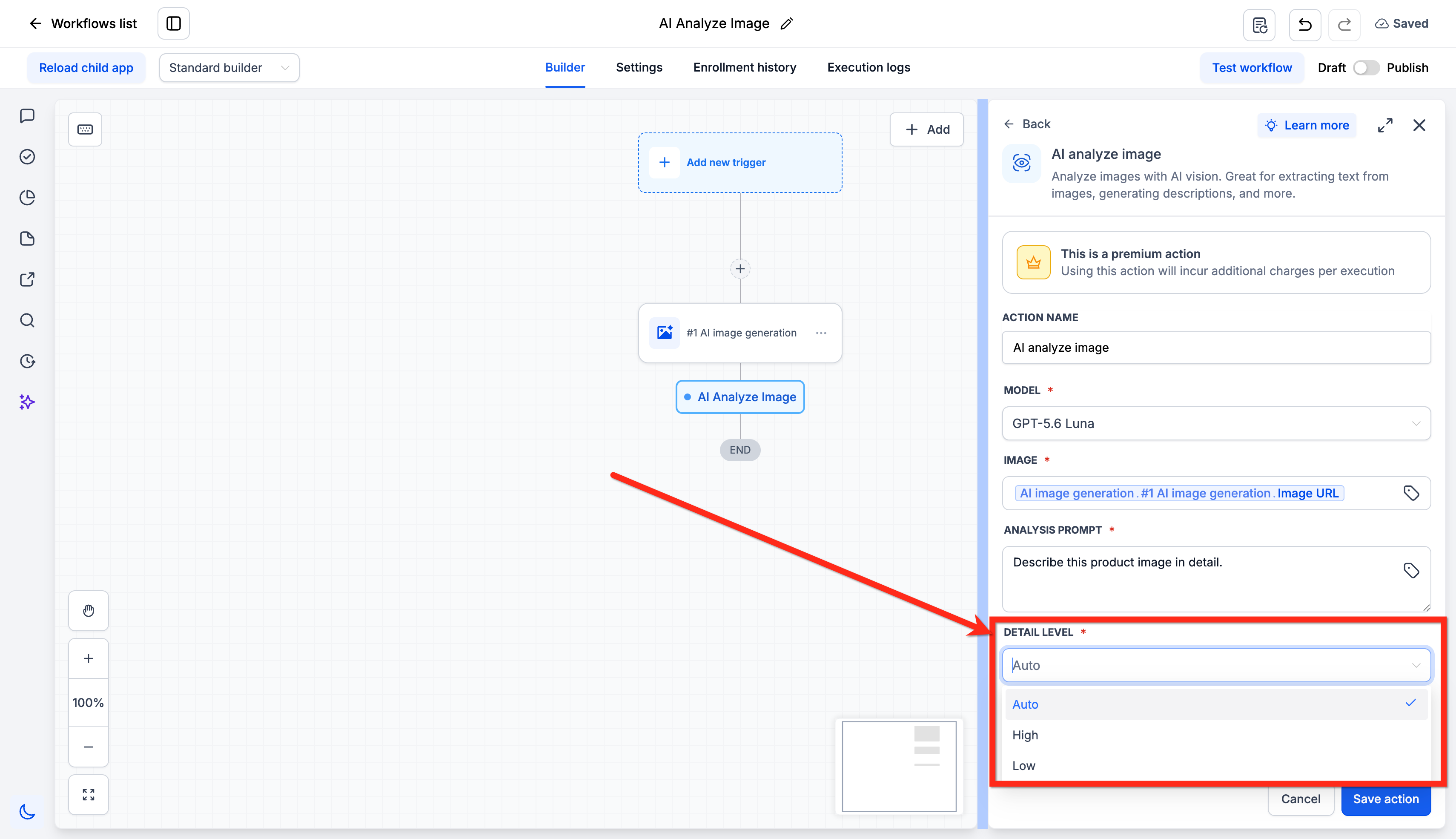
- Select the detail level (Auto, High or Low) and then save the action.
- Verify the image URL loads publicly in a private browser window before publishing.
07What it looks like in HighLevel
08Settings that matter
- Action Name. A label you assign to identify the action on the canvas and in logs.
- Model. The AI vision model that performs the analysis, either GPT-5.6 Luna or GPT-5.6 Tera.
- Image URL. The web address of the image to analyze; it must be publicly reachable.
- Analysis Prompt. The instructions that tell the AI what to look for and how to answer.
- Detail Level. Controls how thoroughly the image is examined; options are Auto, High or Low.
09Things to know before you rely on it
- Each action processes only one image URL.
- The image URL must be publicly accessible without login or token.
- The action is a premium feature and incurs a charge for every execution.
- Cost varies by selected model and detail level, with higher detail costing more.
10If something goes wrong
- Image URL is behind authentication. Provide a URL that loads for anyone, such as by testing in a private browser window.
11How it connects to the rest of HighLevel
- Use AI Extract Data to pull structured data after analysis AI Extract Data
- Add AI Translate if you need the analysis in another language AI Translate
Michael's take

I see this as a small convenience that can quickly reduce manual data entry when customers send photos. The ability to pull text or descriptions straight into a workflow is a neat time saver for any business that deals with receipts, product catalogs, or support screenshots.
A boutique retail brand that receives product photos via a webhook would fit perfectly. The workflow can autogenerate alt text or a short description and feed it back to the catalog system, keeping the team from typing copy manually.