
01Who this is for
- Users with access to premium actions can add AI Decision Maker to automate contact routing without building multiple filters.
- Marketers can simplify workflow maintenance because the AI adapts automatically as contact data changes.
02AI Decision Maker, explained
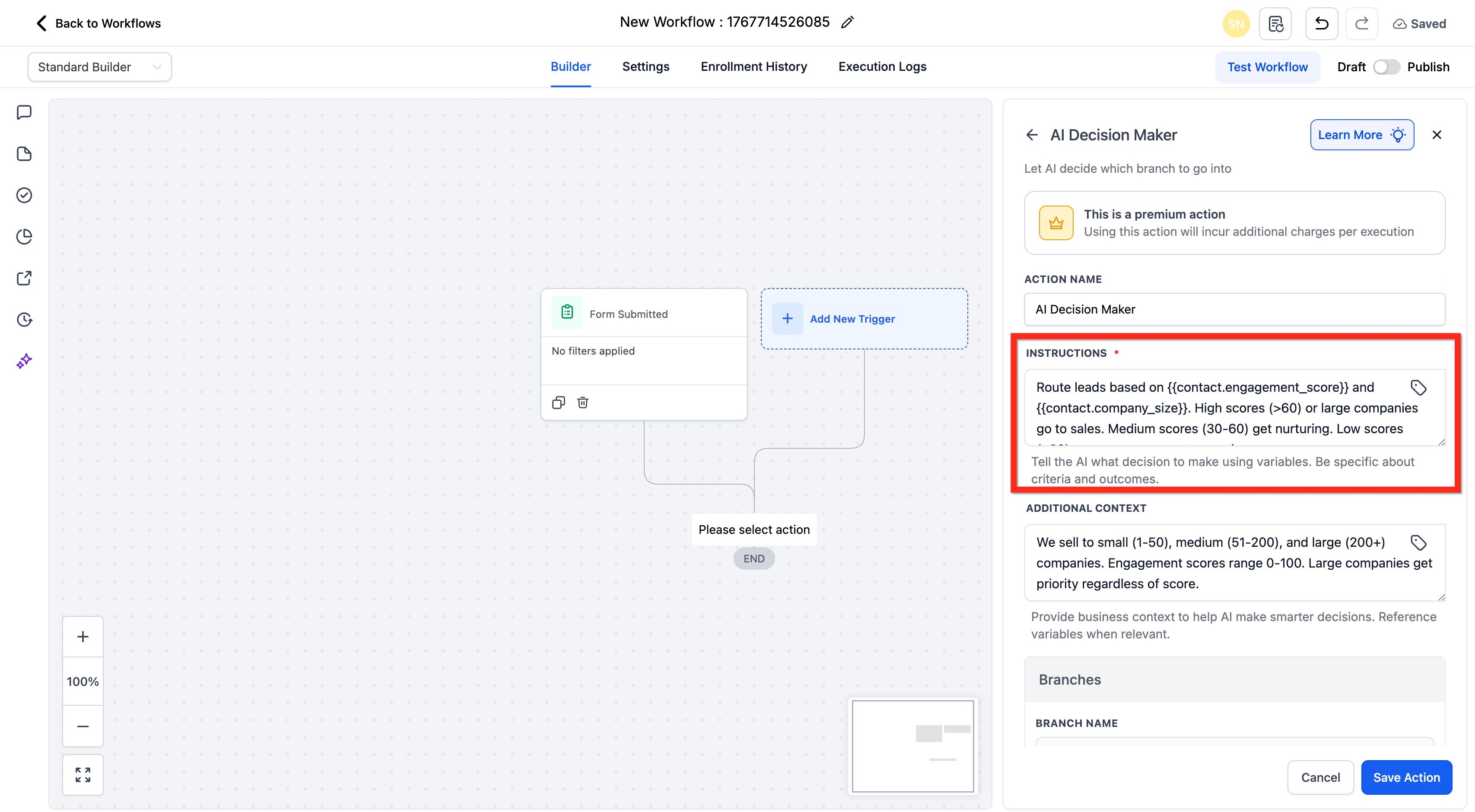
The AI Decision Maker action lives inside the workflow builder of HighLevel. Instead of building multiple if/then filters, you give plain English instructions that describe how contacts should be routed. The AI reads those instructions together with any variables you insert, such as {{contact.engagement_score}} or {{contact.company_size}}, and selects the appropriate branch.
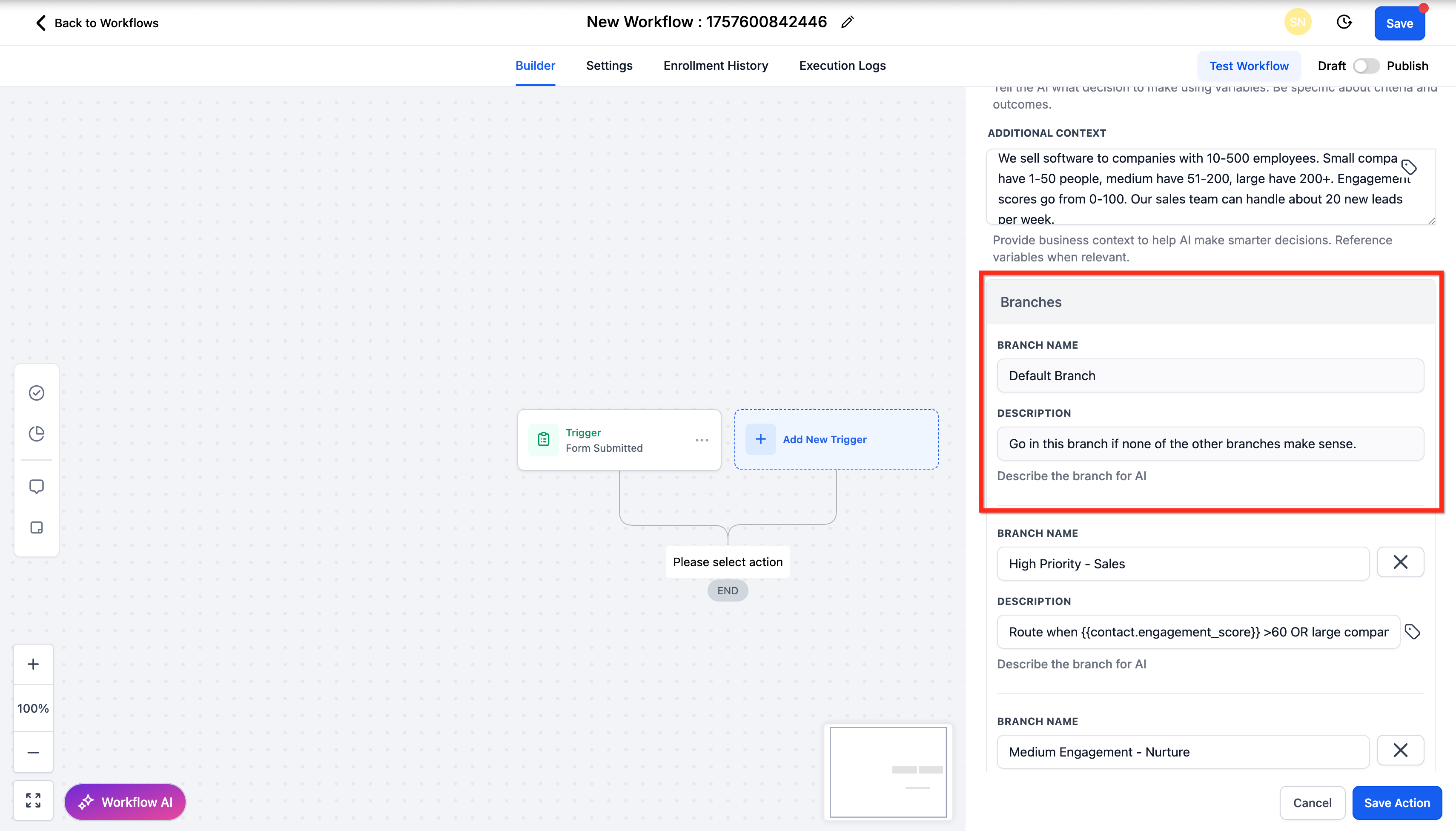
When the action runs, it evaluates the contact’s data in real time and directs the contact to one of the defined branches. A Default Branch is always present as a fallback and cannot be removed or renamed. The action is marked as premium and each execution adds an extra charge.
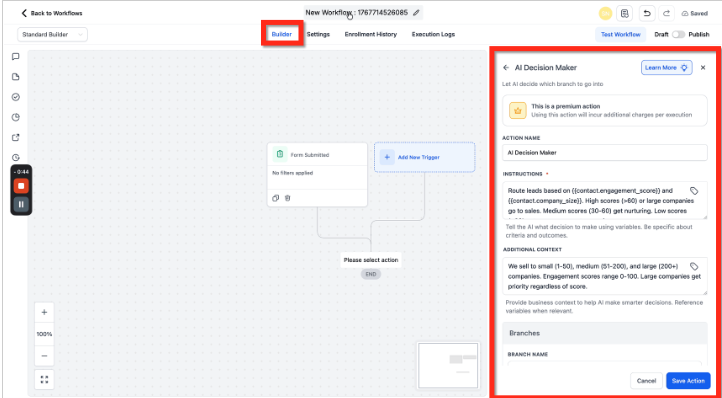
You access it by opening a workflow, ensuring a trigger exists, clicking the plus icon, scrolling to the AI Actions section, and selecting AI Decision Maker. From there you name the action, write instructions, add optional context, and configure custom branches before saving.
03How businesses use AI Decision Maker
- Dental practice. The practice creates a workflow that triggers on new patient form submissions. Using AI Decision Maker, they write instructions that evaluate the patient’s insurance type and appointment urgency. The AI routes high urgency appointments to a fast track branch and routine checks to a reminder branch.
- Ecommerce store. An online retailer sets up a workflow on order completion. The AI Decision Maker receives the order value and customer tier variables, then sends high value customers to a special offer branch while directing low value purchases to a standard follow up sequence.
- B2B consulting firm. The firm builds a workflow that fires when a prospect fills out a discovery form. Instructions tell the AI to look at the prospect’s company size and lead score. The AI places large company, high score leads into the sales funnel branch and smaller, lower score leads into a nurturing branch.
04Before you start
- A workflow trigger must be set before adding the AI Decision Maker action.
- The account must have access to premium actions, as AI Decision Maker incurs additional charges per execution.
05How to set up and use AI Decision Maker in HighLevel
Create or edit workflow
- Log into your subaccount.
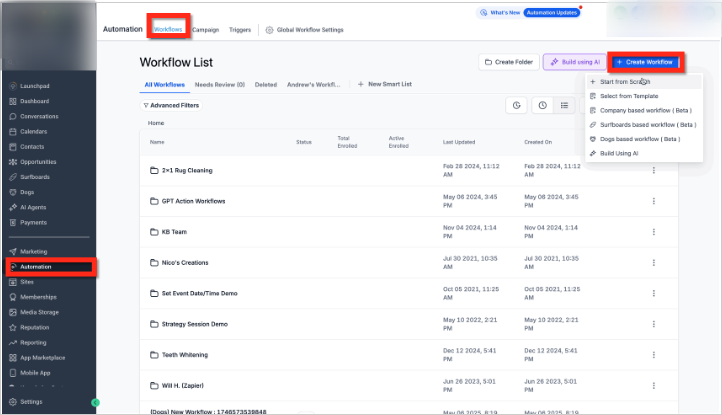
- Click Automation in the left menu.
- Edit an existing workflow or click + Create Workflow to start a new one.
Add AI Decision Maker action
- Make sure a trigger such as Contact Changed or Form Submitted is defined.
- Click the + icon inside the workflow builder.
- Scroll the right side panel to the AI Actions section.
- Select AI Decision Maker.
06What it looks like in HighLevel
07Settings that matter
- Action Name. Provides a label for the AI Decision Maker step to keep complex workflows organized.
- Instructions. The plain English text that tells the AI what data to evaluate and how to decide routing.
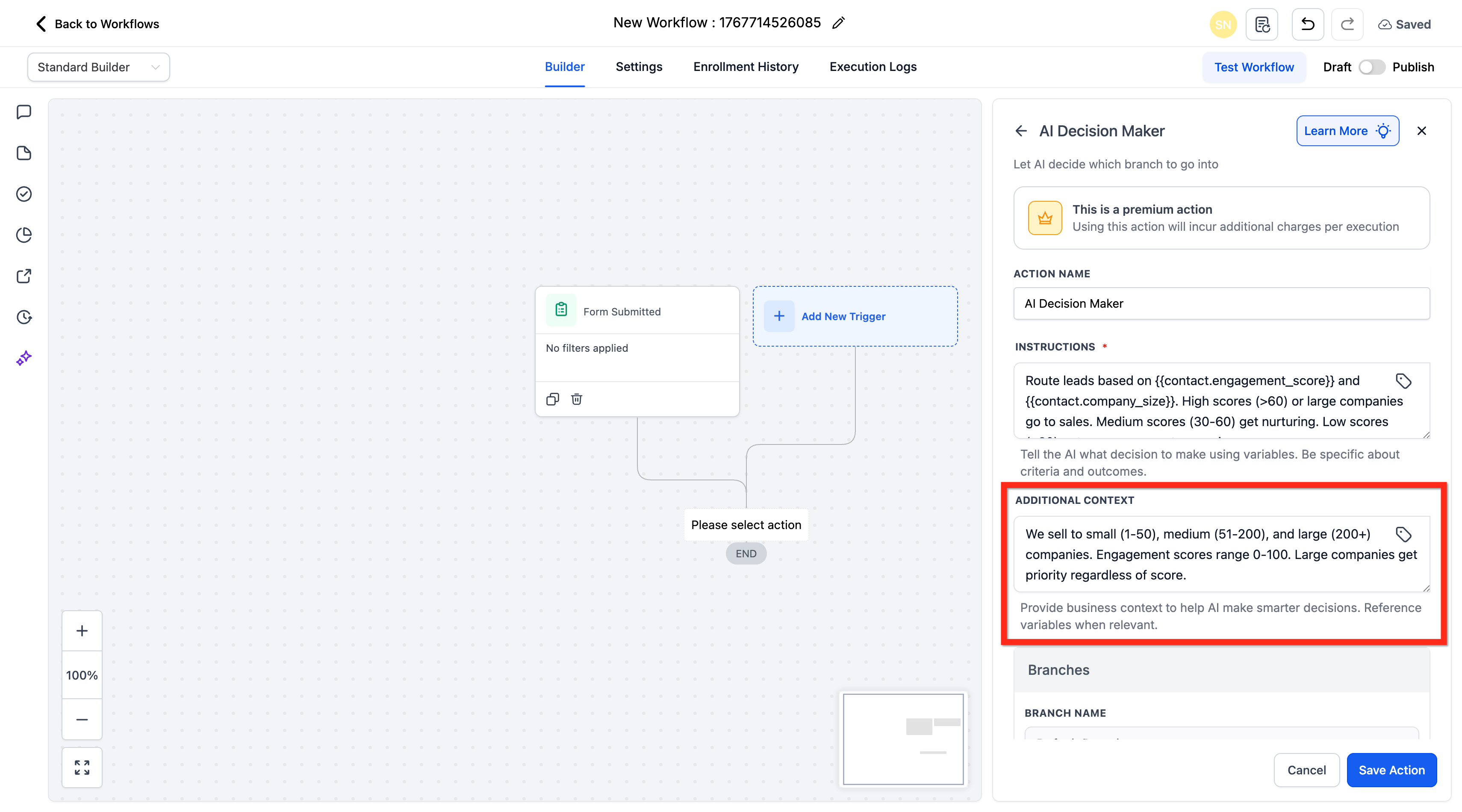
- Additional Context. Optional field where you can supply business rules or segmentation definitions to improve AI accuracy.
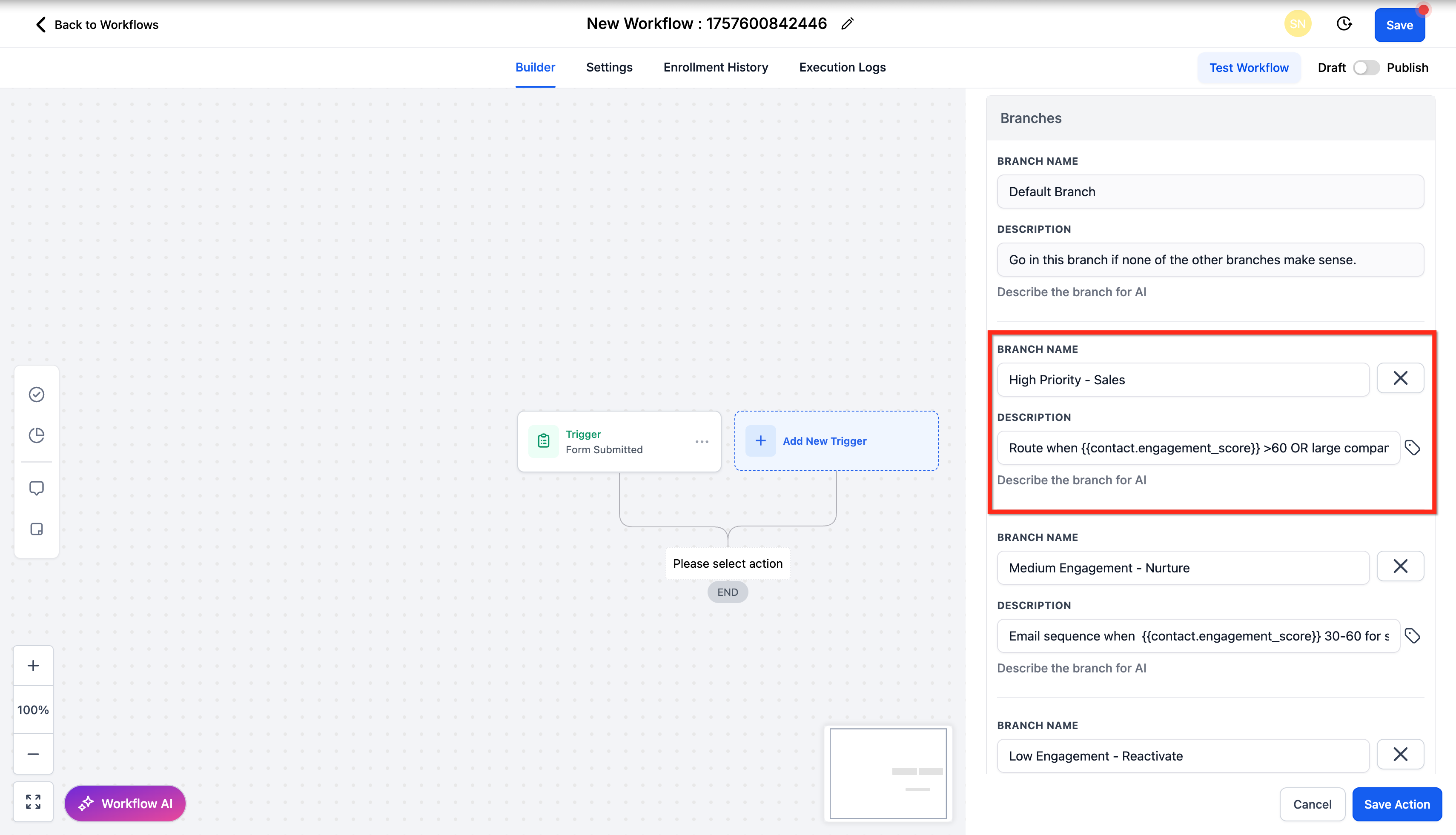
- Default Branch. A permanent fallback branch that receives contacts not matched by any custom conditions; its name cannot be changed.
- Branch Name. The identifier for each custom routing path you create, such as “High Priority, Sales.”
08Things to know before you rely on it
- The action is a premium feature; each execution adds an extra charge.
- The Default Branch name is locked and cannot be deleted or renamed.
- AI accuracy depends on providing relevant variables and context in the Instructions and Additional Context fields.
09How it connects to the rest of HighLevel
- Configure the GPT action for advanced text generation in workflows. GPT action
- Set up AI Intent Detection to classify incoming messages. AI intent detection
- Learn how the AI Summarize action can condense long texts within a workflow. AI Summarize
- Explore the AI Agent action for multi step decision processes. AI Agent
- Review workflow pricing tiers that include premium AI actions. Pricing tiers
Michael's take

I would begin with listing the exact fields that matter. Engagement score, company size, tags. And then craft a concise sentence that tells the AI exactly how to evaluate each. Adding a short block of additional context (like what counts as a “large” company) makes the routing far more reliable.